OpenAI Part 2
By Richard Rost

 3 years ago
Bring ChatGPT to Access with OpenAI's API - Part 2
In today's Microsoft Access tutorial, I'll guide you through the process of integrating the powerful capabilities of ChatGPT into your Access database. We'll leverage the OpenAI API to send and receive data over the web, enhancing your database's functionality and versatility. This is part 2 of 2.
Members
Members will learn how to create multiple bots so that not only can you correct for spelling and grammar, but you could also rewrite the text as if it's being spoken by Mr. Spock or a very polite customer service agent. We will learn how to integrate error handling in case OpenAI returns an error message, and we will take this and build it into a custom function so you can use it from anywhere inside your database, not just one form.
Silver Members and up get access to view Extended Cut videos, when available. Gold Members can download the files from class plus get access to the Code Vault. If you're not a member, Join Today!
Prerequisites
Links
Recommended Courses
What's Next?
Keywords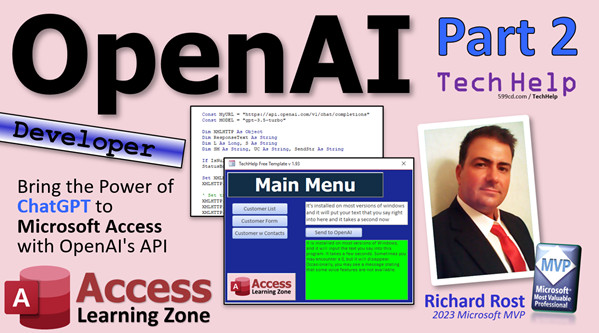
Web api, webapi, ChatGPT, OpenAI API, API Tutorial, OpenAI with Microsoft, GPT-4, Microsoft Access API, ChatGPT in Access, OpenAI GPT, Web Data in Access, API in Database, ChatGPT Tutorial, Database Automation, Access API Guide, Natural Language Processing, NLP in Access
 Subscribe to OpenAI Part 2
Get notifications when this page is updated
More InformationTranscript Welcome to another TechHelp video brought to you by accesslearningzone.com. I'm your instructor, Richard Rost.
Today is part two of my OpenAI video series where I'm teaching you how to bring the power of ChatGPT to Microsoft Access using OpenAI's API. If you haven't watched part one yet, go watch part one and come back after that. We will now resume our program already in progress.
My code in my other database is just slightly different, so I apologize. I have to change that to XML.http right there. It's the same object. You have to set the content type to JSON. It's a JSON string, which looks like that. It's just a different format for information. Then we have to say "bearer" and API key. These are request headers, by the way; they're headers that get sent before the actual data. It's letting them know, "Hey, we're working with JSON here," and, "Oh, here's my API key by the way."
Now we're going to add three more variables. We're going to have a system message, sm as string. We're going to have user content as string, and then we're going to have the final string that we're going to send to ChatGPT. We'll call it the send string as string.
The system message is basically going to be your instructions to the AI. So we're going to say, "Please format the following, correcting for spelling and grammar." The user content is what your user is sending to the AI; in other words, your paragraph of text that you want to be corrected. The user content is going to be equal to, let's make it myText, which was this field over here on the form.
Now the send string, we have to take this stuff, format it together with the model and the rest of the JSON formatting to build a body that we're going to send with the HTTP request. That is what it looks like. That's a properly formatted JSON string. All the double double quotes mean we need quotes inside of brackets inside of brackets inside of parentheses, but this is what you have to type in, so everybody get typing. Gold members, you can just copy this if you want to right out of the database.
It's basically saying the model is "gpt-3.5-turbo." Then the messages: role system, content is the system message we just gave it here; role user, content is the text that the user is sending. Basically, you can tell it, "Format this for spelling and grammar," or, "Act like you're a drill instructor," or "reply as if you're a drill instructor" and so on. There's two parts to it. There's the system message, which is explaining to the bot, training it on what it needs to do, and then there's the user content, which is the actual text that it's going to be working with.
You have to do this; you have to send it these two parts because, unlike ChatGPT, where it remembers the entire conversation each step of the way, the AI is stateless at this point. In other words, it doesn't remember previous requests. So if you have to send it a follow-up question, you've got to send it the previous stuff as the system message. I'm going to cover this in a future video. From what I've read, OpenAI is working on a way to make the AI for the API stateful, where it does remember previous inquiries. For now, it only works one message at a time. So if you want to send other instructions, you have to put it as part of the system message.
We should have a valid send string at this point. Let's just take a peek at what we got. We're not going to do anything here; we're just going to status the send string, and then exit sub. I just want to see what that looks like at this point, make sure we have everything looking good.
Let's come back out here and close this. Let's go back up again and click the button. Whoops, hold on. Oh, okay. It's because I still have remnants of the other stuff in here. In fact, we can get rid of all of that because it doesn't know what that is. Save it. Let's throw in a debug compile. Whoops, wrong one. Debug compile. Okay, now let's try it. "Don't support," what did I do? Okay.
Oh, I forgot an important step. I forgot to change this. We have to change this to a slightly different object. It's going to be this one. There, it's just ServerXMLHTTP. My bad. I'm leaving this mistake in there because that's gotten me a couple times and it took me a while to figure out what was wrong.
All right, click, and in values of null. What else have we got? Okay, myText is null. So let's put that check up top here. Let's put it after the dim statements. If IsNull(myText) then exit sub. If they don't put anything in the box, nothing happens. So I'm going to put in here: "Hi, today is my birthday. Yay." And then click "Send" and there's our string. Now we're cooking with gas.
Yes, I'm copying and pasting code from another database that I built that I use for myself. Some of the variables are different, some of the stuff I forgot to change. Sorry. I'm still saving you a ton of time over what it took me to figure all this out. Here you can see this is what's going to get sent to ChatGPT. We're telling it, "Please format the following correcting for spelling and grammar," and the user content is "Hi, today is my birthday. Yay."
Now we can actually send it. Let's come in here and get rid of this stuff. Right in here, instead of just a send, we are now going to send the send string. That is a parameter right there. Save it. Down at the bottom, we will status the response text and show what it got.
What I like to do is, before we're sending it, before we hit the send string, I like to say StatusBox.BackColor = vbYellow; that just visually indicates to me that we're in the process of sending stuff. When it comes back and we're done, I'm going to say StatusBox.BackColor = vbGreen so we know we got a successful one. You can do error checking and look for errors and all that stuff, and I'll cover that maybe in the extended cut for the members.
Debug, compile, let's give her a shot. Actually, let's blank the StatusBox up top here. So right here StatusBox = "" to get rid of any leftover content. Here we go. Click "Send."
"You exceeded your current quota. Please check your plan and billing details." That's because I'm using that test key which doesn't have any credit on it. So I'm going to go and switch it to my actual key that you're not going to be able to see. I believe that the reason why I didn't get any free credits is because my phone number is already associated with my other account. I think it's based on your phone number because you get some free credit to start with, but I'm not sure, so don't quote me. I'm going to switch my key now. I'll be right back.
I switched my API key, but at least this here can show you that we're getting a response back from OpenAI. They're sending us some stuff. Here we go: send to OpenAI, click. There we go. Here's what we got back. Let me zoom in so you can see it better.
It's got a bunch of other information in here that we don't need. It's got the ID, the request, the completion, the model, and so on. Right down here, after "content," is our corrected text. See that? So now we just have to do a little cleanup using my FindBetween function to find that text in that string.
We're going to look for the text that's between "content" right here and the opening quote, then look on the inside. Then we'll trim all the rest off the end of that line. That's what we're going to do here.
We're going to come back into our code, and right here we're going to clean up or pull out the data that we need. First, we need my FindBetween function. Here's the FindBetween video. I'm going to go down to the Code Vault, which gold members can also go to and find out. There it is right there. There's the FindBetween code. You all can get typing if you're not a gold member. I'm going to hit copy, let's put this in the global module; I'll just put it right down here. Boom. There's FindBetween.
Here's the next line of code we need: we're going to say responseText = FindBetween(responseText, """content"": """, """}"""). That's from here. We're looking for that, and then on the other side, we're going to look for this.
After we've cleaned it up, let's see what it looks like now. Save that, come back out here, and do it again. Click, and when it comes back: "Today is my birthday. Yay." We still got that quote on the end.
My yellow is not working. That's probably because there's nothing to refresh the screen in here. We could put a Me.Repaint or we could just put in here: set it to yellow and then right after that say StatusBox = "Sending to OpenAI" like that. When it comes back, we'll clear it again: StatusBox = "" and put the response text in there, then set it to green.
Now we know what we're getting. We have to clean off that trailing quote. We're going to say: if the right of responseText, 1, equals a double quote, then responseText = left(responseText, len(responseText) - 1). That's how you chop a character off the right side.
All right, here we go. Let's do it again. Click "Send to OpenAI." Today's number... oh, it didn't get there; there must be more characters at the end of that string. I'm going to share with you another little function that I wrote, called DeleteTrailingCharacters. What it basically does is, it looks at the end of a string, and if it's Chr(10), Chr(13) (which are new line and line feed), or if it's a space, or if it's a quote, or if it's a tab (Chr(9)), then it chops that character off. It just looks at the end of the string and gets rid of any undesirable characters at the end. I wrote this for myself. I didn't think I'd need to use it today, but I guess I do.
Now, instead of this monster thing here, we'll just say DeleteTrailingCharacters responseText. Even though it's a function, don't put parentheses around it because I'm not handling it as a typical function; I'm sending it as ByRef so it's actually modifying the string you send it. Just type it in like that. Do what I tell you to do.
Save it, debug, compile, come back out here, hit the button and there you go. "Today is my birthday. Yay."
What you can do, what I do sometimes, is just voice dictation right into this box. Windows voice dictation is Windows Key + H. It's installed on most versions of Windows and it will put your text that you say right into here and it takes a second. Sometimes you get this message that says, "Some voice features aren't available." It takes a second, but there it goes.
So be a little more careful with it, but here's all the text that I just said. Now we can send that to see what OpenAI does, correcting it for spelling and grammar. There you go. It put some periods in there. It works. It's pretty cool. You can use this in Access. You can use it for all kinds of other stuff.
In the extended cut for the members, I'm going to show you how to set up multiple bots so you can tell your bot, "Hey, don't just correct for spelling and grammar; reply as if you're Mr. Spock. Reply as if you're Jean-Luc Picard. Be super friendly." Sometimes this happens to me: you get customer service emails and they're being rude, but I want you to take the text I say and make it sound super polite and friendly for customer service. Or, be very professional. Sometimes if I'm contacting another company, I want to sound like I'm very professional instead of the goofball that I usually am. You can make it create bullet points out of a bunch of text that you send it; whatever you want to do, you can train the bot before you send it the text. That's what that system message is for. I'm actually going to show you how to do that.
I'm also going to show you how to handle custom errors. Sometimes if what you send to OpenAI doesn't work for any reason, whether it's a poor network connection or something drops or whatever, it'll return an error message. I'll show you how to handle that. We'll turn all this into a custom function so it's not just code in a form. That's all covered in the extended cut for the members.
Silver members and up get access to all of my extended cut videos, not just this one; all of them. There are hundreds of them by now. Plus you get free classes and all kinds of other cool stuff. Gold members, you can download these databases and you get the Code Vault. There are so many reasons to join. What are you waiting for? Join today.
That's going to be your TechHelp video for today. Moving forward with this, I'm going to do the extended cut for the members, but beyond that, I'm not going to do many more TechHelp videos on this because it's not really a Microsoft Access topic even though there's a lot you can do in your Access databases. I know that a lot of you out there do not want to pay for an API key, so I'm not going to spend a lot of time doing more free videos on OpenAI.
I am planning on putting together a seminar where I cover lots and lots of stuff. This is an ever-evolving field; this AI stuff is taking over. I plan on doing a lot more videos on it, just not ones I'm going to put on YouTube for free because I know a lot of people won't watch them. If you are interested in learning more about OpenAI as far as using it with Microsoft Access, post a comment down below. If I get enough people that are interested, I'm going to put together a seminar relatively soon.
I have a whole bunch of other cool stuff that I'm doing with OpenAI. For example, when I finished a video, I used to freeform everything by hand: write the description, write all the text on YouTube, copy and paste a lot of stuff. Now, I built a database with OpenAI where I put in a few things and it writes all that for me. I can literally give it the transcript of the audio from my video and it will put together the outline. I'm in the process of building a database to actually write my handbook for me. There is a lot of cool stuff you can do with this and I've just scratched the surface.
If you want to learn more, put a comment down below. If enough people are interested (these are going to be paid lessons, not free), let me know.
That's it. That's your TechHelp video for today. I hope you learned something. Live long and prosper, my friends. I'll see you next time. Also, post a comment down below if you've done something cool with OpenAI in your Access database. I want to know about it. What kinds of cool stuff are you doing?
Take care. Intro In this video, I continue showing you how to integrate ChatGPT into Microsoft Access using OpenAI's API. You'll learn how to properly format JSON requests, set up system and user messages, handle API responses, extract the corrected text, and clean up any unwanted characters. I'll walk you through making HTTP requests, managing API keys, and updating your Access form to display the AI's responses. We also cover useful VBA functions for string manipulation and even how to use Windows voice dictation to input text. This is part 2. Quiz Q1. What is the primary purpose of the JSON string in the code example shown in the video?
A. To format the database records in Access
B. To specify the user's password for authentication
C. To structure the data sent to OpenAI's API
D. To encrypt communication between Access and OpenAI
Q2. In the context of the OpenAI API usage in Access, what does the "system message" represent?
A. The text that the user is inputting for correction
B. The instructions given to the AI for how to process user input
C. The API key required for authentication
D. The error message returned by the server
Q3. What is the main function of the "user content" variable in this example?
A. It determines the color of the status box
B. It holds the user's input text to be sent to the AI
C. It stores the name of the database table
D. It contains error codes from OpenAI
Q4. Why must both the system message and user content be included when sending a message to the OpenAI API?
A. To reduce data traffic
B. Because the AI is stateless and does not remember previous messages
C. To comply with Microsoft Access requirements
D. To help with database indexing
Q5. When preparing the request to OpenAI's API, which content type must be set in the headers?
A. text/html
B. application/xml
C. application/json
D. text/plain
Q6. What is the model used in the API request as shown in the video?
A. text-davinci-002
B. gpt-2.7
C. gpt-3.5-turbo
D. curie-001
Q7. What should you do if the myText input box is left empty before sending a request?
A. Send a default string
B. Exit the subroutine without sending anything
C. Display an error on the screen
D. Automatically insert "Hello World"
Q8. What does setting "StatusBox.BackColor = vbYellow" indicate in the workflow described?
A. The API has returned an error
B. Data is being saved to the database
C. The program is in the process of sending data to OpenAI
D. The response from OpenAI has been received successfully
Q9. Why is it necessary to clean up the response string from OpenAI before displaying it to the user?
A. To remove formatting tags not understood by Access
B. To extract the relevant content from the returned JSON
C. To translate the text to another language
D. To comply with GDPR regulations
Q10. What does the FindBetween function help accomplish in the code?
A. Encrypt the request body before sending
B. Find and extract a substring between two delimiters in a string
C. Locate a missing variable in the database
D. Track API usage statistics
Q11. What does the DeleteTrailingCharacters function do?
A. Adds a period at the end of every sentence in the string
B. Removes unwanted characters like spaces, quotes, and newlines from the end of a string
C. Capitalizes all words in the response
D. Removes all lowercase letters from the end of a string
Q12. What shortcut activates Windows Voice Dictation as shown in the video?
A. Ctrl + V
B. Alt + D
C. Windows Key + H
D. Shift + Enter
Q13. According to the video, how can you train the AI to respond in specific ways, such as being more professional or friendly?
A. Change the user content
B. Update the API key each time
C. Customize the system message with specific instructions
D. Modify the Access database schema
Q14. Why does the instructor mention that the AI, via the API, is stateless?
A. It only works with online databases
B. It does not remember any previous conversation or messages between requests
C. It cannot return a valid response without a state
D. It requires continuous network connectivity
Q15. What is necessary to do if you want error handling and more functionality, according to the instructor?
A. Write all code in the form itself
B. Join the extended membership for access to advanced tutorials
C. Add more tables to your Access database
D. Change from JSON format to XML for the API request
Q16. For users who wish to download the sample databases and view the code vault, what membership level is required?
A. Free member
B. Silver member
C. Gold member
D. Bronze member
Q17. What is one practical example mentioned for using OpenAI in Access that goes beyond correcting spelling and grammar?
A. Generating complex passwords
B. Creating bullet points from text or rephrasing as specific characters
C. Encrypting Access tables
D. Running SQL queries automatically
Q18. If you need to provide OpenAI with previous conversation context in a follow-up API call, what should you do?
A. Wait for OpenAI to release stateful API
B. Send previous conversation as part of the system message
C. Reset your API key
D. Use only the user content field
Answers: 1-C; 2-B; 3-B; 4-B; 5-C; 6-C; 7-B; 8-C; 9-B; 10-B; 11-B; 12-C; 13-C; 14-B; 15-B; 16-C; 17-B; 18-B
DISCLAIMER: Quiz questions are AI generated. If you find any that are wrong, don't make sense, or aren't related to the video topic at hand, then please post a comment and let me know. Thanks. Summary Today's TechHelp tutorial from Access Learning Zone covers part two of my series on integrating OpenAI and ChatGPT with Microsoft Access using the OpenAI API. If you missed part one, I recommend reviewing it first because this lesson continues with concepts already introduced.
In this segment, I focus on refining the communication between your Access database and the OpenAI API. There are a few differences between the example code I use today and what I showed previously, mostly involving the object type for HTTP requests. The content type must be set to JSON, as the API expects JSON-formatted requests. The header must also include your API key using the "bearer" format; these headers serve to let OpenAI know that the request is formatted as JSON and to authenticate your connection.
Next, I introduce three new string variables you'll need: a system message, user content, and the "send string." The system message provides instructions to ChatGPT, such as "Please format the following, correcting for spelling and grammar." The user content holds the actual text you want to process, typically from a text field on your form.
To build the "send string," you combine these pieces into a properly formatted JSON object. This includes specifying the model (like "gpt-3.5-turbo"), the system message role, and the user input. The separation of roles is important: the system message instructs the AI on how to behave, while the user content provides the actual material to work with. This structure is required because requests through the API are stateless—OpenAI does not retain a history of your conversation. If you need consistency across multiple messages, you have to resend the relevant context each time.
Once the send string is assembled, I recommend validating it before actually making the API call. This is a good opportunity to check your output and verify the string is correctly formatted. During testing, if you run into errors like using the wrong HTTP object or leftover code from previous iterations, take the time to clean up your code to prevent confusion.
Before sending the request, make sure the user has entered some text. Use a simple IsNull check to exit gracefully if the input is blank. Once the request is ready, you can send it to OpenAI and display the server's response in a status box on your form. For extra clarity during processing, you can change the status box's background color to yellow and then to green once the response is received.
You might encounter warning messages from OpenAI, such as exceeding your quota, especially if using a test key. At that point, you'll need to switch to a valid API key. The fact that your Access application receives a response—even if it's an error—means your integration is working.
The response from OpenAI contains a lot of metadata along with the actual result. You're interested in extracting the text after the "content" label. For this, I use a custom FindBetween function which you can implement to isolate the relevant portion of the response. This function locates the desired substring between specific starting and ending text markers.
After extracting the content, you may still have extraneous characters such as trailing quotes or whitespace. I use another custom function called DeleteTrailingCharacters to remove unwanted characters such as spaces, quotes, tabs, or line breaks from the end of the string. This final step ensures you only display the cleaned-up, corrected text.
As a practical tip, you can use Windows voice dictation (Windows Key + H) to quickly input text into your Access form. This is helpful if you want to test correcting spoken phrases for spelling and grammar via ChatGPT.
In the Extended Cut for members, I demonstrate how to set up multiple different bots—each with unique system instructions, such as emulating specific personalities or communication styles. This allows you to configure bots that act professional, friendly, or even mimic well-known characters. I also cover handling custom errors, transforming this code into a reusable function, and other advanced features. Silver members and above can access all my Extended Cut videos, plus additional resources like free classes. Gold members can also download the sample databases and access my Code Vault.
Please note, while I will continue to cover some aspects of OpenAI integration, I do not plan to produce many more free tutorials on this specific topic since it lies outside the core focus of Microsoft Access and requires an API key that not everyone will want to purchase. However, if there is significant interest, I am considering putting together a comprehensive seminar on using OpenAI with Access.
OpenAI can be put to creative use for tasks like writing descriptions, generating YouTube outlines, or even assembling handbooks based on database inputs. If you want to see more in-depth training materials on this subject, leave a comment on my website to let me know.
You can find a complete video tutorial with step-by-step instructions for everything discussed here on my website at the link below.
Live long and prosper, my friends. Topic List Setting the content type to JSON in an HTTP request
Adding OpenAI API key as a bearer token in headers
Declaring and using system and user message variables
Building a JSON string for the ChatGPT API
Formatting system and user content for the API request
Sending HTTP requests from Access VBA to OpenAI API
Displaying status with StatusBox and BackColor changes
Checking for null input before sending to API
Debugging by viewing the constructed JSON string
Handling OpenAI API key quota errors
Extracting the relevant content from API response
Using the FindBetween function to parse response JSON
Trimming trailing quotes from response text
Creating and using a DeleteTrailingCharacters function
Integrating Windows voice dictation into Access form
Displaying corrected text returned by ChatGPT Primary Topics Microsoft Access VBA, OpenAI API integration, JSON request construction, API authentication, prompt engineering, response parsing, debugging methods
Secondary Topics Status notifications in VBA forms, API error handling (brief mention), voice dictation for inputs
|




