Static Variables
By Richard Rost

 2 years ago
Using Static Variables for Code Control in MS Access
In this Microsoft Access tutorial, I'm going to teach you how to use a static variable to remember what happened the last time a particular procedure ran. Static variables have some benefits over other types of persistent data types like global variables, hidden form fields, or TempVars.
Oscar from Burien, Washington (a Platinum Member) asks: I just watched your "Select Text on Click" video, and it works great, thank you. However, if I do want to edit some text in the middle of that field, is there a way that I can have it so the code doesn't run the second time you click on that field?
Members
There is no extended cut, but here is the database download:
Silver Members and up get access to view Extended Cut videos, when available. Gold Members can download the files from class plus get access to the Code Vault. If you're not a member, Join Today!
Prerequisites
Links
Recommended Courses
Keywords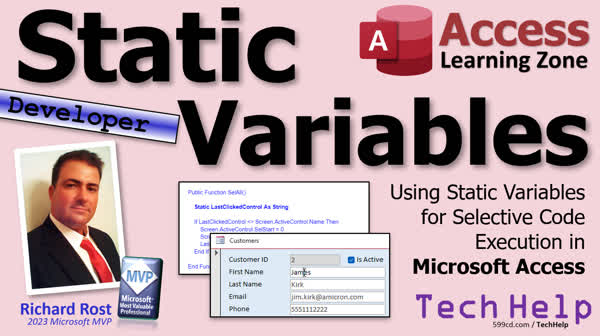
TechHelp Access, static variables, selective code execution, Access VBA, procedure calls, Select Text on Click, global vs static variables, TempVars, Access form customization, debugging in VBA, VBA scope.
More InformationTranscript In today's video, we're going to learn about static variables: what they are, what they do, why you'd want to use them, and how to use them to control the code execution in your procedures.
Today's question comes from Oscar in Birian, Washington, one of my Platinum members. Oscar says, I just watched your select text on click video and it works great. Thank you. You're welcome. However, if I do want to edit some text in the middle of that field, is there a way I can have it so the code doesn't run the second time you click on that field?
Yes, it's definitely possible if you know how to make the code remember that it just ran on that field a minute ago. I'll show you how with a static variable. But first, let me explain to everybody else what you're talking about.
For everybody else, if you haven't watched this select text on click video, go watch this first. Essentially, this allows you to make a field in Access behave like a cell in Microsoft Excel.
Normally the way Access works is when you click on a cell, it just puts your cursor right there wherever you click. But sometimes, especially if you usually overwrite what's in that cell, you want it to behave more like Excel does so that if you click on a cell, it highlights the whole thing.
You can achieve that through tabbing, but a lot of people like to use the mouse. You want to be able to click here and just type over it. The problem is that it's hard now to then click a second time and put the cursor right where you want it. Every time I click, it still highlights the entire cell.
So what Oscar is saying is, is it possible so that when I click on it, it selects the whole cell, but the second time I click on it, it then lets me put the cursor where I want, which you can't really easily do right now.
The way that we could do this is to simply have Access remember that I just clicked on this particular field a moment ago, and this is the second click.
How do we accomplish this code? We created a function in the last video called select all, cell all. If we go into our code editor, let's find it. Where's select all? Is it in this form? No, I think we put it in the global module. Yep, there it is right there. Screen.activecontrol.selstart. So that says, whatever the active control is, we're going to set the selection start to zero. That's before the first character. We're going to set the selection length equals the length of the text in that field, and that is what selects the entire block of text.
Now what we have to do to get this to work the way Oscar wants is we have to tell the select all function, you've got to remember what the last field the user clicked on was. There are a lot of different ways to do this. You could use a global variable. You could use a hidden form field somewhere like on the main menu. You could use tempvars, especially if you are Adam, you're going to use tempvars. But static variables are probably the best thing to use here.
A static variable only lives in this function, but it remembers its value between function calls. You declare it here. You don't have global variables cluttering your database, and you don't want too many global variables because they get hard to keep track of. You might accidentally reuse it somewhere else. They are just a pain.
But a static variable only exists inside this function. So only this function can use it and read its value, which is what you want here. But it's less cluttering in the database too. And yes, tempvars will work, but tempvars have their place. I think a static variable is probably best for this one.
So how do we set this up? The first thing we're going to do is we're going to create a static variable. It's declared with the word static. What do we want? We want to remember what the last clicked on control was, so we'll call it last clicked control, and that's going to be a string. That's going to be the name of a field.
Yes, technically, you could have the same field name on multiple forms. I get it. But I think for the purposes of this, this should work just fine. If you click on the same named field on two different forms, your code is not going to run, but it's not going to make a big difference. If you want to get more creative and add the form name in here too, sure you can. I think this is fine.
Now, we want to say if the last clicked control is not the same as screen.activecontrol.name, that's the name of the field that the user just clicked on. If that's different, we need to then, if that's different from what the last clicked control was, then it's okay to run this code because they're moving from field to field to a different field. Or the first time this initializes, it's going to be null, and so this will run the first time.
We're going to put this code inside of this if then block. One more important thing we have to do though, once this code runs, now we have to set that value. We're going to say last clicked control equals screen.activecontrol.name.
So the first time it runs, it's going to check and say, what was the last active control? Oh, you're null? Okay, so it's not the same as that. Run the code, set last clicked control to "first name," whatever you're on. Good. Now the user clicks on "first name" a second time, but this time last clicked control equals screen.activecontrol.name, so this code won't run, and Access will behave just like it normally does.
Let's save it. Always throw in a debug compile. Come back out. Let's close this, close this, open it back up again.
Last time I click on my email field, the code runs. Second time I click on it, oh, look at that. My cursor is right in that little spot right there. Do the same thing up here. Click. Look down here. Click up here. Click over there. Click in here. Click here a second time, and there you go. Isn't that pretty?
That's the benefit of a static variable though. This variable is going to remember its value between calls to this function. So that's when you use that. It only exists - it only has scope in this function, so no one else can see it. But it has a lifetime of the entire application, or until a VB error is thrown.
If you have to survive VB errors, use a tempvar. But I think for this particular function, that's kind of overkill because it really doesn't matter. If you get an error and you come back here, okay, you have to click a second time now. It's still going to be fine though.
There's the code. I'll put some other links and some other videos down below if you want to learn more about variables and scope. I have videos for those.
If you'd like to learn with me, come check out my developer lessons on my website. I've got, I think I'm up to 45 right now. We start from developer level one. We take it nice and slow. We teach all the introduction statements, procedures, parameters, if then statements, all that good stuff. By the time you get to the end, you're just as good as me. Almost. You have to practice. I have a little practice under my belt. You can get just as good. It's not hard, folks. It's not hard.
There you go. There is your TechHelp video for today. I hope you learned something.
Live long and prosper, my friends. I'll see you next time. Intro In this video, we will learn about static variables in Microsoft Access, including what they are, how they work, and why you might want to use them to control code execution in your procedures. I will show you how to use a static variable to make Access remember if a field was just clicked, which allows you to change how a field responds on first and second clicks – perfect for cases where you want to select all text on the first click but allow normal editing behavior after. We will talk about benefits, limitations, and how static variables compare to alternatives like global variables and tempvars. Quiz Q1. What is a static variable primarily used for in a procedure?
A. To remember its value between function calls within the same procedure
B. To share data between different modules across the database
C. To create a permanent value across all database sessions
D. To temporarily store data until the procedure ends
Q2. Why are static variables often preferred over global variables for remembering information in a function?
A. They prevent cluttering the database with variables only used in one place
B. They allow variables to be accessed from any part of the database
C. They make debugging the application easier by being always visible
D. They are automatically saved to the database file
Q3. In the context of Access forms, what problem does using a static variable solve according to the video?
A. It allows the code to distinguish between the first and subsequent clicks on a control
B. It prevents users from clicking on any form control more than once
C. It changes the color of a field each time it is clicked
D. It makes every control behave exactly like those in Microsoft Excel
Q4. What happens the first time the user clicks on a field after implementing the static variable solution?
A. The entire text in the field is selected
B. The cursor is placed at the end of the field
C. The code does not run at all
D. The field is locked and cannot be edited
Q5. What is checked to determine if the code should run when a control is clicked?
A. Whether the last clicked control is the same as the currently clicked control
B. The text length of the control
C. The color property of the control
D. The current user's username
Q6. Which of the following is NOT a recommended way in the video to remember which control was last clicked?
A. Using a static variable
B. Using a global variable
C. Storing the control name in a hidden form field
D. Saving the control name in a database table
Q7. What would you expect to happen if you click on the same field twice in a row, given the static variable code discussed?
A. The first click selects all text, the second click places the cursor at the clicked position
B. Both clicks will select all the text in the field
C. The second click will disable the field
D. Nothing happens on either click
Q8. When is it recommended to use a tempvar instead of a static variable, based on the video?
A. When you need the value to survive Visual Basic errors
B. When you want the variable accessible only inside one function
C. When you want to minimize database clutter
D. When you are working with string manipulation only
Q9. What is a potential downside of using global variables, as discussed in the video?
A. They are hard to keep track of and might be accidentally reused
B. They cannot store string data
C. They can only be used with form controls
D. They are automatically deleted after each function call
Q10. What should you always do after modifying code, according to the best practice mentioned in the video?
A. Perform a debug compile
B. Run a database backup
C. Compact and repair the database
D. Close and reopen Access
Answers: 1-A; 2-A; 3-A; 4-A; 5-A; 6-D; 7-A; 8-A; 9-A; 10-A
DISCLAIMER: Quiz questions are AI generated. If you find any that are wrong, don't make sense, or aren't related to the video topic at hand, then please post a comment and let me know. Thanks. Summary Today's TechHelp tutorial from Access Learning Zone focuses on static variables. In this lesson, I will explain what static variables are, how they work, the reasons you might want to use them, and specifically how you can utilize them to influence how your procedures run in Microsoft Access VBA.
The question for this session comes from one of my Platinum members, Oscar in Birian, Washington. He wrote in after watching the lesson on selecting text with a click in a text box. The technique shown there worked well for him, but he wanted to know if there is a way to prevent the code from running every time the field is clicked. In other words, Oscar is looking for a method to allow the first click to select all the text like Excel, but have subsequent clicks place the cursor where he wants, rather than selecting everything again.
To address Oscar's question, the key is to make your code remember when it last ran on a specific field. This is a perfect scenario for introducing static variables.
For those unfamiliar with the topic, the previous lesson demonstrated how to replicate Excel's behavior in Access. Normally, clicking in an Access text box places the cursor right where you click, but if you regularly overwrite data, you might prefer the entire field to be highlighted automatically, making it easy to replace the contents with just one click of the mouse. The previous technique accomplishes this by writing some code that sets both the selection start and the length to cover the field's entire contents, highlighting everything.
However, the challenge arises when you want to select a portion of the text to edit on a subsequent click. The code from before simply keeps selecting everything, interfering with editing.
Now, to solve this, the select all function must keep track of which control was clicked last. There are various ways to remember this information, such as global variables, hidden fields, or tempvars. While tempvars could work, and global variables are possible, static variables are usually the simplest and most suitable for this specific task.
A static variable, unlike a regular variable declared inside a function, retains its value between calls to that function. It lives only inside the function where it has been defined and cannot be seen or used elsewhere, keeping your design tidy and reducing confusion that might come with too many global variables. This approach also prevents accidental interference with other parts of your application.
Setting up this solution involves declaring a static variable to store the last clicked control's name. Every time the function is called, it will check whether the currently active control's name matches the one stored in the static variable. If they differ, indicating either the user is clicking a new field or clicking for the first time, the code to select all the text will execute, and then the static variable will be updated with the current control's name. The next time the function is called with the same control, no action is taken, and Access reverts to its default behavior, placing the cursor exactly where the user clicks.
It's important to note the limitation: if you have two controls with the same name on different forms, the code may not behave as expected. For most setups, though, storing just the control name in the static variable will work fine. If you need more precision, you might want to expand the code to store the form name as well.
Once the code and static variable are set up as described, the first mouse click will select all the text in the field, and subsequent clicks will not, giving you normal cursor behavior for editing. This makes user interaction much smoother, especially when you're switching between overwriting fields and making small edits.
Static variables only exist inside their function and keep their values until your VBA application is reset or an error occurs. If you find that your needs require persistence across errors, then tempvars might be a better choice, but for this use case, static variables are lightweight and ideal.
If you are interested in exploring variables, scope, or developing Access applications from beginner to advanced levels, I offer a series of lessons starting from the basics and moving up to more complex topics. Each lesson is carefully paced and designed to help you build solid database development skills.
You can find a complete video tutorial with step-by-step instructions on everything discussed here on my website at the link below.
Live long and prosper, my friends. Topic List Introduction to static variables in VBA
How static variables differ from global variables
Using static variables to remember the last clicked control
Declaring a static variable in VBA
Controlling code execution with a static variable
Implementing conditional logic based on last clicked control
Demonstrating field selection behavior in Access forms
Step by step creation of the select all function
Explaining Screen.ActiveControl and its properties
Assigning and updating static variable values in code
Testing field selection to show static variable effect
Static variable scope and lifetime in VBA functions
Choosing between static variables and tempvars Primary Topics static variables, VBA, Access forms, control click events, code execution management, variable scope Secondary Topics global variables, tempvars, function lifetime, user experience improvements |






