F, C, or K Part 3
By Richard Rost

 2 years ago
Temperature Conversion Tool for Access, Part 3 In this Microsoft Access tutorial, I'm going to teach you how to enter temperature readings in any scale, whether it's Fahrenheit, Celsius, or Kelvin, and be able to convert between all three at the same time. In Part 3 we are building the conversion form with a combo box to select the scale. MembersThere is no extended cut, but here is the database download: Silver Members and up get access to view Extended Cut videos, when available. Gold Members can download the files from class plus get access to the Code Vault. If you're not a member, Join Today!
PrerequisitesLinksRecommended Courses
Keywords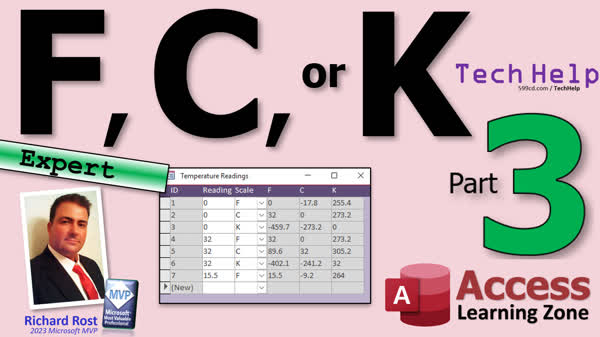 TechHelp Access, Enter Temperature Readings, Convert Temperature Access, Fahrenheit to Celsius Access, Celsius to Kelvin Access, Kelvin to Fahrenheit Access, Temperature Conversion Form
More InformationTranscript Today is part three of my Fahrenheit Celsius Kelvin video series. No, not that Kelvin. No, get it off of there. Anyway, like I was saying, this is part three. If you haven't watched parts one and two yet, go watch those right now. They're down below you. If I can link, you go click on them and then come on back.
Alright, so in part two, we left off. We just built our query. We got all the calculations in here. Now anybody can come in here and type in 200 degrees Celsius. And there's your conversions right there. Perfect.
Alright, let's go ahead now and build a form off of this. So all the user has to do is type in a value and then pick from the list, pick my combo box, what scale they want. I'm going to use my continuous F. That's one of the blank forms that are in here. It's a basic continuous form. If you want to learn how I built that, go watch my blank database template video. You'll find a link to that down below as well.
I'm just going to copy and paste that. Control-C, Control-V. We'll call this my reading F, my reading form. No, we're not reading stuff. It's just readings or temperature readings. I keep a couple of blank objects in here just so I have the formatting and I don't have to redo all the formatting all the time.
Alright, let's open up the properties for the form. We're going to set under Data, we're going to set the record source to the reading Q. By Q, we'll be talking about this in the original Fahrenheit to Celsius video. The query has the calculations in it, so we don't have to redo them in the form. They're just done once in the query. That's the benefit of doing it in the query.
Now I can come in here and add existing fields. There they are. We're going to pick them all. Click on the first one, shift-click on the last one, click and drag and drop them right about there in the detail section. Boom.
Why did I put them there? You're going to see in just a second. First thing I'm going to do is copy my formatting. I'm going to click on one of these labels up here. I'll go to the Home tab and find the Format Painter. I put it up here on the Quick Launch Bar so I can use that one. Double-click on it to make it stick. It's going to stay on now until you turn it off.
I can go click, click, click, click, click, click, click, click, set all those to white, and then turn it off. I want to make all of the calculated fields, the fields you can't change, gray. That's why I have this guy sitting there. So again, double-click and then I'm going to go click, click, click, click. All the stuff the user can't change, the calculated fields and the ID, are now gray. That's just for readability. That's just something I like to do. It makes your forms pretty. Pretty forms make it easier for the users to use.
I'm going to delete these right in the ruler bar there. Click-drag. Boom. I'm going to move all of this stuff over to the left. Now I'm going to apply a layout. I only use layouts to arrange stuff for me and then I turn the layout off because I don't like layouts. But if you go up to Arrange and pick Tabular, it arranges them nicely for you. But it puts this layout box around them and I really hate that, so I'm going to go remove layout. There, see? It just arranges all the boxes nicely for me and I turned off the layouts. I don't have to deal with the layout.
I have a whole separate video on layouts and I don't like them. Let me close that. Now I just take a few seconds and move this stuff over to the left. We'll slide this stuff up, this and that. Good enough for now. I like to put on my finishing touches when I'm done with the form. Right now, I just want to get it functional.
Save it. Close it. Let's open it back up again. Looks pretty good. Whether or not you left align stuff or right align stuff is kind of up to you. I like left aligning everything. I know it doesn't line stuff up right with the minus sign, but that's just my personal preference. That's what I'm going to do.
So I'm going to select all of those things, go to Format and Align Left. My personal preference. If you don't like it, do whatever you want. There you are. Legos, you put them together however you like.
Next up, let's make a value list combo box for this guy. That's one of those things I told you was a prerequisite for in the first class. I don't always know exactly what part or how many parts my videos are going to have until I start. So I always put the prerequisites up front if I remember to.
Let's delete the temperature scale text box. We're going to replace that with a value list combo box. Drop this down, find a combo box, this guy right there, click right. I'm going to type in the values that I want.
We're going to give it a short list of things: F, C, and K. Like I said in the first video, you could make a table out of it if you really wanted to and that's where you'd pick the first option. But a value list is just fine for this because we're literally storing an F, C, and a K in the table.
Next, what do you want? I'm going to go with two columns because when the box drops down, when the box is open, I'm going to show them the name. So it's going to be F, then Fahrenheit, F-A-H-R-E-N-H-E-I-T. That's one of those tough words as well. What's always harder is I always have a hard time spelling Celsius. I always try to put an extra C in it. There's only one C.
So C-E-L-S-I-U-S. I always think there's a C here, but there isn't. It's one of those words where I always see it once I've spelled it and I know it's wrong and I have to change it. I always get it wrong the first time and then Kelvin. That's easy.
We're going to drag that column like that. So that's what it looks like, and you'll see that when it's open. Hit Next. Now, what's the bound field? That's going to be column one, the F, C, or K. Next, we're going to store that value in what field? That's the scale, the temperature scale.
Next, what label do you want? Doesn't matter. We're going to delete it anyway and hit Finish. There we go. There's the label that came in with it. Delete that one, slide this up into here.
Now what we have to do is make sure we give this guy a name. Double-click on it. This is another one of my things for the list for the dev team. I hate the fact that it doesn't give it a good name. It's Combo90. I would name it the same thing as the control source. That's just me.
So if you make a combo box and you bind it to a field called TempScale, name the box TempScale. That's me. That's just my thing. Or TempScaleCombo or something. Combo60 isn't very helpful.
Now what I'm also going to do is save this, close it, and open it back up again. Looks good. Tab, tab. It jumps over TempScale and jumps over here. I don't even want it to tab to these because you can't type over them anyway. Tab and it goes back to that one. Why? Because this combo box was added last, so it's at the end of the tab order.
We're going to adjust our tab order and we're going to take the things out of the tab order that we don't want to be able to tab to. We really only need to tab to this and then to this and then go to the next one. So we're going to select all of these, go to Tab Order, hit Auto, and it fixes it, puts the scale in the right spot. Hit OK.
Then we're going to highlight just the gray ones. Click, shift-click, click, click. We're going to go to Other and set Tab Stop to No. Save it, close it, open it. Now notice your tab starts there, so when you tab, it just goes between those two fields.
Now I like to pull all this stuff together and make it smaller so the fields aren't quite so big. That just takes a minute. There really isn't a good tool for this. You just have to do it by eye. It'd be nice if there was a better tool for this, but there isn't. You could change these labels up here too, like ID, TempScale is fine. Unless I would just have C.
Then slide these. This temperature probably doesn't need to be that big unless you're doing stellar temperatures where you've got millions of degrees. I don't think we're going to. It all depends. Build your database however you want. This can be smaller like that.
Now these then want to all be the same size. I'm going to highlight them all together and then resize one of them, and it should resize them all together to right about there. Then we can slide them over and grab this one, then grab that, a little bit of this, a little bit of that. I always like to leave a little bit of room in here for a scroll bar. Bring that up.
If you want to put totals down here, you can. If you want to do the averages and stuff that I showed you in the original video, or the F2C video, put your averages right down here. You want to get the average of each of these? That's great. Sum them all up. I don't know what you're adding up, but sum, average, max, min, put them all down here.
I've got a whole separate video on form footer totals. Save it. Close it. Open it back up again. Look at that. It's a thing of beauty. You're in the main menu too. Look at that. Very nice.
45 degrees Fahrenheit is 7.2 Celsius or 280 Kelvin. That about fits my rule. Remember, I told you in the original F2C video, I said, living in Buffalo, if you go up to Canada and you see Celsius, or if it's 7 degrees, you double it and you add 30. So it's 14 plus 30 is 44. That's about right. That rule works well for me.
If you like this kind of stuff, consider checking out my Access Expert courses. I know a lot of people want to skip over the Expert classes and go straight into Developer stuff. There's so much good stuff in the Expert classes that doesn't require any programming, but it's really foundational for learning Access. Things like the If function and working with DLookup, and that Switch function I talked about, union queries. I go over all of the different functions in Access. All of them. I've got a whole series on string functions, logical functions, math, date-time, you name it. It's all in here. So check it out if you're curious.
If you have any questions, post a comment down below or send me an email. I'm always available. I do have a rule for customer service questions, like what's covered in what class - you can always email me. If it's a technical question, those I insist you post either on my website in the forums or posting a comment because I get way too many of those to be able to help everybody individually. I wish I could, but there's just so many.
I know in some of my older videos, when I first started doing TechHelp, I was like, yeah, email me your questions. I get too many of them now, I'm sorry. I wish I had more time. But I have a fantastic group of moderators on my website. There are six or seven guys that just love helping people out. They do a great job of helping me out. So if you have questions like that, technical stuff, post them on my website.
But that's going to be your TechHelp video for today. That's going to conclude this series. Three parts, that's not bad. I hope you learned something. Live long and prosper, my friends. I'll see you next time. Intro In this video, we will build a user-friendly form in Microsoft Access to easily input temperature readings and choose between Fahrenheit, Celsius, or Kelvin using a combo box. I will show you how to use a continuous form template, apply formatting for better readability, set up a value list combo box for temperature scales, adjust the tab order for smooth data entry, and make your form look clean and organized. This is part 3. Quiz Q1. What is the main benefit of placing temperature conversion calculations in a query rather than the form itself?
A. Calculations are performed only once and reused in various forms or reports
B. Each form can have a different calculation approach
C. Calculations run faster when placed in the form
D. It makes the database more visually appealing
Q2. Why did the instructor copy and paste a blank continuous form when building the new readings form?
A. To retain formatting and avoid redoing formatting work each time
B. To create duplicate forms for backup purposes
C. To preserve existing data in the copied form
D. To ensure that new forms automatically contain sample data
Q3. Why are calculated fields and ID fields formatted in gray on the form?
A. To visually indicate that these fields should not be edited by users
B. Because gray is the standard color for all fields
C. To hide these fields from the user
D. To make the form less cluttered
Q4. What is the purpose of applying, then removing, a layout in the form designer?
A. To automatically arrange controls for alignment, then enable custom placement
B. To delete unnecessary controls from the form
C. To apply formatting to all form objects
D. To create unique layouts for each field
Q5. What type of control is used for choosing between Fahrenheit, Celsius, and Kelvin on the form?
A. Combo box (value list)
B. Option group
C. Textbox
D. List box (table)
Q6. In the combo box with a value list for temperature scale selection, what is the bound field storing?
A. The short code (F, C, or K) for the selected scale
B. The full name (Fahrenheit, Celsius, Kelvin) of the scale
C. The numeric value of temperature
D. The ID of the combo box control
Q7. Why does the instructor recommend renaming combo box controls to match the field they are bound to?
A. For easier identification and maintenance of form controls
B. To make forms look more professional
C. So that Access can generate better reports
D. To guarantee automatic formatting from Access
Q8. What is the purpose of adjusting the tab order and setting certain fields to Tab Stop No?
A. To ensure users only tab through relevant, editable fields in the right sequence
B. To prevent users from changing any field values
C. To lock the form so only admins can use it
D. To make all fields accessible to the user
Q9. Why might a developer choose to resize and organize form fields manually at the end of the process?
A. To improve the visual layout and usability for users
B. To ensure fields match the size of printed paper
C. Because Access does not permit resizing earlier
D. To increase database speed
Q10. According to the instructor, what should users do if they want to include summations or averages in the form?
A. Place those calculations in the form footer
B. Only calculate these values in reports
C. Enter totals manually each time
D. Add a new query for each calculation
Q11. Why is it a good idea to consult Access Expert classes before tackling Developer-level classes?
A. Expert classes provide foundational skills necessary for advanced topics
B. Developer classes are only for people who like programming
C. Expert classes are required for certification
D. Developer content repeats everything in Expert classes
Q12. If a user has a general customer service question about courses, how should they contact the instructor?
A. Email directly
B. Post on the website forums
C. Submit a phone request
D. Send a private message on social media
Q13. For technical help about Access, where does the instructor prefer users to post questions?
A. On the website forums or as video comments
B. Direct email to the instructor
C. In the form's help dialog
D. As a review on the course page
Answers: 1-A; 2-A; 3-A; 4-A; 5-A; 6-A; 7-A; 8-A; 9-A; 10-A; 11-A; 12-A; 13-A
DISCLAIMER: Quiz questions are AI generated. If you find any that are wrong, don't make sense, or aren't related to the video topic at hand, then please post a comment and let me know. Thanks. Summary Today's TechHelp tutorial from Access Learning Zone continues with part three of my video series about creating a temperature conversion database in Microsoft Access, focusing on converting between Fahrenheit, Celsius, and Kelvin. If you have not yet watched the first two parts, I strongly recommend you review them first, as they lay the foundation for today's lesson.
At the end of part two, we finished building our query with all the necessary calculations for converting temperatures. Now, users can simply enter a value in Celsius, and the corresponding conversions to the other temperature scales are processed automatically.
Today, we are moving on to construct a user-friendly form based on this query. The goal is to provide an interface where someone can enter a temperature value and select the corresponding scale from a list. For this, I am using one of my blank continuous forms; this is a plain starting point that streamlines formatting. If you are curious about how I build these blank forms, I have a separate tutorial on my blank database template that you may find useful.
To create the form, I copied and pasted my blank continuous form object, renaming it to reflect that it will be used for entering temperature readings. I like to keep some blank formatted objects in my databases so I do not have to spend time redoing all the formatting each time I make a new form.
In the form's property sheet, under the Data tab, I set its record source to the query we built previously. Remember, this query already contains all our calculations, so we do not need to repeat that logic in the form itself.
Next, I pulled in all the existing fields from the query, selected them together, and dragged them into the detail section of the form. My approach is to immediately apply formatting that distinguishes between input fields and calculated (read-only) fields. I accomplish this by making the editable fields white, and the non-editable or calculated fields gray. It is an easy adjustment that improves usability by providing a clear visual cue to users.
As part of streamlining the form layout, I deleted any unnecessary empty columns from the design, shifted the remaining fields to the left, and temporarily applied the tabular layout to arrange them neatly. I always remove the Access form layout afterward, as I personally do not care for how it restricts customization, but it is helpful for initial organization.
Once arranged, I fine-tuned the left alignment of the fields to my liking. I have a personal preference for left-aligning all the fields, even though this does not always align negative values visually. Of course, you can layout your forms as you see fit.
The next enhancement we implemented is a combo box for selecting the temperature scale (F, C, or K) rather than a text box. With a value list combo box, users can only choose from Fahrenheit, Celsius, or Kelvin—reducing errors and improving reliability. Although it is possible to use a lookup table here, I prefer a value list for its simplicity when only a few fixed options are needed.
The combo box is set up with two columns: one stores the letter (F, C, or K) as the actual value, and the second displays the full name (Fahrenheit, Celsius, or Kelvin) for clarity. When setting up the combo box, make sure the bound column is the one with the actual stored value. After placing the combo box, I recommend renaming it to something meaningful like TempScale, matching the underlying field. This makes managing the form easier as your database grows.
After setting up the combo box, I checked the tab order to ensure the workflow is smooth. Only fields that the user needs to interact with should be accessible via the Tab key. So I cleaned up the tab order and set the Tab Stop property to No on all calculated and ID fields, leaving only the fields for entering a temperature value and picking the scale in the tab cycle.
With the core functionality in place, I adjusted field sizes to better fit their contents and made sure everything aligns and looks clean. You can further customize the form by adding totals, averages, or other summary calculations in the form footer, as described in my separate tutorials on form footer totals.
Testing the form, it functions as expected: entering, for example, 45 degrees Fahrenheit, immediately displays the equivalent in Celsius and Kelvin. The conversion matches my quick mental rule for Celsius I learned living near Canada—double the Celsius reading and add 30 for a rough Fahrenheit equivalent.
If you enjoy this level of Access instruction, consider exploring my Access Expert courses. Many people skip right to learning programming, but the Expert classes cover fundamental skills that really help you build a strong foundation in Access. You will learn about important tools and functions like If statements, DLookup, Switch, and more. I cover string functions, logical processing, and date/time operations, among others.
For questions about course content or general inquiries about which class covers which topic, feel free to contact me by email. For technical support, I ask that you post in the forums or as a comment on my website so everyone can benefit from the answers, and so I can keep up with the volume of requests.
That concludes part three of this series. I hope you have found it helpful and learned something new. You can find a complete video tutorial with step-by-step instructions on everything discussed here on my website at the link below. Live long and prosper, my friends. Topic List Building a form from a temperature conversion query
Setting the form's record source to use the query
Adding existing fields to the form
Copying and applying formatting using Format Painter
Coloring calculated fields for readability
Arranging form controls using tabular layout and removing layout
Aligning and resizing form controls
Creating a value list combo box for temperature scale selection
Setting up combo box columns for F C K scales
Binding the combo box to the temperature scale field
Renaming form controls for clarity
Adjusting tab order and tab stop properties
Resizing and repositioning form fields for a cleaner look Primary Topics Access form creation, form property settings, query-based forms, combo box setup, value lists, tab order management, field formatting, user input design
Secondary Topics form footer totals, alignment preferences, control naming conventions
|






