Big Button Form 6
By Richard Rost

 2 years ago
Dynamic Big Buttons Forms for Data Entry, Part 6
In this Microsoft Access tutorial, I will show you how to add a cancel button to a dynamic form with big buttons for data entry, ensuring users can exit gracefully. This is part 6.
Members
In the extended cut, we will build a custom function called OpenBigButtonForm. I will show you how to set parameters like record source, ID field name, button text, where condition, and colors. This will simplify the process for future use, making it easier to create and customize big button forms. We'll also add color parameters for the forms.
Gold Member Bonus
There is also a special Gold Member Extended Cut Bonus. In this video, I'll show you how I added pagination to the BBF so that if you have more than 18 items, you can click Next to go to the next page, Previous to go back. If you're only a Silver member, this is your chance to upgrade!
Silver Members and up get access to view Extended Cut videos, when available. Gold Members can download the files from class plus get access to the Code Vault. If you're not a member, Join Today!
Prerequisites
Links
Possible Future Upgrades
If you are interested in any of these optional items, post a comment down below and let me know what you'd like to see. If enough people want something, I may make another video about it, or perhaps put together a Template or Seminar on it.
- Center buttons horizontally
- Resize form for fewer buttons
- Proper data entry forms for Make, Model, Year
- Button to add the next year values
- Specify rows x columns in parameters
- "Other" choice which will then open a form with a listbox on it
- Pagination of buttons (so you could have 200 options and just page left and right thru them)
- Breadcrumbs for your choices up top
- Multi-select with option buttons instead of just one choice
Recommended Courses
Keywords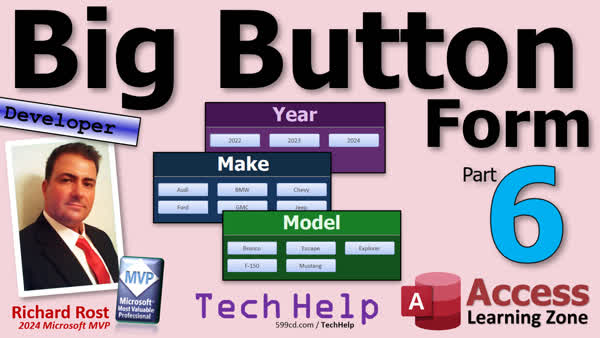
TechHelp Access, Dynamic Forms, Big Buttons, Microsoft Access, Data Entry, User Cancel Button, Form Close Events, Button Clicked Event, Resize Form, Temp Variables, VBA Code, Record Source Parameters, Error Handling, No Data Error, OpenBigButtonForm Function, Parameterized Forms, Custom Functions, TechHelp Video
More InformationTranscript This is part six of my big button forum series. If you haven't watched parts one through five yet, go watch those first and then come on back. All right, we're getting there. We're getting close to the wire here.
The problem we have next is what if the user wants to cancel. They pick this and they pick GMC and then they're like, oh, never mind. If they close this, it's still got that temp bar with the button return ID in it. So it's just going to use that and then return an invalid value. So what we're going to do is we're going to control whether or not the user can cancel that.
Because right now, they can just close the form. We want to prevent them from doing that and give them their own cancel button that we control. I don't like using any of the form close events; they're all weird. So let's go into our button. I'll copy one of these guys, copy, paste.
Is it possible to resize this form to fit the number of buttons? Yeah, it's possible. And like I said, it requires some math and some calculations of where stuff is, but it can be done. I've done it before. I think I even have videos on how to do it. But if you guys want to see how to do that, let me know. If enough people say yeah, I'll make another video about it.
We'll make this the cancel button, so put in here cancel. And you can bold it if you want to, whatever. Over here on the other tab, let's set the cancel property to yes. That way when the user hits escape, it pushes that button. That's what that does. Let's make the name cancel. Oops, hang on. That was over there. Over here. Cancel button, BTN, and it will have inherited this button clicked because I copied it from one of the other buttons. That's fine.
Let's just set its tag, where are you? Let's set its tag equal to zero. So this button will always return a zero to whoever called it. That way it will just say if the return value is zero, you're done, exit sub. Save that, close it, come into here now, right-click, build event. Now, in here, we'll just look at the return value and we'll say, if the make ID equals zero, then exit sub.
That's the easiest way to handle that. If the user hits cancel, you're done. Copy, oh, I forgot one more thing in the form. Put it there and put it here. One more thing I forgot about that form. Let's go back to the button form. Right click, design view.
We have to turn off the, where are you? You guys know what I'm talking about. The control box and the close button. The only way to get out of here is to click R button. Oh, and, oh yeah, no, never mind. The function handles that. I've done what, four of these in a row today, folks? I'm getting a little, you know, I don't know. Okay, so save it, close it, close it. Needless to say, this will be the last one for today. All right, so customer form, click the button, let's go Jeep, and then, oh, wait a minute, it's not visible. We didn't make it visible, did we?
All right, so we can, because we're the developer, we can right click design view, and see this is one of the problems I have. Right click, design view, and it, see, it just behaves weird. Make sure you set this guy so it's always visible. Visible, yes, there we go. I knew I forgot a step. See, I told you I'm getting tired. Alright, here we go, ready? Select vehicle, and there's our cancel. We can just cancel right away. It sends back a zero and nothing's put in there.
Customer, for example, click Chevy, uh... now they are a cancel and and it doesn't win it no current record what happened yet some all all all yeah and i know i did close this go back to the button code and area of this is the but don't go back to the customer form and can anybody see the mistake that i made let me make this a little bit bigger and if you take a look at it right now, can you see the goof that I made? I see it immediately because I got that error message before and I know exactly what I did. Pause the video and see if you could figure out what the problem is. I'll give you a hint. The cancel worked if I clicked it on the first form. If I clicked it when I was picking the make, it worked, but it didn't work for model linear. Do you see it? Pause the video, figure it out. All right, you ready for the answer?
This happens a lot when you copy and paste stuff. All right, this works, so I copied it, pasted it, pasted it, but I forgot to change the variable name. So this is looking at make ID up here, so we just got to do this. Copy, paste, copy, paste. Now it should work. Debug compile, back over here, hit the button, Jeep, cancel and it works.
That was my fault. That's a good learning lesson. I do that a lot folks. I copy some stuff, I copy a block of code, forget to change all the variables. I did it work the first time but now it's not working. And that's another reason why I don't like copying blocks of code, like the code in here. I don't like this. I don't like having basically the same thing three times in a row.
And what we're going to do in the extended cut for the members, this is my prototype database, the one I built before I recorded. What we're going to do in here is we're going to make a function out of it, just like this. We're going to make a function called openBigButtonForm. So we don't have a lot of repeated code. OpenBigButtonForm is going to handle all that. It's going to take parameters. So we'll send parameters in, the record source, the ID field name, the text button name, the where condition, the colors.
We'll add different colors. All right, so when we get to that, what you can do is you'll see it work like this. There's that. Model's green. Yours purple. We're going to do that in the extended cut. We're not there yet, though. We've still got a couple more things to do. Let's handle the no data error that we ran into earlier. Remember what I did when I went to the make table and I put BMW in there? But there's no BMW models in here. There's no 20 models. So if I go in here and hit BMW, we get this message. OK, how do we fix that?
Well, we could use error handling, like an on error go to or whatever. That's kind of cheesy for this, because there's a proper way to do it. We could use a D count or a D lookup and make sure there's records. But the proper way to do it is just to see if when you open the record set, if you are immediately at the end of file, that's the best way to do it.
All right, so before we even check the number of records, we're going to make sure there are records. Make sure there are records. So we're going to say if rs.eof, end of file, then message box, error, no records found. And then we'll do our force exit equals true. Else, now we can do this whole block, because we've still got to close everything up. We've opened a record set, so tab that in and then throw another end if down here.
This is why tabbing is important, folks. Tabbing your indentation is important, that way you can click here and look and see what you're directly under, all right? I see a lot of people sending me emails and posting stuff on my forums that they share a sample of their code and just because they didn't indent right they can't tell that this isn't under that. You know what I'm saying? I know it's stylistic. Access VB doesn't care about your indentations at all. Just like it doesn't care about your comments. This is all for you and it makes your code more readable. Another thing we want to do while we're in here is if we are force exiting, we want to also return that. If a force exit is needed, return that cancel.
Okay, save it. I moved this up so you could see more code. Debug compile, come back out, close it, close it, open her up, and pick BMW, no records found, and we're done. Okay. That's basically it. You have a working database now and if you're a gold member you can grab a copy of this. That's all you need. Right? That's it's functional. It works. It covers pretty much all the errors I can think of. Now in the extended cut we're going to cover a lot more. We're going to work on colors. We're going to make them pretty, okay? And more importantly, we're going to build a custom function. We're going to build a function called Open Big Button Form.
This way, when you go to use this in the future, you don't have to worry about setting temp bars and this and that. All you got to do is know the parameters. Here they are right here, Open Big Button Form. I can click in here. I send it the table, I send it the ID, I send it the caption name, whatever you want the caption of the button to be. The where condition, and if you click in here, you'll see what the things are. The where condition, the form caption, we've parameterized it all. There's the title up top, here's your colors. The form caption colors and all that. That's a green one, that's a purple one. To make another button after that, you just literally just copy this and just change those values. You don't got to set tempers, you don't got to worry about all that stuff. It makes it nice and easy for everybody to use.
And by everybody, I mean you. Because this is a developer tool. This is to make your job easier the next time you want to go make a big button form thing. You want to add engine down here or something else? Okay, so this is covered in the extended cut for the members. Silver members and up get access to all of my extended cut videos. There's lots of them, there's hundreds of them folks. So it's well worth your membership. And gold members can access the code vault where a lot of my cool functions are found. And you get to download these videos that I build in the TechHelp. And everybody gets free classes, all the members. You get a free class once a month. So check it out on my website. You'll find links to all this down below. Click that blue join button today if you want to become a member.
But that's going to do it for now folks. That's the end of this series for now. I got a feeling that I'm going to get a lot of emails and suggestions on the website forums for people that want to see some additional stuff. I actually put together a list of possible more stuff that we could add to this and if we do I'll either make another video or I'll put together a template for it, but lots of stuff like pagination of the buttons, multi-select options, there's all kinds of stuff we could do with this. This is just some of the stuff I came up with and a few suggestions that were sent in to me. So we'll see. We'll see. So will there be a part seven? Maybe possibly. I won't discount it. If so, I'll put a link down below. Make sure you're on my mailing list so you get my daily updates whenever I release new videos and you'll find out for sure. But that is going to be your TechHelp video for today. I hope you learned something. I hope you enjoyed the series. Live long and prosper my friends. I'll see you next time. A special thank you and shout out to our diamond sponsor Juan Soto with Access Experts software solutions. They're manufacturing experts specializing in Microsoft Access MVP. Check him out at accessexperts.com.
TOPICS:
Handling user cancel actions in forms
Preventing form closure to control canceling
Creating a custom cancel button
Setting the cancel property for a button
Ensuring cancel button visibility
Setting button return values with tags
Coding event actions for form buttons
Disabling form control boxes and close buttons
Troubleshooting common form issues
Debugging and compiling VBA code errors
Creating functions to reduce repetitive code
Parameterizing functions for flexible usage
Handling no data errors with record sets
Using EOF (End of File) checks in VBA
Implementing force exit logic in VBA
Applying consistent code indentation and styling
Creating a custom function 'OpenBigButtonForm'
Parameterizing button form properties
Enhancing user interface with custom colors
Using DCount or DLookup for record checking
COMMERCIAL:
In today's video, we're tackling how to manage user cancel actions in your big button forum. First, we'll control the cancellation process to avoid returning invalid values. I'll walk you through creating a dedicated cancel button and its configuration so users can't just close the form. Then, we'll ensure the form fits the number of buttons, setting properties and visibility correctly. Learn common pitfalls like misnamed variables and how to handle no-data errors gracefully. You'll find the complete video on my YouTube channel and on my website at the link shown. Live long and prosper my friends. Intro In this video, we'll continue building the big button form in Microsoft Access by setting up a custom cancel process, including creating a dedicated cancel button, configuring its properties, and ensuring users can't close the form in unintended ways. We'll also talk about handling related issues such as preventing invalid return values, fixing visibility problems, and properly debugging and troubleshooting variable errors. Additionally, you'll learn how to handle cases where no data is found using record set EOF checks and improve your VBA code's structure with better indentation and error handling. This is part 6. Quiz Q1. What is the primary purpose of adding a cancel button to the form in the tutorial?
A. To immediately shut down the application
B. To allow the user to exit the form without returning a valid value
C. To perform mathematical calculations
D. To submit the form data
Q2. Why does the tutorial suggest setting the cancel button's tag to zero?
A. To reset the form
B. To avoid runtime errors
C. To identify the cancel button visually
D. To ensure the form returns a zero value if canceled
Q3. What should you set to 'Yes' to make the cancel button respond to the Escape key?
A. Enable property
B. Shortcut property
C. Cancel property
D. Tab order
Q4. Which of the following methods is described as a "cheesy" way to handle the situation where there are no records found?
A. Checking for end of file (EOF)
B. Using a D count or D lookup
C. Implementing on error go to
D. Displaying a message box
Q5. Why is it suggested to disable the control box and close button on the form?
A. To prevent the form from being resized
B. To make sure the only way to exit is via the cancel button
C. To improve form aesthetics
D. To reduce the form loading time
Q6. When handling the no records error, how does the tutorial suggest determining if the record set is empty?
A. Using a D count function
B. Checking if rs.EOF is true
C. Checking the record count property
D. Using an on error goto statement
Q7. Why does the tutorial emphasize code indentation and tabbing?
A. To make the code compile faster
B. To ensure variable names are unique
C. To make the code more readable and maintainable
D. To match coding style guidelines
Q8. What is the purpose of the OpenBigButtonForm function mentioned in the video?
A. To create buttons dynamically
B. To handle parameters and reduce repetitive code
C. To change the color scheme of the form
D. To generate random button texts
Q9. What happens if you copy a block of code but forget to change the variable names, according to the video?
A. The code will not compile at all
B. The code will create syntax errors immediately
C. The code may give incorrect results and be confusing to debug
D. The compiler will automatically fix the issues
Q10. What additional feature is promised to be covered in the extended cut of the tutorial?
A. Adding a live chat support option
B. Pagination of buttons and multi-select options
C. Exporting data to external formats
D. Creating a login form for the application
Answers: 1-B; 2-D; 3-C; 4-C; 5-B; 6-B; 7-C; 8-B; 9-C; 10-B.
DISCLAIMER: Quiz questions are AI generated. If you find any that are wrong, don't make sense, or aren't related to the video topic at hand, then please post a comment and let me know. Thanks. Summary Today's TechHelp tutorial from Access Learning Zone focuses on advanced techniques for handling user cancel actions within your Microsoft Access big button form, and also addresses several best practices for robust form design and error handling.
At this point in the series, we're refining our form to manage situations where a user might want to cancel their selection partway through the process. Typically, if a user picks a selection and then decides to abandon the process, simply closing the form could leave temporary variables or values set that would cause invalid data to be returned later. To address this, we need to exert more control over the canceling process.
I recommend not relying on the standard form close events in Access—they often do not behave as consistently as one might expect. Instead, I prefer to provide users with a dedicated cancel button on the form. You can duplicate one of your existing command buttons, label it as the cancel button, and then set its cancel property to Yes. This ensures that pressing the Esc key tells Access to run that cancel button's routine automatically. The cancel button should have a tag value of zero, so if it is pressed, the calling code will immediately recognize this and exit the subroutine without taking further actions.
After implementing the cancel button, it's important to prevent users from using the standard Windows close (the X button on the corner of the form) or the control box. Remove these options from the form properties so users must use the provided cancel button. This ensures that any necessary cleanup or resets occur, and no partial or incorrect data is submitted.
One area where developers frequently run into trouble is copying and pasting similar blocks of code without updating all relevant variable names. This can cause confusion or errors, particularly when the code logic checks the value of the wrong variable. Keeping your code tidy and double-checking after copying routines will help you avoid these mistakes. Also, watch for visibility settings on your buttons. It is quite easy to forget to set a button's visible property, which will prevent users from actually seeing and using the button.
Another challenge is handling scenarios where there is no data to display. For example, if a user selects a car make that has no models available, the system should handle this gracefully. The most reliable way to check for this is by determining if your recordset returns as EOF (End of File) immediately after opening it. If so, you can display a message indicating that no records were found and set a flag to exit gracefully.
I always encourage following good habits in your code such as consistent indentation and clear commenting. While Access VBA does not require this, proper formatting makes your code far more readable and maintainable, especially when you or someone else returns to it in the future.
To avoid duplicating blocks of code for similar buttons or forms, we'll be building a parameterized function called OpenBigButtonForm in today's Extended Cut, which will let you pass in the source table, field names, the button labels, filter conditions, and colors. This makes it much simpler and less error-prone whenever you need to reuse this big button functionality. With this approach, you can quickly create variations with different colors, labels, or criteria, and not worry about setting up temporary variables or copying chunks of similar logic around your database.
In the Extended Cut for members, I will go through the process of creating that custom, flexible function and show you how to use parameters for the record source, selected field, caption, conditional formatting, and more. We will also look at how to enhance your user interface with custom colors and other visual touches to make your forms more intuitive.
These approaches are all designed to make your Access projects more reliable and easier for both users and developers to manage. If there is interest in even more customization, such as resizing the form dynamically depending on the number of buttons or implementing features like button pagination or multi-select options, I am open to suggestions. These could be featured in future additions to the series or stand-alone templates.
If you are a gold member, you can download copies of these example databases and functions in my code vault, and all members have access to free monthly classes as well as extended cut videos. More details about membership and additional resources can be found on my website.
You can find a complete video tutorial with step-by-step instructions on everything discussed here on my website at the link below. Live long and prosper, my friends. Topic List Handling user cancel actions in forms
Preventing form closure to control canceling
Creating a custom cancel button
Setting the cancel property for a button
Setting button return values with tags
Disabling form control boxes and close buttons
Ensuring button and form visibility
Coding event actions for a cancel button
Correcting variable name mistakes after copy-paste
Handling no data errors with record sets
Using EOF checks to detect missing data
Implementing force exit logic for cancellations
Returning cancel status to calling routines
Applying consistent code indentation in VBA Primary Topics cancel button implementation, disabling form close, VBA error handling, form button event coding, parameterized function creation, custom function OpenBigButtonForm, handling no data errors, use of EOF in VBA, code debugging and troubleshooting, code inde Secondary Topics button visibility settings, tag property for return values, user interface improvements, none
|







