GoToControl
By Richard Rost

 2 years ago
Using GoToControl in Access VBA for Form Navigation In this Microsoft Access tutorial, I will show you how to use the GoToControl command to efficiently navigate across multiple forms and subforms. We'll explore the differences between GoToControl and SetFocus, learn how to chain commands for complex navigation scenarios, and address common challenges in cross-form interactions. MembersThere is no extended cut, but here is the file download: Silver Members and up get access to view Extended Cut videos, when available. Gold Members can download the files from class plus get access to the Code Vault. If you're not a member, Join Today!
PrerequisitesLinksRecommended Courses
Keywords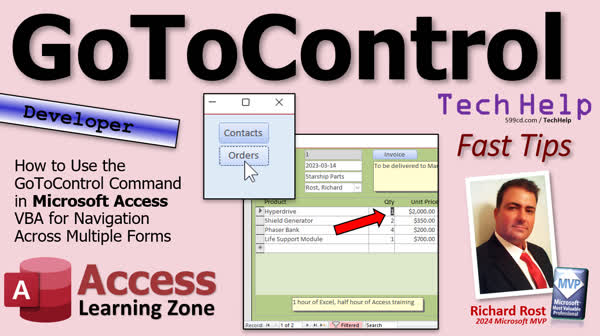 TechHelp Access, GoToControl, VBA navigation, Access forms, form navigation, subform handling, DoCmd methods, string-based commands, macro compatibility, error handling VBA, cross-form interaction, Access developer lessons
 Subscribe to GoToControl
Get notifications when this page is updated
More InformationTranscript Today we're going to talk about the GoToControl command and how you can use it to move between different controls, specifically how you can use it to move between different controls on different forms and even subforms.
In yesterday's video, we learned about the SetFocus command and how you can use it to move between different controls on the form that you're on. It's not great for moving across multiple forms, but I want you to go watch this video first if you haven't yet because today we're going to talk about some of the differences between SetFocus and GoToControl. So go watch this and then come on back.
Alright, GoToControl is another command you can use to move around on your Access forms. There are a couple of differences between GoToControl and SetFocus. SetFocus is really better when you're working with controls on the form that you're on, and you have to reference the control and then say .setFocus, whereas GoToControl is string-based. You could say docmd.goToControl and then give it the control name as a string. This has a lot of benefits. For example, you can pass that easily to a function. I'm going to do a whole separate video on that very soon. GoToControl is also macro-compatible as a macro command for it if you're using macros, which I almost never do. Again, different video, but today we're going to focus on how GoToControl works across multiple forms and subforms.
Alright, let's say you're on the customer form, and when you open up the order form, you want the focus to go right to the description. Yes, I know you could just take these two out of the tab order and make this stuff work. Again, hypothetically, let's say you want to put the focus here. Now, with SetFocus, that will certainly work, and we learned about this yesterday. I can open up a form, and since I'm on that form, I can say forms. You got to refer to its full name, forms.orderF.description.setFocus. And if you don't know how to refer to a value on a different form, go watch my "Value on an Open Form" video. I'll put a link to that down below as well.
Okay, so you say forms.orderF.description.setFocus. Awesome. Save it, debug, compile. Let's come back here, close it, open it, click, and it works just fine. How would you do the same thing with GoToControl? Well, let me rem this out because we're going to come back to this in a second. Alright, you can also say now docmd.goToControl "description". And this will work because after the open form command, this form has focus, and GoToControl works with whatever object has focus, whatever form has focus. So now if I, again, you can debug, compile once in a while. Alright, so now if I come back here and do it, the same thing happens. It opens the form and goes to the control. You don't have to reference the full name of that form or that control.
Okay, now let's take our hypothetical a step further. Let's say instead of going here, I want the focus to go here to the quantity field on the subform inside of the order form, which is called orderDetailF. Right, if you look at the design view, this subform control is called orderDetailF. Okay, now how would I get that to work from here? Well, you could come in here and say, let me rem this one out too. Well, I'm going to keep these in here so when the gold members download the database, you've got all those options. You could say forms.orderF.orderDetailF.form!quantity. Alright, that's the full name of the field you want to go to .setFocus. Alright, and that's a valid command. It'll compile, and it will actually do its thing. But watch what happens. Let me save it back over here, hit the button. It looks like it didn't work because the focus is still sitting on order ID.
But watch what happens if I tab. I'm going to tab, tab, tab, tab. It's over there on isPaid, tab the notes, tab one more time. It'll move to the subform, and now notice it's on quantity. What happened? Well, SetFocus will move the focus around in a single form, but it won't move between forms, including subforms. So what you did was essentially you opened up the order form, so focus is on the order form, and then you said, hey, I want to set the focus of the detail form to the quantity field, which it did, but it didn't move from this form to that one. So it moved the cursor inside this form there, but yet your cursor is still sitting up here for the active form. It doesn't change the active form. Does that make sense? You could still navigate all through here in code using SetFocus. But if the focus is sitting on this form, you're not going to see it at all. And you won't actually notice it until you tab down there.
Okay, so how do we get around that? Well, we just use GoToControl, and we can chain commands together, which is actually much easier than this. This is a pain. It took me years to remember that kind of notation. So here's how you do it. You open up the form. Now the first thing you have to do is go to the subform. So docmd.goToControl "orderDetailF". Alright, so now the focus is sitting on the subform. And if I just save it now and try it, watch what happens. Click and it moved the focus to the subform. The first field in the subform, oops, someone's beaming in. The first field in the subform is the first one that has tab. The tab order, that is the first tab stop here is the hyper drive, which is the product field. But now that we're in here, I can now issue another GoToControl and move over there. So right after this one, you just say docmd.goToControl "quantity" or wherever you want to go inside that form. Save it. I'm back out here. Close it. Hit the button. And there you go. Yeah, easy that is.
This is something people ask me a lot. I see this question come up in the forums a lot. How do I open a form and go to a subform? People want to do that, especially if you're opening an existing order. If you had a thing over here with maybe a list of orders or even on your customer form, you want to open up a customer, go to a specific record, and then go to a specific field, you can do that. You can go from the subform back up to the top by just simply issuing another open form command. So you can come in here. Let's say you're in the subform. You could come down here and say docmd.openForm "orderF" that'll jump back up to the parent form and now docmd.goToControl "description". Let's say this will actually open the form, go to the subform, go to the quantity, go back to the parent form, and go to the description. You can do all kinds of chaining like this watch. And we're back up on the description field.
Now I will say that it is slower to use docmd.goToControl than it is to use SetFocus. We're talking milliseconds. But if you've got a lot of commands, you've got lots of steps, you might notice a lag. So here's a quick comparison between SetFocus and GoToControl. You have to use a direct reference here, which is the control name .setFocus, whereas this is string-based, lots of benefits to this too. I'll be talking about this in the future in more videos. I do talk about this in my developer course. Performance is faster with SetFocus. If you're just running around on a single form, I use SetFocus myself. I only bother with GoToControl if I'm working across multiple forms. GoToControl also pairs well with GoToRecord, which allows you to move between records. I have another TechHelp video coming out on this soon, but I also do cover it in my full course. Subform navigation, yes, you can do it. But again, like I mentioned, it won't move the form focus there, just field focus on that form. It's much, much easier with GoToControl cross-form navigation, use the variables as easier because it's a string.
Error handling docmd.goToControl can be weird with error handling, whereas with SetFocus, it's like you know, you can't do it. There's a macro here, chaining actions are supported. There are some weird things with conditional formatting. Doing again this, I might do this in a future video. Sometimes moving the focus around with GoToControl, the conditional formatting gets weird. So that's one of those little glitches. So again, when to use each single form, simple input validation, like I showed you in the last video, I use SetFocus. Complex forms, subform navigation, working across multiple forms, use GoToControl.
And of course, if you want to learn more, I have tons and tons of Access to developer lessons on my website. I just finished Developer 46, so there's lots and lots of stuff you learn. I cover lots of these scenarios. I use SetFocus and GoToControl extensively when and when not to use them. Like there can be problems if you try to move focus around. Sometimes it's better to set values in the background using SQL or a recordset and then refresh the form than it is to jump around. Like when I first started programming in VBA, if I wanted to change a bunch of fields on a form, I would, you know, go to control first name, set that, go to control last name, set that, go to control address, set that. That's very inefficient, jumping around all these different fields. It's better to just open a recordset, set everything in the background, and then requery the form, and it reloads all the data. So there are pros and cons on when to do each. I talk about all that in my developer classes.
Alright, so that's going to do it. I was planning on these Fast Tips videos being just a couple of minutes, but I see we're already over 10 minutes. So my Fast Tips are not turning into Fast Tips. They're turning into longer and more involved video. I should have just made it a regular TechHelp video. Too late now. That's going to be your TechHelp video for today. Hope you learned something. Live long and prosper, my friends. I'll see you next time.
TOPICS:
- Using the GoToControl command
- Differences between SetFocus and GoToControl
- String-based control referencing with GoToControl
- Macro compatibility with GoToControl
- Navigating between forms using GoToControl
- Setting focus on subforms with GoToControl
- Switching focus between parent forms and subforms
- Performance comparison of SetFocus vs. GoToControl
- Chaining GoToControl commands for navigation
- GoToControl with GoToRecord for record navigation
COMMERCIAL:
In today's video, we're learning how to use the GoToControl command in your Access forms. We'll discuss how to navigate across different forms and subforms, highlighting the differences between SetFocus and GoToControl. You'll learn how to effectively shift focus within forms and use GoToControl for seamless cross-form navigation, especially when dealing with subforms. We'll compare performance aspects of both commands, discuss string-based advantages, and guide you through common challenges, such as subform navigation and complex forms. You'll find the complete video on my YouTube channel and on my website at the link shown. Live long and prosper, my friends. Intro In this video, we'll talk about how to use the GoToControl command in Microsoft Access to move focus between controls, including controls on different forms and subforms. We'll compare GoToControl with the SetFocus method, discuss the benefits of string-based control referencing, and demonstrate how to chain GoToControl commands for easier navigation across complex forms. You'll also learn about macro compatibility, handling subform focus, and some performance considerations when choosing between GoToControl and SetFocus. Quiz Q1. What is the main difference between the SetFocus and GoToControl commands?
A. SetFocus can move focus between forms, while GoToControl cannot.
B. GoToControl can move focus between forms, while SetFocus is limited to the current form.
C. GoToControl is slower than SetFocus and should be avoided.
D. SetFocus requires a function call, while GoToControl uses SQL.
Q2. Why might you prefer to use GoToControl instead of SetFocus for navigation?
A. GoToControl is faster than SetFocus for individual commands.
B. GoToControl works better with conditional formatting.
C. GoToControl is macro-compatible and works across multiple forms and subforms.
D. SetFocus can handle complex form navigation better.
Q3. How does the GoToControl command work when moving focus in Access forms?
A. It requires a direct reference to the control using its object notation.
B. It uses a string to specify the control name and works on the form that has focus.
C. It needs to move through each control in the tab order sequentially.
D. It relocates data from one control to another but cannot move the cursor.
Q4. What is one disadvantage of using GoToControl as mentioned in the video?
A. It cannot chain multiple commands together.
B. It is limited to use in single form applications only.
C. It is generally slower than SetFocus, especially with many commands.
D. It cannot work with subform navigation.
Q5. When using GoToControl to move focus to a field within a subform, what must be done first?
A. Go directly to the control on the subform using its full path name.
B. Go to the subform control first, then move to the desired control.
C. Use SetFocus to first set the parent form.
D. Ensure that the tab order brings focus to the desired control automatically.
Q6. What is a noted issue with error handling when using the GoToControl command?
A. GoToControl tends to cause the application to crash if not handled properly.
B. Error handling is simpler compared to SetFocus.
C. GoToControl can be problematic, causing focus to jump to unintended controls.
D. GoToControl does not trigger error handling events.
Q7. In the context of form navigation, when is it better to use SetFocus instead of GoToControl?
A. When working on cross-form navigation with multiple users.
B. When focusing on a complex form with multiple subform navigations.
C. When performing simple input validation within a single form.
D. When recalculating control values across several forms.
Q8. How can you adjust multiple fields efficiently in VBA without manually moving focus among controls using GoToControl?
A. Use GoToControl for each field in sequence.
B. Manually refresh each control one-by-one.
C. Open a recordset, set values in the background, and requery the form.
D. Use the SetFocus command for rapid navigation and updates.
Answers: 1-B; 2-C; 3-B; 4-C; 5-B; 6-C; 7-C; 8-C.
DISCLAIMER: Quiz questions are AI generated. If you find any that are wrong, don't make sense, or aren't related to the video topic at hand, then please post a comment and let me know. Thanks. Summary Today's TechHelp tutorial from Access Learning Zone will guide you on how to effectively use the GoToControl command to switch between different controls on Access forms, including those on various forms and subforms.
Previously, I discussed the SetFocus command, which is handy for moving between controls on the same form. It's essential to watch that video first if you haven't, since today I'll highlight key differences between SetFocus and GoToControl.
GoToControl is another method to navigate Access forms. While SetFocus is optimal for managing controls within the same form by referencing the control followed by .setFocus, GoToControl utilizes string-based references. Using docmd.goToControl with the control name as a string offers significant advantages, such as easier integration into a function. I'll be discussing this further in a future video. Additionally, GoToControl is compatible with macros, unlike SetFocus. Today, the focus will be on GoToControl's capability with multiple forms and subforms.
Imagine you're on the customer form and wish to focus on the description upon opening the order form. Although adjusting the tab order could address this, let's assume you want to directly set the focus. SetFocus allows you to do so by using the full path: forms.orderF.description.setFocus. If you're unfamiliar with accessing values from different forms, be sure to watch my "Value on an Open Form" tutorial.
Now, to achieve the same with GoToControl, you can use docmd.goToControl "description." After opening the form, with the form in focus, GoToControl seamlessly operates with the focused object. Thus, when you execute the command, the form opens, and the desired control gains focus without needing to reference the full form or control name.
Let's take this scenario a step further: you want the focus to move to the quantity field on a subform named orderDetailF within the order form. Traditionally, you'd set focus using: forms.orderF.orderDetailF.form!quantity.setFocus. While this method is viable, you may notice it doesn't shift the form's focus to display the intended control immediately. The active focus remains elsewhere until you navigate through tabs.
To bypass this issue, utilize GoToControl with command chaining. Start by directing focus to the subform using docmd.goToControl "orderDetailF". From there, you can issue another GoToControl command to target the desired control, such as "quantity." This approach simplifies navigating between forms and fields, and is frequently inquired about in forums.
Keep in mind, docmd.goToControl is slightly slower than SetFocus, mainly noticeable with numerous commands. However, GoToControl shines when working across multiple forms, providing flexibility with string-based navigation. For straightforward form navigation and input validation, SetFocus suffices. For complex interactions across various forms and subforms, GoToControl is preferred.
If you're eager for more comprehensive tutorials, my website offers extensive Access developer lessons, detailing when and how to best apply these methods. Setting up fields efficiently, either using SQL or recordsets, can also improve performance more than constant focus changes. I cover these nuanced strategies in-depth in my courses.
That's all for today's TechHelp tutorial. I hope you found this insightful. You can find a complete video tutorial with step-by-step instructions on my website at the link below. Live long and prosper, my friends. Topic List - Using the GoToControl command
- Differences between SetFocus and GoToControl
- String-based control referencing with GoToControl
- Macro compatibility with GoToControl
- Navigating between forms using GoToControl
- Setting focus on subforms with GoToControl
- Switching focus between parent forms and subforms
- Performance comparison of SetFocus vs. GoToControl
- Chaining GoToControl commands for navigation
- GoToControl with GoToRecord for record navigation Primary Topics GoToControl command, SetFocus command, Access forms navigation, subform focus, string-based control referencing, macro compatibility, chaining commands, performance comparison
Secondary Topics error handling, conditional formatting, usage scenarios, best practices
|




