Close VBA Windows
By Richard Rost

 2 years ago
Speed Up Access: Close Slow-Loading VBA Windows In this Microsoft Access tutorial, we'll address slow loading times in the VBA editor by learning how to close module windows effectively. You'll discover why these windows accumulate and how to manage them with simple commands to speed up your workflow, especially for large databases, ensuring a smoother Access experience. PrerequisitesRecommended Courses
Keywords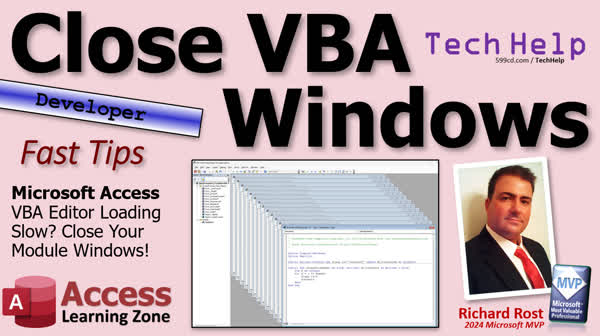 TechHelp Access, VBA editor slow load, close module windows, control F4 to close windows, optimize VBA editor loading, Access VBA performance, prevent slow VBA editor, save VBA editor state, debug compile, improve Access database speed, form modules in VBA, report modules in VBA
More InformationTranscript Welcome to another Fast Tips TechHelp video brought to you by AccessLearningZone.com. I'm your instructor, Richard Rost. Is your VBA editor loading slow? Well, in today's video, I'm going to tell you why, probably, and what to do about it.
If you're like me, you've got a pretty big database. My database is huge. I've been building it for 20-plus years, and it has lots of stuff, hundreds of forms, reports, modules, and more. When I go to open the VBA editor for the first time, it's super slow.
I'm also loading it across the network. I've got a properly split database, of course, and the "Access server" sits on a different machine than my normal workstation. So whenever I open the VBA editor (and I put a button up here on the Quick Launch Toolbar to open the VBA editor), it's the same as when you go to Design View and then to Form Design, hitting the little icon to open up the code.
Now, this one's going to load up quickly because it's on my desktop, on my local machine. It's my small TechHelp database. But this window, the VBA editor, can literally take 20 to 30 seconds to load up if I'm loading my main database.
So why is that? The reason why is because every time you work with one of these form modules, report modules, or actual modules, it opens up this window. If you're like me and you have them all maximized, you might not realize there's a ton of these open in the background. You can see that if you click this button to restore the window. Look, these are all open in the background.
As you work on these and don't explicitly close them, each time the VBA editor opens, it has to load each of these form modules and report modules in the background, slowing down the VBA editor. If you've got a few hundred of these like I do and you don't close them over time, that's what happens.
How do you fix it? You'd think there'd be a command up here, like Window Close All or something, but there's not. You can tile them, cascade them, and do all kinds of stuff, but there's no close command. You've got to close them by hand. You can do it with the mouse, or Control+F4 will also close these little windows inside the big window. That's a throwback from when applications used to have that MDI, the multiple document interface. You can just hold Control+F4 down, and they'll go away.
Now, if you close Access and come back in, and you go back in here, they're all back again. What happened? If you don't compile, if you don't do a debug compile once in a while, the VBA editor keeps its state. I can close down all of these, and if you come back in without doing a debug compile, it's going to save the state of the editor.
So what you have to do is get it down to maybe one left, debug compile, and if you can't debug compile, you've got to make a change to one thing in your file somewhere, maybe just hit Enter. Then you can debug compile. If you don't like that, put it back the way it was.
Now, if I close down Access (see, this is open in the background because that was a form module), save that one, close it, and now open her back up, and go in here, you can see it saved the state because you have to do it after a debug compile. That will save you some time if you've got a giant database like I do, and it takes forever to load the VBA editor. It's annoying.
I'm like the auto mechanic who tinkles with his car constantly. I'm always going into the VBA editor, and it's super slow if I don't remember to do that close windows thing once in a while.
So that's it for today. Nice short fast tip. That's why they call them Fast Tips. I know some of the Fast Tips aren't fast tips. I make the intro, and it's 13 minutes long, but that's not fast. Today, it's fast.
This is released publicly on December 26, 2024. Hope everyone had a nice Christmas. Tomorrow we're going to do a nice long TechHelp with an extended cut. That's it. That's going to be your TechHelp Fast Tip for today. Hope you learned something. Live long and prosper, my friends. I'll see you next time.
TOPICS:
Reasons for slow VBA editor loading
Managing open form and report modules
Closing windows in VBA editor
Using Control+F4 to close module windows
Importance of debug compiling
Steps to save VBA editor state
COMMERCIAL:
In today's video, we're discussing why your VBA editor might be loading slowly and what you can do about it. If you've got a big database with lots of forms, reports, and modules, it can take ages for the VBA editor to open. You'll learn how leaving form and report modules open can slow things down, and we'll show you how to close them efficiently using Control+F4. We'll also cover how to ensure the editor doesn't reload these modules by performing a debug compile. These quick tips could save you a lot of time if you work with a large database. You'll find the complete video on my YouTube channel and on my website at the link shown. Live long and prosper my friends. Intro In this video, we'll talk about why the VBA editor in Microsoft Access can take a long time to load, especially if you have a large database with many open form and report modules. I'll show you how to check for and close these open module windows, demonstrate using Control+F4 to close them quickly, and explain how performing a debug compile can save the editor's state. If you regularly work in the VBA editor and notice slow performance, these tips can help speed things up. Quiz Q1. What is the likely reason for the VBA editor loading slowly as mentioned in the video?
A. The VBA editor always loads slowly regardless of database size.
B. The VBA editor loads slowly because the network connection is poor.
C. The VBA editor has to load all open form and report modules in the background.
D. The VBA editor is slow due to a programming error.
Q2. How can you manually close the open form and report modules in the VBA editor?
A. Right-click each module and select "Close".
B. Use the "Window Close All" command.
C. Close them by hand using the mouse or use Control+F4.
D. Close the entire database to close all modules.
Q3. What is the function of the "debug compile" in the VBA editor discussed in the video?
A. It permanently deletes all open modules.
B. It compiles the code to check for errors and saves the editor's state.
C. It optimizes the database performance.
D. It automatically updates the database's schema.
Q4. What is one way to ensure that the VBA editor loads faster when you reopen it?
A. Compile debug with all windows open.
B. Restore the database to a previous backup.
C. Perform a debug compile after closing unnecessary windows.
D. Disconnect from the network before opening the editor.
Q5. Why might closing Access not solve the issue of slow VBA editor loading?
A. Because Access resets itself on every load.
B. If you have not done a debug compile, the VBA editor retains its state.
C. The network always causes slow reloads.
D. Because form layout views are stored permanently.
Q6. What should you do if you cannot perform a debug compile without changes?
A. Delete all modules and start fresh.
B. Make a small change somewhere in your file, like pressing Enter.
C. Use software to force compile the project.
D. Disable certain features in the Access options menu.
Answers: 1-C; 2-C; 3-B; 4-C; 5-B; 6-B
DISCLAIMER: Quiz questions are AI generated. If you find any that are wrong, don't make sense, or aren't related to the video topic at hand, then please post a comment and let me know. Thanks. Summary Today's TechHelp tutorial from AccessLearningZone.com addresses a common issue: a slow-loading VBA editor. I'm your instructor, Richard Rost, and if you've noticed your VBA editor taking its time to open, especially with a large database, I'm here to explain why that might be happening and how to tackle it.
For those of us working with massive databases accumulated over many years, such as mine with hundreds of forms, reports, and modules, opening the VBA editor can be frustratingly slow. My setup involves a networked, properly split database. The "Access server" operates on a different machine than my usual workstation. Whenever I need to access the VBA editor, there's a noticeable delay, particularly when dealing with the main database.
The delay occurs because opening any form, report, or module within the VBA editor brings up a window. If, like me, you keep these windows maximized, you may not notice the growing number in the background. Over time, if these windows aren't explicitly closed, they slow down the VBA editor each time it's opened.
You might expect a straightforward "Close All" option within the interface, but unfortunately, there isn't one. Instead, you're left to manually close them using the mouse or by pressing Control+F4, a carryover from the days of the multiple document interface. By repeatedly pressing Control+F4, you can close these internal windows one by one.
Once you close Access and return to it, you might find all those windows open again unless you perform a debug compile. Closing those windows without a debug compile leads the VBA editor to retain its state, so everything comes back. To prevent this, reduce the number of open windows to one, perform a debug compile, and make a minor change if necessary. This saves the current state, so when you return, the editor remembers your settings.
Debug compiling after closing most of the windows can help if you routinely deal with a large database, minimizing load times. As someone who frequently tweaks and modifies in the VBA editor, remembering to tackle this helps keep everything running smoothly.
That's your Fast Tip for today, designed to quickly guide you through speeding up the VBA editor's load time. For those interested in more detailed, step-by-step instructions, you can find a complete video tutorial on my website. Live long and prosper, my friends. Topic List Reasons for slow VBA editor loading
Managing open form and report modules
Closing windows in VBA editor
Using Control+F4 to close module windows
Importance of debug compiling
Steps to save VBA editor state Primary Topics VBA editor performance, Access database modules, closing open module windows, debug compile, multiple document interface Secondary Topics split databases, Quick Launch Toolbar use |





