Find in Text Box 2
By Richard Rost

 2 years ago
Search Text in MS Access: Build Find Buttons Part 2 In this Microsoft Access tutorial, I'll show you how to enhance your text search functionality by building Find First and Find Next buttons in Access. You'll learn to use the in-string function effectively and manage search positions, ensuring a seamless text search experience. This is part 2. MembersIn the extended cut, we will learn how to search across all records, moving beyond just the current page's book summary. I will show you how to adjust the search functionality to find the specified text in other records as well. Silver Members and up get access to view Extended Cut videos, when available. Gold Members can download the files from class plus get access to the Code Vault. If you're not a member, Join Today!
PrerequisitesLinksRecommended Courses
Keywords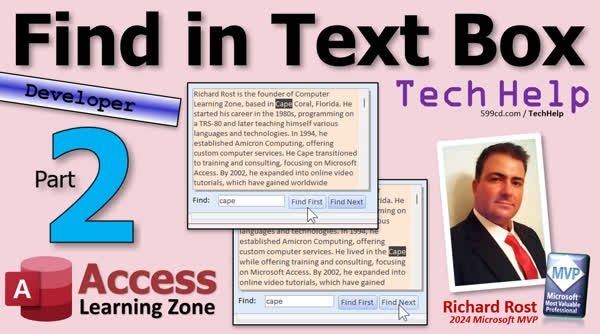 TechHelp Access, Find First Button, Find Next Button, Long Text Field Search, InStr Function, String Search Start, VBA Functions, Temp Variables, Private Subroutine, Search Position Tracking, Debugging in Access, Form Variables, Hidden Text Box, MS Access Programming, Access Extended Cut, Search Seminar
More InformationTranscript Welcome to another TechHelp video brought to you by Access LearningZone.com. I'm your instructor, Richard Rost. Today's part two of my Find Stuff in a text box video series. If you haven't watched part one yet, go watch part one and then come back.
In part one, we made this box here, a find box, and a find first button. If I type in something like World Wide Wide Wide. What's that from? And we had it find it, finds it. That's great, it finds the first one. How do we find the next one? Remember in the last video when I mentioned the in-string function takes a different first parameter; it says start. What is it? These are all optional. Okay, and in-string is smart enough to realize that if you put a number there, it starts searching there, so if I put a five there, that means it's going to start searching at character five. If you don't put a number there, then it assumes these are all variants by the way. It assumes that you want to start with that as your text. It's peculiar the way they did that. Usually, these optional parameters come at the end, but in this particular case, they put it first. It's unusual, but knowing that, all we have to do is say, if the user hits the find next button, then we're going to start somewhere other than position zero, the beginning.
Now, I don't want to have a lot of this code duplicated, so what we're going to do first is we're going to take all of this stuff here and put it inside a function. Leave this up here; we're going to still work with the button but say down here, private sub, which means only this form can use it. Do find text optional start position as long, and we're going to default starting at one. So, if we don't say anything, it's going to start at position one. Get rid of that extra space there. Now the find first button will say do find text and sub, that's all. So, as of right now, everything is exactly the same, and we have to take start position now and stick that there. So now we're specifying a start position, but find first is still going to have it at one because we're not sending a value to it. Let's make sure everything still works. Save it, debug, compile once in a while, back out here. Open it back up, I'm going to type in amicron, hit find first, and we're good, everything still works fine. Now let's make a find next button. Come down here, we can make this a little space. Okay, find first, and let's make find next. Copy, paste, we're going to stick you right next to it, find next. Let's open up your properties and call you the find next button. Now let's go back and right-click build event, go back to the editor.
Now with find first, we're always going to start at position one. With find next, I need to start at whatever the last position that I found one was at. So if I'm finding one now, let's say, and I find amicron at position 14, if I hit find next, I need to know that 14 so that I can say find the next one, which would, in other words, start the search at position 15. Now you can't rely on reading cell start because as soon as you click this button, the focus leaves this, and you lose that data. If I'm in here, and I search for, let's say Microsoft, okay, find first, just hypothetical, let's say it's 50. If I want to hit find next, the second I hit find next, this field loses focus, and you lose that data. You lose whatever value that was unless you save it yourself the last time the search is run. There are many ways to save it; you could put it in a hidden text box, you could put it in a form level variable up here, or you could put it in Adam's favorite, a temp bar. I like temp first too, let's use a temp bar. What I'm going to say is right here after it finds the text, we're going to say temp bars, let's call it last position equals position plus one, wherever you currently found it, start one character over to the right. Make sense?
Okay, now down here, when they click the find next button, I'm going to say do find text, which is my little sub there, temp bars last position. So, in other words, run this but send into it a start position of whatever this temp bars was. All right, debug, compile, looks good, save it, close it, open it, let's search for amicron, get by today, find first, there it is, find first again, it goes right back, finds the first one again. All right, find next, oh look at that, because it knows the temp bar says hey we found it up here, so start searching for it again from the next character over. See how that works? And then if I find next again, it doesn't find it. See a couple little minor things down here in the find next button. If the user doesn't click find first first, they just click find next, we don't want an error to generate. So we're going to say, if is null our temp bar, if that's null then temp bars last position equals one. In other words, if they don't click find first before they click find next, we're going to set that to one. We're also going to set that to one here if it doesn't find it. Just a couple of little cleanup items. Now save it, close it. I like to, whenever I make a programming change, close and reopen the form just to make sure everything is fresh. I'll search for OST, find first, there it is, find next, there it is again, find next, and it doesn't find it a third time. There you go.
I just hit my scroll wheel, and I didn't have a scroll that makes that noise, but that'll do it. That's how you make your find first and find next buttons. Now, in Heather's database, she only really wants to search the book summary on the page she's on, but what if you do want to search in all of the other records too? Well, then we just have to make it go to the next record and find the next bit of text that you're looking for. How do you do that? We'll cover that in the extended cut for the members. Silver members and up get access to all of my extended cut videos, and everybody gets some free training. If you really want to learn how to unlock the potential of Microsoft Access searches, I have a whole seminar that teaches you everything you can possibly want to know about searching, finding, filtering, and all that stuff in Microsoft Access. It's called the Search Seminar. Check it out, it's nine and a half hours long, it covers all this stuff. There's a lot in here, folks, it's one of my more popular seminars. You name it, it's covered if it has to do with searching and sorting. We do all kinds, like natural language searches, different types of sort buttons, multiple fields, you name it, it's in here.
And of course, in addition to searching and sorting, I have tons of developer lessons covering everything from A to Z when it comes to VBA. And before I let you go, I just wanted to share this with you. Often, when I put together an outline for a video that I want to make, I'll then take the outline when it's finished and give it to ChatGPT, and I'll say, review this outline, let me know if there's anything that I'm missing, anything you can think of a better way to do possibly. It rarely comes up with that, but sometimes. I had in my outline, I love temp bars, so does Adam, and GPT, when it's giving me a list of suggestions, says the sentence is lighthearted but might need clarification for a broader audience if they don't know Adam. For those of you who don't know, Adam is one of the moderators on my website and helps out a lot, and he is in love with badges and temp bars. If you see this, go on the website and find the temp bars video. It will explain what the deal is in more detail, and leave Adam a comment down below and say hey, I'm glad you got your temp bars video. But that is going to do it, folks—that's your TechHelp video for today. I hope you learned something in this two-part series. Live long and prosper, my friends. I'll see you next time, and members, I will see you in the extended cut.
If you enjoyed this video, please give me a thumbs up and post any comments you may have below. I do try to read and answer all of them as soon as I can. Make sure you subscribe to my channel, which is completely free. Click the bell icon and select all to receive notifications when new videos are posted. Want to learn more? Click the show more link below the video to find additional resources and links. YouTube does a good job of hiding it. It's right down there. See this part of the description here? The video is up here, and there's a little show more down there at the bottom. It's a bit hard to find, but once you click on that, you'll see a list of other videos, additional information related to the current topic, free lessons, and lots more. YouTube no longer sends out email notifications when new videos are posted as they used to do, but if you'd like to get an email every time I post a new video, click on the link to join my mailing list, and you can pick how frequently to get emails from me, either as they happen, daily, weekly, or monthly.
If you'd like to become a paid member of my channel and receive all kinds of awesome perks, click on the join button. You'll see a list of all the different membership levels that are available, each with its own special perks. These include my extended cut videos, access to my code vault (lots of VBA source code), template downloads, and lots more. I'll talk more about these perks at the end of the video. Even if you don't want to commit to becoming a paid member and you'd like to help support my work, please feel free to click on the tip jar link. Your patronage is greatly appreciated and will help keep these free videos coming. I've got some puppies to feed, but don't worry, no matter what, the free TechHelp videos are going to keep coming. As long as you keep watching them, I'll keep making more, and they'll always be free.
Now, if you really want to learn Access and you haven't tried my free Access Level One course, check it out now. It covers all the basics of Microsoft Access, including building forms, queries, reports, and more. It's over four hours long. You can find it on my website or on my YouTube channel. I'll put a link down below you can click on. Did I mention it's completely free? The entire course is free, four hours—go watch it. A lot of you have told me that you don't have time to sit through a four-hour course, so I now have a quicker Microsoft Access for Beginners video that covers all the basics faster in about 30 minutes. No, I didn't just put the video on fast forward, but I'll put a link to this down below as well. Now, if you like Level One, Level Two is just a dollar. That's it, one dollar. That's another whole 90-minute course, and Level Two is also free for paid members of any level, including supporters. So if you're a member, go watch Level Two. It's free.
Want to get your question answered in a video just like this one? Visit my TechHelp page and send me your question there. Members get priority, and while I do try to read and respond to all of the comments posted below in the comments section, I only have time to go through them briefly a couple of times a month, and sometimes I get thousands of them. So send me your question here on the TechHelp page, and you'll have a better chance of getting an answer. While you're on my website, be sure to stop by my Access forum. We've got lots of lively conversations about Microsoft Access and other topics. I have a fantastic group of moderators who help me answer questions. Shout out to Alex, Kevin, Scott, Adam, John, Dan, Wann, and everybody else who helps on the site. I appreciate everything you do, I couldn't do it without you. Be sure to follow my blog, find me on Twitter, and of course on YouTube. Yes, I'm on Facebook too, but I don't like Facebook, don't get me started.
Now let's talk more about those member perks. If you do decide to join as a paid member, there are different levels: Silver, Gold, Platinum, and Diamond. Silver members and up get access to all of my extended cut TechHelp videos, one free beginner class every month, and some other perks. Gold members get all the previous perks plus access to download the sample databases that I build in my TechHelp videos, plus access to my code vault where I keep tons of different functions that I use—the code that I build in most of the videos. You'll also get higher priority if you do submit any TechHelp questions. Now, answers are never guaranteed, but you do go higher in the list for me to read them, and if I like your question, you've got a good chance of being answered. You'll also get one free expert level class each month after you finish the beginner series. Platinum members get all the previous perks plus even higher priority for TechHelp questions. You get access to all of my full beginner level courses for every subject, and I cover lots of different subjects like Word, Excel, VBA, ASP, lots of different stuff, not just Access. These are the full-length courses found on my website. You get all the beginner ones. In addition, once you finish the expert classes, you get one free developer class per month, so lots of training.
So that's it. Once again, my name is Richard Rost. Thank you for watching this video brought to you by Access LearningZone.com. I hope you enjoyed, and I hope you learned something today. Live long and prosper, my friends. I'll see you again soon.
TOPICS:
Creating a find box and button
Using the in-string function
Understanding start position parameter
Creating a function for find text
Using temp bar to save position
Implementing find next button
Handling cases without find first
Using temp bar for last position
Debugging and testing the function
COMMERCIAL:
In today's video, we're continuing with part two of how to find stuff in a text box using Microsoft Access. We'll learn how to create a Find Next button to locate subsequent instances of text. You'll discover how to efficiently manage the search process using the InStr function by introducing a "start position" parameter and leveraging temporary variables to store search positions. You'll see how to handle unexpected scenarios, like users clicking Find Next without using Find First. If you want to explore further into searching across all records, that will be covered in the extended cut for members. You'll find the complete video on my YouTube channel and on my website at the link shown. Live long and prosper, my friends. Intro In this video, we continue exploring how to find specific text within a text box in Microsoft Access by building on the search functionality from part one. I will show you how to add a Find Next button, use the InStr function with a custom start position, and store search positions using a temporary variable. We'll also cover how to manage situations where Find Next is clicked before Find First and test the updated search process to make sure it works smoothly. This is part 2. Quiz Q1. What is the purpose of the in-string function's first parameter in the context of this video?
A. It specifies the end position for the search.
B. It denotes the text to be searched.
C. It indicates the start position for the search.
D. It sets the case sensitivity of the search.
Q2. What does Richard suggest using to store the last found position for the 'find next' functionality?
A. A hidden text box
B. A form level variable
C. A temp bar
D. A global variable
Q3. What default start position is used if no starting position is specified in the function discussed in the video?
A. 0
B. 5
C. 10
D. 1
Q4. How can the code be structured to avoid duplicating the logic for 'find first' and 'find next' functionalities?
A. Use separate functions for each button.
B. Place the shared logic inside a single function.
C. Write the logic directly in the button click events.
D. Use a global variable to control functionality.
Q5. What should happen if a user clicks 'find next' without first clicking 'find first'?
A. The application should close.
B. An error message should display.
C. The search should start from the beginning of the text.
D. The application should restart.
Q6. What is one of the cleanup items Richard adds to the 'find next' button code?
A. Resetting the start position to zero if not found.
B. Displaying an error message if nothing is found.
C. Setting the start position to one if 'find first' is not clicked beforehand.
D. Disabling the button if 'find first' is not clicked first.
Q7. What additional feature does Richard mention for members in the extended cut regarding searching?
A. Searching only within specific words.
B. Searching text in all other records.
C. Highlighting each found word differently.
D. Searching for phrases instead of words.
Q8. What will happen if the 'find next' button is clicked and there is no further occurrence of the text?
A. It will loop back to the first occurrence.
B. It will display the last occurrence again.
C. It will stop and do nothing further.
D. It will start searching from the beginning again.
Answers: 1-C; 2-C; 3-D; 4-B; 5-C; 6-C; 7-B; 8-C.
DISCLAIMER: Quiz questions are AI generated. If you find any that are wrong, don't make sense, or aren't related to the video topic at hand, then please post a comment and let me know. Thanks. Summary Today's TechHelp tutorial from Access Learning Zone focuses on the second part of our Find Stuff in a text box series. If you haven't seen the first part yet, I recommend watching it before continuing with today's lesson.
In the previous video, we created a find box and a 'find first' button for searching text. For example, when entering a phrase like "World Wide Wide Wide," the system can locate the first instance of the search term. But what about finding the next occurrence? We discussed the in-string function, which takes an optional parameter to specify the start position for the search. If you provide a number, the search begins at that character position. By default, it starts at the beginning or position one. Knowing this, the key task is to adjust the starting position when the 'find next' button is pressed, eliminating repeated code by encapsulating it into a function.
We structured a private subroutine to execute these searches, allowing modifications to start the search from a specified position. This way, the 'find first' button keeps its initial functionality, retaining position one as the start for the first search. The main task was ensuring the logic for tracking the last found position was in place, using a temporary variable to remember the position after each search. This variable updates the starting position for subsequent searches.
The fun part comes when handling what happens if a user skips 'find first' and goes directly to 'find next.' We don't want errors, so we check if our temporary variable is null, setting it to one for seamless searching. Even if nothing is found, it resets appropriately. After every code adjustment, remember to save, compile, close, and reopen the form to guarantee everything is functioning correctly.
Now that we have our system robustly locating the first and subsequent instances of a text in a current record, let's consider a more advanced scenario: searching across multiple records. Such an enhancement requires a separate approach, which is discussed thoroughly in our extended cut for members. It includes comprehensive techniques in searching and filtering within Microsoft Access, and I highly recommend the full Search Seminar for anyone eager to explore these capabilities. It's a nine-and-a-half-hour course covering a wide array of topics, including natural language searches and sorting.
Enhancing your Access skills doesn't stop at searching. Our site offers extensive lessons in VBA programming and much more. When I develop these tutorials, I often run outlines through AI review tools for refinement, sometimes adding quirky insider references, such as Adam and his affinity for temp vars.
For those interested in further resources, I encourage checking my Access Level One course, available for free. It's thorough, covering essentials like forms, queries, and more, and even offers a condensed version for quicker learning. Level Two is not free but affordable, and members of my channel enjoy it at no extra cost.
If you want your question addressed in a future video, submit it through our TechHelp page for a chance to get featured. Our community is vibrant, with helpful moderators assisting in the forums. We welcome you to engage and grow with us.
Consider joining as a member to enjoy benefits based on tier level, such as access to extended videos, sample databases, and expert-level courses. Each level offers distinct advantages tailored to meet different learning desires and commitment levels.
Thank you all for watching today. Find a complete video tutorial with detailed, step-by-step instructions for everything discussed today on my website through the link below. Live long and prosper, my friends. Topic List Creating a find box and button
Using the in-string function
Understanding start position parameter
Creating a function for find text
Using temp bar to save position
Implementing find next button
Handling cases without find first
Using temp bar for last position
Debugging and testing the function Primary Topics Access VBA form design, InStr function, find text in textbox, start position parameter, function modularization, state management with temp variables, Find First button, Find Next button Secondary Topics debugging VBA code, error handling, intro to searching across records |







