Fitness 11
By Richard Rost

 15 months ago
Food Groups List Items Edit Form, Referential Integrity
In this Microsoft Access tutorial I will show you how to create and set up a form to edit food groups in your fitness database, link it to a combo box using the List Items Edit Form property, and enforce referential integrity between tables to prevent accidental deletions. This is part 11.
Members
There is no extended cut, but here is the file download:
Silver Members and up get access to view Extended Cut videos, when available. Gold Members can download the files from class plus get access to the Code Vault. If you're not a member, Join Today!
Prerequisites
Links
Recommended Courses
Up Next
Keywords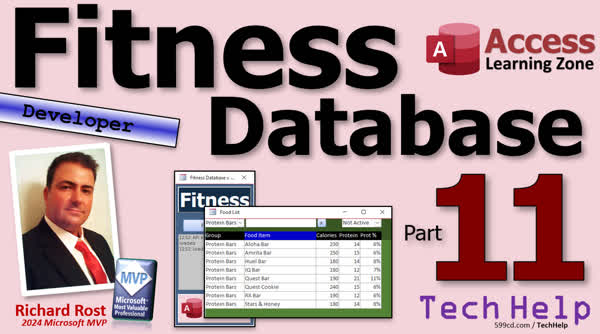
TechHelp Access, fitness database, food group form, form design, combo box list items edit form, referential integrity, relationships, food group table, food table, enforce referential integrity, split database, meal table, meal detail table
 Subscribe to Fitness 11
Get notifications when this page is updated
More InformationTranscript Welcome to another TechHelp video brought to you by AccessLearningZone.com. I'm your instructor, Richard Rost.
Today is part 11 of my fitness database series. If you want to learn how to build a fitness database, this is the series for you.
Whether you care about fitness or not, all of the stuff that I show you in this series is going to be really cool for any other database you're building. If you don't care about tracking your M&Ms and your steps, that doesn't matter because this is all good stuff.
Let's see where we're at. We have our food list, we have our food items here, and we have our filter boxes. We don't have a way to edit the list of the food groups aside from going to the table, so real quick, let's put together a form for that.
I think I'm just going to copy the food list, copy and paste it. Let's call this the food group F. Then we'll go into design view for this guy. The reason why I copied it is because it's got all of the basic colors that I want to use.
Now, we don't need any of this header stuff. We don't need these buttons down here. This will be a real simple form. In fact, we can get rid of most of this stuff and just keep one of those fields with the group itself. We can get rid of the footer and shrink that up.
Let's change where it's bound. Let's bind it to food group T. Go to data, we're going to bind this to the food group T. Go to events and we can get rid of all this stuff. In fact, we don't need any code in this guy at all.
Let's just open her up and we can just control well don't control A because we want to make sure you leave the option to compare database and the option explicit. So I'm going to click right here, hit control shift down, or it's control shift end, and then delete all that code. Save it.
We're going to change the food group here to get that on click. You can change that guy to data. You don't really need the ID on this form. Save it.
Let's do an order by description here. Then we'll close it and open it. There we go. Then just resize it however big you want it, stay right there.
You could put a button for it on your main menu if you want to. I'll put a couple more buttons on here before we're done, so I'm going to slide all of this down and just copy this guy, copy and paste. This is kind of like a submenu, so I'll just put Food Groups, and I'm going to make this guy a little bit smaller. Let's go nine point and make it an actual smaller button. There we go.
Food Groups. On the Food Groups button, right click, build event, do command open form, food group F. Save it. Close it, close it, close it, close it, close everybody. Now open it up and hit Food Groups, and there it goes. You can slide it over here more if you want, wherever you want to put it.
All right, we got Food Groups. Now, I'm going to set that Food Groups form as the List Items Edit Form for this combo box. So if you want to add it and you're in here adding a new product and realize you forgot candy, you can then do that.
We're going to go in here to design view. Let me resize this so we can see everything. Click on this guy here, go to data, find Limit to List is Yes, Allow Value List Edits is Yes, that's fine. Actually, this isn't a value list, but it doesn't matter. Go to List Items Edit Form, drop this down, and pick that food group F that we just made. Save it, close it, and now when we open it up, or if we hit Add New and I'm typing in, you know, M&Ms, and I realize I forgot candy, I'll drop this down, see candy isn't on here, and I know it. The List Items Edit Form box, click on that, and you can now come over here...
Oh, remember this original form, since we copied it from this one, this guy has Allow Add and Allow Deletion set to No. Let's change that in design view.
Oh, it's a List Items Edit Form, so it's opened up as a dialog, so you have to come back to here and do it. Right click, design view.
Okay, so in this guy, I'm not going to get too crazy with this, because this is something you're probably going to only touch once in a blue moon. But we're going to go to data, we're going to go Allow Edits: Yes, Allow Deletions: Yes, Allow Additions: Yes, so you can actually come in here and make some changes.
Okay, so one more time, drop this down, hit the button, now we can add... let me move this over here a little... Now let's put it right there. Now we can add candy.
Oh, and of course, this text box is locked too. Close it, open it over here, right click, design view for this guy. Data, Locked is No. Now we should finally be able to edit it.
Try it again, take three, third time's the charm, click candy, and then close it. The nice thing about List Items Edit Forms is it shows up there now. One million calories. I don't know how many calories. Oh, we could look it up. Let's see, M&Ms, regular, normal size. Let's see if the Get Macros can get it.
Yes, there we go. Okay, it works.
There are two grams of protein in M&Ms. If you want to learn more about that List Items Edit Form, go check out this video.
Now, the next thing I'd like to do is to set up referential integrity, because we don't want to delete one of these items and then have a food item in it.
So we're going to have it so that if you do have a food group, you can't delete items in that food group until you delete all of the items. Then you can delete the food group. I'm seeing here that I still don't have... did we turn the record selectors off? Right, we did. Okay, so turn record selectors back on.
Now, this is up to you. You could do this or not, because you might want to have it so that if you just delete the legumes group, you just leave all the items. But yeah, let's set up referential integrity. I think that's something that I would use in this case.
We're going to go to Database Tools, and it's under Relationships. I drew a blank for a second there. Then we're going to bring in the food group table and the food table. We're going to join them by food group ID. Click on one, drag it to the other one, and we're going to enforce referential integrity, which basically says if you have a parent, you can't delete it if it's got children.
Then we'll hit Create and... did it, did it, did it... because food T is in use. Cancel that. You have to close these guys. Now you should be able to do it.
Of course, and Create, there we go. There's our relationship. Save it; that just saves the layout of the table. Close it. Now, if you come into a food group and you pick something like protein and try to delete it, you can't do it. Not a very friendly message, but maybe we'll deal with that later.
Of course, if you want to learn more about referential integrity, go watch this video.
One thing to note: if you have a split database and you have multiple back end files, your referential integrity does not work across multiple files. For example, before I switched everything over to SQL Server, I had multiple back ends for my business database. I had my order table, my order details table, and my customer table all in separate back end files because they're quite large. Referential integrity does not work across them if they're in split databases like that.
All right, now I think we are finally ready to start tracking meals. We'll make a meal table, a meal detail table, and then we'll start building those together. We'll do that in tomorrow's class, so tune in tomorrow. Same bat time, same bat channel. Members, you can watch it right now because I'm going to record a couple tonight.
That's going to do it for part 11, folks. Hope you learned something. Live long and prosper, my friends. I'll see you tomorrow for part 12.
TOPICS:
Creating a Food Group form by copying an existing form
Customizing the Food Group form layout and fields
Binding the Food Group form to the correct table
Removing unnecessary code from the copied form
Setting up sorting by description in the Food Group form
Adding a Food Groups button to the main menu
Opening the Food Group form from the new menu button
Setting the Food Group form as the List Items Edit Form for a combo box
Configuring Allow Edits, Deletions, and Additions on the Food Group form
Unlocking text boxes to allow editing
Using the List Items Edit Form to add new food groups
Setting up referential integrity between food group and food tables
Creating and enforcing a relationship in table design
Testing referential integrity to prevent orphaned records
Re-enabling record selectors on a form for better management
Limitations of referential integrity in split backend databases
COMMERCIAL:
In today's video, we're continuing with part 11 of the fitness database series. We'll learn how to build a Food Groups form to manage your food categories more easily, set it up as a List Items Edit Form so you can add new groups on the fly, and link it to your main menu for quick access. I'll show you how to make these changes editable and explain how referential integrity keeps your database relationships in order, preventing the deletion of food groups that still have foods linked to them. You'll find the complete video on my YouTube channel and on my website at the link shown. Live long and prosper my friends. Intro In this video, we continue building our Microsoft Access fitness database by creating a dedicated Food Groups form to manage your food categories, customizing its layout, and linking it to the main menu for easy access. I'll show you how to set this form as the List Items Edit Form for your combo box, making it simple to add new food groups on the fly, and adjust settings so the form allows edits, additions, and deletions. We'll also set up referential integrity between your food group and food tables to keep your data consistent and prevent orphaned records. This is part 11. Quiz Q1. What was the main reason for creating a new Food Groups form in the tutorial?
A. To allow users to edit the list of food groups more easily
B. To show how to design a main menu
C. To practice using macros in Access
D. To demonstrate report creation
Q2. When copying the Food List form to create the Food Groups form, why did Richard choose to copy instead of making a new blank form?
A. Because he wanted to keep the basic color scheme and formatting
B. Because he could not create a blank form in Access
C. To preserve the original data source
D. To avoid deleting the original food list
Q3. What important property did Richard set in the Food Groups form to ensure users can make changes?
A. Allow Edits, Additions, and Deletions were set to Yes
B. Default View was set to Continuous Forms
C. Record Source was set to Food List T
D. The form was set to Modal
Q4. What is the purpose of the "List Items Edit Form" property for a combo box in Access?
A. To allow users to open a special form to add or edit items missing from the combo box list
B. To enable a drop-down calendar for date entry
C. To create a filtered view automatically
D. To link to a main menu button
Q5. Why did the Food Groups form need to have its "Locked" property set to No for the text box?
A. So users could edit the food group description
B. To prevent accidental deletions
C. To enable spell check
D. To auto-fill the combo box
Q6. What is referential integrity, as explained in this video?
A. It prevents deleting a parent record if there are related child records
B. It automatically updates all records in the database
C. It locks tables for exclusive use
D. It hides fields that contain null values
Q7. In context of the tutorial, what happens when you enforce referential integrity between the food group and food tables?
A. You cannot delete a food group if there are food items in that group
B. All related food items are automatically deleted if a food group is deleted
C. The table becomes read-only
D. Users are given edit permissions only
Q8. Why might referential integrity not work in a split database with multiple backend files?
A. Because relationships do not span across different files
B. Because split databases are read-only
C. Because it only works in the SQL Server environment
D. Because Access disables all relationships by default
Q9. After setting up the List Items Edit Form and referential integrity, what was the next planned step in the fitness database series?
A. Creating tables and forms to start tracking meals and meal details
B. Generating reports for calories
C. Importing data from Excel
D. Adding user logins
Q10. Why is it helpful to add a button for the Food Groups form to the main menu?
A. It provides easy access for users to manage food groups without opening tables directly
B. It automatically calculates totals
C. It enables print preview
D. It backs up the database
Answers: 1-A; 2-A; 3-A; 4-A; 5-A; 6-A; 7-A; 8-A; 9-A; 10-A
DISCLAIMER: Quiz questions are AI generated. If you find any that are wrong, don't make sense, or aren't related to the video topic at hand, then please post a comment and let me know. Thanks. Summary Today's TechHelp tutorial from Access Learning Zone covers part 11 of the fitness database series. If you want to build a fitness database from scratch, this series is perfect for you. Even if you are not interested in tracking fitness information or things like your daily steps or candy consumption, everything I demonstrate here is useful for building any kind of database in Microsoft Access.
At this point in the project, we have a comprehensive food list, food items, and filter boxes set up. However, up until now, we have not had a straightforward way to edit the list of food groups without going directly into the table. Let's fix that by creating a dedicated form for editing food groups.
To speed things along, I will copy the existing food list form and paste it as a new form. This new form will be named "food group F." The main reason for copying the existing form is that it already includes the basic colors and formatting I want.
Inside design view, I will remove unnecessary elements from the header, such as buttons and fields that are not relevant. I only need the actual food group field present. I also get rid of the footer to keep the form simple and compact.
Next, I will bind this form to the food group table so it manages those records. All code and event procedures from the original form are removed because this one does not require any custom code.
Once the form is ready, I'll make sure to keep important standards for the module. I make sure not to delete the Option Compare Database or Option Explicit statements in the code view. After deleting everything else that is unnecessary, I save the module.
I update the form's properties so it references the correct fields, and I remove the ID field display. To make things neater, I sort the items by their description before saving and closing the form. After opening it, I resize it to fit comfortably.
At this stage, it's helpful to add a button for this food group form directly to the main menu. I move the existing controls down, copy and paste a button, rename it to "Food Groups," and reduce its size. I set the button's event to open the new food group form. This button now serves as a quick way to manage food groups from the menu.
Now, I want this new food group form to act as the List Items Edit Form for the relevant combo box. This feature allows you to add a new food group while you are entering a food item. For instance, if you are adding a new product and realize you need a new group like "candy," you can quickly open the food group form to add it without leaving your current workflow.
To configure this, I open the food entry form in design view, select the food group combo box, and ensure that "Limit to List" is set to Yes. I also enable "Allow Value List Edits," although this combo box is not a typical value list. Most importantly, I set the "List Items Edit Form" property to reference the new food group form I just created.
Now, when entering a new food like M&Ms and you realize that "candy" is missing from the food group options, you can easily open the edit form from the combo box. Here, you can add "candy" as a new group.
However, since this new form was copied from the main food list form, some properties need adjusting. By default, Allow Additions and Allow Deletions were set to No. This prevents changing or adding groups. So I open the form in design view, allowing edits, deletions, and additions so you can manage the food groups list as needed.
Also, I notice that the text box for the group name is locked. After unlocking it, the form can finally be edited as expected.
Using List Items Edit Forms in this way makes entering new categories quick and flexible. Once you add something like "candy," it instantly appears in your combo box.
If you want more details about setting up and using List Items Edit Forms, I recommend watching my other video on that specific topic.
With that improvement in place, the next step is to address referential integrity. We need to make sure that data remains consistent. For example, if you have a food item assigned to a certain food group, you should not be able to delete the food group while it is still in use. Referential integrity ensures that you cannot delete a parent record if it has children records dependent on it.
To set this up, I open the Relationships window in Access, add the food group table and food table, and create a relationship between them using the food group ID. I enforce referential integrity on this relationship. If the tables are currently open, I close them so the relationship can be created.
With referential integrity enforced, if you attempt to delete a food group while there are still items referencing it, Access stops you. The error message may not be very user-friendly right now, but I may address that in a future lesson.
If you want an in-depth explanation of referential integrity, I have a dedicated video on that topic as well.
One important point worth mentioning is that referential integrity only works within a single database file. If you have a split database with tables distributed across multiple back end files, referential integrity will not be enforced between tables in different files. This can become relevant in large business applications where tables are separated for size or performance reasons.
With all of that completed, we are now ready to progress to meal tracking. The next step will be to create a meal table, a meal details table, and start integrating them into our fitness database. I will cover that in the next lesson.
That wraps up part 11. I hope you picked up some useful techniques today. You can find a complete video tutorial with step-by-step instructions on everything discussed here on my website at the link below. Live long and prosper, my friends. Topic List Creating a Food Group form by copying an existing form
Customizing the Food Group form layout and fields
Binding the Food Group form to the correct table
Removing unnecessary code from the copied form
Setting up sorting by description in the Food Group form
Adding a Food Groups button to the main menu
Opening the Food Group form from the new menu button
Setting the Food Group form as the List Items Edit Form for a combo box
Configuring Allow Edits, Deletions, and Additions on the Food Group form
Unlocking text boxes to allow editing
Using the List Items Edit Form to add new food groups
Setting up referential integrity between food group and food tables
Creating and enforcing a relationship in table design
Testing referential integrity to prevent orphaned records
Re-enabling record selectors on a form for better management
Limitations of referential integrity in split backend databases Primary Topics Access form creation, Food group management, List Items Edit Form, Combo box configuration, Referential integrity, Table relationships, Data validation, User interface customization
Secondary Topics Split backend limitations, Form property settings, Main menu navigation, none
|




