Fitness 13
By Richard Rost

 15 months ago
Creating a Meal Entry Form with Subform and Totals In this Microsoft Access tutorial I will show you how to build a subform for a meal tracking database, including creating a combo box for food items, formatting the display, adding calculated fields for calories and protein, and setting up totals for each meal. We will then integrate the subform into a main meal form, add a notes section, and refine the layout for easier use. This is part 13. MembersThere is no extended cut, but here is the file download: Silver Members and up get access to view Extended Cut videos, when available. Gold Members can download the files from class plus get access to the Code Vault. If you're not a member, Join Today!
PrerequisitesRecommended CoursesUp Next
Keywords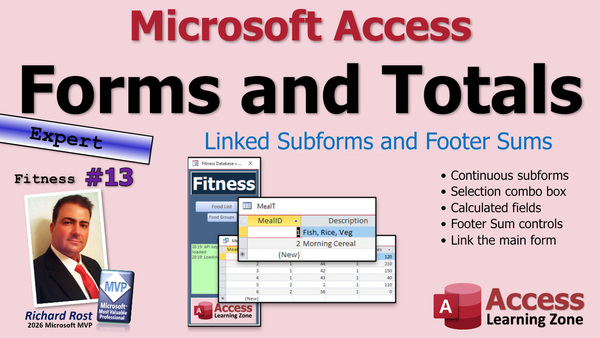 TechHelp Access, meal table, meal detail table, meal detail query, subform, combo box, food table, calculated fields, continuous form, quantity control, total calories, total protein, tab order, sum fields, parent form, single form, description field, notes box, record selector, navigation buttons, meal list button
 Subscribe to Fitness 13
Get notifications when this page is updated
More InformationTranscript Today we have part 13 of my fitness database and as I always say, whether you care about fitness or not, this is about building databases. So even if you're working with customers or products or inventory, all these techniques are just as valid. I'm just doing a fitness database.
If you haven't watched parts one through twelve, go watch those first, then come back.
We have our meal table, our meal detail table, and our meal detail query that's got the calculations in it.
Now we're ready to start on the form. I like to work from the inside out, so we're going to start with the subform first. This will be a brand new one, so we're going to copy the continuous form, copy, paste. This will be the meal detail F, and in the meal detail F this is where the line items go.
Let's make meals be blue, so let's open up formatting here. I'm going to make this guy blue and blue and a little less blue, drop this down, go to more colors and slide this up just a bunch. There we go.
We're going to bind this guy to that query that we built in the last class, the meal detail query that's got our calculated values in it. We don't need the ID. We're going to basically have a combo box over here to pick the food item.
We don't have a food combo box yet, so let's make one. I was thinking of the category combo box. We're going to go to form design, find my combo box, drop it here, and look up the values in a table or query from the food table. Bring in the food ID, the description, and you can see whatever you want to see in the box when it's open. I like to see calories and protein.
Next, what do you want to sort it by? Let's sort it by description.
This is what it will look like when the box is open. Make sure your stuff fits in there. That looks good right there; these can be smaller.
Next, store that value in the food ID field of the meal detail table.
The label doesn't matter, we're going to delete it. Finish it, delete the label, slide this guy over here, and make it as big as you think it needs to be.
Let's give it a good name; this will be the food combo.
Next to it is our quantity. It can be nice and tiny. Control source is quantity; copy that to the name.
Now we've got two other fields I want to bring in here.
Go to Add Existing Fields; it's total calories and total protein. I want to bring those in; those are the ones I care about. The labels, you can bring in whatever you want. Slide them over here.
I'm just doing this so I can make sure they're all the same size, and then I put it up here. Notice how these are all just slightly different in size, so I'm going to select everybody, right click, size to grid. I know it's off your screen, but it's right click, size to grid. You should know that one; that's a beginner one.
These guys are calculated fields, so we're going to make those gray and bring up their properties. Right click, properties, and make them not tab stop so you can't tab to them. So when you tab, it just goes tab tab. While we're at it, let's fix the tab stop. Form design, tab order, auto order, because that quantity was on there first.
Now we can shrink that up, shrink that up, and edit the labels. Let's just make one big label across the top like we've been doing: Food Item, Quantity, Calories, and for me, Protein. Make it all fit, put a space there, and that's close enough; it doesn't have to be exact. I'll tweak it later.
I always like to leave this little bit of space here too for this scroll bar. Let's see what we got. Save it, close it, open it up. Looking pretty good; we've got all the meals on here now.
This is an instance where I think I am going to right align this guy and maybe make these a little bit bigger so those have some more room to fit in there. Let's make these a little bit bigger, so I'm going to go with these guys and stretch these out just a little bit.
Quantity to there, calories is just about right, and then protein to there. That's much better. Bring this over, right align this guy, save it, close it, open it. That looks a lot better. I like my labels to be a little more spaced out.
Normally when we drop this subform into the meal parent form, we'll only see the items for each meal. That relationship is handled by the subform object, but I would like to see totals down here so for each meal you see the totals.
In design view, I'm going to copy both of those, copy, click, paste. I figured out that pasting thing works a lot better if you click on the section you want to paste this stuff into instead of just clicking on the background. Click on the bar.
Let's line these up underneath there. This is total calories, so this is going to be equals the sum of total calories and we're going to call it sum total calories. This guy is going to be equals the sum of total protein, and we're going to name it sum total protein.
Save it, squeeze out some space there, close it, open it. There's our totals. Pretty good so far. Put it up here.
Now let's make the parent form. I'm going to just copy this guy since it's got the formatting that I want. We'll just switch it over to a regular single form, so copy meal detail F, copy, paste into meal F.
We're going to edit this guy. Now we don't need the header; I'm going to leave one label here though. We need the label; we don't want to lose that label. Do that. We don't need this; we don't need this stuff. We're going to change this so that it's getting its data from the meal T, the meal table, which means this is no longer valid. So we're going to change this to description, drop that down, pick description, copy and paste it into the name as well.
I'm going to move this label down here and then watch this, cut, paste. I've now attached that label to this text box. That's how you do it; you cut it out, click on this, and paste it on it.
Slide him over here. We don't need this header section. Goodbye. This is going to be a description. This is the description of the meal.
Make this bigger. In fact, I want this guy to stand out, so let's left align it. Let's make it big, like 14 point bold. There we go.
In here we're going to have the subform, so grab your subform meal detail F, click, drag, drop.
It says a form of the subform can't have its default view set to continuous forms. You can; I have a whole separate video on that. You can do this, but in this particular case we don't want it to be, so it's going to change this back to single form for us. If you want to switch it back to continuous form, you can. That's a bug or at least an invalid error.
Make this as big as you think it needs to be to fit all the items you're going to display. I've found that most meals only have about four or five items on them, so I'm not going to make this too big. Make this fit to there, up to about there. This won't be scrolling.
Down here in the footer section, or you can put it below this, it doesn't matter either way, we could put our notes down here. We've got notes for the meal. I have notes in a lot of my meals. I've already got a pretty note box right there that I'm going to copy, so right click, design, copy, control C, come back over here, click, paste. There's my notes. As long as it's named the same thing, you don't have to worry about changing anything else.
I'm going to leave some room here because the members are going to be doing something interesting over here a little bit later, but that should be it for now.
Let's take a look at what we got. Save it, close it, open up the meal F, and there you go. Fish, rice, veg. Go to the next one, morning cereal, there it is. I'm going to add something to morning cereal, just drop this down. What else is going in there? Black beans. No, we don't want that.
I will allow deletions and stuff in here too; that's fine. We don't need this set of record selectors; this gets confusing. Now that I look at it, I think I want to bring, because this is the record selector for the whole meal itself, I think I'm going to bring this into the detail section instead of having it in the footer. I think it looks a little confusing the way it is now.
We're just going to open this up a little bit, move this up into here so it's one big section, and we don't need this footer section for now, so we'll just shrink it up. We might do something with it later. I think that will look less visually confusing.
For this guy, click on the subform object, then double click right there to bring up his properties, and turn off his navigation buttons right there. Save it, close it, close it, open it. That looks a lot better. That looks a ton better.
This is now for the whole meal; this is for the individual items. You don't have that confusing bar in here; you still see your totals. Let's put the word totals in there.
Right click, design, copy this label, click copy, click down here, paste, change this to totals. You can put a colon in there if you want to. I'm not going to. I used to put colons in all my labels and then I just got kind of sick of it so I don't anymore. If you watch my older classes, I've got colons everywhere.
Right there, save it, close it. There's a lot of save it, close it, open it.
So we're getting there. Lots more little enhancements to do. We're going to make a meal list button over here that will bring up a list of all these guys, decided just a single, kind of like we have the food list here. I would do the same thing with the meal list, and we'll start doing that in tomorrow's videos.
So tune in tomorrow, same bat time, same bat channel. Members, you can watch it right now because I'm still recording tonight, but that's going to do it for part 13. That is your TechHelp video for today. Hope you learned something. Live long and prosper my friends. I'll see you tomorrow, part 14.
TOPICS:
Creating a meal detail subform using continuous forms
Formatting the subform's background color
Binding the subform to a calculated query
Adding a combo box to select food items
Configuring the combo box to show calories and protein
Sorting combo box items by food description
Storing the selected food ID in the meal detail table
Naming and sizing form controls
Adding a quantity field to the subform
Adding calculated fields for total calories and total protein
Setting calculated controls to gray and removing tab stop
Adjusting tab order for subform controls
Editing and aligning subform labels
Resizing and spacing subform fields for clarity
Right-aligning numeric fields in the subform
Copying and pasting fields to create totals in the subform
Using the sum function to show total calories and protein
Renaming total sum fields
Creating the parent meal form by copying a formatted form
Changing the record source to the meal table
Attaching labels to textboxes by cutting and pasting
Customizing label format for meal description
Embedding the meal detail subform into the parent form
Adjusting the subform window size on the parent form
Adding a notes text box to the parent form
Moving totals labels and controls to improve clarity
Disabling navigation buttons on the subform
Removing unnecessary record selectors from the parent form
Adding a "totals" label below subform calculations
COMMERCIAL:
In today's video, we're continuing with part 13 of the Fitness Database series. You'll learn how to build a subform for meal details, create a combo box to pick food items, format your form for clarity, add calculated fields for calories and protein, and display totals for each meal. Then we'll put it all together in a parent meal form, bring in a notes section, and tidy up the user interface to make everything flow smoothly. You'll find the complete video on my YouTube channel and on my website at the link shown. Live long and prosper my friends. Intro In this video, we continue working on the Microsoft Access fitness database project by building a meal detail subform with continuous forms, setting up a combo box for selecting food items, and formatting controls for clarity. I will show you how to add and configure calculated fields for total calories and protein, display totals using the sum function, and embed the subform into a parent meal form. We will also add a notes section, adjust labels and navigation settings, and clean up the user interface for a more user-friendly experience. This is part 13. Quiz Q1. What is the main reason for starting form development with the subform in this tutorial?
A. The subform is easier to create than the main form.
B. It allows you to build the detailed line items before integrating them into the main form.
C. Subforms always need to be created first due to database constraints.
D. The subform contains all the required calculations.
Q2. Which query is the meal detail form (meal detail F) bound to?
A. The raw meal table
B. The food table
C. The meal detail query with calculated values
D. The parent meal query
Q3. What is the purpose of the combo box added to the meal detail F subform?
A. To enter the quantity of food items
B. To select a category for the meal
C. To pick the food item from the food table
D. To display total calories and protein
Q4. When sorting the combo box options for food items, which field was chosen for sorting?
A. Food ID
B. Protein content
C. Category
D. Description
Q5. Where is the value from the food combo box stored?
A. In the meals table's description field
B. In the meal detail table's food ID field
C. In a temporary variable only
D. In the meal detail query
Q6. Why are 'total calories' and 'total protein' fields added to the subform?
A. To let users enter the total values manually
B. To display automatically calculated values per line item
C. To allow sorting of food items by nutrition
D. To store bonus nutritional facts
Q7. What property changes are applied to the total calories and protein fields in the subform?
A. Make them required fields
B. Change their font color to blue
C. Set them as non-editable and remove from tab order
D. Increase their size to fit more data
Q8. Why is the 'right click, size to grid' feature used when setting up the subform fields?
A. It deletes all unused fields quickly
B. It standardizes the size of selected controls for a uniform layout
C. It automatically applies filters to the subform
D. It alphabetizes the list of fields
Q9. What is the function of the sum total fields added to the bottom of the subform?
A. To provide averages for all fields
B. To calculate and display total calories and protein for the meal
C. To count the number of meal items
D. To store notes for each meal
Q10. When creating the main meal form (meal F), what happens to the header section?
A. It is split into three parts
B. It is left empty for future edits
C. Most of it is deleted, keeping only one label
D. It is converted into the footer
Q11. In the main meal form, why is the subform inserted as a single form instead of a continuous form?
A. Continuous forms are not supported in subforms
B. The continuous form view causes a warning, and the tutorial chooses single form to avoid confusion
C. Single form is required for meal totals
D. To prevent users from editing line items
Q12. Where are meal notes added in the main meal form?
A. In a popup window only
B. In a newly created combo box
C. By copying and pasting a previously designed note box
D. By typing into the default footer
Q13. What reason is given for moving the record selector from the footer to the detail section?
A. To make the form visually less confusing
B. To group record selectors by food item
C. To reduce the form size
D. To hide navigation buttons
Q14. What step is recommended to clarify the interface after moving the record selector?
A. Change the meal subform back to continuous form
B. Turn off navigation buttons on the subform
C. Add extra columns for category sorting
D. Delete the entire footer section
Q15. Why is the word 'totals' added as a label near the sum total fields?
A. To help users locate the calorie count quickly
B. To replace missing column headers
C. To clarify that the numbers represent meal totals
D. To comply with database normalization rules
Answers: 1-B; 2-C; 3-C; 4-D; 5-B; 6-B; 7-C; 8-B; 9-B; 10-C; 11-B; 12-C; 13-A; 14-B; 15-C
DISCLAIMER: Quiz questions are AI generated. If you find any that are wrong, don't make sense, or aren't related to the video topic at hand, then please post a comment and let me know. Thanks. Summary Today's TechHelp tutorial from Access Learning Zone continues the fitness database series with part 13. Although the example uses a fitness database, all of these Microsoft Access techniques apply equally to databases for customers, products, inventory, or any other subject. If you have not watched parts one through twelve yet, I recommend going through those first to understand the full context.
By this point, we have constructed the meal table, the meal detail table, and the meal detail query, where the calculations are performed. Now it is time to build the forms, beginning with the subform, as I prefer to work from the inside out. We will create a brand new subform for the meal detail. To do this, I start by making a copy of the continuous form template I have, naming this new form for the meal detail.
For clarity and consistency, I like to apply color formatting to my forms, so I set blue tones for these meal forms. Adjusting the colors involves using the formatting options and choosing shades to match the intended look.
Next, I bind this new subform to the meal detail query—the one with all the calculated values we set up in the previous lesson. I do not want the ID field to show here. Instead, I plan to add a combo box for selecting the food item related to each meal detail row.
Since there is not yet a food combo box on this form, I create one. This involves using the combo box wizard in form design view, telling it to source values from the food table, and choosing to bring in fields such as food ID, food description, calories, and protein. For easier selection, I sort the combo box by description and ensure the columns are sized appropriately. The selected value will be stored in the food ID field in the meal detail table. Once the combo box is in place, I delete the auto-generated label, rename the control for clarity, and position it where I need it.
Right next to it, I add the quantity field, setting both the data binding and the control name to "quantity." After that, I use the Add Existing Fields pane to bring in the calculated fields for total calories and total protein, as those are particularly important for tracking the nutritional content of each meal item. I make sure all the controls are sized evenly, using the "size to grid" command to give the form a clean, consistent look.
Since total calories and total protein are calculated fields, I set their background color to gray and adjust their properties to disable the tab stop. This way, users cannot tab into fields they cannot edit. While working on tab stops, I also fix the overall tab order to match the logical flow of data entry.
I create a single label spanning the top of the form for column headings: Food Item, Quantity, Calories, and Protein. Adjustments are made for aesthetics, such as leaving room for scroll bars and spacing out the labels well.
Typically, when this subform is embedded in the main meal form, it will display only the detail records related to each individual meal—a relationship that the subform object manages. However, I also want to display totals for calories and protein for all items within each meal. To provide these overall totals, I copy the calculated controls and place their counterparts below, configuring them to sum up the total calories and protein for the meal. I name these sum fields appropriately for clarity.
With the subform layout complete, we can move on to the parent form for meals. I start by copying the meal detail form for its formatting, then switch it to a single form view to display information for one meal at a time. I remove any header sections that are not needed and modify the controls to bind to the correct fields from the meal table, specifically changing one of the text boxes to show the meal description. I make the description field stand out by left-aligning it and making the font larger and bold.
To embed the meal detail subform, I drag and drop it onto the main meal form. Access might display an error about continuous forms not being allowed as subforms, but in this particular case, I am fine with it reverting to single form mode. I size the subform control to display a typical number of items for a meal and minimize the need for scrolling.
I also copy over a note field from another form for meal-specific notes and position it at the bottom of the parent form. I leave some open space for possible additional features later on.
After reviewing the layout, I notice that the record selector bar can be visually confusing. To improve clarity, I reconfigure the structure so that the record selector appears only for the meal itself, and not in the detail footer, reducing clutter. I also turn off the navigation buttons on the subform to simplify the interface. These changes create a much cleaner visual separation between the overall meal and its line items.
To further clarify the totals, I add a label reading "Totals" next to the total sums for calories and protein. I have stopped putting colons at the end of labels out of personal preference, although it is fine if you still want to.
At this stage, the basic structure for entering and viewing meals is complete, but there are many enhancements that can still be made. For example, I plan to add a meal list button to bring up a list of all meals, similar to the existing food list. That and more improvements will be tackled in the next installment.
You can find a complete video tutorial with step-by-step instructions on everything discussed here on my website at the link below. Live long and prosper, my friends. Topic List Creating a meal detail subform using continuous forms
Formatting the subform's background color
Binding the subform to a calculated query
Adding a combo box to select food items
Configuring the combo box to show calories and protein
Sorting combo box items by food description
Storing the selected food ID in the meal detail table
Naming and sizing form controls
Adding a quantity field to the subform
Adding calculated fields for total calories and total protein
Setting calculated controls to gray and removing tab stop
Adjusting tab order for subform controls
Editing and aligning subform labels
Resizing and spacing subform fields for clarity
Right-aligning numeric fields in the subform
Copying and pasting fields to create totals in the subform
Using the sum function to show total calories and protein
Renaming total sum fields
Creating the parent meal form by copying a formatted form
Changing the record source to the meal table
Attaching labels to textboxes by cutting and pasting
Customizing label format for meal description
Embedding the meal detail subform into the parent form
Adjusting the subform window size on the parent form
Adding a notes text box to the parent form
Moving totals labels and controls to improve clarity
Disabling navigation buttons on the subform
Removing unnecessary record selectors from the parent form
Adding a "totals" label below subform calculations Primary Topics Access subform creation, combo box setup, calculated fields, form formatting, data binding, totals calculation, parent-child forms, UI refinement Secondary Topics tab order adjustment, label management, navigation controls, record selectors |




