|
||||||
Access Developer 39Document Index, Word Automation, Keyword SearchWelcome to Access Developer 39. In this course you will learn how to build a searchable document index in Microsoft Access using Word automation and VBA. We will discuss importing different document types, extracting their text, loading keywords into your database for easy searching, and handling exception words. You will see how to build tables, link documents to customers, set up queries and subforms, use FollowHyperlink, work with recordsets, optimize performance, track word counts, and add progress indicators as you complete your document indexing project. Lessons
Database FilesLinks
Resources
Lesson SummaryWelcome! Searchable Doc Index with Word - Welcome to Microsoft Access Developer Level 39. In this course we will focus on building a searchable document index in Microsoft Access using Word automation and VBA. We will discuss how to import different document types, extract their text, and load keywords into your database for easy searching, including handling exception words. We will cover building the necessary tables, linking documents to customers, setting up queries and subforms, using FollowHyperlink, working with recordsets, optimizing performance, tracking word counts, and adding progress indicators. This course builds on material covered in previous levels and is designed for those who have completed the earlier series.
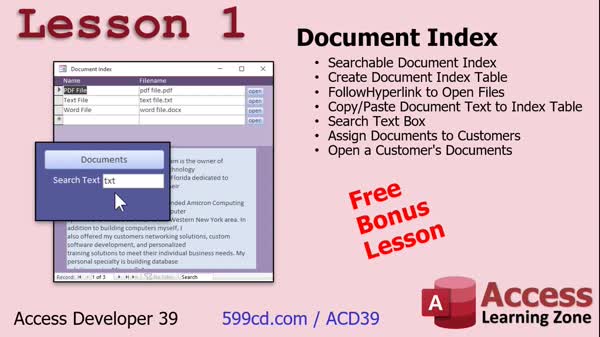
Lesson 1: Searchable Index with Hyperlinks - In Lesson 1, we will begin building a searchable document index in Microsoft Access. I will show you how to create a table to store document details, add a form to manage and view documents, use VBA to open files with a button, and manually copy and paste document text into the database for searching. We will also create a search box to filter documents by keywords and link documents to specific customers for easy access from their records. Prerequisite skills and related helpful videos will be discussed to support these steps in creating your document index.
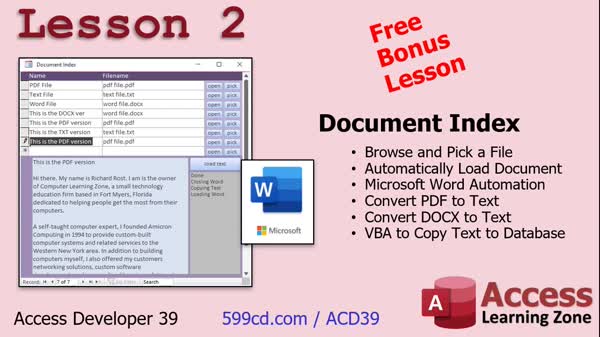
Lesson 2: Browse, Convert, and Extract Text - In Lesson 2, we continue building our Document Index by adding a button to browse and select files, and then use VBA automation to load documents into Microsoft Word in the background. I will show you how to extract plain text from Word, PDF, or text files and bring that text into your Access database. We will walk through creating and handling the browse functionality, integrating code to load and copy file contents, managing status updates in the form, and pasting the extracted text into a field for further use.
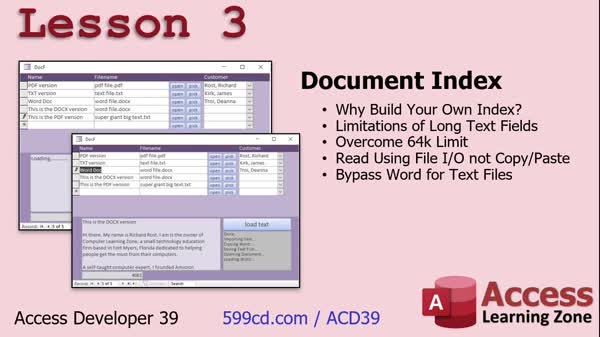
Lesson 3: Fast Keyword Index for Large Docs - In Lesson 3, we continue working on the document index by discussing why you should build your own index table rather than just indexing long text fields in Access. We will talk about the limitations of long text fields, including size, speed, and space usage, and issues with database corruption. I will show you how to use file input/output from Access Developer 30 to import large text files by saving Word or PDF documents as text and reading them in with VBA, and we will walk through building a searchable index to make document retrieval faster and more efficient.
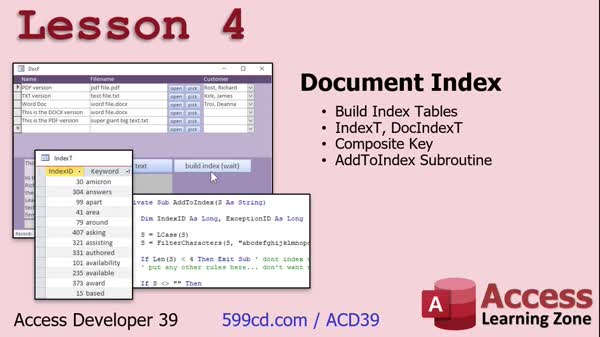
Lesson 4: Keyword Index & Junction Tables - In Lesson 4, we continue building the document index by creating the index table to store unique keywords and a junction table to track which keywords appear in each document, using a composite key to prevent duplicates. We will walk through writing the code to parse document text, extract and filter words, and add them to the document index. I will show you how to use a subroutine to filter out unnecessary characters, implement basic rules for keyword inclusion, and improve user experience while indexing. We will also discuss managing unused keywords and briefly mention exception tables for skipping certain words.
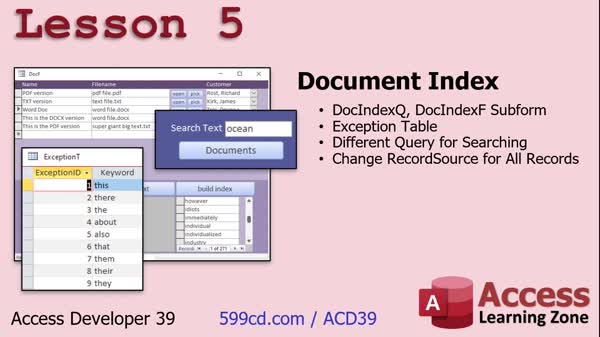
Lesson 5: Document Index: Exception Table & Subform - In Lesson 5, we will walk through setting up a document index in Access, including creating an exception table for words you do not want to index, building queries to link documents and their keywords, and designing a subform to display indexed words for each document. We will discuss how to filter out exception words during indexing, how to manage the search functionality using queries and conditional record sources, and some techniques to improve form performance. We will also touch on clearing data, handling unbound fields, and consider future features like a word count and abort button for long operations.
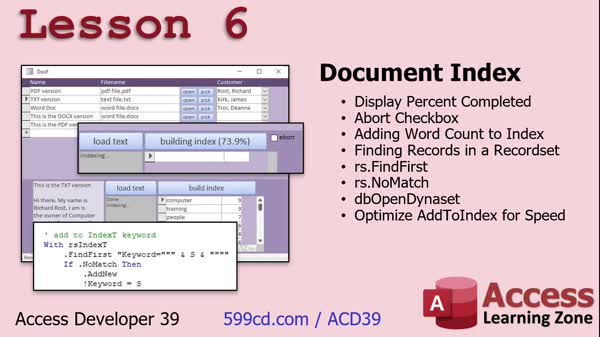
Lesson 6: Show Percent Complete & Word Count - In Lesson 6, we will complete our document index by adding a percent completed display during index building, discuss optimizing performance by replacing some SQL statements with record sets, and add a word count feature to track the frequency of each word in a document. I will walk through programming an abort button to stop the indexing process, handle possible errors, and demonstrate record set operations like FindFirst and NoMatch to improve efficiency. We will also explore refining the indexing code, updating the form to show word counts, and experimenting with performance enhancements for managing large documents in the document index.
Lesson 7: Next Steps: Finding Topics & Resources - In this lesson, titled "What's Next," we will discuss what is coming up in Access Developer 40, mention plans to cover more about recordsets, and encourage you to suggest future lesson topics and provide feedback through class surveys. We will also talk about how to use the website index and search box to find topics and lessons, and I will remind you to check out the TechHelp videos for additional content that may not fit directly into the main Developer lessons.
NavigationKeywordssearchable document index, Word automation, VBA, extract text from documents, keyword index, recordsets, document database, linking documents to customers, FollowHyperlink, exception table, query optimization, document indexing, word count, progress indic
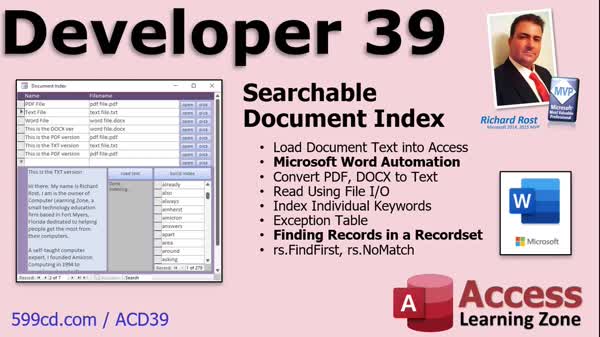
More InformationTranscriptWelcome to Microsoft Access Developer Level 39 brought to you by AccessLearningZone.com. I am your instructor, Richard Rost. In today's class, we're going to focus on building a searchable document index. That's where we can take different documents and load the text of those documents into our database so we can search on the keywords. So if you want to see which customers have documents that contain the word "elephant," then it's a very easy search to do. We're going to learn how to use Microsoft Word Automation. In VBA, we'll be able to click a button that will have Microsoft Word open up in the background and read in the file, whether it's a PDF, a text file, a Word document, or any document type that Word supports. You can do this with any of those formats. We'll take that document, save it as text, then pull the text into our Access database and index all the keywords. We will build an exception table, of course, so we don't have to bother indexing words like "the," "in," or "at." Then we'll work with recordsets some more. I spent a lot of time on recordsets in earlier lessons. We'll learn how to find records while a recordset is open and we'll learn about the NoMatch property. This lesson follows Access Developer 38 and everything that comes before it. I strongly recommend you have completed my Beginner, Expert, Advanced, and Developer series before continuing with this lesson. My lessons are meant to be taken one after the other. Each one builds on the one that came before it. Look at this page. If you don't believe me, read that. I will be using Microsoft Access 365. It is currently July of 2022, so it's roughly equivalent to Microsoft Access 2021. However, the lessons covered in this course should be applicable going back to, I'm going to say, Access 2007. So if you're using something earlier than that, forget it. Access 2007 and on - all of that should work just fine with what we're covering today. If you have questions about the stuff covered in today's class, scroll down to the bottom of the page that you're watching this on and post a comment right there on the lesson page. If you have other questions that don't necessarily pertain to the topics covered today, but you've got other Access questions or Excel or Word questions, post them in the forums on my website. Let's take a few minutes and cover exactly what we're going to do in today's class. In Lesson 1, we're going to begin building a document index, a searchable document index. We're going to create the table to hold this information. We'll use FollowHyperlink to open files. We've done that before - that's nothing new. We're going to then copy and paste the document text into the index table and create a search box so that we can search for documents that have any particular keywords in them. Then we'll assign each document to customers so you can go to the customer's record and open up any documents related to that customer. In Lesson 2, we're continuing on with our document index. We're going to make a button to browse and pick a file. We will automatically load that document into Microsoft Word in the background using some VBA and some Word Automation. Then we will be able to convert any PDF file, Word document file, or text file into plain text that we can pull into our Access database. That's all covered in Lesson 2. In Lesson 3, we're continuing with the document index. We're going to learn some reasons why you'd want to build your own index. There are a bunch of reasons - we'll cover them in this lesson. There are a lot of limitations with long text fields. One of them is you can't edit a long text field of more than 64k; it's 4,000 characters roughly. We're going to learn how to use file input/output from Access Developer 30 to import text files directly. We'll open up Word, save the Word doc or the PDF as a text file, then use file IO to read that in instead of copying and pasting it. All that's covered in Lesson 3. In Lesson 4, we're continuing on with the document index. We're going to actually build the index tables that hold the data for all the keywords. The index table has the list of keywords in it just once. Then we'll build a junction table to track which keywords are in which documents. We'll use a composite key to prevent duplicates. We'll write an add-to-index subroutine, filter out unnecessary characters, and lots, lots more. In Lesson 5, we're going to set up our document index query and our document index subform - this little guy right here. So you can click on a document and see whatever words are in that document down below. We'll set up our exception table, which is a list of words you don't care to index, like "that," "them," "there," "they," "about," "it's," and so on. Then we'll make sure that the search now works, taking the index table into consideration. This means we have to change the record source when we go between not searching or showing all the documents. It is a little tricky. There's a lot of good query stuff in this lesson, and we're going to cover that all in Lesson 5. Finally, in Lesson 6, we're going to finish up this document index. We're going to display the percent completed right there, so you're going to see "73 percent completed" while this index is building. This is great for longer documents that take a while, like this big one that we did down here. It could take a few minutes to compile. That's what we're going to spend some time with at the end of the lesson. We're going to optimize this, so we're going to try and replace some of this SQL we've been writing with recordsets. We're going to use FindFirst and NoMatch. This is new recordset stuff, folks - new recordset stuff. I know you guys love recordsets. We're going to open DB OpenDinosaur, which I forgot about when I was writing the code the first time. I got an error message and had to fix it. I know you guys love my error messages too. We're going to add a word count. That's one of the other reasons for adding the recordset loop here. So you can see, for example, the word "computer" was in this document nine times, or the word "people" is in it seven times. We'll do a lot more recordset coding, so this will conclude our document index, but this lesson has a lot of cool stuff in it and some new material. Here we go. IntroIn this lesson, you will learn how to build a searchable document index in Microsoft Access, including importing and indexing document text using Microsoft Word Automation and VBA. We will cover creating tables to store indexed keywords, managing exception words, setting up a document search form, working with recordsets and queries, displaying progress during indexing, and tracking word frequency in documents. This lesson uses Microsoft Access 365 but is applicable to versions as far back as Access 2007. QuizQ1. What is the main goal of the class presented in the video? A. Building a document index to store and search keywords from documents B. Creating an invoice generation system for customers C. Designing a payroll calculation tool in Access D. Setting up a calendar event reminder in Access Q2. Which application does the instructor use to automate reading document files in the background? A. Microsoft Excel B. Microsoft PowerPoint C. Microsoft Word D. Microsoft Outlook Q3. What type of files can be loaded and indexed using the method taught in the video? A. Only Microsoft Word documents B. Only PDF files C. Any document type supported by Microsoft Word (PDF, text files, Word documents) D. Only Excel spreadsheets Q4. Why is an exception table created when indexing documents? A. To speed up the loading process of documents B. To track which employees edited each document C. To avoid indexing common words like 'the', 'in', or 'at' D. To store document images Q5. What is the role of the FollowHyperlink method in the tutorial? A. To download documents from a website B. To encrypt document files C. To open files from within Access D. To compress large files Q6. How does the user assign documents to customers in the database? A. By entering document text manually into a property field B. By linking or assigning each document to a customer record C. By adding the document to the form's control source D. By emailing documents directly from Access Q7. What is one limitation of long text fields in Access as explained in the lesson? A. There is a maximum of 64 kilobytes, and difficult editing over 4000 characters B. You can't store any text C. You can only store numbers D. It only accepts file attachments Q8. What is the purpose of building an index table for keywords? A. To store full documents in the table B. To keep only the unique keywords once and connect them to documents C. To generate reports D. To create table relationships with customer addresses Q9. How is a junction table used in the context of the document index? A. It sends documents to customers via email B. It is not used, as all data is in the main table C. It tracks which keywords are found in which documents D. It stores user login credentials Q10. What is the benefit of displaying a percent completed indicator when building the document index? A. To show troubleshooting error logs B. To let the user know how much of the indexing process is done C. To print the total word count D. To display customer feedback Q11. What new recordset feature is emphasized in the final lesson? A. Recordset events in Macros B. Using FindFirst and NoMatch for keyword searching C. Exporting recordsets to PDFs D. Embedding images in recordsets Q12. Why does the instructor suggest keeping a word count for each keyword? A. To delete duplicate words automatically B. So users can see how often a word appears in each document C. To speed up Access startup D. To pair documents with phone numbers Answers: 1-A; 2-C; 3-C; 4-C; 5-C; 6-B; 7-A; 8-B; 9-C; 10-B; 11-B; 12-B DISCLAIMER: Quiz questions are AI generated. If you find any that are wrong, don't make sense, or aren't related to the video topic at hand, then please post a comment and let me know. Thanks. SummaryToday's video from Access Learning Zone covers Microsoft Access Developer Level 39. I am your instructor, Richard Rost. In this lesson, we will focus on creating a searchable document index within Microsoft Access. The goal is to take the content from various document types, such as Word documents, PDFs, and text files, and bring their text into Access. This allows you to search for specific keywords across all your stored documents. For example, if you want to find all customer documents containing the word "elephant," it will be easy to locate them. We'll be utilizing Microsoft Word Automation within VBA. With a simple button click, Word will open in the background, regardless of the file type — as long as Word can read it. We will then convert the document to plain text, import it into Access, and parse out the keywords for indexing. An exception table will be set up to ignore common, unnecessary words like "the," "in," or "at" to make the searches more relevant. Recordsets will come into play once again, and I'll show you how to find records within an open recordset using properties such as NoMatch. If you aren't familiar with recordsets or you need a refresher, remember that we spent considerable time on this topic in previous lessons. Since this is Developer Level 39, it builds directly on Developer Level 38 and all the prior courses. My curriculum is designed for you to take each class in sequence. If this is your first exposure to Access programming, or if you have not finished my Beginner, Expert, Advanced, and Developer series, I suggest completing those first because each lesson relies on knowledge gained in earlier ones. I will be demonstrating all tasks using Microsoft Access 365 as of July 2022. However, all of the material should apply equally to versions of Access from 2007 and later. Anything earlier than that may not be fully compatible. If you have any questions directly related to today's topic, you should post them in the comments section on the lesson page. For questions not covered in this lesson or other general Access, Word, or Excel inquiries, I recommend using the forums on my website. Let's review what each lesson in today's class will cover. Lesson 1 introduces the foundation of our document index. You will build the table for document storage and practice opening files using FollowHyperlink, a skill covered earlier in the course. After transferring document text into the index table, you'll set up a search box, enabling you to search for documents with specific keywords. Additionally, you will link documents to customers, so you can access all documents associated with a particular customer from their record. Lesson 2 expands on this by developing a button that opens a dialog for file selection. Using some basic VBA with Word Automation, you will load the chosen file in the background and extract the text. This will allow you to convert a PDF, Word, or text file to plain text so that it can be pulled into your Access database. Lesson 3 will explain why you might want to build your own document index, highlighting the limitations of working with long text fields in Access. For example, fields longer than 64k or about 4,000 characters cannot be edited. We'll revisit file input and output techniques from Access Developer 30, exploring how to import text files more directly. Instead of copying and pasting text, you will open a Word or PDF document, save it as text, and then use file IO to bring the contents into Access. Lesson 4 focuses on constructing the actual index tables. These tables will store each keyword only once, while a junction table tracks which keywords appear in which documents using a composite key to avoid duplicates. You'll create a routine to add terms to the index, filter out unnecessary characters, and more. In Lesson 5, you will set up the queries and subforms to support your document index. For instance, you will be able to view any document and immediately see all the keywords it contains in a subform. This lesson will also guide you through constructing the exception table where you list words to ignore in the index, such as "that," "them," "there," "they," "about," "it's," and similar examples. We will link the search box to the index table so your searches take into account all indexed keywords, and update the query when switching between showing all documents and only those matching search criteria. Lesson 5 also covers important query techniques and how to adapt your record source depending on user actions. In Lesson 6, we will complete the document index project. You'll add a progress display, which shows the percent completed as the index is building. For large documents, this feedback is crucial since indexing can take several minutes. We'll work on optimizing how searches and updates are handled by switching out some of the SQL code for more recordset-based operations, making use of FindFirst and NoMatch. I will address error handling as well, pointing out troubleshooting steps when unexpected messages arise. Finally, you will implement a word count feature, so you can see statistics like how many times "computer" appears in a given document. We will wrap up the lesson with additional recordset logic and review what makes the document index project useful and efficient. You can find a complete video tutorial with step-by-step instructions on everything discussed here on my website at the link below. Live long and prosper, my friends. Topic ListBuilding a searchable document index in Access Creating tables for document indexing Using FollowHyperlink to open files Copying and pasting document text into Access Creating a search box for indexed documents Assigning documents to customers Browsing and selecting files with a button Automating Microsoft Word via VBA Converting PDFs and Word documents to plain text Importing plain text documents into Access Discussing reasons to build a custom document index Understanding limitations of long text fields Using File Input Output (File IO) to import text Saving Word docs or PDFs as text for import Building index tables for keywords Creating a junction table for keywords and documents Setting composite key constraints to prevent duplicates Writing a subroutine to add to the index Filtering out unnecessary characters from keywords Setting up an exception table for common words Configuring queries and subforms for the index Adjusting record sources based on search criteria Displaying document index progress percentage Optimizing indexing using recordsets Using FindFirst and NoMatch with recordsets Adding word counts to indexed keywords Handling and fixing recordset errors Primary Topicsdocument indexing, Microsoft Access, VBA automation, Word automation, keyword searching, exception tables, file input/output, query design, recordsets Secondary Topicscustomer-document linking, subforms, composite keys, data optimization, word counts |
||||||||||||||||||||||||||||||||||||||||||||||||||
|
| |||
| Keywords: searchable document index, Word automation, VBA, extract text from documents, keyword index, recordsets, document database, linking documents to customers, FollowHyperlink, exception table, query optimization, document indexing, word count, progress indic PermaLink How To Build a Searchable Document Index With Keyword Search and Word Automation in Microsoft Access |