Enter Instead of Tab 2
By Richard Rost

 2 years ago
Use Enter Key to Move to Next Record, Part 2
In this Microsoft Access tutorial, I will show you how to use VBA in the key down event to make the Enter key move to the next record instead of just the next field. Additionally, you will learn about using Shift with the Enter key, bit masking, and simple error handling. This is part 2.
Members
There is no extended cut, but here is the database download:
Silver Members and up get access to view Extended Cut videos, when available. Gold Members can download the files from class plus get access to the Code Vault. If you're not a member, Join Today!
Prerequisites
Links
Recommended Courses
Keywords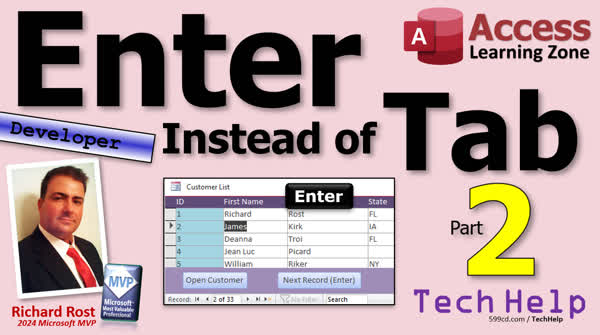
TechHelp Access, Enter key to next record, skipping with Enter key, Microsoft Access VBA tutorial, VBA key down event, key preview property Access, intercept keystrokes Access, Enter key navigation Access, VBA go to record, shift enter previous record, Access form design, Access key code ASCII, Access navigate records VBA, Access key event tutorial
More InformationTranscript Today is part two of my Enter Instead of Tab video series where I'm teaching you how to make it so that Enter will move to the next record instead of just the next field like it normally does. If you haven't watched part one, go watch that first. That was the beginner edition where you can do it with no programming. Today in part two, this is for developers, we're going to use a little bit of VBA in the key down event to teach you how to do this with some other cool tricks.
Alright, so in part one, we used different properties and buttons to change the behavior of how the Enter key works, and that works okay, but it's got some limitations. Today we're going to learn how to do it with code. We're going to use the key down event and intercept the keystrokes as the user presses them on the keyboard.
Of course, if you've never done any VBA before, go watch this video; it'll get you started in about 20 minutes. You should know how to write an if-then statement. You should know how to use the go to record command. If not, watch this video. It also covers go to control, but it teaches you both. These are all free videos; they're on my website, they're on my YouTube channel, go watch those and come on back.
Alright, so let's implement this code on the customer form. Actually, let's use the customer list form; makes a little more sense here. What I'm going to do is go to design view. Now the first thing you have to do, and this is the step that a lot of people miss or forget, is that in order for the form to intercept the keystrokes, you have to go to the bottom of the event tab and find this property called key preview and set that to yes.
What that does is it allows the form to grab the keystrokes before the controls get them, and you can change them, you can stop them, you can intercept them, you can do stuff. If not, the form doesn't see you pressing the keys at all. Now once that's on, we can go to the form's key down event. So find on events, find key down, it's right there. There's a key down event. Hit the dot, dot, dot, that should open up your VB window. There it is. Let me resize mine real quick. Alright, there we go. So we're in the key down event.
Now key down gets some information. It gets the key code, which is the ASCII character key code of the key that was pressed. I'm not going to go into ASCII characters, but every character's got its own code. A is 65 and so on. And shift is an integer determining whether or not the shift key, control key, or alt key were pressed, or all three. We'll talk about that in a minute.
So what we're going to do is we're going to come down here and say if key code equals 13, that's the key code for the return key or the enter key. Or if you don't want to have to remember 13, there's a special constant for it. It's VB key return. Then we're going to do some stuff.
Alright, so at this point, the return key has been pressed. Okay, now I want to go to the next record. So that's going to be do command dot go to record. And then it's just we can just go comma, comma, and then AC next, you can use the defaults there. Basically, the defaults are fine. The object that you're on, move to the next record.
Okay, one more step, though, where at this point, we're going to set the key code equals zero. What does that do? That clears the key. That basically acts like you didn't press anything because if you don't do that, then the form is still going to also try to process that enter. Okay, that's what that does. So let's debug compile. Alright, let's come back out here, close it, save it, open it.
And now I'll press enter, enter, enter, enter, enter. See that? If a tab over and I press enter, enter, enter, enter, it stays in the same column. That's one thing that's actually better than using the other method because it goes back to the top of the tab order, the first character.
Okay. Now, that VB key return, alright, that ASCII character 13, where do I find the big long list of all of these? Well, you can use the object browser to find a list of those. Just search for VB key and you'll see, and let me show you this. So go to view and then object browser. Okay, and I just searched for it a minute ago, so it's in here. So right here in the search box, type in VB key and hit search, and now you're going to get a list.
And you're here of all the different constants that start with VB key. See, VB key back, VB key cancel, VB key control. You got VB key A, B, C, D, E, F, F1, F2, F3. Here's all the constants right there. You can also Google them. Usually I find it easier just to Google them on Microsoft's site. But I don't talk about the object browser much, so that's a good little use for it.
You search for VBA constants, it'll take you to Microsoft's site. You can just come in here and find them in here too, like key codes. There's a big long list of them. Or if you want to use the numbers, you can just tell access to tell you what character was pressed. Watch this. In the key down event, say right here, message box, you know, the key pressed was, and key code. That'll give you the ASCII value of it. So if I come out here and hit the lowercase A, boom, that was 65, see? Or if I hit the spacebar, boom, 32. Or enter, 13. There you go, see? And you can use those character codes if you want to. Alright, we'll get rid of that. Bye-bye. Okay.
Alright, now how about going backwards. We're going to enter to go forward. How about going backwards? How about maybe shift, enter? Shift, enter. Well, that's what that other variable is for, whereas shift right here. Alright, so let's change this to say right inside of here. If we hit the enter key, we're going to say if shift equals one, then we're going to go to the previous record. Otherwise, we're going to go to the next record. So we're going to move this one down here, and we're going to change this guy to a backspace over that comma and hit the comma again. That'll give you the pop-up. And we'll go to previous.
There we go. So if the shift key is on, go to previous. If not, go to next. Alright, save it. Debug, compile. Come back out. Ready? Enter, enter, enter, enter. Shift, enter, enter, enter, enter, enter. See that? That's the shift key is on.
Now, this brings up a concept called bit masking, okay, where you can use one value to represent multiple things. And you see this a lot in access or in programming in general. So if the shift key is one, then it was just a shift key that was pressed. If it's the control key, it's two. And if it's the alt key, it goes to four. Now, why do they do that? Why not just three? Well, because you can use these to get any combination of those characters. So shift plus control is three, which is one plus two. See, shift plus alt now becomes five. No other combination will give you a five. If you get a five, you know it's that unique combination. Control and alt is six and only six. All three of them together is seven.
Alright, that's called bit masking. Why is it called bit masking? It has to do with manipulating the bits in a byte and blah, blah, blah. It's just squeezing a lot of information into a tiny space. Programmers back in the 60s and 70s and 80s even were really, really good at that. They got very creative. When a kilobyte of memory costs $1,000, you have to be. And that's why we got stuck in that Y2K problem. Remember that from way back when? Okay, anyways.
Alright, so one more thing we might want to do in here. And that's a little error handling because if I go shift enter a couple of times and go past the first record, I get you can't go to the specified record. And of course, we don't want this to happen for our end users. Especially for giving them an ACCDE file to work with. An execute-only version because then their database will just crash. You got to handle all these errors, people. Handle your errors.
Alright, so right in here, a real simple on error resume next will take care of that problem. I don't like to use on error resume next as a crutch, especially in complicated stuff. But for something very simple like this, it's fine. If you run into an error, just ignore it, move on. Right? It's fine here. It's perfectly fine here. And we'll come in here and go tab, tab, tab, and then enter, enter, enter, and then shift, enter, enter, enter, enter, and it just ignores it. See that? Okay.
If you want to learn more about this key down stuff, I have another video where I teach you how to use the up and down keys. And then you basically use the arrow keys to move around a continuous form just like in Excel. So that's pretty cool. If you want to learn more about error handling and debugging more than just that little on error resume next, well, I got a video for that too. I also have several lessons where I cover error handling and debugging in great detail in my Access Developer series.
Speaking of which, if you like me, if you like my style, if you like my wacky sense of humor, well, I got tons and tons of developer lessons available on my website. Check it out. You'll find links to all this stuff down below. And that is going to be your TechHelp video for today. I hope you learned something, folks. Live long and prosper. I'll see you next time.
A special thank you and shout out to our diamond sponsor, Juan Soto with Access Experts Software Solutions. They're manufacturing experts specializing in Microsoft Access and SQL Server. Juan is a 13-time Microsoft Access MVP. Check him out at accessexperts.com.
TOPICS:
How to enable key preview on a form
Using the key down event in VBA
Explanation of key code and shift parameters
Intercepting the Enter key press
Using DoCmd.GoToRecord to navigate records
Setting key code to zero to prevent default behavior
Finding VBA key constants using Object Browser
Displaying ASCII values of keystrokes with MsgBox
Handling Shift+Enter for navigating to the previous record
Understanding bit masking for key combinations
Using On Error Resume Next for simple error handling
COMMERCIAL:
In today's video, part two of our Enter Instead of Tab series, I'll teach you how to use VBA to make Enter move to the next record instead of just the next field. We will dive into the key down event and talk about vital properties like key preview. If you missed part one, check it out first for a no-programming required approach. Learn about intercepting keystrokes, using key codes, and handling errors with resumes to enhance your forms efficiently. You'll find the complete video on my YouTube channel and on my website at the link shown. Live long and prosper my friends. Intro In this video, part two of the Enter Instead of Tab series for Microsoft Access, I will show you how to use VBA and the key down event to make the Enter key move to the next record instead of just the next field. We will cover enabling key preview, working with key codes and shift parameters, intercepting keystrokes, using DoCmd.GoToRecord, preventing the default Enter behavior, finding VBA key constants, and simple error handling techniques. If you are a developer looking to customize keyboard navigation in your Access forms with code, this video is for you. This is part 2. Quiz Q1. What is the main objective of part two of the Enter Instead of Tab video series?
A. To learn how to use properties and buttons to change key behavior without programming
B. To understand the basics of no-programming key assignment
C. To implement VBA code to change the Enter key behavior to move to the next record
D. To disable the Enter key entirely in forms
Q2. What must you enable on a form to allow it to intercept keystrokes before the controls get them?
A. Control preview
B. Key down event
C. Key preview
D. Event handling
Q3. In the key down event, what key code is used to identify the Enter (Return) key?
A. 32
B. 65
C. 13
D. 2
Q4. What command is used to move to the next record when the Enter key is pressed?
A. DoCmd.GoToControl
B. DoCmd.GoToRecord , , acNext
C. DoCmd.GoToRecord acNext
D. DoCmd.MoveToNextRecord
Q5. Why should you set the key code to zero after processing the Enter key in the key down event?
A. To enhance performance
B. To clear the key event and prevent duplicate processing
C. To avoid form submission errors
D. To lock the form field
Q6. Where can you find a list of VB key constants in the VBA interface?
A. Property Sheet
B. Immediate Window
C. Object Browser
D. Debug Window
Q7. How can you test and find the ASCII value of a key that is pressed in the key down event?
A. Use the MsgBox function to display key code
B. Use the InputBox function to capture key press
C. Manually map the key codes
D. Debug in the compiler settings
Q8. What variable in the key down event helps in handling combinations of Shift, Control, and Alt keys?
A. KeyMod
B. Shift
C. Control
D. AltMode
Q9. What is the ASCII code for the lowercase letter 'a'?
A. 65
B. 97
C. 32
D. 13
Q10. What should be added to the code to handle errors that occur when navigating past the first or last record?
A. On Error Display Message
B. On Error Resume Next
C. Resume Error Code
D. Debug Error Logging
Answers: 1-C; 2-C; 3-C; 4-B; 5-B; 6-C; 7-A; 8-B; 9-B; 10-B
DISCLAIMER: Quiz questions are AI generated. If you find any that are wrong, don't make sense, or aren't related to the video topic at hand, then please post a comment and let me know. Thanks. Summary Today's TechHelp tutorial from Access Learning Zone is part two of my series on making the Enter key move to the next record rather than just advancing to the next field, which is the default behavior in Microsoft Access. If you have not seen part one yet, I suggest starting there. The first video covers the beginner, no-programming-required approach using only properties and command buttons. In this second part, intended for developers, I will show you how to use VBA in the key down event for more flexibility and added features.
In part one, we changed the Enter key's behavior using form settings and buttons, but those methods have limitations. Now I will show you how to use code to intercept and control keystrokes as they are pressed. This is done by using the form's key down event.
If you are new to VBA, you should first watch my beginner videos on the basics. You should already be comfortable writing simple If-Then statements and know how to use commands to navigate records and controls in your database. All of these introductory lessons are free and available on my website and YouTube channel to help you get started.
Today, I will be implementing this code on the customer list form, as it makes more sense in that context. Begin by opening the form in design view. The first step, which many people overlook, is to set the "Key Preview" property to Yes in the form's event tab. Enabling this property allows the form itself to capture keystrokes before they are sent to any control on the form. Without this setting, the form has no way to detect or respond to key presses.
Once Key Preview is enabled, find the form's key down event in the property sheet. This event receives information about the pressed key, including its key code and a shift parameter. The key code represents the ASCII value of the key that was pressed. For example, the Enter key is represented by 13. There is also a constant, VBKeyReturn, you can use instead of the number 13, which can make your code easier to read. The shift parameter holds information about whether the Shift, Control, or Alt keys were held down, which I will discuss a bit more later.
Inside the key down event, you can check if the Enter key was pressed by looking for key code 13 or VBKeyReturn. When that condition is true, you can use DoCmd.GoToRecord to move to the next record. I set the key code to zero after that, which tells Access to ignore the default behavior of processing the Enter key. By clearing the key code, you make sure the form does not try to process the Enter key a second time.
After saving, compiling, and closing and reopening the form, you will see that pressing Enter now moves you directly to the next record. If you use Tab and press Enter, it will stay in the same column, which is actually an improvement over the earlier no-code method.
You may wonder how to find a list of all the VB key constants for different keys. You can use the Object Browser in the VBA editor. Just search for "VBKey" and you will see a list of all the available constants such as VBKeyBack, VBKeyCancel, VBKeyControl, and so on, including those for letters, function keys, and more. Alternatively, you can search online or directly on Microsoft's site for VBA key constants. Also, if you want to discover the ASCII value of any key, you can use a message box in your key down event to display the key code. For example, pressing A will show you 65, spacebar is 32, and Enter is 13.
Next, let's add the ability to move backwards through records as well. You may want Shift+Enter to take you to the previous record. This is where the shift parameter comes into play. If the shift parameter equals 1, that tells you the Shift key was pressed, so you can set your code to move to the previous record. Otherwise, with the Enter key alone, you move forward. The shift parameter is also used for combinations involving Control and Alt—Control alone is 2, Alt alone is 4, and combinations add these values together. For instance, Shift+Control is 3, Shift+Alt is 5, Control+Alt is 6, and pressing all three modifiers gives you 7. This concept is called bit masking, and it allows you to check for various combinations of modifier keys using just one value.
There is one last important detail to cover: error handling. If you press Shift+Enter at the first record and try to go back further, Access will show an error message saying you cannot go to the specified record. To prevent this from disrupting your users, especially if you distribute ACCDE execute-only files, you should use some simple error handling here. A basic On Error Resume Next line before the record navigation will silently ignore the error, which is acceptable in this simple scenario. However, for more comprehensive error handling, I encourage you to watch my other videos dedicated to error handling and debugging in Access VBA, where these topics are covered in greater detail.
If you're interested in expanding this concept, I also have a video that covers how to use the arrow keys for navigation in continuous forms, allowing users to move up and down just like in Excel.
If you enjoy my teaching style and humor, or if you want to dive deeper into Access development, I have plenty of developer lessons available on my website. You can find links to all relevant resources below.
You can find a complete video tutorial with step-by-step instructions on everything discussed here on my website at the link below.
Live long and prosper, my friends. Topic List How to enable key preview on a form
Using the key down event in VBA
Explanation of key code and shift parameters
Intercepting the Enter key press
Navigating to the next record with DoCmd.GoToRecord
Setting key code to zero to prevent default Enter action
Finding VBA key constants using Object Browser
Displaying ASCII values of keystrokes with MsgBox
Handling Shift Enter to move to the previous record
Understanding bit masking for key combination detection
Using On Error Resume Next for navigation error handling Primary Topics Access forms, VBA key down event, key preview property, key code handling, DoCmd.GoToRecord, keyboard navigation, bit masking, error handling
Secondary Topics Object Browser for constants, ASCII character codes, debugging, ACCDE runtime considerations
|






