Send Email with CDO
By Richard Rost

 2 years ago
Send Email with CDO in Access, Without Outlook
In this Microsoft Access tutorial, I will show you how to send email using CDO instead of DoCmd.SendObject and Outlook. We will cover configuring SMTP settings, and creating a form to send emails directly from Access, logging sent emails, and basic error handling. Best of all... No mail program required!
Mallory from Edina, Minnesota (a Platinum Member) asks: Recently, I've encountered issues with DoCmd.SendObject when trying to send emails from Access, especially with the newer versions of Outlook. It seems like this method is no longer available. Could you recommend any alternative methods for sending emails directly from Access?
Members
There is no extended cut, but here is the database download:
Silver Members and up get access to view Extended Cut videos, when available. Gold Members can download the files from class plus get access to the Code Vault. If you're not a member, Join Today!
Prerequisites
Links
Recommended Courses
Up Next
Keywords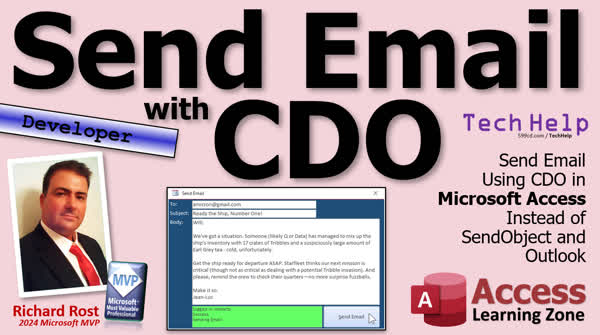
TechHelp Access, CDO email Microsoft Access, send email without Outlook, send email Access VBA, CDO SMTP tutorial, Collaboration Data Objects Access, CDO setup Gmail, VBA email Microsoft Access, migrate DoCmd.SendObject CDO, automate email Access Gmail, bypass Outlook Access email, VBA email script Access
More InformationTranscript Today, we're going to see how to send email from Microsoft Access without using Outlook. A lot of people have been emailing me lately, telling me that they upgraded to the new Outlook and they can no longer send email. In fact, I did another little video on this last week talking about an article from OfficeWatch that the new Outlook is not ready and has problems with sending email automated from Access.
But let's take a look at our question. It comes from Mallory in Adina, Minnesota, one of my Platinum members. Adina says, "Recently I've encountered issues with do-command send the object when trying to send emails from Access, especially with the newer versions of Outlook. It seems like this method is no longer available. Could you recommend any alternative methods for sending emails directly from Access?"
Yes, Adina, we're going to use something called CDO, which stands for Collaboration Data Objects. That's just a fancy library that comes with Windows that allows you to talk directly to a mail server without having to go through your email program like Outlook. This will work with most SMTP servers, including Gmail, although there's something that you have to do to get it to work with Gmail. We'll talk about that in a minute. But if you have your own corporate mail server or you pay for SMTP Access, you can send email using this code that we're going to talk about today.
Now, this is going to be a developer-level video. Unfortunately, you need some VBA in order to do this. You can't do it without programming. But don't worry, VBA isn't scary. Go watch this video. It's about 20 minutes long. It'll teach you everything you need to know to get started programming. Make sure you understand basic concepts like an if-then statement. If not, I got videos on that stuff too. And make sure you understand how to get a value from an open form. We're going to use that to grab the email address off the customer form and put it into our email-sending form. These are all free videos. They're on my website. They're on my YouTube channel. Go watch those and come on back.
There's going to be a couple more as we're going through the video. I'll point them out where necessary. First off, I wanted to quickly address this issue that's coming up with the new version of Outlook that's out there. There's a new kind of web-based version of Outlook that is replacing the classic Outlook, which is a PC application that has come with Microsoft's office since I can remember since the 90s. But the new Outlook doesn't work like classic Outlook and the new Outlook doesn't allow a lot of the VBA programming stuff that classic Outlook always has.
So how do you tell which version you've got? This is on Microsoft's site. I'll give you a link down below so you can go read this on your own. But in a nutshell, if you don't see the File option up on the ribbon on the menu here, then you've got new Outlook. And just like new Coke, it's not very good. It's a real lightweight, simple application for you to read your mail. It's got some limitations. For example, you have to be connected to the internet for it to work, kind of like Gmail in the web browser. There's a lot more information in here and you can go in and read about it and stuff like that. But that's how you can tell what version of Outlook you have. And if you've got the new Outlook and you still want to use Outlook with Access, uninstall this and install or reinstall classic Outlook. You should be able to still use your do-command send object to send your reports and stuff.
But if not, that's what today's lesson is about. We're going to send email without having to even have a mail program on your computer. We're just going to use Access to do it. One more thing that I got to mention before we get started. If you plan on doing this with Gmail, you have to set up a Gmail app password. You can't just use your username and password that you log into Google with. You have to actually set up a specific password to send email through Gmail. So go watch this video. I'll give you step-by-step instructions.
All right. So here I am in my TechHelp free template. This is a free database you can grab off my website if you want to. And I got a whole video on how this thing was built. But basically, we got a customer form here, and we have contacts. Contacts are every time you talk to this customer, you put a note in here. What we're going to do in this video is we're going to make a button right here. This is send email. It's going to open up another form that's going to look like sending email here. I'll show you in my other copy of my database. I ran through this earlier. Sometimes I run through this ahead of time just to make sure. Here's a send email button. I shorten the customer form. Send email. It'll copy over the email. Put your right in here for the subject. This is the subject. And the body. How are you today? Whatever. Okay. And then you'll hit send. And it will send it. I got mine set up through Gmail there. It's successful. And it will log that in the contacts. So if I go to the contacts form now, you can see right here. There's one I sent earlier. Here's one I sent. Let's see. I sent this one to Will Riker from Jean-Luc Picard. There's that one. You can read that on your own time if you want to. And then this is the one that I just sent there. So you got your emails being logged in your contact table. That's what we're going to do in this video series. So we'll come back to this form in just a minute.
Let's start off by making the email form. Now I'm going to take a copy of the main menu because I want this to just be a one-off form. It's not going to have any data stored in it. We're just going to have some unbound fields and an unbound form. And the main menu is pretty close to that already. So I'm going to take main menu, copy, paste, and we'll call this my email F, my email form. Now open this guy up, design view. And I'm going to delete everything except for a text box, a button, and the status box. Yeah, I'm going to delete the logo. All right, fine. Okay, let's change the color of this just a little bit so we can tell it apart from what we're doing. Okay. All right, so this will become our two-box, right, two. And I will left-align that. Let's go a little bit darker with the background. Just a hair. Let's go to that. Yeah, that looks better. Let me open this up permanently by double-clicking on it. Okay, so this will be my two-line, the email. Let's open this guy up. We're going to change the name to email, and we'll get rid of the control source. We'll get rid of the format. Now if I want to copy this over from the customer form, I'm going to go to the data tab. And for default value, I'm going to say equals forms customer F, email. Okay, why am I putting that in the default value instead of the control source? Well, if you put it in the control source, it's locked. You can't change it. It's always going to be equal to that. If you put in the default value, it's going to start at that when you open this form, but you can change it. So if you're going to send an email to someone, but they're like, hey, send this to my personal address instead, you're going to always over-type that. Okay, or you can make this a combo box and pick from a list if the person's got multiple email addresses. There's so much you can do with this, folks. I'm just covering the basics.
All right, so there's that field. Now we need a subject line, copy-paste. Let's put this up here. This will be the subject. And change the name over here to subject. And get rid of that data source. Put in the default value. We don't need that anymore. All right, this is going to be our status box, which we're going to like to see the status because we're going to want to know if the email went out successfully or not. We'll take care of that, too. We'll do a little debugging and some error handling. I'm going to move this button down here. This is going to be the send button. And in fact, I'm going to put a little ampersand in front of the S. That way I can hit Alt-S, and that pushes the send button. And we can make that text a little bigger if you want to, like that. Okay, anyways, one more field up top, copy-paste. This will be the body of our email. All right, body. And we'll make this nice and big. And I'm going to change one property here. Go to the other table. First, let's give it a name. Let's call it body. Did I name this one subject? Yes, I did. Okay, Alzheimer's kicking in. On the other tab, I'm going to change the enter key behavior. So instead of default, it's new line in a field. Treats it more like a long text field. So when I hit enter in here, I can make new paragraphs instead of it jumping to the next field. All right, save that.
Let's go into the VBA behind this, which I put a button up here on my quick launch toolbar to do that. But you can just right-click on this button and go to build event. And that'll bring up the code editor. There it is. And I'm going to delete everything in here except for that status function. I want to use that for when we display the status of our email. Okay, okay, so we're done with that. Give it a quick debug compile. Make sure everything's good. Let's make a button to open this form from the other form. So let's close this, go to customer form. And like I did in my sample database, I'm just going to delete some stuff out of here just for the purpose of the video. We don't need all this stuff in here. I'm just going to slide these buttons over to the left, just like that. Make things a little bit easier to see on the screen. Okay, copy one of these buttons here, copy, paste. And this will be my send email button. All right, we're going to send this person an email. All right, let's give the button a good name instead of command 30, send email, BTN, send email button.
And then we're going to right-click, build event, and this is going to be do command, open form, email F. That's it. We don't have to send it any parameters because the email form gets the email address from the open customer form. Okay, now if you want to prevent the user from doing this where they, let me show you, where you open this and then you hit send email, right, let me move this over here. All right, and then they change customers back here. If you want to prevent that, just make this a modal form. Right, and then they can't click on anything behind it until they close this guy. Okay, let's change that caption. And one more thing I want to change when this opens. I want to make sure that the focus is in the subject field and not sitting down here on the last control that was added. That's an email button. Actually, that was there originally. So what I'm going to do is I'm going to go into design view, let's change that caption. All right, send email or whatever you want to put in there. I'm going to adjust the tab order, hit auto order, that's fine. But I'm going to put the email field last. So I'm going to click on this and drag it to the bottom. What's going to happen is it's going to start then in the subject field, which is first in the tab order. Right, that's where you want to start. It's just going to assume you're sending to this. And then tab goes to here, tab will then go to here. We're going to remove the status box from the tab order because we want to see it, but I don't want to stop there when I'm tabbing and then we'll go here. Not to you can tab back up to the email. So let's hit OK. Let's click on the status box and take that out of the tab order. So we'll go to tab stop, no. So the end result, what you get is click and now you're in subject. I can just type in my subject, tab, type in my body. Tab again and I'm on send email. And if I tab another time, I'm back up to two. Okay, see how that works? That's pretty cool.
All right, so we got our infrastructure already built. We got our button, we got our email form, the setup, you know, the visible stuff we need on the screen is all set. Now we're ready to put the code behind that button. And we're going to do that in tomorrow's video in part two. So tune in tomorrow, same bad time, same bad channel. Or if you're a member, you can watch it right now because I'm going to keep recording right now. And that's one of the benefits that members get is that they don't have to wait. They can watch my videos as soon as I post them. But that's going to do it for part one. We'll see you tomorrow for part two. That's your TechHelp video for today. Hope you learned something. Live long and prosper, my friends. I'll see you tomorrow for part two.
TOPICS:
Sending email from Microsoft Access without using Outlook
Overview of issues with new Outlook version
Using CDO (Collaboration Data Objects) for email
Setting up Gmail app password for SMTP
Creating email form in Access
Copying customer email to email form
Setting up email form fields (To, Subject, Body)
Configuring email form properties
Opening the email form from customer form
Setting tab order of email form fields
Adding send email button on customer form
Preparing code for email sending functionality
COMMERCIAL:
In today's video, I'll show you how to send email from Microsoft Access without using Outlook. We'll tackle a real problem from Mallory in Minnesota who's struggling with the new Outlook. Instead, we'll use CDO (Collaboration Data Objects) to send emails directly via SMTP servers like Gmail. This is a developer-level tutorial so you'll need some VBA knowledge. We'll walk through creating an email-sending form, setting up a Gmail app password, and troubleshooting the new Outlook. Watch this step-by-step to solve your email issues in Access. You'll find the complete video on my YouTube channel and on my website at the link shown. Live long and prosper my friends. Intro In this video, I'll show you how to send email from Microsoft Access without relying on Outlook, addressing issues with the new version of Outlook that breaks automated email features. We'll talk about using CDO (Collaboration Data Objects) and SMTP servers, setting up a basic email form in Access, configuring form fields for To, Subject, and Body, copying the customer email over automatically, and handling Gmail app password requirements. I'll also cover creating buttons to open the email form from your customer form and setting the correct tab order for a better user experience. This is a developer-level tutorial and will require some VBA. This is part 1. Quiz Q1. What alternative method does the video suggest for sending emails from Microsoft Access without using Outlook?
A. SOAP
B. REST API
C. SMTP via CDO
D. IMAP
Q2. What does CDO stand for?
A. Connection Data Objects
B. Collaboration Data Objects
C. Communication Data Objects
D. Computer Data Objects
Q3. What limitation is mentioned about the new version of Outlook?
A. It does not support POP3.
B. It lacks scheduling capabilities.
C. It does not support VBA programming.
D. It does not allow multiple email accounts.
Q4. If using Gmail, what must you set up to send emails from Access using CDO?
A. Two-factor authentication
B. App password
C. OAuth token
D. Email alias
Q5. Why is the email address put into the default value instead of the control source in the form?
A. To ensure the email is always sent to a fixed address
B. To allow for editing the default email address
C. To prevent the email address from being visible
D. To simplify the code
Q6. What is the primary purpose of the 'status box' in the email form?
A. To log the email content
B. To display whether the email was sent successfully
C. To keep user contact details
D. To store drafts of emails
Q7. In which view do you modify the elements of the email form, such as buttons and text boxes?
A. Data view
B. Form view
C. Design view
D. Code view
Q8. How can you prevent users from changing the customer while composing an email?
A. By setting the form as modal
B. By disabling the customer's form fields
C. By closing the customer form
D. By locking the email form
Q9. What does the instructor suggest to change if you prefer using shorter email forms?
A. Reduce the font size
B. Remove the body field
C. Hide the email address field
D. Adjust the tab order
Q10. What is the VBA command used to open the email form in the customer form button click event?
A. DoCmd.OpenForm "EmailForm"
B. DoCmd.ShowForm "EmailF"
C. DoCmd.RunForm "EmailForm"
D. DoCmd.Execute "EmailForm"
Answers: 1-C; 2-B; 3-C; 4-B; 5-B; 6-B; 7-C; 8-A; 9-D; 10-A
DISCLAIMER: Quiz questions are AI generated. If you find any that are wrong, don't make sense, or aren't related to the video topic at hand, then please post a comment and let me know. Thanks. Summary Today's TechHelp tutorial from Access Learning Zone will focus on sending emails from Microsoft Access without relying on Outlook. Many people have recently reached out to me about difficulties they're experiencing after upgrading to the new Outlook, especially when trying to send emails through Access. The classic Outlook application allowed automation and worked well with features like DoCmd.SendObject, but the new version has significant limitations when it comes to VBA integration.
The question that inspired today's lesson involves finding alternate methods for emailing from Access, now that the familiar route has become unreliable or unavailable in newer Outlook editions. My recommendation is to use Collaboration Data Objects, also known as CDO. This is a native Windows library designed to interact directly with mail servers, using the SMTP protocol. With CDO, you can send email from Access without needing any mail program installed. It works with most SMTP servers, including Gmail and various corporate mail services. For Gmail, there is a mandatory extra step: you must set up an app-specific password to permit mail to be sent using this technique.
This is a developer-focused lesson and will require familiarity with VBA. If you're not comfortable with programming in Access, don't worry. I have a free beginner video on my website that covers the essential skills, such as If-Then logic and getting values from open forms, which are needed for this project. Make sure you understand these concepts before continuing. All the resources I mention are available both on my website and YouTube channel.
Before we construct the email solution, I want to clarify the Outlook situation. The new version of Outlook is web-based and has replaced the classic Outlook desktop application that many users have relied upon for decades. This newer Outlook does not support the VBA automation features that classic Outlook does. If you're not sure which version you have, an easy way to check is to look for the File option on the main menu ribbon. If it's missing, you're likely using the new Outlook. If you want to keep using DoCmd.SendObject, your best bet is to uninstall the new version and reinstall classic Outlook.
Now, let's shift to the Access solution. The core of what we are building is a button on your customer form that, when pressed, opens a separate form designed for composing and sending emails. The email form pulls the email address from your selected customer automatically, but you can modify the address if needed. We will create several unbound fields on the email form: one for the recipient's address, one for the subject, and a larger field for the body of the message. We'll also add a status box to give feedback on whether the email was sent successfully or if there was an error.
The process involves copying the default value for the recipient's email from the customer form, not setting it as a control source. This way, the user can edit the address for exceptions. For convenience, we'll set the default keyboard focus on the subject line when the form opens and adjust the tab order so users can move easily through the fields using the Tab key.
On the main customer form, we'll add a button labeled "Send Email" and set it up so that it always opens our email form. The form reads from the current record, so as long as you don't switch customers in the meantime, the correct address will be included. You can make your email form modal if you want to prevent users from switching customer records while composing messages.
The design steps also involve setting properties such as making the body field respond to the Enter key by adding new lines instead of shifting focus, and removing the status box from the default tab order so it doesn't disrupt data entry flow. We then prepare the infrastructure for email sending, assembling all the necessary fields and interface elements.
This lesson is part one of a series. Today we've covered preparing your Access database for SMTP email sending, designing the forms, and setting up everything visible to the user. In part two, we will focus on the necessary VBA code to make the email function work. If you're a member, you can watch the next lesson right away; otherwise, stay tuned for the next installment.
You can find a complete video tutorial with step-by-step instructions on everything discussed here on my website at the link below. Live long and prosper, my friends. Topic List Sending email from Access without Outlook
Issues with the new version of Outlook
Using CDO for sending email via SMTP
Setting up Gmail app password for SMTP
Creating a custom email form in Access
Copying customer email address to form
Setting up unbound form fields for email
Configuring default values for form fields
Adding a Subject and Body field to the form
Setting Enter Key behavior for long text fields
Adding a status box for email operation feedback
Opening the email form from a customer form
Making the form modal to prevent user errors
Renaming and organizing form controls
Adjusting the tab order of form fields
Removing controls from the tab order
Adding a Send Email button to the customer form
Preparing VBA event code for sending email Primary Topics Microsoft Access, CDO Collaboration Data Objects, VBA email automation, new Outlook limitations, SMTP settings, email form design, form property setup, Gmail app password, Access forms integration Secondary Topics tab order optimization, modal forms, default value usage, user interface tweaks |






