|
||||||
Access Expert 32Report Headers, Report Lists, Rank, Median, MacrosWelcome to Access Expert 32. In this course you will learn how to create single letter report headers in Microsoft Access, build a report list form using automated and manual methods, and calculate rank, median, and mode with subqueries. We will also introduce you to macros for automating tasks such as inserting blank records for mailing labels, and discuss organizing data for better reporting and user interaction. Information on course structure and additional resources is also provided. Lessons
Resources
Test Your Expert-Level Skills!While I'm still working on a new testing engine for my website, I have put together a 36-question test which is made up of stuff that I would ask someone on an interview if I was hiring an Access developer. This is based completely on material from my Beginner and Expert classes (no VBA). Once you've completed Expert 32, go ahead and watch this video and test your knowledge. Lesson SummaryWelcome! Report Header, Lists, Rank, Median, Macros - Welcome to Microsoft Access Expert Level 32. In this course we will address several user-requested topics that were not previously covered in the expert series. We will walk through how to create a report with single letter report headers, build a report list form using both automated and manual methods, and discuss how to calculate rank, median, and mode using subqueries in Access. We will also introduce Macros, which will be covered in depth in the advanced series, and explore working with mailing labels that have partially used sheets. Information on course structure and additional seminars is also provided.
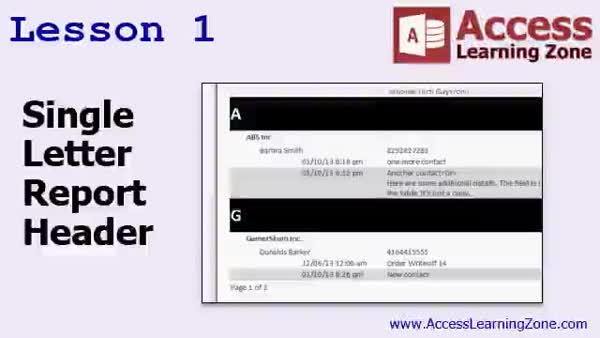
Lesson 1: Group Letter Report by Company - In Lesson 1, we will walk through how to create a single letter report header in Access, allowing you to group report data by the first letter of the company name. I will show you how to add grouping and headers, format the report to display a large initial letter for each group, and handle records with missing company names. We will also discuss organizing data by company and contact, working with report design tools, adjusting formatting options, and using functions like Left and IIf to display group headers based on your data.
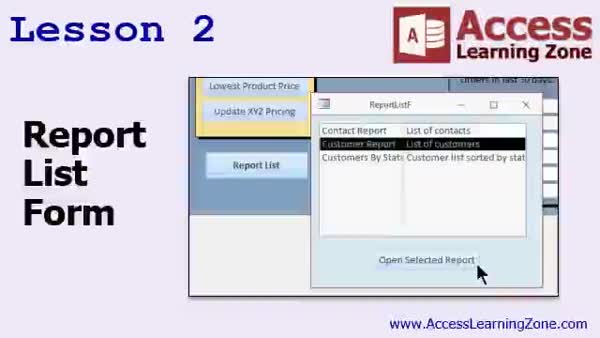
Lesson 2: Dynamic Report List Form & Open - In Lesson 2, we will build a report list form that displays all the reports in your system and lets users open any report from one form. We will discuss two approaches: generating the list automatically from Access system tables or creating a custom report list table. I will show you how to set up the query and table, create the list box, and add a button to open the selected report using a macro. We will also touch on object type values in Access and basic form design options for improving usability.
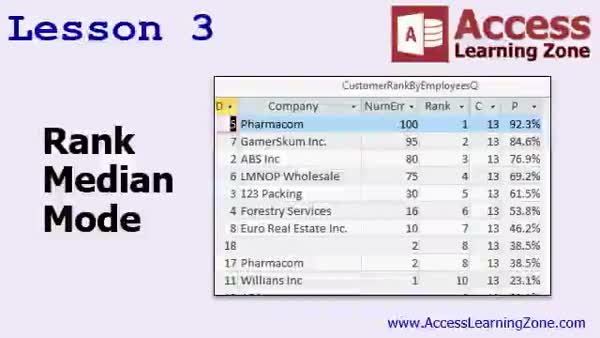
Lesson 3: Rank, Median, Mode, Percentile - In Lesson 3, we will discuss how to use subqueries in Access to calculate rank, median, and mode for your data, as well as how to determine percentile ranking. I will show you how to build custom rank and median formulas using SQL and subqueries, explain the limitations of finding medians in Access, walk through creating a mode calculation using a totals query, and demonstrate how to work out percentile ranks by adding a calculation to your queries.
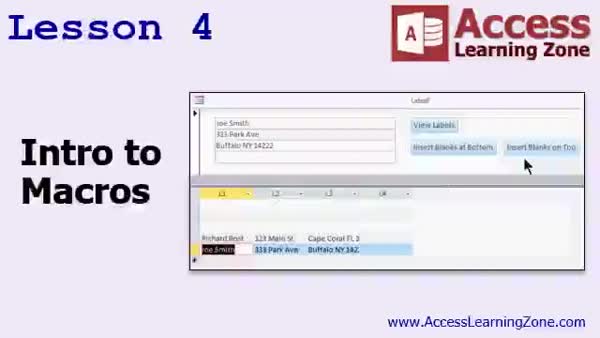
Lesson 4: Insert Blank Records at Top - In Lesson 4, we will walk through an introduction to macros in Microsoft Access. I will show you how to set up a label sheet table, design a simple form, and create macros to automatically insert blank records at the top of your label sheet for printing purposes. We will cover both embedded and external macros, discuss safe and unsafe macro actions, and set up user prompts to insert any number of blank labels. We will also talk about using macro commands to automate selecting, cutting, and pasting records, as well as touch on integrating macros with other forms, such as a customer form.
Lesson 5: Headers, Lists, Stats & Macros - In this course we learned how to create a single letter report header, build a report list form to display reports and descriptions, use subqueries to calculate rank, median, and mode, and build macros to insert blank labels at the top of a label sheet. We also discussed options for continuing with advanced Access training, available support resources, and ways to give feedback or get help with projects. This review covers everything from single letter report headers to preparing for further study in macros and event programming.
NavigationKeywordsreport letter group header, group by first letter, report list form, dynamic list box, open report from form, rank calculation, median calculation, mode query, percentile ranking, subquery example, macros, insert blank labels, label sheet automation
More InformationTranscriptWelcome to Microsoft Access Expert Level 32, brought to you by AccessLearningZone.com. I am your instructor, Richard Rost. Today's class covers a variety of topics that we have not gotten to in the Expert Series, but that people have emailed me asking about. Plus, we are going to spend some time in lesson four going over an introduction to Macros, which is what we will spend lots of time on in the Advanced Series, so it is kind of a preview of what is to come. This class was recorded using Microsoft Access 2016. However, everything should work just fine whether you are using 2007, 2010, or 2013. In lesson one, we are going to build a report with a single letter report header. You have seen this before, like in encyclopedias or in different types of reference material, where there is a big A, and then a group of all the A stuff, and then a B, and then a group of all the B stuff. That is something that is kind of tricky to do in Access, but we are going to learn how to do it in lesson one. In lesson two, we are going to build a report list form. Lots of people ask me how they can make a single form that has a list of all the different reports in the database, so all you usually have to do is pick one of the reports and then click Open, and it opens that report. I am going to show you how to do it two ways. First, we are going to use a little bit of programming to make Access generate that list of reports automatically for us. The second way, which is the way I prefer to do it, is to make a separate table with a manual list of all the reports. We can put a nice description of each report in there as well. Lesson three is for all you statistics people who keep emailing me asking how to do rank, median, and mode in Access. Those are three functions that are pretty easy to use in Excel, but they do not exist in Access. You have to learn how to create something called a subquery in order to do it in Access. So in lesson three, I will show you how to do that. Lesson four is going to be our intro to Macros. We will be spending all of our time in the Advanced Series covering event and macro programming, and lesson four is going to be our introduction to that so you can see what is coming. We are basically going to create a sheet of mailing labels. Lots of people ask me how they can take a sheet of mailing labels where they have already got two or three labels used, and want to have Access insert some blank records on top so they can reuse that label sheet. I am going to show you how to do that in lesson four. For those of you who are new to my courses, they are broken up into four different series: Beginner, Expert, Advanced, and Developer. Each series is made up of multiple levels. Expert, for example, has, as of right now, 31 levels. This is Expert Level 31. Beginner had nine different levels. My classes are designed to be followed one after the other. You should take level one, then level two, then level three, all the Beginner classes, then the Expert classes, and soon we will have the Advanced and Developer series. In addition to my normal Access classes, I also have lots of different seminars designed to teach specific topics, including web-based databases, creating forms and reports that look like calendars, securing your database, working with images and attachments, writing work orders, running a service business, tracking accounts payable, learning the SQL programming language, creating loan amortization schedules, and lots more. You can find details on all of these seminars and more on my website at AccessLearningZone.com. If you need help, there are forums on my website where you can post your questions. You can find that at AccessLearningZone.com/forums. We do not guarantee support, but we do our best to try and help you with questions if you post them in the forums. We will be using a sample database in today's class. AccessLearningZone.com/databases is where you can download the sample database that I will be using later on in today's class. You will need your password for this class, which you can get on your account on the website. Now sit back and relax. Watch the video as many times as you want and follow along with me. Build the database yourself if you can. Rewatch the video if you have to, and of course, keep an open mind. Anyone can do this. Access is not hard. Thanks for watching. IntroIn this lesson, you will learn several tips and tricks in Microsoft Access, including how to create a report with large single-letter headers, build a form that lists and opens all the reports in your database, and calculate rank, median, and mode using subqueries. We will also cover an introduction to Macros with a practical example of generating mailing labels while inserting blank spaces for partially used sheets. This is lesson 32 in the Expert series. QuizQ1. What is the first topic covered in this Access Expert Level 32 class? A. Creating mailing labels with blank records B. Building a report with a single letter report header C. Introduction to SQL queries D. Creating calendar reports Q2. How many ways does Richard demonstrate to create a report list form? A. One way B. Two ways C. Three ways D. Four ways Q3. In lesson three, which statistical functions are discussed as not existing natively in Access? A. Sum, count, and average B. Median, mode, and rank C. Standard deviation, variance, and range D. Quartile, percentiles, and mean Q4. What is introduced in lesson four of the class? A. Advanced SQL functions B. Report formatting options C. Introduction to Macros and event programming D. Creating dynamic queries Q5. What does the class suggest for handling partially used label sheets in Access? A. Creating a new label sheet each time B. Manually editing the labels C. Inserting blank records on top using Access D. Printing over used labels Q6. What should students do if they need help with topics covered in the class? A. Email Richard directly B. Call technical support C. Post questions in the forums on AccessLearningZone.com D. Search YouTube for answers Q7. What series are the Access courses divided into? A. Basic, Intermediate, Advanced, Master B. Beginner, Intermediate, Professional, Master C. Beginner, Expert, Advanced, Developer D. Starter, Pro, Ultimate, Guru Q8. What is recommended about the order of taking these Access classes? A. Take them in any order B. Skip classes if you already know Access C. Take them sequentially from beginner to advanced D. Only take the expert classes Q9. What does Richard mention about getting the password for the sample database? A. It is publicly posted on YouTube B. It is emailed automatically to everyone C. It is available on your account on the website D. It changes every week Answers: 1-B; 2-B; 3-B; 4-C; 5-C; 6-C; 7-C; 8-C; 9-C DISCLAIMER: Quiz questions are AI generated. If you find any that are wrong, don't make sense, or aren't related to the video topic at hand, then please post a comment and let me know. Thanks. SummaryToday's video from Access Learning Zone focuses on Microsoft Access Expert Level 32, where I address a collection of topics that many students have reached out to me about. In addition, lesson four will introduce Macros, serving as a preview for the upcoming Advanced Series, where we will be covering this subject in much greater detail. This course was recorded using Microsoft Access 2016, but everything you'll learn here is fully compatible with Access 2007, 2010, and 2013. Here's what you can expect from each lesson in today's class: Lesson one demonstrates how to build a report with a single letter report header, similar to what you might see in encyclopedias or reference books. In those examples, all entries starting with the same letter are grouped under a large header for that letter. Achieving this effect in Access requires some special setup, which I will walk you through. In lesson two, I address a common request: creating a report list form. Many people want a single form that displays a list of all the reports available in the database, so users can simply select a report and open it. I will explain two methods to accomplish this. The first method uses a bit of programming to have Access compile the list automatically, while the second (and my preferred method) involves building a separate table to maintain the report list, letting you include descriptions for each report. Lesson three is designed for those interested in statistics and focuses on calculating rank, median, and mode in Access. While these functions are easy to use in Excel, they are not built into Access. Here, I explain how to handle these calculations using subqueries. Lesson four introduces Macros, marking our first exploration into this important topic before we dive deeper in the Advanced Series. As a practical example, we will create a set of mailing labels. One frequent question I get is how to handle partially used label sheets, such as when a few labels have already been removed and you want to print starting from a specific position. I will show you how to insert blank records to accommodate this scenario. For those new to my courses, let me explain the structure: The curriculum is divided into four tracks - Beginner, Expert, Advanced, and Developer. Each track contains multiple levels, and the courses are meant to be taken in order. For example, the Expert Series currently has over 30 levels, and it is best to start from the beginning and work your way through each class before moving to the next track. Besides my regular Access classes, I offer a variety of seminars covering more specialized topics such as creating web-based databases, building calendar-style forms and reports, securing your database, working with images and attachments, writing work orders, managing a service business, accounts payable, learning SQL, creating loan amortization schedules, and many other subjects. All of these seminars are listed on my website if you would like to look further into them. If you ever need help, there are forums on my website where you can ask questions. While I cannot provide guaranteed support, I do try to answer and help as many of your questions as possible. The sample database for today's class is available for download on my website. You will need your password to access it, which you can find in your account on the site. I encourage you to relax and follow along with the video, replay any sections as many times as needed, and try building the database on your own. A willingness to experiment and an open mind are the keys to success. Access is very accessible to everyone with the right guidance. You can find a complete video tutorial with step-by-step instructions on everything discussed here on my website at the link below. Live long and prosper, my friends. Topic ListBuilding a report with single letter group headers Creating a report list form to open reports Generating a dynamic list of reports using VBA Creating a manual report table with descriptions Calculating rank, median, and mode using subqueries Introduction to macros in Access Inserting blank records for mailing label sheets Primary Topicsreport headers, report list forms, dynamic report selection, subqueries, rank median mode, macros, mailing labels Secondary Topicsform design, database organization, series overview |
||||||||||||||||||||||||||||||||||||||||||||||||||||||||||||||||||
|
| |||
| Keywords: report letter group header, group by first letter, report list form, dynamic list box, open report from form, rank calculation, median calculation, mode query, percentile ranking, subquery example, macros, insert blank labels, label sheet automation PermaLink Microsoft Access Expert 32 |