|
||||||
Access Developer 13Search Between Dates, Tuition Billing, PricingWelcome to Access Developer 13. In this course you will learn how to build a custom form to search between dates and set up tuition billing forms in Microsoft Access, including managing billing for private school students based on discounts and family size. We will discuss the prerequisites, show where to access the databases used in class, and outline the course structure. You will see how to create billing forms with multiple product options and walk through building a pricing wizard for selecting grade level, tuition, and managing orders. Lessons
Resources
Lesson SummaryWelcome! Search Dates & Setup Tuition Form - Welcome to Microsoft Access Developer Level 13. In this course we will build a custom form to search records between, before, or after two dates, and discuss how to set up tuition levels for private school students based on discounts, family size, and selected options. We will cover prerequisites for this class, highlight the structure of the Access Developer series, and explain where to find the databases used. Subsequent lessons will cover creating billing forms with multiple products and options, and we will walk through building a pricing wizard for selecting grade level, tuition, and adding orders.
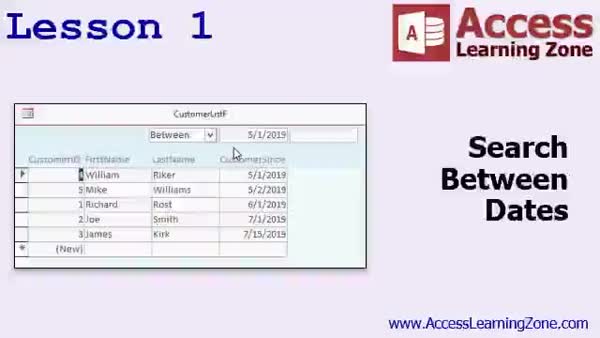
Lesson 1: Search Between Dates with VBA Form - In Lesson 1, we will walk through building a search form in Access that allows users to filter records between dates using search criteria fields. We will add date fields to a customer table, design a form with search boxes for entering start and end dates, and write VBA code to update the record source based on user input. We will also set up a combo box to let users choose to filter records before, after, or between specific dates, and discuss handling blank and null values in search fields. Additional options and improvements will be discussed in upcoming lessons.
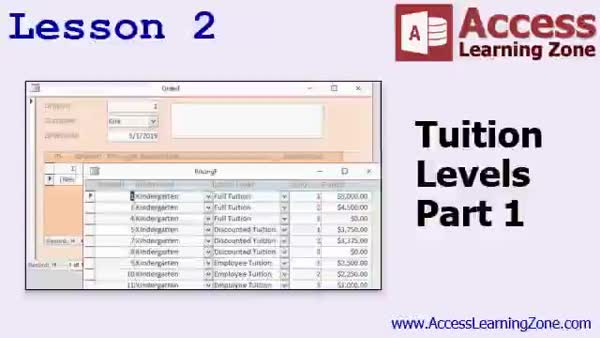
Lesson 2: Flexible Tuition Billing Setup - In Lesson 2, we will build on tuition levels by creating a form in Access for entering private school billing information. We will discuss how to set up tables for grade levels, tuition levels, and pricing, including handling multiple children from the same family and various tuition types such as full, discounted, or employee rates. I will show you how to structure the database for flexibility, create data entry forms, and use composite keys to prevent duplicate entries. We will also walk through how to link these tables to manage orders and order details for tuition billing.
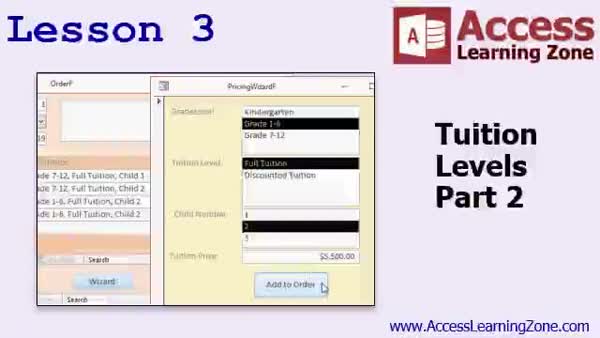
Lesson 3: Dynamic Tuition Pricing Wizard - In Lesson 3, we continue working with tuition levels by building a pricing wizard that allows users to select a grade level, filter tuition levels for that grade, choose a child number, and automatically add the correct tuition price to an order form. We will walk through streamlining the order entry process using combo boxes, list boxes, and VBA code, including techniques for setting up queries to dynamically filter available options. We will also discuss security and error handling considerations, how to structure related tables, and add buttons to make the process user friendly for entering tuition level details.
Lesson 4: Find More Resources & Help - In this lesson, we present the conclusion to Access Developer 13. I will share some behind-the-scenes information about recording and releasing these classes, discuss plans for the upcoming Access Developer 14, and let you know where to find additional lessons and seminars on the website. We will talk about various learning resources, my online forums for questions, customer support options, and ways to connect on social media or provide feedback through an online survey.
NavigationKeywordssearch between dates, date range filter, VBA date filter, combo box filter, tuition billing form, tuition pricing table, grade level pricing, family tuition discount, order form wizard, dependent combo boxes, pricing wizard, composite keys, private school
More InformationTranscriptWelcome to Microsoft Access Developer Level 13 brought to you by AccessLearningZone.com. I am your instructor, Richard Rost. In today's class, we are going to make a custom form where you can search between two dates for different records. I know we have done some searching between dates before with just basic query stuff, but I am going to show you how to make a cool form with some fields up in the header. You can put in some dates and pick either "show me records between those two dates," or show records before one of the dates, or after one of the dates. We are also going to do something I am calling tuition levels. Basically, it is going to be students enrolled in a private school, and the tuition is based on different factors. For example, do they get a discount? How many children does the family have enrolled? You can apply this to anything you want to. It can be products with different options like colors or sizes. I just happen to pick tuition levels because that was requested, but this particular example fits many different scenarios. You will see as we get into the class. For prerequisites, this class obviously follows Access Developer Level 12. You should have completed that, as well as the beginner, expert, and advanced series classes. In case you are new to my classes, I have the beginner series, which covers the basics of building tables and forms and so on. The expert level class goes into more detail on that, plus relationships. Advanced covers events and macros. The developer series, which is what we are in now, covers mostly VBA with more advanced topics. Each series is broken up into different levels. This is level 13. The databases for this class can be found at this webpage: 599CD.com/databases. You will need your password to open up a copy of the databases. I strongly recommend that you build the databases that I build in class. You get the most out of it that way. I am using Access 2019 Office 365, but everything I cover in today's class should work just fine with everything from 2007 up. So, let us take a moment and see what is covered in today's class. In lesson one, we are going to build a form that will have some criteria on top and allow us to search between dates, either between, before, or after certain dates. In lesson two, we are going to learn how to make a form to handle tuition for a private school. That is just my example, but you will get a lot out of this lesson, trust me. We are going to be able to pick the grade level, the tuition level, whether it is discounted or not, and the number of the child who is going to the school, because it changes per child and their tuition level. Basically, we will learn how to enter billing. You can consider tuition level as being a product. We are going to learn how to do billing with multiple products and multiple different options for those products. This is something that a lot of you have asked me how to do. In lesson three, we will continue to work with tuition levels. I am going to show you how to build a pricing wizard, where we can pick the grade level, then the tuition levels will show up just for that grade level. Then we will pick that, and the list of children will show up just for that one. Then it will show you the tuition price. We click add order, and then it adds a rate to our order. There is a lot of cool stuff in this lesson. IntroIn lesson 13 of my Microsoft Access Developer series, we will learn how to create a custom search form that lets you find records between two dates, as well as before or after specific dates, using header controls for easy filtering. We will also work through building a form to handle tuition billing for a private school, including managing discounts, the number of students per family, and flexible product options. Finally, I will show you how to set up a pricing wizard that filters tuition levels by grade and links orders to individual students. QuizQ1. What is the main feature being built in the first lesson of this class? A. A custom form to search between two dates for records B. A report summarizing monthly sales C. An automated email system D. A form for entering customer feedback Q2. Which search options does the custom form in lesson one provide? A. Exact match only B. Between two dates, before one date, or after one date C. Only after a given date D. Search using text only Q3. What scenario is being used as an example for the "tuition levels" lesson? A. Private school students with different tuition factors B. Business customers with contract levels C. Library users with different membership fees D. Restaurant customers with discounts Q4. Tuition levels in the example could be compared to which concept in other scenarios? A. A single product with no options B. Products with different options like colors or sizes C. Only digital products D. Services billed hourly Q5. What should students have completed before taking this level 13 developer class? A. Only the developer series B. Beginner, expert, advanced, and previous developer series classes C. No prerequisites are necessary D. Just a basic understanding of tables Q6. Which Microsoft Access versions are compatible with the lessons taught in this class? A. Only Access 2010 B. Only Access 2019 C. Access 2007 and up, including Office 365 D. Only Access 2003 Q7. What is the focus of the Developer series of Access classes? A. Basic table design B. VBA programming and more advanced topics C. Creating simple queries D. Writing emails Q8. What tool will be created in lesson three to help with tuition level selection? A. Pricing wizard that filters options by grade level and child B. Invoice template generator C. Simple calculator D. Password reset form Q9. Why does the instructor recommend building the databases along with the lesson? A. It is mandatory to pass the class B. Students get the most out of the class that way C. It is required for the certification exam D. Because all answers are provided in the database Q10. In the tuition lesson, what can be customized per child? A. Contact information only B. Tuition level and price based on grade and discount status C. Only grade level D. Parent's profession Answers: 1-A; 2-B; 3-A; 4-B; 5-B; 6-C; 7-B; 8-A; 9-B; 10-B DISCLAIMER: Quiz questions are AI generated. If you find any that are wrong, don't make sense, or aren't related to the video topic at hand, then please post a comment and let me know. Thanks. SummaryToday's video from Access Learning Zone is Microsoft Access Developer Level 13. I'm Richard Rost, your instructor. In this class, I'll show you how to create a custom form that allows you to search for records between two dates. While we have touched on searching between dates in the past using simple query techniques, I'll walk you through designing a more advanced form. This form will have fields placed in the form header where you can enter dates and choose to display records that fall either between those two dates, before a certain date, or after a specific date. We'll also cover a topic I'm calling tuition levels. In this example, we're dealing with students who are enrolled in a private school. Tuition rates depend on several factors, such as whether the student gets a discount or how many children from the same family are enrolled. Even though the example focuses on tuition, you can apply these techniques to other situations, such as products offering different options like color or size. The reason we're using tuition levels here is because someone specifically requested it, but you'll see it can fit many scenarios. To get the most out of this class, you should have completed Access Developer Level 12 as well as the beginner, expert, and advanced series. If you're new to my courses, the beginner series walks you through the basics of building tables and forms. The expert level goes into more detail, including how to create table relationships. The advanced series covers events and macros. The developer series, which this class is a part of, focuses on VBA and other advanced techniques. Each series has several levels, and this is level 13 in the developer track. You can find the databases used in this class on my website at 599CD.com/databases. You'll need your password to open and use them. I strongly recommend that you build these databases along with me, as it's the best way to fully understand the material. I'm using Access 2019 with Office 365 right now, but everything we'll cover today will work with any version from 2007 onward. To give you an overview, in lesson one, we'll build a form that places search criteria at the top and lets you search between dates, as well as before or after specific dates. Lesson two will cover building a form for managing private school tuition. Even if you're not working with tuition, you'll learn key concepts such as selecting a grade level, setting the appropriate tuition level, applying any discounts, and entering which child is attending which will affect the tuition rate. You can treat tuition levels in this lesson as products, and you'll learn how to handle billing situations with multiple products and options. This process is a common request from many students. In lesson three, we'll keep working with tuition levels by constructing a pricing wizard. This wizard will allow you to select a grade, display tuition levels for just that grade, and then let you pick a child from the appropriate list. You'll then see the tuition price and add it to the order. This is a practical example of how to set up an order or billing process that responds to multiple criteria and selections. There's a lot packed into this class and plenty of useful tips and tools. You can find a complete video tutorial with step-by-step instructions on everything discussed here on my website at the link below. Live long and prosper, my friends. Topic ListBuilding a search form with date range criteria Searching records between, before, or after dates Designing a custom form header for search fields Creating a form to handle private school tuition Selecting grade level and tuition level in forms Applying discounts based on student criteria Handling billing with multiple products or options Building a pricing wizard for tuition calculation Filtering tuition levels by selected grade Displaying child list based on selected tuition level Adding calculated tuition rates to orders Primary Topicscustom search forms, date range search, form criteria fields, dynamic filtering, tuition level logic, billing forms, product options, VBA form design Secondary Topicsgrade-level filtering, pricing wizard, billing automation, family discounts |
||||||||||||||||||||||
|
| |||
| Keywords: search between dates, date range filter, VBA date filter, combo box filter, tuition billing form, tuition pricing table, grade level pricing, family tuition discount, order form wizard, dependent combo boxes, pricing wizard, composite keys, private school PermaLink Microsoft Access Developer 13 |