Decades
By Richard Rost

 4 years ago
Show the Decade a Date Value Belongs To in Access
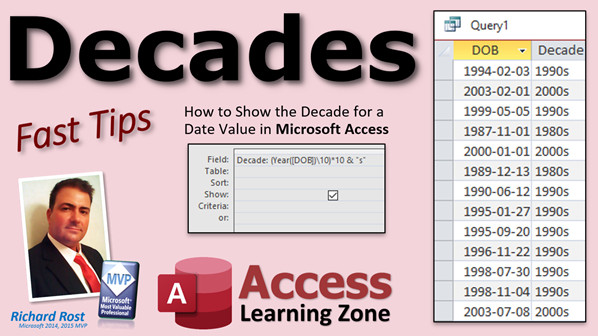
In this Microsoft Access tutorial, I will show you how to display the decade that a particular date value falls in, such as 1940s, 1990s, 2010s, etc.
Pre-Requisites
Recommended Course
Keywords
access 2016, access 2019, access 2021, access 365, microsoft access, ms access, ms access tutorial, #msaccess, #microsoftaccess, #help, #howto, #tutorial, #learn, #lesson, #training, #database, #fasttips, decade, decades, what decade does a date fall in
 Subscribe to Decades
Get notifications when this page is updated
More InformationTranscript Welcome to another Fast Tips video brought to you by AccessLearningZone.com. I am your instructor, Richard Rost.
In today's video, I am going to show you how to display the decade that a date falls in using Microsoft Access. For example, if you have a date like a date of birth, I am going to show you how to display what decade it falls in, like the 1980s. This is from a conversation that came up in the Access Forum on my website. One of my moderators, Scott, mentioned that he had to recently figure out decades in which a date fell to do some demographics. We are going to talk about Scott's solution in a little bit, but I am going to first show you the way that I would handle this and then we will take a look at what Scott did.
Before we get started, there are a couple of things you should know. The first one is calculated fields - how to make calculated fields in a query. The second thing is the Year function. If you do not know how to use the Year function, go watch this video. The third thing is concatenation, taking two or more fields and slapping them together to make one field out of them, so we can make like 1980 and put the S on the end - that is concatenation.
These are all free videos. They are on my website and on my YouTube channel. If you do not know this stuff, go watch these and come on back. You will find links you can click on in the description down below the video.
So, here I am in my TechHelp free template. This is a free database. You can grab a copy off my website if you want to. In here, I have a customer table that just happens to have a whole column full of CustomerSince fields in it. We will pretend this is the date we want to use for our date of birth or whatever date - does not matter.
So, I want to say that this one here, for example, falls in the 1980s. How do we do that? Well, let's go do some query magic. Create query design.
Now, when I am figuring out how to do something for the first time, I tend to break it up into multiple steps. When you are finished writing, you can put it all together if you want. I will show you how to put it all into one step later, but it is easiest for your brain to figure this out, especially when you are learning it for the first time, if you do each individual step.
So, the first thing, let's bring in our customer table and close this dialog. Let's just bring in the field that we care about right now, which is my CustomerSince field, and we are going to pretend that is my date. We will call it D. I am going to come out here and put a D: in front of that. That is just renaming CustomerSince to D. If I run this now, you will see it is just called D. That makes it easier in your formulas, too.
I do not care about the whole date, all I care about is the year part of it. So, I am going to make another field over here called Y: and that is going to be the Year function: Year(D). Just like that. I will zoom in so you can see it. There you go. So Y is now the year that D falls in.
If I run it, there is my year. There is the year that that date falls in, 1990 for example.
Now, what is the next thing I have to do? Basically, I want to chop off that rightmost digit. I want to chop off the single year digit, so for this one, for example, I want to chop off the seven. That will be in the 1980s. For this one, I want to chop off the five.
So, I basically want to divide it by 10. Let us try that first. Let's make another value over here. Let's call this one X. This is going to be Y divided by 10. I will zoom in so you can see that one. Alright, X is Y divided by 10. If I run this, I get fractional components like decimal values. That is not quite what I want. I just want to chop that off. I do not want to deal with it.
There is a special thing - you could round that number if you want to, but there is an even easier way: it is called integer division. The forward slash like that gives you actual division, so you get a remainder or a fractional component. If you use a backslash, that is integer division. I covered that in Access Expert Level 8. Access Expert Level 8 has a whole bunch of cool math stuff in it - bankers rounding, regular rounding, all kinds of cool stuff. So, check this out if you want to learn more.
But now with that integer division, if I run it, now look at that, I get a nice, clean number that represents the thousands, hundreds, and tens place.
So now all I have to do is multiply that by 10. Let's make another field. Let's call this one Z. Z is now X times 10. If I run that, there is your nice even decade value. If you need a numeric value, you can use that.
If you need it for any kind of calculations, like Scott used for demographics, I have another video on demographics coming out very shortly. You are going to enjoy that one too, where you can actually say, "Okay, I want to break up groups, people who are 18 to 25, 26 to 45," that kind of stuff. That will be probably tomorrow.
If you want it to have a little S on the end of it, just use concatenation. Come over here and say, we will call this one Decade, my final result. Decade is Z & "s" just like that. I will zoom in. Take my Z value that I just got and add on to it with string concatenation and S.
When you do this, this becomes a text string, so you can no longer use it in math problems, but there is your decade. You can see how that lines up on the left side of the column of the field, whereas these are all right-aligned. That is important. These are numeric values. That is a string value. But if you want to display that this person is from the 1980s, there is your value.
If you want to put this all together in one step so you do not have four different columns here, I like the multiple steps myself. I tend to leave that around, but if you do not, you could just say Decade is going to be (year of, in this case, we are going to say D, but its CustomerSince, does not matter - you can get rid of the D: too if you want to - we will just put CustomerSince in here), and then we are going to take that and do our integer division and then multiply by 10, and then on that, we are going to add the S.
Hit OK and we can actually get rid of this now, and there is one field that covers the whole thing.
Someone looking at this is not going to find it as easy to read as my five columns, but whatever works for you, it does not matter. Access does not care. It is going to get the job done either way.
Now, let's take a look at how Scott did it. Scott did it a slightly different way, but it still works. This is perfectly fine. I used integer division; he used the opposite function, he used modulus. Modulus, instead of where integer division divides it and chops off the remainder, modulus gives you the remainder. What he said is, okay, I have 1945 here, the modulus gives me the 5. Then, the decades start, I just subtract that value, and here he has the previous decade too.
He basically did the same thing I did, just in the opposite direction, and then added the S on. But this is perfectly valid just as well. Good job, Scott!
Then Adam mentioned something - you can do the same thing with century, millennia. Yeah, you could. But then you are not using regular Access dates, because an actual Access date only goes back to 1899. So, century-wise, you will be limited to the 20th and 21st. But yes, the same technique, if you wanted to, would work fine. If, for example, you have your year stored in a Long Integer field like I covered in my video on how they do BCE dates, you could put any year value that you want in there, like 1450, and then you can calculate the century using the same technique. No, I am not going to do a separate century video, but there you go.
So, that is it. That is how you calculate the decade a date falls in in Microsoft Access. Thanks to Scott and Adam and everybody else who contributed to this. Somebody asked me about this months ago too, and I put it on my list, and the list is so long. I get to what I can when I can, and when I start seeing the same question pop up two or three times, then I am like, "Oh, wait, someone asked me that two weeks ago," and then I find it and yeah, okay. The squeaky wheel gets the grease. The more people ask me the same thing, the more likely I am to make that video.
There is your fast tip for today. I am Richard Rost. I hope you learned something and I will see you next time. Intro In this video, I will show you how to display the decade that a date falls in using Microsoft Access. We will work through creating a query that extracts just the decade from a date field, such as a date of birth or customer join date, and how to properly format the result (like 1980s) with string concatenation. I will demonstrate both my approach and an alternative method using modulus, discuss the use of calculated fields and the Year function, and explain when to use integer division for this type of calculation. Quiz Q1. What is the main objective of the video tutorial?
A. To calculate a person's age in Microsoft Access
B. To display the decade a date falls in using Microsoft Access
C. To group customers by their region in Access
D. To create a calendar in Microsoft Access
Q2. Which Access function is used to retrieve the year from a date?
A. DatePart
B. Year
C. Month
D. Day
Q3. What is concatenation in the context of Microsoft Access?
A. Dividing one number by another
B. Adding multiple queries together
C. Combining two or more fields or values into one string
D. Sorting records in ascending order
Q4. When dividing the year by 10 using the standard forward slash ( / ) operator, what is the result?
A. An error message
B. Only the integer quotient
C. The quotient and the remainder as a fraction
D. A true/false value
Q5. What does integer division (using the backslash \\ operator) accomplish?
A. Rounds numbers up to the next whole value
B. Divides one number and returns the remainder
C. Divides one number and removes the fractional part
D. Returns the largest number in the dataset
Q6. After stripping off the rightmost digit of the year and multiplying back by 10, what value do you get?
A. The century the date falls in
B. The correct year of the date
C. The even decade value for that year
D. The remainder after division
Q7. Why would you append an 's' to the decade value (like '1980s')?
A. To make the value suitable for mathematical operations
B. To format the value as text for display purposes
C. To indicate a subtraction operation
D. To sort the decade values in reverse
Q8. What is a limitation when trying to calculate centuries or millennia using Access Date fields?
A. Access does not support any date calculations
B. Access dates only go back to 1899
C. Access automatically calculates centuries
D. You cannot concatenate in Access
Q9. What alternate method did Scott use to determine the decade of a date?
A. Summing all the digits in the year
B. Using the modulus operator to get the last digit, then subtracting it from the year
C. Rounding the year to the nearest ten
D. Concatenating the year with a "0"
Q10. What is a potential benefit of breaking the calculation into multiple fields or steps in a query?
A. It produces faster results
B. It helps you understand and debug the calculation more easily
C. It hides the calculation from other users
D. It creates additional reports automatically
Answers: 1-B; 2-B; 3-C; 4-C; 5-C; 6-C; 7-B; 8-B; 9-B; 10-B
DISCLAIMER: Quiz questions are AI generated. If you find any that are wrong, don't make sense, or aren't related to the video topic at hand, then please post a comment and let me know. Thanks. Summary Today's video from Access Learning Zone looks at how to determine the decade that a date falls within in Microsoft Access. This comes from a question that appeared in the Access Forum on my website, where one of my moderators, Scott, needed to figure out which decade a given date belonged to for demographic purposes. I'll first show you my approach for solving this problem, and then I'll review Scott's method as well.
Before we proceed, you should be familiar with a few basic concepts. First, calculated fields in queries allow you to create new values based on existing data. Second, you should know how to use the Year function to extract the year from a date. Finally, concatenation involves joining two or more pieces of data, which will be useful when formatting the decade value, such as adding an "s" to the end of "1980" to display "1980s." If any of these topics are unfamiliar, I have free videos on my website and YouTube channel that cover them in detail.
For this example, I am using my TechHelp free template database, which you can download from my website. I have a table of customers that includes a CustomerSince field. For the purposes of this demonstration, we can treat this as our date, whether it's a date of birth or any other important date.
The goal here is to display which decade a specific date falls into, such as labeling a date as being from the "1980s." To do this, I start by creating a query. When I'm tackling a new task, I usually break the process down into smaller steps, which makes the logic easier to follow, especially for beginners. Once you understand it, you can always combine the steps for a more compact solution.
First, I add the customer table to the query and bring in the CustomerSince field. For clarity in our calculations, I rename this field "D." Next, since I only need the year portion of the date, I add another field called "Y," which uses the Year function to extract the year from "D." Running the query now shows the year each date falls in.
The next challenge is to identify the decade by essentially removing the rightmost digit from the year. For instance, "1997" becomes "1990." The straightforward way to do this is integer division. If you divide the year by 10 using a regular forward slash, you get a decimal result, but that's not what we want. For integer division, you use the backslash, which discards any remainder and leaves you with the decade's starting digit. I covered more about this in Access Expert Level 8 if you're interested in other math functions in Access.
Now, multiply this result by 10 to get a clean decade value such as 1980 or 1990. If you need this as a numeric value for more calculations, it's ready to go. This is especially useful if you're organizing people into demographic groups by decade, which I discuss further in another upcoming video.
If you'd prefer the result to read "1980s" instead of just "1980," simply use concatenation to add the letter "s" to the end. This creates a text value, so keep in mind that you can't use it in further mathematical operations, but it serves perfectly for display purposes.
For those who prefer a single-step solution, you can combine all these calculations into one field. You take the year of the date, apply integer division and multiplication, then concatenate the "s." Although this approach doesn't break out each individual calculation, it keeps your query cleaner if you're comfortable with the logic.
Switching gears, let's briefly discuss Scott's approach. He tackled the problem using the modulus function instead of integer division. Where integer division discards the remainder, modulus returns the remainder. So, by subtracting the remainder from the original year, you get to the decade value. He then added the "s" as well. Both methods arrive at the same result, so use whichever makes more sense to you.
Adam, another contributor, pointed out that similar techniques work for centuries or even millennia. It's true, though do keep in mind that Access dates go back only to 1899, so you are a bit limited unless you're storing years as integer values. If you have data going further back, you can use a similar approach to compute centuries, as I explained in my video about BCE dates.
That's the process for displaying the decade a date falls in within Access. I appreciate everyone who contributed to this topic. When I see a question pop up repeatedly, it goes higher on my to-do list, so keep those questions coming.
You can find a complete video tutorial with step-by-step instructions on everything discussed here on my website at the link below. Live long and prosper, my friends. Topic List Displaying the decade a date falls in using Access queries
Creating calculated fields in queries
Extracting the year from a date using the Year function
Renaming fields with aliases in query design
Using integer division (backslash) to remove the year digit
Multiplying for a clean decade value
Converting numeric decade to text with concatenation
Combining all steps into a single calculated field
Determining the decade using modulus arithmetic
Limitations based on Access date range for centuries and millennia Primary Topics Microsoft Access queries, calculated fields, date manipulation, integer division, modulus function, concatenation
Secondary Topics demographics grouping, data display formatting, alternate calculation methods
|




