Association 5
By Richard Rost

 3 years ago
Microsoft Access Association Database, Part 5
This is Part 5 of my Microsoft Access Association Database. In this video we will build the family member list which shows a list of the family members in that family. This will be a list box on the family form. We will create a list items edit form button to add or remove members. Then we will make a family list form much like the person list form and a button to open that from the main menu. Then we'll make it so you can jump to the family from the person form and vice versa.
Pre-Requisites
Members
Members we'll learn how to open and edit family members without using the list items edit form button. We'll create our own button and the events that go with it which I think is much better. The list item edit form button is unreliable.
Links
What's Next
Keywords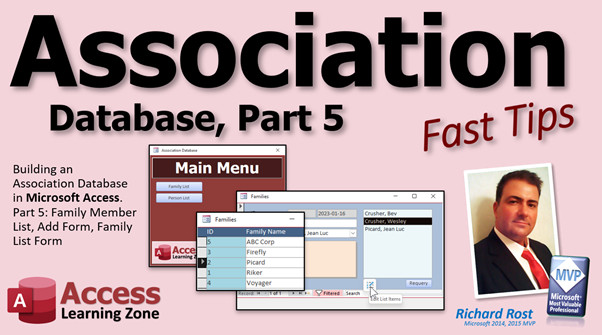
access 2016, access 2019, access 2021, access 365, microsoft access, ms access, ms access tutorial, #msaccess, #microsoftaccess, #help, #howto, #tutorial, #learn, #lesson, #training, #database, Family Member List, List Items Edit Form, Family List Form
 Subscribe to Association 5
Get notifications when this page is updated
More InformationTranscript Welcome to another Fast Tips video brought to you by AccessLearningZone.com. I am your instructor, Richard Rost.
In today's video, we're continuing with the Association Database. This is Part 5. We're going to make a Family Member list so on the Family Form, you can see who all the Family Members are. Then we'll make it so you can click on the List Items Edit Form and that will open up the Person Form so you can add people to the family that way. We'll make a Family List so from the main menu, you can go to the Family List and from the Family List, you can go to the specific Family List and there you can go to the Person. From the Person, you can go back to the Family. So that's a big loop.
Are you ready? Here we go. Part 5. Again, I'm taking part 4. We're going to copy that and make Part 5 out of it. So Gold Members, when you go to download it, you get both of them.
Let's take a look at where we were. Part 5. Oh, I have to stop my music here real quick. I have some Star Trek music playing in the background. Alexa, pause music. Okay, now we can get to work.
We have our Family Form going on here. We did this in the last video. That was pretty cool. Now I'm going to need a list of people over here that are in this family. For that, I'm going to use a List Box. Let's just make a List Box showing all the people that have a Family ID the same as this Family ID.
The cool thing about combo boxes is that they are basically the same thing as a List Box. They're just closed and you can type in them. Let's watch this trick. Let's copy this guy. Copy, paste. Let's bring it over here.
Oops, someone's beaming in. We're going to right click and change to a List Box. So now it's an open List Box. Now it's not going to be bound to any field in this form. It's going to have its own list of data in it. The control source over here is going to be nothing. It's unbound. It doesn't have a value.
Let's call this the family, or let's call it the person list. The person list, the family members list. Slide it over here like this. Drop it down like that.
Now, if I close this and open it up again, that's a big blank list. I want to fill this with the same list of values that this thing gets, but I want to show them all. I want to see all the members that are in this box. We could fill it the same way as this thing.
We're going to fill person list the same as that. Where did we do that? This guy. So what we're going to do is come right down here and say person list RowSource equals headpersoncombo.RowSource. It's the same list of data.
Here we'll do the same thing. personlist.RowSource equals nothing. So open up the family and look at that. There's all your family members. Go to the next one, there's all your family members. Pick the family head, go to the next one, come back over here, pick the family head.
You could make it so this thing is bound and you can just pick them here, but I'm going to do something different. I want to do it so that when we double click on these guys, it opens up their person record.
Let's just fill these heads of family. Record? Wait, did it not save it? Let's see. Record? Okay, good. I thought I didn't save it. I don't have Malcolm Reynolds. So we want to add Malcolm Reynolds to this list here.
To do that, we could utilize the list items edit form. That's this guy. You can make a button here, open it, and you can edit the list of items that are in that form.
What we're going to do is go to design view. We're going to click on this guy. Set the list items edit form to be the person F.
What's going to happen now? Save it. Close it. Open it up again. Let's go over to Firefly. Hope we're in there. Click on it. Now notice, when this guy has the focus, there's a little list items edit button there. Click on that and it's going to pop this up.
You can edit and add things. Now you have to find Malcolm, so find Malcolm's record. Where are you? There he is. I just passed him. Put him in the Firefly family. When you close this, it should refresh that list. See? It's a bit of work. You have to come in here and search.
Generally this is used for adding records. If you want to add someone who's not in this family already, you can click this and add them on the end. New guy. Put them in the Firefly family.
We can have this default too if you want. Watch this. I'll close this. There's new guy. What you might want to do is on your person, not on your person list, but on the person form, have this default to this family ID. So if this form is open, this combo box will get its value from there.
How do we do that? That's getting a value from an open form. That's this video. Do you want to refresh yourself on this one?
We're going to go here, go to data. We didn't give this guy a good name yet. It's a combo38. Usually I don't assign the names until I actually use them somewhere else. So this will be family combo.
Under data, your default value is going to be =Forms!FamilyF!FamilyID. So if this form is open and you open up the person form and go to a blank new record, look at that. The new default value is Firefly.
So if you're using this and you go to a family, like the Voyager family, and you want to add someone new, click on that, and you can add a new record. Who do we not have? I think we have Harry Kim. Who else? I'm missing, I guess. And look, automatically, she's in Voyager. Close it, and boom, Kes is right there. That's the name.
We're going to put the event here to double click. I didn't do that. Let's do that now. Bring this back over this way. Right click, Design View. Open up this guy's properties.
Event, this is the person list. The on double click event is going to be DoCmd.OpenForm("PersonF", , , "PersonID=" & PersonList). Save that. That's the open a form to a specific record video. Go watch that.
Save it. Once in a while when you're coding, give it a good debug compile just to make sure all your code works. You can have syntax errors in here and not realize it until later.
Now let's give this a splash of color, just a little bit, maybe a tiny bit of blue. Save it. Close it. Open it back up again.
Now I can double click on Deanna and go right to her record. See that? Close that. Open it up, go right to record. If we go back here, let me find the Voyager family. Make Catherine Janeway the head. Open up Kes and delete her while we're in here. So deleted.
If you want to add other people, you just come in here and find who you want. Let's go. Let's see. Barclay could be in the Voyager family, although he'd probably be in the Next Gen family. He was on a lot of Voyager episodes. Who am I missing here? Anyway, you get the point. Probably Voyager people. There's Tom Paris. Okay, Voyager. And is that it? There we go. Oh, that's Reginald Barclay. I thought I saw the other Barclay.
So that's the family stuff. Let's edit the caption up top. The caption: family, families. Let's put them on the main menu. Copy, paste. Let's put families above people. Let's do a list of families. Forget that. Get rid of that. Actually, we're going to need to put it in anyway. Family list. But just like we have a person list, let's make a family list as well.
This will be the family list button. That person list button, family list button. In fact, we can borrow our person list form, copy, paste, family list form. Right click, design view.
There's not a whole lot to change in here, so we'll take this. Actually, change the data source first, right here. This is how you reuse your objects. There's no sense in reinventing the wheel every time. You get something that works good, just copy and paste it and make some changes.
Record source is now going to be FamilyT. Now you can see which fields don't work anymore. This has to now be the family ID. Copy, paste. This will be now the family name. Notice how that bumped down just a hair. One thing I hate is that when you make changes like that, see that? It's just slightly off the grid. I hate that. It's a pet peeve. Microsoft team, change that. These things should always snap to the grid. I hate that.
We're going to get rid of this. You could put the head of house over here, whatever you want to do. We're going to do this and make this the family name, description, or whatever. What other fields have we got in here? That's fine. I don't need to see all the rest of that.
Then we'll change the colors a little bit. Let's make this maybe a different color blue. I don't like using theme colors because people can change these. I like to stick with the regular colors. Let's go with that. Then select more and make it a little bit lighter. That's how I do it.
Now this code has to change: event here. We're doing basically the same thing we did up here, but we no longer need this. We're going to DoCmd.OpenForm "FamilyF", , , "FamilyID=" & FamilyID on this form. The PersonID is now gone. Goodbye. Always keep your code clean, people.
Close that. Close that. This guy now can right click, build event. DoCmd.OpenForm "FamilyList". Save it. Close it. Close it. And from the menu, Family List. There it is. Bring it up here.
That's not sorted at all. Let's sort that: right click, design view. How do we sort this? We can easily change where it's getting its data from and sort it by description. You can do a query, but why have all those extra queries floating around? You can do an order by here, but I don't like those. Those can easily be changed and reset and all that. I like to put it right in the record source. It's my personal preference.
Select * from FamilyT order by Description. That's the best way to do it, people. Again, like I mentioned a couple lessons ago, learn SQL. If you're going to be working with databases, at least learn the basics.
Now when I open up my family list, it's nice and sorted. If someone puts a sort on and saves it, you don't lose that sort. When this opens up next time, it'll start like this.
If I double click on one of the IDs, it opens up the card. It opens up your family. Now I can double click and go right to Jean Luc's. See how easy this is? Drill right down to where I'm looking for. Or if I come in the other way, if I know the person I'm looking for, go to the person list. Find the card, right there. Open it up. There's the card. Now I can double click on the family up here and it opens up.
We didn't do that yet, did we? That's next. Right click, design view. Take this. Event. On double click, where are you, right there? This thing is the family combo. So we are going to DoCmd.OpenForm "FamilyF", , , "FamilyID=" & FamilyCombo.
See how we can use these controls to bounce around between the different forms? Whatever you have, you can get to wherever you want to go.
Now I go into Jean Luc's. I can now double click here, and I have his whole family. Want to add someone to the family? Let's find Beverly. Hit this. That's going to pop this back up again. And, yeah, see, it's still filtered. That's one problem that we'll have to deal with later.
If you're in here, and the other form is filtered, when you click on this, it doesn't lose the filter. So what you have to do is, if you come in this way, you're on Luc, go to the family. If you click on this, you have to unfilter it. That's just a training issue. There are ways you can do it with a button down here, but that's easy for now. Later on maybe we'll get a little more high speed with it.
But now I want to find Beverly, and I don't feel like searching. So I'm just going to click right here, text filters, then contains and type in bev. I don't have Beverly Crusher in here. Beverly Crusher. Add her to the Picard family, because that's the default, close it, and what happened? Close that. Close that.
Person list. Let's sort this by first name. There's Beverly, double click. Picard. Close. Close. Family list. Picard. It just didn't refresh before.
That's one of the complaints that I've had from a lot of my students. I run into it once in a while too, when this just doesn't update properly when you do this in here. When you close it, it just doesn't update this. That's why sometimes it's also nice to have your own manual refresh button on here. That's as easy as putting a little button down here on the bottom.
We're going to cancel this, and we're just going to say in here: Requery or Refresh, whatever you want to have it say. Let's change the format. Let me move this up. Close. Let's change the format to 9. Make it nice and small. Slide that up there.
Open the properties up. Let's make the name "RequeryButton." This is going to be for the Person List. So right click, Build Event, PersonList.Requery. That says, take that list box and requery the items that are in it.
That way, if you come back here and it doesn't refresh, if you open this up, you can manually hit the Requery button. If something like this doesn't update - for example, if you come in here and you open up any of these records and it changes this to just bev, when you close this, well, in this particular case, it actually requeryed. Usually this doesn't requery, but it did, but you can hit the Requery button.
Let's say someone comes in through the table, which they shouldn't ever do. Let's say they come in this way and go like that and close it. Now see how that didn't requery as it shouldn't. Now you can hit the Requery button and it fixes it. Usually that doesn't update when you do that before. Sometimes it gets sneaky.
There are a lot of advanced tricks that I teach in my developer class. We can make a button down here to add somebody, and then when focus comes back to this list box or your button, it requeries the form. In fact, I'm going to make a little extended cut for the members and show you how to do that. Everybody else, you have to use the list items edit button down there. Members, I'll throw a little extra button in there for you.
But for everybody else, that's about all for today. Members, you're going to learn how to do the adding a person stuff without the list items edit form button. I don't like it. I try not to use it. It's, as you just saw earlier, a little unreliable. You have to click off the field and back on it to get it to show up. Sometimes it doesn't show up at all. Sometimes it doesn't refresh the list when you return to it. It's buggy. It's a Microsoft thing.
My way is better. We're going to make our own add button. It's going to open up that form, modal, and then when you do your stuff and close it, it's going to automatically refresh all with about three lines of code. That'll be in the extended cut for the members.
Silver members and up get access to all of the extended cut videos, all of them. Everyone on my site, all the TechHelp ones, all the Fast Tips ones, and Gold members can download all these databases that I build for these videos, for the Fast Tips and the extended cut for the TechHelp stuff, all that cool stuff.
Check it out. That's about it for part five. I'll see you soon for part six. Let me know in the comments down below what you want to see me add. I know I'm just barely getting started, but we have a lot of great ideas so far from people and I'd like to hear more. Intro In this video, we continue building the Association Database in Microsoft Access by setting up a Family Member list on the Family Form, allowing you to view all members of a family at a glance. You will learn how to use a List Box to display family members, set up double-click events to open specific Person records, and use the List Items Edit Form to add new members directly. We'll also create a Family List form, add navigation between People and Families, sort records, and add a manual Requery button to ensure lists stay updated. This is part 5. Quiz Q1. What is the primary goal of this video tutorial?
A. To teach how to create VBA macros for exporting data
B. To build a Family Member list and navigation between forms in the Association Database
C. To create an invoice management system from scratch
D. To design user security features in Access
Q2. What type of control is used to display all the members of a family on the Family Form?
A. Combo Box
B. Text Box
C. List Box
D. Option Button
Q3. What is the purpose of setting the RowSource of the person list List Box to headpersoncombo.RowSource?
A. To restrict data entry in the List Box
B. To populate the List Box with the same people as the combo box
C. To link the List Box directly to the table
D. To make the List Box the primary key
Q4. How is the List Box (person list) configured in terms of its Control Source?
A. It is bound to the PersonID field
B. It is bound to the FamilyID field
C. It is unbound (not bound to a field)
D. It is bound to the head of family field
Q5. What does double-clicking on an entry in the person list List Box accomplish?
A. It deletes the person from the family
B. It opens the Person Form for that specific person record
C. It adds a new person to the list
D. It opens a report for that family
Q6. What is the purpose of the List Items Edit Form property in Access for a combo or list box?
A. To filter data in the list
B. To open another form for adding or editing items in the list
C. To lock the list from editing
D. To delete items from the list directly
Q7. When adding a new person through the Person Form, how can the FamilyID be automatically set?
A. By manually entering the FamilyID each time
B. By using a default value in the combo box set to =Forms!FamilyF!FamilyID
C. By running a macro on form load
D. By writing an update query
Q8. What is the advantage of reusing forms (e.g., copying Person List form to create Family List form)?
A. It automatically upgrades features
B. It saves time by not redesigning from scratch
C. It adds user security
D. It reduces database file size
Q9. In the Family List, how is sorting accomplished?
A. By setting an Order By property on the form
B. By using a query as the record source
C. By writing a SQL statement in the record source: SELECT * FROM FamilyT ORDER BY Description
D. By using a macro
Q10. What does the Requery button do on the Person List form?
A. Closes the form
B. Refreshes the records in the underlying table
C. Requeries the List Box so it displays updated data
D. Deletes all entries in the list
Q11. Why might using the built-in List Items Edit Form button be considered unreliable?
A. It sometimes fails to open the desired form
B. It can cause Access to crash frequently
C. It doesn't always refresh the list or show changes after closing the edit form
D. It creates duplicate records easily
Q12. What is suggested as a better alternative for adding people to a family than relying solely on the List Items Edit Form button?
A. Deleting the old list and creating a new one
B. Creating a custom Add button with modal form and automatic refresh
C. Using queries to manually edit data
D. Switching to Excel for additions
Q13. What is emphasized as an important skill for future database developers in this tutorial?
A. Learning VBA exclusively
B. Learning SQL basics to manage and manipulate data
C. Memorizing Access interface shortcuts
D. Creating complicated macros for every feature
Answers: 1-B; 2-C; 3-B; 4-C; 5-B; 6-B; 7-B; 8-B; 9-C; 10-C; 11-C; 12-B; 13-B
DISCLAIMER: Quiz questions are AI generated. If you find any that are wrong, don't make sense, or aren't related to the video topic at hand, then please post a comment and let me know. Thanks. Summary Today's video from Access Learning Zone focuses on building an Association Database, specifically part 5 of the series. In this lesson, I walk you through constructing a Family Member list so that, when using the Family Form, you can see all the members belonging to a given family. I also cover how to make it possible to add people to families by opening the Person Form directly from this list. As part of these improvements, we create navigation options so you can move from the main menu to a Family List, then drill down to a specific family, view the people in that family, and easily return to the family or person records as needed, creating a user-friendly loop for database navigation.
To get started, I build upon the previous lesson (part 4), copying that database as a base for part 5. Gold Members who download from my site will have access to both versions.
Our Family Form, developed in the last lesson, is working well so far. Now, I need to display all individuals who belong to a selected family. A List Box makes this possible by showing all people whose FamilyID matches the current FamilyID. It's important to note that combo boxes and list boxes are quite similar in Access; the main difference is visual and how users interact with them. To demonstrate, I duplicate an existing combo box, convert it to a list box, and reconfigure it so its control source is unbound. That means it simply displays information without being directly connected to a field in the form's underlying table.
I name this new list the "person list" or "family members list" and position it on the form. At first, when you open the Family Form, the list appears blank, so the next step is to fill it with the right data by setting its RowSource to match the combo box we previously used for selecting the head of family. This way, every time you move among different family records, the corresponding family members update in the list box automatically.
Although you can bind the list box for other uses, I take a different approach. My goal is to allow users to open a person's record by double-clicking one of the names in this list. Before showing how to add people, I verify the data is saving properly. In one example, I want to add Malcolm Reynolds to the family. To do this, I make use of the List Items Edit Form property, which allows us to open the Person Form in a new window to edit or add records directly.
Setting this up involves specifying the Person Form as the list items edit form for the combo or list box. When you use the small button that appears, Access opens the Person Form, where you can either find and assign an existing person to the current family or create a brand new record for a family member. To simplify data entry, I show how to set the default value in the Person Form to the currently open FamilyID, so whenever you add a new record from a given family, it automatically links to the right Family without needing to manually select it.
To accomplish this, I discuss referencing values from another open form using the Forms object, specifically setting the default value of the Family combo box to the FamilyID from the Family Form.
With that groundwork laid out, I set up the double-click event for the person list, so that when you double-click on a family member's name, you jump directly to their Person record. I also emphasize the importance of debugging and compiling your VBA code regularly to catch errors before they create bigger problems.
As a finishing touch, I suggest adding a bit of color to the form for a more user-friendly look and demonstrate how double-clicking works for rapid navigation between family and person records. You can now move seamlessly from the Family Form to a selected person, and back again, making data review and updates efficient.
Expanding on navigation, I then reorganize the main menu to include Families above People and introduce a Family List Form to parallel the Person List Form. Rather than manually building every form from scratch, I recommend copying and adapting existing objects. I show how to change the data source from the people table to the family table and update the controls and code accordingly. For example, the double-click event in the Family List should open the relevant Family Form rather than the Person Form.
To keep the Family List sorted, I argue for modifying the record source SQL statement directly, sorting by Description for a more stable and predictable order when the form is opened. I recommend avoiding the Order By property or separate queries unless it's necessary, and encourage learning at least the basics of SQL for situations like this.
Once these navigation links and sorting options are set, you can move quickly between families and individuals from either list. I illustrate how one can double-click on a family to access all its members, or start from a person, locate their family, and navigate back and forth. If you need to add a person, you can launch the Person Form, assign the FamilyID, and upon closing, see the update reflected in the list—assuming the record properly refreshes.
Occasionally, Access may not automatically refresh list boxes when records are updated, particularly when edits are made directly in tables (which I advise against for general users). As a workaround, I show you how to create a Requery button for the Person List, giving users an easy way to manually refresh the displayed data if needed.
I mention that there are more advanced methods to automatically refresh forms as focus returns, which I cover in more detail in my developer-level courses. For now, I introduce a manual refresh option for everyone and note that a more streamlined and automated version will be available in today's Extended Cut for members. In that extra segment, I demonstrate how to create a custom button to add new people, open the Person Form modally, and automatically requery the parent form upon returning, avoiding some of the quirks of the built-in list items edit button.
As always, Silver members and above have access to all extended cut videos for both Fast Tips and TechHelp, while Gold members can download the working databases for all lessons.
That wraps up part five of the Association Database series. Let me know what additional features you'd like to see included as we continue this project. For the complete video tutorial featuring every step and more in-depth examples, visit my website at the link below.
Live long and prosper, my friends. Topic List Creating a family members list box on the Family Form
Populating the list box with family members using RowSource
Setting up the list items edit form for adding people
Defaulting new Person records to the current FamilyID
Opening the Person Form to a specific record via double click
Creating a Family List form based on the Person List form
Switching record sources between forms (PersonT and FamilyT)
Sorting the Family List using SQL ORDER BY in the record source
Navigating between Person, Family, and Family List forms
Opening Family Form from Person Form using FamilyID
Manually refreshing the list box using a Requery button Primary Topics Access forms, Family and Person tables, List box and combo box controls, List Items Edit Form, Form navigation, Default values from open forms, Recordsource modification, Requery/refresh mechanics Secondary Topics UI customization, SQL order by, event handling, user training tips |




