Automated Import
By Richard Rost

 3 years ago
Automated Import of Data to Access from Excel
In this Microsoft Access tutorial, I'm going to teach you how to automate the import of data to Access from Excel with a little VBA and just one click. We're going to use the TransferSpreadsheet command and update existing records in our database.
Members
There is no Extended Cut, but here's the database for the Gold members.
Silver Members and up get access to view Extended Cut videos, when available. Gold Members can download the files from class plus get access to the Code Vault. If you're not a member, Join Today!
Prerequisites
Links
Recommended Courses
Code
DoCmd.TransferSpreadsheet acImport, acSpreadsheetTypeExcel12Xml, "CustomerTempT", "C:\File.xlsx", True
Keywords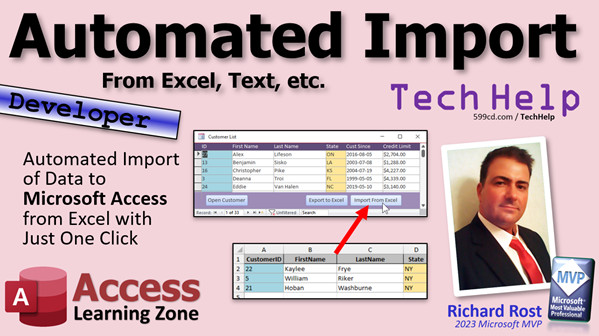
access 2016, access 2019, access 2021, access 365, microsoft access, ms access, ms access tutorial, #msaccess, #microsoftaccess, #help, #howto, #tutorial, #learn, #lesson, #training, #database, Import from excel to access, import updates from excel, DoCmd.TransferSpreadsheet, acImport, unable to append all the data, update query
More InformationTranscript In our last video, I showed you how to automate exporting data from Access to Excel with one click. Well, today we're going to go the other way. We're going to take that Excel spreadsheet, assume our users have made their changes to it, and now we're going to import it back in and pull those changes into our table. Again, with one click. Are you ready?
Of course, if you haven't watched yesterday's video first, the automated export video, go watch this first. It's free. It's on my website. It's on my YouTube channel. And then come on back. Also, if you don't know how to build update queries, go watch this video too.
Once we import the data, we're going to use an update query to put it into our customer table. So, go watch this one as well.
In the last video, I showed you how to take your customer form like this. Your customer list form and you can sort it. You can filter it. You can say, give me everybody from Florida. Then you can export this to Excel with one click that gives you a spreadsheet. You can now send this spreadsheet. Let's say you've got a sales rep who only deals with the customers from New York. Ready to get his zone. You want to send this to him. You want to say, hey, update all your customers. Do what you have to do. Give me updated data. I want it back on my email by Thursday, whatever.
This also takes into consideration that no one else is going to modify this stuff. Because if you give him a spreadsheet and then you import his data back in here, it's going to overwrite anything else that you've changed. So this takes into consideration that you're mindful of that.
We're not going to have any data collision examination, like checking to see, wait a minute, this record's already been updated. So this is all on you. I'm just going to show you how to export it, which I've already done, and then import it back in.
This is good for stuff like this where you want to give people certain sets of data to update, product data that you want to send to someone and say, hey, go to the vendor site and get me all updated pricing, bring it back, that kind of stuff. We can control which fields can be imported. If you only want to let them change one field, we'll handle that in the update query.
So, we know how to export this. Let's make a few changes. But Mr. Data is going to be XXX. I'm going to be easy, easy. Let's say Dianna's credit limit has gone to 5555. Save it. Now this file is saved. Then we're going to close it, and now we're going to put a button in here to import that back in.
So, design view. I'm just going to copy this button here, slide it over here. This will be my import from Excel button. Got me a little bit bigger. If you're like me, you have to make these buttons exactly the same width. I'm not going to do that now, but normally I do. Let's go to properties.
What do we call this guy? Export button. This will be our import button. Import Btn. Right-click, build event. In fact, at the end of the last class, I already showed you the code that the DoCmd.TransferSpreadsheet code. Let's go grab that off of our main menu. It's where I left it in the last class.
So I'm going to go to view the project explorer. This will show me all the forms in the database. I'm going to go to my main menu. Here it is, right down here. I left it right there. Remember at the end of the last class? Copy it. I don't like to leave this on because it takes up a lot of space, and I seldom use it, so I'm going to close that now. I can just close this guy, and it goes back to this one which is behind it. I'll just paste that in.
The command is going to be DoCmd.TransferSpreadsheet. We have to change this to ACImport. ACImport. OK. So this is the same. Where are we going to put it? Now we want to put this into a temporary table. If the table already exists, it's going to try to append the data to that table.
It won't be able to append the data to the table because we've got primary keys, which is a good thing. But those primary keys are indexed, so you're going to get errors. It's going to say it was unable to import blah, blah, blah records. It won't be able to pull any of them in. So we're going to put the data into a temporary table. So CustomerTempT.
Everything else is true. We'll get a status done. Message box. Actually, we can't use status in this form. We'll just use message box. Message box done. We can get rid of the beep.
Save it, and throw a debug compile whenever you want to. Come back out here, close this, close this, open it up. Now, I already saved my changes. Let's import from Excel. OK. Done. What happened? Notice over here, I now have a CustomerTempT. Open it up. There are my changes straight from Excel.
Now I have to get these changes into my customer table. We're going to use an update query to do that. You could write the whole thing in SQL if you want to, but for the benefit of the people who aren't SQL masters yet - learn SQL people - we're just going to do it as a standard update query.
So create a query design. We're going to use an update query. I'm going to pull in CustomerTempT and CustomerT. We're going to join them together by CustomerID, and we don't need any weird join types because I only want to see records that match. Use an inner join.
Now what you're going to do is bring down here the fields that you want to be able to be changed. Don't bring down ID because we can't change it anyways. If you don't want them to be able to change first name and last name, don't bring them into the query and they'll stay exactly as they were in the table. It will just be for the benefit of them to be able to see it in the spreadsheet.
Let's say for the sake of class, I want to be able to change. But I'm changing this side over here. So the side you're changing, bring these guys down. So I'm going to bring down FirstName, LastName, State, and we'll bring down CreditLimit. Let's say we don't want them changing CustomerSince. That's fixed. It's in the database. No one can edit it. So just these fields here.
This is the table that we're changing. What are we changing these to? We're changing these to the matching record from this table that is the same field. So down here in Update To, we're going to type in CustomerTempT.FirstName, just like that. I'll zoom in so you can see it. Shift F2. CustomerTempT.FirstName.
I'm going to copy that to make a report. We're going to put the same thing in these fields and then just change the field names. We'll keep typing it. Paste, paste, paste. Make these bigger. I'm still in that one, so it's not... there we go. Then we'll just copy the field name: LastName, LastName, State, State, CreditLimit, CreditLimit.
Yes, we need the CustomerTempT. down here so Access knows which table it's getting the data from. Let's save this as MyCustomerUpdateQ. I'm going to close it. Don't run it yet. We're going to run it in our code.
Let's go update our code. Right back to our code, this guy. I always leave it open in the background. There's a button. I put this button up here on my Quick Launch toolbar and I go to the code window. I've got a whole video on how I do that. Go search for Quick Launch Toolbar on my website.
After we do the TransferSpreadsheet, we are going to DoCmd.OpenQuery "CustomerUpdateQ". The thing about OpenQuery is that if it's a select query, you just want to view records, it will open the query up in query datasheet view, and you'll be able to see it. If it's an action query, it just runs the query. So, it'll run that query. Then, message box done.
Let's give it a good old run. Save it. Debug file. It's already compiled. Let's come back out here. Let's hit the import. Done. If you scroll down, find some of the records. Let's filter this based on Florida. Again, as we're doing with Florida people. I can already see - there we go. See, ZZRost. Let's filter equals Florida. There's my changes. Diana's credit limit, X's, ZZ's. OK. Good.
Another thing to take into consideration, open up CustomerTempT and look at that. There are eight records in there. Remember what I said earlier - every time you run that import, it's going to append the records into this CustomerTempT. The first time, it created a table. Now, every subsequent run, it's going to append the records. Which is OK. We're just going to have to remember to delete the records that are in this table before we do the import.
So you could build the delete query, or we'll just, with this one, throw it into SQL. You guys can learn some SQL.
Right before we do the TransferSpreadsheet, we're going to go CurrentDB.Execute "DELETE FROM CustomerTempT". Make sure you put CustomerTempT in there, not CustomerT, or you'll delete all your customers. Back up your data. We're all backing up our data. You have to throw this slide up there anytime I'm working with action queries. Make sure you're backing up your data every night. I show you how to make some automated backups in this thing here. But watch it. Do it.
Picardi Cola. Do it.
I'm also going to throw down here a Me.Requery. That will force the form to requery itself after the changes are made, because you might not always see the changes in the form itself.
One more try. There we go. Debug compile. Make sure everything is good.
Let's make some changes again. Let's export to Excel. Let's say I'm going to fix this. I'm going to call it a re-row, and this was an error. We're going to fix that back to 6000. Mr. Warf is Mr. Woof, and Mr. Data is going back to Data, but now he's from Georgia. Maybe he moved in this sales rep. Save it. Close it.
The guy emails it back to you. Now we're going to import, click, and done. Notice Mr. Data disappeared because we are filtered for only Florida, but everybody else was updated. Turn off the filter and find Mr. Data. Look, he's now from Georgia, and this is working fantastic.
Now you can filter the results. You want to send it to your New York sales rep. Where's my New York sales rep? Come over here, filter. Export it. It's going to be the same file, by the way. You can change the file name and code if you want to do a bunch of these and export a New York file, export a Florida file. That's up to you.
Come in here, and let's say his name is just Wash now. 3000. Save it. You could add records in here, but let's try it. I haven't tried this. They wouldn't be able to type in a custom ID because the database is going to assign them a custom ID. In fact, if they type in a different custom ID, if they type in just a 35, it's going to overwrite 35. Be careful when they send you this back. Look at it and make sure they don't do something like that. You can put those kinds of safeguards in, but we're talking another level of programming.
We're assuming these people are trusted, and they're not going to intentionally mess up your stuff. Let's put in here, Mr. New Guy Jones from New York. I will leave these fields blank. I'm curious. Let's see what happens. Save it, close it, and let's import. Done.
Now that I'm thinking about it, it's not going to import new records because of our query. If you look at this query, it's only going to match up people who have matching IDs. So you will have the problem I mentioned before, if someone types in a random CustomerID, that's how the link is going to be made. They can mess up your data that way. If they type in somebody new, they won't be imported because they won't have a matching record already in CustomerT.
If you want to allow them to add new people, I would suggest doing it with a separate spreadsheet. Just give them a blank spreadsheet, say put the new people in here, make a different button, and then that'll import them into a CustomerNewT. Then you'll run an append query on that to bring those people in. That could be the subject for a future video.
If you want to see how to do that, post a comment down below and I'll be happy to record that video for you.
If you like this kind of stuff, if you like learning with me, check out my Access Developer series. I just finished Developer 44. I've got lots and lots of lessons, folks. Come and learn with me. If you like my style, if you like the stuff I teach, you'll find more information at the link shown. There will be a link down below you can click on, or you can scan this nifty little QR code with your phone. It'll take you right to my website.
That's going to do it though. That's going to be your TechHelp video for today. I hope you learned something, folks. I hope you had some fun too. I did.
Live long and prosper, my friends. I'll see you next time. Intro In this video, I will show you how to automate importing data from Excel back into your Microsoft Access database with a single click. We'll talk about setting up a temporary table for the import, using the DoCmd.TransferSpreadsheet command, and handling updates to existing records with an update query. You'll also learn how to prepare your forms and queries to make this workflow efficient and avoid common pitfalls, like duplicate data or primary key errors. This tutorial is great if you need to collect updated customer or product information from others and pull it back into your Access tables automatically. Quiz Q1. What is the main purpose of the process described in this video tutorial?
A. To automate exporting data from Access to Excel
B. To import edited Excel data back into Access and update existing records
C. To automate backups of Access databases
D. To prevent users from changing any record data in the database
Q2. Which Access feature is used to update existing database records after importing data from Excel?
A. Append query
B. Update query
C. Make-table query
D. Crosstab query
Q3. Why is it important to import the Excel data into a temporary table (e.g., CustomerTempT) instead of importing directly into the main table?
A. To prevent accidental data loss when importing
B. To allow users to edit primary keys safely
C. To handle primary key conflicts and prepare for an update query
D. To ensure that only new records are imported
Q4. What does the DoCmd.TransferSpreadsheet method accomplish in this workflow?
A. It exports data from Access to Excel
B. It imports data from Excel into an Access table
C. It runs an update query in Access
D. It automatically filters data based on user input
Q5. If someone edits or adds a CustomerID in the Excel file before importing, what potential data issue could arise?
A. The import will fail with a runtime error
B. Access will automatically create new customers with random IDs
C. Incorrect or unintended records in CustomerT may be overwritten
D. Only new records will be added without affecting existing data
Q6. What type of join is used in the update query to match records between the temporary and main customer tables?
A. Outer join
B. Left join
C. Inner join
D. Full join
Q7. Which database action should be performed before importing new data into the temporary table?
A. Run a backup
B. Delete existing records from the temporary table
C. Compact and repair the database
D. Re-index the main customer table
Q8. Why would you want to limit which fields can be updated in the update query?
A. To reduce database size
B. To give users more fields to edit without restriction
C. To control which data can be changed and protect critical fields
D. To improve import speed
Q9. What should you do if you want users to be able to add entirely new records via Excel?
A. Instruct them to manually enter new records directly into Access
B. Add an append query and use a separate spreadsheet for new data
C. Add new records in the main CustomerT table during import
D. Use the update query to insert non-matching records as new
Q10. Why does the tutorial recommend using a Me.Requery command after updating data?
A. To delete temporary table records
B. To refresh the form and display updated data
C. To export the latest data to Excel
D. To close the Access database
Q11. What is one critical precaution emphasized when using delete queries or updating records?
A. Run the Access database as administrator
B. Set up user security on the database
C. Always back up your data before running these actions
D. Make sure no one else is using the database during updates
Q12. What will happen if you attempt to import data into the temporary table more than once without removing the existing records?
A. New data will overwrite the existing data in the temporary table
B. Access will merge duplicate records automatically
C. Data will be appended, resulting in duplicate or extra rows
D. Import will fail unless table is empty
Q13. Why is it not advisable to bring down the ID field into the update query grid?
A. The ID field cannot be updated and should remain unchanged
B. It helps Access match records more quickly
C. It increases the number of updatable fields
D. It prevents users from viewing the primary key
Answers: 1-B; 2-B; 3-C; 4-B; 5-C; 6-C; 7-B; 8-C; 9-B; 10-B; 11-C; 12-C; 13-A
DISCLAIMER: Quiz questions are AI generated. If you find any that are wrong, don't make sense, or aren't related to the video topic at hand, then please post a comment and let me know. Thanks. Summary Today's TechHelp tutorial from Access Learning Zone focuses on how to import updated data from Excel back into Microsoft Access, automatically incorporating changes into your existing tables with a single click. In my previous lesson, I explained how to export data from Access to Excel with one click. Today, I'll complete the workflow so that once users have made their changes in Excel, you can easily bring those updates back into Access and apply them to your table.
If you have not watched the previous export video yet, I recommend starting there, as well as reviewing my lesson on update queries if that is new to you. Both are available for free on my website and YouTube channel.
Let me briefly recap where we left off. In the last video, you were able to filter and sort data in your customer list form, export a subset (like all customers from Florida or New York) to Excel, and send that spreadsheet to someone, such as a sales rep, for them to update. Once they have made their changes and sent the file back, it is your job to bring those updates back into Access efficiently.
Bear in mind, this procedure assumes that only one person will be updating the data at a time. If other changes are made to the same records elsewhere in the meantime, those changes could get overwritten. For this simple example, we are not handling data collisions or tracking which records have been updated. You must be mindful of your update workflow.
This process works very well for scenarios where you want to delegate updating a specific set of data, like sending product lists out for price checks or having sales reps update customer information. You can also control which fields the recipient can modify, restricting editing power through the design of your update query.
Now, let's get into the process itself. After you have exported your customer data and made some updates in Excel, save and close the spreadsheet. Next, it's time to bring those changes back into Access. You will need an import button on your form. You can create this by duplicating your existing export button and renaming it accordingly. The button's event should use Access VBA's DoCmd.TransferSpreadsheet function, but set it to import mode, and target a temporary table, such as CustomerTempT.
It's important to use a temporary table here because directly importing into your main table can cause errors due to primary key constraints or duplicate data. The import will fail to add records if primary key values already exist, which is exactly what we want in order to avoid accidental overwriting of key records.
Once imported, your next step is to use an update query to apply the imported changes to your main customer table. I encourage everyone to get comfortable with SQL, but for now, we'll use the graphical query designer for simplicity. Configure the update query so it joins your temporary and main customer tables by CustomerID. You only need fields you actually wish to update—leave out any that should remain unchanged, like IDs or registration dates.
In the update section of the query, specify that the target fields in the main table should be updated to the corresponding values from the temporary table. Save this query, for example as CustomerUpdateQ, but do not run it yet. You will initiate it as part of your button's VBA code.
Returning to the code, after the TransferSpreadsheet import, have your code call DoCmd.OpenQuery on your update query. If the query is an action query, this will run it and transfer the updates. Add a message box to inform the user that the process is complete.
There are a couple of important caveats and extra steps here. Every time you run the import, your temporary table will have additional records appended to it unless you clear it first. You should always delete the existing records from CustomerTempT before each import. This can be accomplished by executing a simple delete SQL statement from VBA just before the import command. And of course, always make sure your data is backed up before running any action queries—this is critical with updates or deletes.
To have your form display the latest changes after an import and update, include a Me.Requery command at the end of the process. This ensures your view reflects the most recent data.
Let's walk through a complete cycle. Export the data, edit it in Excel (making changes to fields you allow updates on), and import the file back into Access. Your update query will apply those changes. You can filter, export, and repeat as needed for various groups or sales reps.
A potential scenario to watch out for is if a user tries to add new records in the spreadsheet. Since the update process only works for records with matching CustomerIDs already in your table, any new entries or mismatched IDs will either fail to import or overwrite unintended records. For new entries, it's safest to provide a separate spreadsheet and a distinct import process that appends them to a new table, followed by an append query to merge them into your main customer list.
If you're interested in learning how to handle new record imports or putting measures in place to prevent data mishaps, let me know. I'm always happy to record additional lessons on request.
For those wanting to learn more about Access development, don't forget to check out my Access Developer series and other resources. You'll find plenty of in-depth lessons that cover these tools and techniques in much greater detail.
You can find a complete video tutorial with step-by-step instructions on everything discussed here on my website at the link below.
Live long and prosper, my friends. Topic List Importing Excel data into Access with a button
Using DoCmd.TransferSpreadsheet with ACImport
Importing data into a temporary table
Dealing with primary keys during import
Viewing imported records in the temporary table
Creating an update query to synchronize data
Joining CustomerTempT and CustomerT in the update query
Selecting specific fields to update
Setting up the Update To fields in an update query
Running the update query from VBA
Deleting previous records from the temp table before import
Executing a SQL DELETE command in VBA
Refreshing the form with Me.Requery after updates
Filtering and exporting targeted customer data
Warnings about CustomerID and potential overwrites
Explanation of limitations for importing new records Primary Topics Access import automation, Excel data round-trip, VBA DoCmd.TransferSpreadsheet, temporary tables, update queries, field change control, query design, data integrity
Secondary Topics SQL basics, button UI in Access, workflow tips, data append issues, data backup reminders
|






