VBA Editor Colors
By Richard Rost

 2 years ago
How to Change VBA Editor Display Colors in Access
In this Microsoft Access tutorial, discover how to customize the VBA editor's color scheme, enhance readability with syntax highlighting, and personalize your coding environment for better productivity.
Prerequisites
Recommended Courses
Keywords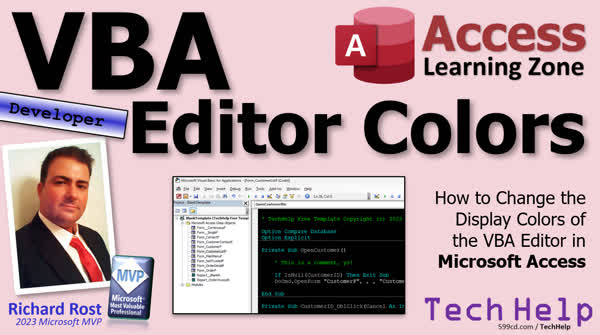
TechHelp Access, VBA editor customization, syntax highlighting, VBA editor color scheme, enhance readability, VBA source code, dark mode programming, VBA tools options, breakpoint indicator, comment text formatting, keyword text color, identifier highlighting, Access VBA settings, VBA visual customization.
More InformationTranscript In today's video, I'm going to show you how to customize the appearance of your VBA editor. That's this thing here where you write all of your VBA source code. Now, this is going to be a developer-level video for the VBA people. So, if you don't know VBA and you want to learn, go watch this video. It'll teach you everything you need to know in about 20 minutes. And then come on back.
Okay, so in the VBA editor, let's go into here, let's go into any one of my buttons, go to build event, that's going to bring this guy up. Alright, you're probably familiar with it, you probably use it a lot if you've been doing any programming for a while.
Now, if you're like me and your eyesight's not that great, you might want to change this to something with bigger text, maybe easier on the eyes. I personally like dark mode myself where the background is black and the foreground is colored. So, I'm going to show you how to set that up and we're going to go through the different options. And I'm actually going to use this for my video workstation because I do a lot with this both for my personal projects and for recording with you guys. And I'm going to leave my system set to a dark mode.
Now, unfortunately, once you set it up, it's per machine. You can't do it per database. That'd be nice to have in Access. Maybe Sammy, add that to the list. We're keeping a list for stuff to suggest to Microsoft. But, it'd be nice if this was per database. But it's not.
So let's go to Tools, and then Options. And there's lots of different options in here. I cover most of these in my developer courses, but we're just going to go to editor format for now. Alright, editor format. Now, over here you've got a bunch of different things: normal text, selection text, I'll talk about some of these in a bit, some of these I never use.
But now for the normal text, now over here you've got to pick your font. I personally like sticking with a monospaced font for my programming. Monospace is where each letter takes up the same amount of space, so an I takes up as much as a W. And I just think for programming, it just makes sense. Some things, you know, the number of columns represent a certain width on the screen, that kind of stuff. Plus, I've been doing it that way since I was a kid.
So, you can change the font if you want to, something else. I like Courier New. I'm just going to make it a little bit bigger. I'm going to go up to 14 point. Alright, you can see there's a sample of it there. I wish there was an apply button down here, but there isn't an apply button.
Now over here I'm gonna say I want the foreground to be white and I want the background to be black. Not everything has an indicator; you'll see what indicators are in just a minute. If I hit OK now, there you go. Most of the background turned black; some of these things didn't; we'll talk about those in a second. We're on our way.
Back in, Tools, Options, Editor Format. Alright, what's selection text? Selection text is text that you've selected, okay? And I think I'm going to leave that just as it is. That's fine. Alright, let's go to the next one. Syntax error text. This is when you get a syntax error, you know, something you type in that's not correct. I'm going to leave the foreground as red; that's fine, but I'm going to make the background, let's make the background, well, we can leave it auto; we can go white too. Auto bases it based on the background. I kind of want that to be white. I want syntax errors to really show up. So we'll leave that like that, that's fine.
Alright, execution point text. Now, this is when you have an error and the debugger stops your code and it highlights a line. Alright, so again, yellow is fine for that. Alright, breakpoint text, this is when you set a breakpoint in your code. Alright, let me show you. A breakpoint, and I've covered this before, is when you click over here. So now, when this code is running, when it hits this line, it'll stop. So, you can analyze variables or look and see what's going on. That's a breakpoint. And this thing over here is the breakpoint indicator.
Okay, so Tools, Options, back in here. Alright, I think that's fine; make it look red like that; that's good. Alright, comment text; that's when you set comments; I'd like this. But I'm gonna go with bright green, keep it green, and make the background black like that; that was better. So okay, and do any comments, and I don't think I do, but this is echos... uh... looks good, and that's good.
The next thing is keyword text; these things are all keywords, things you shouldn't use like; private sub and those, all those words, are keywords. So let's go back in here, Options, Keyword Text is next. Let's make keywords appear bright blue, and background... Words you definitely should not use as your own variable or field name. Okay? I had a student once who was using private. He had private and public, and there were yes/no fields, checkboxes in his table. Everything worked fine until he got to developing. When he started writing code, he all started yelling with the word private.
Next up are identifiers; Tools, Options. We've got identifiers. Where are you? There you are. Identifier text, we're gonna make these gray. So let's go foreground light gray, background black, like that. There's all your identifiers, your commands. The names of your functions and subs, those are all identifiers.
Alright, and the next two things on the list I almost never use. Bookmarks. Yes, you can have bookmarks in your code where you can jump between different locations for places that you commonly program. I actually have a video on bookmarks coming up soon. I'm going to teach you about those later.
For now, I like this, but let's go with bright blue like this. Let's do that; that'll be our bookmark text. And the last thing I really never use, and this is called call returns. Long story about these. It basically lets you track where you are in the call stack. It's a more advanced thing, so you can see what, like with recursion, you can see where you are. Don't worry about it. Again, I got another video coming up on this eventually. Again, in 30 years, I think I've used this once. So don't worry about it. But I am gonna set colors for it. Let's make the background like that.
Alright, hit OK, and there you go. This is a whole lot easier on the eyes, I think, and I'm going to stick with this for all of my new videos coming up too because it's just a whole lot easier than looking at what it was before. This is just rough too. Sometimes I just close this. I don't even use that half the time. Okay.
Alright, so there you go, that's a nice simple one for today; nothing crazy. And honestly, I know most of you probably know how to do this if you're programming in VBA. These aren't hard options to figure out, but I also wanted to do a video on it because I'm gonna be using these colors in the future, and I know people are going to ask, "Ooh, how'd you set up your VBA editor to look like that?" Well, go watch this video.
Okay, so that is going to be your TechHelp video for today. I hope you learned something. Live long and prosper, my friends. I'll see you next time. Intro In this video, I will show you how to customize the appearance of the VBA editor in Microsoft Access. We'll walk through the Options settings to adjust font size, choose monospaced fonts, set up a dark mode background, and modify colors for text, keywords, comments, syntax errors, breakpoints, and more. If you want your VBA editor to be easier on the eyes or just want to personalize your environment, I'll show you step by step how to set up your preferred look. Quiz Q1. What is the main purpose of customizing the VBA editor's appearance?
A. To make it easier to read and use, especially for people with different eyesight needs
B. To increase the speed of code execution
C. To allow multiple users to share the same look across different databases
D. To enable cloud-based synchronization of VBA projects
Q2. Which menu do you use to access the appearance customization settings in the VBA editor?
A. File
B. Tools
C. View
D. Project
Q3. Which tab in the Options window allows you to change the font and colors used in the code editor?
A. General
B. Advanced
C. Editor Format
D. Language
Q4. Why is a monospaced font generally preferred for programming in the VBA editor?
A. It improves color rendering
B. It makes non-text symbols clearer
C. Each character takes up the same space, helping with code alignment
D. It is the only type of font supported by the editor
Q5. What is the effect of changing the font size in the VBA editor's settings?
A. It changes the size of text in all Office applications
B. It only changes the text size in the code editor window
C. It changes the zoom level for all open windows
D. It increases memory usage of the VBA editor
Q6. What does the "Selection Text" color option control in the VBA editor?
A. The color of comments
B. The color of highlighted (selected) text
C. The color of syntax errors
D. The color of the editor background
Q7. What does the "Syntax Error Text" formatting affect?
A. Regular comments in the code
B. The appearance of highlighted breakpoints
C. Text that is flagged as invalid or incorrect by the editor
D. The names of all variables
Q8. What does the "Execution Point Text" highlight in the VBA editor?
A. The line where a breakpoint has been set
B. The line currently being executed when debugging is paused
C. The last saved line in the code
D. The start of each code module
Q9. What is a breakpoint in the VBA editor?
A. A comment line used to separate code sections
B. A line of code the debugger will skip over
C. A point in code where execution will stop so you can analyze variables
D. A section where code execution is doubled in speed
Q10. What color is commonly associated with comment text in the VBA editor customization example from the video?
A. Red
B. Blue
C. Bright green
D. Yellow
Q11. Why should keywords like "Private" and "Public" not be used as field or variable names in VBA projects?
A. They are not readable by the compiler
B. They may cause the VBA editor to crash
C. They have special meaning in VBA and will lead to errors if used as names
D. They are reserved for Access table names only
Q12. What does the "Identifier Text" color setting control?
A. Only numeric values
B. The names of functions, subs, and variables
C. The background color of the editor window
D. The color of string literals in code
Q13. What are bookmarks in the VBA editor used for?
A. Sorting modules alphabetically
B. Marking lines in code for easy navigation between locations
C. Saving code execution results
D. Protecting code from being edited
Q14. What is the purpose of the "Call Return Text" color setting?
A. Highlighting all capitalized words
B. Marking the start of every function
C. Showing the current position in the call stack during debugging
D. Emphasizing loop counters
Q15. Are customization settings for the VBA editor saved per database file or per machine?
A. Per database
B. Per project
C. Per function
D. Per machine
Answers: 1-A; 2-B; 3-C; 4-C; 5-B; 6-B; 7-C; 8-B; 9-C; 10-C; 11-C; 12-B; 13-B; 14-C; 15-D
DISCLAIMER: Quiz questions are AI generated. If you find any that are wrong, don't make sense, or aren't related to the video topic at hand, then please post a comment and let me know. Thanks. Summary Today's TechHelp tutorial from Access Learning Zone focuses on customizing the appearance of your VBA editor. If you spend a lot of time working with VBA, particularly if your eyesight is not what it used to be or if you simply prefer a different color scheme, you might want to adjust your editor to make it easier on the eyes. In my case, I prefer using a dark mode setup, where the background is black and the text is colored, and I use this both for my personal development and when recording videos for you.
It's important to note that all of these customizations are made on a per-machine basis. That means you cannot set a different editor appearance for each individual Access database, which would be a nice feature for Microsoft to consider for future releases.
To adjust your editor, start by opening the VBA editor. Once inside, access the Options menu from the Tools menu. There are many settings available here, most of which I review in detail in my developer courses, but for the purposes of changing the editor's appearance, you'll focus on the Editor Format tab.
In this section, you will see various options for customizing different aspects of your editor's text. For the primary text, or "Normal Text," I recommend selecting a monospaced font, such as Courier New, because each character has the same width. This consistency helps with code readability and structure, which is especially helpful in programming. You can also enlarge the font size if you find the default size too small.
You can adjust both the foreground and background colors. I prefer white text on a black background for regular text to minimize eye strain. Once you've set these options and confirmed the changes, you'll see most of the editor background change, but some areas may stay the same until you adjust their specific settings.
Beyond normal text, there are several more elements you can customize. "Selection Text" is the color of text you highlight with your mouse or keyboard. Leaving this at the default usually works fine. "Syntax Error Text" controls how errors appear when you type something incorrect, and I like to set these to have a white background with red text so errors stand out. "Execution Point Text" controls the highlighted line when your code stops due to a debugging session. The default yellow is typically adequate.
"Breakpoint Text" comes into play when you set a breakpoint in your code; this lets you halt execution to analyze variables and program flow. The default red is a good choice for this purpose. "Comment Text" determines the appearance of comments in your code. I like using a bright green foreground with a black background for comments so they are easily distinguished.
For keywords, such as language-reserved words like "Private" and "Sub," I choose a bright blue color. It's important to avoid using keywords as your own variables or field names, as this can cause problems while programming.
"Identifier Text" corresponds to the names of your functions, subs, and other identifiers in your code. I find a light gray foreground with a black background works well here.
Less commonly used features include "Bookmarks," which let you quickly jump between common spots in your code, and "Call Returns," which track your location in the call stack, useful for advanced debugging, especially with recursion. Even though I rarely use these features, I like to assign them bright colors just to maintain consistency.
Once you've configured all of these settings to your preference and confirmed the changes, your VBA editor will be customized with a new appearance that is much easier on the eyes. I'll be sticking with this color scheme in my upcoming videos because it is simply more comfortable to work with than the default setup.
While these options might be obvious to experienced VBA developers, I wanted to share this overview since many viewers notice the custom look of my editor and ask how to achieve it. Now you'll know exactly how to set up your VBA editor the same way.
If you would like to see a complete video tutorial with step-by-step instructions covering everything discussed here, you can find it on my website at the link below. Live long and prosper, my friends. Topic List Opening the VBA editor
Accessing the Tools Options menu
Navigating to the Editor Format tab
Changing the code editor font
Selecting and configuring a monospaced font
Adjusting font size for readability
Changing the background and foreground colors
Setting up dark mode in the VBA editor
Customizing normal text color and background
Customizing selection text appearance
Customizing syntax error text and background
Configuring execution point text color
Configuring breakpoint text and indicator
Customizing comment text color and background
Adjusting keyword text color
Configuring identifier text color
Setting bookmark text appearance
Configuring call return text color Primary Topics VBA editor customization, editor format options, color schemes, fonts, syntax highlighting, developer accessibility, dark mode setup, Tools Options settings
Secondary Topics breakpoints, syntax errors, bookmarks, call returns
|





