VBA Editor Themes 2
By Richard Rost

 2 years ago
Customize VBA Editor Themes in MS Access, Part 2 In this Microsoft Access tutorial, I'm going to teach you how to make different themes for your VBA editor so you can switch between a light mode and a dark mode. You can change the font colors, the font size, the font face. We'll learn how to read and write these values to and from the Windows registry. This is Part 2 of 3. PrerequisitesRecommended CoursesUp Next
Keywords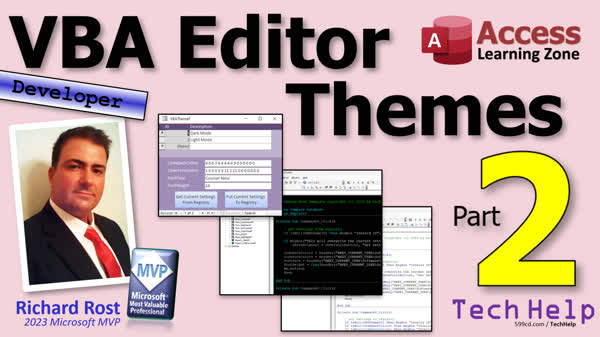 TechHelp Access, VBA Editor Themes, Multiple Editor Themes, Light Mode, Dark Mode, Change Font Color VBA, Font Size Customization, VBA Editor Customization, Windows Registry Access VBA, Read Registry VBA, Write Registry VBA, Manage VBA Settings, Access Themes Setup, Registry Keys VBA Editor, Personalize VBA Environment, VBA Theme Adjustment.
More InformationTranscript Today is part two of my VBA Editor Themes series, where I'm showing you how to create an editor for the themes in the VBA editor. Makes sense. Okay, let's get back to it.
All right, so yesterday we set up a nice little table. We got our VBA editor table here where we can store all the different settings that we care about. We got light mode and dark mode all set up. Now we need the code to get these settings out of the registry. If I go to my VBA editor, I got a button up here on my quick launch toolbar; it opens up this guy. This is it right here. This is the horrendous black theme, the dark theme that a lot of you said you didn't like because it's hard to see in the videos, and yeah, okay, I get it. So these settings we're gonna now save into my table.
All right, how do we do that? Well, we need some code. And a little search of my website shows, oh, look at this, in the code vault. I got registry keys code in here. This has been in here for a long time, about two years now. I used it in my Trusted Location video in the Extended Cut. Okay, so here's some stuff. I'm going to share it with you. Once in a while I'm nice, and I'll let you guys into my code vault. All we need is the code for read key and save key. The other ones, delete key we don't need, key exist we don't really need for this one. Because we're going to make the changes in Access, and Access will create the keys for us. We just need to be able to read them and save them back. So we're going to copy read key; I'm going to copy that to my clipboard and then save key, I'm going to copy that to my clipboard. I'm using the Windows Clipboard Manager, so I can put multiple things on my clipboard at once. Now if you're a gold member, you can just go grab this, you can download the database, or you can go directly to the code vault and copy it. And if you're not a gold member, why not? There's so much cool stuff that gold members get, including the full code vault.
Anyways, let's go back over to Access. Alright, let's go to our global module down here. If you don't have one, make one, okay? And in my global module, I'm going to paste that stuff that I have in my clipboard. So we're going to go bring up the clipboard editor; we're going to paste save key, and then we're going to bring up the editor again, and we're going to paste read key. All right, so I got read key and save key in my global module.
All right, we're going to use read key first, and all you have to do is say what key do you want to read, and it will go through, and it will bring it back for you, just like any old function does. Save keys are a little trickier; we'll get to that next. First, let's do the read key stuff. Come back over here, design view, I'm going to grab a button, drop it right there, we're going to cancel that wizard, and the first button is going to be 'get settings from registry.' All right, we're going to get the settings from the registry and put them in our fields here. Okay? I think we can close this down here too. All right.
Right-click, build event, brings us into here. Yeah, I know I apologize'Oh, I forgot to name the button. I apologize; you're going to have to deal with the colors for one more time if you don't like it, because I don't want to lose the settings just yet. So let's go give our button a good name first. I always forget that step. Give your button a good name. Not Command66; let's call it 'get settings button.' All right, that's much better. I don't want Alex yelling at me.
Right-click, build event, get settings button. Okay, first thing we're going to do is we can't get the settings if we don't already have a theme record set up here. So if they haven't set up this part yet, yell at them, say, "Hey, you gotta go set up a theme first, like light mode, dark mode, whatever." So we're just gonna check and see if this ID is null, okay? Real easy to do. We're gonna say: If IsNull(VBAThemeID) Then MsgBox "Invalid ID: "; Exit Sub; okay? alright, now we're gonna just give them a little warning and say: "Hey, this is going to overwrite whatever settings you currently have; are you sure you want to do this?" Right? If MsgBox("This will overwrite the current settings. Are you sure?", _
VBYesNoCancel + vbDefaultButton2, "Get Settings") <> vbYes Then Exit Sub. And something's wrong. Let's see... where it is. Hold on. Let's see. Right there. Okay.
And if you don't know about the MsgBox function returning a value, I got videos on that; I've covered all this stuff before. I'll put links down below. All right. So, we've made sure that we have an ID. We've double-checked with the user, said, "Hey, are you sure you want to do this?" Okay. Alright. Now, it's time to get our first value. We'll start off with code back colors. So, CodeBackColors, that's the field on my form, equals ReadKey(ReadKey; I can't type today), ReadKey. What's the key? I'm going to copy it because I got it on my clipboard here. You can copy it right out of the registry if you want to, or get to typing. There it is. And, oh, hang on'there we go. Alright.
Let me make sure that you guys can see that. We don't need this open right now. There you go. I got the whole thing in here. Okay. Now, one thing I can see is that I got this spelled wrong. It's actually "Colors." How do I know? Because it didn't capitalize. I didn't get my camel casing. So, if I put "Colors" there, now it capitalized properly. Now I know it's right. You don't know how many times I get people with error messages just because they spelled something wrong. Myself included, I'm guilty as well.
Alright, so we're gonna read the this; it starts off with "HKEY_CURRENT_USER," by the way, that's "Software," "Microsoft," blah, blah, blah, "blah code," "BackColors" as the key we need to get. All four of them. So I'm gonna copy this; paste, paste, paste. The next one is "FontFace." And the last one is "FontHeight." Okay, and then we're just going to copy this to there, copy this, and wait'ForeColor, what am I doing today, people? ForeColors, Face, and Height. Now, Height is a number. Okay, so this is going to return a string. We're going to convert that to a long, to a number: CLng. Alright, that's called type conversion. Again, I got a whole video on that. I'll put a link down below. Okay, got all four of those. When we're done, Me.Refresh. Okay, we're just going to save the record because we just read some stuff in from the registry. We're going to save it on the form, and then give me a beep just so I know you're done. Okay. Save it'Yes. Debug, compile'everybody's good. Let's close it. Close it. Open it. Let's go to dark mode. Remember, these are the fields that are associated with whatever record is up here. That's how I can get away with that. I've covered that in a bunch of videos'Ready and go. "This will overwrite the current settings; are you sure?" And there they are; look at that. (I don't mess with them here. It won't have the effect.) I wouldn't even recommend letting someone edit these fields. You know, to select them with Me... Common Left; the Align and let's do this, and let's go to Data and lock this'Yes. You can't change it. I mean, if you want to, you can, but I would be very wary of manually editing these. Because if you mess this up, like I said, Access might not load; who knows what might happen. Yes, I've manually changed this myself from like 14 to 12, and it works just fine. But be careful. Make the changes in Access itself.
Alright, so we got our dark mode; let's set up a light mode. Now to do this, we have to go into the editor ourselves and adjust the colors. Okay, so Tools, Options, Editor Format, and now just set this however you want it to be. So, we'll go foreground, for normal text, I'll go black, and I'll put this to auto, which is usually white. Selection text, that's fine. Yeah, we'll leave that. Syntax error is good. Execution point's good. Breakpoint text, that's good. Comment, let's go back to white background for comments, but we've got to go back to the darker green area there. Keywords, let's go dark gray on white. Actually, no, I don't like that. Let's go, let's just do those blue too. You need more colors here, Microsoft team. I know you guys are probably going to be depreciating this editor soon anyway, but this is kind of hard to read. Let's go with that, and maybe that. That looks fine. I'll return text. I almost never use that anyway. And let's make the white have a slightly smaller text. And then hit OK. Alright. There it is. Okay. It looks better. Now close that. Light mode. Get settings. Yes. Boom. There you go. Okay. Light mode, dark mode, light mode, dark mode, light mode, dark mode. Curly straight.
Now, we need another button to save the settings back. So, let's say we're currently in light mode. And now, it's late at night; I'm getting ready to do some late-night editing session. Do some coding, and I want to switch back to my dark mode. All I got to do is open this up, click on dark mode, click on 'Set settings to registry,' or 'Save settings to registry,' or 'Put''we'll use 'Put.' 'Put settings to registry.' Alright, and we'll do that in tomorrow's class. Well, let's see, today's Friday, so we'll do it on Monday. So I can't use my Batman slide; it's not "Tune in tomorrow," it's "Tune in Monday." Well, alright.
Alright, so I went to ChatGPT, and I said: Make me a picture that says "Tune in Monday for the conclusion," in the style of the 1960s Batman. And first, it yelled at me, and it said it can't because of content policy restrictions. And I said, no, no, I don't want you to violate any copyright or policy, whatever. I just want it in that style. And it did a pretty good job. I think this is closer to the 1970s Wonder Woman style, you know. What's up with the screen, and there's two things that the AI image generation still really has to work on. One is the text because, as you can see, it completely mangled the text, and I can tell it's trying to say "Tune in." And the second thing is fingers; if you look at any AI-generated art, they still have to work on getting the right number of fingers, and there'I think overall they did a pretty good job. It's going to be scary good in another year or two, where you won't be able to tell what's what, what's human-generated, and what's not. But anyways, tune in Monday for part three of the conclusion, and we'll save these settings back to the registry, and then you can easily flip back and forth between your different profile settings. That'll be your TechHelp video for today. I hope you learned something. Live long and prosper, my friends. I will see you on Monday. Intro In this video, we continue working on customizing VBA Editor themes in Microsoft Access by building an editor to manage theme settings. I will show you how to extract theme color and font settings from the Windows registry using VBA code, store them in a table for light and dark modes, and add a button to your form to import these values. We will talk about key coding steps, using functions to read registry values, and important details for safely handling theme data within Access. This is part 2. Quiz Q1. What is the main purpose of the code demonstrated in the video tutorial?
A. To modify VBA code to automate Excel reports
B. To read and write VBA editor theme settings between Access and the Windows registry
C. To import data from external databases into Access
D. To back up Access databases to the cloud
Q2. Why is the 'read key' function important in the context presented?
A. It allows users to automate theme changes in Word documents
B. It is used to retrieve current theme settings from the registry
C. It enables automatic database maintenance in Access
D. It ensures VBA module naming conventions are followed
Q3. What preliminary check does the code perform before attempting to read settings from the registry?
A. It checks if the Access database is password-protected
B. It verifies the presence of a valid theme record with a non-null ID
C. It checks if the registry has any keys at all
D. It ensures all VBA references are up to date
Q4. What happens if no valid theme record exists when attempting to fetch registry settings?
A. The code creates a new blank theme record automatically
B. The process is halted and the user is notified via a message box
C. The code attempts to fetch and apply default settings instead
D. Access will crash and close
Q5. What does the confirmation message box do before reading settings from the registry?
A. It warns the user that current settings will be overwritten and seeks confirmation
B. It asks the user to choose between light and dark mode
C. It notifies the user that registry access is not permitted
D. It displays all current theme settings for review
Q6. Which of the following fields is NOT directly mentioned as being stored or retrieved from the registry in the demo?
A. CodeBackColors
B. CodeForeColors
C. CodeFontFace
D. CodeWindowTitle
Q7. Why is it dangerous to let users manually edit the theme fields on the Access form?
A. Because changes cannot be saved to the registry from Access
B. Manual changes could corrupt settings and cause Access or the editor to misbehave
C. The fields are read-only by default and cannot be changed
D. It will automatically reset the settings to default
Q8. When changing the editor theme in VBA manually, how are the settings ultimately stored for retrieval?
A. They are stored in a hidden file in the documents folder
B. They are saved in the Windows registry under specific keys
C. They are embedded inside the Access database itself
D. They are saved to OneDrive
Q9. If the registry value for CodeFontHeight is saved as a string, what does the code do to correctly use it?
A. Uses CStr to keep it as a string
B. Uses CLng to convert it to a number before storing to the field
C. Ignores the value completely
D. Leaves it as a string causing type mismatches
Q10. What is the eventual goal of creating these 'get settings' and 'put settings' buttons according to the tutorial?
A. To allow users to manage code libraries in Access
B. To let users easily switch between different VBA editor theme profiles
C. To automatically print reports in different colors
D. To synchronize settings with Outlook
Answers: 1-B; 2-B; 3-B; 4-B; 5-A; 6-D; 7-B; 8-B; 9-B; 10-B
DISCLAIMER: Quiz questions are AI generated. If you find any that are wrong, don't make sense, or aren't related to the video topic at hand, then please post a comment and let me know. Thanks. Summary Today's TechHelp tutorial from Access Learning Zone continues my series on customizing VBA Editor themes by building an editor for managing those themes. In part one, we set up a dedicated table in Access to store the settings we care about, such as configurations for both light and dark modes. With the table and basic structure ready, the next step is to pull existing settings from the registry and bring them into our database.
To accomplish this, we need some VBA code that interacts with the Windows Registry. If you explore my website, you'll find some helpful code in the Code Vault. I originally created registry key functions for a Trusted Location tutorial a couple years ago in that video's Extended Cut, but they come in handy here as well. For our purposes today, we only need the ability to read from and write to the registry. Functions like deleting or verifying the existence of registry keys aren't required because Access will handle key creation as we save settings.
Once you have the ReadKey and SaveKey routines, place them in a global module in your project. If you don't already have a global module, it's a good time to create one. I use the Windows Clipboard Manager to help manage multiple code snippets while copying and pasting, which I find very helpful. Gold members can conveniently download all this code and even the full database directly from the Code Vault section of my site.
With the key routines in place, let's focus on retrieving settings from the registry. The main action here is to read the relevant values and copy them into the appropriate fields in your table. On my form, I add a button called 'Get Settings from Registry.' It's important to remember to give each button a meaningful name, such as 'get settings button,' to keep your code organized and easy to manage.
Inside the click event for this button, the code first checks that a theme record is already set up. If the theme ID is missing, it's important to alert the user and exit the routine. The procedure should also double-check with the user, warning them that this action will overwrite their existing settings and asking for confirmation before continuing.
Once those checks are in place, the code uses the ReadKey function to pull values one by one from the registry. For instance, fields like CodeBackColors, CodeForeColors, FontFace, and FontHeight are all stored under specific keys in the HKEY_CURRENT_USER part of the registry. Make sure each field name matches exactly, as incorrect spelling often leads to errors. Since some values, like FontHeight, are stored as numbers, you should convert the value to the correct data type before saving it.
After pulling the settings, be sure to refresh the form and lock the fields to prevent accidental manual editing. It is generally safest not to allow users to edit these values directly on the form, as mistakes here can interfere with Access or the VBA editor's functionality. While you can make minor adjustments, such as changing the font size, always exercise caution.
With both dark and light mode themes pulled from the registry, you can switch between them easily in Access. To set up a new theme, simply adjust the colors in the VBA Editor's options by going to Tools, then Options, and modifying the Editor Format settings as you like for normal text, comments, keywords, and so on. Once adjusted, use the 'Get Settings' button to pull those new values into your database.
The next lesson will cover the process for saving your current settings back into the registry, allowing you to seamlessly switch between profiles—like toggling between light and dark modes depending on your working environment or preference. That final step will complete the cycle: reading from, and then saving back, your customized theme settings.
That's the main content for today. Stay tuned for the conclusion, when I demonstrate how to write these settings back to the registry, giving you full control over your VBA Editor themes right from Access. You can find a complete video tutorial with step-by-step instructions for everything covered here on my website at the link below. Live long and prosper, my friends. Topic List Setting up a table to store VBA editor theme settings
Copying registry read and write VBA functions into a module
Integrating read key and save key functions into Access
Using read key to retrieve VBA editor settings from the registry
Adding a button to Access to get settings from the registry
Writing VBA code to validate theme selection before reading settings
Prompting users before overwriting theme settings
Reading specific registry keys for CodeBackColors, CodeForeColors, CodeFontFace, and CodeFontHeight
Type conversion for registry values in VBA
Locking form fields to prevent manual editing of critical settings
Customizing VBA editor colors in Tools Options Editor Format
Switching between light mode and dark mode profiles using stored theme settings Primary Topics VBA registry access, Access form development, theme management, VBA editor customization, color and font settings, error handling in VBA
Secondary Topics UI button naming conventions, type conversion in VBA, data validation, user prompts, locking form fields
|





