Fitness 7
By Richard Rost

 12 months ago
Detect Form Open, IsLoaded Function, Event Handler
In this Microsoft Access tutorial, I will show you how to enhance the user experience in your fitness database by creating a function that intelligently opens related forms only when necessary, preventing duplicate openings and making navigation smoother. We will cover how to check if a form is already open, identify if it is displaying the correct record, and handle null records, with practical examples that you can apply to any database project. This is part 7.
Members
In the extended cut, we will add an "Are You Sure" prompt to the lookup macros button to prevent accidental overwrites, and I will show you how to use a For Each loop for coloring the labels at the top instead of coding each one individually.
Silver Members and up get access to view Extended Cut videos, when available. Gold Members can download the files from class plus get access to the Code Vault. If you're not a member, Join Today!
Prerequisites
Links
Recommended Courses
Up Next
Keywords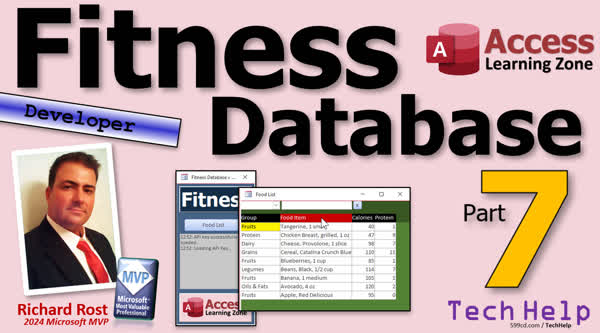
TechHelp Access, fitness database series, sort columns, calories per serving, food list enhancements, food form, show FoodF function, IsLoaded function, global module, event handler procedure, on current event, on click event, For Each loop, lookup macros button, color labels, Debug Compile
 Subscribe to Fitness 7
Get notifications when this page is updated
Transcript Today's part 7 of my fitness database series. If you haven't watched parts 1 through 6 yet, go watch those first and then come on back.
As a reminder, even if you're not into fitness, all of the techniques that I'm showing in this series are fantastic for any database that you want to build.
I've got to remember to start showing off what we did in the extended cut in the next lesson. In the extended cut yesterday, we click on these headers here and it sorts. You click on it once and it sorts ascending. Click on it a second time and it sorts descending. You can do that with any of these columns. Ooh, I want to find the highest calories per serving. Boom, there you go. Pretty cool stuff.
Now, I know in the last session in part 6, I said we were going to start on the meals. I lied. One of the things that happens is when you start actually using a database, you discover all kinds of little things that you want to add to it.
So, I actually started playing with it and using it for some of my stuff, loading some of my food items into it, and I came up with a list of things I want to add. Before we get to meals, we're going to do that stuff first.
In the future, if I say we'll probably get to blank in the next lesson, don't listen to me. We will get to it eventually. We're going to get there.
But sometimes, when I build a database, I've showed this before in different videos. Sometimes I'll lay all the tables out like in Excel, and then I'll map all the tables out first and plan all the relationships, plan all the forms. Sometimes I build a database like I'm doing with this one where I just start building it and go as I go. It all depends on the project.
This is more of a "going by the feel of it" project. This is one of those where I've been tracking everything in Excel. So I've kind of got it laid out how I want it in Excel because I've been using Excel for this stuff for myself for the past couple of months, and now it's getting to the point where I want to put it into a database.
So, I've already got the roadmap laid out and I showed you most of that in part one. Also, sometimes it's nice to get, for example, this food list as close to perfect as I can because when we start building other forms, like maybe the meal form or the workout form, I can just copy this and all the enhancements that are in here and just change some field names around rather than having to add the same features to the next couple of forms.
Sometimes it's beneficial to get this as close to perfect as you can and then do the next thing. So, I got some more enhancements I want to do to both the food list and the food form before we move on to meals. But that's perfectly OK.
It's part of database design, or software design in general, to start building it as a developer, then you start using it as a user and you see it a different way.
Like my website, for example, I don't use my own website as a student. I don't watch my own videos on my website. I mean, I do it for testing purposes, but I don't actually take my course, so the feedback that I get is valuable.
Here, this is a situation where I'm building a database that I'm actually going to use myself. So when I start really using it, then I see some things I want to do.
The first thing I want to do is make it so that if you click on any of these fields on this list form, it displays the item over here because I had this happen while I was working on it. I closed this form without thinking about it, and then I clicked on the same item and noticed it doesn't reopen that form. I had no way to get back into that form aside from moving off of that and then back on it.
What I want to do is make a function called show food F that'll show this, and that function will run in the on current event. We have it now and in the on click events for these different guys. But I also want to check to make sure that this isn't already open on that record.
So if I'm already on dairy, if I'm already on this provolone and I click here and I click here, I don't want that code to close and reopen this again. Just leave it. So it needs a little bit of intelligence.
Let's go into the code for the food list form. I am going to create a new function: Private Function. Why a function? I'll explain in just a minute. Show food F. Now, it's not going to return a value, but I want it to be a function.
Now, I'm going to set up a variable called doOpen as a Boolean. We're going to decide whether or not we should open that form.
Let's set it: doOpen equals false. We're going to initialize it to false, so by default we're not going to open it.
The first thing I want to check is to see: is that form open or not? If it's not open, we need to open it.
So, we're going to say, "If Not IsLoaded('food F')," then the form is not open. Open it. So, doOpen equals true, and we'll open it at the end.
Real quick, at Debug Compile, you're going to get 'Sub or Function not defined.' What is IsLoaded? Well, IsLoaded is a function I wrote to determine if a form is open or not. It's in the code vault.
I'm going to head over to my website and look for IsLoaded. That should bring up the code vault entry, right there: is form loaded. And there's the code. It's real simple. It's just one line of code. This is the kind of stuff that's in here though. There's lots of complicated stuff and there's a lot of simple stuff too. All it does is it checks to see if CurrentProject.AllForms(formname).IsLoaded is true. That's all.
We're going to copy that. If you're not a member or you're a silver member, get to typing. We're going to come back to our database.
Let's go to our global module and I'll just paste this in right here at the top, like right there. So now we got IsLoaded in here. Now we can easily check whether or not a form is loaded.
I'm going to close this guy and come back here. Now, IsLoaded should compile. Well, it's not going to compile because I didn't finish my statement.
All right, so the form is not open; we got to open it. Else, the form is open. Let's check to make sure that it's not on a null blank value.
If IsNull(Forms!FoodF!FoodID) then it's on a null new blank record, so we want to open it again. Open the current one that's picked up. So doOpen equals true.
Or it could be on a different item. I might have moved from record to record. So else if Forms!FoodF!FoodID is not the same as FoodID on the current form, then it's on a different record, so doOpen equals true in that case.
So we're checking all the situations and you have to check these differently. This alone will not test for that null value. If you compare anything to null, the result is null, which is not the same as false. Null math is really weird.
So you got to check to see if the form is open first. If not, open it. Check to see if it's on a null value. If it is, then open it. Check to see if it's on a different food item. If it is, then open it. If all of these are false, that means you're sitting on the right record and you don't need to open it.
Now, we just come down here and say, "If doOpen" - this is why I put it in a variable - "then doCmd.OpenForm 'food F', , , , , , 'FoodID=" & FoodID." Which is what we did before in the on current event.
Now I can just call show food F from the different locations that I want to call it from.
I'm going to call it from the on current event, which we already have one, and we're going to call it from the on click events in the other places. So, first of all, the on current event is right here. It's currently right there. It's currently an event procedure, so I'm going to get rid of this and those empty spaces. Don't worry about all of this down here. This is for the member stuff.
Then I'm going to come back up here, and in the on current event, I'm going to type: =ShowFoodF(). That's called an event handler procedure. You make a function; you can put it there instead of having to put a code block in.
If you want to learn more about event handler functions, just go watch this video. But now the benefit is I can easily copy that and put it in different spots.
Watch this. I can select all of those text boxes and then stick it in the on click event for those multiple selections and copy the whole thing. I didn't copy that to my clipboard. That's OK. I'll just type it: =ShowFoodF().
And that's it. Now I put that thing in all four of those text boxes at once. If you click on one individual one, you'll see them all in there. That's how you can set properties from multiple selections, same way you would do it with, like, color or something like that.
Save it. Close it. I've got my code window open behind that. Let's do a Debug Compile just to make sure. OK, we're good. Now let me close this, open it up, and now I can move from record to record and it still does the same thing it did before.
Here's the benefit now. If I close this accidentally and I just go to click on "Fruits," see, it fired in the on click event. I can click over here, I can click over here, and notice it's not closing and reopening because it sees that it's open. If I go to a blank new record, it should check that null value. See? And it worked.
So, you got to check for those. Check for those instances: is the form open; if so, is it null; if it's not null, is it a different item; and if it's any one of those, reopen the form. That's how you keep that synchronized.
I got a bunch more housekeeping items like this. We're going to get to even more cool stuff tomorrow. I want to get these forms as tweaked as possible before we start building new forms, so I got a list of stuff we're going to do.
Members, we got a short extended cut today. I'm going to put an "Are You Sure" in that lookup macros button so you don't accidentally overwrite stuff. Kevin, one of the moderators, came up with a good idea to do a For Each loop for these labels up here that we color instead of having to do it in code for each one. That'll be the extended cut for the members.
For everybody else, that's going to be your TechHelp video for today. Hope you learned something. Live long and prosper, my friends. I'll see you tomorrow for part eight.
TOPICS:
Creating a ShowFoodF function to manage form display
Using a Boolean variable to control form opening
Checking if a form is already open with IsLoaded
Adding IsLoaded function to a global module
Handling situations for form opening logic
Comparing primary keys to detect current record
Placing the ShowFoodF function in multiple event handlers
Replacing event procedure code with event handler function calls
Assigning an event handler function to multiple controls at once
Ensuring the FoodF form does not unnecessarily reload
Synchronizing forms based on selected list item
Managing null and new record scenarios when opening forms
Testing the code with Debug Compile and code adjustments
COMMERCIAL:
In today's video, we're continuing with part seven of the fitness database series. We'll focus on adding enhancements to the food list and food form before moving on to meals. I'll show you how to write a ShowFoodF function so the database knows when to open or keep open the correct form, only when needed. We'll use the IsLoaded function to check if the form is already open, and handle situations like null values or switching between different items. You'll also see how to efficiently assign event handler procedures to multiple controls at once to simplify your code. In today's Extended Cut, you'll see how to add an "Are You Sure" prompt to help prevent accidental overwriting, plus a shortcut for updating label colors with a For Each loop. You'll find the complete video on my YouTube channel and on my website at the link shown. Live long and prosper my friends.Intro In this video, we continue building the Microsoft Access fitness database in part 7 of the series. We'll work on enhancements to the food list and food form, including creating a ShowFoodF function to intelligently control when the FoodF form opens or stays open based on the selected record. I'll show you how to use the IsLoaded function in a global module, manage form state with a Boolean variable, handle cases with null or different records, and assign event handler functions to multiple controls at once. This will help keep your forms synchronized and your code organized. This is part 7.Quiz Q1. What is the main focus of the function ShowFoodF introduced in the lesson?
A. To sort the food items by calories
B. To determine whether to open the food details form and synchronize it with the selected item
C. To delete unused records from the database
D. To export the food list to Excel
Q2. What is the purpose of the IsLoaded function discussed in the video?
A. To check if a record is null
B. To check if a form is currently open in the database
C. To load data from Excel
D. To refresh the current form's data
Q3. Why is it important to avoid reopening the food details form if it is already open on the correct record?
A. It could result in loss of data
B. It slows down the database significantly
C. It is unnecessary and could disrupt the user's workflow
D. It will close the entire database
Q4. What are the conditions checked by the ShowFoodF function before deciding to open the form?
A. If the form is closed, if it is on a null value, or if it is on a different record
B. If the user has admin privileges
C. If the database is online or offline
D. If the table contains less than ten items
Q5. What programming construct is used to decide whether the food details form should be opened?
A. Integer variable
B. String variable
C. Boolean variable
D. Collection object
Q6. What advantage is there to making enhancements to one form before copying it for use in others?
A. It makes database backups easier
B. You only need to make enhancements once, and then can reuse them in other forms
C. It improves security automatically
D. It ensures the form has no macros
Q7. In the ShowFoodF function, why is it important to use IsNull to check for a new record?
A. Because comparing to null directly always returns false
B. Because null values accelerate code
C. Because null values cause an error if not checked
D. Because null is the same as zero in Access
Q8. What is an event handler function in the context described in the video?
A. A function that handles database connections
B. A function called when specific form events, such as on click or on current, occur
C. A macro that runs periodically
D. A query that updates records automatically
Q9. What is meant by synchronizing the food list form and the food details form?
A. Making sure both forms have identical fields
B. Making sure the details form always displays the item currently selected in the list form
C. Sorting both forms in the same order
D. Exporting both forms to Excel at the same time
Q10. According to the video, why is it beneficial to use and test your own database as an end user?
A. It saves money on hiring testers
B. It guarantees the database will be bug-free
C. It helps you discover additional features and improvements needed
D. It reduces the need for documentation
Answers: 1-B; 2-B; 3-C; 4-A; 5-C; 6-B; 7-A; 8-B; 9-B; 10-C
DISCLAIMER: Quiz questions are AI generated. If you find any that are wrong, don't make sense, or aren't related to the video topic at hand, then please post a comment and let me know. Thanks.Summary Today's TechHelp tutorial from Access Learning Zone is part 7 of my fitness database series. If you have not yet watched parts 1 through 6, I recommend going through those first and then continuing with this lesson.
Remember, even if you are not particularly interested in fitness, all of the methods and techniques demonstrated in these videos are perfect for building any kind of database, not just those related to fitness.
Now, a quick note about the extended cut from the previous lesson. Yesterday, I added functionality that allows you to sort any column in the list by clicking its header. The first click sorts in ascending order and a second click sorts in descending order. This feature is extremely handy when you want, for example, to quickly find the food item with the highest calories per serving.
In the last session, I mentioned that we would start working on the meals form. I need to walk that back for now. As often happens, once you start really using a database, you find additional features or improvements that you want to implement. After spending some time using the food list for my own records and loading in some of my food items, I realized there are a few enhancements I want to add before moving forward with the meals feature.
For future lessons, if I say that we will move on to a certain topic, take it with a grain of salt. I promise we will get there, but it is normal for priorities to shift as a project develops.
I have demonstrated in prior videos that sometimes my process involves mapping out all the tables and relationships in a tool like Excel before building anything in Access. Other times, like with this fitness database, I start with a more organic approach, building features as I go and adapting based on real usage. In this case, I have been maintaining my fitness records in Excel for several months, the layout is mostly planned and now I am migrating the workflow into Access.
What I want to accomplish is to perfect the food list and food form as much as possible right now. That way, when I go on to create other forms like the meal or workout forms, I can simply duplicate this well-polished form and make minor adjustments, instead of having to go back and add features later.
When designing databases, it is important to recognize that you may look at things differently after you start using your creation. For example, my website serves my students and I mostly view it from the administrative side, so the feedback users give me is invaluable. With the fitness database, since I am both the developer and an actual user, I am able to identify features that enhance day-to-day use.
One of the first things I noticed was a shortcoming in the food list form — when clicking on a food item, it did not always bring up the detail form properly, especially if the form was already closed or on the wrong record. I want to enhance the interface so that clicking on any field in the food list reliably displays the item's detail in the side panel. More importantly, I want the code to be smart enough not to re-open the form if it is already showing the correct item, but to refresh or open it only when necessary.
To address this, I am adding a function, which I am calling ShowFoodF, to the code for the food list form. This function will run both in the OnCurrent event for the form and in the OnClick events for the relevant controls. Inside this function, I set up a Boolean variable to determine when the detail form needs to be opened or refreshed.
The logic involves checking three key points: first, whether the detail form is open at all; second, whether the form is on a blank new record; and third, whether the form is currently displaying the correct food item. If any of these situations is true, the function will open the detail form to the proper record. Otherwise, it will do nothing, which avoids unnecessary closing and reopening of the form.
There is a helper function called IsLoaded that helps determine whether a form is currently open. I copied this from my code vault. The function checks to see whether the IsLoaded property of a given form is true. If you do not already have this in your database, just add it to a global module.
Now, with everything wired up, I make sure that the ShowFoodF function is called from all the right places. For efficiency, I use it in the OnCurrent event for the form and in the OnClick events for all of the text boxes in the list. By doing it this way, whenever you interact with the list, the correct food item detail is always shown, and the function is intelligent enough not to perform redundant work. You can select multiple controls and set their event properties all in one go, just as you would with design properties such as color.
After compiling the code and testing, I can now close the detail form and know that clicking any food item in the list will properly re-open its detail. If the form is already open on the selected record, nothing unnecessary happens. It also handles null values for blank or new records smoothly.
These careful checks are vital for a smooth user experience. You have to handle the cases where the form is open, on a null record, or on the wrong record, and decide programmatically whether an action is needed.
There are several other housekeeping tasks I want to address on these forms before moving on to new features. My focus for the next few lessons will be to get these forms working as perfectly as I can.
In today's Extended Cut for members, I will add an "Are You Sure" prompt to the lookup macros button, to prevent accidental overwrites of your data. I will also implement a suggestion from one of our moderators, Kevin, to use a For Each loop to color label controls, making the code much cleaner and easier to manage.
For everyone else, this concludes today's TechHelp lesson. I hope you were able to pick up something useful from today's session. You can find a complete video tutorial with step-by-step instructions on everything discussed here on my website at the link below.
Live long and prosper, my friends.Topic List Creating a ShowFoodF function to manage form display
Using a Boolean variable to control form opening
Checking if a form is already open with IsLoaded
Adding IsLoaded function to a global module
Handling situations for form opening logic
Comparing primary keys to detect current record
Placing the ShowFoodF function in multiple event handlers
Replacing event procedure code with event handler function calls
Assigning an event handler function to multiple controls at once
Ensuring the FoodF form does not unnecessarily reload
Synchronizing forms based on selected list item
Managing null and new record scenarios when opening forms
Testing the code with Debug Compile and code adjustmentsPrimary Topics Access VBA form logic, form synchronization, event handler functions, IsLoaded custom function, food list form enhancements, conditional form opening, database development workflow Secondary Topics assigning multiple control events, null record checking, using global modules |




