Fitness 28
By Richard Rost

 14 months ago
Using BeforeInsert Event to Set Timestamps In this Microsoft Access tutorial, I will show you how to add delete, requery, and add new buttons to your fitness database form, making it easier for users to manage food log records. You will learn why using the Before Insert event is better than default values for timestamps and how to automatically set the date and time when a new entry is added. I will also demonstrate how to keep your form layout consistent and ensure that focus is set in the right place after each action. This is part 28. MembersThere is no extended cut, but here is the file download: Silver Members and up get access to view Extended Cut videos, when available. Gold Members can download the files from class plus get access to the Code Vault. If you're not a member, Join Today!
PrerequisitesRecommended CoursesUp Next
Keywords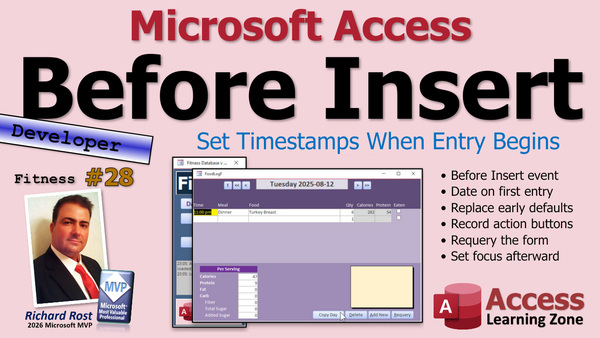 TechHelp Access, fitness database, copy day button, meal form buttons, delete button, requery button, add new button, FoodLogID, Before Insert event, FoodTimeText, timestamp automation, UpdateFoodDateTime, combo box, meal combo box, food combo box, food group combo box, recordset loop
 Subscribe to Fitness 28
Get notifications when this page is updated
More InformationTranscript Welcome to another TechHelp video brought to you by AccessLearningZone.com. I'm your instructor Richard Rost.
Today is part 28 of my fitness database series. If you haven't watched parts 1 through 27, go watch those first, then come on back.
As I say at the start of every video, this isn't just about fitness. We're building a cool database with lots of new tips, tricks, and techniques. Have fun. Here we go.
Alright, moving right along. What I did in the extended cut with the members was we made a copy day button. If you've got, let's say, today's date is the 12th, so this is today. Let's say we want to copy this to tomorrow. So, hit copy day, and it'll default to tomorrow's date, the 13th. Hit OK. Boom, copy those records. I copied three records to the next day. Nice and easy. That's handy if you have, like I said last time, the same meal on a regular basis. I have the same schedule. I have the same breakfast, the same lunch, the same dinner, the same late-night snack, like four nights a week. Some variation in the flavors and stuff, like cereal flavor, but it's basically the same nutritionally. The yogurt is a different flavor, but it's basically the same stuff.
Today we're going to make our delete, requery, and add new buttons, since we got rid of any way that the user can delete records out of here. Fortunately, we already have some buttons built, so we can just copy them. I'm going to slide this up a little bit because we don't really need that big of a notes field for a food log item. Let's just grab them from the meal form. We'll go to design view, come down here, and copy these three buttons. Look over here, paste them in, and then we're going to drag them down here to try to keep our forms a little consistent. I'll put the copy day button next to those ones. Probably make you a little bit smaller. That, and then that. Select, right-click, size to grid, now everybody looks happy.
Requery is the easiest one, I think, for this guy, a standard Me.Requery will work. There's nothing fancy that has to go on in here, so that one's good. That's the easy one.
Now for delete. We don't have any child records, so we can basically borrow the code from this delete button and just tweak it a little bit. We don't need the second SQL statement in there. So I'm going to copy this stuff, and you can switch back to the other form by just doing this: watch, just close this right here. This is bottom X and it brings it back to the last module you were in, which is the food log.
Doesn't really help me much because I still want to go into here and right-click on the button so I get the right event build for me. There we go, and we'll paste that in.
Now we are on the food log, so this is FoodLogID. I don't think for the food log we really need an Are You Sure? Leave it in there if you want to. I'm going to rem it out in case I decide later I want to add it. It's sitting right there.
Me.Dirty = False is the same thing. We only need one of these SQL statements because there's no child records. We're going to delete from FoodLogT where FoodLogID equals FoodLogID. dbFailOnError is good.
When we're done, a Me.Requery is good, and we just need to set the focus. We don't need to requery the second list, we just set the focus where we want to be. Assuming they're going to add another record or whatever, I don't want to set the focus on the date because in a minute we're going to add that date automatically as soon as they start typing in some values. I'm going to put them in the meal box. You can put them in description if you want to. Let's put it in meal description.
When they delete something, that's where they're going to be sitting.
Let's debug, compile, check it out. Debug, compile once in a while. I'll leave this guy open for now.
Let's just add something bogus down here and another one, and then we'll delete them now. Delete, and it's going to resort them. This guy has no value. We're going to get to that in a second, and then delete. Alright, working good.
The add new button is going to be pretty straightforward. That's literally just put the focus here on a new record. So, build event. This is going to be Me.Recordset.AddNew and then, same thing, MealDescription.SetFocus. Just put you down there, you're all ready to add a new item.
Alright, add new. Ready to type.
Here's the thing. I don't want to have to come over here and put today's title or the time in, like 12 p.m. and then blah blah blah. I want that to go in there for me automatically. As soon as I start typing here, you don't want to use a default value. There are a couple reasons why I don't like the default values for timestamps.
First of all, that default value gets set when the form opens. Let me show you something in my TechHelp free template.
Let's go to the customer table and add a DateAdded. We'll make this a date value and put the default value = Now.
In the customer form, I'm going to add that in here real quick. Form design. Add existing fields, DateAdded, we'll just stick it down here in the bottom. I want to see the whole thing, so make sure the format is general date. Save it, close it, close it.
Now if I go to a new record, there's that date value. Notice it's 12:13:41 AM. Yes, I'm recording late today.
If I just sit here, let's say I go to lunch with this new record open, come back from lunch, and now I start typing in a new record, that's the default value that was assigned when the form opened. If you've got a situation where you have a log, let's say you would leave this thing running all day long (which sometimes I do, I have a to-do list database that I leave running all the time so I can see what I have to do) and if there's a default value sitting in there and now you start typing in "my lunch," but you got the default value from when you opened the database after you put your breakfast and the new record was maybe added at 10 a.m., it's wrong.
This value here is technically wrong. It's not when I started adding this.
We're going to do something different instead. Let me get rid of this, close this.
We're going to use the Before Insert event. We're going to leave this blank. When they start entering a new record, we will at that moment set that date.
Let's delete that one, and this will work whether they use the add new button or not. You don't want to set it in the add new button either, because if you set it in the add new button, then it's going to put that date in there and you get that situation where you hit add new, your code puts this in here, and now you're sitting - my print screen 5:30 p.m. - now you're sitting here and you realize you didn't want to make that record and now you have a blank record sitting in there which you now have to go in and manually delete. I don't like that either.
Here's what I'm going to do. I'm going to come into the form's properties and find the Before Insert event. This happens when you start typing a value into a new record in a form.
Now, just in case the user happens to be typing in that food time text, we don't want to mess with it. Let them type in what they want. So, if IsNull(FoodTimeText), then do this stuff. What's the stuff? Well, we're going to set FoodTimeText = the time value of right now. But then we have to run that code that sets it into the table, which is in the AfterUpdate event of the food time text.
Now you can just call it here if you want to: FoodTimeText_AfterUpdate, and that will run that same code, but I don't like doing that. So I'm going to take this guy's definition and we're going to make this guy its own subroutine. Right in here we'll call this UpdateFoodDateTime. End Sub. Then we'll just copy this in.
Private Sub UpdateFoodDateTime, and then we'll Shift+F2 - no, Control+Shift+F2 - to go back to the code we were at before. Control+Shift+F2 a couple times, that'll bring it back up here. It goes backwards through the last places you were in the code editor. Control+Shift+F2. I don't remember if I mentioned that in the class. I have so many videos out, I can't remember what I mentioned anymore. I'm going to need to program AI to say "Hey, I mentioned this in any of my previous classes," and paste that in there.
Save it. Debug, compile once in a while, close it, close it, close this.
Now that code should work even if I just come in here and start typing in lunch. Boom, look at that. It immediately puts the code in there, the time, and updates it. Same.
Let's delete that. Let me try putting an actual time in here: 1 p.m. It kept it and it didn't run that code because we're putting in the time ourselves. Say lunch, whatever, next record, dinner, there's my time. See? Isn't that cool? I like that. I prefer using the Before Insert event to put times in there like that. I think it just works better.
Default values are easy for beginners, but as you've seen, depending on the use case, that default value gets assigned when you first go to the record or when the form loads, not necessarily when you start making that entry. Most of the time it's not a big deal, but in certain circumstances like this, you could see how it'd be important.
Like if you just put in your lunch and you left this form open, then you came back later and you typed in blah, you'd get that default value.
Delete works. The requery is going to resort these, which I kind of like because it puts them in chronological order. That's kind of a good thing.
Add new works. Requery works. Everything's working.
Unless I come up with some other weird things that I decide I want to add to this, tomorrow's video, part 29, we're going to start actually making two combo boxes right here: a meal combo box and a food combo box. Maybe a food group combo box too, so you can pick the group, pick the food item, or just pick a meal. I'll do three combo boxes. Then you can decide, hit the button, you add it, and it'll put it up here. If it's a single food item, it'll put the food item in here for you and the macros. If you do a meal, it'll put all of them in there. We'll have to do a little recordset loop. But that's not going to be hard. We're going to start doing that in tomorrow's video.
So that's it for part 28. Hope you learned something. Live long and prosper, my friends. I'll see you tomorrow for part 29.
TOPICS:
Creating delete, requery, and add new buttons on a form
Copying buttons between forms for consistency
Assigning macros to button click events
Customizing the delete button to remove food log records
Using Me.Requery to refresh form data
Setting focus after requery or record deletion
Adding new records programmatically with AddNew
Setting focus to a specific control after adding a record
Problems with default values for date and time fields
Demonstrating the limitation of default value property
Using the Before Insert event to auto-fill date and time
Writing a custom subroutine to update food log timestamps
Handling user input versus automatic timestamping
Avoiding blank records when adding new entries
Advantages of Before Insert event over default values
Organizing and resizing controls on an Access form
COMMERCIAL:
In today's video, we are continuing with part 28 of the fitness database series. I'll show you how to add delete, requery, and add new buttons to your Access form, keeping your user interface clean and consistent. You'll learn why using default values for timestamps can cause problems and how to fix this by setting the date and time using the Before Insert event instead. I'll walk you through the VBA code needed to update your records properly, making sure your log entries are always accurate. You'll find the complete video on my YouTube channel and on my website at the link shown. Live long and prosper my friends. Intro In this video, we continue with part 28 of the Microsoft Access fitness database series. I will show you how to add delete, requery, and add new buttons to your form for easier data management, and explain how to keep your interface organized by copying and customizing controls. We'll talk about the limitations of using default values for timestamps and learn how to automatically insert the correct date and time using the Before Insert event and a custom subroutine. You'll see how to ensure records are updated accurately while keeping the form user-friendly. This is part 28. Quiz Q1. What is the primary purpose of the "Copy Day" button described in the video?
A. To copy all records from one day to another day for repeated meal entries
B. To copy the current record to a different database
C. To duplicate the entire food log for backup purposes
D. To create a new user based on existing user data
Q2. Why was it important in this video to build custom buttons for delete, requery, and add new actions on the form?
A. Because the previous buttons were accidentally deleted
B. Because users no longer had built-in ways to perform these tasks on the food log form
C. Because the buttons provided advanced security features
D. Because the built-in Access buttons do not support these actions
Q3. What is the main advantage of using "Me.Requery" on the form, as explained in the video?
A. It automatically corrects data input errors
B. It refreshes the form's data so any changes are visible
C. It saves the layout of the form
D. It exports data to an external file
Q4. When configuring the delete button, why was only one SQL statement required?
A. Because there were no related child records in the table
B. Because multiple records needed to be deleted
C. Because a backup was being created first
D. Because the delete button also updates related forms
Q5. Where was the focus set after the delete action was completed, according to the video?
A. On the date field
B. On the meal description field
C. On the notes field
D. On the copy day button
Q6. How does the add new button function in this setup?
A. By clearing all current fields
B. By moving the focus to a new blank record and setting the focus for immediate data entry
C. By reloading the form data
D. By duplicating the current record
Q7. Why does the instructor recommend against using default values for timestamps in this context?
A. Because default values do not work in forms
B. Because default values are not compatible with SQL statements
C. Because default values are set when the form opens, which may not correspond to the actual record creation time
D. Because default values make the database run slower
Q8. What event does the instructor use instead of default values to assign the record's timestamp?
A. After Update event
B. Before Insert event
C. On Load event
D. After Delete event
Q9. What happens if the timestamp is set in the add new button instead of in the recommended event?
A. It sets the timestamp just as intended with no issues
B. It risks creating blank records with already assigned timestamps
C. It disables the add new functionality
D. It copies the wrong time from previous records
Q10. In the Before Insert event code, what is checked before assigning the current time to the FoodTimeText field?
A. If the field contains a date
B. If the FoodTimeText field is null
C. If the user clicks a specific button
D. If the record has already been saved
Q11. Why does the instructor move timestamp-setting logic to a separate subroutine called UpdateFoodDateTime?
A. To allow the logic to be used in multiple places without duplicating code
B. To help avoid using SQL statements
C. To add additional input validation
D. To ensure the event runs only once per day
Q12. What benefit was described regarding the requery operation after deleting or adding records?
A. It sorts the entries into chronological order
B. It removes all filters from the form
C. It sets all values back to zero
D. It prevents deletion of records
Q13. Why is using the Before Insert event preferable for this timestamp use case?
A. Because it automatically exports data to Excel
B. Because it records the actual time the user starts entering data, not when the form loads
C. Because it forces the user to enter the time manually
D. Because it deletes blank records automatically
Q14. What new features are teased for the upcoming next part of the series?
A. Adding combo boxes for meals, foods, and food groups to simplify item selection
B. Implementing user login and authentication
C. Exporting records to other formats
D. Grouping records by user preferences
Answers: 1-A; 2-B; 3-B; 4-A; 5-B; 6-B; 7-C; 8-B; 9-B; 10-B; 11-A; 12-A; 13-B; 14-A
DISCLAIMER: Quiz questions are AI generated. If you find any that are wrong, don't make sense, or aren't related to the video topic at hand, then please post a comment and let me know. Thanks. Summary Today's TechHelp tutorial from Access Learning Zone focuses on the next step in our ongoing Fitness Database series, specifically part 28. If you have not yet gone through parts 1 through 27, I recommend starting there so you have the full background and context. This project is about much more than just fitness logging; along the way, I am sharing a variety of Access tips, tricks, and techniques that you can apply to many types of databases.
In the members-only extended cut, I previously demonstrated how to add a feature to quickly copy a day's records to the next day. For example, if you have logged meals or activities for today and want to duplicate them for tomorrow, you can use the "Copy Day" feature. This is helpful if you tend to have recurring meals or routines, since it saves data entry time by copying several records at once. I mentioned that I personally repeat my breakfast, lunch, dinner, and snack choices several days a week, so having a feature like this makes daily logging much easier and more efficient.
Today, I want to focus on building three useful buttons for the food log form: Delete, Requery, and Add New. Previously, the only way for users to delete records was through the navigation features, but we removed that to avoid accidental data loss, so we need a replacement. Fortunately, I have similar buttons already built on another form, so by copying and tweaking them, we can quickly add consistent functionality.
The first step is to lay out these buttons for consistency. I shortened the notes field and copied the buttons over from our meal form. I placed the copy day button near them and adjusted their size to match, to keep the interface clean and intuitive.
Let's review what each button should do:
Requery is the most straightforward. A simple requery refreshes the data in the form and, in this case, also provides the benefit of resorting entries, which can help keep meals listed in chronological order.
For deleting a record, since our food log entries do not have any child records dependent on them, we can just remove the selected entry from the table. I tailored code that I had used for deletions elsewhere but simplified it, since we only need to remove the main record. I decided not to prompt the user with an extra "Are you sure?" warning, but you can choose to keep or mute that based on your preference. After a delete, I have the form set focus on the meal description field, so users can immediately start entering a new item if they wish. Again, this helps streamline the workflow.
The Add New button is just as simple: it moves focus to a new record so the user can begin typing immediately. But I want to take this a step further and ensure that as soon as the user starts entering information, the form automatically fills in the current date and time for the meal. However, I do not want to use the default value property for this, and here is why.
Default values for date/time fields are assigned when the form opens, not when each new record is started. That means if someone leaves the form open for a while before starting a new entry, the timestamp could be wrong. For example, if you open a record before lunch, step away, and fill it in after returning, it will capture the time you opened the form, not the actual time you created the entry. This can be misleading, especially in a logging database that tracks events by time and date.
The workaround is to use the form's Before Insert event. This event triggers exactly when the user begins to input a new record. By setting the date and time at that moment, we capture an accurate timestamp regardless of when the form was opened.
To ensure nothing interferes with user input, the code checks if the user has already entered anything in the food time field. If not, it sets the current time automatically and runs the subroutine to store this value in the table. This setup means that unless the user specifically types a time, the form will always log the correct current time. As a result, there is no need to clean up orphaned blank records, and users do not need to remember to fill out every detail.
Debugging and compiling the project after making these changes is a good habit. Once everything is saved and running, you can test it by entering a record, deleting one, and trying out the various buttons. Each action should perform as intended: adding new entries, refreshing the list, and deleting records effectively.
Looking ahead to part 29, I am planning to enhance this form even more by adding combo boxes for selecting meals, food groups, and specific food items. These selectors will make meal logging even more efficient. The user will be able to pick an item or a group, and the relevant nutritional information will be filled in automatically.
All in all, today's improvements add practical usability to the database: easy and safe deletion, refreshing the form contents, and a smoother workflow for adding new entries with accurate timestamps. These techniques are useful in any Access database that involves routine data entry and record management.
If you want to see a complete step-by-step demonstration of everything I discussed today, you'll find the full video tutorial on my website at the link below. Live long and prosper, my friends. Topic List Creating delete, requery, and add new buttons on a form
Copying buttons between forms for consistency
Assigning macros to button click events
Customizing the delete button to remove food log records
Using Me.Requery to refresh form data
Setting focus after requery or record deletion
Adding new records programmatically with AddNew
Setting focus to a specific control after adding a record
Problems with default values for date and time fields
Demonstrating the limitation of default value property
Using the Before Insert event to auto-fill date and time
Writing a custom subroutine to update food log timestamps
Handling user input versus automatic timestamping
Avoiding blank records when adding new entries
Advantages of Before Insert event over default values
Organizing and resizing controls on an Access form Primary Topics Access VBA form design, button functionality (delete, requery, add new), handling timestamps, Before Insert event, form control focus, avoiding default value pitfalls, food log record management
Secondary Topics interface consistency, event handling best practices, code modularization, none
|




