Fitness 63
By Richard Rost

 9 months ago
Using VBA to Prevent Multiple Form Load Conflicts In this Microsoft Access tutorial, we'll learn how to resolve and prevent load conflicts when opening multiple forms at the same time using VBA instead of macros. I'll show you how to use the OnTimer event and TempVars to ensure forms open in the correct order without errors, and explain why this method offers better control compared to macros. MembersThere is no extended cut, but here is the file download: Silver Members and up get access to view Extended Cut videos, when available. Gold Members can download the files from class plus get access to the Code Vault. If you're not a member, Join Today!
PrerequisitesRecommended CoursesUp Next
Keywords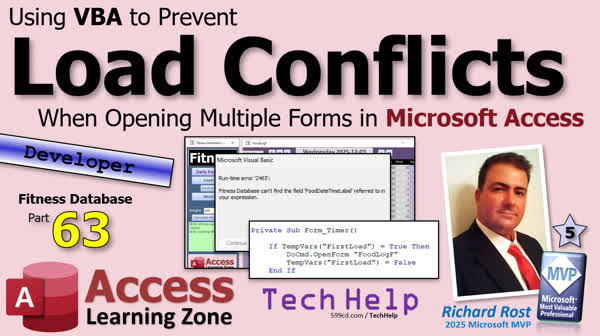 TechHelp Access, AccessLearningZone.com, VBA load conflict, prevent load conflicts, multiple forms loading, OnTimer event, TimerInterval property, TempVars usage, auto-exec macro, OpenForm method, form status color, event sequencing, database optimization, DoCmd
 Subscribe to Fitness 63
Get notifications when this page is updated
More InformationTranscript Oh, welcome to another TechHelp video brought to you by AccessLearningZone.com. I am your instructor, Richard Rost.
Yesterday I showed you how to use a macro to resolve and prevent load conflicts if you're trying to load multiple forms at the same time in your Access database. Today we're going to do the same thing, but we're going to use VBA.
Now, I like the VBA trick better myself because I really am not a big fan of macros. I try to avoid them if I can. But either one will work. I'm going to show you the VBA one today. That's my preferred method. So let's get into it.
All right, here's the copy of the database I'm using for this video. Let's close you. Let's go back into the auto-exec macro and get rid of that line that we put in there. Design view. One of the things I hate about the macro is this action catalog. Go away.
Here's the food log. We have to click on this little x over there to get rid of it. So now we're back to where we started with this guy.
Now the trick is, here's the trick. I'll give it to you in English first and then I'll show you the VBA. The trick is we need to wait fully until this guy is done loading. That means you can't put the code in the OnLoad. You can't put the code in the OnOpen, because that runs right after it on load or before it, one of the two, I forget. You can't put it in the OnCurrent event.
So what you can do is put it in the OnTimer event, because OnTimer runs a specified interval after the form is finished loading and then every X milliseconds after that point. But it won't start for the first time until this form is finished loading. So, it's able to load another form in the OnTimer event.
Now, we already have something in the OnTimer event, so we have to be wary of that. We're already using it for - oh, we did that trick where we're setting it back to light gray. Remember one of the real early lessons? We made it so that when we change the status box color to red or yellow to warn the user, it waits a certain number of seconds and then switches it back to gray, which was a really cool enhancement. So we have to take this into consideration as well.
Whatever we put up here in the load event, we don't necessarily want it to run every time the timer runs. So what we can do is, in this form load event, as soon as it's done, we can say Me.TimerInterval equals some short value. 100 is enough. That's 100 milliseconds. That's a tenth of a second. But it's a tenth of a second after the form is finished loading.
Now, down in here, we can say DoCmd.OpenForm, FoodLogF.
So now, what happens, just to show you, if we close this and close this, if I open the main menu, look what happens. It finishes loading this and then immediately loads this after the main menu is finished running. So the timer event fixes our problem.
Now we just have to deal with the fact that, what do we do if another event changes the color of this, which then calls that timer event again? We don't want it loading a second time.
So what I'm going to do is we'll use a TempVar or some other variable to indicate that, hey, this is the first time that the database is loading, I want to load the food log just this time. TempVars works perfectly for this. TempVars, let's call it FirstLoad equals true. So when the database opens, we're going to set that to true.
Now, down in here, we're going to say - let me copy this to my clipboard so I don't have to keep retyping it - if TempVars!FirstLoad equals true, then load that form and set TempVars!FirstLoad equals false. End If.
So now, when the timer is invoked, it will only run and open the food log if it's the first time that it's running. After that, for the rest of the database run, it won't load again. This is one of the reasons I said that I prefer this method. It gives you a little more control. It's a little bit more difficult, a little more to understand. You have to know TempVars and timer intervals and all this stuff, but you're developers, so you should get this stuff.
The macro one is good for - I had a student before who was in the beginner classes, and he wanted to be able to click a button and open five forms at the same time, but a couple of them had other things loading and it was just a mess. So I said, put it in a macro, and then have the button run the macro, it will open up all your different forms and reports.
All right, Debug, Compile once in a while. Let's close it. Close it. Let's restart the database from scratch. Open her up. And there we go. No errors. No conflicts.
When you open, it sets that TempVar, the timer event kicks in, it then opens this form, sets the TempVar to false, and now we're good to go. If anybody else invokes that status that changes this, it won't rerun this. I am not going to do it. Just trust me. I've been using this for about a week now. That's why I have two separate copies. I had to make a copy because I already did it in my copy of the database. So I thought, I have to show everybody that trick. That's a really cool trick.
There you go. That's going to be your TechHelp video for today. Again, give me your comments down below. Do you like this stuff? Not like this stuff? I want to hear what you have to say. Post it in the comments. I hope you learned something. Live long and prosper, my friends. I'll see you next time. Intro In this TechHelp video, I will show you how to use VBA in Microsoft Access to resolve and prevent load conflicts when opening multiple forms at the same time. We will look at why using the OnTimer event offers more control than macros, how to use TempVars to track the first load, and make sure forms only open as intended without causing errors. I'll walk you through the steps and explain best practices for handling these situations using VBA. Quiz Q1. Why does Richard prefer using VBA over macros for resolving load conflicts in Access databases?
A. VBA provides more control and flexibility than macros
B. Macros are faster to write than VBA
C. VBA is only used for reports, not forms
D. Macros cannot interact with TempVars
Q2. What is the key problem when trying to load multiple forms at the same time in Access?
A. It can cause load conflicts
B. Forms will always appear in the wrong order
C. Forms will only load if macros are used
D. Only one form will ever load
Q3. Why should the code to open another form NOT be placed in the OnLoad or OnOpen event?
A. Because those events run before the form has fully loaded
B. Because those events only run after all forms are closed
C. Because OnLoad and OnOpen happen at the same time as closing
D. Because those events are not available for forms
Q4. Why is the OnTimer event preferred for loading an additional form after the main form has loaded?
A. The OnTimer event runs only after the form has finished loading
B. The OnTimer event happens before OnLoad
C. The OnTimer event runs after every user click
D. The OnTimer event is only available for reports
Q5. What does setting Me.TimerInterval = 100 do in the form?
A. Sets the timer to trigger every 100 milliseconds
B. Delays the form from loading for 100 seconds
C. Prevents the OnTimer event from firing
D. Sets the status box color to gray
Q6. How is the problem of unwanted repeated form loading solved in this technique?
A. By using a TempVar to track if the form has already been loaded
B. By deleting the OnTimer event after the first run
C. By disabling all macros
D. By opening forms in hidden mode
Q7. What value is set in the TempVar 'FirstLoad' when the database first opens?
A. True
B. False
C. Null
D. 100
Q8. After the OnTimer event loads the form for the first time, what does the code do to prevent it from running again?
A. Sets TempVars!FirstLoad to false
B. Closes the main form
C. Opens all other forms
D. Resets the timer interval to 0
Q9. What potential conflict must be considered when working with the OnTimer event according to the video?
A. The OnTimer event may already be used for other logic, like resetting colors
B. The OnTimer event will only run once
C. The OnTimer event overrides the OnLoad event
D. The OnTimer event cannot open forms
Q10. What is a primary benefit of using VBA and TempVars in this scenario over a macro?
A. It provides more granular control over when forms are loaded
B. It allows forms to load automatically on startup
C. It speeds up the database in all situations
D. It prevents users from closing forms
Answers: 1-A; 2-A; 3-A; 4-A; 5-A; 6-A; 7-A; 8-A; 9-A; 10-A
DISCLAIMER: Quiz questions are AI generated. If you find any that are wrong, don't make sense, or aren't related to the video topic at hand, then please post a comment and let me know. Thanks. Summary Today's TechHelp tutorial from Access Learning Zone covers how to resolve and prevent loading conflicts when opening multiple forms at the same time in Microsoft Access, using VBA instead of macros.
Yesterday, I demonstrated how to accomplish this with a macro, but today I'll walk you through my preferred method, which uses VBA. I generally avoid macros unless they are absolutely necessary, as VBA offers more flexibility and control.
To start, I'm working with a sample database. The first step is to remove the line we previously added to the auto-exec macro. That's just cleaning up from the macro method so we can focus on the VBA approach.
Now, here's the central idea: when opening several forms simultaneously, you need to make sure one form has completely finished loading before you try to load the next. The typical form events like OnLoad, OnOpen, or OnCurrent are not reliable for this, because the loading process might not be fully complete when those events fire.
The solution is to use the OnTimer event. This event triggers after the form has completely loaded, and then repeats at a specified interval. This makes it a perfect place to put code that opens another form. The first timer interval will not begin until the form is finished loading, so using OnTimer avoids those problematic conflicts.
In my database, I already have some logic executed in the OnTimer event. Specifically, I use the timer to reset the color of a status box after a warning, which we set up in a previous lesson. Because there's already code in the OnTimer event, we have to be mindful that anything we add doesn't interfere with its existing purpose.
What I do is set the form's TimerInterval property to a short value, such as 100 milliseconds (one-tenth of a second), in the Form_Load event. This means the timer event will fire shortly after loading. In the timer event handler, I include the code to open our additional form.
To prevent this from running more than once, I use a TempVar. When the database opens, I set a TempVar named FirstLoad to true. In the OnTimer event, I check if this variable is true. If so, I load the additional form and then immediately set FirstLoad to false. This ensures that the opening of the second form only happens the first time the timer event fires, and not on subsequent timer ticks or event calls.
This approach is a little more advanced than using a macro, but it gives you tighter control. You avoid nasty surprises when multiple forms load, and you can track whether the operation has already been performed using TempVars. As developers, this is the kind of control you should get comfortable with.
Of course, macros do have their place, especially for simpler scenarios. For example, if a beginner just needs to open several forms or reports with one button click, a macro can be a straightforward solution. But for more complex logic and to avoid conflicts, I believe VBA is the way to go.
Once you compile your code, close everything, and restart the database, you'll see that it opens cleanly and only loads the additional form once, just as intended. TempVars and the timer event work together to keep the logic smooth and free from conflicts, even when other code tries to trigger the timer again.
That covers today's TechHelp topic. As always, I welcome your thoughts—let me know in the comments what you think or any questions you might have. If you'd like to watch the full video tutorial with step-by-step instructions for everything discussed here, you can find it on my website at the link below.
Live long and prosper, my friends. Topic List Using the OnTimer event to delay form actions
Preventing form load conflicts with VBA
Setting the TimerInterval property for event timing
Opening another form with DoCmd.OpenForm in OnTimer
Managing multiple actions within the OnTimer event
Using TempVars to track first database load
Conditionally executing code based on TempVars
Ensuring a form loads only on initial startup Article If you are working with Microsoft Access and need to open multiple forms automatically when your database starts, you might run into load conflicts. This often happens because Access tries to open the forms at the same time and they can get in each other's way, causing errors or inconsistent behavior. A common way to solve this is with macros, but using VBA gives you much more control and flexibility. Let me show you how to reliably open one form after another on startup using VBA.
The essential trick is to take advantage of the form's OnTimer event. Neither the OnOpen nor OnLoad events are suitable for this purpose, because those events fire before the form is fully loaded into memory. If you try to open another form from OnOpen or OnLoad, you may run into timing issues. OnTimer, on the other hand, does not run until after the form has finished loading — and you can control exactly what happens, when it happens, and how often.
Let's say you want to open your Main Menu form when the database starts, and as soon as that finishes, you want to automatically load a second form, say 'FoodLogF.' Here is how you can do it using VBA.
First, open your Main Menu form in Design View and go to its code window. In the Form_Load event, set the TimerInterval property to a short value. For example, you can use 100, which is 100 milliseconds, or one tenth of a second. This tells Access how often to run the OnTimer event procedure. Here's how it looks:
Private Sub Form_Load()
Me.TimerInterval = 100 ' 100 milliseconds
End Sub
Next, you need to use the Form_Timer event. You'll put your code to open the FoodLogF form here. But you only want this action to happen the first time the form loads, not every time the timer fires. To keep track of that, you can use a TempVar — a temporary variable that lasts for the duration of the Access session. Set TempVars!FirstLoad to True when the database starts (you can do this with an autoexec macro, a startup form, or in your startup code).
Your Form_Timer event might look like this:
Private Sub Form_Timer()
If TempVars!FirstLoad = True Then
DoCmd.OpenForm "FoodLogF"
TempVars!FirstLoad = False
End If
End Sub
This ensures that the FoodLogF form only opens once, the first time the timer runs after startup. After that, setting TempVars!FirstLoad to False prevents the code from running again.
You might already have some other logic in your OnTimer event — for example, maybe you use it to update the background color of a status box after a warning, by resetting it to gray after a delay. If so, you can still use this approach. Just make sure to include your new logic in the same OnTimer event, and be careful with the conditions so that your forms only load once on startup and your color logic still works as intended.
To recap, the steps are:
1. In Form_Load, set Me.TimerInterval = 100.
2. In Form_Timer, check TempVars!FirstLoad. If True, open the necessary form and set the variable to False.
3. Make sure TempVars!FirstLoad is set to True when your database starts up. You can do this in an autoexec macro or a startup form's OnOpen event by adding the line TempVars!FirstLoad = True.
Now, when the database starts, the Main Menu form loads, the OnTimer event fires after the form is fully loaded, and if it's the first time, it opens the FoodLogF form. The TempVar ensures that this only happens once per session, so if other timer-triggered events occur later, the FoodLogF form does not reopen unnecessarily.
Using the OnTimer event with a TempVar in this way gives you much more control compared to using macros, especially in databases where events can trigger in unforeseen orders or with more complex startup logic. Once you set this up, you should see both forms load one after another, with no conflicts or errors.
Try it out in your own Access application and see how smoothly it works! Primary Topics Access VBA, form load conflicts, OnTimer event, TempVars, form automation, load event timing
Secondary Topics macro alternatives, timer interval usage, conditional logic in forms
|




