Duplicate Check
By Richard Rost

 10 months ago
Detect but Allow Duplicate Check Numbers in Access
In this Microsoft Access tutorial, we will talk about handling duplicate check numbers in a check register. I will show you how to set up a check register table and form, discuss why duplicate check numbers can occur, and explain the importance of allowing duplicates while still warning users with a message box prompt in VBA. You will learn how to use the BeforeUpdate event and DLookup to check for duplicates and ensure the code ignores the current record.
David from Salt Lake City, Utah (a Gold Member) asks: I remember seeing one of your videos about the check register and handling check numbers. Specifically, how to add a new number to the register and how to check if a number has already been used. I just can't remember where it was. Was that in the seminar or in the extended cut of the Check Register TechHelp video?
Members
In the extended cut, we will add account numbers to the check register and learn how to check for duplicate check numbers for each account. I will show you how to auto-fill the next check number based on the account and use conditional formatting to visually highlight duplicates on the form.
Silver Members and up get access to view Extended Cut videos, when available. Gold Members can download the files from class plus get access to the Code Vault. If you're not a member, Join Today!
Prerequisites
Links
Recommended Courses
Keywords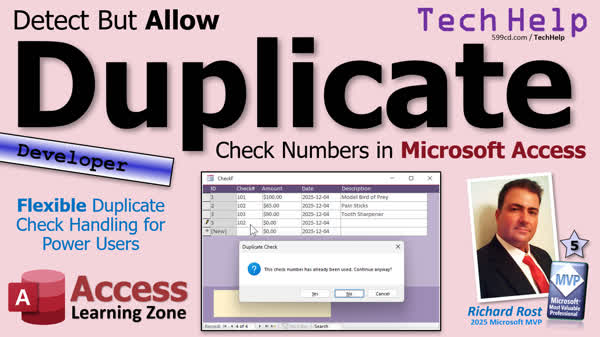
TechHelp Access, check number, check register, duplicate check number, warn user, BeforeUpdate event, DLookup function, NZ function, string concatenation, message box function, conditional formatting, account number, auto-fill check number, running balance, batch printing checks, payees, categories, reporting
More InformationTranscript Today we are going to talk about entering check numbers into a check register, but what happens if you want to use a check number again? You have already got it in the check register, so we are going to see how we can allow it, but we are going to warn the user, say, "Hey, you have already used this check number before," but it will let you put it in if you really want to. That is what we are going to cover today.
Today's question comes from David in Salt Lake City, Utah, one of my Gold Members. David says, "I remember seeing one of your videos about the check register and handling check numbers, specifically how to add a new number to the register and how to check if a number has already been used. I just can't remember where it was. Was that in the seminar or the extended cut of the check register, TechHelp video?" Well, it was in the seminar.
I have got the basic check register seminar where I show you how to create it and to run all the information. We have debit and credit, check when it has been cleared, and so on. Then in the extended cut, we build a report for that. We do a running sum, but I do not show you how to check for a duplicate check number.
I also have a more advanced check register seminar. We will talk about this more at the end of class. In lesson three, when we talk about printing checks, this lesson does have some logic in it to check to see if the check number has already been used. So we are going to do a little bit of that today.
Obviously, the easiest way to prevent this is to simply index the check number field. If you index it and set it to no duplicates, then you physically cannot add a duplicate check number. But sometimes you want to, and in the real world, it can happen. I have actually done this myself. I accidentally ordered a whole big box of checks, not just a little box, but like 1,000 some odd checks. I duplicated the same number range as an older box.
Now the bank doesn't care. They do not validate the uniqueness of your printed check numbers at all. That is really just for your own accounting. They will process whatever physical check goes through the system. So you have to make your database flexible enough to handle that, but you still want to warn the user, "Hey, you already put check number 102 in. Are you sure you want to do this?" But then let them.
Most of us probably only write a handful of checks every year, so it is not that big of a deal. But when you buy a whole ton of checks and they are not cheap, you might need to reuse them. That is what we are going to do today.
Now this is going to be a developer level video. What does that mean? That means if you have never done any VBA programming before, go watch this video. It will teach you everything you need to know to get started in about 20 minutes.
Go watch this video on variables. Go watch my DLookup video. You will want to learn about NZ (null zero), and of course, string concatenation and double double quotes. These are always tricky. Watch this video on the message box function specifically, and how to get it to return a value yes or no. Here is the big one: go watch the BeforeUpdate event video. These are all free videos. They are on my YouTube channel and on my website. Go watch those and come on back.
I am going to start with my standard blank template, but you can use any database that you want. First thing we are going to do is create a real quick check register table. So create table design. We have got our check ID - that is our autonumber. That is for tracking things internally in your database. It is not the same as your check number.
The next field is going to be the check number, and I am going to leave that as short text. I know the industry standard is usually numbers only, but I have had checks before - usually ones I have gotten from clients - that have had letters in them.
What is my rule for whether or not to use text or a number? Are you going to be doing math on this field? We are never going to be adding two check numbers together or taking the average of a group of check numbers, so do not worry about storing that as an actual number. This gives you the flexibility to put text in there.
Now we have got our amount - that is currency. We have got the check date. Do not use just the word "date." Remember, "date" is a reserved word. You want to avoid that. That will be a Date/Time field. You can put the default value down here if you want to as =Date() or whatever. That is up to you.
Then a description, and then notes. I like both a description and notes for something like this because the short text description will show up in lists if you want it to, whereas Notes (long text fields, memo fields) cannot show up in things like combo boxes. So I like to add both just to have it in case you need it.
Saving this real quick as my checkT. The autonumber primary key - yup, there it goes. Save it. If any of this, by the way, is news to you, go watch my Access Beginner course if you have never done any of this stuff before.
Let's make a little form for that table now. I always keep my single and continuous form templates. You can just blank some of the copy, then copy and paste. We will call it the checkF. There it is right there.
We will right-click, Design View. I am going to bind this form by double clicking here on the properties. Go to Data. We are going to bind the form to that check table we just made. So now it has got all the fields in it. Right now, this form is bound to that table.
Now we can add existing fields. We can click, shift-click, and all those click-and-drag, drop right here in the detail section. I keep these other two fields around just for formatting purposes. You can get rid of these labels.
I am going to use this to format paint over the ID, and then we get rid of these guys just like that. Now it is just a matter of squaring these guys up here so they look nice and pretty.
As I check them, yes, I know there are some tools and tricks and shortcuts you can use to make all this easier. I am a little old school. I am going to take this line, taking a minute just to click and drag a few fields around like this.
I am going to take this notes field and slide it down here in the footer. That way, whatever record we are on, we can use that for notes. As far as the labels across the top go, I am going to use this one label and make it nice and big like that. There is the ID. Just hit a bunch of spaces: ID check number amount date and then description. Nice and simple, nice and quick.
Now close this and we are going to save it, close it, open it back up again. Let's do a little alignment here. Let's select all of these guys. I like to have everything lined up to the left. I know the accountants in the group do not like that, but that is what I like to do. I am the one building the database - you build your database however you want.
We will start off with check number 101 for a hundred bucks, and this is for a model bird of prey. Check number 102 for sixty-five dollars, and that was for pain sticks. Check number 103 for ninety bucks, and that was for a tooth sharpener. I am buying Christmas presents for my Klingon guests.
Now here is the issue: we have another check number 102 that gets issued again. Let's say you have the same problem where you have got multiple books that accidentally got printed with the same checks. So now, it just let me put that in there, and again, like I mentioned at the top of the video, you could just index this field, but then you can't put a number in here twice.
So what we are going to do is we are going to use the BeforeUpdate event. We are going to check this value when it is entered and make sure it is not already in the table.
Let's delete that record. Let's go to Design View. We are going to find this guy, go to Events, and go to the BeforeUpdate event. Remember, the beauty of the BeforeUpdate event is that it can be canceled. It can be canceled by VBA. The editor opens up right before update goes, before the record gets committed to the table. AfterUpdate goes after the change has been committed.
The first thing we are going to do is check for a null value because a null value will throw all this off. So if somehow they put a value in there, then they go back and delete it. If it is null now, then just exit the sub. So, if isnull(checkNum) then exit sub. Now I want to look up in that table to see if this check number exists.
So we have got to store that ID somewhere. Let's make `Dim ID As Long`, and I am going to say `ID = DLookup("CheckID", "CheckT", "CheckNum=""" & CheckNum & """")`. This is the check number on the form, and then we need to go `""""` - double quotes inside of a string. So this whole thing just turns into a single set of double quotes inside the string. Go watch my concatenation video if any of this is confusing.
Now this could possibly not be in the table. In fact, most of the time it is not going to be in the table, so that is going to have a null value in it. We are going to handle that with the NZ function and for that we are going to make it a zero. So it is going to be zero if it is null, in other words, if it does not exist.
So if the ID is not zero, then a duplicate check was found, and then we are going to message box the user and say, "Hey, we already got one. Are you sure you want to allow it?" So, if message box ("Check Number " & CheckNum & " was already used. Do you want to allow a duplicate?", vbYesNoCancel + vbQuestion + vbDefaultButton2, "Duplicate Check Found") then
Now, if their answer is anything other than vbYes, then Me.Undo cancels the change and the checkNum.Undo will undo what they put in that box. Then End If. That ought to do it.
Let's test it. Save it. Debug, compile once in a while. Close it, open it.
Let me put in here 104, something else. Let me put 102 in again. Oh, look at that - 102 was already used. You want to allow a duplicate? Yes. How about if we do it with 103? Let's do duplicate. Would you like to allow duplicate? Let me say no this time. No. See, it undid it, put it back to where it was before.
Now what happens if I come up to this check number 101 and I try editing it, but I put it back to 101? Ah, it says check number 101 was already used. Do you want to allow a duplicate? Well, if I say yes, it leaves it, but it's not really a duplicate, is it?
Let's do that again. Let's put a one in there. Do you want to allow duplicate? If I say no, it is going to undo it back to that, but why is it catching this as a duplicate when it is not a duplicate? Anybody? I will give you a hint. It is in this code. It is in this DLookup that we did. Can you figure it out? Pause the video and see if you can figure that out.
Did you get it? Well, the answer is we are literally just checking for the check number, but what we also have to do is we have to make sure it is not the item that we are on. If I enter in another 101, I want to check to make sure it is not the same ID, because it could just be the check that we are on, right? So, here, we are going to just add in here: the CheckID is not the same as the CheckID that we are on and the check number is the same. The check number has to match, but it has got to be a different ID.
That should get rid of that problem. Let's come back in here. I will edit this to 101, and it does not see it as a duplicate. But if I come down here and put in another 101, then it catches it. See?
Not that hard to do, just a little DLookup, then warn the user, and then allow it or cancel it. That is only like what, two or three lines of code (without the comments maybe eight or nine), and we added a whole lot of functionality to our database. That is why learning VBA is so cool.
As I mentioned earlier, I do have this thing called the check register seminar. It covers a lot of stuff. It goes through all the basics: calculating a running balance, yes, even in the forms, printing checks, and yes, even handling check numbers. We teach how to convert currency to English, batch printing checks so you can put them on the system and mail them all at once, payees, categories, multiple accounts, all kinds of other stuff, reporting, categories, and so on. Lots of stuff, one of my favorite seminars. I will put a link down below.
Now also today for the members in the extended cut, we are going to add account numbers to this because right now our table only stores one checking account. We are going to add an account number so we can double check for each account - has that check number been used?
We will do that in the extended cut. We are also going to auto-fill the next check number, so if I type an account number 123, it will tell you the next check number should be 105 or whatever it is. Then we will visually display the duplicates with a little conditional formatting. That is all going to be in the extended cut for the members only.
Silver members and up get access to all of my extended cut videos, and there are hundreds of them by now. Everybody gets some free training, and we all have a lot of fun.
That is going to do it for your TechHelp video for today. I hope you learned something. Live long and prosper, my friends. I will see you next time. Intro In this TechHelp video, we will talk about how to handle duplicate check numbers in a Microsoft Access check register. I will show you how to set up a check register table and form, then use VBA in the BeforeUpdate event to warn users if they try to enter a check number that has already been used, while still allowing duplicates if needed. We will cover using DLookup, handling null values, and making sure the duplicate warning does not trigger for the current record when editing. Quiz Q1. What is the main purpose of the feature discussed in this video tutorial?
A. To prevent duplicate check numbers from ever being entered into the check register
B. To allow users to enter duplicate check numbers if they choose, but provide a warning
C. To automatically delete any checks with duplicate numbers
D. To let users enter any value they want with no notification or validation
Q2. Why might duplicate check numbers occur in a real-world scenario?
A. Banks require unique check numbers for every customer
B. Database software often assigns duplicate check numbers accidentally
C. Users may accidentally order multiple boxes of checks with overlapping number ranges
D. All checks are required by law to use the same number
Q3. What is the recommended data type for the check number field in the database table?
A. Number
B. Currency
C. Short Text
D. Date/Time
Q4. Why does the lesson suggest using Short Text instead of Number for the check number field?
A. So you can easily sort check numbers numerically
B. Because all check numbers are text in bank records
C. To allow for possible letters in customer-supplied check numbers
D. For easier mathematical operations on check numbers
Q5. What is the best way to ensure duplicate check numbers can never be entered?
A. Use a primary key on the check number field
B. Apply a unique index (no duplicates) to the check number field
C. Format the field as a Currency data type
D. Use a lookup to another table
Q6. According to the video, why might you NOT want to require unique check numbers?
A. For compliance with banking regulations
B. Because banks validate check numbers for uniqueness
C. Because users sometimes need to reuse check numbers
D. Because it is faster for data entry
Q7. What event is used in Access to validate the check number before saving it to the table?
A. OnClick
B. AfterUpdate
C. BeforeUpdate
D. OnFocus
Q8. What is the purpose of the BeforeUpdate event in this context?
A. To commit changes to the table after editing
B. To allow the user to undo changes before they are saved
C. To validate input and optionally cancel the change before saving
D. To format the field after data is entered
Q9. What method is shown to determine if a check number has already been used?
A. SUM function
B. DLookup function
C. GetUnique function
D. FormatNumber function
Q10. Why is it necessary to use the NZ function when performing the DLookup?
A. To ensure the lookup returns text instead of numbers
B. To convert null values to zero for comparison
C. To automatically assign the highest check number
D. To format the result for display
Q11. In the duplicate check number check, why do you have to compare the CheckID in addition to the CheckNum?
A. To make sure you are not flagging the record you are currently editing
B. Because the CheckID is always unique and never needed in comparisons
C. To check for null values in the CheckID field
D. Because you want to reset the CheckID every time a check number changes
Q12. If the user attempts to enter a duplicate check number, what does the procedure do?
A. Instantly deletes the duplicate
B. Allows the duplicate without warning
C. Warns the user and gives them the option to proceed or cancel
D. Automatically increases the check number by one
Q13. What feature allows a user to cancel the edit if they decide not to allow a duplicate?
A. Me.Close
B. Me.Undo
C. Format Paint
D. DLookup Reset
Q14. What is a good practice mentioned when working with VBA code for validation?
A. Compile the code frequently to catch errors
B. Always type variable names in all lowercase
C. Only use VBA for table design, not forms
D. Never use comments in VBA code
Q15. Why is it important not to use reserved words (like "date") as field names in Access?
A. It causes formatting problems in reports
B. Reserved words can lead to errors and unpredictable behavior
C. Banks will reject the database file
D. It slows down data entry
Q16. In the extended version for members, which additional feature is discussed?
A. Importing checks from Excel files
B. Converting currency values to foreign exchange rates
C. Adding account numbers to manage multiple accounts
D. Automatically emailing payees
Q17. What action is recommended for beginners before attempting this developer-level video?
A. Watch introductory videos on VBA, variables, DLookup, NZ, string concatenation, and events
B. Only focus on currency formatting videos
C. Skip all training and start coding right away
D. Study SQL exclusively
Q18. What is the role of the primary key in the check register table designed in the lesson?
A. It ensures each check number is unique
B. It serves as an internal unique identifier separate from the check number
C. It encrypts the data for security
D. It defines default values for the table fields
Q19. What is the value of adding both a Description and Notes field to the check table, as discussed in the video?
A. So Notes fields will appear in all combo boxes
B. So short descriptions are visible in lists and long notes are available for details
C. Because currency fields require both
D. To ensure unique check numbers
Q20. Why does the tutorial mention visually displaying duplicates with conditional formatting in the extended cut?
A. To automatically remove duplicate records
B. So users can easily spot possible number conflicts
C. To filter records by duplicate check number only
D. Because it is required by Access templates
Answers: 1-B; 2-C; 3-C; 4-C; 5-B; 6-C; 7-C; 8-C; 9-B; 10-B; 11-A; 12-C; 13-B; 14-A; 15-B; 16-C; 17-A; 18-B; 19-B; 20-B
DISCLAIMER: Quiz questions are AI generated. If you find any that are wrong, don't make sense, or aren't related to the video topic at hand, then please post a comment and let me know. Thanks. Summary Today's TechHelp tutorial from Access Learning Zone focuses on handling duplicate check numbers in a check register using Microsoft Access. We will explore how to let users enter a check number they have already used but display a warning so they know about the duplicate and can choose whether to allow it or not.
Let me start with a common situation. You enter check numbers into your register, but what if you want to reuse a check number? Maybe you accidentally ordered a duplicate box of checks with the same number range as a previous batch. The bank does not care about check number uniqueness; their systems only process the physical check. However, you need your database to warn you to avoid accounting confusion, but still have the flexibility to allow duplicates if needed.
To illustrate, I will build a basic check register database from scratch. The table will include an autonumber field for internal tracking, a check number (stored as short text), amount (currency), check date (make sure not to use the reserved word "date"), a description, and a notes field. It is best to keep check numbers as text because sometimes check numbers can contain letters, especially from clients.
After setting up the table, I create a simple form bound to this table. I prefer to lay out the form so that users can easily enter all needed data, including check number, amount, date, description, and notes.
Entering a few sample records (check numbers 101, 102, 103) will quickly reveal the main concern: Access will let you reuse a check number unless you explicitly prevent it. You could prevent duplicates simply by making the check number field indexed with no duplicates, but this would stop you from reentering checks when needed.
The solution is to use the BeforeUpdate event in VBA. This event lets us check the field value before Access saves the record. We look up the check number in the table using DLookup. If a match is found, the code gives the user a warning—something like, "Check Number 102 was already used. Do you want to allow a duplicate?" If the user says yes, the duplicate is kept. If not, the change is undone. This way, users can choose to repeat a check number but are less likely to do so by mistake.
One nuance to be careful about: if the user edits an existing check (for example, just re-types the same check number in the current record), the code should not treat the current record as a duplicate. The DLookup code must check that the CheckID of any duplicate is not the same as the one currently being edited.
This approach gives the best of both worlds: you get an immediate warning for duplicates, but are not blocked from making exceptions when needed. It is a straightforward solution that adds a lot of usefulness with just a few lines of code.
If you are new to these concepts, I recommend you first review introductory material on VBA, variables, how DLookup works, using NZ for handling nulls, and the basics of events such as BeforeUpdate. These are all covered in other free videos available on my YouTube channel and website.
For those seeking more advanced options, I have a check register seminar that covers running balances, printing checks, currency conversion, batch check processing, payees, categories, multiple accounts, and more.
Also, in today's Extended Cut, we will expand the solution to support multiple accounts by adding an account number field and checking for duplicates only within the same account. We will add auto-filling of the next check number and use conditional formatting to visually highlight duplicate check numbers on the form. All of these techniques are available for members in the Extended Cut.
Silver members and above have access to all of my extended cut videos and additional training. Every visitor gets free material—and there is plenty to help you advance your Access skills.
You can find a complete video tutorial with step-by-step instructions on everything discussed here on my website at the link below. Live long and prosper, my friends. Topic List Creating a check register table in Access
Choosing field types for check number storage
Setting up form design for data entry
Binding a form to a table in Access
Adding and arranging fields on an Access form
Implementing the BeforeUpdate event in VBA
Using DLookup to find existing check numbers
Handling null values in VBA validation
Displaying a user warning for duplicate check numbers
Allowing duplicate check numbers with user confirmation
Preventing false positives when editing records
Comparing primary keys in DLookup criteria
Undoing form changes based on user input Article Entering check numbers in a check register database seems straightforward until you encounter a situation where you need to reuse a check number. Maybe you accidentally ordered duplicate sets of checks or simply need to allow for overlap due to your accounting process. It is important to balance data integrity with the flexibility to allow duplicate check numbers if necessary, while still warning the user that a particular check number has already been used.
In the real world, banks do not care if your check numbers repeat. Their systems process whatever check comes through, regardless of the printed number, so you, as the database designer, get to choose how strictly to enforce uniqueness in your register. Most of the time, you probably never need to repeat check numbers, but if you buy a large batch of paper checks that overlap with the numbers in a prior order, you might run into this problem.
The most rigid solution is to simply index the check number field in your table and disallow duplicates. If you do this, Access (or your database engine) will prevent any repeated entry, but sometimes you want to override this rule. Ideally, your system should give the user a warning about the duplicate and let them choose to proceed or not.
Let's walk through how you can design a simple check register in Access, and implement a process that checks for duplicate check numbers when a new record is entered. I will show you how to set up your table and form, then add the necessary VBA code to provide a warning without preventing legitimate duplicates.
Start by creating your check register table. You will need one field for the internal record ID—a numeric Autonumber called CheckID. This is not your check number, but an internal identifier. Next, define the CheckNum field as Short Text. While check numbers are usually numeric, keeping this as text allows for any future scenarios where a check might have a letter in its number. The rule of thumb is: if you never need to do math on the field, store it as text for maximum flexibility.
Include the Amount as Currency, the CheckDate as a Date/Time data type (always avoid using the reserved word "Date" as a field name), a Description field as Short Text, and optionally, a Notes field as Long Text (memo) for extra information. Save your table as "CheckT".
With your table ready, create a simple form bound to this table, perhaps named CheckF, which will make data entry easier. Add all your fields to the form, arrange and format them however you like for usability.
Now enter a few sample checks into your register, using various numbers like 101, 102, 103, and so on. Try to enter a duplicate—say, another 102. Access will accept it by default unless you indexed the field to disallow duplicates, but like we discussed, we want to allow this under certain conditions.
To accomplish this, use the BeforeUpdate event in your form. The BeforeUpdate event happens just before Access commits the changes to the table, and it allows you to check or cancel the update. This is an ideal place to check for duplicate check numbers and issue a warning to the user.
Here is how you can code this logic. Open your form in Design View, select the CheckNum field, and open its property sheet. Find the Events tab and select the "Before Update" event. Click the builder (...) button to open the VBA editor.
In your VBA code, start by making sure the field is not blank. If it is, just exit the sub. Otherwise, use DLookup to check if the same check number exists elsewhere in the table. You have to be careful—if you are updating an existing record and just changing a different field, you do not want your code to count the current record as a duplicate. You must exclude the current record from your DLookup.
Here is a VBA code sample for the BeforeUpdate event of the CheckNum textbox:
Private Sub CheckNum_BeforeUpdate(Cancel As Integer)
If IsNull(Me.CheckNum) Then Exit Sub
Dim ID As Long
ID = Nz(DLookup("CheckID", "CheckT", "CheckNum=""" & Me.CheckNum & """ AND CheckID <> " & Nz(Me.CheckID, 0)), 0)
If ID <> 0 Then
Dim resp As Integer
resp = MsgBox("Check Number " & Me.CheckNum & " was already used. Do you want to allow a duplicate?", _
vbYesNo + vbQuestion + vbDefaultButton2, "Duplicate Check Found")
If resp <> vbYes Then
Me.Undo
Cancel = True
End If
End If
End Sub
Let's step through what this does. It first checks if the CheckNum field is blank and exits if so. It then uses DLookup to search the "CheckT" table for any record where the check number matches the one just entered and the CheckID is not equal to the current record. The Nz function ensures that if DLookup finds nothing, the ID variable will be zero.
If a matching record is found (ID not zero), a message box alerts the user that the check number has already been used and asks if they want to allow the duplicate. If the user selects "No," the Me.Undo line cancels any changes and prevents the duplicate from being entered. If the user selects "Yes," the duplicate is allowed.
This approach preserves data flexibility and integrity. It catches honest mistakes, but if you really need to double up a check number, you can do so with an explicit warning.
If you want to take this further, you could extend the logic to also take into account which bank account the check is drawn from, especially if your register covers multiple checking accounts. You might then check for duplicates only within the same account by expanding your DLookup criteria.
While this solution is based on Access principles, the logic applies to any database or platform where you want to allow, but warn about, intentional duplicate key values. With just a few lines of VBA, you can greatly improve the user experience and data safety of your check register system. By handling this validation in the BeforeUpdate event, you gain full control over how duplicates are handled, striking a healthy balance between strict enforcement and real-world flexibility. Primary Topics Access check register, duplicate check number handling, VBA programming, BeforeUpdate event, DLookup function, user warnings, allowing duplicates in forms, form design
Secondary Topics table field types, form formatting, null value handling, index uniqueness, code troubleshooting
|







