Comment Block
By Richard Rost

 9 months ago
Add and Remove Comment Block Buttons in the Toolbar In this Microsoft Access tutorial, I'll show you how to add the Comment Block and Uncomment Block buttons to the VBA editor, making it easier to comment or uncomment large sections of code. We'll walk through customizing the toolbar to add these buttons, demonstrate how to use them, and discuss assigning keyboard shortcuts for even faster access. I'll also cover how to remove the buttons if you no longer need them.
Keywords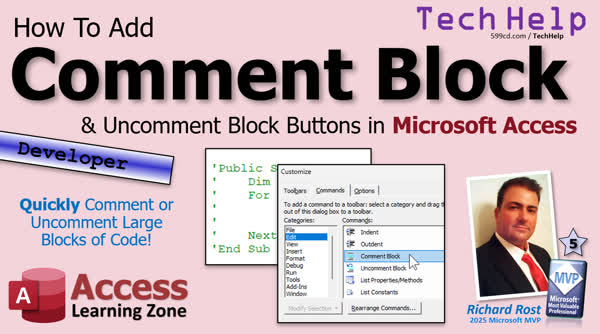 TechHelp Access, Comment Block, Uncomment Block, VBA editor, customize toolbar, keyboard shortcuts, Alt+C, ampersand, comment out code, uncomment code, edit menu, add toolbar buttons, image and text, code blocks, developer tips
 Subscribe to Comment Block
Get notifications when this page is updated
More InformationTranscript Got a fast tip for you today. I'm going to show you how to add the Comment Block and Uncomment Block buttons to your VBA editor in Microsoft Access. This will allow you to quickly comment or uncomment large blocks of code.
This is one of my pet peeves with VBA in general. If you want to comment out a whole block of code, it's a pain in the behind. You have to come over here and put the single character, the single apostrophe, for each line. If you have 50 lines to do that, it can take you a while. It would be nice if you could just select them all and hit a button.
Some languages like C++ or ASP even have start comment and end comment tags you can put in here, but VBA doesn't do that. You have to put this in the front of each line. It would be nice if we could just select all of this and then say comment or uncomment. There's no right-click option for that, but there are some buttons you can add up here to the toolbars to do that for you.
To do that, we're going to modify the toolbars. Just right-click on any one of these toolbars anywhere and go to Customize. That brings up the Customize window. I think I covered this in my early developer lessons. Go to Edit here and then scroll down the list and you'll find Comment Block and Uncomment Block. Those are features that are available, but they're not on any of the default menus.
I'm going to grab these and drop them. I like to put them right here. Then grab Uncomment Block and drop them right there. Now hit Close. If you want to comment this, just select it and hit the Comment Block button. Look at that. This one will uncomment it. It's that simple.
If you like using keyboard shortcuts, you can assign keyboard shortcuts to them as well. Right-click, Customize. Then right-click again and put the little ampersand in here like we do with Access forms. That will be Alt+C. You also have to do Image and Text. It's got to have the text there so the Alt+C works. Then do the same thing for this one: right-click and make it all you like, and you can just do Uncomment. You don't have to have the whole word and kind of block them. Image and Text. Same thing with this one here. You can change that to just Comment and make it smaller.
Of course, my window is nice and small, so it's not all fitting on there, but you get the point. Now if we select all of this and go Alt+C, it comments, or you can uncomment. You have to have the text visible there for that to work, which I think is kind of silly, but that's how it goes.
Another silly thing is you can keep hitting comment, comment, comment, and that happens. So it's not perfect, but it could be a time saver. If you're like me, sometimes when I'm testing code, you have to comment all the stuff out, comment, comment, comment, comment, or I'll usually just cut it and then paste it in Notepad or somewhere where it's harmless. Then I'll forget to paste it back in, so that happens.
There you go. I'm going to turn these back off for my databases though. I don't use them that often, and I don't want them there so everyone gets confused, wondering where they came from. So I turn them off in Customize, and then we just drag them off like that. That gets rid of them. Nice and simple.
That's it. Just a fast tip today, but that's going to be your TechHelp video for today. Hope you learned something. Live long and prosper, my friends. I'll see you next time. Intro In this TechHelp video, I will show you how to add the Comment Block and Uncomment Block buttons to the VBA editor in Microsoft Access. You will learn how to customize your toolbars to quickly comment or uncomment large sections of code, as well as how to assign keyboard shortcuts to make the process even faster. This simple tip can help save time and reduce frustration when working with code in Microsoft Access. Quiz Q1. What is the main benefit of adding the Comment Block and Uncomment Block buttons to the VBA editor in Microsoft Access?
A. It allows you to comment or uncomment large sections of code quickly.
B. It helps to automatically fix syntax errors in VBA code.
C. It enables automatic formatting of your VBA code.
D. It prevents code from being accidentally deleted.
Q2. Why is manually commenting each line of code considered a hassle in VBA?
A. You have to use a different symbol for each line.
B. You need to add a single apostrophe to the start of every line.
C. VBA does not allow commenting.
D. Each line must be reformatted before commenting.
Q3. What is the process to add the Comment Block button to your VBA toolbar?
A. Click File, then Options, and select Comment Block.
B. Right-click any toolbar, choose Customize, go to Edit, then drag Comment Block to the toolbar.
C. Press Alt+C to automatically add the button.
D. Run a special macro to add the button.
Q4. Where can you find the Comment Block and Uncomment Block features in the Customize window?
A. In the Insert tab.
B. On the File menu.
C. In the Edit section after opening Customize.
D. Within the Debug menu.
Q5. Why might you want to assign a keyboard shortcut such as Alt+C to the Comment Block button?
A. It enables commenting lines from any application.
B. It provides a faster way to comment code without clicking the toolbar button.
C. It adds line numbers to your code.
D. It automatically debugs your code.
Q6. What requirement must be met for keyboard shortcuts like Alt+C to work with the Comment Block button?
A. The button must have both an icon and visible text.
B. You must be in Design View.
C. Only the icon needs to be shown.
D. The VBA project must be saved first.
Q7. What will happen if you repeatedly click the Comment Block button on already commented code?
A. It removes all comments.
B. It does nothing after the first time.
C. It adds more apostrophes to the start of each line.
D. It crashes the VBA editor.
Q8. What should you do if you no longer want the Comment Block and Uncomment Block buttons on your toolbar?
A. Right-click Customize and drag the buttons off the toolbar.
B. Delete and reinstall Access.
C. Uninstall the VBA editor.
D. Restart your computer.
Q9. Which statement is TRUE about the commenting feature in VBA?
A. You can use start and end comment tags like in C++ or ASP.
B. Comments are placed at the end of each code line.
C. You must add the apostrophe at the start of each line you want to comment.
D. You can comment blocks by right-clicking the code.
Answers: 1-A; 2-B; 3-B; 4-C; 5-B; 6-A; 7-C; 8-A; 9-C
DISCLAIMER: Quiz questions are AI generated. If you find any that are wrong, don't make sense, or aren't related to the video topic at hand, then please post a comment and let me know. Thanks. Summary Today's TechHelp tutorial from Access Learning Zone covers how to add the Comment Block and Uncomment Block buttons to the VBA editor in Microsoft Access. These buttons allow you to quickly comment or uncomment large sections of your code with just a click, saving a lot of time and frustration.
One of the things that has always annoyed me about working in VBA is that if you want to comment out a large block of code, you normally have to place an apostrophe at the beginning of every single line. If you are working with a long piece of code, this process quickly becomes tedious. Unlike some other programming languages like C++ or ASP, VBA does not have a way to mark the beginning and end of a commented section using special tags. So, you are stuck having to add that apostrophe to each line. There is no built-in right-click menu command for commenting or uncommenting multiple lines at once. However, there are buttons you can add to the toolbars that make this task much easier.
To set this up, you will need to modify the toolbars in the VBA editor. To begin, simply right-click anywhere on a toolbar and select Customize from the menu. This action will open the Customize window. From there, go to the Edit category and scroll through the list to find Comment Block and Uncomment Block. These commands are available as built-in features, but they do not appear on any of the default toolbars by default.
To add them, just drag and drop each one onto your preferred spot on the toolbar. Once you have placed both the Comment Block and Uncomment Block buttons where you want them, close the Customize window. Now, whenever you want to comment out a section of code, simply select the lines you want to comment and click the new Comment Block button. If you want to remove the comments, select the code again and click Uncomment Block. It really is that easy.
If you prefer using keyboard shortcuts, there is a way to assign these as well. Open the Customize window again by right-clicking on the toolbar. Then, right-click the button you want to assign a shortcut to and add an ampersand (&) before a letter in the button's name. For example, adding an ampersand before "C" in "Comment Block" will make it Alt+C. Make sure to set the button to display both its image and its text, because the keyboard shortcut will only work if the text is visible on the toolbar. Repeat the process for the Uncomment Block button, perhaps using a different letter for the shortcut if you wish, and again, be sure image and text are enabled.
Keep in mind, if your VBA editor window is small, the full text of your toolbar buttons might not fit, but as long as you can see enough to know which is which, you will be fine. Once set up, you can simply select a block of code and press your shortcut, like Alt+C, to comment it out quickly, or use the shortcut for uncommenting lines as needed. Just remember that the text on the buttons must be visible for the shortcut to work.
It is also worth noting that if you repeatedly press the comment button, it will keep adding additional apostrophes to each line, so it is not perfect, but this little trick can certainly save you time. Personally, when I am testing code, I often need to temporarily comment out blocks, and this feature keeps me from having to manually handle each line. Sometimes instead, I just cut the code and paste it into Notepad to keep it out of the way, but then I sometimes forget to put it back. Having quick access to these buttons is usually the better solution.
Finally, if you ever decide you do not want these buttons cluttering up your toolbar, you can remove them just as easily by opening the Customize window and dragging the buttons off the toolbar.
That wraps up this quick tip for today. For a complete video tutorial with step-by-step instructions covering everything I discussed here, visit my website at the link below. Live long and prosper, my friends. Topic List Adding Comment Block and Uncomment Block buttons to the VBA editor
Customizing VBA editor toolbars
Accessing the Customize window in VBA editor
Adding buttons to the editor toolbar
Using Comment Block and Uncomment Block features
Commenting and uncommenting multiple lines of code
Assigning keyboard shortcuts to toolbar buttons
Making text visible for keyboard shortcuts to work
Removing custom buttons from the toolbar Article If you work in the VBA editor in Microsoft Access, you might have noticed that commenting out several lines of code can be tedious. By default, the only way to comment code is to add a single quote at the beginning of each line. Unlike some other programming languages, VBA does not offer block comment delimiters, so you have to do this line by line. This is time-consuming if you need to temporarily disable large sections of code.
Fortunately, there is a way to make this process much more efficient by adding the Comment Block and Uncomment Block buttons to your toolbar within the VBA editor. These buttons allow you to quickly comment or uncomment selected blocks of code with a single click, saving you a lot of time and hassle, especially when testing or debugging.
To add these buttons, open the VBA editor from Access. Then, right-click anywhere on the toolbar area at the top of the window and select Customize. This opens the Customize dialog. Switch to the Commands tab if needed, and then, in the Categories panel, select Edit. In the Commands list on the right, scroll down until you find Comment Block and Uncomment Block. These commands exist in the system but are not visible on the default toolbars.
Click and drag the Comment Block command to your toolbar, positioning it where you like. Repeat the process for the Uncomment Block command. Once they are in place, close the Customize dialog.
Now, to comment multiple lines, simply select the code you want to comment and click the Comment Block button. Each selected line will have a single quote automatically added at the beginning. To uncomment, select the code and press the Uncomment Block button, and the quote will be removed from each line, as long as the comment marker is there to remove.
If you prefer using keyboard shortcuts, you can assign them to these buttons. While the VBA editor does not have fully customizable shortcut keys for toolbar commands, you can make use of the ampersand character in the name to set up an Alt+Letter shortcut. To do this, right-click the button while in Customize mode and edit its name, adding an ampersand (&) before the desired shortcut letter, for example, &Comment for Alt+C. Make sure Image and Text is selected as the display option; the shortcut only works if the text label is visible. Do the same for the Uncomment Block button if you want to set another shortcut.
Keep in mind, repeated use of the Comment Block button on already commented lines will add multiple quote marks, so it's best to comment and uncomment as needed rather than clicking repeatedly on the same selection.
If you decide later that you do not want these buttons on your toolbar, right-click again to open the Customize dialog and simply drag the buttons off the toolbar to remove them.
With these tools added to your VBA editor, you can manage large sections of code much more easily, commenting or uncommenting blocks with a click or keystroke. This simple setup can save time and reduce errors when experimenting or troubleshooting your Access VBA code. Primary Topics VBA editor customization, Microsoft Access, commenting code, toolbar modification, code productivity features Secondary Topics keyboard shortcuts, toolbar management, code testing workflow |




