Fitness 65
By Richard Rost

 10 months ago
Calculate Group Totals on a Form in Microsoft Access
In this Microsoft Access tutorial, I will show you how to calculate and display group totals on a form using a fitness database as an example. We will focus on grouping records (like meals) and updating totals such as calories and protein using VBA, including handling items with quantities and managing date changes. This walkthrough covers setting up the necessary recordset loop, writing the event code, and troubleshooting common issues you might encounter with calculated totals. This is part 65 of my fitness database series.
Members
There is no extended cut, but here is the file download:
Silver Members and up get access to view Extended Cut videos, when available. Gold Members can download the files from class plus get access to the Code Vault. If you're not a member, Join Today!
Prerequisites
Recommended Courses
Up Next
Keywords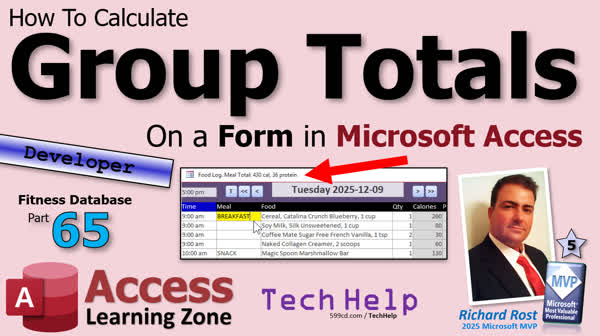
TechHelp Access, fitness database series, group totals on a form, group by form, On Current event, VBA recordset loop, calculate meal total, FoodLogT table, calories per unit, protein per unit, meal description, quantity field, conditional sum, group data on form, date value check, real-time calculation
 Subscribe to Fitness 65
Get notifications when this page is updated
More InformationTranscript Today's part 65 of my fitness database series, not whether or not you care about fitness. There are tips and tricks in all of these videos, no matter what kind of database you are building. You do not have to care about fitness.
The real value is in all the tips and tricks I am showing you: Tables, Forms, Queries, VBA. They apply to any Access database, whether it is customers, inventories, or orders. You are going to learn the skills you need to build a really cool database.
Today, we are going to do group totals on a form. Now, you are probably thinking that I am crazy because usually you do group totals in a report, but as long as you have something to group them by, you can do group totals in a form too. In this particular case, we are going to group each of these that are broken up into different meals here. If I click on this one, the total up here will show up differently. See, I click on my fruit and yogurt bowl, you can see right at a glance, 290 calories, 22 protein. It is basically adding these guys up and putting them right up here. It is like a quick way to see what this meal is totaling.
And again, it does not matter if you are doing this with inventory, with order entry, or with customers. It is cool tips and tricks. Here we go.
Here is another quick one. The solution is not quick, but it is quick as far as what I want. A lot of times when I am putting together a meal here, for example, I want to just quickly at a glance see what this fruit and yogurt bowl has in it. Traditionally, I have turned all of these off and then you could do this and just see what the total eaten down here is. Wouldn't it be nice and handy if I could just click here and somewhere on the form or maybe even in the caption, just have it show what the total is of this group? So I do not have to play with all the boxes. Click on breakfast and it shows you what the totals are for the breakfast. That would be pretty neat, and it is not that hard to implement.
Now the first time I sat down and thought about doing this, I figured, well, we could probably use some DLookups and some DMaxes and DMin. If we are on this one here, we have to look in the log to find the next item above this one that has a title in it. We are using this to implement grouping, basically. I want all of these items in here. I have to find this one, then go back one and then add these all up, and because with the DLookups and stuff, it just became a nightmare.
So I said to myself: Self, it would be really easy to just use a little recordset loop. Start on this one and then just count, count, count. If you find one that has a title, stop, or if you hit the end of the recordset, obviously for the last item.
Now, would I use that method if I had 50,000 items to loop through? No, not at all. But what do we have here? Maybe 10, 15, 20 tops. So I think a little recordset loop would be perfect.
I will put it in the On Current event so it works whenever you go from record to record as long as you click on an item that has a meal description here. I have been using these, as you can see, for the last several days or weeks to indicate. This is my lunch: turkey, vegetables, banana, and so on. I have been pretty straightforward with that as I set up my templates. I want to do that. That is going to be next.
So let's go in here and let's find the On Current event for the form, which is right there. Got that.
In here, we are just locking it if it is a new record or not. So let's make it right in here. I do not like to pile too much stuff inside of my pile. I do not want to pound too much stuff in there. Let's call this one Calculate Meal Total. We will make a new little sub. We will put it right down here. Calculate Meal Total. This is going to be a Private Sub. Private? Private. Private Sub.
In here, first we are going to check and see if there is a meal description - this guy - if something exists in here. So if IsNull(MealDescription) or MealDescription equals blank, then there is no meal description. Me.Caption equals Food Log and then Exit Sub. I cannot type today. Sorry, folks. While we are at it, let's set this caption in here so it is the same thing. Food Log. It is the On Current event, we will handle that, but it is just nice to have your design match your code.
So we get down to here, and now we have a meal description. What we are going to do is set up a recordset from this point on, so for food items that are equal to this one or greater in the log. We are going to stop when we hit another one with the meal description or the end of the recordset. So we need a few variables: Dim RS as a Recordset, Done as Boolean (we will set that if we hit another meal description), CalorieTotal as Long, and ProteinTotal as Long. Let me move this over so you guys can see it. And whatever other stuff you want to track in this little header thing we are doing. I only care about calories and protein right now, so that is what I am tracking up top there.
Let's initialize our variables: Done = False, CalorieTotal = 0, ProteinTotal = 0.
Here is our recordset: Set RS = CurrentDb.OpenRecordset. What do I want? I want to SELECT. This is one of those instances where I am going to use the star. Normally, when I am writing, I just start with the star because it does not hurt if it is a small local database like this. But just keep in mind, when you get into bigger databases, if you are pulling down stuff over a network or over SQL Server online, you only want to pull in the fields that you need. I usually do this later when I am optimizing my database, but for now this is fine, because you always want to add stuff in the middle and then you have to go back and change your SELECT statement. So for now this does not hurt, and it is a small database, so I am not worried about it, but I am just bringing it to your attention.
FoodLogT is where we are getting our data from. Where the FoodDateTime in the table is greater than or equal to the record that we are on's FoodDateTime. We want to include the record that we are on, right? Space there, do not forget that one. Oh no, we do not need an ORDER BY FoodDateTime.
So give me all the fields from the FoodLog table where the FoodDateTime of the record is greater than or equal to the FoodDateTime that I am sitting on in the form - this guy, whatever record we happen to be on - and then order by FoodDateTime so I get them in chronological order. That is important.
While Not Done and Not RS.EOF. So I am not done (I have not indicated that it is done, which we will get to in a second), and I have not hit the end of the recordset loop.
I like to set up the outside of the donut, then I put the creamy filling in it afterwards. So I am going to do an RS.MoveNext and then a Wend and then an RS.Close, Set RS = Nothing. Down here, I will just Beep to indicate we are done. We will put some messaging down here.
What goes inside the creamy filling? Let me rearrange this a little bit so you guys can see a little better.
Normally in here, for most items, I am going to say CalorieTotal = CalorieTotal + whatever the calorie field is in the table. Just as a refresher, if you look in the FoodLog, that is CaloriesPerUnit and ProteinPerUnit. So we are going to come in here and say RS!CaloriesPerUnit, and we will do the same thing for protein.
The word protein, and we will put it here and there and there. That is going to add them all up. Now, we are not doing that for every record. I only want to do it for the first record and any other record where there is no meal description. Once I hit another meal description, we stop. That means we have hit the next meal group.
So up here, we are going to say, if RS!MealDescription is not blank and we are past the first item, we are going to say RS!FoodDateTime is greater than the FoodDateTime on the form, then we have hit the next meal item header. So Done equals True. Else, do this stuff, add up those things, End If.
See what is going to happen here? We start off on the first item. Let me put this side by side with the actual records so you can see what is going on.
So we start off, and this guy: we are getting SELECT * FROM FoodLogT WHERE FoodDateTime >= this guy. So it ignores everything before it. ORDER BY FoodDateTime. Start the loop. If RS!MealDescription > blank: yes, it is. And RS!FoodDateTime > [form's FoodDateTime]: it is not true; it is equal to at this point. So add them up.
Move to the next record. Now we are here. Continue the loop. If RS!MealDescription is not blank, that is not true because it is blank. So add them up. And so on and so on until we hit this guy at which point MealDescription is not blank for down here. MealDescription is not blank and FoodDateTime is greater than that, so yes, that is true. These are both true. Done is true and it drops out of the loop. So we should get these four items added up once we do down here instead of just beeping. In fact, I am going to get rid of the beep. I want this to be quiet - silent but deadly.
Here we are going to say something like Me.Caption = Food Log & " Meal Total: " & CalorieTotal & " Cal, " & ProteinTotal & " protein" like that.
Save it. Debug. Compile once in a while. Close it. Just to be safe, open it back up.
Look at that. We have a meal total for 415 and 36 grams. That seems about right. Let's double check. Yep: 430 and 36. Is that what I got before or 430? No, 415 and 36. We got it. We are off somewhere. Let's see. Oh, I see where it is. Do you guys see where it is? You see the problem?
Check it out. If I click on this one - just a one item thing here - it has 130 and 12, which is correct. If I click on this one, it has 805 and 71. That is easy to see, that is correct. Why is this one off? Well, look at that. We have a quantity right there. If I change this to 1, then it matches up. So we have to take that quantity into consideration too, for both calories and protein.
Now what is that field? That is just Quantity, I think. Yep. Quantity.
Back to the code. Right, to the code. All right.
See, this is why I say optimize that later, because a million times I would add the quantity in here and then figure out, why is that not working? That is because I did not include it in the SQL statement. So it is going to be CaloriesPerUnit times RS!Quantity, and the same thing down here.
There we go. Save it. Debug. Compile. Now we should be good.
Let's see. Click, click. 430, 36. Perfect. Let's make sure the last one works.
That does not look right. 135 and 31. Let's see here. Let's undo this and come back down here. We have 135 and 31, and that should be 290. That is a big difference.
I found the discrepancy. I went to the table and I have some sample data in here for two. My row today is only the 9th, so that is what is happening. You will be watching this on the 10th, but I am recording it on the 9th.
So we need to also stop if our date changes, because this only is going to work on that date. All of the sample data in here is actually throwing it off. There are all the calories. I am not going to add it up, but that is definitely the problem.
Back to the code.
We could make this statement really complicated. I prefer to do this as an ElseIf. It is a different condition. I think it is going to be better if we put it separately. Let's just check the date value. If the date value of the record has gone beyond the date value of the item we are on, then we know it is the next day.
So ElseIf RS!FoodDateTime, we are going to take the DateValue of this, DateValue of this. If that is greater than the DateValue of the FoodDateTime, then we have moved to the next day. Obviously, the item on the next day does not have a meal header, otherwise the first condition would have matched. Done = True.
Let's see if that fixes it. Look up here, click there, and that does fix it. Let's see what is on the next day. There is no header up here, so that was throwing it off. That is 750 times three right now. I am going to get rid of all this stuff; this was our previous test. Now we should be good. Beautiful.
See, lots of little stuff like this to throw in here. Sometimes I have to do a lesson with all these little things that I have been thinking about adding that just kind of add up, and then we will just throw a lesson in.
I am sorry if it does not work for anybody who is not following along with the fitness database. Hopefully you gleaned a couple of little tips and tricks from watching this. If not, sorry.
Sometimes building a database like this is not all about just adding the big new cool features. It is about these little maintenance things. I usually keep a list. I actually have a database for this--of course, it is me--but it has all the different databases that I work on, both personally and for you guys for videos. I keep a list of all the notes and all the things I want to add. Some of them are just little tweaks; some of them are bigger features. The bigger features I can put together into a full video. The little tweaks, sometimes I have to add them up like today. We did four or five different little guys. That happens sometimes.
All right, folks, so that is going to do it for your TechHelp video for today. Hope you learned something.
Live long and prosper, my friends. I will see you next time. Intro In this TechHelp video, we will work with Microsoft Access and I will show you how to display group totals on a form, such as calculating total calories and protein for meal groups in the fitness database. You will learn how to use VBA to loop through records, handle grouping logic, update the form's caption with totals, and handle tricky issues like date boundaries and quantities. The tips and techniques covered here apply to any Access database, not just fitness applications. This is part 65. Quiz Q1. What is the main benefit of the tips and tricks shown in the video tutorial?
A. They are only useful for fitness databases
B. They can be applied to any Access database type
C. They focus exclusively on advanced SQL Server use
D. They are designed for cloud-based databases only
Q2. Why would someone want to calculate group totals on a form rather than a report?
A. Group totals cannot be computed in reports
B. You can view totals instantly as you navigate records
C. It is more secure than calculating in reports
D. Forms are always faster than reports
Q3. In the context of the tutorial, what is required to perform group totals in a form?
A. Use of subreports
B. Something to group the records by, such as meal description
C. Linked Excel spreadsheets
D. Data macros for every field
Q4. The instructor first considered using DLookup and DMax/DMin to solve the problem. What was the main issue with this approach?
A. It was too slow on large databases
B. It resulted in complicated and confusing code
C. It only worked with SQL Server
D. It could not sum values at all
Q5. What VBA object does the instructor use to loop through the records and perform calculations?
A. TableDef
B. PropertySet
C. Recordset
D. Worksheet
Q6. In the tutorial's logic for calculating totals, when does the group total calculation stop?
A. When the recordset is empty
B. When another record with a meal description or a new date is found
C. After a fixed number of records
D. When a zero-calorie item is found
Q7. What field in the FoodLog table needs to be multiplied with calories and protein per unit to get the correct group totals?
A. Price
B. Quantity
C. FoodType
D. Ingredient
Q8. When is it acceptable to use SELECT * in your SQL statement, according to the instructor?
A. Only when querying remote databases
B. Only in large production deployments
C. When dealing with a small local database for quicker development
D. Never, as it always causes problems
Q9. What is the purpose of using the On Current event in the form for this process?
A. To calculate totals only when the form is opened initially
B. To recalculate group totals whenever the user navigates to a different record
C. To execute macros automatically
D. To update data tables in the background
Q10. How does the solution ensure that the totals are only calculated for the items that belong to the same day?
A. It filters out records from other tables
B. By adding a check that stops calculation if the date value of the next record is different
C. By using a date picker for each record
D. By comparing meal descriptions only
Q11. What is a recommended practice for optimizing SELECT queries in larger production databases, according to the video?
A. Always select all fields for flexibility
B. Only select the fields you need to minimize data transfer
C. Avoid using any WHERE clauses
D. Use SELECT DISTINCT for all queries
Q12. What kind of programming structure does the instructor use to process each record and sum up the values?
A. For Next loop
B. While Not Done And Not End Of File loop
C. GoTo statement for each condition
D. Switch Case statement
Q13. Why should the calculation include the Quantity field when computing the meal totals?
A. The Quantity field stores a code for meal type
B. Each line item could represent multiple servings and needs to be counted correctly
C. It is used to store the user name
D. It is not needed for group totals
Q14. What does the instructor recommend for keeping track of small tweaks and larger features to add to a database project?
A. Rely on memory only
B. Use sticky notes on the monitor
C. Keep a separate database or list to log ideas and improvements
D. Only make changes when requested by others
Answers: 1-B; 2-B; 3-B; 4-B; 5-C; 6-B; 7-B; 8-C; 9-B; 10-B; 11-B; 12-B; 13-B; 14-C
DISCLAIMER: Quiz questions are AI generated. If you find any that are wrong, don't make sense, or aren't related to the video topic at hand, then please post a comment and let me know. Thanks. Summary Today's TechHelp tutorial from Access Learning Zone is part 65 in my ongoing fitness database series. Now, even if you have no interest in fitness specifically, don't worry - the real focus here is on the database techniques I'm sharing. All of these tips are applicable to any Access database, whether you are managing customers, inventory, or orders. My goal is to teach you skills you can use for any kind of project.
Today, I want to show you how to create group totals directly on a form. Normally, most people expect group totals to appear in a report. However, as long as you have a way to identify your groups, you can calculate group totals on a form, too. In this example, my groups are meals, and each meal contains a set of food items. When I select a specific meal, I want the form to instantly display the total calories and protein for that meal right at the top - a convenient summary at a glance.
Remember, these methods are just as useful if you're working on something like an order entry system, an inventory tracker, or any other scenario where grouped data comes up.
Let me describe a frequent issue I run into. When building a meal, I often want to quickly check what's inside, for example, a 'fruit and yogurt bowl.' Previously, I would have to disable a lot of selections to see a subtotal. But it would be much more convenient to simply highlight a meal and immediately see its group total, maybe even right in the form's caption. That way, you do not have to worry about toggling boxes or running other calculations separately.
Initially, I thought about using functions like DLookup, DMax, or DMin to get these group totals. The challenge with this approach is it gets very complicated. You have to scan your log, find the appropriate meal header, work backward or forward, and things can get messy, especially with multiple lookups and conditions.
So instead, I realized that looping through a recordset would be much simpler in this case. Starting from the selected record, I can iterate through each subsequent entry and add up the totals, stopping the process as soon as I hit the next meal header, or the end of the records. Since my database usually has between 10 and 20 items in view for each day or group, this approach is efficient and works perfectly well.
I place this calculation in the form's On Current event, which means the totals update every time you move to a new record. So, whenever you select a meal, the caption or another spot on the form shows you the summarized totals for that meal.
Here's the logic behind my implementation. First, I check if the current record has a meal description. If not, I clear out the caption or leave it as a generic 'Food Log' label and exit the process. If there is a meal description, I open a recordset filtered to include all records from the selected item forward, ordered by date and time. The idea is to loop through each of these records and sum up the protein and calories for as long as I'm still in the same meal group.
Within the loop, I declare variables for keeping track of the totals, as well as a flag to indicate when I should stop looping (for example, when I encounter another meal description that isn't the current one, or if the date changes - which means we're on the next day). For each record, I add the appropriate calorie and protein values, provided the record is still part of the same meal group.
There was an important detail I nearly missed. Each food item can have a quantity associated with it, so the actual calories and protein should be multiplied by the quantity. When I noticed the calculated totals didn't match up, it was because I had originally left out that detail. After including quantity in the calculations, my results finally aligned with what I was expecting to see.
Another issue came up during testing. My initial logic did not account for meals falling on different days, which could lead to incorrect totals if records from multiple days were present. To fix this, I made sure to check the date for each record. If the date changed during the loop, it would signal that we'd moved on to a different day, and the loop would stop.
This process may sound detailed, but it really amounts to a handful of steps in your code, and once you have it set up, it provides a much more user-friendly way to see group totals instantly as you browse your records.
There are often small tweaks like these that might seem minor but make a big difference in the day-to-day use of your database. Not every lesson is about a flashy new feature; sometimes it's about these valuable optimizations that improve workflow and usability. I keep a running list of these ideas, both for my own projects and for topics to share with you.
That wraps up today's TechHelp tutorial. You can find a complete video tutorial with step-by-step instructions on everything discussed here on my website at the link below.
Live long and prosper, my friends. Topic List Calculating group totals on a form by meal
Displaying meal totals for calories and protein
Implementing meal grouping in an Access form
Using the On Current event to update totals
Creating a recordset loop to sum grouped items
Handling group boundaries using MealDescription
Adding totals for calories and protein per group
Multiplying nutrient values by quantity in calculations
Stopping calculations at the next group or date
Updating the form caption to display meal totals
Debugging errors in form-based group totals
Handling daily grouping using DateValue comparisons Article Let me show you how to display group totals dynamically on an Access form, a technique you can apply to any type of database, whether it tracks fitness, inventory, orders, or customers. This approach gives you the ability to see summed totals for a group of records right within your form, with calculations adjusting automatically as you move through different groups.
Normally, Access users rely on reports to show group totals. But with some creative use of VBA, you can achieve real-time group totals in your forms as well. For example, let's say you are working with a food log. Each day might have multiple meals, and each meal consists of several food items. Suppose you would like to see, at a glance, the total calories and protein for a particular meal group whenever you click on a record belonging to that meal. Our challenge is to sum only the food log records that belong to the same meal group as the currently selected record.
You might consider using DLookup or other aggregate domain functions to try to fetch the relevant totals, but if your grouping logic involves more than just a simple field match—for example, if the group boundaries are identified by the presence of a "meal description"—it quickly becomes complicated and inefficient.
Instead, a simple and effective solution in this case is to use a recordset loop. Here is the general idea: when you select a record in your form, the code will set up a recordset that starts at the current record and loops forward. It keeps adding up the calories and protein values for each record, stopping once it encounters either the start of the next meal group (signaled by another non-blank meal description) or the records for the next day, or reaches the end of the records.
This approach is efficient for small groups—if you are dealing with a handful of records per group, performance is not an issue. For very large datasets you might want to consider alternative approaches, but this technique is perfect for the typical daily log or similar scenarios.
Here is how you can implement this calculation. First, choose some place in your form to display the totals—for instance, the caption of the form. Then, use the On Current event of your main form to trigger the calculation whenever the user moves between records.
In the VBA editor, create a new subroutine called CalculateMealTotal. Call this subroutine from your form's On Current event. The subroutine will first check if the current record has a meal description. If it does not, it sets the caption to a default value such as "Food Log" and exits. Otherwise, it sets up a recordset to process records from the current item onward.
You will need several variables: a Recordset object to loop through the relevant records, a Boolean 'Done' to control when to stop looping, and variables to hold your running totals, such as CalorieTotal and ProteinTotal.
The recordset query should select all food log records where FoodDateTime is greater than or equal to the FoodDateTime of the current record, ordered chronologically. The core of the loop then works as follows: for each record, if you hit another meal description (and it is after your starting record), or the FoodDateTime reaches the next day, you exit the loop. Otherwise, add the CaloriesPerUnit and ProteinPerUnit, multiplied by Quantity for each record, to your running totals.
Here is a sample of the VBA code you might use for this solution:
Private Sub CalculateMealTotal()
If IsNull(Me.MealDescription) Or Me.MealDescription = "" Then
Me.Caption = "Food Log"
Exit Sub
End If
Dim RS As DAO.Recordset
Dim Done As Boolean
Dim CalorieTotal As Long
Dim ProteinTotal As Long
Done = False
CalorieTotal = 0
ProteinTotal = 0
Set RS = CurrentDb.OpenRecordset("SELECT * FROM FoodLogT WHERE FoodDateTime >= #" & Format(Me.FoodDateTime, "yyyy-mm-dd hh:nn:ss") & "# ORDER BY FoodDateTime", dbOpenDynaset)
Do While Not Done And Not RS.EOF
If (Not IsNull(RS!MealDescription) And RS!MealDescription <> "" And RS!FoodDateTime > Me.FoodDateTime) Then
Done = True
ElseIf DateValue(RS!FoodDateTime) > DateValue(Me.FoodDateTime) Then
Done = True
Else
CalorieTotal = CalorieTotal + (RS!CaloriesPerUnit * RS!Quantity)
ProteinTotal = ProteinTotal + (RS!ProteinPerUnit * RS!Quantity)
End If
RS.MoveNext
Loop
RS.Close
Set RS = Nothing
Me.Caption = "Food Log Meal Total: " & CalorieTotal & " Cal, " & ProteinTotal & " protein"
End Sub
This procedure checks for a meal description, opens a recordset filtered on the current and subsequent records, and loops through, summing the values until it encounters another meal group or a date change.
A few things to note. Make sure to account for the Quantity in your calculations. If you forget to multiply CaloriesPerUnit and ProteinPerUnit by Quantity, your totals will be incorrect for records where more than one unit was consumed.
It is also important to detect date changes, especially if your users enter food logs for multiple days. By checking if the DateValue of the next record's FoodDateTime is greater than the one for the current record, you ensure you do not erroneously include items from the next day in your totals.
You can customize where you display the total. In this example, I set it in the form's window caption, but you can easily use a textbox or label instead.
This method of calculating group totals on a form is short, efficient, and easy to integrate. It is a great maintenance trick to add quick analysis or roll-up values without needing an entire report or complex query logic. While the example here is with a food log, the concept applies just as well to customer orders, inventory batches, or any scenario where records are grouped within a table.
Building a good database is not always about the big features you add—it is often the accumulation of small, smart improvements that make your application more intuitive and useful.
Try adapting this technique to your own projects. Once you master group totals on forms, you will find lots of other areas where this skill pays off in improved user experience and practical reporting on the fly. Primary Topics Access forms, group totals, VBA, recordset loop, On Current event, form design, summing fields
Secondary Topics database optimization, table structure tips, error checking, sample data issues
|




