Prevent Errors
By Richard Rost

 8 months ago
Prevent Errors Referencing One Form From Another
In this video, we'll talk about how to prevent runtime errors in Microsoft Access when one form tries to reference another form that may not be open or is in an unexpected state. You'll see how to use the IsLoaded function to check if a form is open before interacting with it, handle errors with On Error Resume Next to avoid annoying interruptions during development, and understand the pros and cons of error suppression in your Access projects.
Trevor from Long Beach, California (a Platinum Member) asks: I'm using the function from your IsLoaded video to check if another form is open before my code updates it. It works great for my end users, but when I'm doing development work and testing things, I still get error messages if that form isn't available the way the code expects. It's not a big problem, but it does get annoying when you're opening and closing objects all day. Is there a simple way to make my code more forgiving so it doesn't throw errors every time a form isn't open?
Members
In the extended cut, we will build a function that not only checks if a form is loaded, but also verifies that it is open in Form View (or another specific view you want). I will show you how to detect the state of the form - Form View, Design View, Layout View, or Datasheet View - and return a reliable true or false result you can use in your database.
Silver Members and up get access to view Extended Cut videos, when available. Gold Members can download the files from class plus get access to the Code Vault. If you're not a member, Join Today!
Prerequisites
Links
Recommended Courses
Keywords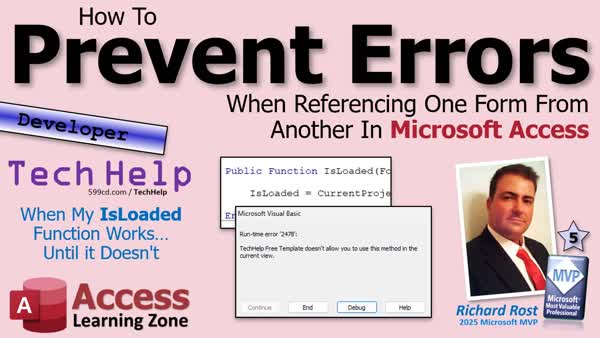
TechHelp Access, IsLoaded function, referencing other forms, error handling, suppressing errors, On Error Resume Next, CurrentProject.AllForms, global module, checking form state, refresh form, design view pitfalls, debug compile, MessageBox for user notification, code vault, detecting Form View, false positives prevention
 Subscribe to Prevent Errors
Get notifications when this page is updated
More InformationTranscript Never get a runtime error because one form tried to talk to another one that was not ready for it.
Welcome to another TechHelp video brought to you by AccessLearningZone.com. I am your instructor Richard Rost. Today we are going to talk about safely referencing other forms in Microsoft Access without your code blowing up.
Specifically, we are going to look at what happens when you are using my IsLoaded function and still run into errors, especially during development, and how to make your code a little more forgiving.
Today's question comes from Trevor in Long Beach, California, one of my platinum members. Trevor says, I am using the function from your IsLoaded video to check if another form is open before my code updates it. It works great for my end users, but when I am doing development work and testing things, I still get the error messages if that form is not available the way the code expects. It is not a big problem, but it does get annoying when you are opening and closing objects all day. Is there a simple way to make my code more forgiving so it does not throw errors every time a form is not open?
Well, yes Trevor, we can handle this with a simple little bit of error handling, but for everybody else, let us recap what the problem is.
Alright, so in this video, I showed you how to check to see if a form is open or loaded before you do something with it. If you are trying to, let us say, refresh the customer form and customer form is not open, you get an error message. Let me show you what I mean.
Alright, here I am in my TechHelp free template. This is a free database you can grab off my website if you want to. Here is a customer form and here is an order form. Now, let us say, for example, we have a button here. Let us make it this invoice button. Alright, right click, build event.
Alright, here is my code editor. I am just going to get rid of what is in here. Now, instead of refreshing this, let us say we want to refresh the customer form. So, Forms!CustomerF.Refresh. Alright, save that.
Now, if we come back over here and click that button, no problem. If this guy is open, no big deal. But if this guy is not open, bam, you get this: Cannot find the referenced form.
So, in IsFormLoaded, we wrote some code that I put in the code vault, and I made this free for everybody, so you do not have to be a gold member to go in here. So, we will go in here and grab that code. There it is right there.
Alright, IsLoaded. I am going to copy this. We are going to come back to our database. Now, I am not just going to put it in this form. I want this to be a global function. So, I am going to come down here. If you do not have a global module already, create one. It is just Create and then Module, not Class Module, regular module. But I already have one. So, I am going to stick it in the global module. I will put it right in here and we will go, boom, there we go.
Now we have got IsLoaded, and IsLoaded just looks at CurrentProject.AllForms, which is a collection of all the forms, and checks to see if it is loaded.
Alright, now IsLoaded is special. We will come back to this in just a minute. Save it. Debug, compile once in a while.
Let us come back over here, and now I am going to close it and then open it, and then open it. Oh, we have to put the code in the form too. I almost skipped a step. See, right click, build event. We can come right in here now and we can say, if IsLoaded("CustomerF"), then I am going to refresh it.
Or if you want, you can even do this. You can say refresh it, otherwise, else, MessageBox "CustomerF is not open." You can tell the user what the problem is. I am all about that.
Alright, let us try it one more time. Ready? Orders, and then we will click the button. Alright, it refreshed it. It is good. You can kind of see it flash over here a little bit. But if it is closed, you get the problem there and it says it is not open.
Now, here is the big deal though. Here is the problem that Trevor is having. For your end users, this works just fine, no big deal, because they cannot go into design view. But watch this. If Trevor is working and he is in design view and he clicks the button, you get the error message again. Why is that? If you hit debug, it is having a problem with this because IsLoaded, the way it is written.
Let me hit stop here. Let us go into the function. Click definition. The way IsLoaded is, this collection IsLoaded does not care what state that form is in. It could be in Form View, which is regular normal view, it could be in Design View, Layout View. What is the other one? Oh, Datasheet View. I had to think for a second there.
So, there are four different states that that could be in, and IsLoaded just says, yeah, the form is open. It is loaded, but does not tell you what state it is in. You cannot refresh it if it is in Design View.
So, what we have to do is, there are two things we can do. The first thing, and the easy thing to do, is just ignore the error. If it errors out, just ignore it and skip it by. Or we could check to see what state that window is in. That is a little more complicated. We are going to do that in the extended cut.
But for now, Trevor, all you have to do is, you can come right here and type in On Error Resume Next. I should probably put that in the code vault code too. We should also give this a default value in case this one throws an error. So, I am going to come up here and say by default, IsLoaded equals False.
Alright, now, this is not really the trouble spot. We are just handling any errors that might happen in here. The real trouble spot is going to be back out here. Because IsLoaded is still going to return a true if this guy is in Design View.
So, right here, we are also going to have to say On Error Resume Next, just like that. So, if this guy is in Design View, this thing here will just ignore it.
We will hit save. Alright, debug, compile. Back out here. Close it. Close it. Now we are going to open this, open the order form. Right now, it is okay. Alright, if I go into Design View now, or if I close this, it is okay. Oops, see, because we are getting the CustomerF is not open. But if it is open and in Design View, and again, this should only happen for Trevor, Trevor is the developer. Your end users should never be able to go into Design View. I have got whole separate videos on how to do that.
If I hit the button now, nothing happens, but at least I do not get the error message, because the On Error Resume Next is swallowing it.
Now, this is where I like to give a little warning, because suppressing errors like this definitely has its place. And honestly, I use it all the time, but you have to understand both sides of it before you start sprinkling it everywhere, because I have got old databases where there is On Error Resume Next everywhere, and if stuff does not work, it just does not work, but does not tell you it is not working. So the database is humming along, but you do not realize it is not doing stuff it is supposed to be doing.
So, on the plus side, it keeps harmless errors from interrupting your users and your workflow. But in this case, it is trying to refresh a form that is not open, it is not really a big deal. Instead of throwing an error message that interrupts Trevor, we just ignore it and move on, not a big deal.
However, there is a downside if you overuse this. Suppressing errors can hide real bugs. If something else breaks in the same block of code from this spot down, once it hits this, error handling is off for the rest of this, and you might never know what happened. You might have run an update query and it never ran because it threw an error, but you do not know about it. So this can also make debugging harder because you are not getting actual error messages that might be helpful. If you misspell an object name or something and you do not have Option Explicit, I am fairly exposed to those kinds of things. Access will just quietly skip it. No warning, no message, nothing. That will lead to code that mostly works but behaves inconsistently.
Throwing On Error Resume Next everywhere is like pulling the batteries out of your smoke detector because it chirps once in a while. Sure, it is quiet now, but you remove the thing that warns you when there is an actual fire. I do it all the time myself or you push the button on it to shut it up for a day or two.
The thing that I am going to say is if you are going to use On Error Resume Next, turn it back off again with On Error GoTo 0 right after the line that you know can cause a problem. This says ignore the next line. If it is going to throw an error, I know that it is going to happen sometimes. That is okay. Then turn error handling back on.
Alright, I have got another TechHelp video where I talk about error handling in more detail and in Access Developer 15, I go over debugging in a lot of detail. I call it debugging level two, lots of other stuff.
So, the best practice is to use error suppression very selectively. Only wrap the specific line or lines that you know might fail, then immediately turn error handling back on. Alright, you know it is a predictable risk. That is fine, and you are not worried about other stuff.
So this is the easy fix for Trevor's problem. Just throw On Error Resume Next around that. Now, the proper fix is to actually look and see, okay, this guy is open, but what state is it in? Is it in Design View? Is it in Datasheet View? Is it in Layout View? Is it in Form View? We are going to do that in the extended cut for the members.
Alright, in the extended cut for the members, we are going to take this to the next level. We are going to build a function that does not just check whether a form is loaded. We are going to make sure it is open and actually usable in Form View. This means no more false positives when a form is sitting there in Design View, Layout View, or Datasheet View, unless you want those views. I am going to show you how to figure out what view it is in. So if you want Datasheet View, that is okay too.
We will walk through how to safely detect the form's state and return a clean, true or false result you can rely on anywhere in your database.
If you are not a member yet, remember that Silver members and up get access to all of my extended cut videos, not just this one, all of them, and there are hundreds of them. Silver members get access to the code vault where you can find all this cool stuff and downloads of the databases that I build in most of the TechHelp videos. Plus, everybody gets free training. You get one free course every month, not just TechHelp videos. We are talking about my actual course library.
So, what are you waiting for? Click that join button today.
Do not forget we have got Access Day 2026 coming up Friday, March 27th in the Redmond, Washington area. Check it out.
Do not forget to stop by my merch store, get yourself a t-shirt or a mouse pad. Make sure you get on my mailing list, check out the Captain's Log and stop by my website and see what is new.
I just released the first three lessons of my new SQL Server for Microsoft Access Users. Check it out. Oh, and did I mention that they are free? Yes, they are free for everybody.
So there you go. There is your TechHelp video for today. I hope you learned something. Live long and prosper, my friends. I will see you next time. Intro In this video, we'll talk about how to prevent runtime errors in Microsoft Access when one form tries to reference another form that may not be open or is in an unexpected state. You'll see how to use the IsLoaded function to check if a form is open before interacting with it, handle errors with On Error Resume Next to avoid annoying interruptions during development, and understand the pros and cons of error suppression in your Access projects. Quiz Q1. What is the primary purpose of the IsLoaded function in Microsoft Access?
A. To check if a table is open before performing an action
B. To check if a form is open before performing an action
C. To prevent users from closing forms accidentally
D. To disable buttons on a closed form
Q2. Why does Trevor experience errors when working in Design View, even when using the IsLoaded function?
A. IsLoaded only detects forms in Datasheet View
B. IsLoaded ignores all open forms
C. IsLoaded sees the form as loaded in any state, including Design View
D. IsLoaded only works for end users, not developers
Q3. What is the correct way to use error handling to ignore errors when referencing a form that might not be open?
A. Place On Error GoTo 0 before the line
B. Place On Error Resume Next before the risky line
C. Use Debug.Print instead of error handling
D. Rename the form to avoid errors
Q4. What is the main drawback to suppressing errors globally with On Error Resume Next?
A. It can expose sensitive information to users
B. It always shuts down the database
C. It can hide real bugs and make debugging difficult
D. It increases database size significantly
Q5. What does the statement On Error GoTo 0 do in VBA error handling?
A. Turns off all error handling in the module
B. Restarts the program after an error
C. Re-enables normal error behavior after suppression
D. Jumps to line 0 in the code
Q6. According to the video, what is the BEST practice when using On Error Resume Next?
A. Apply it at the start of every subroutine and never turn it off
B. Only wrap the specific lines that might fail, then immediately turn error handling back on
C. Never use it under any circumstances
D. Apply it to all modules for convenience
Q7. Which form states might cause problems when using IsLoaded to check if you can refresh a form?
A. Form View only
B. Datasheet, Design, and Layout Views
C. Only when the form is open in Print Preview
D. Only when the form is hidden
Q8. What enhancement did the instructor mention would be done in the "extended cut" of the video?
A. Adding more error messages to confuse users
B. Building a function to check not just if a form is loaded but also its state/view
C. Disabling IsLoaded for all forms
D. Automatically opening all forms when an error occurs
Q9. What analogy did the instructor use for suppressing errors everywhere in your code?
A. Like sealing every window in a house
B. Like installing antivirus software
C. Like pulling the batteries out of your smoke detector to stop occasional chirping
D. Like locking yourself out of your computer
Q10. Why do end users typically not encounter the "form is not open" error in production environments?
A. They do not have permissions to open any forms
B. They cannot access Design View
C. They always close forms properly
D. They use a read-only version of Access
Answers: 1-B; 2-C; 3-B; 4-C; 5-C; 6-B; 7-B; 8-B; 9-C; 10-B
DISCLAIMER: Quiz questions are AI generated. If you find any that are wrong, don't make sense, or aren't related to the video topic at hand, then please post a comment and let me know. Thanks. Summary Today's video from Access Learning Zone focuses on a common issue in Microsoft Access: safely referencing other forms in your database so you do not encounter runtime errors when a form tries to interact with another form that is not currently available or ready. I want to help you ensure your code can handle these situations more gracefully, especially during development.
The topic was inspired by a question about my IsLoaded function. This function helps you determine whether another form is currently open before your code tries to work with it. While it usually works well for end users, extra complications can come up for developers. For instance, if you are frequently opening and closing forms during testing, you might still see error messages if a form is not open the way your code expects.
Let me provide a quick overview for those unfamiliar with the issue. If your code tries to refresh another form, such as a customer form, when that form is not actually open, Access will throw an error saying it cannot find the referenced form. The IsLoaded function is designed to check if a form is open before you try to interact with it. You can simply call the function and, if it returns true, proceed with your operation. Otherwise, you might display a message to the user letting them know that the form is not open.
However, the process gets trickier during development. For end users who do not work in design view, this solution usually works fine; they will not be able to trigger the error circumstances. But if you, as the developer, are editing forms in design view, and you run the code, IsLoaded might still return true because it counts a form in design view as loaded. As a result, when your code attempts to refresh that form, Access will still throw an error because certain operations are not valid in design view.
The simplest solution for this is to add error handling. You can use a basic error handling statement to quietly skip over errors if an operation fails, such as trying to refresh a form that cannot be interacted with. This way, your code will not be constantly interrupted by error messages during your development workflow.
When using this approach, be cautious. Suppressing errors does prevent harmless interruptions, but if you are not careful, you can end up missing important messages about genuine issues in your code. If you overuse error suppression, you risk hiding real bugs, and you might not find out when something critical is not working as expected. It is best practice to only suppress errors for specific lines you know could fail for an acceptable reason, and then promptly turn error handling back on, so other issues do not go unnoticed.
For now, if you find that IsLoaded returns true when a form is open in design view and your code breaks, adding targeted error handling can help you proceed without constant interruptions. This allows you to continue working efficiently during development without worrying about these particular errors.
For a more robust solution, you would want to enhance your code so it not only checks if the form is loaded, but also determines what state it is in. This means verifying whether the form is in normal (Form View), Design View, Datasheet View, or Layout View. That way, your code can ensure the form is actually interactable in the way you intend before proceeding. In today's Extended Cut, I will show you how to build a function that checks not just whether a form is loaded, but whether it is open and usable in the desired view, reducing the chance of false positives. I will walk you through how to determine a form's current state and reliably return a true or false value for its availability.
If you are interested in learning more, remember that Silver members and above get access to all extended cut videos and the code vault, which contains downloadable databases and useful code. Everyone can take advantage of my free courses each month, not just TechHelp videos but full courses from my library.
Before I wrap up, let me remind you to check out my upcoming Access Day event, visit my merch store, join the mailing list, and see what's new on my site. I have also made the first three lessons of my SQL Server for Microsoft Access Users course absolutely free for everyone.
You can find a complete video tutorial with step-by-step instructions on everything discussed here on my website at the link below. Live long and prosper, my friends. Topic List Safely referencing other forms in Access VBA
Demonstrating errors when referencing unopened forms
Implementing the IsLoaded function to check if a form is loaded
Making IsLoaded a global function in a module
Handling errors when refreshing forms not open
Using On Error Resume Next to suppress runtime errors
Displaying user-friendly messages if a form is not open
Discussing limitations of IsLoaded regarding form view states
Dangers and caveats of error suppression in VBA
Proper use of On Error Resume Next and On Error GoTo 0
Selective error handling best practices for Access VBA Article If you have ever written code in Microsoft Access that controls one form from another, you have probably run into runtime errors when the form you want to reference is not open or is in a state that does not accept your code's actions. This is especially true when you try refreshing or updating a form that might not be loaded, which causes an error like "Cannot find the referenced form." This can be annoying during development when you work with multiple forms and frequently switch between views, like Form View and Design View. The good news is there are simple ways to make your code more forgiving and handle these situations gracefully.
A common approach to avoid these errors is to use a function called IsLoaded, which checks if a specific form is currently open. Here is a sample IsLoaded function that you can use in your project. Create a standard module (not a class module), and paste this code inside:
Function IsLoaded(ByVal FormName As String) As Boolean
On Error Resume Next
IsLoaded = False
IsLoaded = CurrentProject.AllForms(FormName).IsLoaded
End Function
What this function does is look up the form's status in the database and return True if the form is loaded, False otherwise. This function is handy because you can check if a form like CustomerF is open before trying to work with it in your VBA code. For example, if you have a button in your Orders form and want to refresh the CustomerF form when the button is clicked, your code would look like this:
If IsLoaded("CustomerF") Then
Forms!CustomerF.Refresh
Else
MsgBox "CustomerF is not open."
End If
With this approach, you avoid errors for your end users when CustomerF is not open, and you give them a clear message. However, during development, you might still run into problems. If the form is in Design View, IsLoaded will still return True, since from Access's perspective, the form is open. But you cannot refresh a form that is in Design View, so if you try, you still get a runtime error.
To handle this, you can use a VBA statement called On Error Resume Next. This tells Access to ignore any runtime errors that occur in the following lines. You use it like this:
If IsLoaded("CustomerF") Then
On Error Resume Next
Forms!CustomerF.Refresh
On Error GoTo 0
Else
MsgBox "CustomerF is not open."
End If
Here, On Error Resume Next suppresses a possible error if the CustomerF form is in an unexpected state or something else goes wrong. Immediately after the risky line, On Error GoTo 0 turns error handling back to normal so you do not accidentally hide other important errors later in the code.
This technique is simple and solves the problem for most real-world uses, especially for developers switching rapidly between views. But you should use error suppression carefully. If you use On Error Resume Next everywhere, it can make it much harder to diagnose real errors in your database, since Access will just skip over any problems silently. The best practice is to only use error suppression around the specific lines that might fail for an expected reason, then turn it off immediately afterwards.
In our example, this means you can safely try to refresh a form because you know it might not be available, and hiding the resulting error is acceptable. But for anything else, do your best to catch real errors and report them so you do not end up with a database that quietly fails to do its job.
If you want even more control, you can extend the IsLoaded function to check exactly what state the form is in - Form View, Design View, Datasheet View, and so on. However, for many cases, wrapping your code with On Error Resume Next before potential problem lines, then restoring normal error handling, is an easy and effective solution.
By using IsLoaded and selective error handling, you can write more robust Access VBA that is friendly to both your end users and yourself as a developer. This keeps your application running smoothly, even when forms come and go during development and testing. Primary Topics Microsoft Access, form interactivity, IsLoaded function, error handling, On Error Resume Next Secondary Topics debugging, form states, developer workflow, global functions |




