Escape Key
By Richard Rost

 7 months ago
Cancel Long Access VBA Loop Using the Escape Key
In this video, we will walk through different methods to let users abort a running loop in Microsoft Access using the Escape key, rather than relying on clicking a button. I show how to set up a cancel button tied to the Escape key, discuss using the Key Down event to detect Escape presses, and explain the importance of using DoEvents in your loop. We'll also mention prerequisites and supporting videos you should watch to follow along with this developer-level tutorial. System-wide solutions are only mentioned as a topic for the extended cut and are not demonstrated here.
Elliott from Glendale, California (a Platinum Member) asks: How can I stop one of my long processes with the keyboard? I watched your video about using a checkbox to cancel it, but it feels clunky, and most of my users are older and prefer the keyboard. Is there a way to just press the ESC key to cancel something while it's running instead of clicking a button?
Members
In the extended cut, we will learn how to set up a system-wide Escape key handler that works in any loop anywhere in your Access database, without having to add code to individual forms or set Key Preview. I will show you how to write a global function that detects Escape presses even when you are not on a form, allowing you to easily abort processes from anywhere in your application.
Silver Members and up get access to view Extended Cut videos, when available. Gold Members can download the files from class plus get access to the Code Vault. If you're not a member, Join Today!
Prerequisites
Recommended Courses
Code Vault
Keywords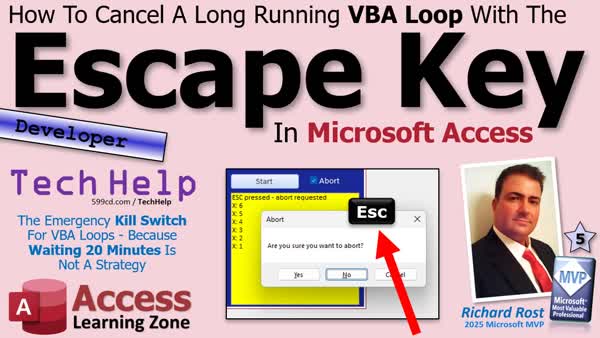
TechHelp Access, abort loop, cancel process, Escape key, VBA DoEvents, form KeyDown event, cancel button, Key Preview, stop long running loop, keyboard interrupt, Sleep function, status function, batch email cancel, abort variable, system-wide keyboard abort
 Subscribe to Escape Key
Get notifications when this page is updated
More InformationTranscript I'm going to show you a couple of different ways to let users abort a loop without having to click buttons or shut down Access. Today's question comes from Elliott in Glendale, California, one of my Platinum members.
Elliott says, How can I stop one of my long processes with the keyboard? I watched your video about using a checkbox to cancel it, but it feels clunky, and most of my users are older and prefer the keyboard. Is there a way to just press the Escape key to cancel something while it's running instead of clicking a button?
Sure, there are a couple of ways we can do this. Elliott, let's take a look.
Before we get started, some prerequisites. This is a developer level video, so if you've never done any programming before, go watch my Intro to VBA video. It's about 20 minutes long. It will teach you everything you need to know to get started, so go watch this first.
Watch this video on the default button. That's how you can make a button on your form that when you press Enter it clicks that button. There's also a cancel button. You can hit Escape and it will push that button. So that's the first thing we're going to try. Go watch this video on that.
Now, go watch this video. This is the one that Elliott's talking about. In this video, we simulate a loop. For example, you have something going on, you click Start, and it's going to be doing a long batch, sending, I don't know, 10,000 emails or whatever it's doing. And now you realize, uh oh, I need to stop it. If you don't program a way in to stop it, you're going to have to just kill Access, and we don't want to have to do that. So we build in an abort box. This is what he's saying is clunky - clicking on this little checkbox here. It can be a little clunky. So we're going to use Escape on the keyboard instead. But go watch this video so you understand the project.
Go watch this video on the Sleep function. This is how we're going to pretend that the loop is actually doing something that takes a while, by putting a small sleep in there. Sleep for a second. That simulates a long process.
Finally, go watch this video on the Key Down event. That's where you can watch the keyboard and say, oh, the user pressed whatever - F3 or Escape - and grab it at the keyboard level.
These are all free videos. They're on my YouTube channel and on my website. Go watch those and then come on back.
All right. So we have this database, the abort loop database. It's right here in the members section. I'm going to download it since I'm a member on my own website. That's one of the perks of owning the website. I get to be my own member. If you're not a Gold member, then you'll have to rebuild this database following along with the video. So either upgrade today or you can rebuild this video. I'm going to download it now.
Here it is. It's an older version of the TechHelp free template. It's got this little Start button here. Let's go and take a look at the Start button. We've got a hidden abort box that shows up when we click the Start button. Let's go to Build Event here and see what we have.
Here's our loop right here. We go from one to a hundred thousand. I didn't put a sleep delay in here, or I removed it somehow. Let's throw a little sleep delay in here. I'm going to get rid of this 'If X mod 1000.' I'm just going to status X. We're going to get rid of this. All right.
So every time it loops, we're going to status the counter, and then we're going to sleep for a second. A thousand is a full second there - that's a thousand milliseconds.
So what's going to happen is it's going to loop, status, sleep, and then look for abort. Now, inside of status, this is important, inside of my status function there is a DoEvents. DoEvents is very important. If you don't have DoEvents inside your loop, then Access will never give up control to the keyboard. Basically, it says, okay, other processes, anybody else got anything else going on? All right, we'll listen to you now. If there's no DoEvents in the loop anywhere, then it will just stick. It will look like it froze.
Make sure you have my status function in here or you have DoEvents manually in here somewhere.
Let's give it a try. Let's test it real quick. Debug Compile once in a while. Let's save it, close it, open it, run it. Here we go. Looks good. It's doing its thing. It's counting.
Let's hit abort. There we go. Are you sure you want to abort? I'll say yes. Okay, it aborted.
So that's working just fine. Now, Elliott says he doesn't want his users to have to click that button. Just hit the Escape key.
No problem. We can put an emergency cancel button on here somewhere. I'll just copy this Start button, Control-C, Control-V. I'll put it up here. We'll call this 'Cancel.'
Now, over here, let's give it a good name. I'll call this my cancel button BTN. On the other tab, find Cancel and set that to Yes. What that does is it binds that button to the Escape key - so when you hit Escape on the keyboard, it pushes that button.
So when this button is pushed, we'll say, when someone clicks on this button, push that guy. The end result is: hit Escape on the keyboard, it pushes the button, and the button pushes the checkbox. So in the cancel button, Build Event, we're going to say 'Abort = True.' That's that checkbox is named abort.
Debug and file. Close it down, close it, open it. You can hide this guy too, just like we hid the abort box. There's code that changes the visible property. That's easy to do.
Ready? Start. Let it run its thing. I'm going to move my mouse over here. Oh, I have to cancel this batch. I'm going to hit Escape on my keyboard. There you go. See, it takes a second because it's got to wait for that second loop. If you want it faster, you could put a shorter timer in there.
Are you sure you want to abort? Yes. Instead of sleeping a whole second here, you could do a one to ten loop and then sleep for a hundred milliseconds, which is a tenth of a second, and then check for abort inside of that. It all depends on how granular you want it to be and how quickly you want that to react. If you don't mind waiting that second, then leave it as it is right now. For me, this is usually when I'm sending out batches of emails. I do my holiday specialty at the end of the year, I queue up like 50,000 emails and I hit go. Then, I'm watching them go out and, oh, there's a typo, so I have to cancel, and I hit my abort button. I don't mind waiting that second.
But if you want it to be faster, if you have a situation like a nuclear meltdown happening or something, that's one way to do it.
But what if you don't want a button? We can do it without a button. We can just watch the keyboard directly instead of using the cancel button.
Let's try this. Come in here and delete the button. Goodbye. When you delete a button, you should get rid of its code. If there's an empty sub in here, when you debug compile, it gets rid of those empty subs. But you should still come in here and delete any subs you have from buttons or other objects that you're getting rid of. It's just good housekeeping, and I forget to do it myself. I have all kinds of objects in my database just floating around.
So we're going to use the Key Down event or you can use Key Up, either one. Instead of having a button here that's tied to the Escape key, we're just going to look for that key press - or not Key Press, Key Down. They're different. I suppose you could use Key Press, but Key Down is definitely better for when you're looking for a key like Escape. Use Key Down or Key Up.
Remember when we use Key Down, the first thing we have to do is go to the forms Events and turn on Key Preview, down here at the bottom. Set that to Yes. This is so the form events get to watch what's pressed on the keyboard. If not, those events go directly to the controls and you might not be sitting on the right control.
Now the form has an overview of the key. Now, go to the forms Key Down event.
In here, we're going to say: If KeyCode equals vbKeyEscape, that's the constant for it. If you can't remember what it is, you could just message box what the key is. I don't remember what it is myself, but I remember it's vbKeyEscape.
So if the Escape key is pressed, if the Key Down event sees the Escape key, what are we going to do? First, we're going to set abort = True. Then we have to swallow the key, so that's 'KeyCode = 0' - swallow the key down. That just nullifies the Escape. If you want, you could say status 'Escape pressed, abort requested', because at this point, it still has to go back to the previous function and exit out of the loop.
See what's going to happen now? The user presses Escape and instead of it triggering a button, we're looking for it in the Key Down event.
Save it, debug compile once in a while, get your mouse off that. Ready and click, and I'm going to press Escape. There you go. Abort requested. Well done.
Now there are two ways you have of hitting the Escape key and stopping something on a form. These are both good techniques. I've used them for years.
But all that coding is bound to this form. What if you want something that works system-wide throughout all of Access? So anytime in any of your loops, you could just say, if the Escape key has been pressed, exit it. You don't have to set the Key Preview. You don't have to worry about putting code in the form. You don't have to program a Key Press or Key Down or Key Up event.
Can you do that? Yes, you can, and we will cover that in the extended cut for the members. I'm going to show you how you can make a simple function that you can put in any loop anywhere in your database, in any form, in your global modules. It doesn't matter - if the system sees the Escape key pressed, even if you're not on a form, it will still issue that abort. I'll show you how to do that in the extended cut for the members as well.
Members and up get access to all of my extended cut videos, not just this one, all of them. There are hundreds of them. Gold members can download these databases like I just did myself and you get the code vault. Most of this code from the TechHelp videos and even a lot of stuff from my regular courses is in the code vault. Go to my website, do a search for "key press event" and you'll see all the code for that.
If you're looking for the Sleep function, hit search on my website. The search page will bring you to all the videos and stuff that it's covered in and down here, there's the code vault. You'll see all the stuff in the code vault for it. Click that blue button and join today.
If you like learning with me, come check out my developer lessons. I've got 52 of them. I'm working on 53 right now, and I teach you start to finish how to be a cool Access developer. You can come sit at the lunch table with the cool kids. Check them out. There's the link.
So the big takeaway today is that you don't have to rely on buttons to stop a long running loop or a checkbox. You can let users cancel it instantly from the keyboard using the Escape key, which makes your databases feel a lot more responsive and user friendly.
I know I'm a keyboard guy myself. Whenever I see something going wrong, my first motion isn't to the mouse. It's to the keyboard. I want to hit that Escape key.
Post your comment down below. Let me know how you like today's video and if you plan on using this in your database. That's going to be your TechHelp video for today brought to you by AccessLearningZone.com.
I hope you learned something. Live long and prosper, my friends. I'll see you next time, and members, I'll see you in the extended cut. Intro In this video, we will walk through different methods to let users abort a running loop in Microsoft Access using the Escape key, rather than relying on clicking a button. I show how to set up a cancel button tied to the Escape key, discuss using the Key Down event to detect Escape presses, and explain the importance of using DoEvents in your loop. We'll also mention prerequisites and supporting videos you should watch to follow along with this developer-level tutorial. System-wide solutions are only mentioned as a topic for the extended cut and are not demonstrated here. Quiz Q1. What is the main reason for allowing users to abort a loop in Access using the keyboard?
A. To make the application more user-friendly, especially for keyboard users
B. To force users to learn how to use checkboxes
C. To prevent the need for using a mouse entirely
D. To ensure only developers can stop processes
Q2. What is the function of the DoEvents command inside a VBA loop?
A. It allows Access to process other events, such as keystrokes
B. It restarts the loop automatically after every cycle
C. It increases the speed of the loop
D. It locks the database during processing
Q3. Which control property in Access binds a button to the Escape key?
A. Default
B. Shortcut
C. Cancel
D. Locked
Q4. Why would setting a shorter Sleep delay in your loop make aborting the loop with the Escape key feel more responsive?
A. The loop checks for abort conditions more frequently
B. It increases the number of emails sent per second
C. It disables the Abort button
D. It hides the status display faster
Q5. When intercepting the Escape key without a button, what must be set on the form in Access?
A. Key Preview = Yes
B. Allow Edits = No
C. Tab Stop = False
D. Visible = False
Q6. In the Key Down event, what should you do if the Escape key is pressed?
A. Set abort = True
B. Ignore the key code
C. Close the form immediately
D. Show a message only
Q7. What is the purpose of swallowing the Escape key in Key Down by setting KeyCode = 0?
A. To prevent the Escape keypress from bubbling to other controls
B. To enable keyboard shortcuts
C. To close the Access database
D. To make the form editable again
Q8. Why is it recommended to remove the code for a button after you delete the button from a form?
A. For good housekeeping and to avoid unused code
B. To make the form load faster
C. To prevent Access from saving the form
D. To increase security
Q9. What advantage does handling the Escape key in the Key Down event offer compared to using a Cancel button?
A. You do not need a visual control for aborting the process
B. It automatically saves the database
C. It prevents any keypresses from working
D. It hides all status messages
Q10. What is a limitation of methods shown in the standard video for aborting loops with Escape?
A. The code is form-specific unless extended with a system-wide solution
B. You can only abort loops in tables, not forms
C. It cannot react to other keypresses except F1
D. It requires the user to be a Gold member
Answers: 1-A; 2-A; 3-C; 4-A; 5-A; 6-A; 7-A; 8-A; 9-A; 10-A
DISCLAIMER: Quiz questions are AI generated. If you find any that are wrong, don't make sense, or aren't related to the video topic at hand, then please post a comment and let me know. Thanks. Summary Today's video from Access Learning Zone focuses on different techniques for allowing users to abort a long-running loop in Microsoft Access without resorting to clicking buttons or shutting down the application. This topic arises from Elliott, who asked if there is a way to let users simply use the Escape key to stop a process, instead of clicking an abort checkbox or button that may not suit all users, especially those more comfortable with keyboard controls.
To start, I want to clarify that this is a developer-level lesson. If you are new to programming or VBA, you should begin by watching my introductory VBA video, which covers the essentials in about 20 minutes and will set the stage for understanding the rest of this tutorial.
There are a few preparatory videos I recommend before tackling this lesson. One explains the default and cancel button properties in Access forms, which can bind the Enter or Escape key to a button on your form. Another tutorial reviews the checkbox method for aborting a loop, which is the approach Elliott found a bit cumbersome. If you are unfamiliar with the Sleep function, you should watch that as well because it demonstrates how to simulate time-consuming processes in your loop. Finally, the video on the Key Down event will teach you how to monitor the keyboard for specific inputs such as the Escape key.
Once you have these fundamentals, you can proceed with the abort loop database. This sample database, available in the members section of my website, contains a typical example: a Start button that kicks off a process, such as iterating through thousands of tasks. An abort checkbox becomes visible when the process begins, allowing users to stop it, but this approach relies on clicking, which can be inconvenient.
The key mechanism underlying all of this is the use of DoEvents within your loop. DoEvents lets Access temporarily yield control so that user actions, such as pressing a key or interacting with controls, can be recognized. If you omit DoEvents from your loop, Access will become unresponsive to any input until the loop finishes, which is obviously not ideal.
To address Elliott's requirement for keyboard-based aborting, you have several options. The first method is to introduce a cancel button, configure it as the form's cancel button, and set its Cancel property to Yes. With that setting, pressing the Escape key will simulate clicking this button. When the button is triggered, you programmatically set the abort flag to True, which tells your loop to exit gracefully at the next opportunity. You can also hide the button from view, just as the abort checkbox is hidden until needed, making the interface cleaner.
If you want faster response times, you can adjust the sleep interval within your loop, such as reducing it to a tenth of a second and checking the abort flag more frequently. This will let your process react more quickly to the abort command.
For those who want to eliminate an extra cancel button entirely, you can use the form's Key Down event to watch for the Escape key press directly. First, enable the form's Key Preview property so the form itself can detect all key presses, regardless of which control is active. In the Key Down event code, you check whether the user pressed the Escape key, and if so, you update the abort flag accordingly. With this approach, your code respondently sets abort to True the instant the Escape key is pressed, without involving any additional form controls.
Each of these techniques ties the abort behavior to the form itself. But what if you want a more universal solution, where the Escape key will abort any process, anywhere in your application, without having to manage events or properties on each form? This is possible, and in today's Extended Cut available to members, I demonstrate how to create a function that can be invoked from any loop, anywhere in your Access database. This system-wide Escape detection means you are not limited by the specific form design or event structure.
If you are interested in more advanced Access development, members of my site not only get access to these extended tutorials, but also to a vast code vault containing the examples and utility functions referenced in my lessons. A simple search for "key press event" or "Sleep function" on my website will point you directly to the relevant resources and code samples.
The main takeaway from this lesson is that you do not have to rely on buttons or cumbersome checkboxes to allow users to stop long-running processes. By incorporating simple keyboard handlers or form properties, you can create a much more fluid and responsive user experience. This is especially useful for those who are accustomed to using the keyboard and want a quick way to cancel a process.
If you found this helpful or plan to integrate these techniques into your own databases, I encourage you to share your thoughts in the comments. You can find a complete video tutorial with step-by-step instructions on everything discussed here on my website at the link below.
Live long and prosper, my friends. Topic List Creating a cancelable loop using a checkbox as an abort box
Adding a sleep delay to simulate long-running processes
Using DoEvents in loops to allow keyboard interaction
Creating a Cancel button bound to the Escape key
Setting the Cancel property on a button to map the Escape key
Automatically setting abort flag when Escape is pressed
Hiding abort controls programmatically during operations
Increasing abort responsiveness by reducing sleep intervals
Deleting unused buttons and cleaning up event procedures
Enabling Key Preview property on forms to capture keyboard events
Handling Key Down event to detect Escape key presses
Setting abort flag in Key Down event for keyboard-driven abort
Suppressing the Escape key default behavior using KeyCode
Displaying status updates when Escape key is pressed Article Many Microsoft Access applications run automated processes that can take anywhere from a few seconds to several minutes. Sometimes, you or your users may want a way to interrupt one of these long-running tasks without resorting to force-closing Access or clicking a specific button. Fortunately, there are ways to let users cancel or abort a process with the keyboard, specifically by pressing the Escape key. Let me walk you through several approaches to achieving this so your applications are more user-friendly, particularly for those who prefer the keyboard over the mouse.
Let's start by understanding a typical scenario. Suppose you've written a loop in VBA - for example, to send thousands of emails or update a large batch of records. Without any built-in way to break out of the loop, users would be stuck waiting until it's done or would have to force-quit Access if something needs to be stopped right away.
You may have seen solutions that use a checkbox or button to trigger an abort action. While these work, they require the user to move their hand to the mouse and click, which isn't always ideal. Many people, especially those who are comfortable with the keyboard, would rather just hit Escape to stop a task.
Let's walk through two primary ways you can enable keyboard-based loop cancellation.
First, you can use a "Cancel" button on your form set to respond to the Escape key. In Access, each form button has a property named "Cancel." If you set this property to "Yes," pressing Escape on the keyboard will "click" that button. Inside the button's Click event procedure, you can set a global or form-level variable - such as Abort - to True. Your loop can then check the value of this Abort variable at each iteration and exit if it's been set to True.
Here's a step-by-step outline of what this looks like:
On your form, place a hidden checkbox named Abort (or any control that serves as a flag), and a visible button named Cancel.
Set the Cancel button's Cancel property to Yes. This makes the button listen for the Escape key.
In the Cancel button's click event, put code like this:
Abort = True
Inside your loop, periodically check for Abort. For example:
For x = 1 To 100000
' (Your processing code here)
Status x ' Update status, which should include DoEvents!
Sleep 1000 ' Wait a second, simulating work (1000 ms)
If Abort = True Then Exit For
Next x
Make sure any code that updates the status includes the DoEvents statement, either directly in the loop or in a called function. This is critical - DoEvents yields the CPU and lets the Access application process other events, such as detecting key presses or the Escape-triggered Cancel event. Without DoEvents, your code can become unresponsive, and pressing Escape won't be detected until the loop finishes.
Here's an example of the Status subroutine:
Sub Status(ByVal msg As String)
Me.StatusLabel.Caption = msg
DoEvents
End Sub
When the Cancel button is "clicked" (by Escape), Abort becomes True, and the next time your loop checks the Abort variable, it will immediately exit.
This works perfectly for many applications. If you want to make the cancellation more responsive, replace one long sleep or heavy operation with several smaller steps. For example, instead of sleeping for 1000 milliseconds at once, you could loop ten times with a 100 millisecond sleep each, checking Abort each time. This way, you can catch the Escape keypress within a tenth of a second.
If you would rather not show a Cancel button or think an extra button on your form looks out of place, you can monitor keyboard activity directly by handling the form's Key Down event.
Here's how to do it:
First, set the form's Key Preview property to Yes. This allows the form itself to intercept keyboard events even if another control (like a text box) has focus.
Next, write code in the form's OnKeyDown event. Inside this event, check if the key pressed is the Escape key (vbKeyEscape). If so, set your Abort variable to True, and optionally consume the keypress so it doesn't trigger other actions:
Private Sub Form_KeyDown(KeyCode As Integer, Shift As Integer)
If KeyCode = vbKeyEscape Then
Abort = True
KeyCode = 0 ' Swallow the keypress so Access doesn't beep or pass it on
Status "Escape pressed, abort requested"
End If
End Sub
Now, whenever the user presses Escape, no matter which control has focus, Abort becomes True and your loop can break out. Again, make sure your loop is using DoEvents somewhere so keyboard events are processed while the loop is running.
Remember, this method works as long as your code is running inside a form that has key preview enabled and the relevant KeyDown event handles Escape.
By following either of these techniques, users can cancel long-running loops by simply pressing Escape - a huge improvement in usability, especially for those who favor the keyboard.
There are also more advanced, global approaches where you monitor the Escape key from anywhere in Access and abort any process without relying on individual forms or controls. These techniques involve more advanced coding using API calls or global functions and can be implemented if you need to provide system-wide keyboard abort capabilities. For most applications, though, setting up your form with a cancel button linked to the Escape key or by capturing the Escape key in the Key Down event will provide all the functionality you need.
To summarize: You can let users abort long-running loops with the Escape key by either tying the key to a form's Cancel button or directly handling it in the form's Key Down event. These methods, combined with proper use of DoEvents, make your Access applications far more responsive and user-friendly, especially when things go wrong or a process runs too long.
If you want to explore system-wide solutions or get sample code for these techniques, you can find more resources and examples available online. In the meantime, implementing the above strategies will make a noticeable difference in how users interact with your Access tools and improve overall satisfaction with your software. Primary Topics Access VBA, aborting loops, keyboard events, KeyDown event, DoEvents, user interface design, Escape key handling
Secondary Topics Sleep function, status updates, developer best practices, user accessibility
|




