Questionnaire
By Richard Rost

 7 months ago
Build a Data-Driven Questionnaire & Survey Database In this video, we discuss how to create a data-driven survey or questionnaire system in Microsoft Access, where all survey questions and answers are stored in tables rather than being hard-coded into forms or reports. I explain the database structure, including tables for surveys, questions, sessions, and answers, and show step-by-step how to set up these tables and link them. We walk through building the necessary queries and forms to collect responses, and I demonstrate how to use a small amount of VBA code and SQL to streamline adding survey questions to answer tables. Data validation and advanced options are mentioned as topics for the extended members-only section. MembersIn the extended cut, we will cover how to specify an answer type for each question (such as text, number, date, or list), validate the data to ensure correct entry (like making sure dates and numbers are entered in the right format and within allowed ranges), and set minimum and maximum values or provide a value list for questions. I will show you how to add these features and perform data validation so users can only enter appropriate responses for each question type. Silver Members and up get access to view Extended Cut videos, when available. Gold Members can download the files from class plus get access to the Code Vault. If you're not a member, Join Today!
PrerequisitesLinksRecommended Courses
Keywords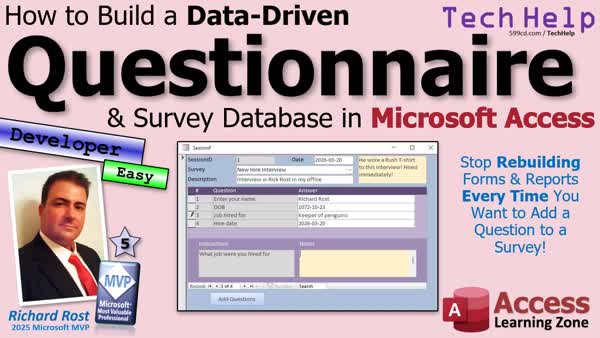 TechHelp Access, data-driven survey, questionnaire database, dynamic survey builder, answer table, question table, session table, survey form design, append query, VBA code, SQL basics, answer validation, answer type, value list, minimum maximum value, continuous form, subform, combo box, report generation
 Subscribe to Questionnaire
Get notifications when this page is updated
More InformationTranscript Are you tired of rebuilding your forms and reports every time you want to add a question to your survey? Welcome to another TechHelp video brought to you by AccessLearningZone.com. I'm your instructor Richard Rost.
Today we're going to talk about building a data-driven survey system in Microsoft Access. Instead of hard-coding every question into your tables and your forms and your reports, we're going to set things up so all your questions and answers live in tables, making it easy to change surveys and questionnaires without redesigning the whole database.
I've got this marked as a developer-level video because we are going to use two lines of code, and I'm going to show you where to put those two lines of code. They're going to go in this little button right here to add the questions to the survey. That's why I marked it developer easy.
But I am going to show you how you can do this without any code. I just think it's easier with the code. So I recommend you watch my Intro to VBA video first. It's about 20 minutes long. It'll teach you everything you need to know about VBA to get started. You should know some SQL basics as well. If not, go watch this video. Again, it's not very long. It'll teach you all the basics of a select statement and how SQL works. Go watch those and then come on back.
One of my students and silver member Ben said that in their company they use a survey form where they fill out information like this. You can see how there's a field for every question and answer. He shared some of the design, and the table looks something like this where you've got a whole bunch of different fields: this ID, this text, this number, and so on.
There's nothing wrong with this. This is perfectly fine. This works. But anytime you want to change this survey, you have to make design changes to the database. You have to change the forms, the fields, and make changes to whatever queries are underneath.
What I'd like to build instead is a survey form that is completely data-driven. So everything comes from a table. This person fills out, let's say, a new hire interview. The questions come from a table, a question table. The answers get filled into an answer table. This way, if you want to add more questions to a particular survey, you just pop them in the question table. That's what we're going to do today.
In this way, when you want to make changes to this particular survey, you don't have to make form changes or query changes or table changes. You can have multiple surveys if you want. You can have a customer satisfaction survey. It's got a couple of different questions in it.
We can do most of this without programming. All we need is to run one query. You could do it without programming, but we're going to throw it in a button so that when you create a new, like, let's say someone comes in and wants to do the new hire interview, you hit the button down here, add questions, and then it adds the questions in, and then you just go in through and fill them out.
You could do this by just launching a query, but we're going to put a little tiny one line of VBA code in there and a little SQL. Maybe I'll show you how to do it without the code too. We'll see. We'll get there.
Let's start with the table design because this all comes down to developing your tables properly. That's the most important thing here.
You know me. I like to do my table prototyping in Excel. We're going to start off with a survey table. I know I named the video questionnaires because I already have a different video called surveys.
Now this guy was based on doing an online survey using Google Forms and then pulling it into Excel and then pulling that from Excel into Access. Totally different thing, but you can use it for collecting data online for people who aren't using your Access database.
Today we're focusing on using the Access database to either enter in the answers or to let, say you're getting them on paper from someone or they're emailing them to you, you can put them in the database yourself.
So you can have multiple surveys. What are some examples of some kinds of surveys you can have? Well, a new hire interview, a customer satisfaction survey, an employee holiday party questionnaire, Starfleet requisition form, whatever, any kind of survey you want to fill out. Each survey can have a list of its own questions. You have a question ID, a survey ID, so it points back to a survey. That's the foreign key. A sort order, description, and some notes.
Some questions might be your name, your date of birth, what job were you hired for, for the new hire interview, your hire date, how would you rate us for the customer satisfaction survey. Things of that nature. These are the different questions.
Each time someone sits down to take a survey, that's going to be saved in a session. A session is one person doing one survey. So I'm sitting down right now today is, you know, March 20th. You can put a user ID in there if you want. I think I used user ID. You can pick from like a user table or whatever. You don't need to.
We have a session ID. That's the primary key. It's connected to a survey. So we know which one it is. It's a new hire questionnaire. It's the Starfleet Repair Damage Control Assessment, whatever. You can put a description or notes in that if you want to. That session will have associated with it the answers for that survey for this particular person taking it. That's the session.
The answer table has the answer, what session it is, what the question is, what their answer ends up being. If you want to put a date/time in here, you can too, if you want to know how long it took someone to take the test, for example.
So again, it's all about figuring out what your tables are going to look like. So we've got surveys, questions for each survey. A session is that one particular instance of one person taking one survey. What did they answer? There are their answers.
Let's put these tables into Access. I'm using my TechHelp free template. This is a free database. You can grab it up on my website if you want to, but you don't need to. You can just start from scratch if you want.
Let's create a couple of tables. We got create table design. We got the survey table. Survey ID, that's our autonumber, a description, and some notes if you want. Save it. Survey table. That one's done. Next, we got the questions for each survey. We got the question ID, the survey ID, the sort order, because you might want to ask them in a particular order, description. You don't have to. If you want to randomize them, you can. Then notes, like instructions for how to answer that question. This is the question table.
This always works better if you've got some sample data to play with. Let's start with some sample data here. I'm going to close the main menu because we don't need that right now. It's just clutter.
For surveys, let's say we've got the new hire interview, we've got a customer satisfaction survey, and we've got an employee holiday party questionnaire. I guess I should probably keep these all proper title case. Make it look professional. There are our different surveys we have.
The questions are bound to those surveys. Make these a little bit bigger so we can fit. Survey ID 1, question 1, survey 1, sort order 1. Enter your name. That one's pretty self-explanatory. Survey 1, question 2, sort order 2. DOB, let's say. You can put in the notes, enter your date of birth or whatever. Survey 1, job hired for. You know, Job were you hired for? That kind of stuff. You don't have to put notes in it. You get it. That'll show up below, in the footer.
For your hire date, what date were you hired, and so on.
How about the customer satisfaction survey? Survey 2, question 1, sort order 1. How would you rate us? 2, 2. Could be something like, you know, will you shop here again. That kind of stuff. And then 3. What kind of theme would you like for the party? Can you bring some food? That kind of stuff.
There are our different questionnaires. We've got 1 is the new hire thing, 2 is the customer service satisfaction, and then 3 is the employee holiday party.
Now you see here, if you want to add new surveys, you can easily. If you want to add new questions or change questions, you can. Without design changes to the database, you just put them in the tables.
Now it comes time to actually ask someone these questions. That's what the session table is about. So, create table design. We've got a session ID. That's going to be linked to a survey. Not a question, just the overall survey. This is me sitting down to do the new hire interview. Description, if you want to put a description in here, like, you know, that you could be Richard Rost sitting down on whatever date to do the data. Notes if you want. If you want to put in here a session date/time, you can, right, track what date and time it was taken. Default value equal now, whatever.
This is the session table. Then related to the session is going to be the answer table. So, create answer table. We've got the answer ID. That's our autonumber. A session ID. Now, for each question, we have to have an entry in here with the person's answers, so we need to know what the question ID is. Their answer text.
What I'm going to do is I'm going to store all of the answers as long text. Why? Because a long text field will hold anything. It'll hold a short bit of text. It'll hold a paragraph or two if they have to enter in, like, tell us what you thought of this movie, that kind of thing. You can put numbers in there. You can put dates in there. You can put any kind of data that you want in a long text field.
If you want to scrub this data later and, you know, put this information in a different table, for example, so you can do metrics on it, you want to query based on the number, you'll have to convert the data over later if you want to. If you want to say, out of all the people who took the survey, what's their average age, that you can do the calculations on later. But just for taking the test, just for entering the data into the questionnaire, leave it long text.
In the extended cut with the members, we're going to do some data validation. So we can specify, this has to be a number between one and ten, this has to be a date between January 1st, 2000, and today, that kind of stuff. We'll do a little data validation in the extended cut.
For everybody, it basically just stores as long text. That leaves you the freedom to put whatever you want in there. If you do care about timing their responses, if it's one of those kinds of tests, you could put an answer date/time in here. That will give you a close enough estimate of when they answered that particular question, or at least when the record was created.
This is the answer table.
So how is this going to look? Starting from the top, we have our surveys. Surveys have questions. I'm just going to make it so we can see the new hire questions. There we go, right there.
Now we've got a session starting. The survey ID for my session is going to be one. I'm taking survey ID one, the new hire interview. If you want to put a description in here, you can. Rick taking new hire interview on whatever date. Notes if you want. The session date is in there.
Now come the answers. Let me slide this up a little bit more too, so you can get some room here. Now this is the only part that will need a little tiny bit of code. When you start the session, we're going to click a button, and it's going to take all of these questions and put them in here for this session. There are four questions for this survey. So one, one, one, one for the session ID. Then we need the questions. So the question ID is, it'll be one, two, three, four. See how that works?
The query that we're going to run is going to say, copy each of these questions into this table and set that session ID equal to the active session.
Now the user will see the question on the screen from up here. Enter your name, Rick. DOB, 10/23/72. I'm old. Job hired for, King. Hire date, today.
It's freeform edit so you can put it in anywhere you want. That's basically the nuts and bolts of how this is going to work.
Now we just have to make a couple of forms to make it all look pretty.
I'm in the mood to record, so you got that split into two parts. You guys are getting a long video tonight. I haven't done a long video in a while. Save all these changes.
I'm not going to bother making pretty forms for all of this stuff, because a lot of it you know how to do it. You can make a survey form. You can make whatever menu forms for all this stuff. I'm just going to show you the nuts and bolts.
Before we get to making forms though, we need to make a query that shows us the questions and the answers side by side. This is why it's always handy to put a little sample data in here just in your tables.
We need to make a query. So, create query design. Bring in the answer table. Then bring in the question table. Where's question? Question T, right next to it. This inner join should work here because you shouldn't have any answers that don't have questions.
I want to see all the fields from the answer table. I want to see the questions sort order. I want to see the questions description, but I'm going to call that question. So we're going to come down here and rename this question. We're going to give it an alias. It's question: description. That's an alias. Then I want to see the question notes. I think we have notes over here too. Don't we? No, there's no notes in here. Well, it will be question notes so I'm positive what it is.
Actually, we forgot to put notes in the answer table. We should have notes in there because the user might need to explain their answer. So this one will be question notes; that's why I named that one question notes in my mockup I did earlier.
Save this as the answer Q. While I'm thinking about it, let's go back to the answer table and add that notes field.
Now let's take a look at what that query does. So here's the query. You can see here's the question and the question notes, the description, like explaining what the question is if you need to, and then you can see the user's answers. When we build the form, it's just going to be backwards. You'll have the question on the left and they'll type their answer in on the right, just like I did here. Here's my mockup. Here's all the questions. Here's the answers. You can see the instructions are over here, the user's notes are over here if you need to explain yourself.
Next, let's move to making the answer subform. So it's going to be a continuous form. I'm going to copy my continuous form here. Copy, paste. This will be my answer F. The answer F is going to be based on that answer query that we just made, answer Q.
Wait, get rid of this now. In here, let's see what we've got. Oh, I just closed that. I need you.
Let's bring over: I want the sort order on the left. That'll be like your one, two, three, four, whatever. Then I want to see the question, this guy, maybe about that big. Then I want the answer text here, where the user types the answer in.
Now it's long text, but we're going to make this smaller. You can make it bigger if you want to. Again, it's all however you want it; these are your Legos.
I hate the fact that they don't size to grid. Size to grid, okay. I think that's enough as far as going across like that. So we'll drag this back a little bit. These guys, I just keep these around for formatting. When I click on this, I'm going to use the format painter and make these gray so the user can't change those.
In fact, I'm going to highlight these, go to properties, and we're going to lock these so the user can't type anything over those. Go to Data and go to Lock and say Yes. Right, because if the user types something in there, it could modify the question.
The only thing that they're allowed to change is that answer text. We're going to lock the notes down here too, so we can get rid of these now. Slide these up.
We can change these labels up top here like this. This is the number. This is the question. This is the answer.
I used to live in Amherst. So now every time I type in A, I want to go like this: "Answer."
Now in the footer, let's go back to the field list. In the footer, we need the question notes over here on the left, and I'm going to put up top here. That's going to be the instructions. So, format painter. We're just going to call this instructions, and we're going to format paint that over to this so it gets the color and it's locked. Over here, we'll put a notes field. We want the notes from this. Drop that there. This is where the user can put any explanation that might be necessary.
Format paint. Yes, we're making it pretty. Notes is fine. Teach them when they start the survey and we're going to explain anything in their answers. That's what that field is for.
Looking pretty good. Save it. Close it. Notice how we've used zero code so far. We're working with the answer form. There it is. That's what it's going to look like.
Let's take these things out of the tab order too, so the only thing in the tab order is this. It's all about the polish. That, that, that, and that don't need to be tab stops. Other tab stop: No. Save it. When you open up the form, you go right there, and as you tab, you're just right in here, so all you need to be.
We can also turn off allow additions and allow deletions because we don't want them deleting any answers, and we don't want them adding new stuff in here. So, let's do that too. Let's go into here, go to Data, Allow Additions: No, and Allow Deletions. We're going to add the questions ourselves in code.
One more try. There we go. So, they get the questions that we gave them and that's it.
Now this answer session is going to go into a session form. So let's make that next. That's going to be a single form. Copy, paste. This will be the session F. Right-click, design view.
What are we putting in here? We're going to be based on the session table. So, data session table. Let's add existing fields. Let's bring over everybody. Now, session ID. We're going to leave that there. That's our ID, so we're just going to do that.
The survey ID, this is what survey they're taking, what questionnaire are they taking? That we're going to make a combo box so the user can pick. That's what we're going to be taking. But while we're here, let's just format paint that, that, and that. This can get wider like so. This we're going to make yellow.
Yes, I know I normally don't use theme colors, but for today it's fine. The date/time, I'm just going to put the date/time over here. Let's just call it date, make it shorter. For this, most of the time, I think date by itself is fine. We're just going to format that as short. Usually what I do is I leave it so that it's got now in there, but I format it as a short date, so you only see the date unless you click on it, and if you want the time.
Now save it.
Now we're ready to take the answer form, drag the answer form right into here. Boom. While I'm thinking about it, let's check the link fields. Yep, session ID, session ID. Because there's a session ID under here, and this guy's got the session ID in it, so it knows to link them by session ID.
In fact, let's make sure this guy's a good name: combo9. Survey combo.
Tab order, hit Auto, hit OK. I think we're good to go. In fact, let's take this notes and slide this over here. Yeah, there we go. Now they've got plenty of room because this can get bigger and out just like that.
Save it. Close it. Open it. There we go. There's our session and our answers. If you want to make a new one, go here.
Now you could make a survey list form on top of this one that's got a bunch of different surveys. List your employee, all that stuff. You could do all that. That's easy stuff. This is the workhorse right here.
You open up this form, go to a new record, pick what survey you want. Let's say you want the holiday party questionnaire. Type in any kind of notes if you want. Now we need a way to get those questions from the employee holiday party into this table, into the answer table so the user can answer them.
That's what we need one line of code for. You could do it with a query and then make a button to launch the query. Let me think if I want to do that with you guys. It's just one line of SQL.
Let's do create query design. I'm going to show you the SQL anyway. We're getting the data from the question table, and we have to feed it into the answer table. So it's going to be an append query.
We're going to append into the answer table. The fields we need: we need to insert the session. What have we got in the answer table? We need the session ID and the question ID, because that's automatic and the user fills in. So, we need the session ID and the question ID.
The session ID comes from this form. It's Forms!SessionF!SessionID. In appending into the session ID, it's going to be Forms!SessionF!SessionID. Access calls it Expression1. That's fine. Doesn't matter what it's called. If you want to call it session ID, you can.
Then we need to insert the question ID. That says insert these guys into the answer table. We'll call this add questions to session Q.
If you want to do this without any code, you can make a button that runs this query. I'm going to just do it. I ran it. I've got notifications turned off. I've got warnings turned off, so it's just going to run. Now in our code, we'll have to requery this.
Watch what happens if I leave it and come back. Look at that. There's the questions.
Oh, and we didn't filter that, did we? No, we did not. Design view. We need to add a where condition, which is the survey ID. We only want this survey, that combo box. What's the name of that combo box? Survey combo. Yep, survey combo. So that's our where condition. So, this criteria is going to be Forms!SessionF!SurveyCombo.
Save that. Let's do it again. Let's go and delete those answers that we copied. We copied in way too many answers. Let's get rid of these. Copy all of the answers in.
Let's run it again. So here's the session. There's that one. Now when I run that insert query, if I leave it and come back, I got just the questions for that particular survey. Now the user can come over here and answer: What kind of theme would you like? Superman theme. Can you bring some food? Sure. Put down here in the notes whatever you need. That gets saved in that particular survey or questionnaire or whatever you want to call it.
Now, if you look at this query, go to SQL view. This is essentially what you need to put in that. Basically, it's two lines of code. Because you need to run the query itself, and then you need to requery the subform. Here, I'm going to show you what the button looks like. You could put it in as a button, or you could put it in an after update event for this box here, so when you pick the survey, boom, put the stuff down here. I'll put it in a button.
Form design, button, drop a button down here. Now this is where, if you are sticking with the query, you could just do a run query here. But I'm going to cancel that.
Add questions. Ready? Let's give the button a name, so Alex doesn't yell at us. This will be the add button. Right-click, build event. Here comes the code builder. There. Yes, I'm in dark mode. I've got a whole separate video on dark mode.
This is why you want to learn SQL. It's CurrentDb.Execute. If you need help with the SQL, like I said, look at this. Right-click, SQL view. Right here. It's mostly this. It's an insert into. Let me see if I can zoom in here.
Insert into AnswerT, those two fields. Select some value, and then the question ID. That some value is the session ID from the QuestionT where there's our where condition.
I'm going to simplify it a little bit, because the query builder tends to make it more complicated than it needs to be. It's going to be insert into, which is an append query, AnswerT (SessionID, QuestionID); next line: Select [SessionID], QuestionID from QuestionT where SurveyID = SurveyCombo.
There's your SQL statement. See? I want you to know SQL. That's a whole lot easier than even running through the query designer. Now you can do this: AnswerF.Requery. Immediately requery that subform and you'll see the results. Then maybe give them a beep. That's it.
Really, two lines of code are all you need. That one line of code is pretty complicated. You just have to learn SQL. I have lots of resources on my website for learning SQL. It's extremely handy if you're working with databases.
Hey, while I have your attention, hit that like and subscribe button for me. It helps me out. It tells YouTube that you like this video, so my videos get shown to more people. Do me a favor, hit the like button.
Debug, compile once in a while. Come back out here. Let's close this. Let's go back to the session form. Let's add a new one. Adding a new one.
Let's do the new hire interview again. Description if you want a description, I don't care. Add the questions. Ready? Click. Boom. There they are. You can even put the focus here if you want to, after you click the button.
Joe, 11, janitor, and two. Put your notes down here. Here's instructions. Go and do another one. Let's do the customer satisfaction survey. Add to questions. See?
Now you could build yourself other forms if you want, so you can go through and add new questions. You can modify the queries, you can do all kinds of stuff. You don't have to keep changing the form design. If you want to print this guy out, put all this stuff into a report using the same techniques I just showed you.
If you want to see more with this, let me know. Post some comments down below. Tell me what you want to see. If enough people want to see it, I'll continue this. We'll do more with it. I could spend hours on this database. This was just a quickie.
In the extended cut for the members, we're going to make it so you can specify an answer type: Is it text, is it a number, is it a date, is it picking from a list? We'll validate the data. So make sure they type in a date, make sure they typed in a number. We'll make it so you can specify maximum and minimum values, right, such as a date between 1990 and 2100, for example, or a number between 1 and 10. Those kinds of things.
So, for a date of birth, if they type in Z, for example, it's going to yell at them, and they're a date value. You have to put in 1/1/1990, for example.
Who is your supervisor? Click on this field and it pops open a list of options. Put Sue in there. Number of dependents, if you type in a number too big, 999, it'll yell at you. Invalid value. You could set what the list is. We'll stick that stuff right in the question table: The answer type, minimum value, maximum value, and an answer list, basically a value list.
That's all covered in the extended cut for the members. Silver members and up get access to all of my extended cut videos; there are hundreds of them. Plus everybody gets some free training. Gold members can download these databases.
As I said earlier, if you want to learn SQL, I have tons of options available on my website. There's the link, really original. I've got SQL Server classes. I've got SQL with Access. That's the basics. That one's free. That teaches you all the basics of select statements and stuff.
I've got a couple of seminars. I got the SQL Server online seminar and the SQLs seminar. This one's a three-part seminar. This one goes through all the basics in part one. Part two is all the action queries like we did today: insert into, update, delete, all that stuff, union queries. Part three is modifying the structure of your database, creating tables and constraints, all that kind of cool stuff.
So if you want to learn SQL, I'm your guy. I have tons of SQL options on my website.
Now you know how to build a questionnaire that's data-driven. All your questions and answers live in tables. You don't have to keep rebuilding your forms. You don't have to keep redesigning your reports. You just put in the data, and you spit out the data, and everybody's happy.
Give me a comment down below. Let me know how you liked today's video. What would you like to see me do more with this, if you want to see more stuff? I'm going to be doing some more stuff in the extended cut for the members, so make sure you check that out. Click that blue join button and join today. If not, that's okay. Just make sure you hit that like and subscribe for me.
But that's going to do it for your TechHelp video for today. I hope you learned something. Live long and prosper, my friends. I'll see you next time. Members, I'll see you in the extended cut. Intro In this video, we discuss how to create a data-driven survey or questionnaire system in Microsoft Access, where all survey questions and answers are stored in tables rather than being hard-coded into forms or reports. I explain the database structure, including tables for surveys, questions, sessions, and answers, and show step-by-step how to set up these tables and link them. We walk through building the necessary queries and forms to collect responses, and I demonstrate how to use a small amount of VBA code and SQL to streamline adding survey questions to answer tables. Data validation and advanced options are mentioned as topics for the extended members-only section. Quiz Q1. What is the main benefit of a data-driven survey system in Microsoft Access?
A. All questions and answers live in tables, making it easy to modify surveys without changing forms or reports
B. It makes the database run faster
C. It is more secure than traditional designs
D. It automatically emails survey results
Q2. What is a session in the context of this survey system?
A. A collection of all available surveys
B. An instance of one person taking one survey
C. The list of possible answers to a question
D. A report generated from completed surveys
Q3. Why is it recommended to store answers as long text in the answer table?
A. It only allows numbers to be stored
B. It allows any type of answer, including text, numbers, and dates
C. It improves database security
D. It speeds up query performance
Q4. Which table is used to represent individual survey questions?
A. Survey table
B. Session table
C. Question table
D. Answer table
Q5. When adding new questions to a survey, what has to be changed in a data-driven approach?
A. Table design and form layout
B. Only the question table
C. Only the form
D. Only the report
Q6. What key fields does the answer table need to record an answer?
A. AnswerID and SurveyID
B. SessionID, QuestionID, and AnswerText
C. UserID and DateTime
D. QuestionID and ResponseType
Q7. How does the provided solution handle the order of questions in a survey?
A. Questions are always randomized
B. The sort order field in the question table determines the order
C. The session table sorts the questions
D. The answer table contains a ranking
Q8. What is the purpose of the query created between the answer and question tables?
A. To list only unanswered questions
B. To show questions and the corresponding user answers side by side
C. To generate automatic reports
D. To track who created each question
Q9. How can the process of creating answer records for new sessions be automated?
A. By manually adding each answer
B. By running an append query with the current SessionID and relevant QuestionIDs
C. By copying answers from another session
D. By using a mail merge feature
Q10. What is the minimal VBA code added to automate adding questions to a session?
A. Setting a value and saving the database
B. An SQL insert statement using CurrentDb.Execute, and requerying the subform
C. Creating a new table and populating it with answers
D. Running a report generator
Q11. What is the advantage of using a combo box for selecting the survey in the session form?
A. It prevents typing errors in survey names
B. It links the session to the correct survey easily
C. It automatically fills in the answers
D. It sends a notification
Q12. How can you prevent users from changing the question text on the answer form?
A. By hiding the question fields entirely
B. By setting the locked property for those controls to Yes
C. By using a password-protected form
D. By disabling the entire form
Q13. Why might you want to disable allow additions and allow deletions on the answer subform?
A. To keep the form faster
B. To ensure users can only answer existing questions without modifying records
C. To prevent database corruption
D. To allow the form to be printed
Q14. What can be achieved in the "extended cut" for members?
A. Printing the survey forms
B. Data validation on question types, such as restricting numbers or dates
C. Sending automated emails to respondents
D. Automatically creating user accounts
Q15. What is the role of SQL in this project?
A. SQL is not needed for Access development
B. SQL enables efficient data manipulation, such as inserting answer records automatically
C. SQL is only used for reporting
D. SQL is needed only to create tables, not queries
Answers: 1-A; 2-B; 3-B; 4-C; 5-B; 6-B; 7-B; 8-B; 9-B; 10-B; 11-B; 12-B; 13-B; 14-B; 15-B
DISCLAIMER: Quiz questions are AI generated. If you find any that are wrong, don't make sense, or aren't related to the video topic at hand, then please post a comment and let me know. Thanks. Summary Today's video from Access Learning Zone focuses on building a fully data-driven survey system in Microsoft Access. Instead of the traditional method where every question is hard-coded into tables, forms, and reports, I demonstrate how you can keep all of your questions and answers in tables. This approach makes it much easier to update or expand your surveys without having to redesign your entire database structure.
Although I've marked this as a developer-level tutorial, don't be intimidated: all you really need is two small lines of VBA code, which I'll walk you through and show you exactly where to place. I'll also point out how this can be accomplished without any code, using just queries, but using a bit of VBA streamlines the process and gives you more control. If you're new to VBA or SQL, I suggest watching my introductory videos on those topics. They'll give you the foundation you need for today's lesson.
One of my students shared a typical survey setup from his workplace: each question and answer gets its own field in the table. This works, but every time you want to change the survey - add a question, remove one, or modify something - you have to alter the table design, forms, and any related queries. This creates extra work and invites mistakes.
My preferred method is to build a data-driven system where every survey, question, and answer is stored in tables. If you want to change a survey, simply add or modify rows in the question table - no database redesign necessary. You can create many different surveys: a new hire interview, customer satisfaction, employee events, or whatever your needs may be.
Here's the basic design. First, you need a survey table, which holds the details for each survey. Next, there's a question table, where each question is linked to a survey by a foreign key (the survey ID). In this table, you'll include things like the order the questions should appear and the text of the question itself.
Every time someone fills out a survey, that's a session. The session table tracks each user's attempt at each survey; every time a survey is filled out, that's one session. Each session will then have multiple answers, stored in a separate answer table. The answer table records the session ID, question ID, and the user's response. For answers, I recommend using a long text field so you're not limited in what kind of data you can accept. If you need to analyze or convert this data later - for example, calculating metrics on numeric answers - you can do that with additional queries.
In today's video, I walk through designing these tables in Access. The process involves creating the survey table, the question table (with survey ID, question order, description, and optional notes or instructions), the session table (with a unique session ID, a related survey ID, a date, and any optional notes), and the answer table, which ties each response to a specific session and question.
Once the tables are ready, populating them with sample data is helpful. You would enter a few different surveys (such as New Hire Interview or Customer Satisfaction Survey), then link lists of questions to each.
To capture the results, users fill out forms. The process works like this: when a user begins a new session for a given survey, you trigger a query that copies all the relevant surveys' questions into the answer table, linked to that session. This can be done with a simple append query or with a couple of lines of VBA code attached to a button. After the questions are loaded, the user can enter their answers.
I also show you how to build a query that joins answers and questions so you can display the questions and previous answers side by side in a form or report. The answer form itself is designed as a continuous form where the question is displayed next to a field for the answer. Only the answer fields are editable; everything else is locked to prevent accidental changes.
Tab order and user interface refinements are important. I demonstrate how to remove unnecessary fields from the tab order, make sure only answer fields are selectable, and restrict additions or deletions so users only answer the pre-populated questions.
The main session form is a single form, linked to the session table, with a subform for answers. The survey ID becomes a combo box so the user can select which questionnaire they are completing. When a new session is started, the user clicks the "Add Questions" button, which executes the append query (or its SQL code in VBA) to populate the answer table with the correct questions for the selected survey and session.
Throughout the lesson, I emphasize the flexibility and time-saving qualities of this data-driven approach. Swapping, adding, or changing questions is as simple as editing data in a table. You don't need to rebuild forms or reports every time the survey changes.
For those interested in taking this further, in today's Extended Cut, we explore data validation: specifying answer types like text, number, date, or list, and enforcing limits such as minimum and maximum values. This includes checks like making sure a birthdate is actually a date, or that a rating is within a certain range. All of this logic is handled by storing answer requirements in the question table and applying validation in your forms.
I also have additional resources on learning SQL, both basics and advanced topics, along with other seminars and free tutorials, all available on my website. This approach will save you countless hours and make your surveys for Access users much easier to maintain.
If you're interested in more detailed instructions, or want to see all of the steps performed in Access, you can find a complete video tutorial with step-by-step instructions on everything discussed here on my website at the link below.
Live long and prosper, my friends. Topic List Building a data-driven survey system in Access
Designing survey, question, session, and answer tables
Using foreign keys to link surveys, questions, and sessions
Populating questions for a survey session dynamically
Storing all survey answer data as long text
Creating sample survey data for testing
Creating append queries to copy questions to session
Building queries that join questions and answers
Designing continuous answer entry subforms
Locking fields and managing tab order on forms
Embedding answer subform in session form
Combining forms for session and answer entry
Linking subforms to parent form using session ID
Using combo boxes for survey selection
Enabling one-click question population with a button
Appending questions to session via SQL and VBA
Requerying answer subform after question insert
Disabling add/delete in the answer subform for data integrity
Customizing labels and layout in forms for clarity
Linking and filtering session answers to active surveys Article If you have ever found it frustrating to rebuild your forms and reports in Microsoft Access every time you want to add or change questions to a survey or questionnaire, there is a better way. Instead of hard-coding every question into the database's tables, forms, and reports, you can set up your surveys to be completely data-driven. This way, all your questions and answers are stored in tables, making it easy to modify your survey content without having to redesign your forms or reports each time.
Let's break down how you can build a flexible, data-driven survey system in Microsoft Access. The idea is to separate your actual survey content - the questions and answers - from the structure of your forms and tables. This approach makes the database much more adaptable for future changes or different types of surveys.
Start by designing your tables. I recommend prototyping your ideas in Excel first, but here is how you will set up the structure directly in Access.
First, create a table called SurveyT. This table should have fields like SurveyID (autonumber and primary key), Description (text), and Notes (optional text for additional info about the survey).
Next, create a table called QuestionT for storing the questions for each survey. Include fields such as QuestionID (autonumber, primary key), SurveyID (foreign key), SortOrder (for determining question order), Description (the question text), and Notes (optional, for instructions about the question).
You can then populate your SurveyT with different surveys - such as "New Hire Interview," "Customer Satisfaction Survey," and "Employee Holiday Party Questionnaire." For QuestionT, each record should link back to a SurveyID, and each question should have its own order and description. For example, the New Hire Interview could have questions like "Enter your name," "Date of Birth," "Job Hired For," and so on. The Customer Satisfaction survey might have "How would you rate us" or "Will you shop here again" as questions.
Now, whenever someone takes a survey, that attempt is what we call a session. This gets stored in a SessionT. The fields should include SessionID (autonumber), SurveyID (foreign key to SurveyT), Description (who is taking the survey and when), Notes, and perhaps SessionDate (datetime, with a default value of Now).
Each actual answer will go into an AnswerT. The fields here are AnswerID (autonumber), SessionID (foreign key to SessionT), QuestionID (foreign key to QuestionT), AnswerText (long text for storing any response), and Notes (for any explanation the respondent may want to add). I strongly suggest using a long text field for AnswerText to allow for any kind of data, whether it's text, numbers, dates, or longer written comments. If you want to analyze or validate the answers later (such as ensuring a number falls between a range, or ensuring a valid date is entered), you can do this after collecting the results or build these checks into your forms.
Let's walk through the database workflow. You start by inputting sample surveys and questions so your system has something to work with. For instance, you could have three surveys and enter a handful of questions for each, making sure each question record references the correct SurveyID. If you want to change, add, or delete questions in future, just edit the QuestionT - no redesigning forms or reports needed.
When it is time for someone to take a survey, you create a new record in the SessionT, indicate which survey they are taking, and any other session details you want. The next step is to generate answer placeholders for each question in the survey - this means, for one session, you want to insert records into AnswerT for each question in the selected survey, but with empty answers initially.
You can automate this process with a simple append query or a little VBA code. Here's the general SQL for the append query:
insert into AnswerT (SessionID, QuestionID)
select [Forms]![SessionF]![SessionID], QuestionID from QuestionT
where SurveyID = [Forms]![SessionF]![SurveyCombo];
This SQL assumes you have a Session form called SessionF, and a combo box on it called SurveyCombo for selecting the survey. This query creates a blank answer record for every relevant question when a new session is started.
To make this user-friendly, you can add a button on your session form. When clicked, this button executes the query to insert all the required answer records for the current session. Afterwards, it requeries the answer subform to display the newly created answer fields. In VBA, the code for this button would look like this:
CurrentDb.Execute "insert into AnswerT (SessionID, QuestionID) select " & Me.SessionID & ", QuestionID from QuestionT where SurveyID = " & Me.SurveyCombo & ";"
Me.AnswerF.Requery
This code appends a row for each relevant question, matched to the current session, and then refreshes the list of answers shown in the subform.
For the user interface, make a main form (SessionF) for entering a new survey session. Add a combo box for selecting the survey, and place fields for description, notes, and session date. Embed a continuous subform (AnswerF) that is bound to a query joining AnswerT and QuestionT, so you can display the question, the answer input box, and any instructions side by side. In the subform design, lock the question and instruction fields so only the answer fields are editable. Set the subform to not allow additions or deletions - users only fill in the answers. You can further polish the form by removing unnecessary tab stops and customizing labels.
With this setup, whenever someone selects a survey and clicks the "Add Questions" button, all related questions appear in the answer area and are ready to fill out. When finished, you have a complete record of who took what survey, when, and their answers, all without needing to redesign your forms every time you want to change the survey content.
This system is very flexible: you can add new question types, new surveys, and more by simply editing the tables. If you want to allow validation of answer types, like requiring a date or number, you can expand your question table to include fields such as AnswerType, MinValue, MaxValue, or ValueList, and then add further logic to your forms.
For reporting or analyzing the data, you can base your reports on queries that join sessions, answers, and questions, grouping as needed.
By storing your survey structure in tables and using just a little bit of VBA and SQL, you create a data-driven, adaptable solution that is easy to maintain and upgrade in the future. Now, you can manage all your survey designs and responses efficiently - no more rebuilding your forms and reports every time you want to tweak a question or add a new survey. Primary Topics Microsoft Access, survey/questionnaire design, relational table structure, sessions and responses, VBA automation, SQL append queries, form design, database normalization Secondary Topics minimal VBA coding, continuous and single forms, combo box use, table prototyping in Excel, report generation |




