|
||||||
|
||||||
|
||||||
|
||||||
Access Developer 7Partial Payments, Payment History, Amount DueWelcome to Access Developer 7. In this course you will learn how to handle partial payments in your order entry system, including building a payment form, tracking payment history on invoices, and displaying total payments and amount due on your main order form and printable invoices. We will also discuss features such as handling unpaid invoices, managing quotations, and using different icons in message boxes with VBA, as well as best practices for preventing data entry errors and managing your database efficiently. Lessons
Resources
Lesson SummaryWelcome! Track Partial Invoice Payments - Welcome to Microsoft Access Developer Level 7. In this course we will focus on handling partial payments in your order entry system, including building a payment form, tracking the history of payments on invoices, and displaying the total payments and amount due on your main order form and printable invoices. We will also discuss features like handling unpaid invoices, quotations, and using different icons in message boxes with VBA. You should have completed the previous Developer Level 6 class, as well as the Beginner, Expert, and Advanced series for best results. Sample databases are available for download.
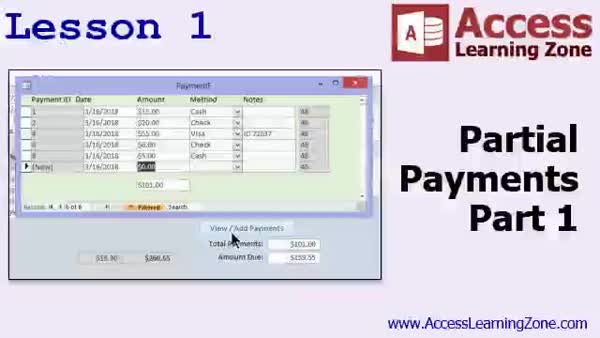
Lesson 1: Track & Manage Partial Payments - In Lesson 1, we begin working with partial payments by moving beyond simply marking invoices as paid or unpaid. I will show you how to create tables for tracking individual payments and payment methods, build a payments form, set up combo boxes and form formatting, and link payment entry to specific invoices. We will also add running totals and the amount due, use DSum functions, configure modal forms to prevent data entry errors, and discuss additional considerations like handling overpayments and restricting payments on quotations, which we will cover in future lessons.
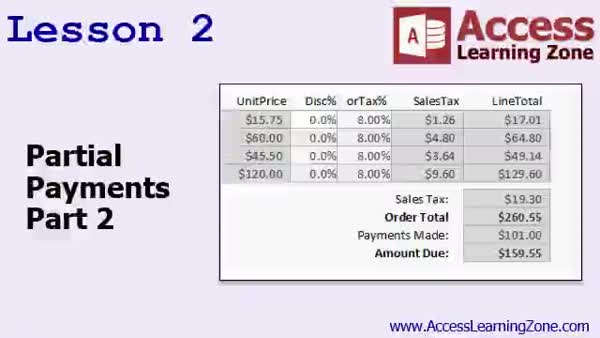
Lesson 2: Partial Payments, Icons, Amount Due - In Lesson 2, we continue working with partial payments by exploring how to use message box icons such as vbExclamation in your forms. We will discuss handling cases where an order is already paid or is a quotation, ensuring users cannot add payments improperly, and how to prompt users with different message box types. I will show you how to display payment information, including payments made and the amount due, directly on the printable invoice, and demonstrate handling null values with the NZ function for accurate display. We will also discuss options for button logic and usability improvements.
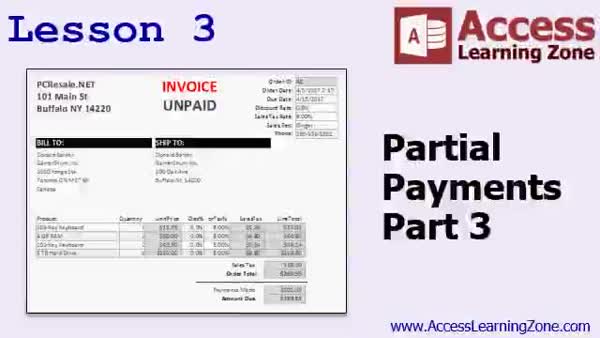
Lesson 3: Hide Payments & Use Parent in Subreports - In Lesson 3, we are continuing with partial payments by learning how to hide payments made and amount due when generating a quotation in Microsoft Access. We will walk through managing the visibility of payment fields and related labels using VBA, setting Can Grow and Can Shrink properties to adjust report layout, and addressing issues that arise when referencing parent report fields in sub-reports. We will also discuss how to properly add fields like IsQuotation to sub-report queries and ensure the design does not unintentionally affect other parts of the database.
Lesson 4: Review & Next Steps Guide - In this course we learned about what comes next after Microsoft Access Developer Level 7, including information on upcoming classes, how to join the mailing list, and ways to access additional seminars on various Access topics. We discussed where to get help or customer support, how to participate in the forums, and the importance of filling out the course survey. The review also covers course copyright and licensing information, as well as reminders to follow on social media for updates.
NavigationKeywordspartial payments, invoice payments, payment history, order entry, payment form, DSum, NZ function, payment methods, running totals, amount due, overpayments, quotations, unpaid invoices, message box icons, modal forms, subreports, payment button logic
More InformationTranscriptWelcome to Microsoft Access Developer Level 7, brought to you by AccessLearningZone.com. I am your instructor, Richard Rost. Today's class is going to cover entering partial payments for the invoices in our order entry system. So far to date, we have a system where you can either mark an invoice paid or not paid. What happens if you have a $5,000 order and the customer wants to pay $200 now, $500 later? We need a way to track that. That is the one major topic for today's class. We are going to cover a whole bunch of different VBAs, some other scenarios, and some tips and tricks that go along with that. Even if you might not be doing partial payments in your database, all of the stuff I am going to show you will be useful. Remember, Access is like playing with Legos. It's just learning the different pieces, and they all can be put together in different ways. The prerequisite, of course, is that you should have taken the Access Developer Level 6, and all of my Beginner and Expert, and preferably the Advanced Series classes as well. For those of you who have never taken my classes before, they are broken down into the Beginner, Expert, Advanced, and Developer Series, and this is Developer Level 7. The sample databases for my courses can be found here at this address: 599c.com/databases. I do strongly recommend you build the database with me in class from the beginning, but if you have not, if you jumped in somewhere in the middle, you can download my copy of the database here. Everything that I cover in today's class should be fine in Microsoft Access 2007 and beyond. Thinking about it, it probably will still work even in 2003 and the older versions. All the VBA really has not changed much. Access is going to be coming out with 2019 pretty soon. I have been looking over the review notes, and I do not think too much is going to change from 2016 to 2019, but check my website if you are watching this class in the future for any changes. I will post some notes on the class page. Let's take an in-depth look at what we are covering in today's class. In lesson one, we are going to start working on partial payments. Right now, our invoices can be either paid or unpaid. Sometimes customers will only pay a part of an invoice, so we want to be able to track the entire history of all the payments on a particular invoice. We are going to build a payment form. We are going to build fields on our main order form so we can see the total payments made and the amount due. In lesson two, we will continue with partial payments. We are going to learn about VB exclamation and some different little icons you can put in your message boxes. We are going to handle situations if the order is paid or if it is a quotation. We will not let the user put payments on it. We are going to add the payments information, including payments made and amount due, on the printable invoice. In lesson three, we are continuing with partial payments. We are going to see how we can make the payments made and the amount due not show up if it is a quotation. We are going to see how we can get a field that is only on the parent report into the sub-report. IntroIn lesson 7 of my Microsoft Access Developer series, we will build a system to handle partial payments for invoices in your order entry database. You will learn how to track the payment history for each invoice, create a payment form, display totals and amounts due, and update your printable invoices to reflect these changes. We will also cover some helpful VBA tips, including using icons in message boxes, handling special cases like quotations, and working with sub-reports. This lesson is best for those who have completed the previous levels, especially Developer 6. QuizQ1. What is the main topic covered in Microsoft Access Developer Level 7? A. Building a new order entry system from scratch B. Entering partial payments for invoices in the order entry system C. Upgrading from Access 2003 to 2019 D. Exporting data from Access to Excel Q2. Why is learning how to handle partial payments important in an order entry system? A. Customers sometimes need to cancel orders B. Customers may want to pay their invoices in multiple installments C. Orders always need to be paid in full D. It helps with changing product prices Q3. Which skill level series does Developer Level 7 belong to according to Richard Rost? A. Beginner Series B. Expert Series C. Advanced Series D. Developer Series Q4. What is recommended if you have not been building the sample database along with the class? A. Download Richard's copy of the database from the course website B. Start from scratch with a blank database C. Use a template from Access D. Skip the lessons Q5. Which version of Microsoft Access are the lessons in this class compatible with? A. Only Access 2019 and newer B. Only Access 2003 and earlier C. Access 2007 and later, possibly even earlier versions D. Only Access 2016 Q6. In Lesson 1, what new features will be added to the order form? A. A field for product descriptions B. Fields for total payments made and amount due C. A shipping calculator D. Customer satisfaction ratings Q7. What is covered in Lesson 2 regarding partial payments? A. Adding new customers automatically B. Using message box icons and handling conditions when payments should not be allowed C. Printing all past invoices D. Integrating Access with Outlook Q8. What topic is addressed in Lesson 3 of the class? A. Creating a sales report by region B. Hiding payments information on quotations and transferring values from parent reports to sub-reports C. Deleting old orders from the database D. Adding password protection to forms Q9. How does Richard describe learning Access? A. Like building a car from scratch B. Like solving math problems C. Like playing with Legos D. Like writing an essay Q10. What should students do if they are watching this video in the future and want to know about updates for newer Access versions? A. Contact Microsoft directly B. Skip to the end of the video C. Check Richard's website for updates and notes D. Switch to a different database program Answers: 1-B; 2-B; 3-D; 4-A; 5-C; 6-B; 7-B; 8-B; 9-C; 10-C DISCLAIMER: Quiz questions are AI generated. If you find any that are wrong, don't make sense, or aren't related to the video topic at hand, then please post a comment and let me know. Thanks. SummaryToday's video from Access Learning Zone focuses on how to manage partial payments in our Microsoft Access order entry system. Up until this point, our setup only allowed for marking invoices as either paid or unpaid. However, in real-world scenarios, it's common for customers to make payments in installments. For example, someone might place a $5,000 order but choose to pay $200 now and the rest later. We need to implement a method to handle and track these partial payments. This is the main topic for this class. Throughout the lesson, I will also share additional VBA techniques, discuss various related scenarios, and provide some helpful tips that you can apply even if you are not planning to use partial payments specifically in your projects. In Microsoft Access, learning new skills is very much like assembling pieces of a Lego set. Once you understand how each part functions, you can combine them in countless ways to build the system you need. Before starting with this lesson, it's important that you have completed Access Developer Level 6 along with all the Beginner, Expert, and preferably the Advanced series courses. For those new to my teaching method, my curriculum is structured into Beginner, Expert, Advanced, and Developer series, and this lesson is part of Developer Level 7. If you need the sample database used in this class, you can find it at 599c.com/databases. While I highly recommend building the database alongside me as you follow the lessons, you're also welcome to download a copy if you are joining the course midway through. All of the examples and code I will cover today work perfectly in Microsoft Access 2007 and newer versions. In fact, most of the material will function in Access 2003 and earlier since the VBA language hasn't changed significantly. At the time of recording, Access 2019 has not been released yet, but based on the available information, there shouldn't be major differences from Access 2016. If you are watching this at a later date, be sure to check my website for updates or additional notes. Here's a closer look at the structure of this class: In the first lesson, we will begin developing the partial payments feature. Our current invoices can only be marked as fully paid or unpaid, but we want to track the full history of payments on each invoice. To do this, we will create a dedicated payment form as well as display fields on the main order form that show total payments received and the amount still due. The second lesson builds upon this by introducing you to additional VBA features such as different icons and exclamation options within message boxes. We'll address cases where an order is already paid or is simply a quotation, in which case we want to prevent the user from recording payments. We'll also include payment details such as total paid and outstanding balances on the printable version of each invoice. The third lesson continues our work with partial payments. We will implement logic to hide the payment information for quotations so that the total paid and due amounts only appear when appropriate. Additionally, you will learn methods for displaying values from parent reports inside their related sub-reports, giving you more flexibility in how information is presented. If you'd like to see every step and all the code in action, a complete video tutorial with step-by-step instructions for everything covered here is available on my website at the link below. Live long and prosper, my friends. Topic ListBuilding a payment form for partial payments Tracking full payment history for invoices Adding total payments made and amount due to order form Displaying payment summary fields on the order screen Using VB exclamation icons in message boxes Preventing payments for quotation records Adding payment info to the printable invoice Hiding payment fields for quotations Displaying parent report fields in sub-reports Primary Topicspartial payments, invoice payment tracking, Access forms, VBA code, payment history, order management Secondary Topicsmessage box customization, report formatting, quotations handling |
||||||||||||||||||||||||||||||||||
|
| |||
| Keywords: partial payments, invoice payments, payment history, order entry, payment form, DSum, NZ function, payment methods, running totals, amount due, overpayments, quotations, unpaid invoices, message box icons, modal forms, subreports, payment button logic PermaLink Microsoft Access Developer 7 |