Macros
By Richard Rost

 3 months ago
How to Use Macros to Automate Tasks in MS Access
In this lesson, we will introduce Microsoft Access macros and how they can help automate repetitive tasks without needing to learn programming or VBA. We will discuss the differences between Access macros and macros in Excel or Word, common uses for macros, and their strengths and limitations. I will show you how to create simple macros to open forms, display messages, and chain multiple actions together, as well as how to attach these macros to buttons and the Quick Access Toolbar. We will also cover the special AutoExec macro and when macros are the best choice instead of VBA.
Members
There is no extended cut, but here is the file download:
Silver Members and up get access to view Extended Cut videos, when available. Gold Members can download the files from class plus get access to the Code Vault. If you're not a member, Join Today!
Links
Recommended Courses
Keywords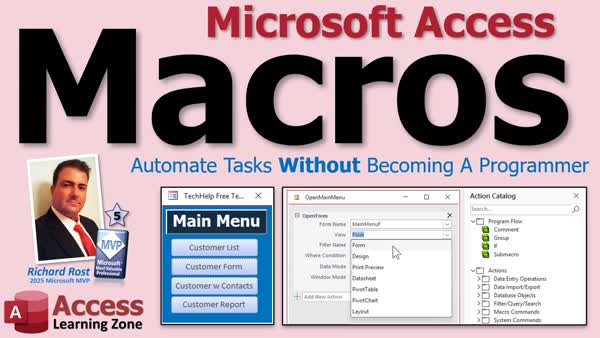
TechHelp Access, macros, automate repetitive tasks, button multiple actions, macro examples, action queries, append query, delete query, open form, open report, command button wizard, AutoExec, Quick Access Toolbar, trusted locations, message box, conditional logic
 Subscribe to Macros
Get notifications when this page is updated
More InformationTranscript I wish you could make one button in your Microsoft Access database do several things at once, but you do not want to become a programmer to do it. Welcome to another TechHelp video brought to you by AccessLearningZone.com.
I am your instructor Richard Rost. Today we are going to talk about macros and how they can help you automate repetitive tasks in your Microsoft Access database without having to learn VBA. So if you have built your own database and just want to make it a little smarter, without having to learn how to write code, this video is for you.
Now I have been teaching Access for about 30 years and there are two kinds of people that I have discovered who are interested in learning macros. The first group wants to become programmers. They want to learn VBA, build applications, and eventually become developers, and if that is you, great. Nice to meet you.
Then there is group number two. These are the people who do not want to become programmers. They have no interest in learning code. They just want to automate a few things in their database. That is who this video is for. You might be a manager, small business owner, department head, or just the unofficial Access guy in your office. That is where macros fit in perfectly.
So what exactly is a macro? A macro is simply a list of actions that run one after the other. You give it an action checklist for Access. Instead of manually clicking a bunch of different buttons every time you want to do something, you can build a macro once and let Access do those things for you automatically.
The nice thing is you do not have to learn how to write code. Instead of learning VBA and typing commands into a programming window, you simply pick actions from a list: open a form, run a query, open a report, show a message, print something, export the data, whatever you need. You just pick the actions you want, put them in the order that you want them to run, and Access takes care of the rest.
That is why macros are so popular with business users. They give you a simple way to automate repetitive tasks without having to become a programmer.
Before we go any further, I want to clear up probably the biggest misconception about Microsoft Access macros. Most people coming into Access are coming from Excel, and when they hear the word macro, they are thinking about an Excel or Microsoft Word macro. Maybe you have seen someone click Record Macro in Excel and perform a bunch of actions, stop recording, and then Excel magically turns those actions into VBA code. That is not how Access works.
In Excel and Word, macros are essentially recorded actions that get translated into VBA behind the scenes. Microsoft Access does not have a macro recorder. Instead, Access macros are built manually. You choose actions from a list, like open a form, run a query, and so on. You simply stack those actions together in the order that you want them to run.
So even though they are both called macros, Access macros and Word and Excel macros are really two completely different tools that just happen to share the same name. The good news is that most people actually find Access macros easier to learn because you are not dealing with recorded VBA code. You are simply choosing commands from a menu and building a sequence of actions.
So who are macros really for? They are for people who use Access every day but do not necessarily want to become programmers. Maybe you are a manager, maybe you own a small business, maybe you are the person who inherited the Access database years ago from Steve when Steve retired, and you somehow became the resident expert because no one else wanted to learn Access.
Or maybe you built your own database from scratch and just wanted to do a little more. That is one of the biggest strengths of Microsoft Access. It allows regular people to build surprisingly powerful database applications without needing a computer science degree. That is where macros fit in.
Let us say every Friday you run the same report. Or every month you prepare the same mailing list. Every morning you open the same forms and run the same queries. These are perfect jobs for macros.
So what are some other things macros can do? The simple things - they can open forms, run queries, open reports, export data, they can set temporary values in memory and even use them later as part of a larger process or even a different macro.
You are probably thinking, a lot of these things can be done with the command button wizard. If all you want is a button that opens a form or prints a report, Access can build that for you automatically with the command button wizard. If you are not familiar with the command button wizard, go watch this video. I will put a link to it down below.
The command button wizard is great. Use it whenever it does what you need. But macros become really useful when you want to do several things in a row in a sequence. Let us say you need to run three different queries and then open a report. Maybe a make-table query, an update query, an append query and so on, then open a report based on that data. I am going to show you an example similar to that in a few minutes.
Maybe you want to export some data, then show a confirmation message and then open another form - macro. Maybe you want something to happen automatically when the database starts up - macro. These are the kinds of jobs where macros really shine.
You are no longer limited to one action at a time. You can build a whole sequence of actions and let Access run the whole workflow for you. Most people do not create macros because they love automation. They create macros because they have a job to do over and over again. It is the same thing and they are tired of clicking the same buttons every time. Monthly sales reports, importing and cleaning data, customer follow ups, all these things.
That is really the power of macros. Macros are not about replacing programmers. They are about replacing repetitive work. Now, do not get me wrong. There are plenty of things that still require VBA and programming. But if all you need is a button that runs a few queries, opens a report, exports some data or does a little housekeeping around your database, you probably do not need to call your programmer every time.
That is why I always encourage people to learn this stuff. Once you know how to build a few simple macros, you can handle a lot of these everyday tasks yourself and you can let your programmer go home early. Or give them something more challenging to work on.
Let us be honest, there is probably a Star Trek marathon starting in 20 minutes and they are already halfway out the door anyways. And if you happen to be a programmer like me, congratulations. You just freed yourself up to work on the fun stuff and you can let Bob in accounting build his own macros.
Alright, so enough chit chat. Let us take a look at an actual macro in action.
Alright, so here I am in my TechHelp free template. This is a free database. You can grab a copy off my website if you want to, but you can do this stuff in any database.
Now in this database, you will see I have a main menu and I have some buttons here on the main menu that will open up different forms.
Sure, you can use the command button wizard to build these buttons for you, but let us do it with a macro so we can learn how to build our first macro.
I am going to click on Create and then Macros way over here, Macros and Code. This opens up, you get the macro editor here and you get this thing over here called the Action Catalog.
I almost never use the action catalog, but you can use it to browse through the different categories of macros. You can see data entry operations and filtering operations. These are all the macro commands in here.
There is also some advanced stuff like if blocks and submacros and I do cover all of this in my full course. But today we are going to keep it simple. I am actually going to turn off this action catalog. It is just kind of getting in the way.
Right here we are going to drop this box down and look for the command that we want to open a form. Guess what it is called? Open form. We will scroll down. Where are you? Open form, right there. There is open query, open report, open table.
Take some time to go through this list and experiment with them. I am going to go to open form and see now you get a bunch of command blocks that are specific to open form.
First, what form name do you want? I want to just drop this down. Let us pick CustomerF. That is my customer form.
Then there is the view. Form view is the default. That is the normal view, but you can also go datasheet or print preview, whatever. These are all options for forms.
We are going to leave the rest of them as they are. Let us save this macro. I am going to go Control S and let us call this open customers.
For those of you familiar with my other videos, I name my tables with a T, my queries with a Q, my forms with an F. Macros and modules I do not care, honestly, because I rarely use macros. That is why I do not bother putting an M on the end here or anything, but if you want to, that is up to you.
That is our first macro. Now we can run the macro just like we run a query and boom, there is our customer form. It performed that one action. Pretty straightforward.
Let us close this. You can also run the macro from over here. Open customers. Double-click it. Boom, there you go.
One command at a time is not really that big of a deal. Let us add a second command. Let us right-click on here and go to design view.
Now we are back inside our macro. If you click right about here, there is the first command. There is your open form command. Here is the second command down here.
Let us add a message box. Drop this down. Let us find message box. What message do you want to put in here? Live, long, and prosper.
Do you want it to beep? All this stuff. Good enough. Let us save it. Control S. Close it. Now run our macro. There we go. It opens the form. Then we get live, long, and prosper. See, that is how you chain commands together.
What if you want the message box first, like a warning, and then you want the form to open? Let us go back into here, design view. You can see here is command one. Here is command two. You can reorder these by using these little green arrows over here. See that, that is move up. If you click on this one, there is a move down.
Let us move the message box up. I am going to click on that little green arrow, and now message box is on top. Now instead of live, long, and prosper, maybe say, be sure to file your TPS reports, or whatever.
Save it, Control S. Let us close it. Now when we run this, look at that. Be sure to file your TPS reports. Do not want Lumbergh upset with you. Hit OK, and then the customer form opens. So the order matters.
Back into our macro. If you get a bunch of these stacked up, it can get hard to read. You can collapse these. See this little box right there? Click that. You can collapse those down so you will just see them one at a time.
Usually I only have a couple of commands in my macros. If you do not want this message box anymore, that is what the little X is for, right there. That is the delete. This is not close. I know it is so close to this guy, that is the close button. That is delete.
If you click on that, you delete it. If you accidentally delete something and you want to get it back, you can undo it. But you do not get too many undos. That is Control Z to undo. If you really mess up, if you delete a bunch of stuff, just close this and do not save changes. That way it will not save the changes in your macro.
Let us go back into here. I am going to get rid of the message box. Click on that. Let us open a second form. Let us open form. Where are you? Open form, right there. Let us open the customer list form as well.
Save it. Close it. Run it. There we go. There is the customer form and the customer list form. Now let us do it so the customer form appears on top.
Let us go into here, design view. Let us move this guy up top. Now that one will open first and then this one will open, so the second form should appear on top. Save it. Close it. Run it. There you go.
This is not rocket surgery. It is pretty straightforward stuff. It is just learning which commands you need to use to do what you want to do.
We have got the macro now sitting down here. But we do not want our users to have to go hunting through the navigation page. We want to put a nice little button on the main menu for them so they can run that macro themselves. It is hard to try to teach the boss new things like hunting around in here, and you do not want users poking around in here anyway.
You can use the command button wizard to put a button here that runs your macro. Let us go find the command buttons. Drop it down here. We are going to go to Miscellaneous and then Run Macro. Next, we are going to use our open customers macro. Next, you can put a little picture on there or you can put text on there.
Let us go with Open Customers Macro or whatever you want it to say on the button. Next, give it a meaningful name, OpenCustBTN or whatever you want to call it, and then Finish.
There is our Open Customers Macro button. I am going to bold it, save it, close it. Let us reopen our main menu.
Now, this is actually a good point to bring this up. I have a button up here on my quick launch toolbar called Open Main Menu, and that runs this macro right there called Open Main Menu. That is one of the nice things about macros that you cannot do with VBA code. You can put buttons up here on the Quick Launch Toolbar that run different macros for you. I have got some of them up here, like this one. This searches my YouTube members. This one here is my search form in my other database.
You can make them stick to a database or you can make them global across all of Access. There is a lot you can do with it. I covered these in my full course.
If you want to add one of your macros up here, just drop this little box down, go to More Commands, drop this down, find Macros, and here is a list of your macros that are in your database. You just pick the macro that you want and you hit Add. Then it adds it to your Quick Launch Bar. Here I will add it now, click, and there is Open Customers. I am going to move it down to the bottom so it is way at the end. There we go.
Then I will hit OK, and look, there is my Open Customers Macro right there. See? That is cute.
Anyways, getting back to our story, let us open the main menu and now click the Open Customers Macro button and there we go. It launches that macro. If you want to learn more about customizing your Quick Access Toolbar like I just did, go watch this video.
You may have also noticed that I have another macro down here called AutoExec. Now AutoExec is a macro, it is a special macro that runs automatically whenever the database opens. Back in the old days before Access gave us a startup form option, which I think is like 2003 maybe, AutoExec was the standard way to launch forms and run startup tasks when the database first loaded.
Today it is still useful for certain special situations. For example, this macro checks to see whether the database is running from a trusted location or not. If you are not familiar with trusted locations, go watch this video. A trusted location or a trusted folder is simply a folder that Access considers safe. Certain features, including VBA code, will not run unless the database is open from a trusted location.
This is where macros come in really handy. Technically, VBA can also check whether a database is trusted, but the problem is if the database is not trusted, your VBA code will not run in the first place. So a startup macro is the perfect place to handle that situation before VBA ever gets involved.
If we take a look inside this guy, it is a little more complicated. You will see I am using an IF THEN block and I am checking CurrentProject.IsTrusted. If the database is in a trusted folder, it simply opens the main menu form. If not, it opens the Not Trusted form, and that is right here and that just simply explains to the user that they have to put this database in a trusted folder.
The reason why I have this in my template is because a lot of people download my TechHelp free template from my website and they just put it on their desktop or wherever their download folder is and they open it and then they will get this message that says most of the stuff in this database will not work because you have to put it in a trusted folder, and that link takes you to the page I just showed you with the video on how to create a trusted folder.
That is why I have this in this database. But you can also see here, with this IF THEN block, there are some complicated things you can do with macros. It is beyond the scope of today's video, but I do cover most of this stuff in my full course.
This AutoExec macro is one of those perfect situations where macros are the best tool for the job. Sometimes people think that macros are just a beginner feature; they are not. Even after you have learned VBA, you will occasionally run into situations where a macro is still the best or only solution.
One more example today. Before we continue, if you are finding this video helpful, do me a favor, hit that like button and subscribe to my channel. It helps the YouTube algorithm discover the channel, which means more people learn Access and somewhere a little penguin gets extra fish. I cannot prove that is true, but I also cannot prove it is not.
One of the things that I personally used to use macros for was preparing a mailing list or like sending out holiday gift cards or whatever. It always involves some kind of a temporary table. You would pick a whole bunch of customers based on different criteria. You might add this group to the table, add these people, add some friends and so on. You would end up building a temporary table with all of your data in it.
I have got a TempT right here. This one just has first name, last name, and state just to show you an example. Let us say that you want one button that is going to clear out whatever is in this table with a delete query. Then we can use an append query to add some people. Let us say we want to add all the people from Florida, and then in a separate step, we want to add people from New York.
That is three actions so far. Then we want to open up a report. I got a report down here, I think I have one. Let us see. Yes, it is the TempR, print preview. I will open up this report when we are all done. This is an example of one of the things you can do with macros.
If you are not familiar with delete and append queries, I have videos for all those too. These are called action queries. Delete queries let you delete records from a table based on whatever criteria you specify. Append queries let you add records to another table. There are other kinds of action queries too, like update queries and make table queries. I have a whole series on them.
Here is my delete query. This guy just deletes all the records in the Temp table. Then we have got Append New York, Append Florida. Yes, I know you can do both of these with a single query with different criteria. The point is I am trying to show you how you can chain multiple things together here. Sometimes you might have other different queries with all kinds of other criteria that do not necessarily fit together well in one query. That is why I am showing you this before you attack me in the comments.
Let us build a macro to run all that stuff together in one shot. Create Macro. First thing I am going to do is delete the stuff in the TempT, whatever mailing list I built last, we have to get rid of all that data.
Here is a cool trick. Once you have already got this stuff built, watch this. I can take this Temp_DeleteQ, click and drag it up here and look at that. It puts OpenQuery right in the macro for me. See, delete. Then I want to append everybody from New York, then I want to append from Florida. Make sure it puts it in the right order. Sometimes it does not get them in the right order.
Then I want to open my report, find the report, TempR, drag it down here, OpenReport. Now the view comes in as Report View. I want this in Print Preview. I am going to drop this down and pick Print Preview. Then when I am all done, I want a message box. So come down here and find MessageBox and say Work complete. Work complete. Job is done, righto. Yes, me lord. Who knows what that is, good stuff.
Save it. Let us call it PrepareMailingList - still no spaces, do not put any spaces in your object names. Hit OK.
Now we can run it from a button or we can just run it from right here. PrepareMailingList. Ready, go. Work complete. There it is.
Let me test it first. I am going to put some bogus records in here. This is what it should look like when it is done. I am going to delete a couple of records. I am going to put Jim Kirk in here from Iowa, and Spock. Just so we know that they are gone, to prove that that actually ran. Ready? Let us do it again.
PrepareMailingList. Good. OK. There is that. Looks like they are gone. The delete query should have deleted them first. Yep, it did. It worked. That is proof that my macro ran. It ran the delete query, the two append queries, and then opened up the report and gave us a mailing list and told us that it did a beautiful job.
Another benefit with macros is once you have the macro built, if you want to make changes, you do not have to redesign the macro. You can just come in here and change this query if you want to. Obviously, if you want to add steps or delete steps, you have to go edit the macro, but you can just modify the queries or modify the report and your buttons will still work the same as they did before.
If you decide you like working with macros and you want to take your macro skills further, check out my Microsoft Access Advanced Series. I have a total of six lessons on macros, covering all the stuff that I think is important.
Advanced one is where we really dive into macros, events, embedded macros, and conditional logic. In advanced two, you will learn how to build smarter forms with event-driven automation, dynamic buttons, and business rules that react to what your users are doing.
Advanced three focuses on making your forms more interactive by changing colors, fonts, visibility, locking fields, and other properties automatically as users work. Want to lock that paid invoice so your users cannot mess with it? We cover that in this class.
In advanced four, you will build more powerful automation with startup macros, password prompts, macro groups, submacros, and reusable techniques you can apply to all your databases. Advanced five expands on that with the AutoExec macro, list boxes, address automation, error handling, and more practical tools. This is one of my favorite lessons - moving items between different list boxes with macro buttons.
Then in advanced six, we wrap things up with data macros, dynamic search forms, audit logging, and we will talk about when it is time to graduate from macros to full VBA programming.
If today's video got you interested in macros, check out my advanced courses. Yes, there are only six lessons in my advanced series, whereas my expert series is like 32 lessons and my developer series is over 60 so far. It is about six hours of material altogether. I do not spend a ton of time on macros because quite honestly, they are designed for people who do not want to become programmers.
Macros can serve as a great stepping stone into VBA if that is the direction you want to go in, but you certainly do not have to. I cover the macro features that you are more likely to use in real world databases. As you can see, each class builds on the last one with practical examples and projects. Of course, for more information, I will put a link down below. You can click on that or drop a comment.
There you go, that is macros. The big takeaway today is that macros give you an easy way to automate repetitive tasks in Microsoft Access without having to become a programmer. They will not replace VBA, but they are a fantastic tool to have in your toolbox.
If you enjoyed today's video, post a comment down below and let me know. I would also love to hear how you plan to use macros in your own database. That is going to do it for your TechHelp video for today brought to you by AccessLearningZone.com.
I hope you learned something. Live long and prosper my friends. I will see you next time.
If you enjoyed this video, hit that thumbs up button right now and give me a like. Also, be sure to subscribe to my channel, which is completely free, and make sure you click that bell icon and select all to receive notifications whenever I post a new video.
If you are new to Microsoft Access, check out my Access Beginner Level One course. It is over four hours long and it covers all the basics like tables, queries, forms, and reports. It is a great place to start and it is also completely free.
Members of my channel get extended cut videos, sample databases, access to my code vault, and full training classes every month. Click the join button for details.
Thanks for watching. I am Richard Rost with AccessLearningZone.com. Live long and prosper my friends. I will see you next time. Intro In this lesson, we will introduce Microsoft Access macros and how they can help automate repetitive tasks without needing to learn programming or VBA. We will discuss the differences between Access macros and macros in Excel or Word, common uses for macros, and their strengths and limitations. I will show you how to create simple macros to open forms, display messages, and chain multiple actions together, as well as how to attach these macros to buttons and the Quick Access Toolbar. We will also cover the special AutoExec macro and when macros are the best choice instead of VBA. Quiz Q1. What is the main purpose of macros in Microsoft Access?
A. To automate repetitive tasks without needing to learn VBA
B. To replace all VBA code in your database
C. To add security features to your database
D. To increase the speed of database queries
Q2. How are macros in Access created?
A. By recording a series of actions using a macro recorder
B. By selecting actions from a list and arranging them in order
C. By writing VBA code in the VBA editor
D. By importing macros from Word or Excel
Q3. Who are Access macros especially designed for?
A. Experienced programmers only
B. People who want to automate tasks without becoming programmers
C. Database administrators only
D. Users who only want to manage security privileges
Q4. Which of the following is NOT something a macro can do in Microsoft Access?
A. Open a form
B. Run a query
C. Export data
D. Compile new VBA modules
Q5. What is a main difference between Access macros and Excel macros?
A. Access macros can record user actions, Excel cannot
B. Excel macros are written as raw SQL queries
C. Excel macros are usually recorded and converted into VBA, Access macros are built manually from an action list
D. Access macros require .NET programming
Q6. What is the name of the special macro that runs automatically when your database opens?
A. AutoStart
B. StartupMacro
C. AutoExec
D. BeginMacro
Q7. When would you use the AutoExec macro in Access?
A. To export data on a schedule
B. To run startup tasks like opening a form or checking trusted status when the database opens
C. To clear form fields after data entry
D. To quickly delete all tables
Q8. What is the main advantage of using the command button wizard in Access versus a macro?
A. It allows you to combine multiple actions into one button
B. It lets you embed SQL directly into the button
C. It is best for very simple, single-action buttons like opening a form or report
D. It enables complex conditional logic
Q9. What do you need to do if you want a button on a form to run a macro?
A. Write VBA code behind the button
B. Set the button's event to run the macro using the command button wizard with Run Macro option
C. Only use macros on the navigation pane, not on buttons
D. Macros cannot be run from buttons
Q10. In which situation might it be better to use a macro instead of VBA code?
A. When complex data validation is required
B. When you want to automate simple tasks for users who are not programmers
C. When you need to call external web APIs
D. When building add-ins for Office
Q11. If you want to temporarily save a value to be used later in a macro, what feature can macros use?
A. Memory variables
B. Temporary values (SetTempVar)
C. Attached fields
D. Query tables
Q12. If you need to run three different queries and then open a report, how can you best automate this without writing VBA?
A. Use a single SQL SELECT statement
B. Create a macro chaining these actions together
C. Use a make-table query only
D. Right-click each query and run manually
Q13. What is the purpose of the Action Catalog in the macro editor?
A. To display all tables in the database
B. To browse and select all possible macro commands and actions
C. To write and debug VBA code
D. To design new forms graphically
Q14. How can you reorder actions in an Access macro?
A. Drag and drop using the mouse only
B. Use copy and paste exclusively
C. By clicking the green arrow buttons (move up or move down)
D. You cannot change the order once added
Q15. Which of the following is TRUE about changing object names in macros?
A. You must re-create all macros if you change a query or report's name
B. Macros automatically update object references
C. If you modify the underlying queries or reports, you do not need to redesign the macro, as long as the object name stays the same
D. Changing the macro name changes all related queries
Answers: 1-A; 2-B; 3-B; 4-D; 5-C; 6-C; 7-B; 8-C; 9-B; 10-B; 11-B; 12-B; 13-B; 14-C; 15-C
DISCLAIMER: Quiz questions are AI generated. If you find any that are wrong, don't make sense, or aren't related to the video topic at hand, then please post a comment and let me know. Thanks. Summary Today's video from Access Learning Zone is focused on how you can automate tasks in your Microsoft Access database without having to become a full-fledged programmer. I'm Richard Rost, and if you've ever wanted to have a single button in Access perform several actions at once - without diving into VBA code - then you're in the right place.
I've been teaching Access for almost 30 years, and over the years I've found that people interested in macros generally fall into two categories. There are those who want to eventually become programmers or developers and learn VBA, and then there are those who have no interest in writing code - they just want to make their databases a bit smarter by automating repetitive chores. If you're part of that second group, this lesson is especially for you. You may be a manager, small business owner, department head, or perhaps you inherited the database from the last guy in the office who knew Access - wherever you fall on that spectrum, macros are here to help.
So let's start with the basics. A macro in Access is simply a collection of actions that you tell Access to perform one after another. Instead of clicking several buttons each time you need to run a report or execute a batch of queries, you can create a macro, stack the actions in the order you need, and Access will take care of the rest - all at your command.
The best part is that you do not have to write code for this. Access macros are built using a list of available actions that you select - like opening a form, running a query, printing a report, showing a message to the user, or exporting data. You just pick the actions, arrange them, and Access will perform them as a sequence, saving you time and clicks.
Now, some people come to Access with experience in Excel or Word and assume macros function the same way across the board. In Excel or Word, you might use a macro recorder which tracks your actions and "records" them into VBA code behind the scenes. Access does not work this way. There is no macro recorder in Access. Instead, you assemble macros manually by choosing actions from a list and lining them up in the order you want them to run. It is actually more straightforward for many users since you never need to look at or deal with raw VBA code.
Macros are ideal for people who use Access daily but do not necessarily want to be programmers. Maybe you own a business, maybe you built your database yourself, or maybe you're the go-to person in your department for Access even if you never set out to be. With macros, you can automate tasks like running reports every Friday, building mailing lists once a month, or setting up morning routines that open forms and run queries automatically. If you find yourself doing the same thing over and over again, a macro can help you streamline your workflow.
Most things that you do with the command button wizard - like opening a form or printing a report - can also be carried out with macros. However, macros shine when you need to string together several actions. For example, maybe you want a button that first runs some update queries, then opens a report based on the updated data, and finally shows a confirmation message. Or, you might want something to run every time the database starts up. These are situations where a macro is a perfect fit.
You are no longer restricted to just one action per button - you can build complete workflows that your users can trigger with a single click. Many people do not create macros because they just love automation in general. Rather, they build macros because they have a specific job that needs to be done the same way every time, and they are tired of manually performing it. This is where macros pay off - with repetitive tasks like monthly sales reports, batch imports, follow up processes, and so on.
It is important to realize that macros are not designed to replace programmers. They are there to reduce your manual workload and let you automate the simpler, everyday tasks without needing to call in a developer for something that does not really require VBA or complex logic. If you are a programmer, this can free you up for more complicated projects. If you are not, it just makes your work easier.
Let's take a look at how you actually create and use macros in Access. For example, suppose you have a main menu form with some buttons to launch other forms. While the command button wizard would work here, building a macro gives you more flexibility if you decide to expand the logic. In the macro editor, you can browse through dozens of available actions - like opening forms, running queries, opening reports, and more. You specify the options you want for each action (like which form to open, in which view), then save your macro with a descriptive name.
You can run your macro right from the navigation pane or from within the macro editor. More importantly, you can attach your macro to a button on a form so your users do not need to even know where the navigation pane is. When you design a button in Access, you can assign it to run your macro using the button wizard. You can even add your macros to the Quick Access Toolbar for even more convenience, making them easily accessible at the top of the Access window - either for a particular database or across all of Access.
Macros are also extremely useful for things that need to run when your database is first opened. There is a special macro called "AutoExec" which triggers automatically at startup. For example, in my template database, the AutoExec macro checks whether the database is running from a trusted location. If it is, the macro opens the main menu. If not, it opens a special form to inform the user about trusted folders. This is something VBA cannot do reliably at startup if the database is not trusted, so using a macro here makes perfect sense.
For even more practical examples, let's say you regularly create mailing lists for things like holiday cards. This often involves clearing out an existing temporary table, running append queries to add different groups of customers, and then opening up a finished report. With macros, it's easy to build this entire workflow - delete the old records, run your append queries for each group, open the formatted report, and maybe even display a message to let you know the task is complete.
Making changes to this process later on is just as easy. If you update the queries or the report that the macro uses, the macro itself does not need to be redesigned unless you want to add or remove steps in the process.
If you find you enjoy working with macros and want to go further, I also offer an Access Advanced Series where I cover macros in even greater depth, including smarter forms with conditional logic, dynamic interfaces, advanced automation techniques, password prompts, error handling, and more. These lessons not only help you maximize what you can do with macros, but also show how macros can be a great stepping stone if you later decide to learn VBA.
To sum up, macros in Access are an approachable way to automate repetitive tasks and workflows without having to become a programmer. They are not a replacement for full VBA coding, but they are a very valuable tool to increase your efficiency and let you take control of your own databases.
If you want to see a detailed video tutorial that walks you through these steps with practical examples, you can find the full lesson on my website at the link below. Live long and prosper, my friends. Topic List What is a macro in Microsoft Access
Differences between Access macros and Excel/Word macros
Who should use macros in Access
Automating repetitive tasks with macros
Creating a basic macro in Access
Using the Action Catalog in the macro editor
Adding multiple actions to a macro
Reordering actions within a macro
Using the MessageBox action in a macro
Deleting and undoing macro actions
Opening multiple forms with a macro
Assigning a macro to a button on a form
Using the command button wizard with macros
Adding macros to the Quick Access Toolbar
Understanding the AutoExec macro
Using macros to check if a database is in a trusted location
Chaining queries and reports in a macro
Building a macro to prepare a mailing list
Running delete and append queries via macros
Opening a report after running queries via macro
Editing and maintaining macros for future changes Article If you have ever wanted to make your Microsoft Access database smarter - perhaps by having one button perform several different tasks at once, like running multiple queries and then opening a report - you are probably looking for a way to automate these repetitive tasks without learning programming. Good news: macros in Access provide just what you need.
A macro in Microsoft Access is simply a list of actions that run one after the other in the order you specify. Each action tells Access to do something, like open a form, run a query, show a message, or export data. You do not need to write code; you simply pick actions from a menu, set some properties, and Access takes care of the rest. This is an easy way to automate tasks and save yourself the hassle of clicking through the same routine steps every day.
A common misconception, especially among people coming from Excel or Word, is that macros in Access work like those in those programs. In Excel, for example, you can click Record Macro, perform some actions, and Excel translates them into VBA (Visual Basic for Applications) code automatically. Access does not have a macro recorder. Instead, Access macros are built by manually selecting actions from a list and stacking them in the order you want. So while both are called macros, Access macros are a different tool. Most people actually find Access macros easier to learn because you are not dealing with recorded code.
Who benefits the most from using macros? Typically, people who use Access to manage daily business tasks but do not want to become programmers. Maybe you are a manager, a small business owner, or the unofficial Access person who inherited the database when someone else left the company. Macros let you get more done without calling in a developer whenever you need a small automation.
Let us say you open the same forms and run the same queries every morning, or every week you prepare the same reports. Instead of clicking each one in turn, you can build a macro once, and with the click of one button, Access will perform the whole sequence for you automatically. For simple tasks, like opening a single form or report, you can use the Command Button Wizard, which automatically builds a button for you. But macros really shine when you want to do several things in a row - like running multiple queries, opening a report, showing a message, and so on.
Macros are great for actions like opening forms, running queries, opening reports, exporting data, and even more complex logic like using variables, if-then branches, or running different macros as part of a larger process.
To give you a practical example, suppose you want a button to open two forms at the same time. You could do this easily with a macro. In Access, you would click Create on the ribbon, then select Macro. The macro editor opens, where you can pick from a list of actions. For instance, you can select the "OpenForm" action and choose the form you want to open. Then you add another "OpenForm" action for the second form. By stacking your actions this way, you control the exact order things happen. You can even reorder actions by moving them up or down in the list with the arrow buttons in the macro editor.
Macros are equally handy if you want to show a message box before or after an action. Say you want to give users a heads up before opening a form. Add the "MessageBox" action at the top of your macro and enter the message you want to display. Access will first show the message, then continue through the remaining actions.
Once your macro is ready, you can run it straight from the list of macros in the navigation pane, but usually you will want to tie it to a button so your users can easily launch it. You can use the Command Button Wizard to place a button on a form (like your main menu), and set it to "Run Macro," choosing the macro you just created. This way, users only have to click a button to kick off your sequence of actions.
Another powerful feature of macros is the "AutoExec" macro. This is a special macro that Access will run automatically every time the database is opened. If you name any macro "AutoExec," it will take priority at startup. A common use for AutoExec is to open your main menu form or check certain conditions - like whether the database is running from a trusted folder. For example, you can use an If block in a macro to check the built-in Access property "CurrentProject.IsTrusted". If the database is trusted, the macro can open your main menu; if not, it can show a form that explains how to trust the file.
Here is a simple example of what a macro might do when building a workflow for a monthly mailing list. Suppose you need to run three queries: first, a delete query to clear out your working table; next, an append query to add all the customers from Florida; then another append query to add all the customers from New York. After building the data, you want to open a report to show the results, and finally display a message telling you that the job is done.
To set this up, you would:
1. Create action queries (Delete and Append) as needed
2. Create a report based on the temporary table
3. Build a macro with the following actions, in order:
- OpenQuery for the delete query
- OpenQuery for the first append query
- OpenQuery for the second append query
- OpenReport for your report, using Print Preview
- MessageBox to say "Work complete"
Once built, you can link this macro to a button on your menu form, allowing any user to prepare the monthly mailing list with one click. If you ever need to change the workflow, you just adjust the macro or the queries it calls, no programming required.
Macros can do a lot more. Advanced users can use macros for tasks such as conditional logic, event triggers (running a macro whenever a form opens, or when a value changes), and error handling. But even just learning how to use macros for everyday routines - opening multiple forms or running a group of queries - can save a lot of time.
One point to keep in mind: macros do not replace VBA programming. There will always be advanced automations or business rules that require code. But for most business tasks, especially where you just need to string together a sequence of commands, macros are a fast, easy way to take your database further without becoming a software developer.
To sum up, macros in Microsoft Access are your shortcut for automating repetitive tasks without learning to program. Whether you need to batch-process data, prepare reports with a button, automate your startup routines, or build smarter interfaces for your users, macros help you get there quickly and easily. Once you have learned to build a few simple macros, you will find many jobs around your database take less time, and you will rarely need to call for programming help for everyday tasks. Try it out in your next Access project, and see how much faster you can get things done. Primary Topics Access macros, automating tasks, macro actions, command button wizard, multi-step automation, running queries, opening forms, AutoExec macro Secondary Topics trusted locations, startup processes, event-driven automation |




