Big Button Form 2
By Richard Rost

 2 years ago
Dynamic Big Buttons Forms for Data Entry, Part 2
In this Microsoft Access tutorial, I will show you how to create dynamic forms with big buttons for easy data entry. We will enhance our customer form to store vehicle choices and build a user-friendly interface with large clickable buttons. This is part 2.
Members
There is no extended cut, but here is the database download:
Silver Members and up get access to view Extended Cut videos, when available. Gold Members can download the files from class plus get access to the Code Vault. If you're not a member, Join Today!
Prerequisites
Links
Recommended Courses
Up Next
Keywords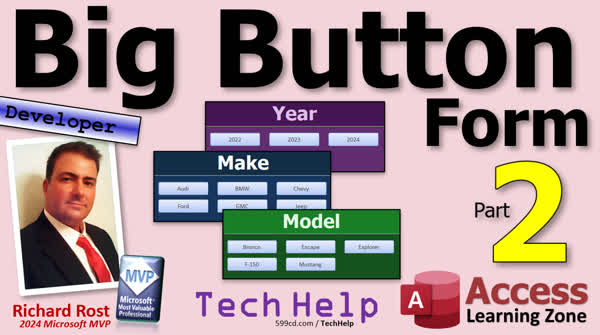
TechHelp Access, dynamic forms Microsoft Access, big button forms tutorial, data entry Access form, combo box Access tutorial, save vehicle data Access, concatenate fields Access, string concatenation Access, setup customer table Access, hide key column Access, year model make query Access, vehicle selection form Access, unbound form Access
More InformationTranscript Today is part two of my big button form series where we're going to make a dynamic form that you can click to pick options just like these. If you haven't watched part one yet, what are you doing here? Go watch part one and then come on back. All right, so yesterday we got our tables all set. We got make, model, and year tables all set up.
Now once the user picks their selection, right, they pick a make, model, and a year, we've got to save that information somewhere. Now ideally, you would want to have maybe a subform over here or another form that pops up like the contacts so that they can have multiple vehicles. Ideally, but we're not going to waste our time setting up relationships and stuff for that. So for the purposes of class, we're just going to put one field in the customer table where we put the customer's vehicle. One vehicle, that's all they're allowed to have. I don't know, maybe they're registering for a demolition derby and they can only register one vehicle at a time. I don't care. But just to keep things simple for class, we're going to make one field in the customer table.
Now what should we store in the table to know they're unique, make, model, and year? Do we have to store all three of these fields in there? No, absolutely not. All we need is really the last one, the year table. Because if we know the year, we can very easily look up the model, and if we know the model, we can look up the make. So if you've saved your data this way, you really only need to store the vehicle year ID if that's your last field. And of course, if you have other options like color and stuff that are separate that aren't related, make those extra fields too. But again, for the purposes of class, all I have to do is go into the customer table and add is V year ID and that's it.
Now I can tell based on that what their make and model are. All right, so go ahead and save that. Now what we're going to do is on the customer form I'd like to put a combo box down here so we can see all three of those things together. Just like if you watched all my other videos, just like on the order form we put together last and first name into this LFQ. That just takes first name and last name and puts them together so you can see both of those fields in a combo box like that. Because normally you only see one field at a time.
So let's make a query that puts these things together. So I'm going to bring in the tables make, model, and year. You shouldn't have to worry about joins here. You should use inner joins because every record in each of these tables should have a matching record in the other table. You would never have a make and a model without any years. Otherwise, you can't. No, it's not going to work. So just bring in the stuff that we need for this combo box. I need the make name, don't need the ID. I need the model name, don't need the ID. I need the year to display it and the value that we're going to be storing in the customer table is going to be the year ID. That's the unique value that will give us all of this information. And if I open this up now, you'll see this is what it looks like.
Now I just got to put all three of these together with a little concatenation so I can see them all from my combo box. We'll go over here. We'll call this display name. Here, I'll zoom in so you can see it, shift F2. Display name and that will be colon. It will be the make name and a space and the model name and a space and the year or however you want to display it. And if you don't know about string concatenation, you're in the wrong class. This is a developer class. I cover string concatenation in my beginner classes. But just in case you missed it, yeah, of course, I got a video on it. Go watch this. You would not believe the number of times that someone emails me and says, hey, I don't need these beginner classes. I want to skip them. I'm going to go right to the VBA stuff. That's what I want to learn. And then I'm like, OK, I don't recommend it, but it's your money, do what you want. And then, you know, two days later, they're posting in the forums, what's this thing about concatenation? I'm like, well, I covered that in the classes that you skipped. So there's a reason why my course covers things in a particular order.
So anyways, a little concatenation, we get this, this looks great, that's what's going to be in our combo box, rearrange the order if you want to, I don't care. I know Adam does it, you're a make model. And let's save this. I'm going to save this one as Vehicle Q, Vehicle Q. Yeah, I'm spelling it out this time because VQ is just dumb. So Vehicle Q is fine. Now we can use this to make the combo box on our customer form to store their vehicle choice. Is it vehicle or vehicle? How do you guys pronounce it? Depends, if you're from the south, it's definitely a vehicle. Drop that combo box right there. Look up the values from a table or query. Go to queries, pick the Vehicle Q. Next, what do you want? Well, we need the year ID first. And then we need the display name. We don't need all this other stuff. All right, next, we're going to sort it by the display name. Next, we're going to arrange the columns like that. We're going to resize that one.
Normally, this is the key column. This guy, come here. I can't get my mouse on it. This is the key column, but since this combo box is made from a query, you don't get that little checkbox here that says hide the key column. Access will only give you that if it's a table. So we can manually make that zero and that will hide it. Make this as wide as you think it needs to be. You can take a look at the data that's in here. Some of those are pretty wide. Yeah, like the GMC Sierra. Let's bring it out to here. All right, next. What field is the bound field? In other words, what's the data we care about? The year ID, obviously. We're going to store that value in the year ID field that we just added to the customer table. All right, we're picking the value and we're storing it in the customer table. Next, what label do you want? Vehicle. And we're done. There it is right there. We'll slide it up into place like so. Make this a bit wider. That width that we set earlier is for how wide the box is when you open it when you drop it down. Little format painter and picks that. All right, save it, close it, open it, and now we can pick a vehicle. All right, there's our list. And this list is what we're going to make our button and the big form to avoid because if you got greasy technicians with, you know, two thumbs, it's very difficult to click on that little guy, open this up and scroll down to pick all these things. Even if you make these nice and big, it's still easier to do what I'm going to show you how to do with these big button forms.
All right. So now we've got a way to view the data in here. Now we can start actually building the form, the single dynamic form that we're going to use to select all of our options. Now, I'm going to make this as a really basic form. It's not going to have any records in it. It's going to be an unbound form just like our main menu. It's not going to have any record selectors or navigation buttons. So I'm going to just copy the main menu and use that as the template for the big button form. Let's find the main menu, copy, paste, control C, control V. We'll call this big button F or whatever you want to call it I don't care but if you want your code to match mine name your stuff the same you can rename it later if you want to right-click design view I'm going to delete everything in here except for one button and that label caption I want to keep these things while we're in here let's change the caption because the caption right now says tech help free template we'll just call this the Big Bottom. Big Bottom? Big Bottom Barrow. I'm thinking elementary school math. They teach a big bottom barrow. Big Button Form. We're going to replace that in code. So when it opens up, it's going to say select the make or whatever. All right, this guy, let's change the name of it to the title label. And again, we're going to replace this in code or the caption in code.
So I'll just put title in here. That's going to be changed. Remember, change captions of labels here, not over here so it doesn't resize this guy. Now for the button, let's change the name to button1. And you can also make that the caption. And again, the caption is going to be changed with code. Now here's the thing with the buttons. We're going to have to copy and paste and make as many buttons as we think we're going to need in the worst case scenario. So I'm going to do it with I think I'm going to fit 18 buttons on the screen. If you need more than that, you'll have to make more. The thing is that Access cannot create or destroy objects on a form like buttons or labels or text boxes. It can't create them or destroy them unless you switch to design view, which you can do if you want to do stuff for yourself. And I built some databases like that just for me, where I say make me 10 buttons and the VBA code creates them. But your end users aren't going to be able to do that. In fact, your end users shouldn't have design access to the forms at all because you should be giving them ACCDE files, in which case they can't get into design view. So you have to basically create as many buttons as you're going to think you're going to need up front. So if you got 30 items, you're going to need 30 buttons. And then what we can do is we can show and hide them by making the visible property true or false in our codes. If there's six options, we'll only see six buttons. And yes, it is possible to resize the buttons, to resize the form, to do all that stuff. We're not going to cover that right now. If enough of you want to see it, I'll show you how to do it in a future lesson. Post a comment down below if you do. So I'm gonna resize this guy so I can get roughly three of them across. All right, so I'm gonna go copy.
Actually, what I'm gonna do first is I'm gonna change the caption to just button because it's easier now if I copy all these just come on here and go two, three, four, five, and so on. So copy, paste, paste. I'm gonna line these up like this. So they're how I want to see them. That looks about right, close enough, maybe a little bit to the left like that. Okay looks good. Then I'm going to copy this and go paste, paste, paste, paste, paste. I got 18 of them, right, 3 by 6. Now all you got to do is come over here and change this to button 1. All right, now I'm going to copy button to my clipboard and I'm going to click on this guy and this is not going to be button 2 and 2. See, right here, button 3, 3. Next one, you can click over here on the name and it will select that for you. Button 4, 4. And yeah, this is one of those things that's a little tedious to do the first time but you only have to do it once or if you got to add more buttons later, you got to go, okay, come in here and add three more buttons. No big deal. We're going to have code in our VBA to check. We're going to set the maximum number. So if you do have 20 options, it's going to yell at you and say you don't have enough buttons. We'll get to that. I rehearsed this earlier when I was building the prototype database. It took me under two minutes to do all 18 buttons. So I'm going to pause this now. I'm going to do one more for you. Click on this, click here, paste, button 5, 5. See, it's not, it's not hard. I can do it in under two minutes. I'm not going to make you watch me have to do it. So I'm going to pause now and finish them all myself. Go ahead and do it yourself too. Go on, get going, do it right now. All right, I'm on 11 and I want to say, do you have to name them like this? Yes, name them exactly like this, button 11, button 12, exactly like I'm doing it because we're going to make a loop in VBA and we can programmatically access the stuff in each of these buttons, but it's got to be exactly that, button and then the number. And there we go. I got all 18 of them done, all set. And yeah, that took me under two minutes to do, so you can do it too. All right. I'm going to leave a little space down here because later on we're going to put a cancel button down here in case the user wants to cancel.
Okay. But this is all set. We're going to save this, close it, open her up, take a peek. All right, looks pretty good. Not too bad. One more thing I am going to do is I'm going to come in here and turn auto center on. Find the auto center property and set that to yes because we're going to be opening up this as a dialog form so that it pauses execution and when that happens, it treats it like a pop-up form. So you want to put auto center on so it opens up in the middle of your access application. Alright it actually opens up in the center of this here. Alright so that's what I want. Otherwise if you got a multi monitor setup like I do it could open up anywhere on any monitor and that's annoying. So make sure you got auto center on.
Alright so now we can put a button on here that our big fat fingered technicians can click on to open up that form. Okay so design view and I'm just going to grab one of these buttons over here, copy and paste, slide it down here, make a big fat fingered button that says, whatever, what do you want? Select vehicle. I will right click properties and name this, I shall henceforth name this button, what am I calling it? Select vehicle button BTN. Save it. And we'll put some code in it to open up that form. Right click, Build Event. Yeah, I know it was off the screen. You guys don't need to see all that. My code window's always giant because when I work on stuff myself, I expand it a lot. And then when I have to teach a video, I got to close it down. All right, do command, open form. What are we opening up? Big button F. I almost typed in big buffoon. Big button F. And then we could go comma, comma, comma, comma, comma all the way to window mode and pick AC dialog like that. Or if you don't want all the commas there, you just go like this. You say window mode. It's got to be the exact name of the parameter, colon equals AC dialog. And then it gets rid of all those extra commas. I just learned that one myself not too long ago, a couple of years ago.
Debug compile. Oh, what do we got? Variable not defined status box. That's right, I deleted the status box. Let's get rid of all the code because we've got in our big button F. We've got all this code that we no longer need and there's no reason to have it. This is all the stuff that was in the main menu and we can just get rid of all that. We're going to put a bunch of stuff in here in a bit. All right, save that and that's why we do a debug compile once in a while. Debug compile, it cleans up all that garbage.And also make sure you got Option Explicit in all of your modules: your form modules, your report modules, and your module modules. All right, we should be good to go now. Once again: main menu, customer form, select vehicle, and there it is.
And we'll be able to click buttons and do stuff. Can we click buttons and do stuff now? No, we haven't programmed this yet. All we can do now is close this guy. Well, we're going to start programming that guy in part 3 tomorrow.
So you know the drill: tune in tomorrow, same bat time, same bat channel. And if you're a member, you can watch it right now because I'm going to continue recording right now. So it should be posted soon.
That's one of the benefits of being a member. You don't have to wait for this stuff to get published. But that is going to be your TechHelp video for today. I hope you learned something in part 2.
We're getting to the good stuff, folks. We had a lot of setup to do before we get to the meat and potatoes. Right? We got some condiments we had to set up first. I don't know.
Anyways, live long and prosper, my friends. I'll see you tomorrow for part 3.
A special thank you and shout out to our diamond sponsor Juan Soto with Access Experts Software Solutions. They're manufacturing experts specializing in Microsoft Access and SQL Server. Juan is a 13-time Microsoft Access MVP. Check him out at accessexperts.com.
TOPICS:
Creating customer vehicle field
Saving vehicle Year ID in customer table
Creating a combo box for vehicle selection
Using a query to join make, model, and year
String concatenation for combo box display
Naming and saving the new query as Vehicle Q
Creating a combo box based on Vehicle Q
Setting combo box bound field to Year ID
Customizing combo box display
Creating an unbound form for dynamic selection
Copying and pasting buttons for dynamic form
Naming buttons for easy reference in VBA
Setting auto center property for dynamic form
Adding button to main menu for opening dynamic form
Writing VBA code to open dynamic form in dialog mode
COMMERCIAL:
In today's video, we continue our big button form series by creating a dynamic form for selecting make, model, and year options. Didn't watch part one yet? Go check that out first. We set up our tables and now we'll see how to save user selections without complicating relationships. I will guide you through making a combo box and a query to display vehicle details neatly. Then, I will show you how to design a form users can easily interact with using large buttons. All this setup will pave the way for more advanced forms and functions in part three. You'll find the complete video on my YouTube channel and on my website at the link shown. Live long and prosper, my friends. Intro In this video, we continue building our big button form in Microsoft Access by adding a field to the customer table for vehicle selection, setting up the combo box to display make, model, and year using a query with string concatenation, and customizing the combo box to store just the year ID. I will show you how to design an unbound dynamic form with multiple large buttons, name them for use in VBA, set up auto center, and add a main menu button with code to open the form in dialog mode. This is part 2. Quiz Q1. In the tutorial, how many fields are added to the customer table to store the vehicle information?
A. One field
B. Two fields
C. Three fields
D. Four fields
Q2. According to the tutorial, which fields need to be stored in the customer table to uniquely identify the make, model, and year of a vehicle?
A. Make name, Model name, Year ID
B. Make name, Model ID, Year name
C. Year ID only
D. Model ID, Year name
Q3. What field does the combo box on the customer form need from the query to display the vehicle information?
A. Year name
B. Make ID
C. Make name
D. Year ID
Q4. What is the purpose of the 'display name' field in the query?
A. To sort the records by year
B. To view each individual component separately
C. To concatenate make, model, and year into one field
D. To store vehicle colors
Q5. Which property needs to be set to 'yes' to ensure the form opens in the center of the Access application?
A. Auto resize
B. Auto activate
C. Auto height
D. Auto center
Q6. What is the label text set for the button on the form that allows users to select their vehicle?
A. Enter vehicle
B. Choose vehicle
C. Select vehicle
D. Input vehicle
Q7. What format command is used to open the "Big Button Form" in the tutorial?
A. AC window mode
B. AC dialog
C. AC pop-up
D. AC normal
Q8. When adding multiple buttons on the form, why is it important to name them sequentially (e.g., button1, button2, etc.)?
A. Because Access only recognizes buttons with sequential names
B. To keep the design view organized
C. So that the VBA loop can programmatically access each button
D. To make it easier for users to navigate the form
Q9. What key method does the tutorial recommend for displaying the vehicle options in the customer's form combo box?
A. Using separate text boxes for make, model, and year
B. Using a subform for vehicle details
C. Combining fields into a single display name using concatenation
D. Using a drop-down list for each vehicle attribute
Q10. What is one reason the tutorial gives for creating multiple buttons upfront rather than dynamically creating them during run time?
A. To ensure end users do not switch to design view
B. To save development time
C. To reduce coding complexity
D. To guarantee proper alignment
Answers: 1-A; 2-C; 3-D; 4-C; 5-D; 6-C; 7-B; 8-C; 9-C; 10-A.
DISCLAIMER: Quiz questions are AI generated. If you find any that are wrong, don't make sense, or aren't related to the video topic at hand, then please post a comment and let me know. Thanks. Summary Today's TechHelp tutorial from Access Learning Zone picks up with part two of the big button form series. In this lesson, I am building a dynamic Microsoft Access form that allows users to select options, such as make, model, and year, from a user-friendly interface. If you have not watched part one yet, I highly recommend you do so first, since we already took care of setting up the necessary tables for make, model, and year.
To recap, after a user makes their choices for make, model, and year, we need to save this information somewhere in the database. In an ideal scenario, you might consider using a subform or a pop-up to manage multiple vehicles per customer, such as you would with contact management. However, for the sake of simplicity in this class and to avoid spending time on relationships and more advanced table setups, we will stick with giving each customer only one vehicle field. Think of it as if the customer is signing up for an event where only one vehicle can be registered. I just need a single field in the customer table to store this vehicle choice.
Next comes the question of what exactly to store in the table to identify the user's selection. Do we need to save the make, model, and year, or is something more efficient possible? The answer is that storing just the year table's ID is sufficient. If you know the year, you can always look up the model, and from the model, the make. This relational setup allows us to store only the vehicle year ID in the customer table, and later retrieve all the relevant details. If you have other fields like paint color or other unrelated options, those can be stored separately.
So, all I do at this point is add a VYearID field to the customer table. That is all I need for this project.
Moving ahead, I want to make it easy for users to see all the vehicle details in one spot on the customer form. For that, we will use a combo box that displays all three fields together. This is similar to how, in previous lessons, I showed you how to display both first and last names in a combo box. Typically, a combo box only displays one field at a time, but by building a query that joins all three tables (make, model, and year), and then concatenates those fields into a single string, we can present all the info together for better usability.
Let me describe the process. I pull the relevant fields into the query: make name, model name, year, and the unique year ID to serve as the value that's stored in the customer record. Since each make and model should have corresponding records in the year table, inner joins work perfectly here. After pulling this data together, I create a calculated field that combines the make, model, and year into a single display string using string concatenation. If string concatenation is new to you, I do cover that in beginner classes, so make sure you are comfortable with this basic skill.
Once the concatenated field is set up, I save the query as VehicleQ. This query now provides the display names needed for the combo box.
Back on the customer form, I place a combo box and use VehicleQ as its data source. The combo box is set up so that YearID is the bound field – that's the data we're actually storing in the table. The display text is our concatenated string of make, model, and year. You can adjust the column widths as necessary for readability, for example, making the box wide enough for long vehicle names. I also hide the first column (the year ID) for a cleaner display using the column width property. The bound field for data storage is the year ID. The label for this control is simply "Vehicle."
By setting up the combo box this way, users can quickly and easily pick a vehicle from the list, which is the foundation for building a more dynamic selection interface. But as you probably know, these combo boxes are not ideal for all situations, especially if you envision users with less dexterous hands or if your environment calls for a touch-friendly interface. That is why we are going further and creating the big button form.
To do this, I begin with an unbound form, using the main menu as a starting template. I copy the main menu, remove the existing controls except for one button and a label, and adjust the captions and control names appropriately. The form is renamed and prepared for use as the "Big Button Form." The label and the standalone button are updated as placeholders so their captions can later be set dynamically using code.
A key consideration for this interface is planning for how many option buttons you'll need. Access cannot dynamically create or destroy controls at runtime for the end user, especially in a finalized ACCDE file. So, plan ahead and manually add as many buttons as you anticipate needing, arranging them neatly on the form. For this example, I choose eighteen buttons, laying them out in a 3 by 6 grid. Each button is named sequentially (button1, button2, button3, and so forth), which allows VBA to manipulate them using a loop. While a bit tedious, it takes just a short amount of time and needs to be done only once. If you need more buttons in the future, you can add them, but remember to keep the naming consistent for easy reference in code.
Leave room at the bottom of the form for a Cancel button, which we'll add in a later lesson. Once the buttons are in place, I set the form's Auto Center property to Yes. This ensures that, when opened as a dialog (which pauses Access execution and displays the form as a pop-up), it appears centered in the application window – a useful touch, especially for those working with multiple monitors.
The finishing touch is to add a button to the main customer form, labeled "Select Vehicle." This button is named appropriately (such as SelectVehicleBTN). The button's click event is set up so that, when pressed, it opens the new big button form as a dialog. In the VBA, I use the OpenForm method and explicitly set the window mode to acDialog, either with parameters or by using named arguments for clarity. I also clean up any leftover or unnecessary code from the main menu copy. As always, I recommend running Debug Compile and making sure Option Explicit is declared at the top of all your modules for good coding practice.
At this stage, the setup is complete. When you open the main menu and go to the customer form, you can now use the "Select Vehicle" button to display the big button form. The buttons for selecting vehicles are laid out and ready, though we still need to write the VBA to handle the button actions – that will be the focus of part three.
So, that's the end of today's lesson. Be sure to catch the next installment to learn how to program these large selection buttons and bring the form to life. If you are a member, you can already watch the next segment, since I'll be posting it shortly.
You can find a complete video tutorial with step-by-step instructions on everything discussed here on my website at the link below.
Live long and prosper, my friends. Topic List Creating customer vehicle field
Saving Year ID in customer table
Creating combo box for vehicle selection
Building a query joining make, model, and year
String concatenation for display names
Saving query as Vehicle Q
Configuring combo box with Vehicle Q
Setting the bound field to Year ID
Hiding key column in combo box
Customizing combo box column widths
Sorting combo box by display name
Designing unbound form for dynamic selection
Copying and pasting multiple buttons on form
Naming buttons sequentially for VBA
Setting visible property for dynamic buttons
Setting auto center property for form
Adding button to open dynamic form
Naming and labeling button on main form
Writing VBA to open form as dialog Primary Topics Access forms, vehicle selection, combo box setup, storing IDs, query creation, UI design, button naming conventions, unbound forms, VBA form opening Secondary Topics string concatenation, auto center property, form customization |






