OpenForm Unfiltered
By Richard Rost

 2 years ago
Open Form to Specific Record Without Filtering
In this Microsoft Access tutorial, I will show you how to open a form to a specific record without filtering, allowing you to browse all records effortlessly. We'll use VBA and commands like FindRecord and GoToControl to achieve this. Perfect for developers looking to enhance form functionality in Access.
Caroline from Evanston, Wyoming (a Platinum Member) asks: I have a form in my database that I want to open to a specific record, like you do in your TechHelp database, but I also want to be able to browse through all the other records once the form is open. Is there a way to do that without filtering out the rest of the records?
Members
In the extended cut, I will show you how to achieve the same functionality more efficiently using a RecordsetClone and a Bookmark. This method avoids moving through the records on the form itself, offering a faster way to navigate to the desired record.
Silver Members and up get access to view Extended Cut videos, when available. Gold Members can download the files from class plus get access to the Code Vault. If you're not a member, Join Today!
Prerequisites
Recommended Courses
Keywords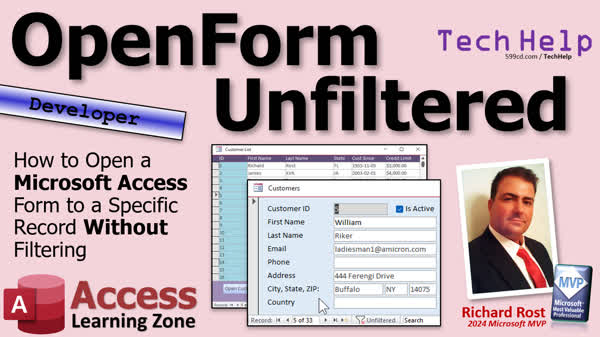
TechHelp Access, Open Form Specific Record, DoCmd.OpenForm, DoCmd.GoToControl, FindRecord Command, RecordsetClone, Customer ID Search, Access Form Navigation, Bookmark Usage, Access VBA Tutorial, TechHelp Database, Access Developer Lesson, VBA Programming
More InformationTranscript Today I'm going to show you how to open a form to a specific record without filtering the records. That way you can still browse through with me. So get the little thing down here, and you can browse. You're not sitting here with just one of one filtered.
Today's question comes from Caroline in Evanston, Wyoming, one of my platinum members. Caroline says, "I have a form in my database that I want to open to a specific record like you do in your TechHelp database. But I also want to be able to browse through all the other records once the form is open. Is there a way to do that without filtering the rest of the records?"
Well, of course there is. One of the things I love about Access is there's a million ways to do everything. So let's take a look. But first, this is a developer-level video. What does that mean? Well, that means we're going to be programming in VBA today, just a little bit. A couple of lines of code, not too much. So if you've never used VBA before, go watch this video. It's about 20 minutes long. It'll teach you everything you need to know to get started. Go watch that and come on back.
Okay. So here I am in my TechHelp free template. This is a free database. You can get a copy off my website if you want to, and you'll also find videos on there as to how this database was built. There's a couple of different ones. But in this database, I've got a customer list form, which is a continuous form that shows all of my customers, and I can double click on one of these or click on it and pick the open customer button, and that will open the customer that I selected. What it does is it opens the form, and it filters the results with a WHERE condition. So you can see there's only one of one here. I can't move back and forth between them.
Now, you can unfilter the records, but it'll put you back on record one. So you're not where you want to be. So what Caroline wants to do is pick a customer and open the customer to that record but still be able to go back and forth between them, between the different customers. And that's definitely possible, but we got to change our code a little bit. Let's take a look at how we open it right now.
Now, both this double click event and this button run the same code, and if you right-click and go to build event on the button or whatever, you'll see inside the VBA editor, both the double click event and the button run this private subroutine called open customer, that we don't have to have that same code duplicated into places, right. And all it does is first it checks to make sure that you've got something in the customer ID, that way if you're sitting on a blank record, it doesn't generate an error.
And here's the open form command: it's DoCmd OpenForm. Customer F is the form we're opening, and then comma, comma, comma, and then there's our WHERE condition, right. If you look at the parameters, if you hit space right there, it'll bring up this thing. Right, the TechHelp, what do they call that, the IntelliSense, or there's all kinds of names for it, but the WHERE condition allows you to say, "I want to see only customer ID number whatever, six, whatever customer you happen to be on." All right, and that's fine, but the results get filtered.
So if you want to do this without filtering the records, we have to take a slightly different approach. We're going to get rid of this. We're just going to open the customer form. Now that will show all records. I'm going to see everybody. But what we can do is we can use the FindRecord command to tell Access, "Hey, once you've got the customer form open, I want you to find this specific record."
Okay, now before we issue the FindRecord command, we have to be sitting on the right control. So we're going to say DoCmd.GoToControl. There it is right there. All right, what control am I going to be searching for? Well, I'm looking for the customer ID, so I want to be on the customer ID text box control. So I just put in here customer ID, right. Now save it. Now come back over here just to see what you got going on so far, right, should open the customer and then go sit on the customer ID. Ready, let's come back here and go click right there. That's perfect.
Okay, I got all the records open, and I'm sitting on the customer ID. You can go to any control you want, but you got to go to the one you want to search for. Okay, I know it's the first control, but if it wasn't, you know, you can't always assume that's going to be the first control if the user, you know, if you change a tab order or something, all right, so you want to make sure you're sitting on that control.
Okay, let's go back to our code. Now that we're on the right control, I want to FindRecord, so it's going to be DoCmd.FindRecord. All right, what are you looking for? Well, I'm looking for the value of the customer ID on this form. So if I'm sitting on record six, let's say, if I'm sitting over here, right, if I'm in this field, I'm looking for the number eight, now that number eight happens to be in customer ID on this form, so I want to open up this form, go to customer ID, and find number eight. Make sense?
Okay, so back here, I want to FindRecord. What's the value I'm looking for? Well, it's eight, but eight happens to be customer ID. Now, notice I did not put that inside of quotes because I'm not looking for a field named customer ID. I'm looking for the value that's in customer ID, so that customer ID there gets changed to an eight. Make sense? That confuses a lot of beginners, especially whether to put it inside quotes or not. You don't want the actual word customer ID; you want the value of the customer ID field.
Okay. Now, there's a whole ton of options in here. We don't need any of them. These are designed for different kinds of searches. For example, match, all right, there's AcExact. Let me go back up here so you get the list, right. There's Anywhere, Entire, or Start. That is, are you looking in the field for anywhere inside the field, the entire field, or the start of the field? Usually, this only matters with text. Like if you've got, you know, Jonathan and you're looking for J.O., and you'd say at the start of the field, you want the entire field, then you want entire. If you're doing a search for an ID like this, you want entire, which is the default. You can see right there it shows you what the default is. Okay. Comma, Match Case, again if you're doing a text search, do you want a match case: uppercase, lowercase? Okay, again, we don't need to worry about it.
Search As Formatted doesn't matter. Again, that's generally dates or text. Do you want to search as they're formatted in the field? Don't need it if you're searching for an ID. Only Current Field or All of the Fields. In other words, do you want to search all of the fields on this form? Again, usually that only applies to text. And then Find First, the default is yes. So we don't need any of these default options. We just need to say find me that customer ID.
Okay. And now let's give it a Debug Compile once in a while. Go back out here. Let's close these down. I close everything down so it saves changes, right. And let's go back in. Let's look for Tasha Yard or my double click here and boom, there goes. Look at that. It opened it up. It went to customer ID, the field. It's searched for the eight, and now I'm sitting on record eight of 33, and I can still browse through the other records. That's pretty cool. All right, yeah, you like that?
Now, this method does have some downsides because take a look at how it actually processes. It opens the form, which if you've got tons and tons of records, you got a hundred thousand customers and you're running over a slow network or over the internet if you got your backend somewhere else, for example, it's got to open the form, load all the records up, and then it's got to start from the beginning and just run down the list until it finds your record, then it moves there. So you're not going to notice a slowdown if you're dealing with an average-sized database on a pretty fast local area network, if you got a few hundred, a couple thousand records, no big deal. I use this myself in my database for a few things, and it works. It works okay, but if you got a really, really big database, this method can be kind of slow.
So in the extended cut for the members, I'm going to show you how to do the same thing with a couple more lines of code, but it's going to be much, much faster. It's going to use something called a RecordsetClone, which basically says, "I don't want to move through the records on the form itself, I want to look at the records underneath the form and just work with those." It's actually much, much faster, and then we'll use something called a Bookmark to go to the record that we want, and that's going to be covered in the extended cut for the members. Silver members and up get access to all of my extended cut videos, not just this one, all of them. There's hundreds of them by now, so lots and lots to watch. Gold members can download these databases, and everybody gets some free training. All my members get a free class every month to check it out.
And if you want to learn more about GoToControl and FindRecord and GoToRecord, there's all kinds of controls. I cover the macro versions of these commands in Access Expert Level 22 to try to cover. I know a lot of people don't want to be developers, don't want to take the time to learn VBA, so there are macro commands available to do the same thing, and I cover those in Access Experts 22, and I cover the VBA version in a lot more detail in the very first Access developer lesson. We do GoToControl, GoToRecord, and a whole bunch of other stuff, and it's really cool stuff. If you want to learn VBA, this is where you start, folks. Access Developer Level 1, this is the good stuff, this is where it starts to get interesting. I'm up to level 46 now, so I got lots of but that's going to do it for today, folks. That's your TechHelp video. Hope you learned something. Live long and prosper, my friends. I'll see you next time, and members, I'll see you in the extended cut in just a few minutes.
TOPICS:
Open a form to a specific record
Use VBA to open forms
Avoid filtering records in Access
Refactor code to avoid duplication
Using DoCmd.OpenForm in VBA
Using FindRecord command
Setting focus with DoCmd.GoToControl
Search for specific record using VBA
Understanding IntelliSense in Access VBA
Avoiding errors with blank records
Debug compilation in Access VBA
Potential performance issues in large databases
COMMERCIAL:
In today's video, you'll learn how to open a form to a specific record in Access without filtering out all the others, allowing you to browse freely. This is a developer-level tutorial, so we'll use some VBA code to keep things simple. We'll first show you how to use the FindRecord command to navigate to your specific record while keeping all records visible. If you're dealing with larger databases, speed can be an issue, so we'll discuss advanced techniques, like using RecordsetClone and Bookmarks, in the extended cut. You'll find the complete video on my YouTube channel and on my website at the link shown. Live long and prosper my friends. Intro In this video, I will show you how to open a form to a specific record in Microsoft Access using VBA, without filtering out the rest of your records. You'll learn how to use DoCmd.OpenForm and the FindRecord command to land on the record you want while still being able to browse through all available entries. I will also walk through setting focus with DoCmd.GoToControl, discuss code organization to avoid duplication, and touch on handling potential issues like blank records and performance concerns in larger databases. Quiz Q1. What is the primary goal of the tutorial presented in the video?
A. To open a form to a specific record while allowing browsing through other records
B. To filter records by a specific condition in Access
C. To create a new database from scratch
D. To design a customer feedback form in Access
Q2. What programming language is used in the video to change how forms open?
A. Java
B. VBA (Visual Basic for Applications)
C. Python
D. C++
Q3. What condition does the current form use to filter records before the tutorial's code changes?
A. Record Count condition
B. Group By condition
C. Where condition
D. Order By condition
Q4. What command is used to open the form without filtering the records, according to the video?
A. DoCmd.CloseForm
B. DoCmd.FilterOn
C. DoCmd.OpenForm
D. DoCmd.Save
Q5. Which command is introduced to find a specific record after opening a form?
A. DoCmd.Filter
B. DoCmd.FindRecord
C. DoCmd.Sort
D. DoCmd.SearchRecord
Q6. Before using the FindRecord command, which command ensures the correct control is selected?
A. DoCmd.GoToRecord
B. DoCmd.SelectControl
C. DoCmd.SetFocus
D. DoCmd.GoToControl
Q7. What potential downside is mentioned about the method shown in the video?
A. It requires an external database connection
B. It can be slow with large databases
C. It involves complex SQL queries
D. It does not work on all versions of Access
Q8. What alternative method does the video suggest for improving performance in large databases?
A. Increasing network speed
B. Using a RecordsetClone and Bookmark
C. Switching to a different programming language
D. Compressing the database
Q9. Why is the value of the customer ID not placed in quotes in the FindRecord command?
A. It is a text field that requires numerical values
B. The command expects a boolean value
C. The command is looking for the value, not the field name
D. Quotes would cause a syntax error
Q10. In what Access level does the video cover the macro versions of GoToControl and FindRecord?
A. Access Basics Level 1
B. Access Expert Level 22
C. Access Developer Level 1
D. Access Intermediate Level 15
Answers: 1-A; 2-B; 3-C; 4-C; 5-B; 6-D; 7-B; 8-B; 9-C; 10-B.
DISCLAIMER: Quiz questions are AI generated. If you find any that are wrong, don't make sense, or aren't related to the video topic at hand, then please post a comment and let me know. Thanks. Summary Today's TechHelp tutorial from Access Learning Zone explores how to open a form to a specific record in Microsoft Access without using a filter, so you can still browse through other records smoothly.
Caroline from Evanston, Wyoming, a platinum member, inquired about this specific feature. She wanted to open a form to a particular record while still having the ability to navigate through all other records. This is entirely feasible, and I'll show you how.
This is a developer-level tutorial, involving some VBA programming. If you're unfamiliar with VBA, I recommend watching my introductory video to get you started.
In my TechHelp free template, you can see how I manage customer lists. I have a form displaying all my customers, where I can select one and utilize a button to open their specific record. Traditionally, this involves applying a WHERE condition to filter the results, which only displays one record, limiting navigation.
To meet the requirement of accessing a specific record while retaining the ability to browse others, we need a slight code modification. Currently, both the double-click event and the button are managed by the same private subroutine, which first confirms you've selected a customer ID to avoid errors.
The traditional method involves using DoCmd.OpenForm with a WHERE condition, which filters results to a single record. To bypass this filtering while jumping to a specified record, we will adapt the approach by eliminating the WHERE condition and employing the FindRecord command instead.
First, ensure the form is open by simply using DoCmd.OpenForm without any filters. This will allow access to all records. Then, apply the FindRecord command to direct Access to a specific record. Before executing this, position the cursor on the customer ID control using DoCmd.GoToControl to correctly identify the record to locate.
Once on the appropriate control, employ DoCmd.FindRecord to pinpoint the desired customer ID. This action won't require additional options unless specific search criteria, like case sensitivity or field-specific parameters, are necessary.
After implementing these changes, test the application to confirm functionality. The form will open with access to all records, locate the specified customer ID, and allow navigation through other records efficiently.
It's important to note that this method might slow performance if your database is very large or operates on a slow network since it must load all records initially. For databases with extensive records, consider using a technique involving RecordsetClone and Bookmarks, which is discussed in the extended cut for my members.
To learn more about these commands, including macro alternatives, refer to Access Expert Level 22 and the initial Access Developer lessons, where these functions are covered comprehensively.
To dive deeper into these topics, including more efficient solutions, my extended cut videos are available to members where additional details are explored. Find a complete video tutorial with step-by-step instructions for everything discussed here on my website at the link below.
Live long and prosper, my friends. Topic List Open a form to a specific record
Use VBA to open forms
Avoid filtering records in Access
Refactor code to avoid duplication
Using DoCmd.OpenForm in VBA
Using FindRecord command
Setting focus with DoCmd.GoToControl
Search for specific record using VBA
Understanding IntelliSense in Access VBA
Avoiding errors with blank records
Debug compilation in Access VBA
Potential performance issues in large databases Primary Topics Access VBA, opening forms, navigation without filtering, FindRecord command, GoToControl command, refactoring event code, handling blank records
Secondary Topics IntelliSense in VBA, performance considerations, macro equivalents, developer best practices
|







