Already Open
By Richard Rost

 3 months ago
Prevent Multiple Instances of Database from Opening In this lesson, we will talk about the issue of accidentally opening multiple instances of the same Microsoft Access database, especially when using shortcuts to launch databases in separate MS Access processes. I will show you how to prevent this by creating a simple lock file system with VBA, which warns users if the database is already open and gives them a choice to continue. We will discuss how Access's built-in lock file works, why it is not enough for this scenario, and demonstrate the essential steps for checking, creating, and deleting a custom "Already Open" text file in your database folder. rtatt1 from (a YouTube Subscriber) asks: How can I prevent users from opening multiple instances of the same Access database at the same time, especially when launching each database in its own separate Access process? MembersIn the extended cut, we will improve the ImOpen warning system by giving each database instance its own unique lock file, display who opened the database and when, check if the lock file is stale, and hide the lock files so users do not accidentally edit or delete them. I will show you how to implement these features so you can safely open multiple instances and provide better information and reliability to your users. Silver Members and up get access to view Extended Cut videos, when available. Gold Members can download the files from class plus get access to the Code Vault. If you're not a member, Join Today!
PrerequisitesRecommended Courses
Keywords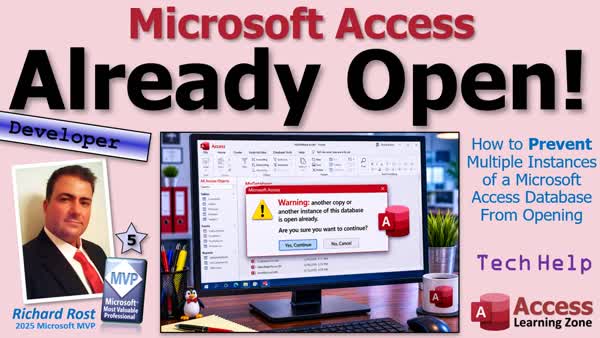 TechHelp Access, prevent multiple instances, lock file, VBA warning system, database lock text file, split database, record locking, TempVars, check if database is open, Kill command, Dir function, onload event, unload event, unique lock file, process isolation, access database warning
 Subscribe to Already Open
Get notifications when this page is updated
More InformationTranscript If opening different databases in separate instances of Microsoft Access fixed one problem for you, it may have inadvertently created another one. Now users can accidentally open the same database multiple times.
Welcome to another TechHelp video brought to you by AccessLearningZone.com. I am your instructor Richard Rost. Today we are going to talk about preventing multiple instances of the same Access database from opening simultaneously. We will see why Access's built-in lock file does not really help here. I will show you a simple way to create your own warning system using a text file and a little bit of VBA.
Today's question comes from one of my YouTube followers, ArtTap1, and it is a follow-up to my Access is Not Opening video. In that lesson, I explained how Access normally opens all of your databases inside the same MSACCESS.exe process. So if one database locks up or hangs in the background, it can affect all the others too. Sometimes you try to open another database and absolutely nothing would happen.
That is why I started opening databases with shortcuts directly to MSACCESS.exe and passing the database file name as a parameter. That forces each database into its own separate Access instance.
Now ArtTap pointed out something important. If you use that method, users can accidentally launch multiple copies of the same database file. Yes, sometimes that is intentional. I do it myself once in a while if I want to compare things side by side. But if you are not careful, that can cause problems with local files, design changes, record locking, and all kinds of weird behavior.
I have tried to accidentally edit the database that was open multiple times and it would lock it and say you do not have access to it because someone else has it open. I am like, what? No one else has it open. It is just me. Oh, OK. I have two copies of it open.
Now at first, you might think, well, does not Access already create a lock file? It does. The LACCDB file. But the problem is, by the time your database opens and your VBA code starts running, that lock file already exists. That is the first thing that Access does - it creates that lock file. So you cannot reliably use it from inside the database itself to stop the second copy from opening. Because once your VBA runs, that file already exists, even with copy one.
Now sure, you could build an external launcher with a batch file or a PowerShell script that checks for the LACCDB file before Access starts. That is definitely one option.
But personally, I like keeping everything self-contained inside the database whenever possible. So today's solution is simple. We are going to create our own little text file in the database folder that basically says, hey, this database is already open. Then when another copy starts up, we will look for that file and warn the user, let them decide if they want to continue anyway, because sometimes you want to. Sometimes I open up the same copy twice.
Now before we get into the code today, we have a couple of prerequisites. First, obviously, if you have not watched this video, which is the one we are talking about, go watch this first. You will need to know how to use the DIR function to determine if a file exists or not. I am going to use my RUSure function, which is just a simple little message box. It returns a yes or no to the user - are you sure. It is easier than writing this whole message box thing out.
We will need to know how to delete files with the Kill command. We will be making Adam very happy today by doing some work with TempVars. If you do not know what those are, go watch this video. In order to create our lock file, go watch this video that will teach you how to write a text file. These are free videos. They are on my website. They are on my YouTube channel. Go watch these and come on back.
All right, I created myself a database folder and I put my database in here because I am going to first start off by creating a shortcut to open this guy like we did in the Access Not Opening video.
Now here is the fast way I usually do this. I am just going to create a shortcut to this guy - right click, drag, drop, create a shortcut there. Now go find Access wherever Access is on your system. I keep mine pinned down here on the taskbar. You can go find it in your Start menu, whatever. Right click, go to Access, right click, go to Properties. This right here is what you want. That is your full path and file name for Access. Copy that to your clipboard. I am going to hit Cancel. Come back up to the shortcut that you made - this guy - right click on him. Go to Properties. I know it is off the screen but look for Properties. Then right in front of this, paste that in, and then hit space so you get a space in there. Now the shortcut points to Access and sends the database as a parameter. So now when you open it up, it still opens the same, but it opens in its own separate instance of Access. This is what we talked about the first time, in the first video.
But now, here is the thing. If I got this guy and he is over here and I run it again, if I double click on the shortcut again, it opens up a second copy. So now I have two copies of the same database running, and they are in separate instances. So that is a good thing at least.
But sometimes I do this, like sometimes I have two customers or this is the big one that happens all the time for me. I get a customer that sets up a second account with a different email address because I use email addresses as a key field. So then I have to open up their one account, and then I open a second copy of the database, I open it up again, I go to their second account. OK, I got to copy a lot of their stuff over to this one and then merge the two accounts. Yes, I got a button that does a lot of it automatically, but there are some things that I just have not coded yet. It is one of those things that does not happen often enough. It is not a pain point yet.
If it is something you got to do like once a month, OK, I will code it if it ever gets worse. If it is something I can do by hand and it only takes a minute and it does not happen that often, it is not that big a deal.
Anyway, so what we want to do is, when this database opens up, we want to have it drop a little text file in the database folder that says, hey, I am already open. So if we try getting away with that again, it will not let us, or at least give us a warning.
Yes, by the way, I am in dark mode. I love my dark mode. It is at night and it is currently at night.
All right, so where do we put this? Well, I am going to go and make a new module. So I am going to go Create and then Module. Let us create a public subroutine called I'mOpen or CheckIfImOpen.
All right. Let us dim a file name as a string. And I am going to say the file name equals ImOpen.txt. OK. Now, I have to know where this file name is going to be. If you want it to be any particular folder, like your server folder, I am just going to drop it in the database folder. The database folder is CurrentProject.Path. You have to put a little backslash in there and ImOpen.txt. Right? I mean, just like the folder, if you want, just do it like this. So it will be, for example, C:\WhateverYourDatabaseFolderIs\ImOpen.txt.
The first thing we are going to do is check to see if the file exists first. So if dir(fileName) is not blank, then file exists. Remember, DIR will return - you can give DIR a wildcard like *.txt. It will return the first file name that it finds that matches your criteria. If you give it an exact file name, it will return that file name if it exists, and if not, it returns an empty string.
So here we can just say something like, oh, this is where we need my RUSure function. Let me go grab that. That is in my Code Vault. I am just going to copy that. Gold members get access to my Code Vault. Tons of handy helper functions in here. You can put this in any global module. I will just paste it up top here. There it is. Get typing or sign up as a Gold Member. It is basically a message box. Instead of having to type all this out every time, you want to do it simply, yes or no. Default button 2. I have got a whole separate video on that. You should have watched it already.
So, the file exists. We are just going to say, hey, the file exists. Are you sure you want to keep opening this database? So, if not RUSure with the prompt "Database is already open. Are you sure you want to open a second copy?", then Quit. If they say no to that, we are just going to quit. It is going to shut the database right down.
Then we can end it here because in the else situation, that means it is not already open. Now we have to create the ImOpen file. We have to create that lock file. We learn how to write text files in my Create a Text File video. So we need an FF for the free file handle. So we will put that up here, FF as a Long. Or you can dim it down here. I do it both ways. Sometimes I dim it right there where I first use it. Sometimes I do it up here. But I tend to lean toward dimming stuff all up at the top of a sub because sometimes I dim it down here and then later on I am like, oh, maybe I can use it up here, but it does not exist yet up here. So that is the path. Ooh, someone's beaming in.
Anyway, FF = FreeFile. Then we are going to open it up for Output. So, Open fileName For Output As FF. Print #FF, "Database opened." Now, if you put stuff in here, this will help you to determine when it was opened, who opened it, in case you get - you should not have shared front-end files people - but just in case you do, you can put some other information here. Also, this "Database opened" - if you want to go check out and inspect this file yourself, you can see, oh, this is an old copy, I opened it two weeks ago, and it must have crashed because it never deleted this file. So you can say stuff like:
print Environ("username")
which is the user - that comes from the Windows system environment.
Then you can print the computer name -
print Environ("computername")
These are in the Windows system environment variables.
print CurrentProject.FullName
Here is the database itself, just in case.
There is a lot of stuff you can put in here. Anyway, Close #FF, and that is it. So now the database is open. Now we just have to run this in whatever your startup form is. That will do this check, exit it if they do not want to continue, and then write the lock file.
We need a way to delete that lock file too. So let us do a public sub DeleteLockFile. This is literally just "Kill" whatever that file to delete is. Now, we have that specified down here. I want to use this same file up in here. So let us make this a module-level variable.
Copy this. Actually, you know what, I am torn about module-level variables sometimes too, because if you are doing dev work, if you are doing development work, and you cause a bug or an error or something and it stops your code execution, you lose these variables too. Let us make - let us do a TempVar.
Let us do a TempVar. So let us get rid of this. Let us just dim FF. I like to only dim things in here that we are going to use long-term. Let us make this TempVars. We will call it LockFile. TempVars("LockFileName") = that. So this should get initialized right off the bat when the system loads. Now we just have to replace that fileName with this. So, Dir, that, that, and I think that is it. Now up here we can just say Kill that. So we do not have to be passing around variables and stuff.
Now, this might not exist, so it might throw an error just in case. So we just put a little "On Error Resume Next" on top of it. Could you check the C for, yes, you could do another DIR up here and check the C. At this point, we are already exiting out of the database. We might as well just delete it.
All right, save it. Call this my LockFileMod or whatever you want to call it. Debug Compile. OK, compile, good.
Now we have to put CheckIfImOpen and DeleteLockFile in my startup form. Let me open up my little Notepad here. Where's Notepad? Give me Notepad. There you are. Come here, little Notepad. OK. I need this guy. I always drop my Notepad because I can never remember them.
All right, so let us go find our startup form. This guy here. Let us go to your Load event. I already have something in the Load event. Let me move this over so you guys can see it. There it is. This is just for me. It loads the database in a particular window on my screen. But we are going to go before - no, we are going to do it after that because I want the database to be where it belongs. Normally you would check this first.
Check if it is open. Then in the OnUnload event, I do not think I have an Unload event. Let us go find Unload. There is the Unload event. We are going to put DeleteLockFile. Save it. Debug Compile again.
Now I am going to close it. Close it. That should be good to go. Here we go. Open it up. All right, it opened up normally. Nothing appeared to happen. No warnings, no messages, nothing. I am going to slide you over to the side here. I am going to leave it open, just slide it off the screen for a minute.
Here is my ImOpen.txt. It is sitting right there. Let us take a peek. What do you say? There it is. All right, beautiful. That is all of its data. That is exactly what I want to see in there. All right, that is fine. I am going to leave it alone. This database is still running. I am going to slide it over here. Now I am going to try to open a second copy of it. Ready? Oh.
Database is already open. Are you sure you want to open a second copy? I am going to say no. Now notice what happened. It deleted that lock file. So we need a way to say, if we are going to exit without opening the database, then we need to not delete that lock file. I will just do that with another TempVar.
So let us open it back up again. Come back. Let us go to our module code. We will go in here. Right here, let us make another TempVar that says DatabaseOpened. In here, we are going to say TempVars("DatabaseOpened") = False. We did not open it here. Down here, we are going to say it is True.
Now we will just check to see if DatabaseOpened is True when this runs. So if TempVars("DatabaseOpened") = True, then do this stuff. If it was not open, do not delete the lock file. Make sense?
All right. Let us try it again. Ready? Here we go. I am going to close this one. Let us see, I do not want to delete you. Oh, because we actually did the database with that TempVar; it was never set.
All right. So that worked the way it was supposed to work.
OK. Ready? Open it up. All right. Let us move it over. OK. ImOpen is there. I am going to slide this one off to the side. Open it again. OK. Do you want to open a second copy? I do not. It left it alone. Good. It is still open. Let us see. Yes, there it is.
So that will at least give you a nice little warning if you have another copy of the database open. I will be honest. I do this all the time. I will open the database, do stuff in it, minimize it, go do something else completely, and then I need to get in that other database again, forget it is open, and then go open up another copy of it. Then, oh, no, I do not want another copy.
Now we still do have one more problem. This is what happens with this problem. Ready? Let us say I open a copy of the database and I am working with it, everything is fine. Then I open a second copy of the database intentionally. OK, yes, I do want two copies of the database open. I am going to do some stuff side by side. Here they are. Work and work and work and work and work. I close one of them. It deletes the lock file. Now this one is sitting here without a lock file. If I open up another copy, I get another copy of the database without this one. You see what I am saying? So I can theoretically now have a database open without the lock file existing there. That could cause problems.
So we need to make it so that each database has its own lock file. We will do that in the extended cut for the members. Silver members and up get access to all of my extended cut videos, not just this one. All of them. There are hundreds of them available on my website and on my YouTube channel.
In today's extended cut, we are going to take the simple little ImOpen warning system and turn it into something a little more professional. We are going to improve it by giving every database instance its own unique lock file so multiple copies can stay open safely without stepping on each other like we just saw. We will also display some useful information like who opened the database and when, so that little warning - when you put it - will read that text file that we just wrote out basically, and we will say, "We have detected that so and so is using the database and it was opened three hours ago." This will also allow us to detect if it is stale. We can set a time and say, OK, if it is older than like six hours, then we can say, "This is a stale lock file. Your database might have locked up before and did not delete the lock file. Do you want to clear it?" That kind of thing.
We are also going to hide the lock files - those little text files - so your users do not accidentally mess with them if they go into Windows Explorer and to the database folder. These are the kinds of little real world improvements that make your Access database feel a lot more polished, professional, and reliable.
So again, Silver members and up get access to all this. Gold members get my Code Vault. You saw how useful the Code Vault was earlier. You just hop in there and grab all kinds of stuff. So click that blue Join button down below and sign up today.
Now you know how to make it so that each of your databases will give you a warning if someone tries to open them more than once, and that is pretty cool stuff. That is going to do it for your TechHelp video for today. I hope you learned something. Live long and prosper my friends. I will see you next time. Members, I will see you in the extended cut. Intro In this lesson, we will talk about the issue of accidentally opening multiple instances of the same Microsoft Access database, especially when using shortcuts to launch databases in separate MS Access processes. I will show you how to prevent this by creating a simple lock file system with VBA, which warns users if the database is already open and gives them a choice to continue. We will discuss how Access's built-in lock file works, why it is not enough for this scenario, and demonstrate the essential steps for checking, creating, and deleting a custom "Already Open" text file in your database folder. Quiz Q1. What problem does opening different databases in separate instances of Microsoft Access solve?
A. Prevents one database freezing from affecting others
B. Prevents users from making design changes
C. Stops record locking issues
D. Disables the Access lock file
Q2. What new issue can be introduced by opening databases in separate Access instances?
A. Users can accidentally open the same database multiple times
B. Databases will not open at all
C. Only administrators can open the database
D. The lock file is never created
Q3. Why is relying on the LACCDB lock file from inside the database not effective for preventing multiple copies from opening?
A. The lock file is created after VBA runs
B. Access never really creates the lock file
C. The lock file is only for network use
D. The lock file is deleted immediately
Q4. What method does the video suggest for warning users about opening multiple copies of the same database?
A. Creating a custom text file as a lock/warning file
B. Relying on Access's built-in alert
C. Disabling the open function in Windows
D. Sending an email to database users
Q5. Which VBA function is used to check if a file exists?
A. DIR
B. FILECHECK
C. FILEEXIST
D. FIND
Q6. What does the custom RUSure function do?
A. Pops up a Yes/No message box asking for confirmation
B. Checks for database errors
C. Writes data to a log file
D. Deletes records from a table
Q7. Where is the custom lock (ImOpen.txt) file created?
A. In the same folder as the database file
B. In the Windows System32 folder
C. In the user's Documents folder
D. In the Access installation directory
Q8. What VBA command is used to delete the lock file?
A. Kill
B. Erase
C. RemoveFile
D. DeleteFile
Q9. How does the solution ensure the lock file is not unnecessarily deleted when opening is canceled?
A. Uses a TempVar (temporary variable) to track if the database was opened
B. Renames the lock file instead
C. Schedules file deletion for later
D. Locks the file using Access security
Q10. What additional improvements are discussed for the extended cut of the video?
A. Giving each database instance its own unique lock file and showing who opened the file and when
B. Backing up all databases automatically
C. Encrypting all database files
D. Disabling double opening completely
Answers: 1-A; 2-A; 3-A; 4-A; 5-A; 6-A; 7-A; 8-A; 9-A; 10-A
DISCLAIMER: Quiz questions are AI generated. If you find any that are wrong, don't make sense, or aren't related to the video topic at hand, then please post a comment and let me know. Thanks. Summary Today's video from Access Learning Zone covers a problem that can crop up when you open different databases in separate instances of Microsoft Access. While this method helps prevent one locked-up database from affecting others, it can also allow a user to inadvertently open the same database file multiple times. This can cause issues like record locking conflicts or confusion when the database seems to be in use by "someone else" when it's actually just you, in another window.
I explain why relying on Access's built-in lock file, the LACCDB, is not sufficient for preventing duplicate openings. By the time any VBA code runs in your database, the LACCDB lock file is already in place, so it cannot act as an effective warning or blocker from inside the database itself. While you could use a batch file or PowerShell script outside of Access to check for the presence of an LACCDB before starting Access, I like to keep solutions self-contained inside the database whenever possible.
So, the solution I walk through involves creating a simple text file in the same folder as your database when it's opened. This file serves as an indicator that the database is already in use. When someone (or even yourself, perhaps after having minimized the first window and forgotten about it) tries to open another copy, the system checks for that text file. If it finds the file, it warns the user that the database is already open and asks if they want to continue. Sometimes, you do want to have two copies open, such as when comparing accounts or performing special tasks, so this is a warning, not an absolute blocker.
There are a few prerequisites you should be familiar with for implementing this solution. You'll need to understand how to use the DIR function to check if a file exists, be comfortable with the Kill command for deleting files, and have some experience using TempVars in Access. Additionally, you should know how to write to a text file with VBA, since that's how we create and manage the lock file. These are covered in free videos on my website and YouTube channel, so feel free to review those before proceeding.
To set this up, the process begins by determining where your database is located. I recommend placing it in a dedicated folder and creating a Windows shortcut that opens Access with the database as a parameter. Doing this ensures every instance of the database opens in its own Access process.
Once that's in place, the technique involves writing a routine that, upon opening the database, creates a text file (such as ImOpen.txt) in the same folder as your database. This file might contain useful information like the username, computer name, and the full path of the database, in case you ever need to check which machine or user had it open. The VBA checks for the existence of this file at startup. If it finds the file, it prompts the user with a custom Yes/No dialog asking if they really want to open a second copy. If the user chooses not to proceed, Access will exit. If they do want to proceed, it continues as usual.
Once the database closes, another routine deletes that lock file. To keep track of whether the database truly opened (and avoid deleting the file when someone cancels out of the warning), I use a TempVar that tracks the state. The checking and deletion routines are called from the startup form's Load and Unload events, ensuring consistent behavior and cleanup.
Of course, there is an important caveat. If you intentionally open two or more copies, each will run independently, but when you close one, it deletes the lock file, even though another copy is still running. That means it is possible for an instance of your database to remain open without a lock file present. Opening a new instance after that point would not trigger the warning. For most situations, this lightweight solution is sufficient, but for more professional handling where each instance tracks itself properly and gives more detailed information (such as who opened the database and when), further improvements are warranted.
Also, in today's Extended Cut, I cover how to give each database instance its own unique lock file. This allows multiple copies to be open safely without interfering with each other, and you will also see how to display more useful information in the warning prompt, such as who has the database open and for how long. Additionally, I'll show you how to hide these lock files so users do not accidentally tamper with them. These enhancements make your database far more polished and professional.
You can find a complete video tutorial with step-by-step instructions on everything discussed here on my website at the link below. Live long and prosper, my friends. Topic List Opening Access databases in separate instance windows
Risks of opening the same Access database multiple times
Problems with the built-in Access lock file (LACCDB)
Using custom lock files to prevent duplicate openings
Creating a shortcut to open a database in its own Access instance
Checking if a file exists using the DIR function
Creating a simple message box function (RUSure)
Writing a lock text file in the database folder with VBA
Using the Kill command to delete files with VBA
Using TempVars to store and pass data in Access
Adding lock file creation logic to the database startup
Adding lock file deletion logic on form unload
Verifying and testing the lock file system
Troubleshooting scenarios where lock files persist Article If you have been running into problems with Microsoft Access when opening different databases in separate instances, you might have solved one problem and created another. Opening each database as a separate MSACCESS.EXE process helps prevent one database from crashing and taking everything down, but it also makes it possible for users to accidentally open the same database more than once. That can lead to confusion, file locking issues, and sometimes even odd database behavior.
You might think that Access's built-in lock file, the LACCDB file, would handle this, but it does not work as a reliable solution here. The problem is that as soon as Access opens any database, even the first copy, it creates the lock file. By the time your startup VBA code is running, that LACCDB file is already there, so checking for its existence does not help you differentiate between the first and second copies from inside Access.
You could build an external batch or PowerShell launcher that checks for the lock file ahead of time, but there is a more flexible method that keeps everything inside your database. The idea is to let your own Access code create a simple text file as a marker that the database is already open. If someone tries to open the database again, your code will detect the marker and warn the user. Depending on your needs, you can warn them, block them, or even let them proceed if they really want to (sometimes you might intentionally open the same database twice, for example if you need two views side by side).
To get started, imagine you have your database file, say Database.accdb, sitting in its own folder such as C:\MyDatabaseFolder. To make a shortcut that forces the database to open in its own Access process, you first copy the path to MSACCESS.EXE from your Start menu or taskbar (for example, "C:\Program Files\Microsoft Office\root\Office16\MSACCESS.EXE"), and then create a shortcut that runs something like:
"C:\Program Files\Microsoft Office\root\Office16\MSACCESS.EXE" "C:\MyDatabaseFolder\Database.accdb"
This opens the database in its own process, but now users can double-click that shortcut again and wind up with two (or more) instances of the same database.
To prevent confusion and warn users, we will handle the issue inside Access. When the database starts up, we will have Access drop a file called "ImOpen.txt" into the database folder. When a new copy of the database starts, the code will check for that marker file. If it finds it, it will warn the user and let them decide whether they really want to open another copy or not.
The core code for this goes into a new standard module. Press Alt+F11 to open the VBA editor, then create a new module.
Here is the code for a simple warning system:
' First, a helper function that asks the user a Yes or No question and returns True or False:
Public Function RUSure(Prompt As String, Optional Title As String = "Are you sure?", Optional DefaultButton As Integer = vbDefaultButton2) As Boolean
If MsgBox(Prompt, vbQuestion + vbYesNo + DefaultButton, Title) = vbYes Then
RUSure = True
Else
RUSure = False
End If
End Function
' Now, the main routine to check for the lock file:
Public Sub CheckIfImOpen()
Dim fileName As String
Dim FF As Long
fileName = CurrentProject.Path & "\ImOpen.txt"
TempVars("LockFileName") = fileName
TempVars("DatabaseOpened") = False
If Dir(fileName) <> "" Then
If Not RUSure("Database is already open. Are you sure you want to open a second copy?") Then
TempVars("DatabaseOpened") = False
Application.Quit
Exit Sub
End If
End If
FF = FreeFile
Open fileName For Output As #FF
Print #FF, "Database opened."
Print #FF, "User: " & Environ("username")
Print #FF, "Computer: " & Environ("computername")
Print #FF, "Database: " & CurrentProject.FullName
Print #FF, "Date: " & Now()
Close #FF
TempVars("DatabaseOpened") = True
End Sub
' And a routine to delete the lock file on close:
Public Sub DeleteLockFile()
On Error Resume Next
If TempVars("DatabaseOpened") = True Then
Kill TempVars("LockFileName")
End If
End Sub
This code relies on TempVars to keep track of whether the database has successfully run the startup routine. This way, if the database is opened and then closed, the ImOpen.txt file will be deleted. But if the user cancels at the warning prompt, the marker file is not touched.
Add the call to CheckIfImOpen to your startup form's Load event. In Access, open your startup form in design view, go to the "Events" tab in properties, and in the On Load event, add:
=CheckIfImOpen()
Then, in the same form's Unload event, add:
=DeleteLockFile()
This ensures that the marker file is created when the database opens and is properly deleted when the form closes (and thus the database closes). If the database crashes or is force-closed, the file may remain, but you can always check for this at the next startup and inform the user.
Now, here is an example of how this feels in practice. When you open the database, nothing unusual happens, but an ImOpen.txt file is written into the same folder as your database. If you open a second copy (by double-clicking your Access shortcut again), your code will see the marker file and prompt you with "Database is already open. Are you sure you want to open a second copy?" If you say No, the database closes, and the lock file remains. If you say Yes, a second copy opens.
One issue to watch out for is this: if you do open two copies intentionally, both are running, and if you close one, it will delete ImOpen.txt even though the other copy is still open. That means further copies can be opened without warning. A more advanced solution is to generate a unique lock file for each instance (for example, ImOpen.username.computername.timestamp.txt), keep track of all lock files, and only delete the relevant one on close. You can even check the age of the files to detect stale ones left from a crash.
For many situations, though, this simpler approach is enough to remind users not to run multiple copies of the same database accidentally. If you want to refine it, you can expand the contents of ImOpen.txt to include additional data such as the opening user, PC name, the file path, and opening timestamp. That will help with troubleshooting if stale marker files are left behind. Printing this information is as simple as adding lines like:
Print #FF, Environ("username")
Print #FF, Environ("computername")
Print #FF, CurrentProject.FullName
To sum up, by adding a small bit of VBA code to check for and manage a simple marker text file at database startup and shutdown, you can create a much friendlier experience for your Access users. This approach warns users if they accidentally open multiple copies of the database and helps prevent some of the confusion and errors that can arise from multiple simultaneous openings, especially when you are using separate Access instances for each database. Primary Topics
Microsoft Access, preventing duplicate database instances, VBA programming, custom lock files, file existence check, user warnings, database startup routines
Secondary Topics
TempVars usage, DIR function, Kill command, environment variables, shortcuts for Access, messagebox prompts
|




