Fitness 75
By Richard Rost

 3 months ago
Routine Details: Building a Third Synchronized Subform In this lesson, we continue building our Microsoft Access Fitness Database by adding a third synchronized subform for routine details, making it easier to automatically display related information as you move between records. I will show you how to update the menu, create and link the new subform, and ensure synchronization across all forms. We will also walk through creating a combo box that combines exercise groups and exercise names, using a custom query, so you can select exercises more easily and display descriptive information. Next time, we will discuss adding custom sort order tools for rearranging exercises within routines. MembersThere is no extended cut, but here is the file download: Silver Members and up get access to view Extended Cut videos, when available. Gold Members can download the files from class plus get access to the Code Vault. If you're not a member, Join Today!
PrerequisitesRecommended CoursesUp Next
Keywords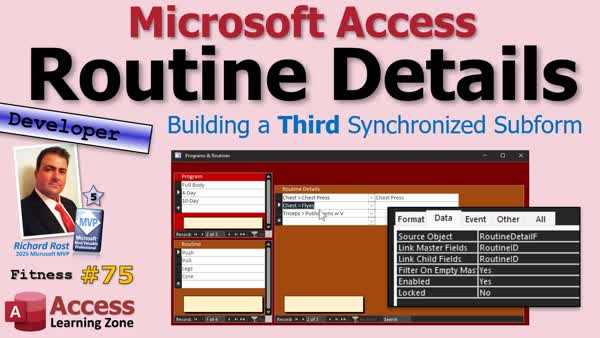 TechHelp Access, programs and routines form, synchronized subform, routine details, subform synchronization, combo box exercises, group exercise query, menu editor, sort order, rearrange records, forms navigation, parent child forms, exercises table, muscle groups, bound fields, custom sort buttons, data entry forms
 Subscribe to Fitness 75
Get notifications when this page is updated
More InformationTranscript One of the best ways to make a Microsoft Access Database feel intuitive is to automatically display related information as your users move from one record to another. Today we are going to take our programs and routines forms one step further by adding a third synchronized subform for routine details.
Welcome to another TechHelp video brought to you by AccessLearningZone.com. I am your instructor Richard Rost. This is part 75 of my fitness database series, and remember, even if fitness is not your thing, we are just using this database as an example. The techniques we are learning today can be applied to just about any Access database project.
Last time, we built the program and routine forms and linked them together with the synchronized subforms so selecting a workout program automatically displayed the routines that belong to it. Today we are going to add a routine details form, connect it to the synchronized subform parent, and then build a combo box that lets us select exercises from a related table while displaying useful descriptive information.
Alright, let us get started.
Alright, we are back at it. The first thing I want to do today is add the new programs and routines to this menu here so that I am not constantly just poking around in the forms. So let us go to the menu table that powers that thing, and yes, we are eventually going to make a nice menu editor. I am not going to rely on you guys to always have to type stuff in here. I want this to go on the parent form, which is going to be two. Wait a minute, let me see here. No, the parent form is three. Three is exercises, weight plates, and all that stuff. Okay, so the parent ID is going to be three.
Sort order, let us just see the stuff that is on menu three here. Let us put weight plates at the bottom so that will be four, then we will do exercises, and then this one will be number three. This will be programs and routines, and it is going to open the program routine F. Save it, and now I have to go up and then back down, and there is programs and routines. Beautiful.
See how nice it is once you get that built, and your users will be able to update that without having to make changes to the code. You want to add buttons and such.
Next up is adding the routine details. Now, you can do it as a subform inside the routine form, but I am going to do it as a third synchronized box. I think that looks best, it works best, and program and routine are relatively short boxes, so it will fit nicely over here.
I am going to copy the routine form. Where are you, routine? Let us copy this to routine detail F, so copy, paste, routine detail F. There it is right there. Okay, I am going to change the record source to routine details. There it is, the routine detail T.
Now for this one, we do need the routine ID to link back to its parent, but we do not need the routine detail ID on here, so we can get rid of the second box. We do not need that one, and it is not linked anyway, so that is fine.
This will be the routine detail details, and we are going to need some room on here because we are going to add the exercises and such that is going to all go out here. Save this, and let us get the synchronization working, so let us drop this into here.
I am going to move this over here because we need some more room now. Grab that, drop it in here, get rid of the label. I like the position just a little bit lower like that, and then we will do this. There we go.
Now, we need to carry the synchronization over from this guy, though, so let us copy this, copy, paste, and then grab it and slide it up here or put it over here, wherever you want to put it.
Now, this is going to be the routine ID linked to this guy, so open up its properties. We are going to name this guy the routine ID. It is going to get its value from routine F. That is the subform object: routine, routine ID. There it is. It wants to give it to me in the IntelliSense pop up, but I keep ignoring it. Save that.
Then the same thing - make this guy linked to it, linked master/child fields to routine ID/routine ID, and that is why we need these hidden fields on here. Save it, close it, close it, open it. I can move it over just a little bit. There we go.
Now, the data that is in here might not be valid yet, and we are only seeing the descriptions. Remember, if you look at the table data - where is the table data in the routine detail? The exercises are right here. So what we are seeing is the description and notes. We still have to add the exercise and the sort order and the sets. We will get there, but you can see as I move from record to record here, it is changing. Let us see, is it changing? Yes, it is changing. Go to the four-day split, go to push, I will put in here, I do not know, chest press. I will go to pull, and nothing is in here, I will do pull downs, whatever. We do not know what these are, I am just using sample data at this point, and see how it is changing as I move from routine to routine. So the synchronization is working with the third subform.
That is all I want to do right now. Let us not forget to change the caption on this form. This is not muscle groups and exercises; this is programs and routines.
Programs and routines.
Save that, save it, save it, close it, open it. There we go. Looks good.
Next, I want to have a combo box in here that shows what the exercises are, because it is right here; it is an exercise ID going back to the exercise table. I want to see that, but I also want to see the group that this is part of.
On this form, I want to see push chest press, push triceps, and so on. We are going to make a special query that is going to have the group name and the exercise name together so we can put that in a combo box here. Think of it like when you want to do a product - you want to have the product category and then the product name. So, like, hard drive - one terabyte hard drive, two terabyte, that kind of thing. This is usable with any kind of database, not necessarily just fitness. Again, it is groups and items, whatever your groups of items are, families and people, for example: Ross family and then the person, or whatever. These are all universal concepts.
So let us make a query that shows that. Create, then query design, and I need my exercises, so exercise T, and my muscle groups - where are the muscle groups? There are the muscle groups. It is a one-to-many going that way, that is fine.
What do I want to see in the combo box? I am making this specifically for the combo box. Could you do SQL? Yes, you could; this is easier.
So, we need the exercise ID because that is going to be our bound field, and then right here, I am going to put a combination of the muscle group description and maybe a little arrow or something, and then the description of the exercise. Let me zoom in so we can do it better.
I want to see the names of the fields, so I am going to move this over here. This is going to be group exercise, and it is going to be - now, they are both named description, this is why the table names are sometimes important - it is going to be muscle group T dot description, and if you have spaces in your names, remember you have to put brackets around this stuff, which we do not, so, and maybe like that symbol or a little greater than symbol so it is kind of pointing to it, and then the exercise T dot description. Put those two together, and let us see what it looks like. Run it, and that is perfect; that is exactly what I want to see in the combo box as we drop it down: biceps this, biceps that.
Save this; this will be our group exercise Q, and now we can make our combo box.
Let us go back into here, design view, click in here - I am just opening it up because it is easier to work with. We are going to shut it back down in a minute. Form design, find your combo box - where are you? Right there, this guy. Drop it in here.
We are getting the values from the table or query. I still love this wizard, even as an advanced user; I love this wizard. This is one of the better design wizards. I just wish it gave you an option to name the combo box at the end - hint hint, Microsoft team.
Queries - where is the group exercise Q? Bring them both over. Let us sort it by that group exercise, the fields.
Remember, we have to hide the first one because it is based on a query. Make this a bit wider; that is what you think it needs to be. Just take a peek down. It does not have to be super wide, but you do not want to have this truncated.
Next, exercise ID is the actual value. Next, store that value in the exercise ID in the routine detail table. Next, what label would you like? Does not matter; we are going to delete it.
This is the next step where it should be, to give the combo box a meaningful name, and then finish - which I now have to do manually. I wish this was in here for beginners. Open this up, let us call this the exercise combo.
That would be the number one thing on my list for the Access team.
Slide description over because that is kind of secondary to the actual exercise itself, and you could put things in here like warm up, ten reps, or whatever. We will get to that. I like to differentiate between my warm up sets and then my main set, and then my cool down, like finisher sets.
There we go. So we will make this nice and wide, and then our description can go next to it, or whatever you want.
Let us just test this so far. Do not forget your tab order. One of my other pet peeves is these things do not always come in exactly sized for the grid, so you have to kind of highlight them, right click, size to grid. Then it is just a tiny bit too big for the grid.
Then the tab order: form design, tab order, auto. Save it, close it, open it, and let us see what we have got.
Perfect. There we go - four-day push, pull, and I just guessed and I got those right. I had no idea what I was typing in, and I got them right.
Looks good.
We have a lot more to go. We are going to add the sort order next, and sort order is going to be cool because it is not just going to be like one, two, three. We are going to make it so that you can reorder stuff with buttons, so you can sneak stuff in the middle. I have some cool tricks coming for sorting items, but this will be good for today. We have our little combo box all set here, and that is it for today. We will cover more in Fitness 76.
Today we expanded our programs and routine system by adding a third synchronized subform for routine details and a combo box that lets us select exercises from related tables while keeping everything connected automatically.
In the next lesson, we will start working on a custom sort order and build some tools to let users easily rearrange exercises within the routine.
Post a comment down below. Let me know how you liked today's video and how you handle sorting and ordering records in your own databases.
That is going to be your TechHelp video for today, brought to you by AccessLearningZone.com. I hope you learned something. Live long and prosper, my friends. I will see you soon for part 76.
If you enjoyed this video, hit that thumbs up button right now and give me a like. Also, be sure to subscribe to my channel, which is completely free, and make sure you click that bell icon and select all to receive notifications whenever I post a new video.
If you are new to Microsoft Access, check out my Access Beginner Level 1 course. It is over four hours long, and it covers all the basics like tables, queries, forms, and reports. It is a great place to start, and it is also completely free.
Members of my channel get extended cut videos, sample databases, access to my code vault, and full training classes every month. Click the join button for details.
Thanks for watching. I am Richard Rost with AccessLearningZone.com. Live long and prosper, my friends. I will see you next time. Intro In this lesson, we continue building our Microsoft Access Fitness Database by adding a third synchronized subform for routine details, making it easier to automatically display related information as you move between records. I will show you how to update the menu, create and link the new subform, and ensure synchronization across all forms. We will also walk through creating a combo box that combines exercise groups and exercise names, using a custom query, so you can select exercises more easily and display descriptive information. Next time, we will discuss adding custom sort order tools for rearranging exercises within routines. Quiz Q1. What is the main goal of adding a third synchronized subform in the Microsoft Access fitness database example?
A. To display related routine details automatically as users move between records
B. To create advanced reports for printing
C. To enable mass deletion of old records
D. To improve database security features
Q2. Why is it important to automatically display related information as users navigate records in Access forms?
A. It enhances user experience and database intuitiveness
B. It speeds up database backups
C. It prevents data loss from accidental deletions
D. It enables concurrent user logins
Q3. In the video, where are the new Programs and Routines menu items added?
A. In the menu table, using the parent ID reference
B. Directly into the ribbon through code
C. On the system administrator's dashboard only
D. As quick access toolbar shortcuts
Q4. Why are hidden fields like Routine ID important on synchronized subforms?
A. They are used to link master and child fields for automatic synchronization
B. They display extra information to the user
C. They store temporary password values
D. They prevent unauthorized edits
Q5. What is the purpose of creating a special query for the combo box on the routine detail form?
A. To display both the muscle group and exercise together for selection
B. To limit combo box options to a single value
C. To filter out all inactive records
D. To randomly assign exercises to routines
Q6. Which form element is updated to include a combo box for exercise selection?
A. Routine Detail F
B. Menu F
C. Program Routine F
D. Exercises T
Q7. What is the main benefit of using a query to supply values for a combo box in Access?
A. You can combine and display descriptive information from multiple tables
B. It commits changes directly to the system registry
C. It prevents accidental form closures
D. It disables editing of the combo box
Q8. According to the video, what is an example of group and item relationships that can benefit from this combo box technique?
A. Product categories and products
B. Usernames and passwords
C. Tables and queries
D. Forms and reports
Q9. Why is it recommended to verify and adjust the tab order after adding new controls to a form?
A. To ensure data entry is efficient and logical for users
B. To automatically resize all controls
C. To unlock hidden fields
D. To refresh database indexes
Q10. What feature is planned for the next lesson after this video?
A. Custom sort order controls for reordering exercises in a routine
B. Creating summary reports for fitness progress
C. Adding user login functionality
D. Automating database backups
Answers: 1-A; 2-A; 3-A; 4-A; 5-A; 6-A; 7-A; 8-A; 9-A; 10-A
DISCLAIMER: Quiz questions are AI generated. If you find any that are wrong, don't make sense, or aren't related to the video topic at hand, then please post a comment and let me know. Thanks. Summary Today's video from Access Learning Zone focuses on making Microsoft Access databases more intuitive by automatically displaying related information as users move from one record to another. I am continuing with my fitness database example, but remember, even if you are working with a different kind of data, such as products or people, these techniques are applicable to any Access project.
Previously, I created forms for both workout programs and routines, and linked them using synchronized subforms. This allowed the routines associated with a selected program to appear automatically as the user navigated the records. Today, I am taking it one step further by adding a third synchronized subform for routine details.
To begin, I wanted to add the new Programs and Routines form to the main menu system so that it is easily accessible. I went into my menu table, identified the appropriate parent form, and adjusted the sort order so that Programs and Routines would appear just above exercises and weight plates. This way, my users can open these forms from the menu without having to dive into the form design view or remember the form names. Eventually, I plan to build a menu editor to make this process even easier for users.
Next, I set up the routine details subform. While it can be placed inside the routine form as a subform, I prefer displaying it as a third synchronized box. This layout looks cleaner and is easier to work with, considering that program and routine boxes tend to be reasonably short.
I copied my existing routine form and created a new form called Routine Detail F, updating its record source to point to the routine details table. This form needs the routine ID for synchronization with its parent routine, but it does not require the routine detail ID to be displayed, so I removed that field.
With the new routine details form ready, I brought it onto the main Programs and Routines form as another subform. I adjusted its position for better appearance and made sure to set up the correct synchronization. I linked the master and child fields using the routine ID, ensuring that when I navigate between routines, only the corresponding routine details appear. You will notice that as you move between different routines within a program, the details for each one are displayed automatically. This confirms that the synchronization across all three subforms is working as intended.
To make the form more descriptive, I updated the caption so it accurately reflects the content, changing it to "Programs and Routines."
Now, I turned my attention to making data entry easier and more meaningful for users. In the routine details, there is a field that references the exercise ID, but I want users to see not just the exercise name but also its muscle group. To achieve this, I needed a combo box that displays both the group and the exercise together.
I built a query that joins the exercises table with the muscle groups table. The query outputs the exercise ID, and in a useful display field, it combines the muscle group and exercise name, separated by a greater-than symbol. This gives a clear and readable format such as "Biceps > Curl" for each exercise. Although you could write the SQL manually, using query design makes it much simpler.
Once the query was prepared, I created a combo box on the routine details form based on this query. The wizard walks you through selecting the fields, sorting, and storing the chosen exercise ID back into the routine detail record. After finishing, I adjusted the position and sizing of the combo box for better layout and renamed it meaningfully for easier future edits. I also updated the tab order and made sure all controls lined up nicely.
With these improvements, users can now easily select exercises from a categorized list within the routine detail form. As you test the form, you will see that selecting different routines in the program instantly updates the related details, and the combo box presents easy-to-read entries for exercises grouped by muscle.
In future lessons, I will expand on this by adding features for custom sort orders, allowing users to quickly rearrange exercises within routines using buttons, not just numeric values. There are some additional tricks planned for organizing these items efficiently.
We have made significant progress today by introducing a third synchronized subform for routine details and providing a combo box for rapid and clear exercise selection while maintaining proper table relationships and automatic updates.
You can find a complete video tutorial with step-by-step instructions on everything discussed here on my website at the link below. Live long and prosper, my friends. Topic List Adding new forms to a menu system in Access
Editing the menu table to include new options
Linking menu items to specific forms
Renaming form captions for clarity
Creating synchronized subforms for related data
Copying and modifying existing forms for new purposes
Setting up a third synchronized subform for routine details
Configuring master/child fields for subform synchronization
Testing subform synchronization between records
Designing a query to display grouped item descriptions
Concatenating fields in a query for display purposes
Saving and naming queries for combo box use
Creating a combo box using a custom query
Binding combo box selections to table fields
Adjusting tab order for form controls
Resizing controls and aligning them on the grid
Testing combo box functionality in a subform Article One of the best ways to make a Microsoft Access database user friendly is to automatically display related information as your users browse records. A practical way to do this is by creating synchronized subforms so that as you select a record in one form, the corresponding related records appear instantly in the subform. In this tutorial, I will guide you through setting up a main form with two synchronized subforms for programs and routines, and then expand it by adding a third subform for routine details. We will also enhance usability by creating a combo box that lists exercises from a related table with descriptive information, making it visually intuitive for users to select the correct item.
Let us start by ensuring your main menu has easy access to the new programs and routines screen. You will want to update your menu table so that the programs and routines form can be opened directly from the menu, saving you from hunting around for it. To do this, open your menu table, decide on the appropriate parent ID based on your menu hierarchy, and set the sort order so everything appears in your desired sequence. For example, if weight plates currently sit at the end, assign them sort order four and set the new programs and routines to three. Make sure the action to open the correct form is included, such as opening ProgramRoutineF. Once saved, test the menu - your users can now access the new area easily.
Next, we will add a third synchronization level by building a routine detail form. Start by copying your routine form and saving it as RoutineDetailF. Change its record source to your routine detail table, such as RoutineDetailT. You only need the RoutineID for linking back to the parent, so you can remove the RoutineDetailID field from this form. Adjust your layout to leave room for the details you will add, such as which exercise, any notes, and so on.
Once your RoutineDetailF form is ready, insert it as a subform into your main Programs and Routines form beside the other subforms. Position it so there is enough room for users to interact comfortably. The key to synchronization is making sure this subform knows which routine it should display details for. To do that, set its Link Master Fields and Link Child Fields properties to RoutineID. You need to have RoutineID available either as a visible or hidden field on the relevant forms. This ensures that as you navigate from program to program and then from routine to routine, Access keeps the details in sync, showing only the details relevant to the selected routine.
At this stage, you will probably just see descriptions and notes in your subform, drawn from your routine detail table. To test the setup, try moving through several records on the main form and routines subform. You should see the details change automatically as you make your selections. If you spot any problems, double-check that your master/child links are set correctly.
Now let us improve the user experience for entering exercises in the routine detail form. Since routine details reference exercises by an ExerciseID, and you want users to see descriptive names (possibly including which muscle group they belong to), it is best to build a combo box that combines this information in a user-friendly way.
Start by designing a query that pulls both the muscle group description and the exercise description. Open the Query Designer, add your Exercises table and your Muscle Groups table, and join them as appropriate. In the query design grid, add ExerciseID. Then in the next column, create a calculated field that combines the muscle group and exercise names into one text string. For example:
GroupExercise: [MuscleGroupT].[Description] & " > " & [ExerciseT].[Description]
Save your query as something descriptive, like GroupExerciseQ.
With the query in place, go to your RoutineDetailF form in design view and add a combo box. Use the combo box wizard to pull data from your new GroupExerciseQ. Bring in both ExerciseID and the combined GroupExercise field. Sort by your group exercise description to make it easy to browse. On the display options, hide the id column and set the width so the names show clearly without being cut off. When the wizard asks you where to store the value, specify the ExerciseID field in your routine detail table.
After the wizard finishes, give your combo box a meaningful name, like ExerciseCombo. Adjust the layout as needed. For a clean tab order, select Form Design, then Tab Order, then Auto to keep navigation smooth.
Test your form. Now, when entering or editing a routine detail, users can drop down the list and see exercises clearly grouped by muscle, making selection easier and reducing errors. Any field like Description or Notes that is secondary information can be placed next to the combo box so users have context for each exercise.
The three-level synchronized subform setup is now working. As you select a workout program, routines automatically adjust. When you pick a routine, you immediately see or can enter its details, with the exercise picker making selection both accurate and intuitive. All of these techniques work for any relational data, not just fitness databases. For example, you could use the same approach for customers and orders, product categories and products, or families and people.
In future enhancements, you might want to let users reorder exercises within a routine, not just by number. You can add up and down buttons to move items and support flexible sorting, which makes editing routines or other ordered lists far easier for end users.
By following this approach, you are not only making it easier for users to access and update records, but also reducing data entry errors and ensuring a consistent, professional experience. As always, keep refining the interface to match your users needs, and do not hesitate to experiment with queries and controls to make your Access applications as friendly and powerful as possible. Primary Topics Access subforms, synchronization, relational forms, combo box creation, query design, linking forms, UI setup Secondary Topics menu updates, tab order, UI adjustment, best practices |




