Fitness 74
By Richard Rost

 4 months ago
Program & Workout Routine Forms w Synced Subforms In this lesson, we will build a workout program manager in Microsoft Access using synchronized subforms, so that selecting a workout program automatically displays only the routines that belong to it. We will walk through creating new forms for programs and routines, setting up the correct table sources and colors, and configuring the link master and child fields to ensure that the subforms stay in sync. We will also discuss some Access interface updates and my process for copying and modifying forms as we start building a three-level hierarchy for managing workout programs, routines, and their details. MembersThere is no extended cut, but here is the file download: Silver Members and up get access to view Extended Cut videos, when available. Gold Members can download the files from class plus get access to the Code Vault. If you're not a member, Join Today!
PrerequisitesRecommended CoursesUp Next
Keywords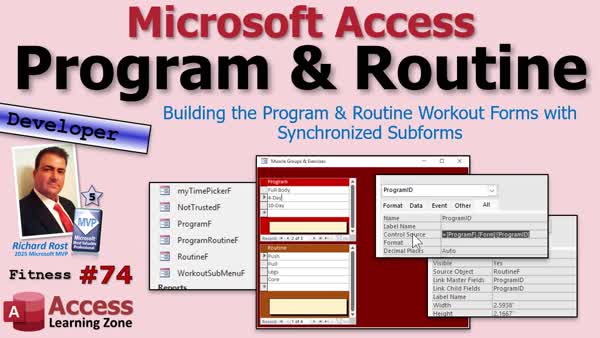 TechHelp Access, workout program manager, synchronized subforms, subform synchronization, link master and child fields, user interface, fitness database, routine detail, three-way subforms, program form, routine form, color palette, form zooming, parent form, table schema, exercise tracking
 Subscribe to Fitness 74
Get notifications when this page is updated
More InformationTranscript Want to build a workout program manager in Microsoft Access with synchronized subforms that automatically display the right routines based on the program you select? Welcome to another TechHelp video brought to you by AccessLearningZone.com. I am your instructor Richard Rost. This is part 74 of my fitness database series.
Remember, the fitness database is just the vehicle we are using to teach Microsoft Access development techniques. Even if you are not building a fitness database, the form design, subform synchronization, link master and child fields, and user interface techniques you will learn today can be applied to just about any Access application. Even if you do not care about working out, fitness, calories, and meals, it does not matter - we are building a database, we are having fun. Are you ready? Let's get started.
Alright folks, we are back with the fitness database. I know it has been a few months since I released the previous one. Fitness 73 was about three months ago. I have just been so busy on other projects, SQL Server course, and some developer lessons.
It is easier for me to sit down and record a bunch of the same type of video at once than it is to try to do one here and one there. So I am going to try and do a bunch of these fitness videos. That will give me some time also to work on some other projects.
First off today, I want to send a thank you to Kevin, one of my moderators. He pointed out in the routine detail table, this guy, that I accidentally named this routine detail T instead of ID. Honestly, I do that all the time in my own projects, especially when I am talking to you guys. Sometimes I make simple, silly mistakes. So please, thanks again to Kevin for catching it. If you guys notice stuff like that, post in the comments. Let me know, because I make little goofs like that all the time that I sometimes do not think about, especially in my VBA code, because I am talking and my mind is not on it. My mind is explaining something to you, not necessarily typing everything correctly. So thanks, Kevin.
As a bit of a review, last time we built the exercises. We have our muscle groups, and we have our exercises, and we did synchronized subforms on this form. We did this before we built the menu over here. We have the little hidden box there that gets the value from this one, and that helps to link this one. So we are going to do the same thing today with our program and routine.
We built the tables for this already when we did our schema. We have our program table, so we have different types of programs in here: full body, four day, five day. We have routines that each program has in it. So your full body program just has a full body routine. That is it, just one routine. But your four day split has four different parts: pull, push, legs, and core.
I am actually working with a five day split right now because I took shoulders out of my push day. I put shoulders and forearms in a fifth day. I am going to build a five day setup for myself when we are all done with this, but we are going to use this to demonstrate. Then we have the routine detail, which has all the exercises in each routine.
We are going to make a three-way synchronized subforms form today. Since I did the last video, I have upgraded my Access version to the new current channel version. It is now June 2026. I have some new things you might notice in here, like under Create, you get SQL Query View in here. I got the new Monaco editor. We have some form zooming kicking in. If you open up a single form, you can Control+Alt+Plus and Minus. Form zooming, I love that feature. I have done some separate videos on that. Just in case these things look a little different, that is because I have upgraded.
I do not upgrade all the time. I only upgrade when they release new features that I want and that have been out for a little while, so other people can find the bugs. I am not an early adopter. I have a different machine for testing and stuff that I update, like the beta versions, just so I can play with the new features. But this machine, my main machine, I am very careful with updates.
I can close this. I have the food log opening all the time because that is the thing that I use every day.
Let's start off by creating a program form. Just like we did here, we are going to do a program form, a routine form, and then a routine detail form, and then put all of that inside of a main parent form. I am going to copy the muscle group F, which is similar to the one I have now. Copy muscle group, copy, paste, Control+C, Control+V. Program F is going to be the form.
Go into design view. I am going to open up the properties here. Let's change this to the program table. One of the nice things about having field names that are similar across multiple tables is that this table also has description and notes. The only thing I have to change is this guy, which is muscle group ID. We are going to change this to program ID. So program ID there and program ID there.
Of course, we will tweak the colors. You have to have your colors different. Let's go with a dark red. Go to Format. What I have been doing lately is, they have the new color palette in here. I will typically pick a color that I like, and if it is not a standard color, then I will go in and adjust it slightly because I do not like getting stuck with theme colors in here.
If you pick from the theme colors, I think I mentioned this before, if I pick like this, which I am going to do in a minute, I do not like that. I will show you what I do with that in just a second. I am going to pick this guy. Open up Format permanently because we are going to be using it a lot, this one, and that one.
That is good for program. Let's change this here now to program. Save it, close it, and take a peek. Program looks good.
Let's do the same thing with routine. I am going to copy program, copy, paste. This will be my routine F. We are going to edit in design view. This is where I am going to use a different color, and I like this orangey kind of color here, but I do not want a theme color. I hate theme colors because they can easily and accidentally get changed and your database looks crazy.
Now just hit the dot-dot-dot button, go into more colors. I know it is down off the window a little bit, but it is more colors down there. I will just change this just slightly so that I get a hex color. See what I do? Copy that, and then I will do the same thing here. And here. Those are little tricks I do.
This is routine - description and notes are the same. I do need program ID because if you look in the routine table, the program ID is the foreign key. It points back up to the program. We need that. I am also going to need the routine ID to link it to the next box.
I am going to copy and paste this. I am going to slide this over a little bit first. Slide you over here. Maybe make it a little bit smaller. Copy, paste, and this will be my routine ID because we will need it on here.
Routine. Oh, it did not change. Have to change your record source. This will be routine. There. Now I can change this to routine ID. Copy, paste.
Save it, close it. Check it out. Make sure it looks good. Routine: right there. That looks fine.
Now, at this point, before we get to the routine detail, let's set up that parent form because we need to set up the link master and child fields so we can link them together. Let's copy that muscle exercise group form that we had before. That was our parent form before, this guy. Copy, paste. Let's call this program routine F. Program routine F.
Design view. One thing I want to show you real quick, by the way: if you have this one open, I get asked this all the time, if this guy is open, even if it is open in design view, does not matter, this is the muscle group one. If I now open this guy in design view, look what happens here. You get the old school subforms. If you remember way back, probably version 2003 or 2000, those older versions, every time you opened a form that had a subform in it, this is what you saw. Somewhere along the line, I think around 2007, they made it so you could actually edit subforms inside parent forms.
I think this causes more problems than it solves because a lot of times people do not realize when you click on this once, you have the subform object selected, then you have to click on it a second time to get to the objects inside the subform. I was always used to just working with them here, and if you wanted to edit this, you would have to open it up over here. But I digress. I am just pointing stuff out for you guys.
This is the program routine form. We can delete these subforms because we are going to put different ones in here.
While I am at it, let's change this color. Colors are not just so it looks pretty. Colors are often so that you can visually see that you are on something different. We had this conversation when we were doing meals and foods and calories and stuff. So I am going to go back to red for this, and that is the wrong one. Let's go back to red, but I am going to make it a darker red. Let's go down there. That is good.
Let's bring in our subforms. We need programs and routines. The program one goes first, right there. Get rid of that little label. Program does not need to be huge because you have only got two or three of those.
I am going to put routines underneath it because then we are going to put our routine details over here. The routine details are going to have a lot of stuff, like 15 or 20 exercises. How many do you do? So we are going to put the routine form underneath that guy like this, slide you over here. This can be a little bit bigger. If you have a five day split, you need to show five of them. So we will make that about this big.
Save it. Now this text box links them together. Now open it up. This was muscle group stuff, but this is now going to be the program ID. This is now program ID. The control source is going to be the program F's program ID. This is going to be equal to that, and then we will use this guy to link it to that one, so they will link together. We did this before when we covered this muscle group stuff.
So this is going to be program F, form, and then program ID. I will zoom in so you guys can see it in case you cannot. My zoom box is really big. Let's make it smaller. There we go. Got it. Save it.
Then we will do the link master child field. This guy is the subform object. Make sure you are not in here, it is the subform object. Link master and child fields will be program ID and program ID.
If you do not remember what this does, this text box is updated whenever you change this record. So you have the program ID up here. Then we are linking this form, the subform, to this program ID, so it only displays records with that program ID. That is how that whole thing works. Go review the other lesson if you do not remember.
Save it, close it, close it, and open it. Where is program routine? Full body, 4 day, 10 day. Maybe this could be a little bit bigger. Design view. Make it as big as we can reasonably, so I can still fit everything in my video window. Do a little bit of that. Make this a little bit bigger. Maybe make this notes field a bit smaller. Does not have to be quite that big. There we go. Save it, close it, and open it up.
Looking good. And it works. Nothing new so far, but now we are ready to put in here our details. This is where all the exercises and stuff will go, and we will do that in the next video.
Today we built the program and routine forms and linked them together with the synchronized subform, so that selecting a workout program automatically filters the routines that belong to it. In the next lesson, we will do the routine details and start building the third level of the hierarchy so each routine can display its associated exercises.
Post a comment down below. Let me know how you liked today's video, and whether you are using synchronized subforms in your own databases or not.
That is your TechHelp video for today, brought to you by AccessLearningZone.com. I hope you learned something. Live long and prosper, my friends. I will see you soon for part 75. Intro In this lesson, we will build a workout program manager in Microsoft Access using synchronized subforms, so that selecting a workout program automatically displays only the routines that belong to it. We will walk through creating new forms for programs and routines, setting up the correct table sources and colors, and configuring the link master and child fields to ensure that the subforms stay in sync. We will also discuss some Access interface updates and my process for copying and modifying forms as we start building a three-level hierarchy for managing workout programs, routines, and their details. Quiz Q1. What is the primary purpose of building the workout program manager in Microsoft Access in this video?
A. To help people lose weight quickly
B. To teach Microsoft Access development techniques using a fitness database as an example
C. To compare different types of workout equipment
D. To create a meal tracking application
Q2. What feature ensures that routines automatically update when a program is selected in the parent form?
A. Lookup fields
B. Synchronized subforms using link master and child fields
C. Parameterized queries
D. Tabbed navigation control
Q3. Why does Richard Rost prefer not to use theme colors for his form designs?
A. Theme colors are too expensive
B. Theme colors can easily and accidentally change, making the database look inconsistent
C. Theme colors do not work with VBA
D. Theme colors are not visible in Access 2026
Q4. In the demonstrated database schema, which table links specific exercises to a routine?
A. Program
B. Routine
C. Routine Detail
D. Muscle Group
Q5. What is the benefit of coloring different forms differently, as discussed in the video?
A. Only for visual appeal
B. To help visually distinguish different data structures or sections
C. Because Access requires colored forms
D. To increase database performance
Q6. What was the issue Kevin, the moderator, pointed out about the routine detail table?
A. The primary key was named incorrectly
B. There was a duplicate field
C. The table was missing a notes field
D. The table had too many relationships
Q7. When creating subforms, what key step is necessary to ensure they filter based on the appropriate parent record?
A. Enabling tab order
B. Setting the correct Link Master and Child Fields
C. Applying a report filter
D. Using default values
Q8. What new feature in Access did Richard mention that allows for easier form viewing?
A. Split forms
B. Monaco editor
C. Form zooming (Ctrl+Alt+Plus/Minus)
D. Macro builder
Q9. Which of the following best describes the structure built in this lesson?
A. Single flat table for all workout data
B. Parent form with three-way synchronized subforms (Program, Routine, Routine Detail)
C. A collection of unrelated queries and macros
D. Only a set of lookup combo boxes
Q10. What should you post in the comments according to Richard?
A. Only positive feedback
B. Any errors or issues you notice, questions, or feedback
C. Personal workout routines
D. Suggestions for Access updates
Answers: 1-B; 2-B; 3-B; 4-C; 5-B; 6-A; 7-B; 8-C; 9-B; 10-B
DISCLAIMER: Quiz questions are AI generated. If you find any that are wrong, don't make sense, or aren't related to the video topic at hand, then please post a comment and let me know. Thanks. Summary Today's video from Access Learning Zone focuses on building a workout program manager in Microsoft Access that uses synchronized subforms to display the appropriate routines based on the program you choose. This lesson is part 74 in my ongoing fitness database series, but keep in mind the actual subject matter of the database is just a framework for learning Access development techniques. Whether or not you have any interest in health and fitness, the methods I teach here - such as working with subforms, linking fields, and designing user interfaces - can apply to just about any Access application.
It's been about three months since the previous lesson in this series, as I have been tied up with other projects like teaching SQL Server and some developer-level content. Usually, when I get the time, I try to record several videos in one session so I can keep moving forward on multiple fronts.
Before we begin the new material, I want to thank Kevin, one of my moderators, for spotting a small error in the routine detail table where I accidentally named the ID field "routine detail T" instead of "ID." Little mistakes like that are pretty common when I am talking through an explanation while writing code, so I appreciate anyone catching them and sharing in the comments. Feedback is really valuable, especially when I am focused on teaching concepts and not always catching every typo.
As a brief recap, last time we worked on the exercises. We set up muscle groups and exercises and explored synchronized subforms. We used a hidden text box to help pass values between forms, which allows the subforms to filter properly. Now, the goal is to carry that technique forward and set up the same kind of synchronization with programs and routines.
The tables we need for this are already in place. We have a Program table with options like full body, four day split, and five day split. Each program contains related routines, and, for example, a full body program only has one routine while a four day split has routines like pull, push, legs, and core. I am currently using a five-day split myself, where I moved shoulders and forearms to a separate fifth day, so I plan on building that out as well. In addition, the Routine Detail table keeps track of the specific exercises for each routine.
In this lesson, we will build a main form featuring three synchronized subforms: program, routine, and routine detail. Since the last episode, I updated my Access installation to the latest monthly release as of June 2026. You might notice a few new features, such as SQL query view under Create, the Monaco code editor, and a new form zooming feature that allows you to adjust the zoom with keyboard shortcuts. If things look a bit different from previous lessons, that's why. I tend to hold off on updates until useful features are stable but do test upcoming features on a separate machine.
To get started, we need a form for programs, just like we previously built one for muscle groups. I copy the muscle group form, rename and re-source it to the Program table, update controls to match the new fields like Program ID, Description, and Notes, and adjust its appearance with a dark red color for clear visual separation. Keeping similar field names across tables speeds up these changes since controls often match up.
Next, I create a similar form for routines. I copy the program form, point it to the Routine table, and make sure it includes both the foreign key (Program ID) and the routine's unique ID, updating labels and colors to further distinguish the form. I use a shade of orange here, and I avoid relying on theme colors as they can unintentionally change, so I pick custom colors and use the hex codes to keep things consistent.
Before introducing the routine detail, I set up the parent form that will hold everything. I copy the previous parent form, remove the now-irrelevant subforms, and bring in the new Program and Routine subforms. Program appears at the top, with Routine underneath it, both positioned to allow room for the eventual addition of the routine details. Using colors for different sections of the database not only makes things look better but helps users quickly recognize what part of the database they are working with.
To keep the subforms in sync, I add a hidden text box that holds the Program ID from the selected Program record. This value is then referenced by the Routine subform so that only routines linked to the selected program are shown. Setting up the link master and child fields ensures the subforms interact correctly and display the related data. If you are unsure how this hidden text box linking works, I recommend reviewing the previous lesson where I covered the technique in more detail.
Once these steps are complete, opening the parent form allows you to select a program and instantly see all the routines tied to it. Adjusting sizes and layouts helps make everything fit neatly without sacrificing readability.
That's the progress for this lesson. We created forms for programs and routines, linked them with synchronized subforms, and ensured that choosing a workout program will filter and display just its routines. In the following lesson, I'll show you how to add and connect the routine details, so each routine displays all its corresponding exercises.
I encourage you to leave a comment and let me know if you are using synchronized subforms in your own Access databases. You can find a complete video tutorial with step-by-step instructions on everything discussed here on my website at the link below. Live long and prosper, my friends. Topic List Building a workout program manager in Access
Creating program and routine tables
Designing synchronized subforms
Setting up link master and child fields
Building a program form
Copying and modifying existing forms
Customizing form colors and themes
Creating a routine form linked to programs
Setting up three-way synchronized subforms
Structuring a parent form for programs and routines
Linking subforms using text box values
Filtering routines by selected program
Arranging and sizing subforms for usability Article If you want to build a workout program manager in Microsoft Access that lets you pick a program and instantly see the correct routines for it, you are in the right place. This tutorial will show you how to set up a fitness database with synchronized subforms so selecting a workout program immediately filters and displays its related routines. Even if you are not interested in fitness applications, the same techniques for form design, subform synchronization, and using link master and child fields apply across many types of Access projects.
To begin, we need to make sure our tables are set up to handle a hierarchical relationship. Imagine you have a table for Programs, one for Routines, and another for the details of each routine. The Programs table might include entries like "Full Body", "Four Day Split", and "Five Day Split". Each of these programs contains one or more routines. For example, a "Four Day Split" program has routines like "Pull", "Push", "Legs", and "Core". Then, within each routine, you have the Routine Details table to list all the exercises.
Once your tables are in place, the next step is to create forms for each level. It is helpful if your tables have similar field names across them, such as Description and Notes fields. This allows you to more easily build forms by copying and modifying as needed.
Start by making a form for Programs. If you have a similar form already, like one for Muscle Groups, copy that, paste it, and rename it to something like ProgramF. Then open it in design view and swap out the table source for the Programs table. Change all references from MuscleGroupID to ProgramID so you are using the correct field. Adjust the appearance to make it visually distinct, maybe by picking a dark red color from the palette or custom colors to avoid unwanted theme changes in Access. Save and close the form, then check to confirm it displays the correct program records.
Next, do the same for Routines. Copy your Program form, rename it to RoutineF, and open it in design view. Change the record source to your Routines table. RoutineF needs fields for both the RoutineID and the ProgramID, since RoutineID will link to the next level (Routine Details) and ProgramID connects this routine back to its parent program. Customize the colors to further differentiate this form, choosing non-theme colors if you want to avoid accidental color shifts later. Again, save and close this form then confirm it displays routines properly.
Before working on the Routine Details, set up the parent or main form to host your synchronized subforms. You can use your previous parent forms, perhaps from another set like a Muscle/Exercise parent form, as a starting template. Copy that parent form, rename it (for example, ProgramRoutineF), and open it in design view. Delete any old subform controls, as you will add your new subforms for Programs and Routines.
Color-coding your forms is more than just aesthetic. Using different colors for each form or section helps you and your users quickly see which part of the database you are in, which is especially useful when dealing with hierarchical data structures such as programs, routines, and exercises.
Now add the ProgramF form as a subform to your parent form, placing it near the top or wherever you want users to select their workout program. Remove any default labels if unnecessary, and size the subform appropriately, since there are usually only a few program options. Just below or beside this, add the RoutineF form as the next subform. Since programs like the "Five Day Split" might contain several routines, make this subform larger to accommodate up to five or more routine options.
To tie the subforms together so they display synchronized data, you will use a hidden textbox on the parent form to store the primary key value (such as ProgramID) from the selected Program record. Set the Control Source of the textbox to reference ProgramF.Form!ProgramID. This pulls the current ProgramID value from the program subform.
With the textbox holding the selected ProgramID, you can use the Link Master Fields and Link Child Fields properties of your RoutineF subform control to synchronize them. Set both properties to ProgramID. This ensures that whenever you click a different program, the routines automatically filter to show only those connected to the chosen program.
If you are not familiar with this approach, here's what happens: the hidden textbox updates to reflect the currently selected program in ProgramF. The routines subform is set up to show all routines where the ProgramID matches the value in the textbox. This way, everything stays in sync automatically.
After setting all this up, save your parent form and open it. You should be able to select different workout programs in the ProgramF subform and instantly see the related routines in the RoutineF subform below. Adjust the sizes as needed to make everything fit nicely on the screen.
At this point, you have created two levels of synchronized subforms so selecting a program filters the available routines. The next logical step, which you can implement similarly, is to add a third subform for routine details. This would show all exercises for the currently selected routine. The process is the same: link the routine details subform to the selected RoutineID using the Link Master and Link Child Fields settings.
This synchronized subform technique is useful far beyond workout applications. Any time you have hierarchical or related data - such as categories and products, departments and employees, or customers and orders - you can use this approach in Access to make navigation and data entry far more intuitive.
The key takeaway is to make sure each child table has a foreign key linking it to its parent table, and then use synchronized subforms on your parent form, setting Link Master and Link Child Fields to the appropriate key fields for filtering. Visual cues like color-coding forms can help both developers and users keep track of where they are in the application.
If you follow these steps, you will have an effective synchronized data entry and navigation system in Microsoft Access, easily adaptable to any relational data you need to manage. Experiment with these techniques, and you will find they make complex database interfaces much more user-friendly and powerful. Primary Topics Microsoft Access forms, synchronized subforms, link master/child fields, fitness database schema, user interface design Secondary Topics Access color themes, Access upgrade features, form design shortcuts |




