|
||||||

|
|
||||||
|
AutoTextBy Richard Rost
 5 years ago
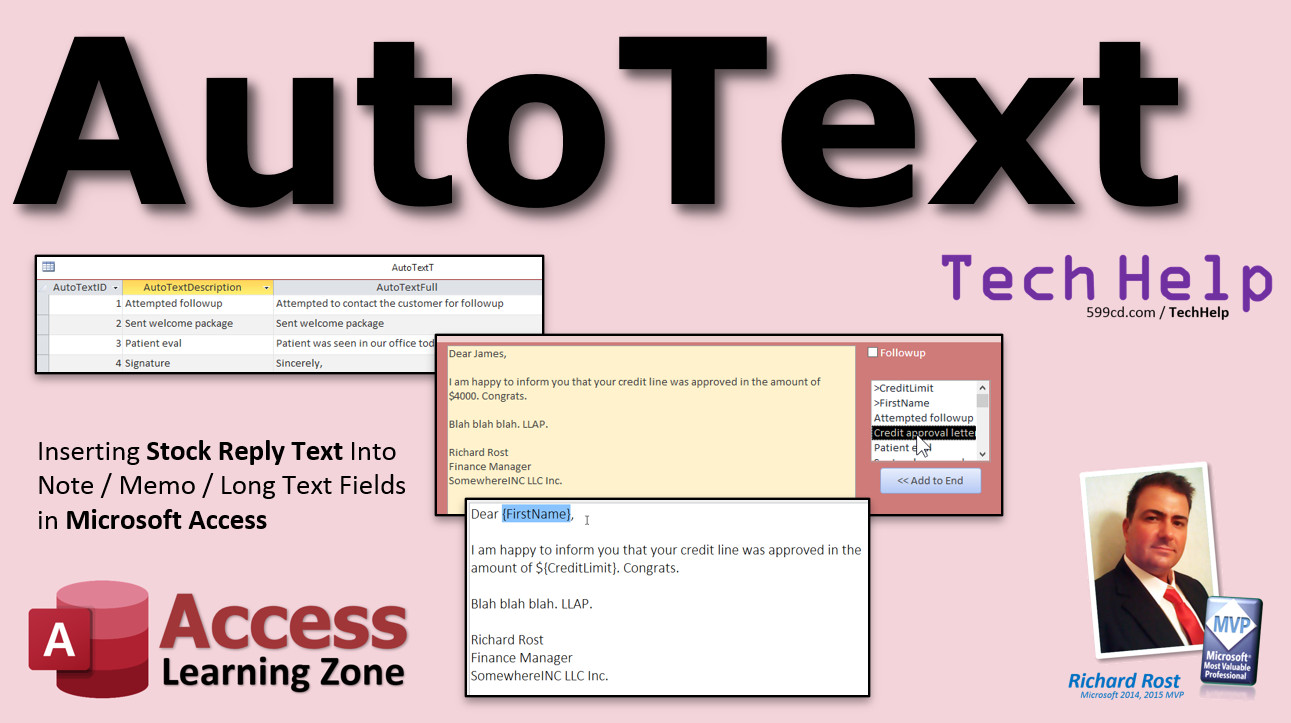
Insert Stock Reply Text Into Note Fields In this lesson, I'll show you how to create a table full of "stock replies" or AutoText that you can insert into your note fields in Microsoft Access. This works great for correspondence where you have specific replies you send often, or if you have specific text you are always copying and pasting or typing into notes fields (yeah, I know, they're called Long Text fields now. I'm Old School). Microsoft Access doesn't have an AutoText feature like Word does, but we can create something to do the job without a ton of work. Leroy from Alpharetta, Georgia (a Gold Member) asks: I'm using your TechHelp customer database and I'm using the contacts form to track every time I interact with the customer, like you recommend. I have specific text that I use a lot, such as "sent customer a followup email," or "attempted to contact, no answer." Things like that. Is there a way I could just pick these items from a list and add them to the contact history with a single click instead of having to type them in all the time? I still want the ability to edit the text or add more stuff though. MembersMembers will see how to insert the text right at the location of the placement of the cursor. We will use the SelStart property to see where the cursor is located. This is often desired over just adding it to the end of the string. We will also see how to add merge fields like [FIRSTNAME] or [DATE] to the AutoText fields.
Silver Members and up get access to view Extended Cut videos, when available. Gold Members can download the files from class plus get access to the Code Vault. If you're not a member, Join Today!
Links
Keywordsmicrosoft access, ms access, #msaccess, #microsoftaccess, #help, #howto, #tutorial, #instruction, #learn, #lesson, #training, #database, AutoText, Merge Codes, Merge Fields, Mail Merge, stock reply, stock replies, correspondence
More InformationTranscriptWelcome to another TechHelp video brought to you by AccessLearningZone.com. I am your instructor, Richard Rost. In this lesson, I am going to show you how to create a table full of stock replies or auto text that you can insert into your note fields in Microsoft Access. This works great for correspondence where you have specific replies you send often, or if you have specific text you are always copying and pasting or typing into notes fields. I know they are called long text fields now, but I am old school. We will see how to insert the text right at the location of the placement of the cursor. We will use the SelStart property to see where the cursor is located. This is often desired instead of just adding the text to the end of the string. Then we will also see how to add merge field codes like first name, credit limit, or date to the auto text field so we can make whole letters that we can then add to the correspondence field with one click. Today's question comes from Leroy in Alpharetta, Georgia, one of my Gold members. Leroy says, I am using your TechHelp customer database and I am using the contacts form to track every time I interact with a customer like you recommend. I have specific text that I use a lot such as 'sent customer a follow up email' or 'attempted to contact, no answer,' things like that. Is there a way I could just pick these items from a list and then add them to the contact history with a single click instead of having to type them in all the time? I still want the ability to add the text or add more stuff though. Well, Leroy, Microsoft Word has a feature called AutoText where you can program it so that when you type in a short phrase it will expand it into a larger block of text. Now Access does not have something like that, but with a tiny little bit of work we can set up a table that has what I like to call stock replies in it or canned responses, whatever you want to call it. Basically, a list of stuff that you want to pick from to just insert into your correspondence or your contact form or whatever. Let me show you what I mean. Now, before we get started, two prerequisites: Intro to VBA and DLookup. Both free videos. Go watch them. If you have never done any VBA before, do not worry, it is not scary. There will be a couple of lines of code you need for this to work. I always try to find a non-programming way to make stuff work. You can use macros, but I think VBA is easier than macros. I think macros are more complicated than they are worth. Go watch my Intro to VBA if you have never done VBA before. It is not hard. You have to know how to use the DLookup function because you want to look up a value from a table. Go watch those, pause this, and come back. Here we go. This is the TechHelp free template that Leroy was talking about. It is a free download from my website. You can grab a copy if you want to. It has a basic customer list. You can open up a customer and then click on Contacts. This is meant to be a contact history. If you have not watched this video, go watch it. I show you how I build this in my blank template video. Basically, you have a date and time, some basic notes, and then you can put more information about that particular meeting or phone call or whatever you want in this note area. If you are using this to print out reports, you have to have detailed customer reports. You have certain big blocks of text that you always have to put in there, like 'attempted to contact the customer for a follow up.' Or if you are a doctor, 'patient was seen in the office today for an evaluation,' and you have specific text you have to have for legal purposes or just for your own record keeping. You might want to be able to pick from a list and put that in there, or even your signature. I use this for correspondence too. You can actually save if you are going to write a letter to the customer, like 'Letter about sale,' and you can put in the notes field, 'Dear Joe, this is blah, blah, blah, blah, blah. Sincerely, Richard.' Then you can print this out. All your correspondence is now saved in your Access database. I actually show how to do this in more detail in my Access Expert Level 5 class. You can see it is kind of the same thing. You have the correspondence type in a form, click a print button, and there it is. All formatted nice and pretty. There is your text, and you can put your company logo in there. I will put a link to this class down below as well. For now, let us see how I can just put stock text in here. Now for this example, let us make this form a little bit bigger so we can work with it. Let us make this giant like that. I will move this stuff over here. We will make the note area nice and big so we have room for our correspondence. Save that, close it, and let us take a peek. It looks good. Now I want a list of stuff that I can choose from and then hit a button and it goes over into here. We are going to get this list from a table. Let us make a table. Go to Create, Table Design. I am going to call this my AutoText table. So this will be the AutoTextID. That will be an autonumber. AutoTextDescription will be a short text item, just a brief description of what it is. Then AutoTextFull, which is going to be long text or a memo field if you have an older version of Access. That is where we are going to put the full paragraph or whatever you want. There, you can have as much as you want in a long text field within reason. There is a limit, but that is a different class. Save this as AutoTextT, AutoTextTable, primary key, yes. The AutoTextID is an autonumber. That is just for Access; we do not worry about what the autonumbers are. You can make this bigger if you want to. For the first one, how about 'attempted follow up'? Enter 'attempted to contact the customer for follow up.' Then we have 'sent welcome package,' and then you can put the same thing. These do not have to be anything really long or verbose. For doctors, you might enter 'patient eval' and the full text could be 'Patient was seen in our office today for an evaluation.' Include whatever else you want. How about a signature line? You can have multiple signature lines too, a professional one, a personal one, etc. In here, I am going to hit Shift + F2 to zoom in. I like working in the zoom window. I like to use 'Live long and prosper.' That is my signature line. Richard Rost, President & CEO, and then whatever: Amicron, HTML.com, etc. There is my signature. If you want to leave more room in there for an actual paper signature when you print it out, that is fine. Hit OK. So I have some stock text set up in my AutoText table. Now let us make a list. Save changes, yes. Let us make a list here with a combo box where we can drop it down and pick. Then, we will make a button where we will click on it and it will add to the end of the notes field. Go to Design View. If you have never made a relational combo box, I have a video on that; I will put it down in the link section. Basically, making a relational combo box means getting its values from another table or query, not the contact app, but from that AutoTextT. Go to look up the values from a table or query. AutoTextT is where we are getting the list from. Now notice, and this is very important, and this is why we have to use the DLookup function: I have AutoTextID, AutoTextDescription, but where is my AutoTextFull? You cannot put long text inside of a combo box. To get that text, we are going to have to DLookup. So bring both of those fields over. Next, sort by description is fine. Next, that is what it will look like when you open up the box. The key column is hidden. Do not worry about that. The actual value in the box is that 1, 2, 3, 4. We are going to hide that. Next, we are going to remember the value for later use or store it somewhere. Well, we are just going to pick the value and then put text over here. So I am not actually storing that in the contact table anywhere. I am just going to remember it for later use. Next, what label do you want? It does not matter; we are going to delete it. Finish. Delete that label that comes with it. Yes, it is possible to turn auto labeling off; another student asked me that question recently. I will be making a video on that soon too. Move that over here. I am going to adjust the hidden customer ID. Here is our stock reply combo box. Save this, close it, and open it back up again. Mail just came in. Drop this down and you can see now there is my list of auto text. I am going to click on one of these. I do not want it to instantly go over there. I am going to make a little button right here to do the DLookup, find out what the text is, and drop it at the end of this notes field. Here comes the VBA part. Grab a button, drop it there, and cancel the wizard. I am going to recapture this, put like two spaces, and then add AutoText like that. Now, what goes in that button? Right-click, Build Event. For me, it opens up the VBA editor. For you, it might ask what kind of builder you want. Pick the code builder. That is an option I turn off. I will show you how in that video. Now we are inside the command button. It is Command10_Click. Let us do this right. Alex yells at me if I do not do this right. I forgot to name my button. Let us go back. Usually, you want to make sure all your objects have good names. Double-click on that button. Instead of Command10, make this AddAutoTextBtn, or whatever you want to call it. Now when I add code to it, Build Event, I can see I am in the AddAutoTextBtn. Alex is right. Now I know what the ID is that the user picked. In fact, I might want to first check if IsNull. What is the name of that? Oh, we did not name the combo box. Let us go back over here. Open up that combo box. It is Combo8. We do not want Combo8. Name it AutoTextCombo. If IsNull(AutoTextCombo) Then MsgBox "Pick some auto text first." Exit Sub End If You can even be nice and automatically drop that box down for them. Let us do that. These are the little extra tips, by the way, that I usually include in the extended cut for the members. So instead of just showing 'pick something first,' let us do this: AutoTextCombo.SetFocus AutoTextCombo.Dropdown That moves the focus to that box and then drops down the box for the user. Save it. So now, if I hit the button with nothing in there, it opens it up for me. You have to pick something. Now, what do we actually do once the user picks something? We are going to DLookup what that is in the table and drop that into here. We are going to store that temporarily in a variable called s. Dim s As String Why 's'? Then, s = DLookup("AutoTextFull", "AutoTextT", "AutoTextID = " & AutoTextCombo) Now if we get to this point, we are guaranteed to have a value in that combo box because we check for it earlier. We do not have to wrap it in the Nz function in this case. Now I am going to take whatever I looked up from that table and add it to the end of notes. Let us find out what the name of the notes box is. That one is called Notes. So back in here, for now, let us just test it: Notes = s Just take whatever I looked up, put it in Notes. Save it and try it. Pick something and hit Add AutoText. It should look up the value using this ID from this table and bring it back here. Let us do signature. It works. But now, I am setting the whole thing equal to whatever I pulled up. Let us add it at the end. Notes = Notes & s Now, if I pick something else, if I pick, well, let us get rid of the signature first. Pick 'patient eval,' and then signature. OK, we are getting there. But now, I want to make sure I have two line entries between them. In VB, that is a VB new line character. So here I am going to say: Notes = Notes & vbNewLine & vbNewLine & s So it puts the previous notes, then two blank lines, and then s. Let me clear this again and try it one more time. Here we go. Let us do patient eval. There is that. Then let us add a signature. Looks good. But maybe before that first one, I do not want the two blank lines. Maybe if it is already blank, then just put the patient eval in there without starting off with two blank lines. How do we do that? I will just check to see if notes is null. If IsNull(Notes) Then Notes = s Else Notes = Notes & vbNewLine & vbNewLine & s End If If it is already blank, just put s in there. Otherwise, if there is something in there, add notes, new lines, and then s. Save it. Come back here, clear this, and close it. I like to close my form occasionally to make sure it is working, so everything saves nicely. Now, let us start off with patient eval. Nice. Then, add a signature. Beautiful. There you go. That is all you have to do. Go to another one or a new record. You could even do something where whatever you pick from here can go up here too. Let us say you want the default description to also be the first thing picked from this list, like 'attempted follow up.' That field is called Description. If IsNull(Description) Then Description = AutoTextCombo.Column(1) End If So if the description is null, set the description equal to whatever you picked in the combo box. You will get the first thing you pick as the description. This should make data entry a little bit faster. If I go to a new record and pick 'Sent Welcome Package' and then hit Add, we are done. But if it is something more complex, and if I pick a second one, like a signature, it does not change the description. If I pick something more detailed, like 'Patient Evaluation,' Patient Eval goes up here, the description goes down there, and then you can add something else. That is it! It is a couple of lines of code. How many lines of code do we have? You really could do it in two lines of code, three if you want the extra little stuff in there. It is not hard. I say learn VBA. VBA and SQL. If you really want to take your Access databases to the next level, learn VBA and SQL. I have classes for both of those things. I will put links down below. How do you become a member? Click the Join button below the video. After you click Join, you will see a list of all the different types of membership levels that are available. Silver members and up get access to all of the extended cut TechHelp videos, live video and chat sessions, and more. Gold members get access to a download folder containing all the sample databases that I build in my TechHelp videos, plus my code vault, where I keep tons of different functions that I use. Platinum members get all the previous perks, plus access to my full beginner courses and some of my expert courses. These are the full-length courses found on my website and not just for Access. I also teach Word, Excel, Visual Basic, ASP, and lots more. But do not worry, these free TechHelp videos are going to keep coming. As long as you keep watching them, I will keep making more. If you liked this video, please give me a thumbs up and feel free to post any comments that you have. I do read them all. Make sure you subscribe to my channel, which is completely free, and click the bell icon and select All to receive notifications when new videos are posted. Click on the Show More link below the video to find additional resources and links. You will see a list of other videos, additional information related to the current topic, free lessons, and lots more. YouTube no longer sends out email notifications when new videos are posted. If you would like to get an email every time I post a new video, click on the link to join my mailing list. If you have not yet tried my free Access Level 1 course, check it out now. It covers all the basics of building databases with Access. It is over three hours long. You can find it on my website or my YouTube channel. And if you like Level 1, Level 2 is just one dollar. It is also free for all members of my YouTube channel at any level. Want to have your question answered in a video just like this one? Visit my TechHelp page and you can send me your question there. Click here to watch my free Access Beginner Level 1 course, more of my TechHelp videos, or to subscribe to my channel. Thanks for watching this video from AccessLearningZone.com. IntroIn this video, I will show you how to set up a table of stock replies, or auto text, that you can quickly insert into your note fields in Microsoft Access. We will cover how to use a combo box to select from your list of canned responses, insert the text at the current cursor location using the SelStart property, and add merge field codes like first name or date to create personalized messages. This step-by-step guide uses a bit of VBA, the DLookup function, and is perfect for anyone who wants to speed up data entry with reusable text blocks in Access. QuizQ1. What is the primary purpose of creating a table of stock replies or auto text in Microsoft Access as shown in the video? A. To insert frequently used text into note fields quickly B. To create templates for email messages outside Access C. To generate automatic reports in Access D. To store customer contact information Q2. What property is used to find the current location of the cursor in a note field? A. SelStart B. CursorLoc C. InsertPoint D. TextPlace Q3. Why do we use the DLookup function in this setup? A. To find and display the full auto text entry from the table B. To check if a field is empty C. To save changes to the database automatically D. To trigger events when a combo box is used Q4. Why can't the full long text value (AutoTextFull) be put directly into the combo box? A. Combo boxes in Access do not support long text fields B. The field requires encryption C. Only numeric data can be displayed in combo boxes D. Combo boxes can only display one column Q5. What does the VBA code do when the Add AutoText button is clicked and the user has picked an auto text entry? A. It looks up the selected text and inserts it into the note field B. It deletes all text from the note field C. It saves the current form D. It automatically closes the database Q6. How does the VBA code determine whether to simply insert the text or add new lines before the text? A. By checking if the note field is null B. By checking the user's access level C. By counting the number of items in the combo box D. By asking the user for confirmation every time Q7. In the context of this video, what is the advantage of using VBA over macros for this feature? A. VBA is easier and more flexible than macros for this task B. Macros can only work with numeric data C. Macros cannot be used in Access D. VBA runs automatically without coding Q8. What optional feature was demonstrated when inserting an auto text entry to also set the Description field? A. If the Description field is empty, populate it with the selected auto text description B. The Description field gets a timestamp C. The Description field is locked after insertion D. The Description field is set to the user name Q9. What is NOT a benefit mentioned about using this auto text solution in Access? A. Speeding up repetitive data entry B. Ensuring consistency in correspondence C. Automatically correcting spelling mistakes D. Allowing customization of standard replies Q10. Where does the video suggest putting very detailed or commonly used responses to select from? A. In the AutoTextT table B. In a separate text document C. On a printed cheat sheet beside the computer D. As Access report headers Answers: 1-A; 2-A; 3-A; 4-A; 5-A; 6-A; 7-A; 8-A; 9-C; 10-A DISCLAIMER: Quiz questions are AI generated. If you find any that are wrong, don't make sense, or aren't related to the video topic at hand, then please post a comment and let me know. Thanks. SummaryToday's video from Access Learning Zone covers how to create a table of stock replies or auto text entries that you can easily insert into your note fields in Microsoft Access. This is perfect for situations where you frequently repeat certain replies in your correspondence or find yourself copying and pasting the same blocks of text into long text fields. Although Microsoft now calls them long text fields, I still like to call them memo or notes fields, just out of habit. I'll be showing you how to insert text exactly where your cursor is placed using the SelStart property, which is often preferable to merely appending text to the end. I'll also explain how to add merge codes such as first name, credit limit, or date into your auto text so you can construct entire letters that can be dropped into your notes or correspondence field with a single click. The idea for this lesson came from a question about streamlining data entry for commonly used phrases in a contact management database. The request was for a feature that allows you to pick from a list of preset replies and add them to the contact history instantly, while still allowing you to append additional custom text if you need to. Microsoft Word offers a feature called AutoText, which can expand a small phrase into a larger text block. Access does not have a built-in feature like this, but with a small amount of VBA, it's possible to build something similar. We'll set up a table that holds these stock replies or canned responses, making it easy to insert them into a correspondence form, a contact form, or any notes field. Before we start, there are two concepts you should be familiar with: basic VBA and the DLookup function. Both of these are covered in my free introductory videos, so if you are new to VBA or DLookup, I recommend pausing here to check out those lessons first. Even if you've never coded before, the VBA required for this technique is straightforward, and I find it easier than trying to accomplish the same thing with macros. For demonstration, I'll be using the TechHelp template database, which you can download for free from my website. This template contains a basic customer list and a contacts form, designed for tracking each customer interaction. If you're unfamiliar with this template, I have another video that walks through its creation, including how it establishes the contact history. Often in professional settings or specific industries—such as medical offices—you are required to include certain standard text entries for legal or documentation purposes. These recurring blocks of text, like 'attempted to contact the customer for follow up' or 'patient was seen in the office today for an evaluation,' can be added quicker if you can select them from a list. You can also include things like your signature or standard greetings, and save letters you send out as correspondence records within Access. I go into even more detail on creating professional correspondence features in my Access Expert Level 5 class, where I show how to add formatted letters and company logos, and how to link correspondence types with print buttons for nice-looking reports. Let's start building this auto text feature step by step. First, I enlarged the notes area on the form to make room for our correspondence and reorganized the layout for easier access. Next, I'll show you how to create the table that will store your stock replies. I built a table called AutoTextT. This table has three fields: an AutoTextID as an autonumber key, AutoTextDescription for a brief summary, and AutoTextFull, which is a long text field for the full reply or paragraph. You can enter as many replies as you need, such as 'attempted follow up' with its detailed text, 'sent welcome package,' or even a signature block. You might want to set up several different signatures, both professional and personal, for different contexts. Once you have your table filled with stock replies, it's time to add a combo box to the form so you can pick from your list. This combo box will display the brief descriptions and return the AutoTextID. Since long text fields are not supported directly in combo boxes, we will use DLookup in our code to pull in the full text when a selection is made. After setting up the combo box, I added a button to the form. When this button is pressed, the code will check if you have selected an auto text entry. If not, it will prompt you and automatically open the combo box for convenience. Once you have selected an item, the code uses DLookup to retrieve the full text from the AutoTextT table based on the selected ID. This retrieved text will then be inserted into the Notes field. Initially, the button will just replace the entire Notes field with the auto text. However, you'll likely want to append the new text to whatever is already there. By adjusting the code, you can concatenate the new auto text entry to the existing content, separated by blank lines so each item stands out clearly. To make the process even more user-friendly, if the Notes field is empty, the code will simply insert the auto text without extra blank lines up front; otherwise, it will add the appropriate spacing. You can also use this technique to quickly populate related fields. For instance, you could set the Description field to match the description of the auto text item if it's currently blank. This speeds up data entry and makes the whole process more efficient. All of this functionality takes just a few lines of VBA code, so do not be intimidated if you've never used it before. Learning the basics of VBA and SQL will allow you to take your Access databases to new levels, and I have classes for both topics available on my website. If you're interested in more advanced lessons, becoming a member gives you access to expanded video content, live sessions, and downloadable databases. See my website for details about the different membership levels and benefits. You can always find more free lessons, resources, and related videos by visiting my TechHelp section. To receive email updates when new videos are posted, make sure to join my mailing list since YouTube no longer sends email notifications for uploads. And if you haven't yet tried my free Access Level 1 course, it's three hours long and covers all the basics—a great starting point if you're new to Access. If you have your own Access question, be sure to send it to me via my TechHelp page, and maybe it will be featured in a future video. You can find a complete video tutorial with step-by-step instructions on everything discussed here on my website at the link below. Live long and prosper, my friends. Topic ListCreating an AutoText table for stock replies in Access Designing and structuring the AutoText table Adding sample stock replies and signatures to the table Creating a combo box to select stock replies Binding the combo box to the AutoText table Using DLookup to retrieve long text from the table Adding a command button to insert selected text Writing VBA code to handle null combo box selection Retrieving and inserting AutoText into the notes field Appending text with line breaks to the notes field Using SelStart to insert text at the cursor (mentioned but not explained thoroughly) Conditional logic to avoid extra line breaks on the first entry Setting the form's description based on the selected AutoText Renaming form controls for clarity in VBA Testing and demonstrating the finished functionality Primary TopicsMicrosoft Access, stock replies, AutoText, note fields, VBA, DLookup, combo box, contact form design Secondary Topicsmacros vs VBA, user interface design, signature blocks, contact history, field properties |
||||||||||||||||||||
|
| |||
| Keywords: TechHelp Access AutoText, Merge Codes, Merge Fields, Mail Merge, stock reply, stock replies, correspondence PermaLink AutoText in Microsoft Access |