|
||||||

|
|
||||||
|
Access on a PhoneBy Richard Rost
 5 years ago
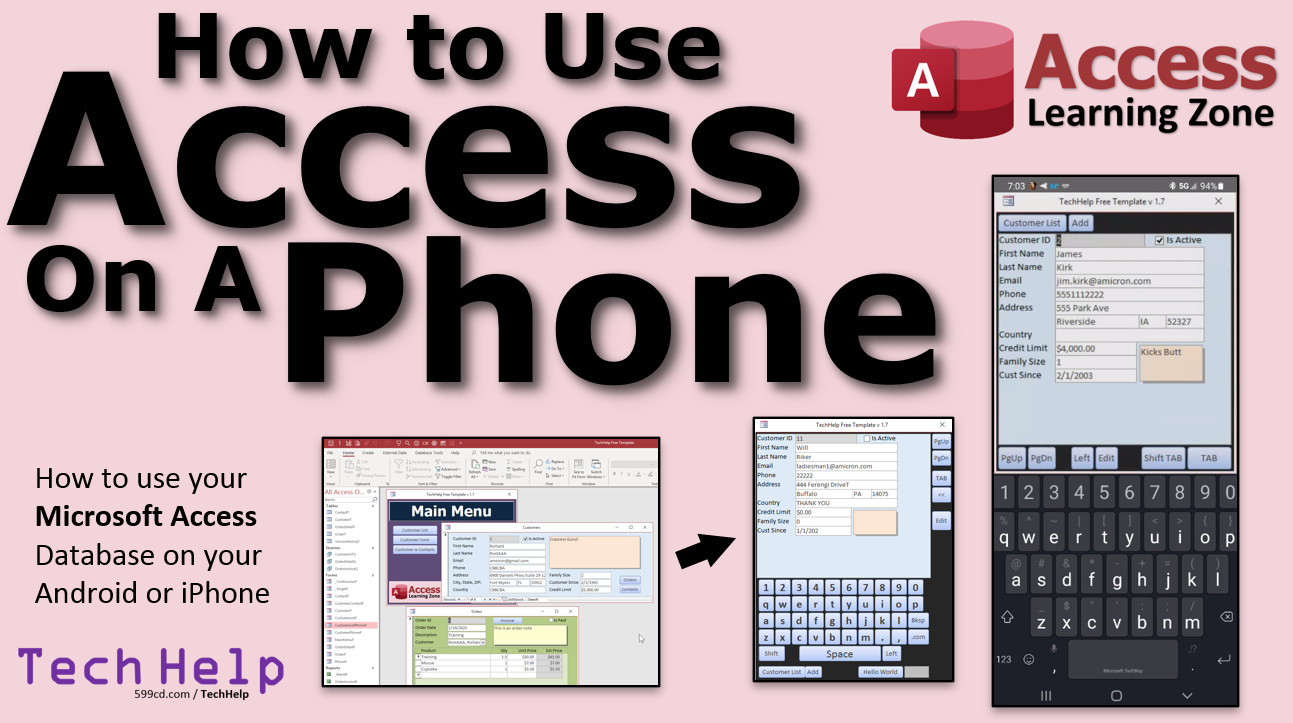
Use Access Databases on a Phone or Tablet In this video, I'm going to show you how to use remote connection software to use your Microsoft Access database on an Android device, iPhone, iPad, or any other computer. Derrick from Atlanta, Georgia (a Gold Member) asks: What is the best way to use my Access database on my Phone? I don't always want to lug a laptop around with me, or pull one out while I'm talking to a client at their house. I'd love to be able to just whip out my phone and look up their orders, product pricing, etc. and even put a new order in the system for them. MembersMembers will learn how to create a single form that will use subforms to navigate through the database. We will create buttons to open the customer list and to add a new customer. We'll make buttons to page up and down through continuous forms instead of using the scroll bar, and we'll make buttons for tab and shift tab, to go between fields. I will also show you how to build an on-screen keyboard as an alternative to the Android keyboard as a fun side project.
Silver Members and up get access to view Extended Cut videos, when available. Gold Members can download the files from class plus get access to the Code Vault. If you're not a member, Join Today!
Links
Keywordsmicrosoft access, ms access, ms access tutorial, #msaccess, #microsoftaccess, #help, #howto, #tutorial, #learn, #lesson, #training, #database, microsoft access on phone, microsoft access on ipad, microsoft access on iphone, microsoft access on tablet, autotrim, virtual keyboard, spacebar problem, on-screen keyboard, microsoft access app for android, microsoft access app for iphone, microsoft access app for ipad, remote connection, microsoft access for android, microsoft access mobile app, microsoft access app, Sendkeys
More InformationTranscriptWelcome to another TechHelp video brought to you by AccessLearningZone.com. I am your instructor, Richard Rost. In today's video, I am going to show you how to use Microsoft Access on your Android or iPhone. I get asked this at least once a week, including from Derek from Atlanta, Georgia, one of my Gold members. Derek says, what is the best way to use my Access database on my phone? I do not always want to lug a laptop around with me or pull one out while I am talking to a client at their house. I would love to be able to just whip out my phone and look up their orders, product pricing, etc. and even put a new order in the system for them. Like I said, this is a very common question I get. So let's take a look at some options. Now unfortunately, there is no native app from Microsoft to run Access on an Android or iOS device. There are a few apps in the Android store that claim to read and write Access files, but I do not recommend any of them and the reviews on most of them are not that great. For me, I do not really consider this an option. Plus, these do not actually connect to your Access database as it is in your office. You have to copy the database file to your phone and the app will read and write the Access file. So again, not really an option for me. One solution is to build a web-based interface using an online server and a web programming language. I use SQL Server and ASP. This involves taking your Access data, your tables, and moving them up to a hosted online SQL Server database. You can then construct an interface using some kind of web language like ASP. I actually show how to do this in my Access SQL online seminar. I will put a link to that down below. This is actually what my website is built with. Now this is the most time-consuming option. It involves a good deal of work, but it would provide you with an interface that you can use in any web browser. You can offer it to the public, and once the data is moved up to the web server, you can still connect to it using your Access desktop database. This is a good solution if you want to spend a lot of time developing it. Now a much simpler solution, and one that involves very little setup work, is to connect to your database using remote connectivity software. That is what we are going to talk about in this video. It is very easy to connect to your existing Access database on the computer it is running on using your phone or a tablet or some other device with just some remote connectivity software. One of the downsides to this method is that you have to have a live internet connection for it to work. It should work just fine over a Wi-Fi or cellular connection. I use mine all the time. But you will not be able to use it if you are in an area with no internet. The database does not actually get copied down to your phone. You have to have a live connection to it. Also, you may have issues if your connection has high latency. That is how long it takes for the information to go from your phone to your office computer and back again. For example, if you are on an airplane or a cruise ship at sea, even if you have Wi-Fi, the connection might not be good enough so you will have to try it and see. Also, you have to leave your office computer running that has your database on it so that you can connect into it. So it has to be on 24-7. I put a little star there because there is an alternative. I will talk about that in a few minutes. Now the pro side of this is there is nothing extra to buy. You do not need any additional software. The software I am going to show you is free. You do not have to pay for any online hosting for an SQL Server, for example. It is also extremely easy to set up and use. I am going to show you how in just a few minutes. The only thing you might want to do is redesign some of your forms to make them look better on your phone, which we will talk about in a few minutes as well. There are a million different ways to connect to your PC remotely. There is Windows Remote Desktop that is built into Windows. There are applications like VNC. The one that I personally recommend and use myself is Google Chrome Remote Desktop. It is free. It is very easy to use and they have versions for your PC, Android, and iOS. You can use it on your iPhone, your Android phone, your iPad, your tablet, whatever. Setting up Chrome Remote Desktop is super simple. I cover how to do it in my new Windows PC setup. If you just want to watch the section on setting up Chrome Remote Desktop, just skip ahead to time index 2521. I will put a link to this video down below in the description as well. It is really easy. It only takes a few seconds to set up on your computer and you install it on your phone and you are good to go. I mentioned earlier, there is an option if you do not want to leave your office computer running 24-7. You can set up a virtual PC either on a server in your office or on someplace like Amazon or Xbox. This basically creates a Windows virtual PC that exists on their server, and you can connect to it and install Microsoft Access and your database and run it from there. I will be making a video explaining how to do this in the near future, but that is just an option if you do not want to leave your computer at the office running all the time so you can connect into it. Now go get Chrome Remote Desktop working, get it installed on your computer, get it running on your phone and then come on back. We got Chrome Remote Desktop working now. This is my TechHelp free template. This is the database that is free. You can download a copy from my website if you want to. This is the database I use in pretty much all my classes here on TechHelp. My goal is to get this guy working on my phone. So I have a customer list. I can open up a customer from there. And of course, there are orders and contacts, but we will just do the customer information. Once I show you how to do this, you will see it is really super simple. I can connect into this using Remote Desktop from my phone now. Here I am on my phone. I am actually using screen recording software to record my PC screen which is connected to my Android phone which is going to be connected back to my PC screen. It is kind of crazy but you will see what I am doing here in a minute. I am going to start up Remote Desktop. I have a couple different workstations on here and one of my computers is named Spock. That is my travel laptop. But I am going to connect into my workstation which is where my Access database resides. I am going to tap on workstation. It will do its thing connecting. And there we go. We are connected. Now you can see my phone is looking right at my desktop Access application that is sitting on my computer. You can scroll around by just clicking and dragging with your finger or tapping and dragging, whatever they call it. You can pinch and zoom to zoom in and out just like you can with any normal picture or something on your phone. The goal is to get your database right in that window so you can see it and work with it. What you want to do is use the menu which is up top and it is hard to get to it. You have to use three fingers. Use three fingers and then tap and drag down. You will see that menu across the top. It goes away pretty quickly if you do not do something with it. Drop that down and you might see that as a little mouse. Now see how I got the mouse icon? As I move around, it moves that little mouse pointer. You do not want that. That is the default mode because you have to click where you want that to go and it is a mess. Trust me, do this. Three fingers, click and drag, drag it down, switch that mouse over to a finger. Now as you move it around, you can tap on the fields that you want. For example, I can click on the customer form. Zoom in a little bit, click on customer form and then I can drag it over here and I can click on last name. See how that works? If you want the keyboard up, again, three fingers, tap and drag down, tap that keyboard icon up top. Then you can come over here. You can use the backspace, change stuff. The goal really is to design a form in your Access database that fits properly in that little window. These forms I have been building are kind of horizontal in nature. All you really have to do is design a form that looks good on your phone, not that hard. Let's go back to Access. I am going to close this guy. What I like to do is make two versions of the forms, one for desktop users, one for phone users, or for me if I am on my phone. I am going to take my customer F, my customer form. Copy and paste that, Control-C, Control-V. Let's make this customer phone F. We will format this for the phone. Right click, Design View. This is just a matter of, I cannot give you an exact measurement. You just have to set it up the way you want to see it. Maybe like this, leave room for your keyboard down on the bottom. Do not make it the whole width and size of the phone. Leave a little room on the bottom. Again, just optimize this for use on a phone. For now I am just going to get rid of these buttons and just slide this stuff here up into the left like that. Maybe get rid of that. Let's slide this stuff up a little bit, make it nice and compact. City, rest, state, zip, country. Maybe take these guys and slide them this way. There are going to be some fields that you might not necessarily ever need when you are on the road. Maybe I care about credit limit. I will put credit limit over here and slide it right just like that. Maybe that is important to know what the credit limit is when you are talking to the customer. Family size, customer since, you might never need when you are on the road. Notes, slide that down under here like this. There you go. If you have any other things you want to put down here, go ahead. Make sure you leave yourself enough room, and then save it. Close it, and now we will put it up. There is your form that you can use when you are on your phone. Let's take a look and see what this looks like on my phone. A little better. Resize it, pinch in a little bit, get it right up there. Three finger pull down. You have plenty of room for the keyboard underneath it. Right there, there we go. Now I can work with it just perfectly. I personally hate to have to use these little navigation buttons to move through the records like this. So let's bring in our customer list form as well. Let's build this guy. Let's close this. Let's copy customer list. This will be my customer list phone F. Open you up. Right click, design view. For this one, I am going to get rid of this open customer button. I am going to get rid of these fields. I do not need to see them on my phone. I am going to make everything just a little bit bigger so it is easier to tap on. I am going to make this bigger here. Select all this stuff here and make these fields larger like that. Just makes them easier to tap on. Make the font a little bit bigger if you want. Fourteen. This can probably be smaller. This does not need to be that big unless you have really big customer IDs. We will slide it like that. Bring that over here like this. If you watch my video where I built the TechHelp free template, you know I put an on double-click event in this little box. When you double click on this, it runs this event procedure and it opens up that customer with a couple of lines of code. Not that hard to do. Go watch my intro to VBA class too if you have not watched that yet. VBA is very simple to learn. A couple of lines of code and you can do lots of stuff. What I want from my form on the phone is that I do not want this to have to be a double click. Just a single tap will do it. We are going to come over here and change this from on double click to just on click. Click on a computer with a mouse is the same as a tap with a phone. Come into on click, hit the dot dot dot button, and we are just going to move this stuff, cut, Control-X, and paste up there. Now it is just an on click. Save it. Close this. Now we will open up our customer list and get this guy positioned where we want it for our phone. Save that. Now if I just tap here, it will open up that. Oh, wrong one though, we opened up the wrong form. Let's go back to our code window, right click, design view. Go into our code, and we have to make this now open up our customer phone F. Same thing with the customer ID equals the customer tapped on. Save it. Close it, close that, open it up again. Now tap and it will open that one up and get these lined up right over the top of each other like that. Save it. Close that, close that, open it, tap, and you close that one. Click on that one, tap, it opens up right over the top of it. Those should work right on your phone. Let's go check. Actually, one more thing I want to do. I am going to put a button right here so I can very easily get into my phone form. I will just copy the hello world button, copy, paste. Slide you up here. I will put a big phone button right there. Tap on this guy when you are on your phone. You can make it look however you want it to look. I am making it big and gaudy for class. Save it. Right click, build event. We are going to do in here, DoCmd.OpenForm, "customer list phone F". That is it. One little simple line of code, VBA. If you are sticking with me for these TechHelp videos, you are going to learn a little VBA from time to time. It is so much easier than using macros or the wizards. Now when the database opens up, when you connect to it, phone, tap. Let's go try it from remote desktop. I am connected in with remote desktop again. There is my database, I am going to zoom in a little bit. Move it over, tap my phone button. Now I am going to center right over that. Let's get it right in there. Again, you will have to do some trial and error to get these forms exactly the way you want them. For my personal database, it is perfect. I have all the forms exactly the way I want them. Now watch how easy, I just tap on Jean-Luc and its customer form opens up. Tap to close it. Tap on me. You can very easily put other buttons on the customer form to open up the order form or your contacts form. It is very simple to just make your own navigation to go through your app. Now it looks like it is a phone app. You are just using remote desktop to connect to your Access database on your computer. That is it. It is super simple, it is easy. We set this up in about 20 minutes. Not hard to do. That was not even 20 minutes. It was like 15 minutes. Most of that was just me talking. So there you have it. That is my easiest way to be able to use Microsoft Access on your phone or tablet. You just set up remote desktop software, you connect to it, you set up separate forms optionally. You do not have to. You can still use this on your phone if you want to. But I like to set up customized phone forms, just like these. That is it. Super simple to do. If you want to learn more, in the extended cut for members, over 90 minutes long, I show a lot of cool stuff. We do not end up keeping all of it because there are some issues and problems, but I try to build this whole full screen keyboard thing and it works fantastic for text fields. But there are some problems when you get into date fields and stuff. The techniques and stuff, the cool stuff that I show you is definitely worth it. There is lots of neat stuff in the extended cut. We do end up keeping this version where we use the Android keyboard and I add some special keys on here inside the form. This is an actual subform right up here. All the form navigation happens inside this single subform. You click on customer list, you go to the customer list, you click on a customer, you open up the customer record. You can put other buttons across the top here like opening up orders and stuff. I do keep some of the special keys, page up, page down, that is handy for going up and down in a continuous form like the customer list. You do not have to click on the scroll bar, the left and edit buttons, tab and shift-tab to go back and forth between the fields. We do keep some of the special keys but I do not always keep all of these. There are lots of cool functions. I teach you all kinds of different functions, things I have not even covered in my developer class. It is definitely worth the 90 minutes. It is a good video. I had a lot of fun making it. If you want to learn more, Silver Members and Up get access to the extended cut videos and Gold Members can download these templates from my website that I make in the TechHelp videos. How do you become a member? Click the join button below the video. After you click the join button you will see a list of all the different types of membership levels that are available. Silver Members and Up get access to all of the extended cut TechHelp videos, live video and chat sessions, and more. Gold Members get access to a download folder containing all the sample databases that I build in my TechHelp videos plus my code vault where I keep tons of different functions that I use. Platinum Members get all the previous perks plus access to my full beginner courses and some of my expert courses. These are the full length courses found on my website and not just for Access. I also teach Word, Excel, Visual Basic, ASP, and lots more. These free TechHelp videos are going to keep coming as long as you keep watching them, I will keep making more. If you liked this video, please give me a thumbs up and feel free to post any comments that you have. I do read them all. Make sure you subscribe to my channel which is completely free and click the bell icon and select all to receive notifications when new videos are posted. Click on the show more link below the video to find additional resources and links. You will see a list of other videos, additional information related to the current topic, free lessons and lots more. YouTube no longer sends out email notifications when new videos are posted so if you would like to get an email every time I post a new video, click on the link to join my mailing list. If you have not yet tried my free Access Level One course, check it out now. It covers all the basics of building databases with Access. It is over three hours long, you can find it on my website or on my YouTube channel. If you like Level One, Level Two is just one dollar. It is also free for all members of my YouTube channel at any level. Want to have your question answered in a video just like this one? Visit my TechHelp page and you can send me your question there. Click here to watch my free Access Beginner Level One course, more of my TechHelp videos, or to subscribe to my channel. Thanks for watching this video from AccessLearningZone.com. IntroIn this video, I will show you how to use Microsoft Access on your Android or iPhone by remotely connecting to your Access database using Google Chrome Remote Desktop. I will discuss options for accessing your data on a mobile device, demonstrate how to set up remote access, and show you how to redesign your Access forms to work better on a phone. I will also provide tips for making mobile navigation easier and explain the limitations and requirements for running Access on your phone, including the need for a live internet connection. QuizQ1. What is the primary challenge with running Microsoft Access natively on Android or iOS devices? A. There are no reliable native apps from Microsoft to support Access on mobile devices. B. Access databases are incompatible with mobile device processors. C. Mobile devices cannot connect to the internet. D. Microsoft charges a high fee for the mobile Access app. Q2. What is one main disadvantage of using third-party apps from app stores to run Access databases on a phone? A. They require a paid subscription. B. They cannot connect to the database in your office in real-time. C. They provide extensive customization options. D. They are only available on iOS, not Android. Q3. Which advanced solution is suggested in the video for accessing Access data through a mobile device using a web-based interface? A. Installing Access directly on the phone. B. Moving the data to a hosted online SQL Server database and using a web language like ASP. C. Using Bluetooth to sync the database. D. Exporting data to Excel and emailing it. Q4. What is the simplest method recommended in the video for accessing your Access database on a mobile device? A. Exporting data to Google Sheets. B. Printing reports and scanning them. C. Using remote connectivity software to connect to your office computer. D. Installing Access Mobile Edition. Q5. What is a primary requirement for using remote desktop solutions to access your Access database from your phone? A. The mobile device must be an iPhone. B. You need a live internet connection. C. You must pay for expensive software. D. The database must be hosted on SharePoint. Q6. Which remote desktop solution does Richard recommend for connecting to an Access database from a phone? A. TeamViewer B. Windows Remote Desktop C. Chrome Remote Desktop D. AnyDesk Q7. What is one of the main drawbacks of relying on remote desktop software for this use-case? A. High licensing costs B. Need for a persistent live connection and keeping your office PC running C. No way to interact with forms D. It only works on weekends Q8. What design suggestion is made for making Access forms easier to use on a phone via remote desktop? A. Use larger fonts and make controls easier to tap. B. Add more fields to each form. C. Hide all form controls. D. Only use horizontal layouts. Q9. What is the benefit of creating separate versions of your forms specifically for use on your phone? A. Makes the forms look better and fit properly within the phone's screen. B. Doubles the size of your database. C. Reduces the security of your forms. D. Prevents desktop users from opening the forms. Q10. How can you optimize the navigation between records on a phone version of a continuous list form? A. Require double-taps to open records. B. Make fields smaller so more fit on the screen. C. Use an On Click event instead of On Double Click for opening related records. D. Only allow navigation from the main menu. Q11. What is the suggested way to handle the need to leave your office computer running to support remote desktop access if you do not want to do that? A. Only access the database during business hours. B. Set up a virtual PC in the cloud or on a local server. C. Copy the database to your phone every day. D. Use a USB drive for access. Q12. What advice does Richard give regarding resizing forms for mobile use? A. Resize forms to fit the mobile screen and leave extra space for the on-screen keyboard. B. Make the forms as wide as possible. C. Remove all labels from the forms. D. Increase the number of controls on each form. Q13. Why does Richard prefer using VBA code over macros or wizards for button functionality in forms? A. VBA is easier, more flexible, and allows simple, reusable code. B. Macros are deprecated in Access. C. Wizards can only be used once. D. VBA requires no learning. Q14. Where can members download the templates and sample databases shown in the TechHelp videos? A. From the Gold Members download folder on AccessLearningZone.com B. From the Google Play Store C. Only by email request D. Through a USB mailed out quarterly Q15. What is the focus of the extended cut video for members mentioned at the end of the video? A. Advanced web integration with Access B. Building and customizing on-screen keyboards and special navigation keys for phone-friendly Access forms C. Compiling Access databases for Android OS D. Creating Access add-ins for Outlook Answers: 1-A; 2-B; 3-B; 4-C; 5-B; 6-C; 7-B; 8-A; 9-A; 10-C; 11-B; 12-A; 13-A; 14-A; 15-B DISCLAIMER: Quiz questions are AI generated. If you find any that are wrong, don't make sense, or aren't related to the video topic at hand, then please post a comment and let me know. Thanks. SummaryToday's video from Access Learning Zone covers how you can use Microsoft Access on your Android or iPhone. I get this question regularly from people who want an easy way to view and update their Access databases while they are on the go, rather than always carrying a laptop. Many people, like Derek from Atlanta, want the convenience of pulling up client information, checking orders, or updating records directly from their mobile device while visiting clients. Let me walk you through the options, since there is no official Access app for Android or iOS devices. While some third-party apps claim to open Access files, I do not suggest using them. Most have poor reviews, and they require you to physically move your Access file to the phone, instead of connecting with your main database in your office. This setup just does not work well if you want real-time access to your data. A more robust solution is to create a web-based interface by uploading your Access data to an online server, such as SQL Server, and then designing a front end using a web programming language like ASP. I show how to do this in my Access SQL online seminar. This method is quite involved, requiring a lot of setup and skill with databases and web design. However, it offers you a browser-based system you can use from anywhere and share publicly if you choose. Once your data is on a web server, you can connect to it with both your web interface and your Access desktop database. Most people want a simpler and quicker solution. The easiest, with the fewest moving parts, is to use remote connectivity software to access the computer where your Access database is running. Using this technique, you can connect to your Access database from your phone, tablet, or another computer. One downside to this method is that you need a reliable internet connection, either through Wi-Fi or cellular data. Your phone does not actually copy the database to itself. It is working live with your office PC, so you may have some performance issues if your connection has high latency. If you are traveling somewhere with unstable or slow internet, like on a plane or at sea, you may run into problems. Also, you need to leave your office PC on so you can access it from your device. Alternatively, you can use a virtual PC hosted in the cloud, which I will discuss in a bit. The positive side is that remote connectivity requires almost no additional cost or complicated setup. The software I recommend is free, and you do not have to pay for hosting, buy SQL Server space, or do anything too technical. I also recommend customizing your Access forms so they display better on a phone, but that is easy to accomplish. There are many remote access tools available. Windows includes built-in Remote Desktop, and there are others like VNC. The one I suggest for most people is Google Chrome Remote Desktop. It is free, works with PC, Android, and iOS, and is very straightforward to set up and use. To get started, you install Chrome Remote Desktop on your PC and also on your phone or tablet. After following the basic setup process, you will be able to see and control your Access database from your phone. You may need to adjust your Access forms to fit better on a small screen, which I will guide you through. If you do not want to leave your office PC running 24 hours a day, you can set up a virtual Windows PC using a hosting service, like Amazon or Xbox. This creates a virtual machine in the cloud where you can install Access and keep your database accessible at all times. I will have a video about this option soon. Once you have Chrome Remote Desktop installed and configured on your devices, you can connect in and get to work. I have a sample database, my free TechHelp template, which you can download from my website. I use this as my example because it features a customer list with related forms. The basic concept is to connect with your phone using Remote Desktop. Once connected, you can scroll, tap, and zoom around the Access database as if you were working on your desktop. Chrome Remote Desktop lets you pinch to zoom, drag around with your finger, and even change the mouse control to a finger tap, which is much easier to use on a phone screen. When working in this way, it helps a lot to design forms specifically for mobile use. For instance, take your customer form, make a copy, and rearrange the fields to fit a vertical layout suitable for smaller screens. Place the most important information at the top and remove unnecessary fields. Leave enough empty space at the bottom for the mobile keyboard, and rearrange controls to maximize visibility and usability. It is also helpful to make your list forms more touch-friendly by increasing font size and field height, removing any buttons you do not need, and making sure the most relevant details are easy to hit with a finger tap. For example, if you have a double-click event on a list that opens up a customer, you will want to convert it into an on-click event so that one tap acts like a double-click. You can further simplify navigation by adding a big, conspicuous button to bring up the mobile-optimized customer list or form as soon as the database opens up. All of these changes make your application feel much more like a dedicated phone app, even though you are simply using Remote Desktop behind the scenes. It is all about arranging your forms and workflow to suit a phone, minimizing the need to scroll or deal with tiny controls, and making sure everything you need when out and about is front and center. In the extended cut for members, which runs over 90 minutes, I go into even more advanced customizations. There, I experiment with creating an onscreen keyboard, specialized keys for navigation, page up and down features, and organizing everything into a single subform for smooth navigation. Some of these features work wonderfully for text fields and general record navigation, and there is a lot of creative functionality that has not even appeared in my developer classes yet. As a member, you get access to these extended videos and downloads. Silver Members and up can view all extended TechHelp videos and get involved in live video sessions. Gold Members can also download all the databases I create in these tutorials, along with access to the code vault containing many useful functions. Platinum Members get all these perks plus access to my full-length beginner and some expert courses, not just for Access but for other Microsoft Office applications as well. Remember, these free TechHelp videos will keep coming as long as you keep watching and sharing them. If you found this material useful, please consider subscribing to my channel and turning on notifications so you always know when new tutorials are available. I also encourage you to check out the additional resources and links under each video for more details, related topics, and free lessons. If you have not taken my free Access Level One course yet, I highly recommend it. It covers all the basics and is over three hours long. Level Two is just one dollar and is included for all members. If you want your questions answered in a future TechHelp video, you can visit my website and submit your question directly. You can find a complete video tutorial with step-by-step instructions on everything discussed here on my website at the link below. Live long and prosper, my friends. Topic ListAccessing Microsoft Access on Android and iPhone Limitations of native Access apps on mobile Overview of third-party Access apps for mobile Building a web-based Access front end with SQL Server and ASP Using remote connectivity software to access Access database Requirements for remote desktop connections Pros and cons of remote desktop for Access Types of remote desktop applications (Windows Remote Desktop, VNC, Chrome Remote Desktop) Installing and setting up Chrome Remote Desktop Connecting to your PC from a phone using Chrome Remote Desktop Navigating Access with touch gestures on mobile Optimizing Access forms for mobile use Redesigning Access forms for phone screens Duplicating and modifying forms for phone interface Adjusting form controls for easier tapping Switching event handlers from double-click to click for mobile Editing VBA code to open custom phone forms Adding navigation buttons for mobile forms Testing and refining Access forms layout on the phone Building a streamlined customer list for mobile Ensuring keyboard access and usability on mobile Final workflow demonstration: Access database on phone via remote desktop Primary TopicsMicrosoft Access mobile access, remote desktop setup, Chrome Remote Desktop, mobile form design, database navigation on mobile, limitations of native mobile Access, comparison with web solutions Secondary TopicsSQL Server migration, virtual PC, Access VBA for navigation, UI optimization, membership perks |
||||||||||||||||||||||||
|
| |||
| Keywords: TechHelp Access microsoft access on phone, microsoft access on ipad, microsoft access on iphone, microsoft access on tablet, autotrim, virtual keyboard, spacebar problem, on-screen keyboard, microsoft access app for android, cell, iphone PermaLink Access on a Phone in Microsoft Access |