|
||||||

|
|
||||||
|
Rich TextBy Richard Rost
 5 years ago
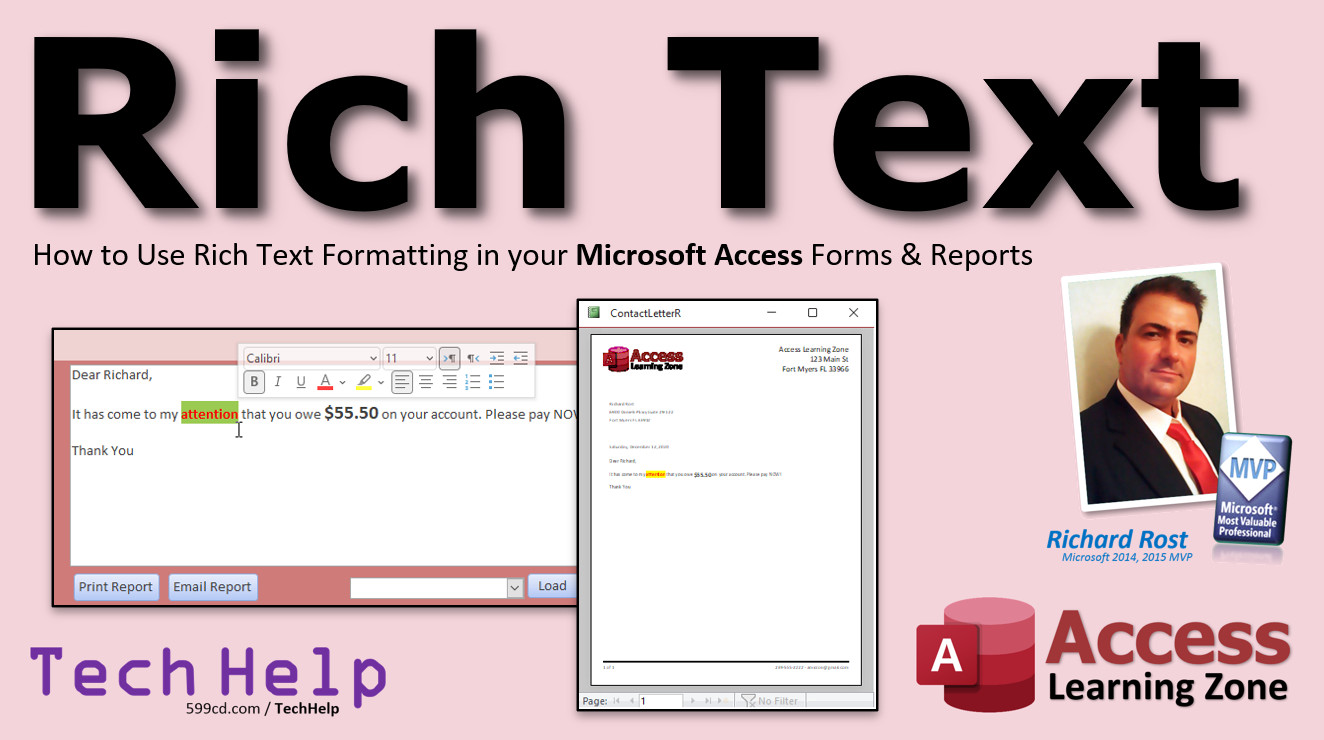
Rich Text Formatting in Forms & Reports In this video, I'm going to show you how to use Rich Text Formatting in your Microsoft Access forms and reports. We'll take the Letter Writer database from a previous TechHelp video and convert it to Rich Text so we can change colors, fonts, add bold, underline, and more. Heath from Price, Utah (a Platinum Member) asks: I'm using your Letter Writer database from a previous TechHelp to send correspondence to my customers. It's very useful. Thank you. Is there any way I can add formatted text to the report, kind of like how you can format text in Microsoft Word? It would be nice to add some color, change the font, bold, and things like that. MembersMembers will learn how to strip out any rich text formatting (RTF) or HTML tags from the rich text field if you want to send just the plain text to someone, export it, etc. PLUS you'll have access to the original video's Extended Cut too where we develop the ability to load pre-made letter templates complete with mail merge codes.
Silver Members and up get access to view Extended Cut videos, when available. Gold Members can download the files from class plus get access to the Code Vault. If you're not a member, Join Today!
Links
Keywordsmicrosoft access, ms access, ms access tutorial, #msaccess, #microsoftaccess, #help, #howto, #tutorial, #learn, #lesson, #training, #database, rich text, RTF, HTML tags, microsoft word, formatted text, plain text, plaintext, create a rich text field, RichText, TextFormat, text format, adding rich text formatting, access rich text, work with rich text, wysiwyg, rich text editor, rich text html, format text in textbox, bold, italics, underline, color, font
More InformationTranscriptWelcome to another TechHelp video brought to you by AccessLearningZone.com. I am your instructor, Richard Rost. In today's video, we're going to learn how to use rich text formatting in your Microsoft Access forms and reports so you can do color changes, use fonts, and all that cool stuff. Today's question comes from Heath in Price, Utah, one of my Platinum members. Heath says, I'm using your letter writer database from a previous TechHelp to send correspondence to my customers. It's very useful. Thank you. You're welcome. Is there any way I can add formatted text to the report? Kind of like how you can format text in Microsoft Word. It would be nice to add some color, change the font, bold, and things like that. Well, of course you can, Heath. All you have to do is use rich text for your field and for the formatting for your text boxes. Let me show you how to do it. If you have not yet watched my letter writer TechHelp video, go watch that first so you understand what's going on in this video. It's free. It's on my website. It's on my YouTube channel. Go find it. Go watch it. That one has some prerequisites too, so make sure you understand everything. Go do that and then come back here. So, here's a copy of the letter writer database that we built in the last video. If you haven't built it, go build it. Gold members, you can download this from the website, of course. Here's the customer form. You go to contacts, type in whatever you want your contact to be. Down here is where you put your letter and then you hit print report, and up comes the report that you can then print out. You can email it if you want to. It will load up in Outlook. There it is. Comes in as a PDF attachment. You can drop this down and open it if you want to. But this text is kind of bland. It's just regular text. You want to add some color and make things pop. Change the font. So what we're going to do is convert our notes field over to rich text formatting. Go to the contact table, right-click, design view. Find the notes field. It's long text. Right down here, change text format from plain text to rich text. Those are the only two options. Now, when you do this, it's going to say the field will be converted to rich text and the data it contains will be HTML encoded. If you don't know what HTML is, it's the language of the web, HyperText Markup Language. It puts little codes around things, like b for bold and stuff like that. Just hit yes. Save your table. Now if you go back into the contact, you'll see all these little codes in here. br is line break. It puts little things in, little HTML codes. You can't use every HTML code. You can't put things like spans and all kinds of weird things in here. You can't put hyperlinks and stuff like that. So it doesn't use every HTML code, but enough of them so you can get some color formatting. You want to display this box also as rich text. Right-click, go to design view. Open up the text box properties. On the data tab, not this format out here, you want to go to data and change text format to rich text. Save it. Close it. Now open it back up again. Notice the br tags on that are gone. When you select some text, you'll get this little quick toolbar that pops up. You can change the color, make it bold, change the font, and change the font size. It will have a lot of different options in here. You get bulleted lists, numbered lists, highlighting, and so on. You can make text bold or bigger or whatever you want to do, whatever's on that menu. Now, when you go to print your report, you might see tags in there too. So, you have to do the same thing: right-click, design view, find the notes field, open it up, set text format to rich text. Save and close it. Now, there you go. You have color-formatted reports as well. I cover a lot more with this letter writer in my Access Expert Level 5 class. We build a full-featured letter writer. Then, in Access Expert 6, I show you how to turn it into doing mass mailings. You can send out collection letters to everybody in your database that has overdue invoices, or you can set up lead sources. That's Access Expert 5 and 6. There might come a time when you want to send this information to somebody without that color formatting. For example, if you're going to export this as a CSV file or send someone a text file, when you start an export, you might get the little div marks and all kinds of formatting in that field. You might not want that if you're sending this as a text file. How do you get rid of those codes just in this instance? I'll show you that in the extended cut for the members. Members also get access to the extended cut for the previous letter writer video, where I add this thing down here, where you can add little segments or even full blocks of text to put in your letters. See that? I just put "thank you" as a closing, but you can add, let's say, a new one for this person. You can go in here and say, give me a whole new election letter. Boom. It even puts in the codes. Here was the template. It even puts codes in like your first name, balance due, and so on. And we merge those in. That's in the extended cut for the original letter writer video, which you also get access to. You get access to all the extended cut videos. How do you become a member? Click on the Join button below the video. After you click the Join button, you'll see a list of all the different membership levels that are available, each with its own special perks. Silver members and up will get access to all of my extended cut TechHelp videos, one free beginner class each month, and more. Gold members get access to download all of the sample databases that I build in my TechHelp videos, plus my Code Vault where I keep tons of different functions that I use. You'll also get a higher priority if you decide to submit any TechHelp questions to me, and you'll get one free Expert class each month after you finish the beginner series. Platinum members get all the previous perks, plus even higher priority for TechHelp questions, access to all of my full beginner courses for every subject, and one free Developer class each month after you finish the Expert classes. These are the full-length courses found on my website, not just for Access. I also teach Word, Excel, Visual Basic, and lots more. You can now become a Diamond sponsor and have your name or company name listed on a sponsors page that will be shown in each video as long as you are a sponsor. You'll get a shout-out in the video and a link to your website or product in the text below the video and on my website. Don't worry, these free TechHelp videos are going to keep coming. As long as you keep watching them, I'll keep making more, and they'll always be free. IntroIn this video, we will learn how to use rich text formatting in your Microsoft Access forms and reports so you can add color, change fonts, make text bold, and more. I will show you how to convert a plain text field to rich text, adjust your text box properties to display formatting, and ensure your reports reflect these changes. This tutorial is based on a question about enhancing a letter writer database and will guide you through the steps to make your Access reports and forms visually more appealing. QuizQ1. What is the primary topic covered in this TechHelp video? A. Sending emails from Microsoft Access B. Using rich text formatting in Microsoft Access forms and reports C. Creating tables in Access D. Backing up Access databases Q2. In which Microsoft Access field type do you enable rich text formatting for storing formatted text? A. Short Text B. Number C. Long Text D. AutoNumber Q3. What must you change in the field properties to enable rich text in an Access table? A. Validation Rule B. Text Format from Plain Text to Rich Text C. Field Size D. Required property from No to Yes Q4. When you set a field to use rich text formatting, what language is used to encode the formatting? A. XML B. RTF (Rich Text Format) C. HTML D. JSON Q5. Which statement is TRUE about rich text formatting in Access fields? A. You can use every HTML tag in your text B. Only plain text is allowed C. Only a limited set of HTML codes is supported, such as bold and line breaks D. Rich text is only available in forms, not in reports Q6. What needs to be changed in both the source table field AND the form or report textbox to display formatted text correctly? A. Input Mask B. Format property to "Currency" C. Text Format property to "Rich Text" D. Control Source to a query Q7. After enabling rich text, which features become available in the text editing toolbar in forms? A. Changing font size, bold, color, bulleted and numbered lists B. Macro recording C. Linking tables D. Adding charts Q8. What might happen if you export a rich text field to a CSV or plain text file? A. The colors are preserved B. All formatting is lost and the text is plain C. HTML formatting codes may be included in the output D. The export is blocked by Access Q9. If you want to only temporarily remove rich text formatting codes for exporting, what does Richard mention? A. Change the Input Mask B. Use a VBA script (covered in the extended cut) C. Delete the field D. Upgrade to a newer Access version Q10. What additional feature is shown in the extended cut for members regarding letter writing? A. Merging in templates with placeholder codes like first name and balance due B. Exporting reports to Word directly C. Backing up the letter writer database D. Sorting customer contacts by last name Q11. Which AccessLearningZone.com membership level allows you to download sample databases? A. Silver B. Basic C. Gold D. Bronze Q12. Which membership perk is exclusive to Diamond sponsors? A. Viewing extended cut videos B. Downloading databases C. Having your name or company featured as a sponsor D. Access to the Code Vault Answers: 1-B; 2-C; 3-B; 4-C; 5-C; 6-C; 7-A; 8-C; 9-B; 10-A; 11-C; 12-C DISCLAIMER: Quiz questions are AI generated. If you find any that are wrong, don't make sense, or aren't related to the video topic at hand, then please post a comment and let me know. Thanks. SummaryToday's video from Access Learning Zone focuses on using rich text formatting in Microsoft Access forms and reports. I want to show you how you can add color, adjust fonts, bold text, and more, so your letters and reports look much more like what you can do in Microsoft Word. This question comes from a student who is using the letter writer database from one of my previous TechHelp videos. He finds it useful for sending correspondence to customers but wants to know how to make the text in the reports look more polished by adding formatting such as colored text, different fonts, and bolding. The solution is to use rich text formatting in both your fields and the text box controls that display your data. I will explain exactly how to set this up. If you have not yet watched my previous letter writer TechHelp video, I recommend checking it out on my website or YouTube channel first. That video lays the foundation for the letter writer database and covers some key concepts you should be familiar with before continuing. Here is a quick overview of how the basic setup works. The letter writer database includes a customer form, where you can enter your contacts and type the body of your letters. When you hit the button to print a report, it generates the letter, and you can print or email it. The emailed report appears as a PDF attachment. However, by default, the text in the report is plain and unformatted, which can look dull. To give your text some flair, we need to convert the notes field to use rich text formatting. Start by opening your contact table in design view. Find the field that holds your letter text, which should be a Long Text field, and change its Text Format property from "Plain Text" to "Rich Text." Access will prompt you that it will convert the field and HTML encode the existing data. Select "Yes." HTML encoding means codes like "b" for bold or "br" for line breaks get inserted behind the scenes. Save your table, and when you look at the field in your forms, you may see some of these HTML tags now, such as "br" for a new line. Not every HTML command is supported in Access, so you cannot do everything you might be able to do in a full web page, but there is enough formatting there to make your text more visually appealing. To make sure your form displays this formatted content properly, open the form in design view and check the properties for your text box. On the Data tab, set the Text Format property to "Rich Text" as well. Once you save and reopen the form, you will see the HTML tags disappear, and you will get a formatting toolbar when you select your text. This toolbar lets you apply formatting like bold, italics, numbered lists, bulleted lists, font colors, font size, and highlighting. Manipulate your text using these tools to get the formatting just how you want. When generating your report, you might also see raw HTML tags unless the report's text box is also set to "Rich Text." Open the report in design view, set the Text Format property accordingly, save, and close. Now your printed and emailed reports have the same formatting enhancements and are much easier to read. For those who want to learn more about building a more robust letter writer, I explore this further in my Access Expert Level 5 class, where we construct a full-featured version. In Access Expert Level 6, I cover advanced topics like mass mailings, where you can create custom letters for every person in your database with overdue invoices or for specific categories, such as lead sources. Occasionally, you may need to export this letter text in a format that does not include the rich formatting codes - for example, if sending as a plain text file or CSV. If you export the rich text field directly, you will get all the HTML formatting, line breaks, and special codes. If you want to strip this formatting out at export, I will show you how to do that in the extended cut available for members. Additionally, members get access to previous extended cuts, including the original letter writer video, where I demonstrate steps for adding building blocks or segments to your letters - allowing reusable text objects like signatures or custom paragraphs to be quickly inserted and customized, with merge codes for personalizing your messages. To become a member and unlock these extended cut tutorials, click the Join button under any video. There are multiple membership levels, each with its own perks and rewards. Silver members and higher get extended cut TechHelp videos and free monthly beginner classes. Gold members can download all my TechHelp sample databases and get access to my Code Vault with many useful VBA routines, as well as higher priority for TechHelp questions and a free Expert class each month after the beginner series. Platinum members receive all previous benefits, even higher support priority, access to all full beginner courses for every subject, and a free Developer class each month after finishing the Expert series. These full-length courses cover Access, Word, Excel, Visual Basic, and other Microsoft Office programs. I will continue providing free TechHelp videos for everyone, so as long as you keep watching, I will keep making them available at no cost. You can find a complete video tutorial with step-by-step instructions on everything discussed here on my website at the link below. Live long and prosper, my friends. Topic ListUsing rich text formatting in Access fields Converting a long text field to rich text Understanding HTML encoding in rich text fields Configuring a textbox to display rich text in forms Using the quick formatting toolbar in Access forms Applying color, font, and style changes to form text Enabling rich text formatting in Access reports Customizing report output with formatted text Primary Topics
rich text fields, Access forms, Access reports, text formatting, long text fields, field properties, HTML encoding, letter writer database Secondary Topics
mass mailings, exporting data, membership features |
||||||||||||||||||||
|
| |||
| Keywords: TechHelp Access rich text, RTF, HTML tags, microsoft word, formatted text, plain text, plaintext, create a rich text field, RichText, TextFormat, text format, adding rich text formatting, access rich text, work with rich text, wysiwyg, rich text editor, r PermaLink Rich Text in Microsoft Access |