Disable AutoSave Subform
By Richard Rost

 3 years ago
Disable Automatic Record Saving in a Subform
In this Microsoft Access tutorial we will talk about disabling AutoSave and prompting the user to save changes in records in a subform.
A couple of weeks ago, I released a video called Disable AutoSave where I showed you how to use a Before Update event to ask the user if they want to save changes to the current record. This works perfectly fine for single forms with one record, however a ton of you asked me if there was a way to get this to work with a subform containing continuous forms. The answer is yes, and I will discuss it in this video.
Members
Members will learn how to have the database prompt one time only for any number of edits made to the detail items, not once per item. It involves a lot more code, but it's so worth it.
Silver Members and up get access to view Extended Cut videos, when available. Gold Members can download the files from class plus get access to the Code Vault. If you're not a member, Join Today!
Pre-Requisites
Links
Recommended Courses
Keywords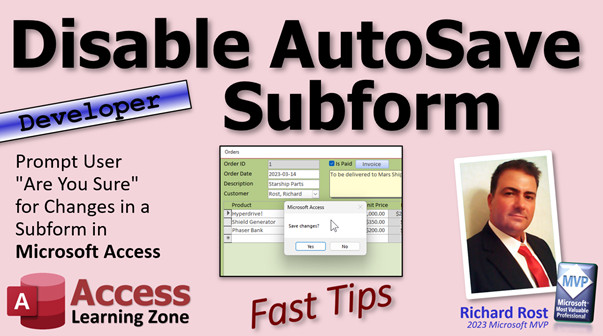
access 2016, access 2019, access 2021, access 365, microsoft access, ms access, ms access tutorial, #msaccess, #microsoftaccess, #help, #howto, #tutorial, #learn, #lesson, #training, #database, autosave subform, disable blind saves subform, automatic saving of edited records subform, disable automatic saving subform, How do I turn off AutoSave in Access subform
More InformationTranscript Welcome to another FAS Tips video brought to you by accesslearningzone.com. I am your instructor, Richard Rost.
A couple of weeks ago, I released a video called Disable AutoSave. In this video, I showed you how to make Access behave more like a Microsoft Word document or an Excel spreadsheet. When you make changes to a document, if you go to close it, it asks you, "Are you sure you want to save these changes?" Access does not behave that way, and that confuses some people who are not familiar with Access.
They make changes to an order or to a customer record, and when you close that form or just move away from the record, Access saves it in the background without you being the wiser. So a lot of people asked me, "How can I change that behavior?" If changes are made to, let's say, the customer record, it prompts you, "Are you sure you want to save these changes?" That is what this video covers. If you have not watched it, go watch it now or you are not going to get the rest of today's video.
After releasing the last video, I got tons of emails and comments on the channel and posts on the website asking, "Well, that is great and fine and dandy, but does it work in a subform?" Of course, the first thing that I tell people is, did you try? People always ask me hypothetical questions like, "Can I do this with a combo box?" Try it. The best way that you can learn, especially Access, is just try and do it. Instead of asking me, just go see if it works for yourself. If not, see if you can figure out how to get it to work. That is the best way to learn. That is how I learned, just by tearing it apart and working with it, and seeing, "What if I do this? What if I try that?"
The short answer is yes, you can get this to work with the records in a subform. However, the long answer is it may not behave exactly the way you want it to behave, and to get it to do what you are going to want it to do is going to involve some more detailed coding, which we will talk about in just a minute.
Here I am in the TechHelp template. It is a free database. You can download a copy off my website if you want to. In a nutshell, I am not going to go through the whole thing, but what the last video covered was if you want to have it so that when changes are made to this record, Access prompts you. The basic way to do it is you go into the form's properties, go to the Before Update event. This will run anytime this record is updated.
Right in here, you say, "If MessageBox, Are you sure?," come on, VBS now, we will keep it simple today. If that is anything other than VBS, then you are going to abort that change. You are going to say Me.Undo, and then Cancel equals True. It undoes the changes and cancels the update. Save it. Back out here, close it, close it. Come in here, you move from record to record, everything is fine. You want to change this to that. As soon as you try to leave the record or close it, either one, it is going to say, "Are you sure?" If you say yes, it saves the changes. If you do some changes and try to leave it and say no, it undoes the changes and puts you back on the record. That is the nutshell.
Now, subform. You can do that in the subform. Come right here. Same thing. If I thought I just copied this code right here, copy. Back over here, go to the subform's properties. Not the subform control. You want the form property here, move this over. You want the form properties inside the subform control. Before Update, right here, paste it in, save it.
Now when you come back out here and you go to modify an item on the order, it is going to ask you for each item, "Are you sure?" Yes. What I said before was that might not be the behavior that you want, but that is what you are going to get with this simple code. You have to remember that each one of those line items is a separate record in a table. So that event is going to happen each time you update one of these items.
Now, is there a way to have it run just once for this entire order? For example, if I change this, then I change this, then I add a couple of records, maybe I delete one. So now the order has changed as a whole. Now, is there a way to change that and have that event fire just once for the entire order? Yes, it is possible, but it is going to involve a lot more coding.
I am going to talk about what needs to be done now. I am going to give you the basic overview. If you want to see a run through of me actually build that code, I am going to do that in the extended cut for the members. Benefit of membership - silver members and up, you are going to get access to it. I am going to walk through building the whole thing.
Essentially, what you have to do is you have to set either a global variable or I am going to use a tempvar for Adam at tempvars, to basically have this order remember that something has been changed because you are going to move from record to record down here, and this guy up top here needs to know about it.
You also have to remember what was here initially when the order started being edited. What we are going to do is as soon as you start modifying any one of these records, we are going to back these records up to a temporary table. That way, when we are all done, when we go to close this form, we will look at that variable and say, "Hey, were any of the subform items changed?" If so, now we have to prompt the user, "Do you want to keep those changes or abort those changes?" If they say keep it, everything is fine. Delete the data in the temporary table. Close the record. If they say no, do not save the changes, we have to delete these items, restore the values from the backup table, cancel the changes, and then close the form.
So you see it is a lot more complicated. It is going to involve some SQL, a lot more programming, and that is what you have to do because these records, each one of them, fine, you can do that and then every time you change an item, "Are you sure you want to change it?" Yeah, okay, go ahead. Do this. Do this. Leave it. "Are you sure?" Oh, wait, no, I goofed. No, that is okay. If you are happy with that, great, stick with it. That will work. But if you want the order as a whole to remember that and to handle that as one change, then come visit me in the extended cut.
Remember, silver members and up get access to all of my extended cut videos, not just this one - all of them. There are, I think, 400 some now. You get a free class every month, so check it out.
I hope you learned something today in your FAS, fast tip. Live long and prosper, my friends. I will see you next time. Intro In this video, we will talk about how to temporarily disable AutoSave for records in a subform in Microsoft Access and prompt users before saving changes. We'll review how to use the Before Update event to confirm edits in both main forms and subforms, discuss user experience concerns, and cover limitations of this approach when working with multiple subform records. Quiz Q1. What is the default behavior of Microsoft Access when you modify a record in a form?
A. It prompts you to save changes before closing the record
B. It automatically saves the changes in the background
C. It deletes the record unless you click Save
D. It locks the record until you manually confirm saving
Q2. What major difference between Access and applications like Word or Excel was discussed in the video?
A. Access prevents accidental edits with confirmation dialogs by default
B. Access batches all changes and saves them on exit
C. Access saves changes to records automatically without a confirmation prompt
D. Access does not have an undo feature
Q3. Which event property should you use in a form to intercept updates and prompt the user before saving?
A. After Update
B. Before Update
C. On Close
D. On Open
Q4. In the example code demonstrated, what action undoes unsaved changes if the user chooses not to save?
A. Me.Save
B. Me.Delete
C. Me.Undo
D. Me.Refresh
Q5. When you apply the same "Are you sure?" confirmation code to a subform, what happens?
A. The prompt appears only once for the whole order
B. The prompt appears for each individual item (record) edited in the subform
C. The prompt appears when you close the main form only
D. The prompt never appears in subforms
Q6. Why might the default subform confirmation approach not be ideal for all users?
A. It only prompts for changes after multiple records are edited
B. It can overwrite records without warning
C. It prompts the user for every individual sub-record change, which can be repetitive
D. It disables all saving functionality
Q7. What is needed if you want to prompt a user just once per whole order (not every subform change)?
A. Modify the field data types
B. Add a timer to the form
C. Create additional code to track changes across the entire order, possibly using variables and a backup table
D. Use only macros, not VBA
Q8. What role does a temporary table play in the more advanced solution discussed?
A. It logs the user actions for auditing
B. It stores a backup copy of the original subform data so changes can be undone if needed
C. It provides a source of random data for testing
D. It locks the order to prevent other users from editing
Q9. Which of the following is the BEST way to learn how Access features behave, according to the instructor?
A. Ask questions on forums and avoid experimenting
B. Test and experiment with features directly in Access
C. Memorize the documentation without trying things
D. Wait for updates that might change the features
Q10. In the advanced approach, what should happen if the user chooses not to keep the changes?
A. The new data is saved and the form closes
B. The application crashes
C. The modified items are deleted, original values are restored from the temporary table, and changes are canceled
D. Nothing happens and the changes remain as is
Answers: 1-B; 2-C; 3-B; 4-C; 5-B; 6-C; 7-C; 8-B; 9-B; 10-C
DISCLAIMER: Quiz questions are AI generated. If you find any that are wrong, don't make sense, or aren't related to the video topic at hand, then please post a comment and let me know. Thanks. Summary Today's TechHelp tutorial from Access Learning Zone focuses on how to prompt users before saving changes in Microsoft Access, particularly when working with subforms. My goal is to help you make Access behave a bit more like Microsoft Word or Excel, where you're used to being asked whether or not you want to save changes before closing a document. In Access, however, any edits you make to a record are saved automatically when you move away from that record or close the form. This can be confusing for users who are new to Access.
A couple of weeks ago, I released a video showing you how to make Access ask if you want to save your changes before moving away from a record. If you make modifications, Access prompts you with a message asking whether to save or discard them. If you haven't seen that video yet, I recommend watching it first so you'll have the necessary background for today's discussion.
After that tutorial, I received a lot of messages asking if this behavior can be extended to subforms in Access. Many people wanted to know whether it's possible to prompt users before saving changes specifically in subform records. The first piece of advice I always give is to try experimenting with it yourself. The best way to understand Access is often to play around, test things, and see what happens when you tweak settings or code.
To answer the common question: yes, you can set up Access to prompt users about saving changes within subform records. The basic approach is similar to the one used in the main form. You simply go to the form's properties and use the Before Update event. Inside this event, you include logic that displays a confirmation message to the user. If the user confirms, the change is saved. If not, the edits are undone and the update is canceled.
If you apply this method to a subform, you'll get a prompt every time you make a change to a particular record within that subform. Each line item, such as entries in an order detail subform, is treated as a separate record, and the confirmation message will appear for every single edit you make to any item.
However, some users don't want to see the confirmation for every single item. Instead, they want Access to prompt only once for the entire collection of subform changes, for example, when closing the order as a whole, regardless of individual changes to each line item.
Achieving this more advanced scenario is possible, but it requires additional coding and setup. Essentially, you would need a way for the form to 'know' if any changes have been made in the subform. This could be accomplished using a global variable or a TempVar to track if edits have occurred. You will also need to keep a backup of the original subform data, perhaps in a temporary table. When the user attempts to close the main form, the application would then check if any line items have changed. If so, it would prompt the user just once to confirm saving or discarding all the changes. If the user chooses not to save, the data would then be restored from the backup, and the edits would be canceled.
This solution involves more complex programming, including some structured query language (SQL) commands and temporary data storage. While the simple approach works if you do not mind being prompted for each individual change, those who want to bundle the save confirmation for the entire set of records will need to invest a bit more effort into customizing their forms.
For those interested in seeing the complete walk-through for building this advanced feature, including the necessary programming steps, it is covered in the Extended Cut of this lesson, which is available for Silver members and above on my website. Silver members and higher not only get access to this Extended Cut but also to hundreds of other advanced tutorials and a free class each month.
You can find a complete video tutorial with step-by-step instructions on everything discussed here on my website at the link below. Live long and prosper, my friends. Topic List Prompting users to save changes in Access forms
Using the Before Update event to confirm saves
Implementing undo and cancel in form events
Applying save confirmation logic to subforms
Differences in save prompts for main forms vs subforms
Using Me.Undo to revert changes
Handling multiple record updates in subforms
Limitations of simple save confirmation in subforms
Storing change states with tempvars
Backing up subform records to a temporary table
Restoring subform records from a backup table Primary Topics Access forms, subforms, save confirmation, Before Update event, user prompts, undo changes, temporary tables, coding strategies
Secondary Topics tempvars, global variables, SQL, Access form properties
|







