Combine Reports
By Richard Rost

 3 years ago
Merge Multiple Access Reports into One PDF File
In this Microsoft Access tutorial, I'm going to teach you how to combine multiple reports into a single PDF file. We are going to use multiple subreport objects to generate a single master report that can then be exported into a single file or printed in one job.
James from Huntington, West Virginia (a Platinum Member) asks: Right now, whenever I send a new customer an invoice, I also have to include a copy of his contract and another sheet with some information specific to his account. Instead of having to create three PDF files and attach them to an email, is there any way to combine all of this into a single attachment?
Members
There is no extended cut video, but here's my database:
Silver Members and up get access to view Extended Cut videos, when available. Gold Members can download the files from class plus get access to the Code Vault. If you're not a member, Join Today!
Prerequisites
Links
Recommended Courses
Keywords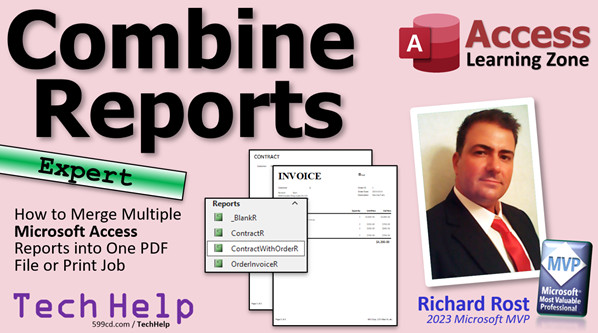
access 2016, access 2019, access 2021, access 365, microsoft access, ms access, ms access tutorial, #msaccess, #microsoftaccess, #help, #howto, #tutorial, #learn, #lesson, #training, #database, Subreports, page break control, Page header section of subreport not printing, show page header and page footer, subreport, master report, child reports, can grow, can shrink, print multiple reports to a single PDF file, Export multiple Access reports as a Single PDF
More InformationTranscript Welcome to another TechHelp video brought to you by AccessLearningZone.com. I am your instructor, Richard Rost.
In today's video, I'm going to show you how to merge multiple different reports into a single report so that you can either print that out as one print job or merge it into a single PDF file that you can then send as an attachment or whatever. We're going to create a single master report, kind of like a master document in Microsoft Word that contains other documents.
Today's question comes from James in Huntington, West Virginia, one of my Platinum members. James says, whenever I send a new customer an invoice, I have to also include a copy of his contract and another sheet with some information specific to his account. Instead of having to create three PDF files from three different reports and attach them to an email, is there any way I can combine all of this into a single attachment?
Yes, James, what we can do is we can take your three different reports and include them as sub-report objects inside of a master report. In this video, I will show you how to do just that.
Now, a couple of things before you bring all this up in the comments. Yes, I know there are third party tools available to combine PDF reports together. I have never used any of them. I've never had a need for any of them. I don't endorse any of them or recommend them. But if you have one that you like and you use it, great. Feel free to post what it is in the comments.
Yes, I know that if you have the paid version of Adobe Acrobat, they have a VBA library that you can also use to play tricks with PDF files, including merging them together. I, again, don't have the paid version of Acrobat, so I've never had a need for it.
And yes, I am also aware that you can make a one-click solution to take three attachments, three separate PDF files and attach those to one email. I do cover that in my email seminar. I'll talk more about that at the end of the video.
There is one caveat. Page footers in your sub-reports won't display. So if you've got any page footers in those sub-reports themselves, you won't see them. I searched the Google machine for a good hour trying to find a solution, couldn't find one. You can make a new page footer for the master document. If you want to have page numbers and stuff that go across the entire set of documents, that's fine. You can put your company logo down there. I'll show you how to do that. But any page footers in your sub-reports won't display. Page headers will. Page headers are fine. Report footers are fine. But page footers won't. I've got a frowny face there because, come on, Access team. You should be able to do this. I can't have page footers in the sub-reports. Come on. Fix this.
Now, this is going to be what I consider an expert level video. Expert means it's beyond the basics, but it's not quite developer - it's between beginner and developer. You don't need any VBA programming for this, but you should know your way around reports. I'm going to list as a prerequisite for today's video my invoicing video, because I'm going to use this database for today's video. The invoicing database has an order form with an invoice report that we're going to use. The order form has a subform on it. Subforms behave very similarly to sub-reports. We're going to use sub-reports in today's class.
Getting started, here I am in my TechHelp free template. This is a free database. You can download it on my website if you want a copy. In here I've got a customer form. Customers can have orders. Here's the order form with the order sub-report (the order detail form, I call it). Here's my invoice button. If you watch my invoicing video, you know how all this was built.
Here's what I want to do. I want to generate a single report. Let's say this is a new customer. I want to send him the copy of his invoice, and I want to send him a contract that's got maybe some data off of this customer form. Whatever other stuff you want, you can do two, three, four of these if you want. We'll just do two for today. Let's create another report that's based on information on the customer.
I'm just going to take my blank report that I've got here. I'm going to copy and paste that. Control-C, Control-V. We'll copy this. We'll call it the contract report. Let's right-click Design View. Let's modify this guy. We'll base this on some data on the customer form.
Now, what I'm going to do is I'm going to go up here to the contract report's properties, and we have to have a record source. Previously with this guy, we built a query that got the data off the current order form.
We'll just add the order invoice Q, Design View. Let me show you. Remember this? We looked at the order ID from the currently open order form. If you don't want to have to bother building a query for every single report like this, you've got to learn a little SQL, just a little tiny bit. We can go right in here. In this record source, instead of having to pick a query, watch this. I'm going to zoom in, Shift-F2. I'm going to put an SQL statement here that says, show me the data from the current customer. You can base it on the customer form or you can base it on the order form since the order form is open. I'll base it on the customer form to keep it simple.
So, I want: select * from CustomerT where CustomerID = Forms!CustomerF!CustomerID
This says, give me all of the fields (that's the *), from CustomerT (the customer table), where the CustomerID from that table equals the currently open customer on the customer form, which should just return one record. If you want to learn more SQL, check this video out. If this is too much for you, feel free to use a query if you want. I'm just trying to show you a little something new here.
Now, this report is going to get its data from that SQL statement instead of a query. This right here, by the way, is just what's behind that query. The query builder just gives you a nice way to design that graphically with all these join lines and stuff. I recommend it for queries that have multiple tables in them. But for a single-table query like that, you just write it like that. It's nice and easy.
Now that I've set the record source, I can put data in here from the customer. In here, I've got the first name. Click, control source, drop it down. Look at that. There are all the fields from the table that I just put in the SQL statement. There's first name. Don't forget to change the name to... Copy, paste. Here's first name. Here's last name. Change this to the last name. Copy, paste. You get the point. This is the contract.
In fact, up here in the page header - page header, not report header, page header - because I'm going to show you that page header problem later. I'm going to copy and paste that label up here. We're going to make this say, real big, contract. This is the user's contract. Let's go to format, we'll make this really big, like 48 point, or 36 point. There we go. Maybe bold it. Let's change the font. There's my contract.
Just to show you the page footer: copy, paste. I'm going to stick this down here in the page footer just to show you. This drove me nuts. I was searching for a long time. This is the page footer. Save it. Close it.
Here's our contract R. If I open this up in print preview mode, there we go. It's just got Richard Rost in it. There should only be one record. Page one of one right down here. There we go.
So whatever open customer is on this form now, for example, Jean-Luc Picard - if I open up the contract R in print preview mode, there's Jean-Luc.
Obviously, you want to have the same customer open as you have your invoice open for. There are ways you can prevent the user from going back here. You can make this guy modal, which prevents them from changing the customer that's open. Or, you could get that customer ID from this combo box right here, either one.
Now, what I want to do is, whenever I generate this invoice, I want to also generate that contract for the open customer. I'm going to have these both open together, with the contract as page one, then the invoice as page two in the same report.
So, we're going to make each one of these a subreport inside of a third master report that we don't have yet. We're going to make it right now. Let's copy the blank again: copy, paste, control-C, control-V. We will make this the, let's call it the master R. Whatever you want to call it - contract with order, I don't care. Right-click Design View. Here we are.
Now this guy, we can delete that. We can get rid of all these sections up here. Just shrink them up to nothing. We're just going to deal with the detail section right now.
One thing to note: when I set up this blank report, I set up the margins and the width to be exactly what I wanted. I have quarter-inch margins around the page, so it's an 8.5 by 11 sheet of paper. 8.5 minus half an inch in margins, I'm just shy of that 8-inch mark. That's the perfect width.
So be careful, because what we're going to do is we're going to bring these into the detail section. Let's put the contract in first. Click, drag, drop. When you do that, it pushes that right edge out. You can see the little green thing pop up. When you click there, you get the little warning: "the report width is greater than the page width." All you have to do is delete the label, because some reports and subforms come in with a label (which I don't like, but that's okay). Delete that guy. Then take the subreport object and slide it all the way to the left. Now, bring that right side in, and that little warning goes away because this guy is exactly the width that I want.
So there's the contract. Now let's bring in the order invoice R. Click, drag, drop. Same thing is going to happen. Get rid of that label. You might not want to see this whole thing, so you could find the bottom of it down here. Drag that up, because we're going to make sure these can grow and shrink in a minute. Same thing, take this guy, slide it to the left. Leave a little gap there - I'll tell you why in a minute. Leave a little gap. Then bring this in again to the left. There we go.
We've got both of our objects in there. Save it. Close it and do a print preview. So, master R, right-click, print preview. It's down on the bottom. You are expert users now. My recording window is smaller than my giant desktop monitor, so I'm just going to go to print preview. You get what I'm doing. If you've watched any of my beginner lessons, I've explained all this.
So, there we go. Looks pretty good so far. Couple things. First of all, they're together on the same page. Here's the contract and here's the invoice. I want them to be on separate pages, because presumably the contract is going to have more stuff in here - you're going to have paragraphs, contract text. I'm just doing this as a simple example. Let's figure out a way to put the invoice on page two.
Design View. As you might be aware, if you add grouping and stuff like that, there are ways to force pages after sections. All you need for this is a little control. Go to report design. Look in your toolbox. This little guy right there is called a page break control. Click on that and then just click right here between those guys. There it is. That little thing. If you click off it, it looks like a bunch of dots right there. That is a page break control. Wherever Access sees that, it's going to throw a new page in there.
Easy enough. If I do a print preview (I have it on my quick launch toolbar), there we go. We've got that. There's page one and the popup... sorry. There it is. Page one, page two.
Next thing: this dumb border that goes around the subreport. Let's get rid of that. That is going to be a property of the subreport control itself. Click on that one. Shift-click on that one. Now I've got both subreport controls selected. Now I can go to Format, Shape Outline, Transparent. Save it. Print preview. Looking better.
Another thing I like to do is, in this detail section, I want to make sure that "can grow" and "can shrink" are both set to yes. In case, for example, the contract is blank. You can also do the same thing with these guys. The objects themselves have "can grow, can shrink." Turn that on.
Let's talk about these page headers and footers. Both of these have... Well, this one has a page header, this one does not have a page header, this one just has a report header. I don't think it's got a page header. Let me see. Let's take a look. Yes, let's take a look at the actual invoice: Design View. Okay, we do have a page header. It's this: product, quantity, unit price, and then the line. The page footer has the page 1 of 1, 1 of 2, and then the "make checks payable to."
When we do it here, we see there's the line, and we see our page footer. When we open up the subreport or the master report, we are seeing... oh, wrong one... Come on... Master report, right-click, print preview. There we go. There's page one, no page header here. Next page... There is no page header, and there's no footer.
Back to our master R, design view. Again, open up the properties for both of these guys - right-click properties. Down here, there's a property that says "Show Page Header and Page Footer." Turn that to yes.
Like I said, I messed with this for a good hour. I searched the Google machine. I looked at all my books around my shelves, and I got lots of them. I looked through Microsoft's documentation on their website, which is... yeah. I can get the page header to display. Good luck getting the page footer to display. Access team, I implore you: do one of two things: either (a) fix it so we can display the page footer, because it doesn't show up no matter what I do, or (b) change this prompt so it says "Show Page Header," and put a little information or something on there that says you're out of luck for page footers. Do one of those two things, please. Access team, I love you guys. I really do. I love you. I love Access. I love your work. But fix that.
So, once you've changed that setting to yes and save it, close it, and open it up again in print preview. There's my header, and again, it's not saving the report's positioning. That's another one of my pet peeves. But there's no footer down here. So we got our page header, but no page footer. There it is - there's the page header, no page footer.
I just got a message from someone. I've been getting weird spam lately on my phone. Usually I mute my phone when I make a video, but I forgot to today. Sorry about that.
In fact, one thing you'll notice is that the page footer is completely ignored, even in the code. Now, this isn't a programming video, but I just want to show it for those of you who do know a little bit of VBA. If you go into, let's go into the contract here, design view. If you go into the page footer, right-click and go into Build Event. This is the VBA code that runs when this section gets basically drawn. You can say: MessageBox "Hi" right in there. That'll pop up a message. Save it. Close it.
If I print preview this now, watch this. There's my "Hi." There's my page footer right down there. See it?
But watch this. If I open up the master R, print preview, I don't even get my "Hi." So it just ignores that section completely. Whatever code is in there, anything.
But that's okay. Now that we know that, we can work around it. If you want a page number and a footer, that's fine. But it's going to go across your entire master document, which, if you're sending someone something that's got the contract, the info sheet, and their invoice, you might want them to know, "hey, this is page 1 of 6, and there are 6 pages in this attachment." Nothing wrong with that.
So I'll go to the one off the invoice, design view. Here's the page footer. I'll leave this here because if you print out an invoice by itself, you'll still get that. But I'll copy that one. Let's go to the master R, design view, and we'll throw it in this guy's page footer. You won't get both of them, you'll just get this one if it's the master. You might now have "make checks payable to" or maybe just put your address on it. Slide over the edge and bring it up a little bit, save it, close it.
Now, if I look at my master print preview, you can see there it is right down there - page 1 of 2. Next page, page 2 of 2, there's your invoice. So that's okay. It looks good. It works. You just have to know that if you do it as part of a master document. But now you can do these two, you can do whatever other pages you want, print them all out together as a PDF, or print it as the same job. You just save it right there - right, master. That's it. You can now send this as a single attachment in your emails.
How do you do that? Well, I have a video for that, too. I think I just made this one last week, too: a one-click "create the PDF, attach it to an email, send that with Outlook." You can do that now. It's just multiple reports now with that.
I'm also going to put a link down below in the link section to this. This is a related topic, but this is to send multiple invoices to different customers. People ask me about this one all the time. I figured I'd just mention it.
If you want to learn a lot more about this Access development stuff, I've got a lot of different classes available for you. I've got an SQL seminar. If you like that SQL stuff, at least part one teaches you all the basics of SELECT statements, the WHERE clauses, the ORDER BY, all that good stuff, so you can use those in your forms and reports instead of having to make queries for everything. Part two goes into action queries - things like append queries, delete queries, update queries, and all that fun stuff. Part three is about manipulating the structure of your tables - that's pretty cool too.
If you want to learn more about sending emails from Access, I have this email seminar. It covers lots of different stuff. Here are all the goals there. I'm not even going to go over it all. It's all kinds of stuff: we do newsletters, we do sending through Outlook, we do sending through Gmail, sending through any SMTP server, doing a mail merge right inside of Access. All kinds of stuff in my email seminar. We build an email server application so you can have one computer sitting over there in the corner sending emails all day, and it collects them from everybody on your network. So if you've got 30 people, they're all sending their emails out through the same server. Really cool stuff.
If you want to learn more about sub-reports, I cover them in detail in my Access Expert Level 9 class, so check that out too.
Well, that is going to be your TechHelp video for today. I hope you learned something. Live long and prosper, my friends. I'll see you next time. Intro In this video, I will show you how to combine multiple reports into a single master report in Microsoft Access, allowing you to print or export everything together as one PDF file. We'll use subreports to merge items like invoices and contracts, address page header and footer limitations, and learn tips for setting up the record source using SQL. This tutorial is ideal if you need to send combined documents to customers and want to streamline your workflow. Quiz Q1. What is the main purpose demonstrated in the video?
A. Combining multiple reports into one master report for easier printing or PDF creation
B. Adding new tables to a database
C. Sending emails directly from Access without attaching reports
D. Importing data from Excel into Access
Q2. What should you use to combine several reports into a single document in Access?
A. Third party PDF merging tools
B. Subreport objects within a master report
C. Concatenated queries
D. Linked tables
Q3. Which sections from sub-reports will NOT display when included in a master report?
A. Page headers
B. Report headers
C. Page footers
D. Report footers
Q4. When adding subreports to the master report, why should you adjust their width and position?
A. To change database relationships
B. To avoid the "report width is greater than the page width" warning
C. To change query sorting
D. To control database permissions
Q5. If you want to ensure each subreport starts on a new page in the master report, what should you use?
A. Report grouping
B. Page break control
C. Conditional formatting
D. Sorting and Grouping dialog
Q6. What property should you set to "Yes" to allow the detail section and its contents to resize automatically?
A. Visible
B. Can Grow and Can Shrink
C. Locked
D. Allow Edits
Q7. Why might you consider building your report's record source with SQL directly, as shown in the video?
A. It is required for all Access reports
B. It allows you to pull specific data without creating additional queries
C. It prevents other users from editing the data
D. It makes your database more secure
Q8. Which Access feature is noted as not supported within subreports when merged into a master report?
A. Displaying page footers from the subreports
B. Using VBA code in the master report
C. Using subforms in reports
D. Adding controls to the report header
Q9. If you want to show page headers for each subreport within the master report, what setting must be applied?
A. Show Report Header set to Yes
B. Show Page Header and Page Footer set to Yes
C. Allow Edits set to Yes
D. Visible set to Yes
Q10. How can you include overall page numbers (like Page 1 of 2) on every printed page in the combined report?
A. Place the page numbering control in each subreport's footer
B. Add the page numbering control to the master report's page footer
C. Only display page numbers in the report header
D. Add a calculated field in the query
Q11. If your goal is to send a single PDF attachment including multiple reports, why is this approach beneficial compared to exporting each report separately?
A. It reduces the number of email attachments and keeps documents in order
B. It speeds up database queries
C. It minimizes storage space in the database
D. It allows access by multiple users at once
Q12. What does setting a report's record source to "select * from CustomerT where CustomerID = Forms!CustomerF!CustomerID" do?
A. Selects all customers instead of a specific one
B. Returns the currently open customer from the customer form
C. Selects only customers with invoices
D. Returns all records from the order form
Q13. Which seminar/resource is recommended in the video for learning more about SQL in Access?
A. Access Beginner Level 1
B. SQL Seminar Parts 1, 2, and 3
C. Email Seminar
D. Access Macros and Automation
Q14. What is the best solution if you want to have consistent page footers (such as company logos or page numbers) across the entire merged document?
A. Put them into each subreport's footer
B. Add them to the master report's page footer
C. Use third party PDF merge software
D. Only print each report separately
Q15. According to the video, what is the main limitation of using subreports in a master report in Access?
A. Page headers do not display
B. Page footers from subreports do not display
C. Report data can only come from one table
D. Only one subreport can be added
Answers: 1-A; 2-B; 3-C; 4-B; 5-B; 6-B; 7-B; 8-A; 9-B; 10-B; 11-A; 12-B; 13-B; 14-B; 15-B
DISCLAIMER: Quiz questions are AI generated. If you find any that are wrong, don't make sense, or aren't related to the video topic at hand, then please post a comment and let me know. Thanks. Summary Today's TechHelp tutorial from Access Learning Zone will show you how to combine several different Microsoft Access reports into one master report. This allows you to generate a single printout or create a merged PDF file that you can send as an email attachment, instead of having to handle multiple files separately. This method is similar to working with a master document in Microsoft Word that incorporates content from several other documents.
One common situation where this comes up is when you need to send a customer an invoice, their contract, and another information sheet, all as one file. For example, I received a question from someone who had to attach three separate PDFs to each new customer email and wanted a way to consolidate those into just one attachment. The solution to this is to use subreports in Access.
By taking each of your individual reports and dropping them as subreport objects into a new master report, you can merge all the content into a single file. In this lesson, I will walk you through that process.
To address a few common follow-up questions: Yes, there are third-party tools available for combining PDFs, but I do not use or recommend any specific ones. Some people use the paid version of Adobe Acrobat with its VBA library, but I have not needed to go that route. If your only concern is sending multiple PDF attachments in a single email, I cover a one-click solution for this in my email seminar.
There is one caveat you need to be aware of: page footers in subreports do not display when that report is rendered as part of a master report. After considerable research and testing, I concluded that this is an inbuilt limitation in Access. You can, however, add a page footer to the master report itself, so if you want a company logo, page numbers, or other shared footer content across the set of reports, you can achieve this at the master level. Page headers and report footers from the subreports work just fine.
The process I am going to show you today is targeted at users with some experience in Access. You do not need any VBA programming, but you should be comfortable working with reports and subreports. If you want to fully follow along, you may want to have watched my invoicing video previously, as I will be making use of the invoicing database from that lesson.
To start, open your Access database. Suppose you have a customer form, an order form, and an invoice report. If you want to also send a contract that pulls customer data, you will need a new report for the contract. The fastest way to create a contract report is to copy an existing blank report, paste it, and set its record source to display the current customer's information. You can do this with a simple SQL statement in the record source, like "select * from CustomerT where CustomerID = Forms!CustomerF!CustomerID". This will pull in all the details for whichever customer is currently open on the form.
With the contract report ready, drag on the customer fields you want to display, adjust the labels, and format the page header to clearly identify the report as a contract. If you place anything in the page footer, keep in mind that it will only show when you print the contract by itself, not as a subreport.
Now, to create your combined master report, copy your blank report again and name it something like "MasterR". In design view, clear out any unnecessary sections other than the detail section. Make sure the report's width and margins match the subreports you plan to add, so you avoid any layout issues.
Next, drag your newly created contract report and your existing invoice report into the master report as subreport controls. Be mindful to remove any labels that get imported with the subreports. Adjust the subreports' sizes and placements so they fit neatly on the page. If you want each subreport to start on a new page, insert a page break control between them in the detail section.
Subreports often come with default borders. If you want a cleaner look, select both subreport controls and set their outline to transparent.
You will also want to enable the "Can Grow" and "Can Shrink" properties on both the detail section and the subreport controls. This ensures the layout adjusts if one of your subreports has variable or no content.
A key thing to remember is that while page headers from the subreports can be displayed in the master report, page footers will not. There is an option in the subreport properties to show page headers and footers, so turn this on, but just be aware that only the headers will come through. If you want consistent footer content across all pages, put it in the page footer section of your master report.
At this point, your master report will display the contract on the first page, the invoice on the next, and so forth. You can print it or export it to PDF, generating a single file that you can send to your customer.
If you would like to automate this further and send the merged PDF as an email attachment with a single click, I have video tutorials and a seminar available covering those techniques. There is also related material on how to send multiple invoices to different customers in batch, which may be helpful if you manage more complex workflows.
For those wanting to learn more, I recommend checking out my SQL seminars for a deeper understanding of custom queries and the use of SQL statements as record sources in forms and reports. Also, my email seminar covers sending emails from Access, including mail merges, sending through Outlook, Gmail, or any SMTP server, and even building your own Access-based email server.
For a detailed, step-by-step walkthrough on using subreports, take a look at my Access Expert Level 9 class.
You can find a complete video tutorial with step-by-step instructions on everything discussed here on my website at the link below. Live long and prosper, my friends. Topic List Merging multiple Access reports into a single master report
Embedding subreports within a master report
Configuring record sources using SQL for reports
Creating a contract report based on customer data
Adding customer fields to a contract report
Formatting report headers and labels
Setting up page headers and footers in reports
Adjusting report and subreport widths for printing
Adding subreports to the master report's detail section
Inserting a page break control between subreports
Removing outline borders from subreports
Setting can grow and can shrink properties for sections
Managing the display of page headers in subreports
Limitations of page footers in subreports
Creating a unified master page footer for the combined report
Exporting the master report as a single PDF file Primary Topics Microsoft Access reports, sub-reports, report design, merging reports, print preview, PDF export, report footers and headers, SQL record sources
Secondary Topics page breaks in Access, formatting issues, limitations of sub-report footers, using SQL in record sources, email automation, Access report properties
|






