VBA Editor Themes 3
By Richard Rost

 2 years ago
Customize VBA Editor Themes in MS Access, Part 3 In this Microsoft Access tutorial, I'm going to teach you how to make different themes for your VBA editor so you can switch between a light mode and a dark mode. You can change the font colors, the font size, the font face. We'll learn how to read and write these values to and from the Windows registry. This is Part 3 of 3. MembersThere is no extended cut, but here is the database download: Silver Members and up get access to view Extended Cut videos, when available. Gold Members can download the files from class plus get access to the Code Vault. If you're not a member, Join Today!
PrerequisitesRecommended Courses
Keywords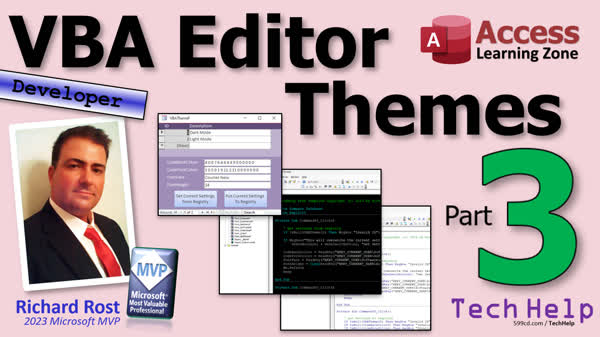 TechHelp Access, VBA Editor Themes, Multiple Editor Themes Access, Light Mode VBA, Dark Mode VBA, Access Font Colors, Theme Editor for VBA, VBA Interface Customization, Part 3 VBA Series, Restart Access for Changes, Access VBA Tutorial
More InformationTranscript Today is part 3 and the final part of my VBA Editor Themes series, where we're making a little theme editor for the VBA editor. So, you can have a dark mode, a light mode, a teaching mode, a grandpa mode, whatever you want, any kind of mode. And of course, if you haven't watched parts 1 and 2 yet, go watch those first. You'll find links down below.
Alright, let's get back to it.
Alright, so we made our button to read the settings from the registry. Now let's make another button to put them back into the registry. So, design view, I'm just going to copy this button here, copy, paste, slide it over here. Come on, there you go. Get it right, there you go, okay, good boy.
Alright, we're going to do put settings to registry. Alright. And what do we call this button? This is the get settings button. We'll call this one the put settings button. Put settings button. Alright.
Very similar logic, a little bit differently. Right-click, build event. Alright. Same thing. We're going to first check to make sure that we have a valid ID. I'm also going to check to make sure there's a value in the other fields, too. Make sure none of those are missing.
Alright, so let's copy and paste, paste, paste, paste. Let's do this a couple of times. Whoops. Paste. Alright, and we're just going to check the other values, too. So, "code back colors" is invalid, "code back". And you can put friendlier messages in here if you want. I just want to make sure that there wasn't a problem before, and that there's a blank value in one of these, and that we're going to put garbage to the registry because that would be awful. We don't want garbage in the registry.
Okay, so there. We've checked all five things that we have to write back.
Now, just like this one was "read key", we're going to use the "save key". So, we're going to just copy this whole thing here and paste it. And this is going to be, instead of setting something equal to, it's going to be "save key". Okay, and this is not a function anymore; it's a statement. So, we're going to add a space there instead. Alright, that's the registry key. The value is "code back colors". Now there's a third thing here that says "reg sz". What is that?
Let's take a peek at this real quick. Right-click, definition. Okay, in here I put the different types. "Reg SZ" is basically a string. It's the default value. Alright, most things in the registry are strings. Then there's this thing called a DWORD. It's basically a 32-bit number. It's roughly equivalent to a long integer in Access. Okay, so for numbers, you're going to use a DWORD. For string values, you're going to use SZ. These two things, don't worry about them. Don't mess with them, don't touch them, don't play with them; they're a lot more advanced, and maybe one of these days I'll do a class on them, but for now, all you have to worry about is these two things.
So, the only thing we have to do is, if we're using a number like our font size, our font height, we have to specify "reg dword". Okay, and we just send that as a string.
Alright, let's go back. Okay, so here's that, we got the "code back colors", we're going to copy this three more times, paste it three more times. Paste, paste, paste. Okay, grab these, "code fore colors", goes into this one, "font face" goes into this one, and then "font height" is getting "font height", and here we have to go "comma reg_dword". You can copy that right out of the thing if you want to.
Okay. Now at this point, the registry's been updated. But Access reads these settings in when Access loads. So, you're not going to see it change until you restart Access. So we're going to just tell the user, "Message box, settings updated, please restart Access."
Alright. Yeah, there's code we could do that. But no. No, we're not gonna. Just restart it. That's a whole different class.
Alright. Debug. Compile. Close it. Close it. Save it. Open it. Alright. What are we in right now? We're in light mode. Alright. The one we just set last. I'm going to click on dark mode and put settings to registry. Click. Alright. Settings updated. Please restart Access. Notice now you don't see a change. Alright, we have to actually restart Access. So let's close that down and let's restart the database.
And here we go. And ready. Click. Let's go back. Where's my form? It could be a theme path. Go to light mode. Put settings to registry, hit okay, restart Access. One more time. Yeah, my system's slow today, I don't know why. And peak. And, ooh, look at that. Isn't that cute? And then our own little theme editor.
Are there other settings you can change? Yeah, these are the big ones, though. These are the big four. I wouldn't mess with anything else. Just stick with these. And I did this for you guys, so I can leave it like this in videos and I can switch back to black for myself. Well, okay, so it's kind of selfish. It's for me, too.
So there you go. There's your VBA Theme Editor. Pretty cool, huh?
If you like this stuff, if you like learning with me, if you like my style, and you like learning how to do cool things in Access VBA. Well, I got tons of developer lessons available on my website. Sign up today, you can become a Learning Connection member and you get a discount. If you're a Platinum member, you can get a free developer class once a month after you've finished all the beginner and expert lessons. So there's lots and lots of stuff that I cover from beginner to advanced. So everything that I know, well pretty much everything that I know, is in these lessons. I've baked me in there. It's like that spaghetti sauce. It's in there.
But that's it. That's all for your TechHelp video for today. I hope you learned something. I hope this series was helpful to someone out there. Post me a comment down below. Let me know what you thought. Live long and prosper, my friends. I'll see you next time. Intro In this video, we wrap up the VBA Editor Themes series by creating a custom theme editor for the Microsoft Access VBA editor, allowing users to switch between modes like dark, light, and more. I'll show you how to add functionality for updating and saving your theme settings to the Windows registry, handle input validation, and explain key differences between registry value types used for settings. You will also see how changes take effect after restarting Access and get tips on which registry values to modify safely. This is part 3. Quiz Q1. What is the primary purpose of the VBA Theme Editor described in this video?
A. To allow users to customize the VBA editor theme, including color and font settings
B. To create a custom ribbon in Access
C. To manage user permissions in an Access database
D. To import data from Excel into Access
Q2. Before writing the settings back to the registry, what does the code verify?
A. That the computer is online
B. That all required field values are present and valid
C. That the VBA editor is closed
D. That a backup of the registry exists
Q3. What are the two main registry data types discussed in the video?
A. Binary and Character
B. Reg SZ (string) and Reg DWORD (number)
C. Long Integer and Single
D. Boolean and Date
Q4. When should you use Reg DWORD instead of Reg SZ?
A. When storing a string value
B. When storing a date
C. When storing a number like font size or font height
D. When storing a boolean value
Q5. What must the user do after changing theme settings and updating the registry in Access?
A. Log out and log back in
B. Restart Access to see the changes take effect
C. Wait ten minutes for settings to refresh
D. Clear their browser cache
Q6. According to the presenter, which settings are safe and recommended to edit with this theme editor?
A. All registry settings related to VBA
B. Only the four main settings: code back colors, code fore colors, font face, and font height
C. Only font-related settings
D. Only color-related settings
Q7. What is the function of the "put settings" button created in the video?
A. To read current theme settings from the registry
B. To write or save the current theme settings to the registry
C. To import settings from a file
D. To export settings to XML
Q8. What type of notification does the user receive after updating the settings via the button?
A. No notification is given
B. An automatic color change in the editor
C. A message box informing them that the settings have been updated and to restart Access
D. A sound alert
Q9. Why does Access not show theme changes immediately after updating the registry?
A. Because the changes are synced with Windows updates
B. Because changes are only visible after Access is restarted
C. Because the macro needs to be recompiled
D. Because the settings require Administrator approval
Q10. What is the role of the "save key" statement in the process?
A. It opens the registry in read mode
B. It updates a value in the registry with new information
C. It deletes a key from the registry
D. It resets the theme to default
Answers: 1-A; 2-B; 3-B; 4-C; 5-B; 6-B; 7-B; 8-C; 9-B; 10-B
DISCLAIMER: Quiz questions are AI generated. If you find any that are wrong, don't make sense, or aren't related to the video topic at hand, then please post a comment and let me know. Thanks. Summary Today's TechHelp tutorial from Access Learning Zone is the final part of my series on creating a theme editor for the VBA editor. With this project, you can customize your VBA editor with modes like dark mode, light mode, teaching mode, or even a grandpa mode, giving you flexibility and control over how your coding environment looks. If you missed the earlier parts, you should check out parts 1 and 2 first because each part builds on the last one. You will find links to those previous lessons on my website.
Now, picking up where we left off, we had already created a button that reads settings from the Windows Registry. The next step is to add another button that writes these custom theme settings back into the registry. In my database's design view, I simply copied the previous button and created a new one, which I named the "put settings" button.
The next step involves adding logic to this new button so that it will write your settings back into the registry. First, it is essential to ensure all necessary fields have valid values. For example, you want to check that the background color, foreground color, font face, and font size are all set. This avoids accidentally writing incomplete or incorrect data to the registry, which could cause problems later.
Once all the necessary checks are in place, the function moves on to writing settings to the registry. Up until this point, we were using a function to read the key from the registry. Now, we use a different function to save values. When saving, you must specify whether you are writing a string or a numeric value. Most registry values for these settings are strings, which are stored as Reg_SZ. However, numeric values, such as font height, are saved as Reg_DWORD. These distinctions are important because the registry expects values in certain formats, and a mismatch can cause issues.
When a user clicks the button to save settings, the application writes the current values for background color, foreground color, font face, and font size into the registry. Keep in mind that Access does not immediately apply these changes. The editor loads these settings when you restart Access, so after saving, the user will see a prompt: settings updated, please restart Access. There is code that could automate this process, but it is best just to restart the application manually.
Once you close and reopen Access, your new theme settings will be applied, whether you switched to dark mode, light mode, or another custom setup. In my experience, the four main settings I have shown you—background color, foreground color, font face, and font size—are the key ones you will want to change. It is possible to modify other registry values, but these cover the basics for most users. This little project also allows me to switch between a setup for making videos and one I use for my own work.
That wraps up building your very own VBA Theme Editor. If you enjoyed this lesson and want to learn more about Access and VBA, I have a variety of in-depth developer courses available on my website, covering content from beginner to advanced. Membership options are available, and Platinum members receive special perks like free developer classes.
You can find a complete video tutorial with step-by-step instructions on everything discussed here on my website at the link below. Live long and prosper, my friends. Topic List Creating a button to save theme settings to the registry
Validating input fields before writing to the registry
Writing color and font settings to the Windows registry
Specifying registry value types (REG_SZ and REG_DWORD)
Handling font size as a REG_DWORD in registry
Displaying confirmation after saving settings
Applying theme changes by restarting Access
Switching between different editor themes Primary Topics VBA editor themes, Windows registry access, saving settings, form validation, data types in registry, Access VBA integration
Secondary Topics Access form design, user feedback messages
|






