Search Box Focus
By Richard Rost

 15 months ago
Set Focus to Search Box on Continuous Form Open
In this Microsoft Access tutorial, I will show you how to set the initial focus to a search box in the header of a continuous form when the form opens. We will create a simple search box, use VBA to filter records as you type, and add the necessary code to make sure the cursor automatically starts in your search box for faster data entry.
Warren from Syracuse, New York (a Platinum Member) asks: I have a continuous form that lists my customers, and I added a search box in the form header to help find records quickly. I'd like the cursor to automatically start in that search box when the form opens, so users can just start typing right away. I can't figure out how to get it to start in the header section. It just wants to go right to the first field in the detail section.
Members
There is no extended cut, but here is the file download:
Silver Members and up get access to view Extended Cut videos, when available. Gold Members can download the files from class plus get access to the Code Vault. If you're not a member, Join Today!
Prerequisites
Links
Recommended Courses
Keywords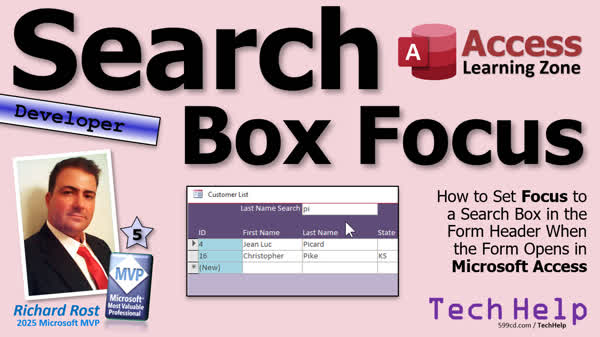
TechHelp Access, start focus in search box, continuous form, form header search, setfocus, vba code, after update event, form load event, filter property, wildcard search, unbound textbox, control source, debug compile, property sheet, events on open on load, concatenate double quotes
More InformationTranscript Today we're going to talk about how to start focus in a search box when a form opens. We have a continuous form. I'm going to get a little search box up here in the header. How do you get it to start there?
Today's question comes from Warren in Syracuse, New York, one of my Platinum members. Warren says, I have a continuous form that lists my customers, and I added a search box in the form header to help find records quickly. I'd like the cursor to automatically start in that search box when the form opens so users can just start typing right away. I can't figure out how to get it to start in the header section. It just wants to go right to the first field in the detail section.
Well, Warren, this is really simple to do, but it does involve one line of VBA code. The important thing is knowing where to put that code.
First, a few prerequisites. For this example, a simple search box like this, I like using a form filter. If you want to learn more about filters, go watch this video. This will involve a tiny bit of VBA, so go watch my intro to VBA video. If you've never done any VBA before, this will get you started.
There are some events that fire when forms open. There's On Open, On Load, On Current. This video explains those events and the differences. We're just going to use one of them today, but this is a good video to give you a broad overview of them.
As a bonus, I'll show you how I would put together a simple search box like this. I'd use the After Update event. Then we'll set up a simple filter using a wildcard search. Make sure you understand concatenation and how double double quotes work. These are all free videos. They are here on my YouTube channel and on my website. Go watch those and come on back.
Alright, here I am in my TechHelp free template. This is a free database. You can grab a copy from my website if you want to, in addition to all the videos where I explain how I build this. In here, I've got a customer list form that lists all the customers. Then you can double-click on one of them, and that'll open up that customer specifically. If you have a few thousand customers and you want to whittle that down, that's where you can put a search box up top.
I've got about 15 videos on my website teaching you how to make all kinds of different search options and boxes, combo boxes, and text boxes. I'm just going to do one simple one here for today's video.
In design view, I'm going to make the header a little bit bigger. We're going to move all these labels down like that, so we have room for a text box right there. I'm just going to copy one of them. We'll just make it based on last name. So I'm going to copy last name, copy, and then paste it up here in the form header. Slide it over top of that one. You can put a label over here next to it if you want to. That's up to you.
Open up this guy. Open up its properties, double-click, it's Text 20. I don't want to call it Text 20. I'm going to call this LastNameFilter, and I'm going to get rid of that control source right there. I want this to be unbound.
Control source means it's bound to the table, and if you put data in here, it'll actually save it in that field. I don't want that. I want to just put a value in here and deal with it myself.
A real quick way to filter the results is to go into the events using the After Update event. Dot, dot, dot, that'll bring up your code builder. In here, I'm going to say Me.Filter. That's the Filter property of the current form. That's Me equals, and then what do you want it to be? We'll say LastName Like, and then we need double quotes inside the string, an asterisk for the wildcard character, close that string, concatenate LastNameFilter (that's the name of my filter field), and then open another string, wildcard character, double quotes, and then close that string. See how that works?
So this will basically turn into LastName Like "RIC*", for Richard. That will become what's inside of here. But that quote turns into these double quotes, then you have your star, then whatever's in the filter box, then a star, and then the double quotes inside the next string, and then that closes the string. I know it's confusing, but that's how it works.
I don't like using single quotes. I have a whole different video on why. I'll put a link to that down below.
Once you've set the filter, you just say Me.FilterOn = True. And you're done. I'm going to use a simple one field filter, save it. I'm going to come up top here. We're going to Debug - Compile once in a while to make sure my code's good.
We can close the code editor, close it, save it if you need to. Now when we open it up, notice my focus is over here in that autonumber field, which is exactly what Warren's trying to get around. He wants the focus to start there, so his users don't have to click on it. You can hit Shift+Tab or whatever to move between their controls, Ctrl+Shift+Tab, one of those key characters. But we want the focus to start right here.
Now, if I type in, let's say, "PI" and hit Tab, the After Update event kicks in and it filters this accordingly. That works. But when I open the form, I want the focus to start here.
For that, we're going to use the SetFocus method in the form Load or form Open events.
We're going to right click, go to Design View, find the form's properties, double click right there on that box. It brings up the property sheet for the form. Go to Events. This will work either in the On Load or in the On Open event - either one's fine. On Load is easier, right up there. Dot, dot, dot. In here, all we're going to say is LastNameFilter.SetFocus.
I have a whole separate video on SetFocus as well. I'll put a link to that down below too. There's lots you can do with SetFocus, but SetFocus will basically move to whatever control you get specified right here.
Again, save it, Debug - Compile once in a while. And yes, that's on a t-shirt in my store.
Close it, save it, open it, and now you're sitting right there in that box ready to type "RO". There you go. Nice and simple, and now it's one less thing you have to hear your users complain about.
That's pretty much it. While I have your attention, click on that Like and make sure you subscribe to my channel. It helps me out.
For regular viewers of my channel, I just want to let you know that yes, tomorrow we'll be getting back into the Fitness Database series. I've had a couple of weeks off due to some health issues myself. I'm going through some dental work and it's been a nightmare. I posted about it on my website. Check it out in my Captain's Log. I just want to let everybody know yes, we're getting back to this starting tomorrow.
That's it for today. Nice quick one for today. Hope you learned something. Live long and prosper, my friends. I'll see you next time.
TOPICS:
Adding a search box to a continuous form header
Making the form header larger to fit a search box
Copying and placing a text box into the form header
Renaming a text box and removing its control source
Configuring a text box as unbound for search purposes
Using the After Update event for the search box
Writing VBA code to filter records with a wildcard
Concatenating strings and using wildcards in VBA
Enabling filtering by setting the FilterOn property
Using the SetFocus method in an On Load event
Setting focus to the search box when the form opens
COMMERCIAL:
In today's video, we're learning about how to set the focus automatically to a search box when you open a Microsoft Access continuous form. I'll show you how to add a search box to your form header, use a simple After Update event to filter your records, and write one line of VBA code with SetFocus so your users are ready to type right away. We'll talk about the differences between form events like On Load and On Open, and I'll walk you through setting everything up step by step. You'll find the complete video on my YouTube channel and on my website at the link shown. Live long and prosper my friends. Intro In this video, we will learn how to set the focus automatically to a search box when opening a Microsoft Access continuous form. I will show you how to add a search box to your form header, make the text box unbound, use the After Update event to filter records with VBA, and use the SetFocus method to put the cursor in the search box as soon as the form opens. We'll also talk about the differences between the On Load and On Open form events and go over setting up a simple filter using wildcards. Quiz Q1. What is the main goal discussed in the video regarding search boxes in a form?
A. Making the search box visually appealing
B. Automatically placing focus in the search box when the form opens
C. Providing drop-down options in the search box
D. Saving values entered in the search box to the database
Q2. Why should the search box in the form header be unbound?
A. To save the value to the table for record-keeping
B. To allow users to enter multiple values simultaneously
C. To ensure it does not overwrite data in the table fields
D. To increase form loading speed
Q3. What is the purpose of the After Update event for the search box?
A. To validate data as it is typed
B. To add a new record to the table
C. To trigger the filtering of the form results based on the search input
D. To save the search term to a log
Q4. Which method is used in VBA to move the focus to the search box when the form loads?
A. GoToControl
B. FocusOn
C. SetSelection
D. SetFocus
Q5. Which event did the presenter recommend using for setting focus when the form opens?
A. OnUnload
B. OnResize
C. OnLoad or OnOpen
D. AfterUpdate
Q6. What is the effect of Me.FilterOn = True in the code?
A. It unbinds the filter field from the table
B. It enables the filter defined for the form
C. It clears existing filters from the form
D. It sorts the form's records alphabetically
Q7. In the filtering example, what wildcard character is used with the LIKE operator?
A. ?
B. #
C. *
D. %
Q8. Why are double double quotes used in the VBA filter string?
A. To create nested single quotes
B. To indicate a line break
C. To include literal double quotes inside a string
D. To concatenate two strings together
Q9. If the form is opened and focus is not in the search box, what manual shortcut did the presenter mention as a way to navigate controls?
A. Ctrl+Alt
B. Shift+Tab
C. Shift+Enter
D. Alt+F4
Q10. What is the advantage of using a filter via VBA for a simple search box in a continuous form?
A. It permanently deletes non-matching records
B. It allows immediate dynamic filtering without additional queries
C. It requires no VBA code at all
D. It disables other form controls
Answers: 1-B; 2-C; 3-C; 4-D; 5-C; 6-B; 7-C; 8-C; 9-B; 10-B
DISCLAIMER: Quiz questions are AI generated. If you find any that are wrong, don't make sense, or aren't related to the video topic at hand, then please post a comment and let me know. Thanks. Summary Today's TechHelp tutorial from Access Learning Zone covers the process for setting the initial focus in a search box when a Microsoft Access form opens. Specifically, we are working with a continuous form that lists customer records and includes a search box in the form header to allow users to quickly filter and find customers.
One of the common requests I get is how to set up the form so that when it opens, the cursor automatically appears in the search box at the top, instead of the first field in the detail section. This makes it much faster for users to begin typing their search term without needing to click into the search box manually.
This is a straightforward enhancement to add, but it does require one line of VBA code, and it is important to understand where exactly to place that code in your form.
Before jumping into the specific steps, there are a few things I recommend brushing up on if you are new to Access or VBA. If you are not familiar with form filters, I suggest watching my free videos that explain how form filters work. Also, if you have never used VBA in Access, my introductory VBA lesson will be helpful, as it covers all the basics you need to get started, including how to use the Code Builder. Additionally, if you want to understand which form events are available when opening a form, and how they differ — such as On Open, On Load, and On Current — I have a video that explains those as well.
As a bonus, I will walk through how to set up a simple search box in the form header, connected to a filter that uses a wildcard search. The filter is triggered using the After Update event of the search box, so as soon as the user finishes typing and exits the box, the filter is applied. When working with wildcards and string concatenation in VBA, you should be familiar with the use of double quotes within strings. If you need more practice with these concepts, I provide additional free tutorials on my website and YouTube channel.
In my demonstration, I use my TechHelp free template. This is a sample database you can download to follow along, and it includes a customer list form where you can double-click a customer to open their details. For search functionality, especially if you have thousands of customers, placing a search box in the form header allows users to quickly narrow down the list.
My website contains numerous videos on different types of search boxes, combo boxes, and filtering methods. For this example, I will keep it simple and focus on a basic text box for filtering by last name.
To start, I open the form in Design View and adjust the form header to make space for the new search box. I copy an existing field, such as the Last Name text box, and place it in the header. Then, I clear the control source for this copied box, so it is unbound. It is important that the search box is unbound, as we do not want to store any entered values back to the table — we just want to use it to filter the form.
Next, I use the After Update event of this search box so that Access will filter the customer records as soon as the user types something and moves out of the box. The filtering logic uses the Filter property of the form to specify something like "LastName Like 'RIC*'", substituting the user's entry and using wildcards to match partial values. Strings in VBA require careful use of double quotes and concatenation, especially when inserting the value entered in the search box.
Once the filter is set, activate it by turning the FilterOn property to True on the form. After making these changes, I recommend saving your work and using Debug - Compile from the code window regularly to ensure your VBA syntax is correct.
After these steps, the search box is functional, but you will notice that when the form opens, the focus is still on another field in the detail section, not in the search box at the top. Our goal is to have the focus start in that search box automatically.
To accomplish this, we need to use the SetFocus method in the form's events. Go into Design View, access the form's property sheet, and select the On Load event (or alternatively the On Open event, both methods work). In the event procedure, add a line of VBA instructing Access to move the focus to the search box. This means that anytime the form loads, the cursor will appear in the search box, ready for the user to start typing without any extra clicks.
Remember to save and compile your code. Now, when the form opens, the user is immediately positioned in the search box and can begin typing a search value to filter the records.
If you would like more detail on how SetFocus works or why I recommend certain filter techniques, you will find additional dedicated videos on those topics on my site.
That wraps up today's tutorial! Now you can set a search box to have focus as soon as a form opens in Microsoft Access, making it more intuitive and user friendly for your database users.
You can find a complete video tutorial with step-by-step instructions on everything discussed here on my website at the link below.
Live long and prosper, my friends. Topic List Adding a search box to a continuous form header
Making the form header larger to fit a search box
Copying and placing a text box into the form header
Renaming a text box and removing its control source
Configuring a text box as unbound for search purposes
Using the After Update event for the search box
Writing VBA code to filter records with a wildcard
Concatenating strings and using wildcards in VBA
Enabling filtering by setting the FilterOn property
Using the SetFocus method in an On Load event
Setting focus to the search box when the form opens Primary Topics Microsoft Access, continuous forms, form header search box, SetFocus method, form events, VBA filtering, control properties Secondary Topics event procedures, unbound controls, wildcard searches, string concatenation in VBA |






