Fitness 25
By Richard Rost

 14 months ago
Filter Food Log Records by Date with Navigation Buttons In this Microsoft Access tutorial I will show you how to improve your fitness tracking database by adding features to the food log form, including displaying and filtering data by specific dates, creating buttons to move between days and weeks, and formatting the date display. You will learn how to let users select or adjust the log date, apply filters to view only relevant entries, and add navigation controls like a "Today" button for quick access. This is part 25. MembersThere is no extended cut, but here is the file download: Silver Members and up get access to view Extended Cut videos, when available. Gold Members can download the files from class plus get access to the Code Vault. If you're not a member, Join Today!
PrerequisitesLinksRecommended CoursesUp Next
Keywords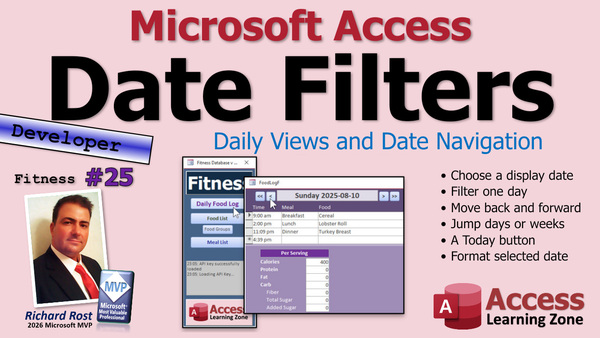 TechHelp Access, fitness database, food log, filter records by date, form date picker, log date field, ISO date format, update filter code, on-load event, after update event, navigation buttons, change log date function, date math, today button, refeed day, calorie maintenance, event function, debug compile, default value, format property
 Subscribe to Fitness 25
Get notifications when this page is updated
More InformationTranscript Welcome to another TechHelp video brought to you by AccessLearningZone.com. I'm your instructor, Richard Rost.
Today is Part 25 of my fitness database series. If you haven't watched Parts 1 through 24 yet, go watch those. As a reminder, even if you don't care about fitness, these ticks and these tips and tricks--I guess "ticks" is a word for tips and tricks together--these ticks are available for any type of database that you're building.
In fact, I've been reading the comments that you guys have been posting on the previous videos in the series, and a lot of you are telling me you're able to take these techniques and apply them to your database. Today, we're going to continue working on the food log, and we're going to add little buttons here and filter this based on the date that you're searching, all kinds of cool stuff.
So, it doesn't matter what database you're working on, this stuff is for you. Let's get back to it.
Alright, so we've got our food log, and what I want to do is, up top here, put what the date is and only show one day's worth of values here. Right now, it's just showing all of them. We only have one day in here, but if I put stuff in today--because this was from yesterday--if I put something in today, like today's dinner, then I don't want to see those with these. This is 8/10, this is 8/11. I want to see just the day I'm on.
So, I'm going to put a field up top that represents today's date. I'm going to slide this down. I'll move this out of the way for now, and I'm just going to put a big text box right up here that's got today's date in it.
Alright, so grab any one of these food descriptions, fine, copy, copy, paste, there we go. See, it works sometimes. I'm going to try to do my best to center it, but that would be perfect.
Now, the first thing I'm going to do is unbind this guy. It's bound to food description right now, so go to all, find control source, and we're just going to delete that. Let's name this field. Let's name this log date.
Now, you could put a default value in here if you want to, but a mistake that a lot of people make is they put the control source equal to date. What that does is says this text box will always be equal to this date, and you can't change it. We don't want that, because we want to use it to be able to change it. You want to be able to go back and look at stuff from last week. So leave the control source empty--it's unbound.
If you want to, you could put a default value in here. You don't really need to, because we're going to set this in code when the form opens, but it can't hurt. You can start it off with today's date, and that's fine.
Alright, I'm going to format this gently, gently make it a little bigger. Let's start with a color. Let's go with--no, that's not good. Let's go with a light, a little bit lighter than that... maybe that. Okay, let's center it. Let's bold it. Let's go a little bit bigger, maybe 22... that's too big. Let's go maybe 20 point... well, a little smaller than that. Yeah, that's good right there.
Let's format that date. Let's go to format, and I am going to use--let me zoom in so you can see it better--I'm going to use the format dddd space yyyy-mm-dd. This, of course, is the ISO date format that I prefer. I'm on a mission to change the whole world to this. I think we've talked about this before. If not, I'll put a link to a video down below you can watch about it.
This adds the day of the week, nice and big and full letters at the beginning. I like to see the day of the week when I'm working with logs like this. I want to see that this is Monday. If you only want the three digits, you can do that, and of course I talk about all of this in a lot more detail in my formatting video. I gotta look these up to copy the links anyway. So here's the ISO date format one, and here's my video that covers different format options.
Alright, so let's see what that gives us. Save it, close it, open it, and oh that looks pretty. I like that. That's nice.
Now, even though we specified a default value in here, I still want to set this manually in code. So I'm going to go to the form's on-load event. This will work equally well in the on-open event. Bring this down over here and all we're going to do in here basically is we're going to say log date--that's our field--equals today's date. It's going to default when the form loads up to set it to today. So, if you make any other design changes, this will override them.
Then we're going to run update filter. What is update filter you ask? Well, we're going to have to write it, aren't we?
Private sub update filter--what's this guy going to do? Well, this is going to set the filter property of the form equal to show the records from today's date. So, it's got to be greater than or equal to the log date, which is today at midnight, right, and less than log date plus one.
So, me.filter equals food date time is greater than or equal to, and then it's a date, so we need those guys, the octothorpes: log date. And let's continue it down below. Food date time is less than log date plus one. Close that up. Okay, I'm going to have this over so they're underneath each other, although it looks pretty.
And then what we've got to do: me.filteron equals true. Make sure the filter is enabled.
So, food date time is greater than or equal to today--whatever the date happens to be--and less than, but not equal to, tomorrow. That way you don't get midnight tomorrow.
And yes, this is much better than using "between." I've got a whole video on why "between" doesn't always give you the right values. I'll put a link to that down below as well.
All right, save it. Give it a debug compile once in a while. Let's close it, close it, open it, and everything's gone except today's dinner. See, our filter's on, and your user can turn the filter off if they want to and manually do stuff, but we're going to trust our filters.
Now, it'd be nice to have little buttons we can use to move back and forth, or be able to just type a value in here and go to that date.
Let's start with that last one first. Let's go in here. Design view. Go to this guy's after update event. Why does this keep moving? Get back over there. Then dot dot dot, and in here, what do you have to do in the after update event? All you have to do is say "update filter." So, if they change the value, it'll just refresh the filter. Save it, come back out, close it, open it.
Let's say I want to see tomorrow. Just click in there. When you're in edit mode, when you go to edit, it's the same problem we have down here that we're going to fix probably tomorrow. When you click on this, it goes back to your default format--your default short date format. That's okay, that's fine for editing. I'll just go to 10 and hit tab, and there it reapplies the new filter. See, nice and easy.
But you might want to use buttons to make it easier to go back and forth between the days. So let's throw some buttons on here. Grab a button, drop it here, cancel the wizard. I'm going to put like a little left accent sign there, like that. Maybe bold it, slide it up next to here, make it nice and small, like that.
Let's name--I need to do it right there. All right, perfect. Let's name this guy. What do I want to call this guy? Let's call this "back one day button." Right-click, build event. Real simple in here--log date equals log date minus one. Remember your date math. A day is a unit of one. So you go back seven, it's a week. And then, update filter. Save it. Let's check it out, make sure it works. Ready, go. Oh, look at that.
Okay, the date's changing, and it updates the filter. Now, we just got to go the other way. Design view, copy, paste, slide it over here, slide to the right. Okay, this will be our "forward one day button," and the code is going to be very similar.
In fact, I'm going to move this up top so they're next to each other. It puts them there in alphabetical order sometimes, and sometimes it doesn't, so it's weird. We're just going to copy that, paste it there, and instead of minus one we're going to go plus one. Save it, come back over here, close it, open it. Back a day, back a day, back a day, forward, forward, forward. Okay, real easy.
Now, we can do buttons too for weeks. Sometimes I want to go back a week, too. If it's a Sunday and I know it's my cheat--I don't like calling them cheat days; let's call it a refeed day. If you're in a calorie deficit all week, your body might get into some metabolic stress there, and your body's going to hang on to that fat because it thinks it's starving. So, at least once a week I like to eat at least my maintenance-level calories, if not a little more. Nothing wrong with that.
So, I might want to say, what did I do last Sunday? Let's add week buttons on here. I'm going to copy this guy, copy, paste, slide it over here, and let's make this two little guys.
All right, name the button. Back one week button. Now, since I've got the same code essentially copied twice here, I don't want to have the same stuff four times. Let's turn this into an event function. Watch this: private function ChangeLogDate, and I'm going to send into it numDays as long. Now, it's got to be a function so it works, but it doesn't have to return a value.
So, in here, we're going to say log date equals log date plus numDays, and then update filter, and someone's beaming in.
Now, we just send in to here a one or a minus one or a seven or 30 if you want to go back and forth that far.
Now, we can actually get rid of these. See, I wanted to do that first so you get appreciation for why I make the function. Now we don't need all this extra duplicated code in our module.
Save it, and now we're just going to come out to these buttons. Let me make this fourth button while I'm thinking about it: copy, paste, come over here, like this, do a little bit of that, name the button--still got to name the button--forward one week button.
Now what we can do is we can change the event from an event procedure to an event function. These guys--if there's gone already because we just deleted it in the code--but watch this: select all of these buttons. I've got all four of those selected; I was holding down the shift key in case you missed it. Now, in the on-click event, we can write this for all of them. Watch this: =ChangeLogDate(0). Hit tab; now that sets that for all four of those buttons.
So now all you have to do is individually go to each one of these buttons. This guy is going to be a one, this guy is going to go plus seven, so just put a seven in there. This guy is going to be a minus one, and that guy is going to be--anybody? Minus seven.
Okay, save it, close it, open it. Ready? Plus one, plus one, plus one. Minus one, minus one, minus one, minus one. Plus a week, plus a week, plus a week. Minus, minus, minus a week.
That's pretty cool stuff, huh?All right, nice and easy. A Today button is kind of nice to have. All right, I'll throw it over here. Sometimes it's nice to just quickly get back to today - put a T in there for Today.
And it's just a matter of training, or you can make a tooltip so when they hover over it, they know what it means. For this, you will need an event procedure though. So we're just going to do that, and then in the On Click event, go like that.
Oh, I didn't name it; it says Command83. Got to fix that first. Let's name it first so Alex doesn't yell at us. Save it, and then give it a good name. Call it TodayButton. Now I can go, right-click, build event, and say LogDate equals Today and then update filter.
Save it. Close it. Close it.
Now, if you're bouncing around, who knows where, you just hit the Today button and you go right back to today's date. You could do it tomorrow, you could add month buttons if you really want to - just use the DateAdd function and add it with months. I'm not going to get into that because I seldom want to go back and forth a whole month.
But don't forget, you can also click in here and use the little date picker too. Whoops, yeah, there it is. You have to be careful because it's up there. That's why I left a little space there, because that's right up there.
I wish the Access team left us an option to have this appear inside the text box instead of always outside the text box. That would be a great feature. I think it's on my list of stuff to tell them about, but who knows.
If you want to leave more space here with these buttons, that's fine too. In fact, I think I will, just to accommodate that little button. I'm going to slide these over a little bit and I'm going to slide these over too. You know what, that would be perfect. Well, no, I really don't like the way it looks, but I think it's better to accommodate that button.
Did I go too far? It's just a hair too far. I'm counting, I'm counting pixels. All right, save it in twips or whatever they are. That's not too bad. Now you have very clear access to that. And then tap, there you go. All right, looks pretty good.
You could put a Remove Filter button up here, but I don't think it's necessary for this form. Just tell them to click on that for this one, and then if you want to go back to just today, just click the T and it applies the filter for you.
All right, I think the next problem we're going to get to is if you want to modify the time over here. It's kind of confusing now if you click on that, because it goes back to, like I said, the default short date format, which will also show it like that with a time.
I want to be able to just see the time in here when I edit that, so we'll tackle that tomorrow.
So, that's about it for today. That's part 25. I hope you guys are learning something.
Post a comment down below. Let me know. Make sure you like and subscribe, all that good stuff.
So I'll see you tomorrow. Live long and prosper, my friends. Have a great day.
TOPICS:
Adding an unbound text box to display log date
Formatting date display using ISO format
Setting text box default value for today's date
Assigning date value to text box using form load event
Writing VBA code to filter records based on selected date
Applying form filter using the Filter and FilterOn properties
Writing the update filter VBA procedure
Handling date changes with the After Update event
Synchronizing filter update when date is changed
Creating navigation buttons to move back or forward one day
Writing button code to increment or decrement date by one
Creating navigation buttons to move by one week
Refactoring button code with a ChangeLogDate() function
Assigning parameterized event functions to navigation buttons
Adding a Today button to reset date to current day
Using the Access date picker for manual date selection
Adjusting button layout to accommodate date picker
Explaining date math and date filtering with VBA
COMMERCIAL:
In today's video, we're continuing with Part 25 of the fitness database series, but you can use these tips for any Access database you're building. We're working on improving the food log by allowing users to filter records by a specific date, display the current date at the top, and add buttons to quickly move back or forward by a day or a week. You'll also see how to make a handy "Today" button, learn some formatting tricks for displaying dates, and set up code to handle the filtering automatically. It's all about making it easier to review your data by day and customizing your forms to be more user-friendly. You'll find the complete video on my YouTube channel and on my website at the link shown. Live long and prosper my friends. Intro In this video, we continue with part 25 of the Microsoft Access fitness database series. I'll show you how to add an unbound text box to display and select the log date, format the date using the ISO standard, and use VBA code to filter the food log by the selected date. We'll cover setting up navigation buttons to move between days and weeks, creating a Today button for quick access, and making your form more user-friendly with these improvements. This is part 25. Quiz Q1. What is the primary purpose of adding the date field at the top of the food log form?
A. To allow users to filter and view records for a specific day
B. To display all food log records in the database
C. To allow users to input a new food description
D. To store the name of the person logging food
Q2. Why should the control source of the newly added log date text box be left empty (unbound)?
A. To allow users to edit the value and select different dates for filtering
B. To ensure the text box is permanently linked to today's date
C. To avoid accidental deletion of data in the table
D. To prevent users from making any changes to the field
Q3. What is the correct format discussed in the video for displaying the date in the text box?
A. "mm/dd/yyyy"
B. "yyyy-dd-mm"
C. "dddd yyyy-mm-dd"
D. "dd-mm-yyyy"
Q4. What does the 'update filter' procedure do?
A. Filters the form to only show records for the selected log date
B. Updates all food descriptions in the database
C. Automatically adds new records to the log
D. Removes all filters from the form
Q5. Why is it preferred to set the filter to 'greater than or equal to log date' and 'less than log date plus one', rather than using the 'between' keyword?
A. Because 'between' can include unwanted records from the next day
B. Because 'between' is not supported in Access
C. Because 'greater than or equal to' displays all previous days
D. Because it is faster to use 'greater than or equal to'
Q6. What happens when a user edits the log date and exits the text box?
A. The form updates to show records only for the new date
B. The database is restarted
C. The food log is deleted
D. The filter is removed permanently
Q7. What is the purpose of the back and forward day buttons introduced in the tutorial?
A. To move the selected date backward or forward by one day and update the filtered records
B. To delete records from previous or next days
C. To copy the current day's entries to another day
D. To refresh the entire database
Q8. Why did the instructor create the ChangeLogDate function?
A. To avoid duplicating similar code for each button and simplify updates
B. To allow users to change the log date format
C. To export food log records to Excel
D. To automatically back up the form
Q9. How do the week navigation buttons function in the Food Log form?
A. They change the log date by seven days and update the filter accordingly
B. They duplicate all the records of the current week
C. They delete a week's worth of records at a time
D. They only work on Sundays
Q10. What is the function of the Today button on the form?
A. Sets the log date to today's date and updates the filter to show only today's records
B. Resets all form fields to their default values
C. Copies today's entries into the database
D. Removes any filters applied to the form
Q11. Why might a developer leave extra space around the date picker text box on the form?
A. So the date picker icon appears outside the text box and remains easily accessible
B. To allow for more food log records to be shown
C. To fit additional text labels inside the box
D. To reserve space for advertisements
Q12. If you wanted to implement monthly navigation buttons, what would be the recommended approach discussed in the tutorial?
A. Use the DateAdd function with the interval set to months
B. Use a hardcoded list of month names
C. Only allow navigation by days and weeks
D. Create a separate form for each month
Answers: 1-A; 2-A; 3-C; 4-A; 5-A; 6-A; 7-A; 8-A; 9-A; 10-A; 11-A; 12-A
DISCLAIMER: Quiz questions are AI generated. If you find any that are wrong, don't make sense, or aren't related to the video topic at hand, then please post a comment and let me know. Thanks. Summary Today's TechHelp tutorial from Access Learning Zone focuses on building a more user-friendly food log in Microsoft Access, which is part twenty-five in my ongoing fitness database series. Even if you are not working on a fitness database specifically, the lessons and techniques covered here can be applied to any database you may be developing.
Throughout this series, many students have commented on how helpful these concepts are, so wherever you are in your Access journey, this should be useful. In today's lesson, we continue refining the food log form by implementing a way to filter entries by a chosen date, add navigation buttons, and make the form easier to use.
The current setup displays all food log entries, but I want to make it so you can view records for just a single day—whichever date you specify. To achieve this, I place a text box at the top of the form that holds the date of interest. By doing this, when new entries are added for different days, the form shows only the records for the selected day.
To set this up, I start by inserting a large unbound text box at the top of the form. I remove its existing control source and rename it "log date." Avoid setting its control source to something like the Date function directly. If you do that, you will not be able to change the date since the text box will always be locked to the current date. We want users to be able to change the date so they can browse records from previous days. Leaving the control source empty ensures the box is unbound and allows manual input or code-based changes.
You may assign a default value to the text box if you wish, but it is not necessary, as code will set the value each time the form loads. Next, I make some cosmetic adjustments so the date is clearly visible: I select a suitable font size, bold the text, center it, and apply the ISO date format (specifically, dddd yyyy-mm-dd). This gives you the full day of the week followed by the date in a universally recognized format. Having the day of the week visible helps when reviewing logs.
Although you might add a default value, I add code in the form's On Load event to set the log date to today's date when the form opens. It will be overwritten each time the form loads, so you do not need to worry about previous design changes impacting it.
Now, with the top date field ready, I introduce a subroutine named UpdateFilter. This routine sets the form's Filter property so that only records from the selected date are visible. I achieve this by restricting the records to those where the food log's datetime value falls on or after the specified log date and before the following day. Using this inequality is more reliable than relying on the "Between" operator, which can include boundary times you might not want.
With this filter applied, users now see only entries for a single day at a time. If a user wants to see another day's entries, they can change the date in the box and the filter updates accordingly. I tie this filter update to the text box's After Update event so that whenever the date is modified, the displayed records immediately reflect the change.
To further improve usability, I add navigation buttons next to the date box. These allow users to move quickly to the previous or next day, as well as jump a week backward or forward. Each button adjusts the log date value and then updates the filter. Instead of duplicating code in every button's click event, I write a single function named ChangeLogDate that takes a number of days as an argument. Depending on the button pressed—minus one, plus one, minus seven, or plus seven—the function will shift the date accordingly and refresh the filter.
To make things even more convenient, I include a Today button that resets the log date to the current date with a single click. This is handy when users want to quickly return to the present after browsing.
It is also possible to add month navigation, but in my experience, this is not as useful for daily logs. However, for those who want to, you can use the DateAdd function with months as the interval.
Users can also interact directly with the date picker inside the text box to select a date. Since the date picker appears above the text box, I make sure to leave enough space around the controls so it is not obscured.
If you want, you could add a "Remove Filter" button, but for this form, it is usually enough to simply instruct users to click the existing controls. The Today button will always restore the default daily filter.
The next enhancement I plan is to improve how users edit the time field so only the time portion is displayed during edits, reducing confusion caused by switching between date and time formats.
That concludes part twenty-five of the fitness database series. As always, you can find a complete video tutorial with step-by-step instructions on everything discussed here on my website at the link below.
Live long and prosper, my friends. Topic List Adding an unbound text box to display log date
Formatting date display using ISO format
Setting text box default value for today's date
Assigning date value to text box using form load event
Writing VBA code to filter records based on selected date
Applying form filter using the Filter and FilterOn properties
Writing the update filter VBA procedure
Handling date changes with the After Update event
Synchronizing filter update when date is changed
Creating navigation buttons to move back or forward one day
Writing button code to increment or decrement date by one
Creating navigation buttons to move by one week
Refactoring button code with a ChangeLogDate() function
Assigning parameterized event functions to navigation buttons
Adding a Today button to reset date to current day
Using the Access date picker for manual date selection
Adjusting button layout to accommodate date picker
Explaining date math and date filtering with VBA Primary Topics Access food log, date filtering, unbound text box, form VBA, navigation buttons, filter property, ISO date formatting, event handling, code refactoring Secondary Topics user interface design, Access date picker, function parameterization, visual formatting, user experience enhancements |




