Fitness 27
By Richard Rost

 14 months ago
Display & Edit Time Portion Only of a DateTime Field In this Microsoft Access tutorial I will show you how to properly handle updating and validating fields using the before update and after update events, how to compare and filter records based on date values, highlight changed records, ensure your form stays sorted, and use conditional formatting to improve usability. You will also learn about controlling record navigation options and preparing the form for custom buttons and future enhancements. This is part 27. MembersIn the extended cut, we will create a button that copies all food log items from one day to another, making it easy to duplicate meal entries across dates. I will show you how to set the default copy date logic so it copies to today or tomorrow based on your current selection, and we will write the code needed to perform the copy. Silver Members and up get access to view Extended Cut videos, when available. Gold Members can download the files from class plus get access to the Code Vault. If you're not a member, Join Today!
PrerequisitesRecommended CoursesUp Next
Keywords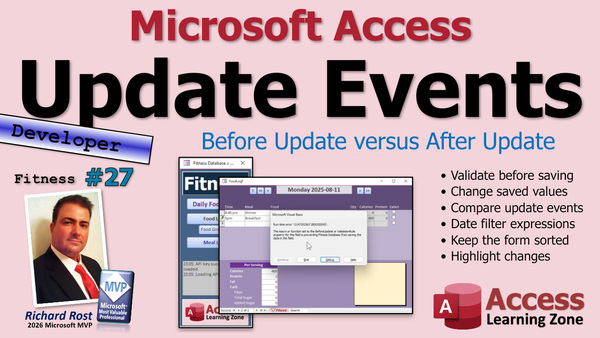 TechHelp Access, fitness database series, before update event, after update event, validation rule, save field changes, me.dirty, date value comparison, update filter, recordset findfirst, order by code, conditional formatting, tab order, int function, remove navigation buttons, custom delete button, copy records to new date
 Subscribe to Fitness 27
Get notifications when this page is updated
More InformationTranscript Today is part 27 of my fitness database series. Go watch parts 1 through 26 if you want to know what this is about. But it does not matter if you care about fitness because the point is I am building a database. So that is cool database stuff.
Now in yesterday's video, just like every good 1960s Batman episode, I left you with a cliffhanger. I should have done the whole cliffhanger thing and I was not thinking at the time, but that would have been really cool.
Anyways, macro or function that before update or the validation rule is preventing the database from saving the data in the field. Hit debug. What is going on? Well, the before update event.
Actually, I should ask, did anybody solve this between yesterday and today? Did you give it a shot? Or are you just waiting for me to tell you? If you want to give it a try on your own, that is the best way to learn this stuff. Stop the video right now and go try to figure it out.
For the rest of us lazy people, here is the thing. The before update event is good for doing validation, checking to see stuff. You can save things in other fields, just not the field that you are working with. So, the before update event is the wrong place to put this. You cannot change the format or anything else of the field that you are trying to validate.
So this needs to go where? What happens after the before update event runs? After before update, the value gets saved to the table and then the after update event runs and there you can make changes to the value that the user just changed.
That is the trick. So we are going to cut that out of there and then we are just going to come over here and switch to the after update event. Now, in the after update event, I can change it. I can apply that format. That is all. Very simple solution. You just have to know that you cannot change the field that you are working on in the before update event.
Save it. Debug, compile. Well, do not need to debug. Sometimes it will not give you the debug compile option, even though you made some changes. It depends on how weird Access is being that day. There it goes.
Ready? Save it. Let us move over back to here. Let us close it and open it back up again. Now if I try to change just to 5 p.m., that works just fine and it applies that filter. If you want to save that after that, you can just throw a little me.dirty in there. Where do we go here in the after update event? Right after making that change, you can say me.dirty = false and that will save that value. Or you can keep editing if you want to. 5:30 p.m., okay?
That is pretty good. That was pretty cool.
Let us take a look at our table. What is in the table right now? Table is getting those values as we edit them. It is just times just for the split.
Now, what happens if they decide to change this to a different date? What we have right now will allow it. If it is a time, it assumes it is this date and adds that date to it. If the user types in a full date, that works. So if I put in here, let us say August 5th at 6 p.m., hit tab. That is actually in there.
If you check breakfast cereal, let us move this over so we can see it, breakfast cereal is this guy, and it is. It got August 5th at 6 p.m., but that is not very intuitive to the user here. So what we are going to do is just go to that date if it is a different value.
Right here, if it is a different date, go to that date. What we will do is compare just the date portion of whatever they type in down here. Whatever date is in this field, compare it to this date. If it is different, we will just go to that record. We will update the filter to show that date.
So if the date value, which means just the date part of food date time, is different from the date value of log date, nothing is preventing the user from typing in a time portion. That log date will fix that too in a minute. I thought of that. There is nothing to stop them from coming up here and putting a 9 p.m. after that, and you will not see it, but the data just will not work. So we will fix that in a minute.
If those two date portions are different, then we are going to say log date equals date value of food date time. It is the date you want to go to, what they just changed it to. Update filter.
Okay, save it. Close it. If I come in here now, if I change this to, let us put it on August 1st, August 1st at 8 p.m., ready? Boom. Now it moved to August 1st. See that?
Let us put it on another one with some stuff in it. Let us go to what do we have here? Let us fix some of this. I am just going to cheat here. August 10th. August 10th. August 10th. So we have three items on August 10th.
Let us go over to it and see. Okay, August 10th. Let us go back to that other one on August 1st. If I come in here now and say August 10th at 5:45 p.m., ready? Boom. See? It changed it to that date and then it put you on that date because that makes a lot more sense.
While we are doing that, how about we highlight that item too, so it is sitting right here? We could do that with our little recordset findfirst stuff that we did before. We are learning all these little tricks that we can now start putting everywhere else in our databases.
Here is the problem, though. We have to take note of what item we are on first before we do that, because as soon as we change this and it updates the filter, it is going to go to a new record. It might then be sitting on a different record as soon as that requires. So we have to take note of that ID.
What we have to do is, before we update the filter, we set the log date. That is fine. Right here, I am going to Dim ID As Long. It is a temporary variable. We are going to use it just once. ID equals food log ID, so I know what record I am on right now.
We are going to update the filter. That is going to requery the form. Now we just want to move to the ID that we just saved. Me.Recordset.FindFirst food log ID equals that ID from a second ago. Move focus to that record.
Save it. The welcome pile wants to know why I will come back out of here.
Now, let us cheat again. Let us move this guy to 8/9 at 4 p.m. There is only one record there. Let us move it back to 8/10 at 11 p.m. It is going to move to the end of the day. Ready? Go.
It is still sitting on that one. These are not sorted. We do not have a sort in this. Let us see, design. I was expecting it to go to the end. Where is my data order by food time text? Oh, that is a problem. Food time text, we cannot, we have to order by food date time.
In fact, we might want to stick that in the code in the unload event because I do not like relying on these form properties. It is so easy to accidentally change them. So let us set that in the unload event of the form.
We already have one. Where is it? Here it is right here. Log date equals that. We are going to set that first.
We are going to say Me.OrderBy = "food date time"
Me.OrderByOn = True
That will make sure the form is sorted by that when it loads, no matter what happens at design time.
Save that. Close it. Now, we have to do that trick again.
Where are we at? 8/10? Let us just start moving stuff ahead of today. You can make buttons if you want to move these things around. If you want to change these dates automatically, I am not going to go into that right now.
I was thinking maybe for the members, and as an extended cut, a lot of days, especially when I am dieting hard, I eat the same thing like three days in a row. So it would be nice to just click a button and go copy today to tomorrow.
We probably are going to do that. In fact, now that I am thinking about it, we have not done an extended cut this week. We will do that for the extended cut. We will make a button down here that will copy all of these items for one day, because a lot of the times, I will be like, what did I have yesterday? I will go click, and I want to move this to today's date and just copy all those items.
You cannot now. You could not do copying this. It is probably not going to copy right. Let me try it. I am pretty sure it will not copy correctly. Let us see. Yeah, see, it is not going to work because the fields are going to, yeah, see now. But that is okay. I was not planning on being able to do that.
What happened in the log? Yes, see nothing happened because it only copies the visible records. It will only copy that text file. So you are going to get an invalid date behind it. But we will do it. We will do it with a little bit of code in the extended cut.
But where were we? Oh, yeah, we were testing moving this stuff. Now notice it is all sorted properly. So let us just move, I am going to move it in random order. So we are going to move this to tomorrow's date. This is going to be 8/11, which is actually today's date. 8/11 at 5 p.m.
Now let us move something after that. Let us move this guy to 8/11 at 11 p.m. Boom, and we are sitting right on it. Let us put something between those, 6 p.m. Let us move this guy to 6 p.m. 8/11 at 6 p.m. Boom, sitting right there.
We forgot to put our conditional formatting on everybody for our bright yellows. I like, once I start doing that, I want to make sure I do that for the whole database. So this, this, this, and this, everything. It is a tab order or a tab stop, that and that. I am not going to do this. This guy is different.
Format, conditional, put in a field that is focus, yellow. I do like that bright yellow for the focus field because it stands out then. Save it, close it, open it. Oh, yeah. Oh, that is pervy. I was just playing around with tab order.
We have got to take those things out of the tab order. It is up to you if you want to leave eating in as a tab stop or not. I think I will leave mine in. I am going to take these out of the tab order because you cannot change those. So in my eyes, we will take them out of the tab stop.
Save it, close it. Close it.
This is just the little stuff that you discover as you are working with it.
We are getting there.
One more thing. I want to int this date because like I said, there is nothing stopping the user from doing this, and then it just does not work. You are seeing some of the stuff that is after 9 p.m., but we do not want that in there. We want this to be just full dates.
Real easy fix around that. We are just going to use the int function. It just chops off the fractional portion. So, in the after update event before updating the filter, log date equals the int of log date.
Yes, I know it is a long integer, but they should not be that big. Int is a function that chops off the fractional component. So now if they do that and come in here and put in 9 p.m., the database says you do not. It still goes back to midnight and someone is being in it.I'm tempted to do this and turn these off because people that are familiar with Access might think they can do what I just tried to do a minute ago and copy and paste. It's not going to let them.
So I'm thinking we turn these off, but we're going to have to make our own delete button. I'm also thinking we turn this off because if a user does this, it turns off the filter. Now they'll just see everything and they won't know what date stuff is on.
So I'm going to go with both of those options. I'm going to go into here. We're going to turn off record selectors. Where are you? Format. Record selectors. Navigation buttons. And the scroll bars. I'm going to make vertical only.
All right. That means now we're going to need our own delete button, which I prefer anyway. In fact, we'll do - wrong one - we'll do the delete, add new, and require buttons just so that they are consistent across all of the forms.
Maybe we'll stick them down here, because you really don't need a big notepad like that. And I got some stuff going in here soon. So there we go.
That sounds like a great idea for an extended cut. We have in hand one this week. We're going to put a button somewhere down here. Maybe, I don't know. I haven't done it yet. That's why I just got this image here.
We'll make a button. We'll click on it. It will copy all of those items to another day. The default date will be today, unless you're on today's date; then it'll default to tomorrow. Because a lot of times what I'll do is, for today, I'll just go back a day or two and see what I want to copy. Then I'll just pick that and it'll copy it to today. But if I'm already on today, I might be wanting a copy to the date of tomorrow.
So we'll figure it out and we'll copy all those items and everybody will be happy. That'll be in the extended cut for the members. Silver members and up get access to all of my extended cut videos. Gold members can download these databases. Everybody gets some free lessons. Everybody's happy.
You can use the forums on my website, and I have awesome moderators that help with all kinds of stuff. It's a cool place to be.
But that's going to do it for part 27. What is today? Today is Thursday, the 21st of August, 2025. Tomorrow is going to be a Quick Queries Friday, so we will pick up on Monday the 25th.
Hope you learned something. Live long and prosper, my friends. I will see you next time.
TOPICS:
Understanding the Before Update event limitations
Using the After Update event for field formatting
Applying Me.Dirty to save form changes
Comparing date portions of datetime fields
Updating form filter based on user input
Navigating to a record after updating filter
Saving and restoring the current record ID
Sorting form records by date using OrderBy
Setting OrderBy and OrderByOn in the Form_Unload event
Using Recordset.FindFirst to locate a specific record
Implementing conditional formatting for focused fields
Adjusting tab order and tab stops for form controls
Using the Int function to remove time from a date
Disabling record selectors and navigation buttons
Configuring scroll bars to vertical only
Preparing for custom delete, add new, and require buttons
COMMERCIAL:
In today's video, we're continuing with part 27 of the Fitness Database series. We're learning about how to properly use the Before Update and After Update events in Access, and why you should make changes to your field data in After Update instead of Before Update. We'll talk about using Me.Dirty to save changes, working with dates and times so your records sort and filter correctly, and even touch on using a Recordset FindFirst to move to the correct record after updates. We're also improving navigation by turning off record selectors and navigation buttons, and planning new features for members like a button to copy all food log entries from one day to another. You'll find the complete video on my YouTube channel and on my website at the link shown. Live long and prosper my friends. Intro In this video, we continue building the Microsoft Access Fitness Database in part 27 of the series. I will show you the limitations of the Before Update event, demonstrate how to use the After Update event to format fields and save changes with Me.Dirty, and how to properly compare and update date values. We will update form filters based on user input, use Recordset.FindFirst to navigate to the correct record, manage sorting with OrderBy, add conditional formatting, adjust tab order, and turn off default navigation buttons for a better user experience. This is part 27. Quiz Q1. What is the main reason the before update event cannot be used to change the value of the field being validated in Access?
A. The before update event only detects errors, not changes.
B. The before update event does not have access to any field values.
C. The before update event cannot modify its own field because it would break the event sequence.
D. The before update event executes after data is saved to the table.
Q2. Where should code go if you need to change the value or format of a field the user just edited?
A. In the on current event
B. In the after update event
C. In the before update event
D. In the open event
Q3. What is the purpose of the me.dirty = false line in the after update event?
A. To requery the form and refresh its data
B. To mark the record as deleted
C. To save the edited record immediately
D. To undo all previous changes
Q4. Why do we compare only the date portions (excluding time) of two datetime fields when changing dates in the form?
A. To ignore any formatting issues
B. To update only when the actual calendar date changes, regardless of the time
C. To make sure only midnight records are updated
D. To allow the user to input any time value
Q5. When updating a record and filtering to a new date, why do we store the current record ID before changing the filter?
A. To log all changes for audit purposes
B. To display the record ID on screen
C. To be able to return focus to the same record after the filter/requery
D. To sort the data by ID
Q6. Why is it recommended to set Me.OrderBy and Me.OrderByOn in code (such as in the unload event), rather than relying on form properties?
A. It improves the speed of the database significantly
B. It prevents accidental changes at design time from affecting sorting
C. The code runs faster than using properties
D. OrderBy only works through code, not design
Q7. What is the effect of using the int() function on a datetime field in this Access application?
A. Converts the value to a whole number, erasing all decimal values
B. Removes the time portion, leaving only the date component
C. Makes the field a long integer type
D. Multiplies the value by 10
Q8. Why might you want to turn off Access' built-in record selectors and navigation buttons on a form and make your own?
A. For faster data entry
B. To prevent users from bypassing form logic or changing views in unintended ways
C. To allow advanced copy and paste of data
D. To save storage space in the database
Q9. Why might an invalid date issue occur when copying records using Access' built-in copy and paste on filtered forms?
A. Copy and paste does not copy the format settings
B. Only visible (filtered) records are copied, which can miss or scramble underlying data
C. The clipboard cannot handle date fields
D. All records including hidden ones are incorrectly copied
Q10. What benefit is there to using custom code to copy all items from one day to another, instead of relying on the default Access copy/paste?
A. It forces a backup before copying
B. It respects date filtering logic and ensures the destination date is set correctly for each copied record
C. It bypasses database permissions
D. It is faster than built-in copy/paste
Q11. Why is conditional formatting used in the form for focused fields?
A. To hide the field from view
B. To highlight the currently selected field, making it visually stand out to the user
C. To automatically back up the database
D. To make the text red when a value is over a set limit
Q12. Why should non-editable fields be removed from the tab order on a form?
A. To prevent users from accidentally navigating to fields they cannot change
B. To save space in the tab index table
C. To stop the form from crashing
D. To allow all fields to be hidden
Answers: 1-C; 2-B; 3-C; 4-B; 5-C; 6-B; 7-B; 8-B; 9-B; 10-B; 11-B; 12-A
DISCLAIMER: Quiz questions are AI generated. If you find any that are wrong, don't make sense, or aren't related to the video topic at hand, then please post a comment and let me know. Thanks. Summary Today's TechHelp tutorial from Access Learning Zone continues the Fitness Database series with part 27. While my sample database is fitness-related, the real purpose here is to showcase useful database-building techniques you can apply to any project.
In the previous lesson, I set up a scenario that left you with a bit of a cliffhanger concerning when and where certain VBA code should run in the context of events like BeforeUpdate and AfterUpdate. If you have not tried to figure it out on your own, I encourage you to pause and try it. You really learn best by doing.
Here's the issue: if you put code in the BeforeUpdate event, it is excellent for validation and checking input, but you cannot change the value of the field you are working with at that moment. This is because Access locks that field until the BeforeUpdate event is finished. If you need to actually change the field's value, like adjusting formatting based on input, you have to do that in the AfterUpdate event instead. Once the BeforeUpdate event completes, Access saves the new value, and only then does AfterUpdate run. In the AfterUpdate event, you are free to make changes to the value the user entered. That is the trick.
So, to summarize: move your code intended to modify the current field value from the BeforeUpdate event to the AfterUpdate event. Save your work and, if applicable, run Debug/Compile to check for errors, although sometimes Access will not let you do this depending on its mood.
Testing this approach, I updated field values and verified that time entries like "5 p.m." were correctly formatted and saved. If you want to force a save after the update, you can set the form's dirty property to false, which commits the record.
Next, I looked at what happens when a user enters a complete date and time value. If the date portion differs from the current log date, users might find it confusing if their record does not update in the visible list to match their input. To improve this, I added logic so that if the date in the field differs, the form automatically updates its filter to show records from that new date and navigates to the appropriate record. This makes the interface much more intuitive.
To do this, I compare just the date portions of the relevant fields, ignoring the time. If the dates are different, I update the log date and reapply the filter. Before requerying, I save the ID of the current record, so after the filter is updated, I can use FindFirst to return to the same item in the new filtered set.
This change makes a noticeable improvement. For example, if I have three entries on August 10 and change a record to a different date, not only does the record move, but the form immediately updates to keep the current record in focus.
One thing to be careful about is sorting. Initially, my form was set to sort by a calculated text version of the date, but it is safer and more reliable to sort by the actual date/time field in the code, such as in the form's Load event. This avoids unexpected changes if someone edits the form properties later and guarantees a consistent user experience.
While working with these enhancements, I also discussed an idea for the Extended Cut lesson. Quite often, especially when tracking meals for diet plans, it would be useful to click a button and copy all entries from one day to another with a single action. Typically, if you try to cut and paste directly in the datasheet, it does not work as expected. In the Extended Cut—which is coming up for members—we will create a button that handles this properly using code, defaulting to today or tomorrow as appropriate. That will make meal planning much more efficient.
Another design suggestion involves user interface elements like record selectors and navigation buttons. Some elements, like the ability to copy and paste records, do not work well with the current data structure, so it is better to turn off the built-in record selectors and navigation controls. Instead, I plan to add custom buttons for actions like delete, add new, and requery. These will be consistent across all my forms and prevent users from creating confusing scenarios by accidentally turning off filters or changing records directly.
I also added some usability improvements: applying conditional formatting so that focused fields stand out in yellow, and adjusting tab stops so users cannot tab into fields that should not be edited. These are the small details that improve the end-user experience.
Finally, I addressed one more technical detail: ensuring that date values are handled correctly, especially when users enter only a time or try to override the date. Using the Int function on the date removes any unwanted time portions and keeps the data clean.
To wrap up, these enhancements make the database more robust and user friendly. I have more planned for the Extended Cut, including a button to copy all records from one day to another. If you are a Silver member or higher, you will have access to these exclusive lessons. Gold members can also download the databases. Remember, you can ask questions in the forums, where we have a great moderator team ready to help.
That concludes part 27. Today is Thursday, August 21, 2025. Remember, tomorrow is Quick Queries Friday, so we will continue on Monday, August 25.
You will find a complete video tutorial with step-by-step instructions for everything discussed here on my website at the link below.
Live long and prosper, my friends. Topic List Understanding the Before Update event limitations
Using the After Update event for field formatting
Applying Me.Dirty to save form changes
Comparing date portions of datetime fields
Updating form filter based on user input
Navigating to a record after updating filter
Saving and restoring the current record ID
Sorting form records by date using OrderBy
Setting OrderBy and OrderByOn in the Form_Unload event
Using Recordset.FindFirst to locate a specific record
Implementing conditional formatting for focused fields
Adjusting tab order and tab stops for form controls
Using the Int function to remove time from a date
Disabling record selectors and navigation buttons
Configuring scroll bars to vertical only
Preparing for custom delete, add new, and require buttons Primary Topics Access form events, Before Update vs After Update, form filtering, datetime comparisons, record navigation, conditional formatting, tab order, disabling built-in navigation, programmatic sorting
Secondary Topics user interface customization, Int function for dates, custom button planning
|




