Build a Query
By Richard Rost

 4 months ago
How To Build A Simple Query In Microsoft Access In this lesson, we will walk through how to build a query in Microsoft Access, focusing on how to create, filter, and save a simple query to find specific records in your database, such as customers from a particular state. We will discuss what a query is, how it differs from a table, and how queries act as saved searches for your data. I will show you how to add criteria, run the query, and explain important points about how queries display and update live data rather than storing data themselves. LinksRecommended Courses
Keywords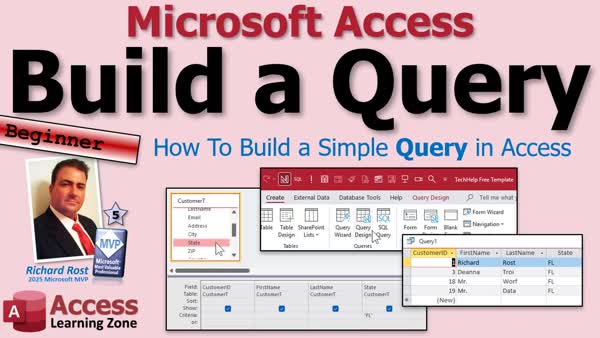 TechHelp Access, build query, access query, saved search, filter records, query criteria, design view, query design, add tables, customer table, parameter query, naming convention, edit data, delete record, live data, AND OR conditions, save query, beginner course, TechHelp, AccessLearningZone
 Subscribe to Build a Query
Get notifications when this page is updated
More InformationTranscript Need to find specific records in your database on a regular basis? Then you need a query. Today we are going to learn how to build a simple Microsoft Access Query, one of the most powerful tools available in Access. Welcome to another TechHelp video brought to you by AccessLearningZone.com. I am your instructor, Richard Rost.
Today we are going to build a simple query from scratch, filter records using criteria, save it for future use, and talk about some important things many beginners do not realize about queries.
Let's get started.
Before we build our query, let's talk about exactly what a query is. In Microsoft Access, your tables are where the data is actually stored. That is where you will find your customers, orders, products, invoices, and all the other information that makes up your database.
A query does not store data. Instead, a query lets you view that data in different ways. Think of a table as a filing cabinet full of information. A query is simply a question that you ask about that information. Maybe you want to see all your customers from Florida. Maybe you want to see all your customers just from Cape Coral. Maybe you want customers who have not placed an order in the last six months.
A query lets you find exactly the records you are looking for without having to scroll through the entire table manually. You can think of a query as a saved search. Once you build it, you can run it any time you need those results.
If you have not built tables yet, and you are not sure what they are, go watch my Access Beginner Level 1 course first. In that class, I cover tables and database design fundamentals. Once you understand tables, queries will make a lot more sense. I will put a link to this video down below.
This is my TechHelp Free template. This is a free database. You can grab a copy from my website if you want to. Again, I will put a link down below.
In here, I have got a table full of customers. I have got first name, last name, email, and a bunch of other fields like state. Let's say I want to find all the customers from Florida. I want to do this on a regular basis to make it easier for myself in the future.
Let's make a query to do this. I'm going to click on Create and then Query Design. That opens up the Query Design window right here. Over on the right, you are going to see Add Tables. Which table or tables do you want to have in this query? For today, we are going to keep it simple. We will just add the customer T. I will double-click on that. That's my customer table. Then I can close this pane. We do not need it anymore.
Now I am going to add the fields from this table that I want in my query results. Let's say I want the customer ID, the first name (I am just double-clicking on them), last name. Let's also bring in the city and state.
At this point, I can run the query. Click on this little exclamation point right there. Run the query and you will see the results of the query. Right now, we are seeing all 33 customers that are in my customer table.
Now I want to add that criteria. I only want to see customers from Florida. Let's go back to Design View, this little guy right there. Under the state column, where it says criteria, see this criteria row right here? In here, I am going to put quotes Florida. Open quotes, Florida, close quotes. If I hit Shift F2, I can zoom in. That's what it looks like right there. Open double quotes, FL, closed double quotes. Then hit OK.
Now, if I run my query, there you can see I am only seeing the four customers that are from the state of Florida. So that is how you put a criteria in your query. Let's go back to Design View.
Now let's save this query. I am going to hit Ctrl+S on the keyboard. Ctrl+S for Save. I am going to call this customers from Florida Q. As part of my naming convention, I like to end all of my queries in the letter Q, all my tables in T, all my forms in F, and so on. I do not like using spaces in my query names, or any of my object names. Why? It's a little more advanced. I will talk about it in a different video, but that is what I like to do.
So I am going to hit OK. Now I have got a query called customers from Florida Q right there. Now I can close this. Anytime in the future that I want to run that query, I can just come back here and double-click on it. There it is. Notice the query still works. All we have to do is run it. That is one of the biggest advantages of using queries.
Without a query, every time you want to generate that list, you would have to open the customer table, manually search through the records, apply the filters, and set everything up again every single time. With a query, you do the work once. You save the query. The next time you need those same results, you simply open the query and run it.
Think of it like a saved search. The query remembers the fields you want to see, what criteria you want to use, how the data should be sorted, and all the instructions needed to produce those same results. That is why queries are so powerful. You build them once, and you can use them over and over again whenever you need to.
Now, here is something a lot of beginners do not realize. Queries do not store data. The customer information is still stored in the customer table. The query only stores the instructions for finding those records. However, and this is important, the data that you are looking at is live data. If you edit a customer's name, you are editing the actual record in the table.
If I come in here and change Richard to Rick, I am actually changing that data in the table. You can add a record. That is why you see new down here. You can delete a record. If you do, you are deleting the actual record out of the table. A query does not contain a copy of the data. It is showing you the real data from the table, so be careful when you are working with query results. You are working with data directly from your live tables. The query just gives you a different way to see that information.
If you want to learn more about working with queries in Microsoft Access, I have a ton of videos available on this topic. Here is one that goes in more depth about query criteria. Here is one that talks about those AND and OR conditions at the bottom of the query. Here is a video that teaches you about parameter queries. So instead of hard coding Florida in here, you can put a prompt in there that says, enter the state, then the user can type in Florida when they run the query. This one is really cool.
Like I mentioned earlier, if you have not yet watched my Microsoft Access Beginner Level 1 course, go watch it now. It is about four hours long and it covers everything you need to know to get started building databases with Microsoft Access. It is absolutely free. It is on my YouTube channel and it is on my website. Go watch it and enjoy.
So that is how you build a simple query in Microsoft Access. If you have any questions or comments, feel free to post them down below.
That is going to do it for your TechHelp video for today, brought to you by AccessLearningZone.com. I hope you learned something.
Live long and prosper, my friends. I'll see you next time. Intro In this lesson, we will walk through how to build a query in Microsoft Access, focusing on how to create, filter, and save a simple query to find specific records in your database, such as customers from a particular state. We will discuss what a query is, how it differs from a table, and how queries act as saved searches for your data. I will show you how to add criteria, run the query, and explain important points about how queries display and update live data rather than storing data themselves. Quiz Q1. What is the primary purpose of a query in Microsoft Access?
A. To store all the data in your database
B. To permanently delete unwanted records
C. To find and view specific records based on criteria
D. To create new tables automatically
Q2. Where is actual data, such as customers, orders, and products, physically stored in Access?
A. Queries
B. Reports
C. Tables
D. Forms
Q3. What best describes a query in Microsoft Access?
A. A saved search based on your table data
B. A backup copy of your tables
C. A duplicate database
D. A printable report
Q4. If you want to regularly view all customers from Florida, what should you do?
A. Manually scroll through the table each time
B. Export the table to Excel and filter there
C. Create a query with criteria set to "Florida"
D. Use a form to add new Florida customers
Q5. Which field would you enter "Florida" as criteria for in the described example?
A. Customer ID
B. First Name
C. State
D. Email Address
Q6. How do you run a query after designing it in Access?
A. Press Ctrl+S on the keyboard
B. Click on the exclamation point "Run" button
C. Double-click the table name in the navigation pane
D. Use the form view option
Q7. What happens if you edit a record in a query's datasheet in Access?
A. Only a temporary copy is changed
B. The actual data in the underlying table is updated
C. The query saves its own version of the data
D. Nothing, because queries are read-only
Q8. Why is it recommended not to use spaces in Access object names?
A. Because the program crashes
B. For style purposes only
C. To prevent problems with advanced features and naming conventions
D. Because spaces make it easier to read
Q9. How do you save a new query in Access?
A. Queries are saved automatically
B. By closing the design window
C. Press Ctrl+S and enter a name
D. By printing the query results
Q10. What is a parameter query?
A. A query that deletes records based on a prompt
B. A query that prompts the user for input, such as a state, each time it runs
C. A query limited to one table only
D. A query that creates new tables
Q11. What happens if you delete a record from a query result?
A. Only the query view is changed
B. The record is deleted from the underlying table
C. The record is hidden until the next refresh
D. The record is moved to another table
Q12. What should you do if you don't understand tables before you start learning about queries?
A. Start building queries anyway
B. Watch an Access beginner course on tables and database design first
C. Ignore the concept of tables and focus on forms
D. Download templates from other websites
Answers: 1-C; 2-C; 3-A; 4-C; 5-C; 6-B; 7-B; 8-C; 9-C; 10-B; 11-B; 12-B
DISCLAIMER: Quiz questions are AI generated. If you find any that are wrong, don't make sense, or aren't related to the video topic at hand, then please post a comment and let me know. Thanks. Summary Today's video from Access Learning Zone is all about Microsoft Access queries, which are essential for finding specific records in your database on a regular basis. My goal today is to guide you through building a basic query, setting up criteria to filter your results, saving your query for future use, and highlighting some very important details that many beginners overlook.
To start, you need to understand exactly what a query is within Microsoft Access. Tables are the backbone of your database, storing all the important data such as customers, orders, and products. A query, on the other hand, does not actually store any data. Instead, it lets you view and retrieve the information stored in your tables in a variety of ways. Think of your tables like a filing cabinet, and a query as a way to ask specific questions about what is inside. For example, you might want to see all customers from a certain state, from a particular city, or customers who have not placed an order in a certain amount of time.
Queries are useful because they help you avoid manually scrolling through your entire table to find the information you need. You can treat a query as a saved search that you can reuse whenever necessary.
If you are new to Access and have not yet built tables or do not fully understand them, I recommend watching my Access Beginner Level 1 course first, where I cover the basics of tables and database design. Understanding tables is crucial before you can really make sense of queries. I will provide a link to that video on my website.
For today's lesson, I am using my TechHelp Free template, a sample database that you can also download from my website. This template includes a customer table with various fields such as first name, last name, email, and state. Suppose I want to regularly find all customers from Florida. A query is the ideal tool for this.
To create a query, begin by selecting Query Design from the Create menu. This opens up the design window and prompts you to choose which table or tables to include; for simplicity, I will just use my customer table. After adding the table, I pick which fields I want to see in my query results. For this example, I will choose the customer ID, first name, last name, city, and state.
After setting up the fields, you can run the query to see results. By default, you will get every record from the customer table. However, to filter this list so it only shows customers from Florida, you return to Design View and enter "FL" (in quotes) as the criteria for the state field.
When you run the query now, you will only see the customers who have Florida as their state. This demonstrates how criteria work in queries.
It is a good idea to save your query for future use. I recommend using a clear naming convention: for example, ending all query names with the letter Q, tables with T, and so on. Avoid using spaces in object names. This is a habit that will pay off as your database grows and you start doing more advanced work.
Now that your query is saved, you can access it whenever you need to see your list of Florida customers. You have eliminated the need to repeatedly set up filters manually in your tables. Every time you need that list, just run the query and you are instantly set.
The main advantages of queries are how they store the setup instructions - the fields to display, which criteria to use, how to sort the data - but not the data itself. Queries are simply instructions, not data storage. This is something many beginners do not realize. When you use a query, you are still viewing and working with the actual data from your tables. If you edit a record directly in the query results, you are changing the real data in your table. You can even add or delete records from a query, and those changes will affect your database immediately. So always use caution when working with queries.
If you are interested in learning more about Access queries, I have many other videos available. Some focus more on complex query criteria, others cover how to handle AND and OR logic, and there are tutorials on parameter queries where users can enter search values each time the query runs. I encourage you to explore those if you want to expand your skills.
For those who are brand new to Access, again, don't miss my free Microsoft Access Beginner Level 1 course. It covers all the essentials for getting started with databases.
That wraps up how to build a simple query in Microsoft Access and the key points to keep in mind. If you have any comments or questions, you are welcome to reach out.
You can find a complete video tutorial with step-by-step instructions on everything discussed here on my website at the link below. Live long and prosper, my friends. Topic List What is a Microsoft Access query
Difference between tables and queries
Purpose of queries as saved searches
Opening the Query Design window
Adding tables to a query
Selecting fields for query results
Running a query to view results
Filtering records using criteria
Adding criteria to a query
Switching between Datasheet View and Design View
Saving a query for future use
Naming conventions for Access objects
Reusing queries to save time
Understanding that queries display live data
Editing data through queries
Adding and deleting records via queries
Importance of query criteria row Article If you need to find specific records in your Microsoft Access database on a regular basis, learning how to create a query will make your life much easier. A query is one of the most powerful tools in Access, and once you get comfortable working with them, you can save yourself a lot of time and effort.
Let me explain what a query is. In Access, the tables are where your data is actually stored. Customers, orders, products, invoices, and all the other information in your database live in tables. Think of a table like a big filing cabinet full of data. A query does not hold any data itself. Instead, a query serves as a way to ask a question about the data stored in your tables. For example, maybe you want to see all your customers from Florida. Or you might want only customers from a particular city, like Cape Coral. Perhaps you are looking for customers who have not placed an order in the last six months. Building a query is how you can quickly retrieve just the records you need, rather than scrolling and filtering through your whole table every time.
A query is like a saved search. Once you create it, you can run it any time you need those results again. Queries can do much more than filter by a single state or date - eventually you can build complex searches, but let's start with something simple.
Before you can build queries, you need to understand tables, because queries work on top of tables. If you're not familiar with tables or basic database concepts, spend a little time reviewing those topics and practicing creating tables in Access.
Assuming you have your tables already set up, let's say you have a customer table. It has fields like first name, last name, email, city, state, and others. Now, suppose you want an easy way to see all customers from Florida, and you want to be able to do this repeatedly.
To make a basic query, go to the Create tab and choose Query Design. This opens the Query Design window. On the right, you will see a list of tables to add to the query. In this case, double-click the table that holds your customers. Once it appears in the design pane, you can close the add tables window.
Next, pick the fields you want to see in your query results. Just double-click the fields in the table window - let's choose CustomerID, FirstName, LastName, City, and State. After selecting your fields, you can run the query immediately by clicking the Run button, which looks like a red exclamation point. Right away, you see all records from your customer table with those fields.
Now suppose you only want customers from Florida. Go back to Design View by clicking the Design View icon. In the grid below, find the State column. Under the "Criteria" row for State, type "FL" inside double quotes. You can use Shift+F2 to zoom in if it helps. Make sure to type the state abbreviation exactly as it appears in your data. Now run your query again, and you will see only the customers from Florida.
After you have set this up, you should save your query for future use. Press Ctrl+S, and give your query a name. A common convention is to end query names with Q, table names with T, and form names with F. Avoid using spaces in your object names. Following these conventions helps keep your database organized, especially as it grows larger.
Once saved, your query appears in the navigation pane. Any time you need to see customers from Florida, just double-click that query and you will get the up-to-date results. All the filtering and field selections are handled automatically for you by the query. This saves you the hassle of manually opening tables and applying filters every time you need that specific information.
It is important to understand that queries in Access do not create copies of your data. The underlying data always remains in your tables, and the query simply displays the results according to the instructions you gave it. However, the data you see in a query is "live." If you edit a record in a query, such as changing a customer's name, you are editing that actual record in the customer table. You can also add or delete records from a query, and those changes affect the actual table data. Queries are just another way to look at, use, and interact with your data. Be mindful of this when working with queries, because any updates you make in a query are real and permanent.
Queries can get much more advanced, including using multiple criteria, AND and OR conditions, or even prompting users for input each time the query runs. For example, instead of always filtering for Florida, you could set up a parameter query that lets you type in which state you want each time you run the query.
If you are just starting out with Access, focus on getting comfortable building simple queries like this. Practice adding fields, setting criteria, saving your queries, and running them. Once you understand how they work, you can gradually move on to more complex query designs as your needs grow.
That is the essential process for building and using a simple query in Microsoft Access. With a little practice, you will be able to pull up exactly the records you need, whenever you need them, and make your database experience much more efficient and user-friendly. If you have questions or want to learn more, there are plenty of resources and tutorials available to deepen your understanding.
Live long and prosper, and good luck with your Access queries! Primary Topics Microsoft Access queries, creating queries, query design, filtering data, saving queries, working with live data Secondary Topics naming conventions, editing and deleting records via queries, database basics |




