Design Changes
By Richard Rost

 4 months ago
List Recently Modified Tables, Forms, Queries, Reports In this lesson, we will talk about design changes in Microsoft Access databases by showing how to generate a list of recently modified objects. I will show you how to use a query to see which tables, forms, reports, and queries were recently changed, using information stored in the hidden MsysObjects system table. We will walk through the process of accessing system objects, writing a simple SQL query, and interpreting the results so you can easily track your recent design changes after a backup, vacation, or troubleshooting session. Limitations regarding tracking VBA code changes are also discussed. Mara from Chattanooga, Tennessee (a Silver Member) asks: How can I see what objects I've changed recently in my Access database? I had to restore from a backup that's a few days old, and I know I made changes to some forms, queries, and VBA code before the backup. Is there an easy way to get a list of the objects that were updated recently so I can figure out what I need to rebuild? MembersIn the extended cut, we will learn how to read object information directly from Access using VBA to build our own table of object names, types, created dates, and modified dates for a more complete and accurate listing of which modules and objects have been changed and when. Silver Members and up get access to view Extended Cut videos, when available. Gold Members can download the files from class plus get access to the Code Vault. If you're not a member, Join Today!
Prerequisites
Keywords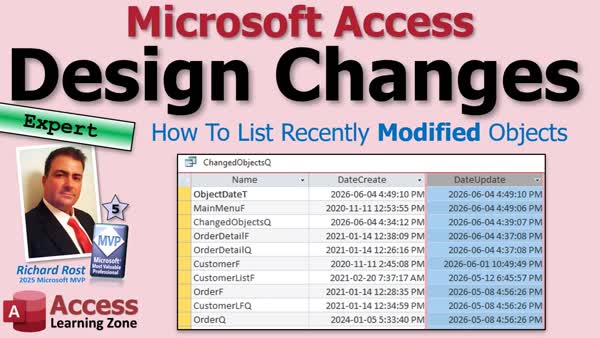 TechHelp Access, recently modified objects, design changes, MsysObjects, track database changes, system tables, object inventory, query DateUpdate, Access SQL, track VBA changes, hidden tables, object modified date, restore backup, track design changes, object list, Access forms changes
 Subscribe to Design Changes
Get notifications when this page is updated
More InformationTranscript Never sit down on Monday morning, open up your Microsoft Access database and think, what the heck was I working on Friday? Welcome to another TechHelp video brought to you by AccessLearningZone.com. I am your instructor Richard Rost. Today we are going to see how to generate a list of recently modified objects in your Access database, a list of design changes that were made recently.
This can be really handy if you are troubleshooting a problem, tracking down recent design changes, or recovering after a backup. This one happened to me. Or just trying to remember what you have been working on over the last few days, or if you just got back from vacation and you are like, what was I doing last week before I left? Or if you are trying to justify to your boss what you have been working on, you can say, here is a list of all the stuff I have been doing. But anyway, let's take a look at today's question.
Today's question comes from Mara in Chattanooga, Tennessee, one of my silver members. Mara says, how can I see what objects I have changed recently in my Access database? I had to restore from a backup that is a few days old and I know I made changes to some forms, queries, and VBA code before the backup. Is there an easy way to get a list of the objects that were updated recently so I can figure out what I need to rebuild?
Yes, this actually happened to me not too long ago. I ran into some problems and I had to restore last night's backup, but I knew I did some changes this morning to a handful of forms. So I restored the backup and then I had to run a report on the new database and see, here is a list of the forms that I modified. So, when you know you have made changes and you want to figure out what objects you were touching, this is a good technique I am going to show you.
Now Access does not have a giant "show me everything I changed" button, but it does store some information about your objects including the date they were created and the date they were last updated. So today I am going to show you a quick query. Huh, get it? Quick queries? Is it Friday I think? Never mind. I am going to show you a quick query you can run to help point you in the right direction.
Now I label this as an expert level video. What do I consider expert? Well, expert is my meat between the bread sandwich of beginner and developer. So we do not need any VBA code for this, but it is a little bit beyond the basics. We are going to use a little tiny bit of SQL to write a query. If you are not familiar with SQL at all, go watch this video first. It explains what it is. Basically, a language we can use to talk to the tables in our database and there is a system table that includes a lot of the information that we need and that is what we are going to do today.
All right, so here I am in my TechHelp free template. This is a free database. You can grab a copy off my website if you want to. Now in addition to the basic tables that you might build, there are also some hidden and system tables in here that include information about your database itself. I do not recommend that you go poke around in here too much, but I am just going to show you real quick what the stuff is. So if you right-click up here and go into navigation options, you can show hidden objects and show system objects.
So when you turn that system objects option on, you get a whole bunch of extra tables in here called M-Sys stuff. M-SysObjects, M-SysQueries, and so on. The one we are looking for is this M-SysObjects right there. It has got a whole bunch of information in it. Do not go modifying any of this stuff. In here is some stuff about the objects in your database like the date it was created and the date it was updated.
Now that we know that, I am going to turn this back off again in navigation options. I do not usually leave those visible even in my own databases because there is really no reason to go poking around in those. But you can use them to get some information.
I am going to create a query, go to Create, and I am going to go to SQL query. If you do not have this SQL button here, this is relatively new. You can just go to design query and then right click in here and go to SQL view.
We are going to write a little query that is going to be SELECT. I am going to use CTRL plus to zoom in a little bit so you guys can see better. We are going to select Name, Type, DateCreate, and DateUpdate. Those are the fields from the table. FROM MsysObjects and I am going to put a little WHERE in here. WHERE the LEFT of Name, comma 4 is not so less than or greater than "Msys". So I do not want all the Msys tables and stuff showing up in here. We are going to "ORDER BY DateUpdate DESCENDING" so I see all the stuff that was recently modified first.
Let's run that and there we go. We get this. There is a lot of weird stuff in here. Let's just take a peek real quick. This is a list of all the objects in your database. There is some other stuff in here, some temporary objects. We are going to get rid of those in a second.
Type represents what type of object it is. There are a bunch of weird numbers for stuff. Queries are 5, local tables are 1, forms are negative 32760, why I do not know. These are just the numbers that Microsoft assigned. Now Microsoft does not have officially documented all of these values, and some values have actually changed over the years.
If you want to use these to determine what is in your database, personally I just use my naming convention. So I know that Q is for queries, R is for reports, T is for tables. But I just wanted to show you the Type value here so you can see that it lists the type, the date that object was created, and the date the object was last updated.
I am going to save this as ChangedObjectsQ. Yes, I know I try to keep most of my stuff singular, but I make an exception once in a while. Now, close that, open it again, and you should see ChangedObjectsQ right up top here because it was just modified. And yes, it is June 4th at about 5:24 pm. So that is correct.
Now let us also hide those little tildes in there. Those are all like temporary objects. Let us come back in here. We can just go into design view and modify this guy. Here is LEFT(Name, 4). I will be honest, I am more comfortable using this than SQL anyway. I love SQL, but I use this a lot more.
Now we can just put another one in here and let us do LEFT(Name, 1) and say that is not equal to the tilde. We can turn that off. When I run it, we should not see all those tildes.
Let's resize these. Resize this stuff. Honestly, that Type is not doing much for me, so I am going to hide that too. I just wanted to put that in there to show you. Let's hide you.
That looks a lot better. There we go. Now let us go change something else and see if it updates. Let's change the Order table. The design of the Order table has not been changed since 2024. I am going to find the Order table. Where are you at? Oh, you are up here. Order table, design. I will just add Notes2 or whatever.
I will just run that ChangedObjectsQ. And there it is, right up top. Perfect. Let's change a form. Let's modify the Main Menu. Design view. I'll just slide this button over, save it, close it, open it, and there we go, right on top. Beautiful.
Based on what we have seen so far, this technique works pretty well. If you are tracking design changes to the objects in your database, change a design to a table, a form, a report, a query, the date updates. If your goal is simply to answer what objects have been modified lately, this query can be very useful.
The problem is, there is always a problem, is not there? The problem is, this does not always reliably track VBA code changes. That is where things start getting a little weird.
I have found that most of the time, not 100 percent of the time, but most of the time, if you make design changes to the modules behind a form, they tend to update that value. For example, if I pick the Customer List form, if I go into this button here, there is code in here, let's just REM this out, just making some simple changes. Save it, close it, and now if I go into here, my Customer List form was updated.
Let's pick something else. The Order Detail form. Go to Customers, Orders, here is the Order Detail form. I will come into here. There is a BeforeInsert procedure in here. Let's just REM this out. Save it, close it, close it, close it, there we go, close it, close it. Check it. That worked great, working good. Most of the time, it catches changes in form modules.
But it does not always catch standard modules, these guys down here, global mod. Where is global mod? Are you in here? There is global mod way down here, 2022. If I come into global mod and make a change in here, let's just REM this out. Save it, close it, and run the query. See, it did not update. Global mod still says 2022.
So this technique is pretty reliable for tracking changes to forms, queries, reports, and tables. But for your standard modules, for these guys, not always. In fact, I would say most of the time, it does not.
This can be important because if you are a developer, a lot of the work you are going to be doing is not changing forms and tables, it is changing VBA code. I know I spend probably 80 percent of my time in Access doing that.
So while this query trick is a great quick and dirty solution for tracking design changes, it is not something I would rely on as a complete picture of everything that has been modified in the database. So we need a slightly different approach.
In the extended cut for the members, we are going to go into something a little bit deeper. We are going to look at a better way to read object information directly from Access using VBA. We will build our own table of object names, object types, created dates, modified dates, and we will get a much more complete picture of what has actually been changed in the database. This will give you an accurate listing of, for example, which modules have been changed and when.
That will be in the extended cut for the members. Silver members and up get access to all of my extended cut videos. Gold members can download these databases that I build in the TechHelp videos. Everybody gets some free training and everybody is happy. Huzzah.
The big takeaway today is that Access already stores information about when your objects were modified and a simple query of that M-SysObjects table can help you quickly figure out what you have been working on recently. For forms, reports, queries, tables, and most design changes, this works remarkably well. In fact, for most Access users, this query is probably all you will ever need. If you are trying to remember what you worked on last week, troubleshoot a recent change, or recover after restoring a backup, this will get you the answer in just a few seconds.
Where it starts to fall a little short is with VBA code changes. Those do not always show up consistently, especially when you are working with standard modules. If you are one of my members, in the extended cut we will take this one step further and build a more complete object inventory using VBA and the Access object model.
Now post a comment down below, let me know how you liked today's video and whether you have ever had to figure out what you changed after stepping away from your database for a few days.
That is going to be your TechHelp video for today brought to you by AccessLearningZone.com. I hope you learned something. Live long and prosper my friends. I will see you next time and members I will see you in the extended cut. Intro In this lesson, we will talk about design changes in Microsoft Access databases by showing how to generate a list of recently modified objects. I will show you how to use a query to see which tables, forms, reports, and queries were recently changed, using information stored in the hidden MsysObjects system table. We will walk through the process of accessing system objects, writing a simple SQL query, and interpreting the results so you can easily track your recent design changes after a backup, vacation, or troubleshooting session. Limitations regarding tracking VBA code changes are also discussed. Quiz Q1. What is the main purpose of generating a list of recently modified objects in an Access database?
A. To track recent design changes for troubleshooting or backup recovery
B. To see which users have logged into the database
C. To increase the speed of the database
D. To automatically generate data entry forms
Q2. Which system table in Access contains information about objects such as creation and update dates?
A. MsysObjects
B. MsysQueries
C. MsysForms
D. MsysData
Q3. What kind of Access objects can you typically track design changes for using the query method shown in the video?
A. Forms, tables, queries, and reports
B. Only tables
C. Only VBA modules
D. Only macros
Q4. According to the video, why are the object types shown as numbers in the MsysObjects table?
A. Because Microsoft assigned internal numeric values for each object type
B. Because of corruption in the database
C. Because user permissions are being displayed
D. Because it is a display bug in Access
Q5. What keyword can you use in your SQL query to ensure that the most recently updated objects appear at the top of your results?
A. ORDER BY DateUpdate DESCENDING
B. GROUP BY Name
C. SUM DateUpdate
D. WHERE DateCreate = DateUpdate
Q6. Why does the video recommend hiding objects whose names start with "Msys" or a tilde (~) in the query?
A. These are system or temporary objects not typically relevant to your work
B. They are too large to display
C. They are objects created by users only
D. They are password-protected tables
Q7. What is a limitation of tracking recent changes using the method demonstrated in the video?
A. It does not consistently update modified dates for standard VBA modules
B. It never works for forms
C. It only works for split databases
D. It deletes old data automatically
Q8. Which field in the MsysObjects table tells you when an object was last modified?
A. DateUpdate
B. Name
C. Type
D. DateCreate
Q9. What Access feature needs to be enabled to see the MsysObjects table in the navigation pane?
A. Show System Objects
B. Show Advanced Properties
C. Show Table Relationships
D. Compact and Repair Database
Q10. For improved tracking of changes, what does the instructor suggest doing for more advanced users?
A. Building a VBA-based inventory of object information
B. Disabling all macros in the database
C. Deleting unnecessary tables regularly
D. Using only standard queries
Answers: 1-A; 2-A; 3-A; 4-A; 5-A; 6-A; 7-A; 8-A; 9-A; 10-A
DISCLAIMER: Quiz questions are AI generated. If you find any that are wrong, don't make sense, or aren't related to the video topic at hand, then please post a comment and let me know. Thanks. Summary Today's video from Access Learning Zone covers how you can quickly generate a list of recently modified objects in your Microsoft Access database, and use that information to track design changes. This is especially useful if you are troubleshooting a recent issue, recovering from a backup, or simply trying to recall what you were working on before the weekend, a vacation, or an interruption. This question comes up often, especially after restoring a backup and trying to determine what recent changes might need to be rebuilt.
Microsoft Access does not provide a single feature to review all recent changes to your database's objects, but it does store metadata about creation and modification dates for many objects. This information is kept in a hidden system table called MSysObjects. By querying this table, you can see which tables, queries, forms, and other objects have been added or changed recently.
To access these system tables, you need to modify your navigation options in Access to show both hidden and system objects. Once revealed, several MSys tables become available, but the one of interest here is MSysObjects. In this table, you will find details like object names, types, creation dates, and update dates. It's important not to edit or tamper with these system tables - just use them to read information.
The next step is to build a query that displays the name, type, creation date, and update date of objects, pulling data from MSysObjects. Filtering out MSys objects themselves (and temporary objects, like those starting with a tilde) helps focus the results on your database's actual content. Sorting the results so the most recently updated objects appear first makes it easy to see your latest work.
Understanding the Type field in this table is useful. Different object types have their own Type codes: queries are coded as 5, local tables as 1, and forms as negative 32760. Some of these codes are not officially documented and can change over time, but you can usually recognize your objects by their names and stick to your own naming conventions.
In practice, once you run this query, you will see a list of recently modified tables, forms, queries, and reports. If, for example, you alter the design of the Orders table or modify a form, this change will be reflected right at the top of the results once the query is refreshed.
However, there is a limitation to this method. Changes made to the VBA code modules behind forms are usually detected and reflected in the update date. When you adjust a form's code module and save it, the corresponding update date changes. But this is not always the case with standard modules - the general code modules listed at the bottom of your navigation pane. These global modules do not reliably update their modification date in MSysObjects when you make changes. This is a significant point to remember, since many developers spend most of their time editing code in these modules.
So, this technique works well for tracking changes to tables, forms, queries, and most reports, but it does not provide a complete picture for changes made purely in standard VBA modules. For a basic review of recent changes after a backup or as a checklist for what you have been working on recently, querying MSysObjects offers a simple and fast solution.
If you need a more comprehensive audit that tracks changes to all objects, including standard modules, there is a technique involving VBA and the Access object model. In today's Extended Cut for members, I cover how to use VBA to build your own inventory of object names, types, and modification dates for a more complete tracking system, especially suited for developers who frequently work with VBA code.
For most Access users, just running this query and reviewing object update dates is enough to answer the question of "What was I working on last week?" or "What changed since my last backup?" It is straightforward and usually covers the majority of changes you need to keep track of. For those with advanced needs, the extended method gives even more control.
You can find a complete video tutorial with step-by-step instructions on everything discussed here on my website at the link below. Live long and prosper, my friends. Topic List Generating a list of recently modified objects in Access
Viewing design changes made to Access objects
Using MsysObjects system table for object info
Turning on system objects in the Navigation Pane
Understanding MsysObjects fields: Name, Type, DateCreate, DateUpdate
Writing an SQL query to list recent changes
Filtering out system and temporary objects from results
Identifying object types using the Type field
Sorting objects by most recently updated
Testing query by modifying tables and forms
Checking reliability for design and form module changes
Recognizing limitations with VBA module change tracking
Saving and reusing the object change tracking query Article Have you ever come back to your Microsoft Access database on a Monday morning and found yourself wondering what you were working on the previous Friday? Or maybe you had to restore from a backup and want to double-check which forms, queries, or other database objects you have modified since then. Knowing how to quickly generate a list of recently changed objects in your Access database can be a real lifesaver whether you are troubleshooting, keeping a record of your changes, or simply trying to justify your work to a manager.
Access does not have a built-in button that will list everything you have changed, but it does keep track of certain details for your database objects. Specifically, it stores the date each item was created and the last date it was modified. You can see this information if you know where to look and how to query it.
To start, be aware that Microsoft Access maintains a set of system tables that contain technical information about your database, including tables, queries, forms, and more. These are hidden by default to prevent accidental modification. If you want to explore these, right-click in the Navigation Pane, choose Navigation Options, and check the options to show hidden and system objects. When you do, you will notice a range of tables with names starting with Msys, such as MsysObjects, MsysQueries, and so forth.
The information we need is in the MsysObjects table. This system table lists all the objects in your database and includes fields such as Name, Type, DateCreate, and DateUpdate. Name is the name of the object, Type is a numeric code representing what kind of object it is, DateCreate is when it was made, and DateUpdate is the last time it was edited. You do not need to keep the system tables visible all the time. Once you know they are there, you can use them as needed and hide them again for safety.
To pull up a list of recently changed objects, you can create a query using SQL. Start by going to the Create tab and selecting Query Design, then switch to SQL View. Enter the following SQL statement:
SELECT Name, Type, DateCreate, DateUpdate
FROM MsysObjects
WHERE LEFT(Name, 4) <> "Msys"
ORDER BY DateUpdate DESC;
This query lists all objects in your database except for the system ones, displaying their names, types, creation dates, and the last updated dates. It sorts the list so that the most recently updated objects appear at the top. When you run the query, you will see more than just your main tables, queries, and forms. There will be some temporary objects, often with names beginning with a tilde character (~). To clean this up, add another filter in the WHERE clause to exclude those as well, like this:
SELECT Name, Type, DateCreate, DateUpdate
FROM MsysObjects
WHERE LEFT(Name, 4) <> "Msys"
AND LEFT(Name, 1) <> "~"
ORDER BY DateUpdate DESC;
This version will present a cleaner list of your main objects and when they were last changed. You may notice the Type field shows numbers that do not make sense at first glance. For example, queries are usually type 5, local tables are 1, and forms are -32768. Microsoft does not always officially document every value, so do not worry too much about these numbers unless you want to further refine your list by object type.
Test this out: open your Access database, create the query as described above, and save it with a name like ChangedObjectsQ. Then try making a design change to a table or a form, save it, and re-run your query. You should see that object rise to the top of the list with the new update timestamp.
For instance, if you open a table in Design View and add a new field, when you check your ChangedObjectsQ query, that table should now be the most recent object in your list. The same goes for forms and reports. Modify a form, such as shifting a button or adding a label, save it, and it will appear right at the top of your results.
An important caveat comes up with VBA code modules. Changes made to code modules behind forms or reports are frequently reflected in DateUpdate for those objects. In other words, if you edit the event code for a form, the form itself will usually show as updated. However, changes you make to standalone modules (the ones listed separately in the Navigation Pane, not attached to a form or report) often do not show as updated in this table. For example, if you update a public Sub in a module called globalmod, you will probably find that the DateUpdate does not change at all after saving your changes.
This means the method described works very well for tracking design changes to forms, reports, queries, and tables, but is less reliable for standard code modules. If you spend much of your development time in standalone modules, keep in mind that their changes may not show up using this method.
For most users, this query provides a fast and effective way to see which objects have been recently modified. It is ideal for situations like remembering what you worked on before a break, identifying changes made since a backup, or compiling a list of recent edits. But for a full audit, especially when code changes are important, you would need a more advanced technique. That could involve writing VBA to examine all objects and their properties or to maintain your own change log as objects are edited.
To sum up, while Access does not make it entirely effortless to track every modification, especially with code modules, it does store creation and update dates for your objects. By querying the MsysObjects table as described, you get a practical list of objects that have been changed recently. This can be a real time-saver next time you need to retrace your steps in an Access application. Primary Topics Microsoft Access, tracking design changes, system tables, MsysObjects, SQL queries Secondary Topics object type identification, navigation options, Access VBA code tracking, database troubleshooting |




