Fitness 76
By Richard Rost

 4 months ago
Custom Display Order, Sorting, and Renumbering In this lesson, we will walk through creating a user-controlled display order system in Microsoft Access, using a fitness database as our example. You will see how to add a display order field, change its data type to double for flexible sorting, and automatically set the sort order for new records. I will also show you how to let users rearrange items and use VBA to renumber and resort the list dynamically. We will discuss handling sort order changes and updating the display, laying the foundation for adding move up and down buttons in the next lesson. MembersThere is no extended cut, but here is the file download: Silver Members and up get access to view Extended Cut videos, when available. Gold Members can download the files from class plus get access to the Code Vault. If you're not a member, Join Today!
PrerequisitesLinksRecommended CoursesUp Next
Keywords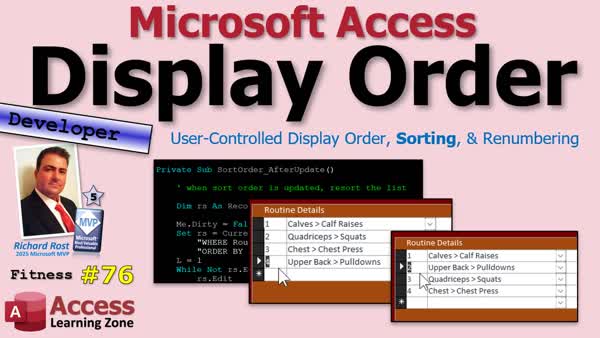 TechHelp Access, user controlled display order, custom sort order, reorder list items, display order field, renumber records, recordset loop, combo box selection, subform synchronization, sorting logic, move list item up down, fitness database, double data type, before insert event, after update event
 Subscribe to Fitness 76
Get notifications when this page is updated
More InformationTranscript If you've ever wanted your users to control the order of items in a list, instead of letting Microsoft Access decide for them, today we're going to build a display order system that makes that possible.
Welcome to another TechHelp video brought to you by AccessLearningZone.com. I'm your instructor Richard Rost.
Today is part 76 of my fitness database series, and remember, even if you're not building a fitness database, the techniques I'm covering today can be used anywhere you need your users to control how records are displayed, whether it's appointments in a schedule, tasks in a project list, products in a catalog, or just about any other ordered list. These are Access tips and tricks. You can use them in any database you want. It does not matter if you do not care about calories or weights or pumping iron. This is a database lesson.
Last time we added our routine details form as a third synchronized subform and built a combo box that lets users select exercises from related tables. Today we're going to add a custom display order field, automatically number new records so when they add another one on the end of that list, it will get five, and we'll build the sorting and renumbering logic that will let users rearrange exercises into whatever order they want. So if you want to move chest up to number two, you can.
Are you ready? Here we go.
We are back and ready for more fitness stuff. You might notice that my screen is dark. I did a whole bunch of videos on switching your system over to dark mode, and I think this is the first time I've used dark mode in the fitness series. If you've only been following along with that and you haven't seen my dark mode videos, go watch those. I'll put a link down below. It's really cool. Check it out.
Since I think this is the first video that I've recorded at night in a while, I'm going to use dark mode so my one good eye doesn't have to strain too much.
Anyway, what we're going to do today is this: we have workouts, we have programs and routines. Now that we have, let's say, our four-day split, I want to be able to put the sort order here so I can rearrange these in whatever order I want to do the exercises in. This pertains to any database type, whether it's scheduling or product inventory or anything you want to put in an order, this technique is going to be priceless.
We've already got a sort order in our detail table. Where is our routine detail table? There's the sort order right there.
The first thing I'm going to do is switch this over to a double. Where is my sort order right now? When we built this before, I was not thinking forward. Let's change this over to a double. Oh, I can't modify it because, and this is an important one, I have a form open that is based on that table. If that's the case, if you go to design it, it should have given me this warning before and it didn't. So I'm going to say no.
Close that, right click, design view. Once in a while, it doesn't give you that warning. But anyways, let's change the sort order to double, and I'm going to set the default value to null. Get rid of that zero.
Why double? When moving things around, if you've just got one, two, three, four, five, and you want to move item three up one to item two, if you change three to two, now you've got two twos. There's no easy way to figure out which one to sort. But if you move three to less than two, but not less than one, if you make it like 1.5, and then resort the list, you can now resort the one to three or five.
Likewise, if you want to move two down, add 1.5 to it. Now it's 3.5. Now you've got one, three, 3.5, and five. Now if you resort the list, which is really easy to do with a recordset loop, you've got one, two, three, four, five again. That's why we need a double for this, and you can type in whatever you want. If you want a 1.8, just resort the list. Boom. You'll see why this is cool in just a few minutes.
I've done this in some other videos of my developer classes. I don't think I've done it in a TechHelp video yet. So this is some pretty cool stuff.
Now that we've got that in the table set up, let's go to our routine detail form, design view. Let's add that sort order in here.
Form design. Give me existing fields. We might as well put the other ones in here while we're at it. Let's grab the sort order and the number of sets. Was there anything else? I think that was it. Just sort order and number of sets have to go in there. Put those there. We've already got description, notes, the exercise ID, and routine.
That's it, just those fields. I'm going to put the sets over to the right. I think we need to change the default on that too. I think I have that defaulted to zero. Who does zero sets? Well, me some days. You go to the gym and you sit there and you're like, okay, zero sets. No, I'm just kidding. Leave a little room right there for that. That's probably too much even. You probably only need two digits in there. Who does 100 of an exercise? Not me, that's for sure.
There we go. That's good. Let's set the tab order again, make sure everybody's nice and ordered. Okay, hit OK. Save it. Close it. Let's open it back up again.
Four-day split. There we go. I'm going to left-align these. The default there is zero. Let's fix that while we're at it.
So, you and you, we're going to left align you. We'll fix that in the table one more time. Come up here and do this for routine. There we go, that's much better.
Routine detail table, design view. Sets is going to default to one.
First thing we have to do: when we add a new item in here, we need to set that equal to the next item. In other words, look up what the largest sort order is in the table for this routine, then add one to it and set that. We'll do it in the before insert event, because before insert is where we can modify the record right before it goes into the table.
Go into design view. Let's go to this guy. Go to its properties. Make sure you're not in the subform properties. Double click here. Go to events. Go to before insert. There it is. Before insert, dot dot dot. That'll bring up the code builder. Code builder is much nicer in dark mode, I think.
During the day, I like it bright because my room's bright, the sun's coming in. I live in Florida, so I like to see my palm trees out my front window and I have my lights all on. But at night, I like to bring things down a little bit.
Before adding a new item, assign the highest sort order if it's still null, because the user might have typed something in too. If not is null sort order then exit sub. If they've already typed something in, then just leave it.
Let's look up what the highest sort order is for this particular routine. So, the highest - we need a dim first. Dim highestSortOrder as double. highestSortOrder equals Nz(Dmax("SortOrder","RoutineDetailT","RoutineID=" & RoutineID),0).
Now we can say SortOrder = highestSortOrder + 1. That happens right before the record gets committed to the table. That's why I'm using before insert. Otherwise, if you use after insert, you can, but then it's going to be dirty again. It's a pain in the butt. Just do it before insert.
Save it. Debug compile once in a while. Close it, close it, close it. Open it back up again.
I'll just insert one in here. Let's say our full body - let's start off with a chest press. Chest press, boom, we got a one. Sweet. Let's add another one. Let's do pull down, a back pull down. Pull downs in here, upper back pull downs. Boom, number two. Sweet.
We're doing pretty well. Now here's the kicker. Let's say I add a few more. Let's say I want to move quads up to number two. If I put a two in there, that's fine, and we'll resort this when it's added. But if I do that, now you can't tell - you've got one, two, two. Which one did you mean?
So what I'm going to do is put in 1.5 and then resort the list when this thing is updated. So what happens is this'll move up, two and three will move down to three and four.
So what we need is an after update event for the sort order field. Design view. Click, that gives you the subform object. Click a second time. Open its properties, get that border right there, double click.
Event, this will be the after update event for this guy. I've got several whole videos, I think I got some TechHelp videos, I've got some free videos that explain the order of all these events - after update, before update, before insert, when they fire, what's different, what's not. I'm not going to go over all the differences now, but this is an after update event.
After we update the sort order, we're going to change them all. We are going to resort the whole list. We're going to make a recordset loop. We're going to loop through all of the items in the order they're sorted, and just renumber them one through whatever.
When the sort order is updated, resort the list. So we'll need an rs as a recordset. And if you've been following along with the series, you know what a recordset is, and l as a Long for our counter.
The first thing I'm going to do is make sure the record is saved, because if the user just edited the sort order, the record might be dirty right now. So we're going to save it to the table. Me.Dirty = False. That saves the record.
Now we're going to open a recordset loop and loop through the items for this routine - all the exercises for this routine in the order that they're currently displayed in.
Set rs = CurrentDb.OpenRecordset("SELECT * FROM RoutineDetailT WHERE RoutineID=" & RoutineID & " ORDER BY SortOrder"). Remember you need a space after the RoutineID; otherwise it will slam right into ORDER BY. I do that all the time. That little space is very important; do not miss those. Order by the sort order.
Now we're going to loop through all the records in that table. l = 1, start our counter at one.
While not rs.EOF
rs.Edit
rs!SortOrder = l
rs.Update
l = l + 1
rs.MoveNext
Wend
rs.Close
Set rs = Nothing
Remember, I like to build my sandwich down first and then I put the meat and the cheese inside the sandwich. Do not forget - you have to move to the next record, and you also have to increment your counter. Otherwise, everyone is getting a one.
What are we doing inside here? What's the meat inside the sandwich? We are going to edit the record that we are on and then change its sort order to the counter. Real simple.
We are going to loop through the records in whatever sort order they happen to be in and just update them so they're all integers.
When all this is done, Me.Requery so it resorts the list.
Save it. Debug compile. Close it, close it, close it. Open it.
So now let's go back to this. Let's do 1.6. Boom. It worked, but this form doesn't have a sort in it. So let's make sure we have a sort in our form.
Go to the form's properties. Remember this guy right here, and make sure under data, Order By is going to be SortOrder. I do not always like relying on that because this can accidentally and easily get changed. You can put it up here if you want to. If you'd rather do that, you could say SELECT * FROM RoutineDetailT ORDER BY SortOrder. That, because that Order By is so easy to accidentally get changed.
You can even put this in the On Open event of that form, but we're not going to get that complicated.
Save it. Close it, close it, open it, and there we go.
Now if I want to move calves up front - who does calves first? Just go 0.5, or zero, put a zero in there. Boom, saved.
Now you see why I want to make it a double, because now, let's say you want to do quadriceps second. Make it 1.5, boom, and now it is second.
We have some other things we're going to do. We're going to make sure that we end up on the same one that we were on and make some buttons to go up and down. We have some cool stuff we're still going to do with this, and we'll do that in the next lesson.
So today we built a user-controlled display order system that automatically sorts and renumbers records, giving users the ability to organize items exactly the way they want them displayed.
In the next lesson, we're going to add little buttons so they can move them up and down just by clicking on them. That's going to be pretty cool, instead of manually typing those values.
Post a comment down below. Let me know what you thought of today's video, and what you'd like to see coming up in future lessons.
That's going to be your TechHelp video for today, brought to you by AccessLearningZone.com.
I hope you learned something. Live long and prosper, my friends. I'll see you soon for part 77.
If you enjoyed this video, hit that thumbs up button right now and give me a like. Also, be sure to subscribe to my channel, which is completely free, and make sure you click that bell icon and select all to receive notifications whenever I post a new video.
If you're new to Microsoft Access, check out my Access Beginner Level One course. It's over four hours long, and it covers all the basics, like tables, queries, forms, and reports. It's a great place to start, and it's also completely free.
Members of my channel get extended cut videos, sample databases, access to my code vault, and full training classes every month. Click the Join button for details.
Thanks for watching. I'm Richard Rost with AccessLearningZone.com. Live long and prosper, my friends. I'll see you next time. Intro In this lesson, we will walk through creating a user-controlled display order system in Microsoft Access, using a fitness database as our example. You will see how to add a display order field, change its data type to double for flexible sorting, and automatically set the sort order for new records. I will also show you how to let users rearrange items and use VBA to renumber and resort the list dynamically. We will discuss handling sort order changes and updating the display, laying the foundation for adding move up and down buttons in the next lesson. Quiz Q1. What is the primary goal of implementing a display order system as described in the video?
A. To allow users to control the order of items in a list
B. To increase database security
C. To reduce storage space in the database
D. To automatically delete inactive records
Q2. Why is the sort order field in the table changed to a Double data type?
A. To allow for more precise values between whole numbers for sorting
B. To store larger text values
C. To create automatic relationships with other tables
D. To reduce memory usage
Q3. What does setting the default value of the sort order field to Null accomplish?
A. It ensures that no sort order is assigned until explicitly set
B. It causes every new record to start at zero
C. It automatically generates random sort orders
D. It prevents any new records from being added
Q4. What is the problem with simply changing an item's sort order from 3 to 2 if there is already an item with sort order 2?
A. It creates duplicate sort order values and ambiguity in display order
B. It deletes the original item with sort order 2
C. It randomly swaps items in the list
D. It prevents further edits to the record
Q5. What is the purpose of assigning a sort order like 1.5 when moving an item between 1 and 2?
A. To temporarily position the item between two existing entries before renumbering
B. To make it easier to delete the item later
C. To track edits for auditing purposes
D. To mark the item as inactive
Q6. Why is the before insert event used for setting the sort order on new records?
A. To ensure the sort order is set before the record is saved to the table
B. To make the form load faster
C. To prevent the record from being displayed
D. To reset all sort orders to zero
Q7. How is the next sort order value determined when adding a new record?
A. By finding the highest existing sort order for that routine and adding one
B. By using the minimum value from the table
C. By counting the number of fields in the table
D. By using a random number generator
Q8. What event is used to trigger the renumbering and resorting of the list after the user changes a sort order?
A. After Update event of the sort order field
B. On Click event of the form
C. On Load event of the table
D. On Open event of the database
Q9. What is the general process for renumbering the sort orders after an update?
A. Loop through the records in sorted order and set their sort order values sequentially from one upward
B. Set all sort order values to zero
C. Create random sort order values for each record
D. Delete and re-add all records in a new order
Q10. Why is the Me.Dirty = False command used before the renumbering process?
A. To save the current record so changes can be processed correctly
B. To reset the form to its original state
C. To lock all records from editing
D. To multiply the sort order by two
Q11. What purpose does Me.Requery serve after renumbering sort orders?
A. To refresh and display the updated order in the form
B. To delete old records
C. To export data to Excel
D. To close the database
Q12. How can the display order technique described be applied outside of a fitness database?
A. It can be used in any scenario where custom record ordering is needed, like product lists or project tasks
B. Only in fitness tracking databases
C. Only in financial reporting databases
D. It cannot be used elsewhere
Q13. What feature will be added in the next lesson, as mentioned in the video?
A. Buttons to move records up and down in the list
B. Automatic deletion of duplicate records
C. Export to PDF
D. Integration with Excel charts
Answers: 1-A; 2-A; 3-A; 4-A; 5-A; 6-A; 7-A; 8-A; 9-A; 10-A; 11-A; 12-A; 13-A
DISCLAIMER: Quiz questions are AI generated. If you find any that are wrong, don't make sense, or aren't related to the video topic at hand, then please post a comment and let me know. Thanks. Summary Today's video from Access Learning Zone focuses on creating a user-controlled display order system for Microsoft Access databases. Instead of letting Access determine the order of items in a list, I'm going to show you how to give your users direct control over how their records appear. This method is valuable for a wide range of databases, not just fitness-related ones. Whether you're working on scheduling, project tracking, product catalogs, or any other scenario where item order is important, the techniques I teach today can be applied.
As a brief recap, in the previous lesson, we added the routine details form as a synchronized subform and set up a combo box that allows users to select exercises from related tables. In this lesson, we're enhancing functionality by adding a custom display order field. We'll set things up so that when a new record is added, it automatically receives the next available number at the end of the list. I'll then walk you through the logic required to allow users to rearrange their exercises any way they wish, such as moving a chest exercise up to the second slot in their routine.
While I'm working in a fitness database, keep in mind these approaches and tips are universally applicable in Access. They will benefit anyone who needs to let users define the sequence of displayed records.
On a side note, you'll notice that I'm using dark mode for Access in this session. For those interested, I have a full set of videos on how to switch to dark mode, so check those out for tips on setting up your workspace for less eye strain during nighttime sessions.
Turning to our project, our system involves workouts, programs, and routines. Now that we've built out these objects, my goal is to let users set the order in which exercises appear within a routine. This is something you'll find useful in many Access applications. The routine detail table already has a sort order field in place, but some adjustments are necessary for optimal flexibility.
First, we need to change the data type of the sort order field to Double instead of Integer. This is important for smooth reordering. If you simply use whole numbers (1, 2, 3, etc.) and want to move item 3 to spot 2, you will get duplicate values, making sorting ambiguous. By using a Double, you can insert an item between others using decimal values, like 1.5. When you reposition items, you can resort and then renumber them back to integers as needed.
Keep in mind that if you have forms open based on the table you want to modify, you'll need to close them to make design changes. Once that's done, change the sort order field's data type to Double and set the default value to null rather than zero. That avoids confusion and allows for more flexibility.
With the table set up, shift over to the routine detail form and make sure to add the sort order field, along with other relevant fields like the number of sets, if it's not already there. Rearrange your form fields and set appropriate defaults, such as setting the number of sets to one. Organize the tab order for easy data entry, and left-align fields where it enhances readability.
The next requirement is to automatically set the sort order value when a user adds a new item. This involves checking the highest current sort order for the given routine and then assigning the next number. You handle this task using VBA in the Before Insert event of the form. In this event, you first check if the sort order is already set (in case the user manually typed something in). If it is null, you look up the highest sort order for the current routine using Dmax, then assign the next value. This ensures new records always appear at the end by default.
Test your setup by adding a few exercises. When entered, each new exercise should get the next number in sequence. However, the true benefit comes when you want to change the order. For instance, suppose you want to insert an exercise between two existing ones. Simply assign a sort value like 1.5. This creates a natural position between 1 and 2.
After adjusting a sort value, the system should re-sort and renumber all items to keep things tidy and sequential. This is achieved by handling the After Update event of the sort order field. When the user changes a sort value, save the record, use a recordset to loop through all exercises for that routine, and systematically renumber them starting from 1. This way, each item has a distinct integer order after each change, but the double data type still allows for flexible reordering in between renumbering.
After completing this process, be sure to requery the form so the list on screen matches the new sort order. Also, set the form's Order By property to SortOrder so that the display always reflects the intended arrangement. If you want a more permanent sort, you can also include an ORDER BY clause in the form's record source.
Now, you can quickly move items by assigning them new sort order values, and the system will automatically renumber and refresh the display. This also demonstrates why using a Double for sorting is preferred - users can move things up or down as needed, and immediate feedback is provided in the form.
In future lessons, I'll show you how to add simple up and down buttons so users can adjust the order with a single click, rather than typing numbers themselves. There are additional enhancements planned around maintaining item selection and navigation, so keep an eye out for those.
To sum up, today we've built a flexible, user-driven display ordering system that automatically sorts and renumbers records, giving your users complete control over how their items are organized in an Access form.
You can find a complete video tutorial with step-by-step instructions on everything discussed here on my website at the link below. Live long and prosper, my friends. Topic List Adding a user-controlled display order field to a table
Changing a field type to Double for flexible sorting
Setting default values for table fields
Automatically assigning display order values for new records
Using the Before Insert event to set sort order
Creating and updating a custom sort order in forms
Handling form control layouts for display order fields
Renumbering records after sort order changes
Using the After Update event to trigger renumbering
Implementing a recordset loop to update sort order
Forcing a form to requery and display updated order
Applying sort order to subforms
Configuring form properties for order by functionality
Explaining why Double datatype is used for sorting
Practical use cases for user-controlled display order Article If you have ever wanted your users to control the order of items in a list, rather than letting Microsoft Access decide, you can create a custom display order system. This technique can be used in any Access database anytime you want to let users control how records are displayed, whether that is appointments in a schedule, tasks in a project list, products in a catalog, or any similar scenario.
Suppose you have tables for workouts, programs, and routines, and within these, you want to be able to reorder the exercises in any sequence your users prefer. To accomplish this, you will add a custom Display Order field to your detail table and synchronize your forms accordingly. The system works by assigning each item in your list a specific sort order value, allowing users to rearrange them simply by changing that value.
The first step is to add a SortOrder field to your detail table, which contains the individual items you want to order. Make sure that the SortOrder field is of the Double data type, not Integer. Defining it as Double is important because when users rearrange items, they may want to move something between two existing items. For example, if you have records with 1, 2, 3, and 4 as their sort order, and you want to insert a new record between 2 and 3, you can assign it 2.5. Later, you can easily renumber all the items to keep them as nice whole numbers. Setting the default value for SortOrder to Null (not zero) will ensure that new records do not start off with an unhelpful default.
Once you have set up the SortOrder field, update your form to display and allow editing of this value. You can do this by opening your form in design view, adding the SortOrder field to it, and arranging the layout so it fits well with your other controls.
Next, you want new records to automatically get the next sort order number at the end of the list. This is handled with a bit of VBA in the form's Before Insert event. Here is how you do it:
Go to the properties of the form (the detail form or subform showing the ordered items), switch to the events tab, and select the Before Insert event. Then click the ellipsis button (…) and choose Code Builder. In the code window, add the following:
If Not IsNull(SortOrder) Then Exit Sub
Dim highestSortOrder As Double
highestSortOrder = Nz(DMax("SortOrder", "RoutineDetailT", "RoutineID=" & RoutineID), 0)
SortOrder = highestSortOrder + 1
This code checks if the user has already typed a sort order. If not, it finds the highest SortOrder for that routine and assigns the new record the next number.
Now, when a user wants to move an item up or down in the list, they can change its sort order value. For example, to move the third item above the second, they might change its sort order from 3 to 1.5. However, this creates the need to reassign all the sort order numbers as whole numbers, to keep things clean and to avoid confusion.
To make this work, add VBA code to the After Update event of the SortOrder control on your form. Open the form in design view, select the SortOrder textbox, go to its properties, then the Events tab, and select [Event Procedure] for After Update. Click the ellipsis (…) and enter the following code:
Me.Dirty = False
Dim rs As Recordset
Dim l As Long
Set rs = CurrentDb.OpenRecordset("SELECT * FROM RoutineDetailT WHERE RoutineID=" & RoutineID & " ORDER BY SortOrder")
l = 1
While Not rs.EOF
rs.Edit
rs!SortOrder = l
rs.Update
l = l + 1
rs.MoveNext
Wend
rs.Close
Set rs = Nothing
Me.Requery
This code does a few things. First, it saves any edits to the current record. Then it opens a recordset for all items in the current routine, ordered by SortOrder. It loops through each record, assigning numbers 1, 2, 3, and so on. After that, it refreshes the form to display the newly sorted list.
Finally, make sure your continuous form or subform that displays the list is set up to order by the SortOrder field by default. You can do this by setting the form's Order By property to SortOrder.
Now, when a user wants to reorder items, they can simply enter a new SortOrder value. Whenever the SortOrder value is changed, all items are automatically renumbered in whole numbers, keeping the list clean and in the order the user wants.
For example, you may have exercises A, B, C, and D in order 1, 2, 3, 4. If you decide exercise D should come directly after A, you can change D's sort order to 1.5. After updating, the routine will show A (1), D (2), B (3), C (4).
By following this approach you give your users full control over the order of records in any ordered Access list. The essentials are: add a double SortOrder field, set it automatically on new records, and provide code to clean up the sort order when changes are made. This technique makes your list management flexible and user-friendly.
You can further enhance this system by adding buttons to move items up or down, making it even easier for users to arrange records without having to type values. That addition is left for future improvement.
With this setup, you have a practical, robust, user-controlled display order system in Microsoft Access, adaptable to a variety of scenarios beyond just fitness tracking. Primary Topics Microsoft Access, user-controlled sorting, display order, forms, subforms, recordset loops, data entry, VBA event handling Secondary Topics form design, data validation, UI improvement |




