Write to Clipboard
By Richard Rost

 4 months ago
How to Write Data to the Clipboard in Microsoft Access
In this lesson, we will walk through how to write to clipboard in Microsoft Access, making it easier to quickly copy a customer's entire name and address or any combination of fields with a single click. You will learn how to use VBA code and Access's built-in functions to assemble and copy field data, create unbound text boxes for concatenated output, and set up buttons to automate the copy and paste process, reducing repetitive copy-and-paste tasks when working with customer information. We will also discuss managing hidden controls and handling pasting content into different fields efficiently.
Members
In the extended cut, we will learn how to write directly to the Windows clipboard using the Windows API, skipping the use of hidden text boxes. I will show you how the code works, explain what happens behind the scenes, and build a practical example that generates a customer order summary and copies it directly to the clipboard with a single click.
Silver Members and up get access to view Extended Cut videos, when available. Gold Members can download the files from class plus get access to the Code Vault. If you're not a member, Join Today!
Prerequisites
Links
Recommended Courses
Keywords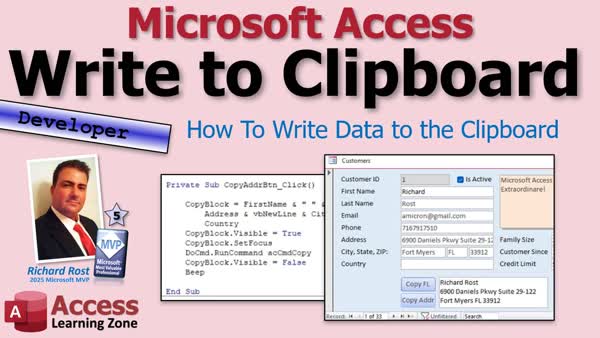
TechHelp Access, copy to clipboard, VBA, concatenate fields, address block, copy button, Windows clipboard API, RunCommand acCmdCopy, setfocus, unbound textbox, paste to form, append text, string concatenation, developer programming, debug compile, custom address block
More InformationTranscript I wish you could take a customer's entire name and address and put it all together and copy it somewhere else with a single click instead of copying one field at a time, which gets monotonous really fast.
Welcome to another TechHelp video brought to you by accesslearningzone.com. I'm your instructor, Richard Rost. Today, we're doing something a little different. This is going to be a flashback video. Now and then, I come across one of my older TechHelp videos and I think, you know what? There's a lot more I can do with that topic.
So today I'm going to start revisiting some of those older, more popular lessons. This video was originally released about three years ago, and it covers how to copy data to the clipboard in Microsoft Access. Since then I've come across some additional techniques and ideas that I wanted to expand upon. In fact, this week's extended cut is all about writing directly to the Windows clipboard using the Windows API. More about that at the end of the video.
I know there are now tons of new subscribers and members who have joined since the original video was released, so this is a great opportunity for those of you who haven't seen some of my older material to discover these new lessons for the first time.
So, for those of you who haven't seen the original lesson yet, this is how to copy data to the clipboard in Microsoft Access. Welcome to another TechHelp video brought to you by accesslearningzone.com. I'm Richard Rost, your instructor. Today we are going to learn how to copy data to the clipboard and paste it back again in Microsoft Access.
Today's question comes from MyLink in Palo Alto, California, one of my Platinum members. MyLink says, I spend a lot of time copying and pasting customer name and address information from my Access database to either a spreadsheet, an email, a Word document, or my label writer. Is there any way you can set it up so that with one click I can copy their entire name and address?
Yes, of course, we can do this with a little bit of VBA code. This is a developer video. Don't be scared, though. If you've never done any VBA programming before, don't worry. I got you covered. Go watch this video first. It's free. It's on my website. It's on my YouTube channel. It's about 20 minutes long, teaches you everything you need to know to get started.
Also, go watch my concatenation video. That's where you can put the values from two or more fields together into one string. That's how we can put the name and the address fields all together. Go watch those and come on back.
Here I am in my TechHelp free template. This is a free database. You can download a copy off my website if you want to. Here in the customer form, let's say I want to make a button. Let's just do one field first. Let's say I just want to copy the first name field to the Windows clipboard. How do we do that?
Go to design view. I'm just going to copy one of these buttons here. Copy, paste. Let's put it down here in the bottom. Let's call this guy Copy First Name, Copy FN. We'll right-click, go to properties, will make it called Copy FN Button BTN, right-click on it, go to build event. I know that was off your screen, sorry. Right-click, build event.
First thing you have to do if you want to use the clipboard functions is that you have to go to that control. You have to set the focus on that control. There is another command called GoToControl, but I like this one: FirstName.SetFocus. That says, Hey, jump the cursor to the first name field, and it should have all the data in that field highlighted.
Now we're going to run a command that says copy, and it looks like this: DoCmd.RunCommand. There is a whole ton of commands in here you can run. The one you're looking for is acCmdCopy, that guy. Yes, there's also cut and paste. So it's going to go to the first name field, it's going to have run the copy command, and then the data should be in your clipboard.
Let's come back out here, close it, close it, open it, click the button. If you want to test it, just click here in Country and paste on your keyboard, Ctrl+V, paste, and there it is. Now you know how to use the clipboard.
What if you want to put a bunch of fields together and copy them all? I know exactly what you're talking about, MyLink. If you got an email you want to send, you want to say hey, the customer's address is blah, blah, blah. You don't want to sit here and have to copy this, copy that, copy. You want to put it all together and just go. I got the same exact thing in my database.
What we need, though, is another field to assemble everything. So I just take one of these other fields, copy, paste, we'll slide it over here, and we'll just make some room for it here. Let's open this guy up. Now I don't want Country in there, so get rid of the Control Source. We don't want to have it bound to any field in our table. It's just an unbound box.
Usually with unbound boxes, what I'll do is I'll make them gray or something like that just to set them off a little bit. Let's give it a good name. What do you want to call it? Let's call it the Copy Block. The Copy Block.
So what we're going to do is we're going to use some string concatenation. We're going to assemble the fields in this box the way we want to copy and paste. You can do whatever you want.
Let's copy this button, copy, paste, and this will be my copy, let's call it Address, ADDR. Give it a good name, always give it a good name: CopyADDRBTN. Click build event.
Now, this time, first we have to assemble the Avengers... I mean assemble the fields. Little concatenation. Here we go. CopyBlock = FirstName & " " & LastName & vbNewLine & Address & vbNewLine & City & " " & State & " " & ZipCode & vbNewLine & Country.
There's your whole big address block: first name, last name, address, another line, city, state, zip, another line, country. Now that's all assembled in CopyBlock. Now we can do the same stuff we did here. Copy that, paste it up there, and instead of FirstName.SetFocus, we're going to use CopyBlock.SetFocus.
Copy, head, debug, compile. Always good to do once in a while. Back over here, close this, close this, open it back up and copy it. There it is, all. Got Richard in my country, that's fine, we'll get rid of that, but leave it, I'll leave a blank for us, hit it, and there it goes.
Now I'm just going to test it. Let's open up Notepad or whatever else. Where's my Notepad? Oops, there. Okay. Paste. There it is. It's that easy. Build away.
Now, you might not want to see this guy lingering around here. If that's the case, you can make it invisible. But you have to briefly make it visible while you do the copy operation. For example, you could take this, and you could set its Visible property to No.
If that's the case, what I usually do is make him really tiny like that. In this case it might flash very briefly, so I'm not going to make it red. Usually, what I'll do for hidden fields, things that are hidden all the time, I like to make them red and then hide them because you only see them in design view. Then I stick it maybe over the top of that one, because again you won't see it when the form is open, only in design view, and you will know it's there. But this guy might flash very briefly on the screen.
We're going to leave it there, but you could do something like this if you want to save space. Copy First Name, Copy Address, we'll stick this next to it, and you can slide this up.
Now, if you just try to run this now, you're going to get an error. Can't move the focus to the control CopyBlock. Why? Because it's not visible.
So what we can do is, right before we set focus, say CopyBlock.Visible = True. I can't type today. Let's back this guy up there. Indentation is important, people. Not for Access, but for us.
When we're all done copying it, we could do CopyBlock.Visible = False, hide it again, and maybe give a beep to indicate to the user that the job is done.
Save it. Come back out here. Now, oh, you can't hide the control if it's got the focus. You have to put the focus back on the button, let's say. So right here, we're going to say CopyAddressButton.SetFocus. Forgot about that one. It's in my notes too, and I still forgot about it.
Ready? Close it, open it, copy, and it's done. See how it displays itself briefly? You could try turning off... See, I don't like teaching people this one. This is a more advanced trick. This is an advanced trick. Be careful with this, but what you can do also is you can say DoCmd.Echo False. What that does is Echo turns off the screen writes completely, so anything that Access does is just hidden. You don't see anything.
The problem is if you have any error messages or anything else that pops up in your database, you won't see it because the screenwriting is off. Don't forget to turn it back on down here. If any of these commands generate an error, you're in trouble, because you won't see it. Your application will look like it locked up, and I use this sparingly, but it's used for situations like this where you want to prevent some flashing on the screen.
Ready? Let's try it. See, you didn't see anything flash. I don't know if the video recording software is picking that up or not, but now you can hit the button and it doesn't flash at all.
That's pretty much it. Like I mentioned before, there is also a cut, there's also a paste operation. If you're copying stuff from other places, let's say you want to paste it in your notes field. Let's do a paste button. Right-click, build event.
We forgot to name our button. See, look at that, Command34_Click. Always give your buttons a good name, trust me, you'll thank me later. I didn't use to name them. My buddy Alex talked me into it, because I used to always just put a comment up there, like this is the button for paste, but you are better off just giving them a name: PasteButton. Takes two seconds. I'm still not in the habit of doing it, and it's been years.
Okay, so we're in the Paste button. Same thing, we're going to set focus where we want to go: Notes.SetFocus. Then we're going to paste: DoCmd.RunCommand. This whole list, this RunCommand list, this is like backward compatibility with all the menu items that are in Access. You can find a lot, most, pretty much everything is in that list: acCmdPaste.
Save it, close it, close it, open it. If you go somewhere else, like let's go back out to Notepad here. I don't think I still have it in the clipboard. Let me see, yeah, it's the one I got, the Windows clipboard manager going. This isn't like my Notepad. Let me copy this. Let's say I'm copying it out of an email or something. We can come in here and just hit paste, boom, and paste it right in there.
Now the SetFocus will normally overwrite what's in there, so if you want to append it to the end of that, all you have to do is put the cursor at the end of it. How do you do that? Go into here. After you set focus to it, you say Notes.SelStart = Len(Notes). SelStart means the start of the selection, and if you don't specify a length, because you could do SelStart and SelLength, putting the SelStart at a spot is where you want to start the selection. Basically, the length of Notes is how long it is, so you're basically moving the cursor to the end.
I cover these in a lot more detail in my other classes. This is bonus material, folks. We are already done, we're finished. I'm just going over some other cool stuff.
Save it, let's throw in a debug compile, come back out here. Now this time, the Paste button is going to append it on the end instead of overwriting what's in there. Ready? Click. Boom, look at that.
You can even check to see if this is null, and if so, you can put another new line in there. You end up with that. You get all kinds of stuff you could do with this. I could spend hours just doing cool stuff like this. Speak, and spending hours doing cool stuff like this.
If you like this stuff, if you enjoy my videos, if you like hanging out with me and learning how to do some cool VBA stuff, I have dozens, maybe hundreds of hours of VBA and developer programming on my website. I just finished Developer 44. I didn't finish it, it's in progress. I just posted the first two lessons, it's all about customizing the ribbon, and we're going to get into customizing right-click shortcut menus.
This is what I do. This is my passion. I would probably do this stuff even if it wasn't what I did for a living. If you want to learn with me, if you enjoy my style and you enjoy learning some Access with me, check them out. There's my link right there. I'll put a link down below in the description, you can click on.
That is going to be your TechHelp video for today. I hope you learned something, my friends. Live long and prosper. I'll see you next time.
So that's how you can copy data to the clipboard in Microsoft Access using Access's built-in tools. You can copy individual fields, build custom address blocks, and save yourself a lot of repetitive copy and paste work throughout the day.
For the members, we're going to take this concept a step further. I just released a brand new extended cut for this video, and in the extended cut, we skip the hidden text boxes completely and learn how to write directly to the Windows clipboard using the Windows API. I'll show you exactly how the code works, explain what's happening behind the scenes, and then we'll build a practical example that generates a customer order summary and copies it directly to the clipboard with a single click.
This is actually part of a new idea that I'm pretty excited about. I'm going to start revisiting some of my older, more popular TechHelp videos and creating brand new extended cuts for them. There are lots of topics where I had additional material that I wanted to cover but I just simply didn't have the time in the original free lesson. If you're already a member, go check out the extended cut, and if you're not a member yet and you'd like access to all of that material, the extra material today and all of my old extended cuts, there are hundreds of them, folks. It's all available on my YouTube channel and on my website. Click that blue Join button now.
That is going to be your TechHelp video for today, brought to you by accesslearningzone.com. I hope you learned something. Live long and prosper, my friends. I'll see you next time. Intro In this lesson, we will walk through how to write to clipboard in Microsoft Access, making it easier to quickly copy a customer's entire name and address or any combination of fields with a single click. You will learn how to use VBA code and Access's built-in functions to assemble and copy field data, create unbound text boxes for concatenated output, and set up buttons to automate the copy and paste process, reducing repetitive copy-and-paste tasks when working with customer information. We will also discuss managing hidden controls and handling pasting content into different fields efficiently. Quiz Q1. What is the main goal of the video tutorial?
A. To show how to copy a customer's entire name and address with one click in Access
B. To teach how to create a new Access database from scratch
C. To explain how to import Excel data into Access
D. To demonstrate how to secure Access databases with passwords
Q2. Which VBA command is used to copy a field's data to the clipboard?
A. DoCmd.RunCommand acCmdCopy
B. DoCmd.TransferText
C. DoCmd.SendObject
D. DoCmd.OpenForm
Q3. Why is it necessary to use the SetFocus method before copying data to the clipboard?
A. To ensure that the correct control is active for the copy operation
B. To lock the record for editing
C. To save the current record's data
D. To maximize database performance
Q4. What function is used in VBA to combine multiple fields into one address block?
A. String concatenation with & and vbNewLine
B. The SUM function
C. The CONCATENATE function in Excel
D. The Append method
Q5. What is a recommended practice for naming new buttons and controls in Access?
A. Always give them meaningful names
B. Leave the default names as they are
C. Use random numbers for button names
D. Do not name controls at all
Q6. If you want an unbound text box to be hidden on the form but still use it for copying, what must you do before copying?
A. Set its Visible property to True before SetFocus
B. Delete it from the form
C. Set its TabStop property to False
D. Make it read-only
Q7. What does the DoCmd.Echo False command do in this context?
A. Temporarily turns off screen updates to prevent flashing
B. Locks all records in the database
C. Copies all controls to the clipboard
D. Closes the current form
Q8. What is the primary reason for using DoCmd.Echo False sparingly?
A. If an error occurs and Echo is off, the user may see a frozen application
B. It overclocks the processor
C. It deletes all clipboard contents
D. It is incompatible with VBA
Q9. How can you paste clipboard data into a specific field in Access using VBA?
A. Set focus to the field and run DoCmd.RunCommand acCmdPaste
B. Use the SetValue macro action
C. Use the ImportText wizard
D. Use the SendKeys function only
Q10. What is the purpose of Notes.SelStart = Len(Notes) in the Paste example?
A. To move the cursor to the end of the Notes field before pasting
B. To clear the Notes field before pasting
C. To capitalize the pasted text
D. To prevent pasting in the Notes field
Q11. What is one of the main benefits of building an address block for copying in Access?
A. It saves time and reduces repetitive copying and pasting of individual fields
B. It secures the data from unauthorized users
C. It exports data to Excel automatically
D. It prevents accidental data deletion
Q12. What is discussed in the extended cut for members?
A. Writing directly to the Windows clipboard using the Windows API
B. How to create combo boxes
C. Backing up Access databases
D. Printing reports in PDF format
Q13. What is mentioned as a good practice when using hidden fields for copying data?
A. Make them small and possibly colored to identify them in design view
B. Delete them after use
C. Link them to a table for automatic updates
D. Never use hidden fields for this purpose
Q14. What is the role of vbNewLine in the address string concatenation?
A. To add a line break between address components
B. To sort the address fields alphabetically
C. To convert all text to uppercase
D. To append a comma between fields
Q15. What should you do after using DoCmd.Echo False?
A. Always set DoCmd.Echo True to turn screen updating back on
B. Close and reopen the form
C. Add a message box for the user
D. Save the record immediately
Answers: 1-A; 2-A; 3-A; 4-A; 5-A; 6-A; 7-A; 8-A; 9-A; 10-A; 11-A; 12-A; 13-A; 14-A; 15-A
DISCLAIMER: Quiz questions are AI generated. If you find any that are wrong, don't make sense, or aren't related to the video topic at hand, then please post a comment and let me know. Thanks. Summary Today's video from Access Learning Zone focuses on making it easier to copy a customer's full name and address in Microsoft Access, rather than having to copy each field individually. Many of us find that dragging and clicking to copy one field at a time can quickly become tedious, especially when working with emails, spreadsheets, Word documents, or even label makers.
This lesson is actually a refreshed version of an earlier tutorial on copying data to the clipboard in Access. Over the years, I have discovered new methods and improvements that I now want to incorporate, so this is a great time to revisit this popular topic - especially since we have so many new members who may not have seen the original content.
To get started, if you're new to Access VBA, I recommend watching my beginner-friendly video on the basics of Visual Basic for Applications, as well as the lesson on concatenation. Concatenation is key to combining data from several fields into one block of text, which is exactly what we need for copying a complete name and address with minimal effort.
Inside my free TechHelp template database, let's look at the process step by step. Suppose you want to copy just the First Name field to the clipboard. This can be done by creating a button on your form, then assigning it to move the focus to the First Name field and execute Access's built-in copy command. This places the contents directly onto your clipboard, ready to be pasted wherever needed with Ctrl+V.
But copying only one field is not our end goal. If you regularly have to paste a customer's entire address block elsewhere, you don't want to repeat the single-field process multiple times. Instead, you can create an unbound text box on your form, which will not be connected to any particular field in your table. This unbound box can be used to combine all necessary fields - such as First Name, Last Name, Address, City, State, Zip Code, and Country - into a single formatted block.
With a bit of string concatenation in VBA, you can assemble the full address, insert line breaks where needed so the address looks correct, and assign this value to your unbound text box. Once that's done, use VBA code to move the focus to this special text box and trigger the copy command. Now, when you paste, you'll get the entire address block exactly as you need it.
If you'd rather not display this unbound box on your form at all times, you can set its visible property to False. When it comes time to perform the copy, briefly make the box visible, set focus to it, perform the copy, and then hide it again. There is a minor flash when the box becomes visible, but you can use Access's Echo command to temporarily turn off screen updates, reducing or eliminating even that tiny flicker. Just remember to turn screen updating back on when finished to avoid locking up your database.
You might also want to add a paste operation to your form. By placing a Paste button, you can set focus to a field such as Notes, and automatically paste in the clipboard contents. If you want to ensure that pasted text gets appended to the end of what's already in the field, VBA lets you move the insertion point to the end before performing the paste, resulting in a more intuitive outcome for your users.
For those interested in more advanced techniques, the extended cut of today's video covers how to bypass the hidden text box entirely by writing directly to the Windows clipboard using the Windows API. This allows for even more flexibility, like assembling and copying an entire order summary with a single click, and offers a cleaner approach for developers who want to avoid any visual tricks with hidden controls.
This is just the beginning. If you're enjoying these lessons, know that there are dozens upon dozens more available, and I am passionate about sharing detailed explanations and deeper dives into VBA and Access development on my site.
You can find a complete video tutorial with step-by-step instructions on everything discussed here on my website at the link below. Live long and prosper, my friends. Topic List Copying individual fields to the clipboard in Access
Using VBA to automate copy operations
Setting focus to a control before copying
Running the acCmdCopy command in VBA
Concatenating multiple fields into one string
Building an address block using VBA concatenation
Using an unbound textbox to assemble copied data
Copying an assembled address block to clipboard
Making hidden or invisible textboxes for copying
Preventing screen flash with DoCmd.Echo
Copying and pasting data within Access forms
Appending pasted text to the end of a field
Using SelStart and Len to position the cursor Article If you have ever found yourself copying customer names and addresses from a Microsoft Access database into other programs like Word, Excel, email, or a label maker, you know how tedious it is to copy each field one at a time. Fortunately, with a little bit of VBA programming, you can set up a single-click button in Access to put all the required information on your clipboard in one go. This article will walk you through setting this up step by step, even if you are new to VBA.
The first step is to understand how Access handles copying data. Access forms allow you to use built-in commands that interact with the Windows clipboard, such as copy, cut, and paste. These commands can be triggered via VBA code using the DoCmd.RunCommand method. For the copy functionality, specifically, you use DoCmd.RunCommand acCmdCopy.
To start, let us imagine a simple Access form that displays customer information, including their first name, last name, street address, city, state, zip code, and country. If you only want to copy a single field, like the first name, the process is straightforward. In Design View, add a button to your form, give it a meaningful name, and then use the following VBA code in its click event:
FirstName.SetFocus
DoCmd.RunCommand acCmdCopy
This instructs Access to move the focus to the FirstName control on your form (which highlights the text automatically) and then issues the copy command, sending that field's content to the clipboard. Now you can paste it anywhere using Ctrl+V.
To extend this to multiple fields, you need to build a string that contains all the information you want, formatted the way you need it. This is called string concatenation in VBA. You can build the address block however you like. Start by creating a new unbound textbox on your form. Name it something obvious, like CopyBlock. Since it is just a temporary tool for assembling the clipboard content, you can even make it invisible if you do not want users to see it.
To assemble the customer information, use the following code in your new button's click event:
CopyBlock = FirstName & " " & LastName & vbNewLine & Address & vbNewLine & City & " " & State & " " & ZipCode & vbNewLine & Country
CopyBlock.SetFocus
DoCmd.RunCommand acCmdCopy
This code builds a string in the format:
FirstName LastName
Address
City State ZipCode
Country
and assigns it to the unbound CopyBlock textbox. It then briefly moves focus to CopyBlock and runs the copy command, placing the entire block of text onto the Windows clipboard.
If you made the CopyBlock field invisible to save space or keep the form tidy, you will need to briefly show it before the copy and then hide it again afterward. Modify the code like this:
CopyBlock.Visible = True
CopyBlock = FirstName & " " & LastName & vbNewLine & Address & vbNewLine & City & " " & State & " " & ZipCode & vbNewLine & Country
CopyBlock.SetFocus
DoCmd.RunCommand acCmdCopy
YourCopyButton.SetFocus
CopyBlock.Visible = False
This makes the CopyBlock field visible for just long enough to copy the data, then hides it again. Make sure to move the focus back to your button after copying, since Access will not allow you to hide a control that currently has the focus.
In some cases, you may see a quick flash as the field becomes visible then hidden. To prevent this, you can use DoCmd.Echo False at the start of your code and DoCmd.Echo True at the end. This temporarily turns off screen updating so the user does not see the field appear and disappear. Be careful using this, though, because if an error occurs before you reset Echo, your screen might seem to freeze. Here is how you would use it:
DoCmd.Echo False
CopyBlock.Visible = True
CopyBlock = FirstName & " " & LastName & vbNewLine & Address & vbNewLine & City & " " & State & " " & ZipCode & vbNewLine & Country
CopyBlock.SetFocus
DoCmd.RunCommand acCmdCopy
YourCopyButton.SetFocus
CopyBlock.Visible = False
DoCmd.Echo True
Make sure to always turn Echo back on at the end.
If you want to create a paste button to insert the clipboard contents into another field, for example a Notes box, you can use similar VBA code:
Notes.SetFocus
DoCmd.RunCommand acCmdPaste
This moves the focus to the Notes field and pastes in whatever is currently on the clipboard. By default, this will replace any existing text. If you want to append new clipboard content to the end of the existing Notes, add the following line before the paste command:
Notes.SelStart = Len(Notes)
This moves the cursor to the end of the text, so whatever you paste will be added after the current content.
This method of building a formatted address block or any other combination of fields makes copy and paste tasks in Access much faster and less error-prone. All you need is a little VBA to concatenate the data and issue the copy command, and you will save yourself plenty of time each day. You can further customize the format to match the requirements of the application into which you are pasting the data.
If you want even more control, such as copying directly to the Windows clipboard using API calls and skipping the hidden textbox trick, you can look into advanced VBA techniques and the Windows API, but the method described above works well for nearly every situation. Once you are comfortable with these basics, you can apply the same pattern to many repetitive copy-and-paste activities throughout your Access projects. Primary Topics Microsoft Access forms, VBA code for clipboard, concatenating fields, copying data, user interface automation, event handling, text box control, data formatting Secondary Topics cut/paste operations, Windows API clipboard (teased), error handling, field visibility management |







