|
||||||
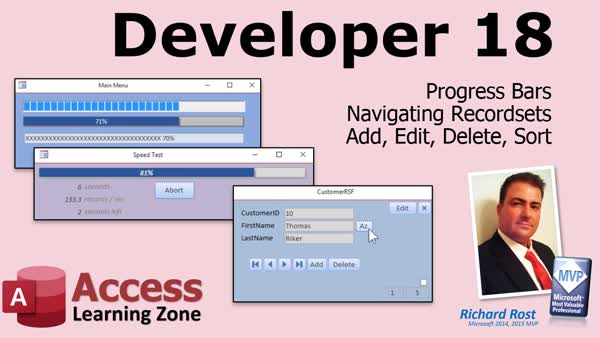
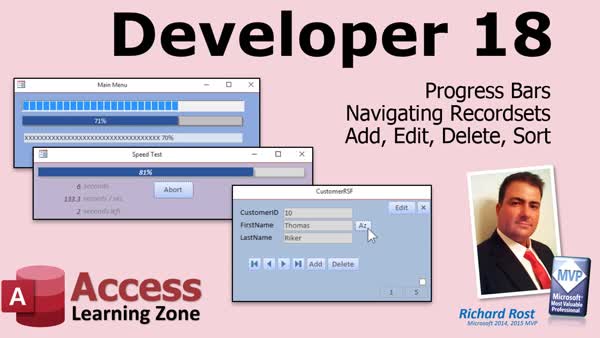
Access Developer 18Progress Bars, Recordsets, Elapsed Time, AbortWelcome to Access Developer 18. In this course you will learn how to work with recordsets in Microsoft Access, create different types of progress bars - including text-only and 3D styles - using Access components, and display progress during long loops. We will also discuss calculating elapsed time, records per second, and estimated time remaining, as well as adding, editing, deleting, and sorting recordset data. You will see how to build an unbound navigation form with custom buttons, use an abort button for cancellation, and review Access prerequisites and subscriptions. Lessons
Database FilesResources
Lesson SummaryWelcome! Progress Bars, Unbound Nav w Recordsets - Welcome to Microsoft Access Developer Level 18. In this course we will work with record sets, create various types of progress bars including text-only and 3D styles using Access components, and learn to display progress during long record set loops. We will cover how to calculate elapsed time, records per second, and estimated time remaining in loops, as well as how to add, edit, delete, and sort data in record sets. We will build an unbound navigation form with custom buttons, discuss abort buttons for user cancellation, and review relevant Access subscriptions and prerequisites for this material.
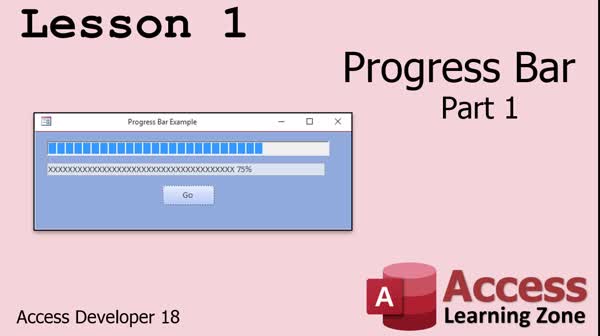
Lesson 1: VBA Progress Bar Without ActiveX - In Lesson 1, we will walk through how to set up a progress bar in Microsoft Access, focusing on the built-in ActiveX progress bar control and discussing its advantages and limitations, especially when sharing databases. I will show you how to use VBA to control the progress bar during long processes and demonstrate how to build a basic text-based progress bar using a standard text box. We will also discuss scenarios for using progress bars and mention common issues with ActiveX controls, as well as provide a simple method for simulating progress using your own code.
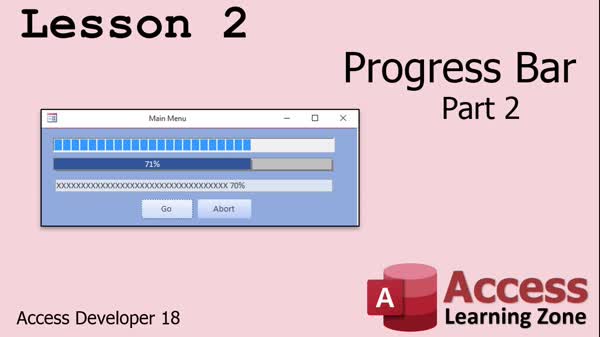
Lesson 2: 3D Progress Bar With Abort & Timer - In Lesson 2, we will walk through creating a 3D look for your progress bar by layering two text boxes and dynamically adjusting the foreground bar's width based on completion percentage. I will show you how to use text values for percentage display, address common pitfalls like overflow errors due to calculation order, and give formatting tips for better appearance. We will also discuss using an abort feature with a checkbox or button, control visibility for abort and progress controls, and handle proper user feedback with the hourglass cursor during long-running operations.
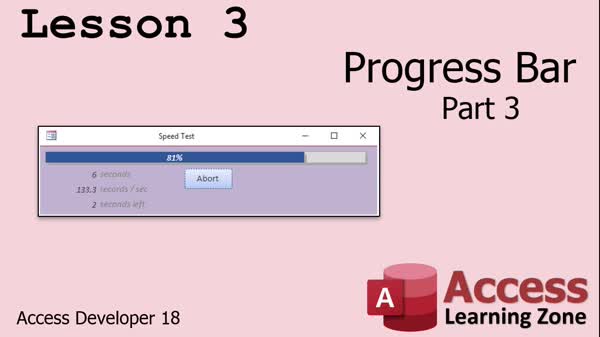
Lesson 3: Progress Bar & SQL vs Recordset Speed - In Lesson 3, we focus on creating and optimizing a progress bar in Access, comparing the performance of SQL inserts versus recordset operations. We walk through cleaning up unnecessary controls and code, reorganizing the form layout, and setting up the progress bar to be called from other forms. I demonstrate how to dynamically update the progress bar, display elapsed time, records per second, and estimated time remaining while processing data. We also build a sample table, run speed tests, and discuss best practices for managing modal forms and using Option Explicit for variable declarations.
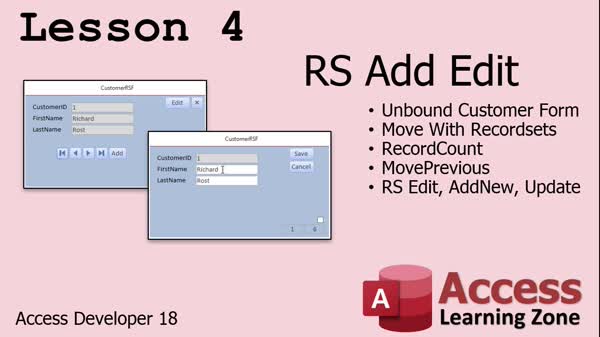
Lesson 4: Add, Edit, Navigate & Save Records - In Lesson 4, we will walk through working with unbound forms and recordsets in Access, focusing on using RS Edit and AddNew to move between records, handle editing and saving records, as well as adding new ones. We will discuss setting up navigation buttons like MoveNext, MovePrevious, MoveFirst, and MoveLast, display total record counts, and manage locked versus editable form states. I will show you error handling for missing tables or empty datasets, and we will cover how to implement custom Save and Cancel actions for your forms using recordsets instead of Access's built-in functionality.
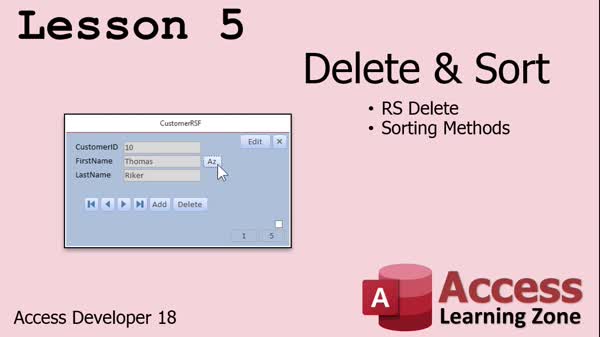
Lesson 5: Delete & Sort Data with SQL - In Lesson 5, we will walk through how to delete records from a record set using the RS.Delete method, including best practices and safety warnings. We will also discuss several ways to sort your record set, focusing on using SQL ORDER BY in VBA, and cover the RS.Sort and RS.Index methods, including their limitations and when they should or should not be used.
Lesson 6: Dev 18 Topics, TechHelp, Resources - In this course we learned a variety of topics in Developer 18 and wrapped up with information on upcoming material, including a preview of Developer 19, the TechHelp series with weekly videos and extended tips, and options for posting questions or getting consulting help. We also discussed YouTube memberships, the location of the full question directory, how to participate in forums, ways to contact me, and the importance of completing the course survey.
NavigationKeywordsprogress bar, VBA progress bar, recordset navigation, DAO recordset, unbound form navigation, 3D progress bar, text progress bar, abort button, elapsed time calculation, records per second, SQL vs recordset speed, delete records, sort recordset
More InformationTranscriptWelcome to Microsoft Access Developer Level 18 brought to you by AccessLearningZone.com. I am your instructor, Richard Rost. In today's class, we are going to work more with record sets. First, we are going to build some different progress bars. We are going to build a progress bar that is text-only. We will use the ActiveX control that comes with Microsoft Access, although I personally do not like it. But then I will show you how to make some other cool progress bars, as you can see there on the screen. Of course, my goal is to always use Access-only components whenever possible. So we will use a couple of text boxes with some shadowing effects. Then we will learn how to use these progress bars to display a status when our record set loops are running, because sometimes you can have a record set loop that takes forever, and it is nice to know how long you are going to take. I will show you how to calculate seconds elapsed, how many records are being processed per second, and how many seconds are left before the record set loop is over. We have done a lot with looping through record sets and accessing data. In this class, we are going to learn how to add, edit, and delete data, and how to sort data. We will make our own little unbound form. It is not bound to a table or query. We will make our own set of navigation buttons: add, delete, edit, close, sort, and so on. We will load up the records as we need them from a record set, and we will learn how to manipulate them accordingly. Lesson 1 will take a look at the ActiveX control from Microsoft, and we will learn how to build a text-based progress bar control without it. In lesson 2, we will make that fancy looking 3D progress bar with a couple of text boxes and some shadowing effects. We will also make an abort button, so your user can cancel the record set loop while it is running. In lesson 3, we are going to attach our record sets to the progress bar, and I will teach you how to perform all those timing operations. In lesson 4, we are going to create that unbound customer form. We will learn how to move around through the records. We will get a record count. The Move Previous command, which we have not covered yet. I believe we covered Move First already and Move Last. Then we will go into how to edit, add new, and update records. Finally, in lesson 5, we are going to cover deleting and sorting records. I will be using a Microsoft 365 subscription. You will be fine if you have 2019. I believe this code should work all the way back to 2007. In fact, most of it should run all the way back even to 2003. But I recommend being in at least 2016 or later. As far as my courses are concerned, you should be familiar with all the beginner material, Expert 1 and 2 (at least for the relationship material). Developer 1 covers VBA basics. Developer 13 and on covers the latest in what I am covering, and Developer 16, 17, and of course this 18 cover record sets. So at least make sure you are familiar with 16 and 17 before taking this class. So let us sit back, relax, and enjoy Developer 18. IntroIn lesson 18 of Microsoft Access Developer, we will continue working with record sets, focusing on creating and customizing progress bars using both text-based methods and the built-in ActiveX control. You will learn how to display status updates during long-running loops, calculate processing speed and time remaining, and give users the ability to cancel operations. We will also build an unbound customer form with custom navigation buttons, and I will show you how to add, edit, delete, and sort records directly through VBA. This lesson uses Microsoft 365 but most concepts apply to earlier versions as well. QuizQ1. What is the main focus of Microsoft Access Developer Level 18? A. Building basic database tables and queries B. Importing data from Excel into Access C. Working with record sets and progress bars in Access D. Creating reports using wizard tools Q2. Which of the following types of progress bars will be demonstrated in this class? A. Only ActiveX progress bars B. Text-only and custom text box-based progress bars C. Animated GIF-based progress bars D. Web-based progress bars Q3. Why is the ability to show a progress bar useful during record set loops? A. It allows users to import data faster B. It helps users see how long the process may take and offers status updates C. It prevents database corruption D. It improves graphical interface colors Q4. What feature will be added to the progress bar to improve user control? A. An auto-save function B. A print report button C. An abort button to cancel the record set loop D. Spell check integration Q5. What is an unbound form, as described in the video? A. A form connected directly to a table or query B. A form stored as an Excel spreadsheet C. A form that is not bound to any table or query, with navigation handled manually D. A form linked to Access reports only Q6. Which navigation commands are specifically mentioned as being covered in this class? A. Find and Replace B. Move First, Move Last, Move Previous C. Filter by Form D. Zoom and Minimize Q7. What operations related to records will be covered in this course? A. Only viewing records B. Adding, editing, deleting, and sorting records C. Exporting to PDF D. Designing table relationships Q8. What is recommended before taking Developer Level 18? A. Use only Access 2003 B. Be familiar with beginner, Expert 1 and 2, and Developer 1, 13, 16, and 17 videos C. Have extensive programming experience in C++ D. Skip previous courses and jump directly to Level 18 Q9. Which versions of Microsoft Access should most of the code in this course work with? A. Only Microsoft 365 B. Only 2007 and earlier C. 2007 and newer, but at least 2016 is recommended D. Only 2019 and 2021 Answers: 1-C; 2-B; 3-B; 4-C; 5-C; 6-B; 7-B; 8-B; 9-C DISCLAIMER: Quiz questions are AI generated. If you find any that are wrong, don't make sense, or aren't related to the video topic at hand, then please post a comment and let me know. Thanks. SummaryToday's video from Access Learning Zone is Microsoft Access Developer Level 18, and I am your instructor, Richard Rost. In this lesson, we will continue exploring record sets, building on the foundations laid in previous developer classes. We will start by creating progress bars in several formats. The first approach uses a text-only progress bar. We will also look at the ActiveX progress bar control included with Access, but I will explain the reasons why I generally avoid it and prefer to construct custom solutions. For a more integrated approach, we will use only native Access components by designing progress bars with text boxes and shadow effects. These will allow us to visually track the progress of long-running record set loops, providing instant feedback as data processing occurs. One of the goals is to give users a clear idea of the task's duration, so I will walk you through calculating elapsed time, determining how many records are processed per second, and estimating the time remaining based on progress so far. This way, you can keep your users informed when processes take longer than usual. After discussing display techniques, we will shift focus to manipulating data inside record sets. You will learn how to add, edit, and delete data records, as well as how to sort them. Part of this process involves building an unbound form from scratch, rather than relying on Access's default bound forms. This form will include custom navigation buttons for adding, editing, deleting, closing the form, sorting, and moving between records. Instead of preloading all the records, we will retrieve and manipulate data as needed, giving you more direct control over the flow. In Lesson 1, we will look at the Microsoft ActiveX progress bar and then build a purely text-based progress bar without it. Lesson 2 focuses on designing a visually appealing 3D progress bar using text boxes and shadow effects, and we will enhance the interface by adding an abort button. This enables users to interrupt a running loop if needed. Lesson 3 is where we attach these progress bars to actual record set operations, integrating them with timing calculations. Lesson 4 introduces the unbound customer form. You will see how to move through your record set using navigation commands, including some that we have not yet covered like Move Previous, along with those we have already discussed such as Move First and Move Last. Editing, adding new records, and updating the displayed information will also be explained in detail. We will conclude in Lesson 5 with deleting records and sorting the data within the record set. For these lessons, I am working in Microsoft 365, but the examples should work in Access 2019 or even versions as early as 2007. Most concepts will function back to 2003, though I recommend at least Access 2016 or newer to avoid compatibility issues. To get the most out of this class, make sure you are comfortable with the concepts from my Beginner series and have completed at least the relationship material in Expert 1 and 2. Developer 1 covers the VBA basics you will need, and Developer 13 and onwards introduce advanced methods that lead up to the current material. Specifically, Developer 16, 17, and this class focus on record set techniques, so be sure you are up to date on those before starting here. I invite you to join me for Developer Level 18 as we take a deeper look into managing and displaying record sets effectively in Access. You can find a complete video tutorial with step-by-step instructions on everything discussed here on my website at the link below. Live long and prosper, my friends. Topic ListBuilding a text-only progress bar in Access Using the ActiveX progress bar control Creating progress bars with text boxes and shadow effects Displaying progress bar status during record set loops Calculating elapsed time in record set loops Determining records processed per second Estimating time remaining for record set loops Creating an abort button to cancel loops Adding records to a record set Editing and updating records in a record set Deleting records from a record set Sorting records in a record set Building an unbound form for record navigation Creating custom navigation buttons (add, delete, edit, close, sort) Loading and displaying records from a record set Using Move Previous command for record navigation Getting record count in an unbound form Primary Topicsprogress bars, recordsets, unbound forms, add/edit/delete data, VBA navigation, custom controls Secondary TopicsMove Previous command, recordset timing operations, abort/cancel loop, shadow effects, ActiveX |
||||||||||||||||||||||||||||||||||||||||||||||||||||||||||||||||||||||
|
| |||
| Keywords: progress bar, VBA progress bar, recordset navigation, DAO recordset, unbound form navigation, 3D progress bar, text progress bar, abort button, elapsed time calculation, records per second, SQL vs recordset speed, delete records, sort recordset PermaLink How To Build Custom Progress Bars and Unbound Forms With Recordset Navigation in Microsoft Access |