Tab Control
By Richard Rost

 6 years ago
How to Use a Tab Control to Group Other Controls Together
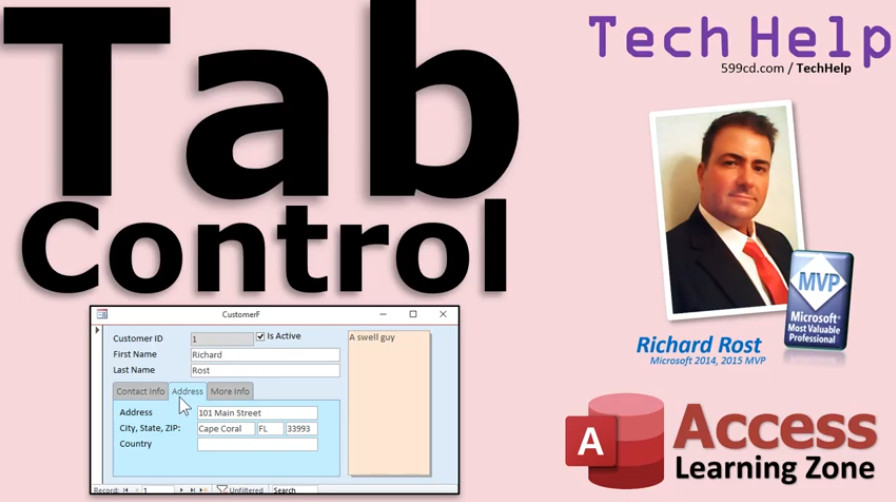
In this Microsoft Access tutorial, I will teach you how to use the Tab Control to group other controls together on your forms.
Lacey from Laredo TX (Access Beginner Student since 2019) asks: I have a lot of controls on my form. How can I use a Tab Control to organize them? You don't talk about them a lot in your classes.
William from Loganville GA (a Gold Member) asks: is there a way to change the background colors of a Tab Control?
Members
I'll show you how to change the background color of those tabs so they can each be unique using VBA code.
Silver Members and up get access to view Extended Cut videos, when available. Gold Members can download the files from class plus get access to the Code Vault. If you're not a member, Join Today!
 Links Links
ABCD Database: https://599cd.com/ABCD
 Subscribe to Tab Control
Get notifications when this page is updated
More InformationTranscript Welcome to another TechHelp video brought to you by AccessLearningZone.com. I am your instructor, Richard Rost. In today's video, I am going to show you how to use the tab control to group multiple controls together under different tabs on your forms.
This way, if you've got lots and lots of different controls, you can group them together. Today we have our first-ever double question. This happens from time to time. I get several people asking me about the same thing. I have a huge folder of about 500 different questions that people have sent me over the past couple of months since I started doing these TechHelp videos.
One of my Gold members sent me a slightly different question that's related to this topic. We are going to cover part one of this in the regular TechHelp video and then part two in the extended cut.
This video is about Lacey's question. Lacey from Laredo, Texas says, "I have a lot of controls on my form. How can I use a tab control to organize them? You don't talk about them a lot in your classes."
No Lacey, there is a reason why I really don't like tab controls. You can use tab controls to group other controls together on tabs inside your form. They have some problems, but when they were first added to Microsoft Access, I think back in 2003, I just did not like them. They were not implemented very well. There were lots of bugs, and programming for them was very difficult and clunky. I just got a bad taste for them in my mouth back then, so I really have not used them much.
But in this video, I am going to show you how to use them if you want to learn how to organize your controls on different tabs.
Part two of this question is from William in Loganville, Georgia, one of my Gold members. William wants to know if there is a way to change the background colors of the tab control. One of the things I do not like about the tabs is there is no way to change the background color for each of the different tabs. Once you add a control, all of the tabs have to have the same background color unless you change them with VBA code, and I will cover that in the extended cut.
But first, let's get back to Lacey's question. How do we use the tab control to organize our different fields? Let's go to the database. This is my free blank customer template. You can download your copy if you want to from my website. Click down below in the description under the Additional Resources section for the free blank customer template.
Let's go ahead and open this up. It's a real simple database here. I have my customer form. Now, let's say you want to make this customer form a little more organized. Now, there are only a handful of fields on here, but I have seen people with forms that have 30, 40, 50 fields on them, and sometimes you want to be able to group them together under tabs.
Now again, I do not often use tabs because I have generally found that if you have that many controls on your form to begin with, you might want to start thinking about breaking those up into multiple forms or using different tables because you might have a lot of extraneous data that does not have to be on your customer table, for example. But anyway, tabs are not that bad for the beginner user. If you are a beginner at Access and you want a simple way to group your controls together, that's fine. It is only when you really get into more advanced VBA programming that tabs start to become a pain.
Let's go into design view. I will show you how to use them here. Let's make this form a little bit bigger. Give us some room here. I am just going to slide this down. We will put the tabs down here in the library. I will go to the design on my ribbon up here and find the tab control. It is this guy right there, tab control. Click on it and draw a nice big box down here.
Now what you have here is a tab control, this outer thing. If I double click on that box, it brings up the property sheet. It makes it a little easier to understand here. Tab control 26. I do not like tab control 26. Let's just call that tab control. We are only going to have one on my form. That is the tab control. I do not need the 26.
Inside that tab control, there are additional pages. Each one of these is kind of hard to click on. That is another one of my problems with the tab control. You can't just click here in the middle of it. It is kind of weird. To get the whole thing you have to click on this box around it; that's the tab control itself. The individual pages inside, you have to kind of click on that box there. They then switch over to page 28, page 27, and so on. Again, I do not like these "page 27" and "page 28." We are going to give these individual names.
Let's start off by putting the customer's address on this first tab. If you have the fields already on the form here, you can just simply click and drag a box that touches all of them to select them. Cut them out: Control-X. Click on the page you want them to go on. Not the control itself, but on the page; you have that little box and then paste: Control-V. There you go. These guys have been pasted inside of this control.
If you move it, you'll see they should all move together. Watch here. Click and drag. They all move together. If you do not do that exactly right, you cannot just click and drag from out here and drop it there. See, it is behind there now. You didn't do it right. I will undo that: Control-Z. You have to cut it and paste it in here.
You can drag things off the existing field list. If I grab email off of here and drag it and drop it, it will drop in there. That does work. If your fields are already on the form, you have to cut them and paste them.
Let's give this guy a name instead of "page 27." Again, bring up the properties: right-click, properties. That is another thing I do not like. You cannot double-click there and get the properties. There are all kinds of little nuances with these tabs. I just do not like them.
Let's call page 27 "address tab." We will give it a caption. The caption actually displays on that tab: "address." Let's go over to page 28. Click on that. This will be the more info tab. More info, like that. Let's take this stuff over here. Cut it out: Control-X. Click in here. Again, you cannot click just anywhere. You have to click there. I missed it again. Click and paste. Once it's in here, you can move it around. Select the other stuff. I just do not like it.
Let's get it lined up. Good enough. I have got these guys. Let's see if I can grab that, slide it up here. You can add as many tabs as you want to. There are some properties, some colors in here you can set, for example. Here is the background color right here. Change this to, let's say, light purple. Now that is the background color of the tab itself. See that?
Go back here. Where's background color? All right. Now you have got hover color. That is the one that you are hovering over. I will change that to yellow. You can't really see that unless you go... Let's save this. I come back here. See now as I hover over it? It doesn't work every time. Again, another thing I do not like about tabs is they have these little inconsistent bugs. Watch as I hover over it and it works. Then I come down here and it doesn't turn off. Now it does. Then I go back over it. Now it's not working again. There are so many little tiny bugs with tabs that I do not like.
Access Design Team guys, if anyone is watching this, you need to fix tabs. Lots of people ask me about tabs.
That is what the hover color is. Then there is the pressed color. This guy right here. That is the tab that is pressed. Let's make that light blue. See what that does? That changed that whole back thing. That is what you have to change with VBA code if you want to give unique colors to these things. I do not really like that color. Let's give it a different one. Let's give it like pressed color. Let's go to more colors and go really light blue like that. There we go. That looks a little better. All right. Close it. Save it. Yes. Open it back up. There you go.
That is how you can arrange these guys into tabs. You just cut these out, paste them inside of here. You have to be very careful where you're clicking though. Make sure that you do not do something like this. Just click here, then drag this guy and do that, because now he is stuck behind there. You cannot easily move this. See, it's just clunky. It's not very elegant. I do not particularly like tabs.
If you want to add more tabs, just right-click here and go Insert Page. They are called pages, remember.
We can call this one... Open up the properties for it, double-click. Let's call this the "contact tab." Contact info. That can be his email address and phone number. We will cut those out, click down here, and paste. So there is a contact info tab.
Let's say we add another one: Insert Page. Then later on, we decide we do not want that. So you can right-click, Delete Page. There is Page Order; right-click, there is a thing here called Page Order where you can rearrange these if you want contact info first. Move that up there, and now that shows up over here.
They're not bad. They're just quirky. Personally, I like to use embedded subforms. I like to make one subform here, then just change the subform control. You get much more control over subforms. You can change which form appears in that subform control. I use that technique in my ABCD database.
Here is my ABCD. It's currently under construction. But if I open up my account here, see, this looks like a tab control on its side, but these are actually different subforms. These links over here change which subform appears in there. You need a lot more control over it, and I think this is a much more elegant solution than tabs. Tabs are OK for the novice user, the new user. But again, one of the things I do not like is you cannot change that background color for each individual tab. Like Excel sheets, you can give each tab a different color, and you can kind of change the background of the cell so that, for example, this one is green, this one is red. You can't do that with these.
Tabs are great for looking up information. For example, if you pull up this customer and you want to just quickly see their address, that's great. But typing information in is kind of weird too because the tab order... if I go here and I hit Tab, it just jumps out of the tab order. Or if you're inside here: click, click, tab, tab, tab, tab. It jumps out here instead of going to the next tab. It's weird.
Let's see, contact info. Yes, see, and each one of these pages in here has its own tab order. If you click on this page and go to Tab Order, now you have the tab order for this page. Auto order those, hit OK. Then you have to go to Address, go to Tab Order, auto order those, those are fine. Go to More Info, Tab Order, auto order those. Then the overall page now shows these; auto order those and put the tab controls where you want them. Here it's going to go custom-ready, then over to isactive, maybe put that last. First name, last name, then the tab control, then notes, then the tab control. Let's save that.
So if I go tab, tab, tab, tab, it jumps down here, tab, tab, tab, and it comes up here now. Instead of going to the address tab, to get between the tabs with the keyboard, you have to hit Control-Tab. So now you have to teach your users that. Finish this stuff and before you leave it, Control-Tab. It is just clunky and quirky. I know I am complaining a lot, but I really do not like tabs. But people want to learn how to use them, so I am honor bound to show you how to use them.
Another thing with tabs is you cannot nest tabs inside of each other. With subforms, you can have subforms nested inside of other subforms, which is kind of neat. This is OK for a pretty small amount of information, but if you have tons and tons of it, for example 50, 60, 100 controls on a form, you really should start to look at breaking that table up into multiple tables. Then you can use either subforms in your main form or another solution. But I see people with these forms that have 100 controls on them. It's crazy.
So that is the basics of how to use the tab control to group your controls. Now we are going to go into the extended cut for the members, and I am going to show you how to change that background color of each tab separately so you have a separate background using some VBA code. Here it is, the extended cut for the different colors there. Here is the database: click, click, and the colors change based on which tab you select. That is covered in the extended cut for Silver Members and up.
How do you become a member? Click on the Join button below the video. Silver Members and up will get access to all of my extended cut TechHelp videos, live video and chat sessions, and other perks. After you click the Join button, you will see a list of all the different membership levels that are available, each with its own special perks.
But don't worry, these TechHelp videos are going to keep coming. As long as you keep watching them, I will keep making more, and they will always be free. Intro In this video, I will show you how to use the tab control in Microsoft Access to organize multiple controls on your forms by grouping them under different tabs. We will look at how to add a tab control, move existing fields into separate tabs, rename tabs, adjust their order, and set basic properties like background, hover, and pressed colors. I will also discuss some of the quirks and limitations of tab controls and offer alternative approaches to organizing complex forms. Quiz Q1. What is the main purpose of using a tab control on a form in Microsoft Access?
A. To allow navigation between multiple databases
B. To group multiple controls together under different tabs
C. To encrypt fields on a form
D. To create automatic reports
Q2. According to Richard, what is one reason he does not frequently use tab controls?
A. They are not available in Access
B. They are too difficult for beginners
C. They can be buggy and awkward to program for
D. They cannot be resized
Q3. In the video, how do you move existing fields from a form onto a tab page?
A. Drag them onto the tab control directly
B. Right-click and select Move to Tab
C. Cut them with Control-X, click on the tab page, then paste with Control-V
D. Double-click the field to send it to the tab
Q4. What must you be careful about when pasting controls onto a tab page?
A. You must paste outside the tab area
B. You must click exactly on the correct tab page before pasting
C. You must lock the tab control first
D. You must delete all other controls first
Q5. How can you change the caption that appears on a tab page?
A. Through the tab control's font settings
B. By renaming the Access database
C. By setting the Caption property of the tab page in its properties
D. By editing the Table design
Q6. If you want to add a new tab page, what action should you take?
A. Click "Insert Field" on the ribbon
B. Right-click on a tab and select "Insert Page"
C. Press Control-T while on the form
D. Double-click the tab control border
Q7. What is one thing you CANNOT do with standard Access tab controls without VBA code?
A. Change the background color of the tab pages individually
B. Delete an entire tab control
C. Change the tab order within a page
D. Remove controls from a tab
Q8. What keyboard shortcut does Richard mention to switch between tabs while filling out a form?
A. Alt-Tab
B. Shift-Tab
C. Control-Tab
D. Shift-Enter
Q9. What alternative does Richard prefer over tab controls for grouping form information in advanced access databases?
A. Using embedded subforms and switching them
B. Adding more fields to the main table
C. Creating multiple separate forms for each tab
D. Hiding fields until needed
Q10. Which of the following is TRUE about naming tab controls and pages?
A. You must keep the default names like Page 27
B. You can rename both the tab control itself and each individual page
C. You cannot change the names once created
D. Only the tab control, not the pages, can be renamed
Q11. What does Richard say about using tab controls in forms with a very large number of controls (like 50 or more)?
A. Tab controls are the best way to manage large forms
B. You should not use tabs at all on such large forms
C. You might want to consider breaking the form into multiple forms or tables
D. You should nest multiple tab controls inside each other
Q12. How does the "hover color" property work for a tab page in Access?
A. It changes the form's background color
B. It changes the tab color when you hover the mouse over it
C. It changes the color of every control
D. It does nothing in Access
Q13. What is a limitation of tab controls when customizing their appearance, according to the video?
A. You cannot add more than four tabs
B. You cannot change the pressed color
C. You cannot assign unique background colors to each tab without VBA
D. You cannot rename the tab captions
Q14. What must you do to set the tab order for controls within a tab page?
A. Use the main form's Tab Order only
B. Set the Tab Order separately for each tab page
C. It is not possible to change the tab order
D. Sort controls by name alphabetically
Q15. What is NOT possible with standard tab controls in Access, as mentioned in the video?
A. Adding a new tab page
B. Deleting an existing tab page
C. Nesting one tab control inside another
D. Renaming a tab page
Answers: 1-B; 2-C; 3-C; 4-B; 5-C; 6-B; 7-A; 8-C; 9-A; 10-B; 11-C; 12-B; 13-C; 14-B; 15-C
DISCLAIMER: Quiz questions are AI generated. If you find any that are wrong, don't make sense, or aren't related to the video topic at hand, then please post a comment and let me know. Thanks. Summary Today's video from Access Learning Zone focuses on how to use the tab control in Microsoft Access in order to group multiple controls together under separate tabs on your forms. If you often find yourself with forms that have a large number of fields or controls, tab controls allow you to group them together and organize them more efficiently.
It's not uncommon to receive similar questions from multiple students, and today I am addressing one such scenario. Lacey asked how to use a tab control to tidy up a form that has lots of controls. Although I don't cover tab controls extensively in my courses, I'll explain today how to put them to use.
I will also be touching on a related question from William, who is curious about changing the background colors of tab controls. While that particular aspect, including using VBA to provide different background colors for each tab, is covered in detail in the Extended Cut for members, this main tutorial will focus on the basics of setting up and managing tab controls on your forms.
Let me first explain why you might not hear much about tab controls from me. When Microsoft first introduced these to Access back in 2003, I found them to be poorly implemented, filled with bugs, and generally difficult to work with—especially when it came to programming. As a result, I developed a dislike for them. That said, for beginner-level organization and basic grouping of form controls, they can still be useful.
To get started, I'll use the free blank customer template available on my website. This sample database keeps things straightforward. Imagine you want your form—perhaps with just a few fields in this example, or maybe 30, 40, or even 50 fields in your real-world database—to be more organized. That's a situation where you might reach for a tab control.
It's important to remember, though, that if your form is getting so overwhelming, it might be a sign that your table design could use reevaluation. Excessive numbers of fields often mean you need to consider breaking information into different tables and forms. As a simple way for new Access users to group fields, however, tabs get the job done, at least up to a point.
Switching to Design View, the first step is to make space on your form and insert the tab control. You find the tab control on the design tab in the ribbon. Once you draw it onto your form, you'll notice the main tab control shell along with a set of pages inside it. I always recommend naming your controls and tab pages something meaningful instead of the default names like "tab control 26" or "page 27" to keep your work organized.
Suppose you want to move your address fields onto the first tab. If those fields are already present on your form, select them all, cut, and then click directly on the desired tab page before pasting. If you don't paste them into the page area itself, you may accidentally drop them behind the tab control, which is a common and frustrating issue to avoid. If you need new fields, you can drag them from the field list directly onto the desired tab page.
Naming each page helps both with clarity and navigation. For example, you might rename "page 27" to "address tab" and update the caption to simply "Address." For the next page, perhaps "More Info," you can move over a different set of fields in a similar fashion. If you want to rearrange fields or add more tabs, the process is quite straightforward after you get the hang of where to click and paste.
Tab controls do have some basic customization options. You can change the overall background color, hover color, and pressed color, but these apply to the entire control or all tabs rather than allowing distinct colors per tab (unless you use VBA, which I demonstrate in the Extended Cut). These color settings can be inconsistent and a little buggy, sometimes failing to update properly, which is another concern with relying heavily on tab controls.
To add new tabs, right-click on an existing tab page and insert a new page. Each tab can be renamed and filled with its own set of fields. You're also able to reorder and remove pages as necessary. However, there are a number of limitations. For one, I generally prefer to use subforms for improved control and flexibility, something I use extensively in my ABCD database. Subforms allow for better customization, easier navigation, and greater scalability—especially if your data structure grows more complex than what simple tabs can handle.
There are a few more quirks with tab controls to keep in mind. For instance, you can't have nested tab controls, but you can nest subforms as deeply as you need. Tab order setup within and among pages also requires extra attention, and users must use Control-Tab to move between tabs using the keyboard, which is not very intuitive for end users. Editing the tab order inside each individual tab page, in the overall form, or as you add and reorganize fields all take a few extra steps.
Another point of frustration is the inability to set different background colors for each tab much like you would individual worksheet tabs in Excel. For someone looking for colorful distinctions, this is a significant limitation unless you delve into VBA.
In summary, while tab controls can provide a basic way to organize fields and controls on your forms, especially for simple databases or newer Access users, there are a number of quirks and shortcomings. If organization and appearance are crucial, or if you need more advanced capabilities, I recommend investigating subforms or reconsidering your table design for better long-term results.
For members interested in advanced formatting, in today's Extended Cut, I will cover how to use VBA to change the background color of each tab individually based on which is currently selected. This provides a more customized experience for your users. You can find the complete video tutorial with step-by-step instructions, covering everything discussed here, on my website at the link below.
Live long and prosper, my friends. Topic List Adding a tab control to an Access form
Renaming the tab control and tab pages
Moving existing controls into tab pages
Adding new fields from the field list to tabs
Setting captions for tab pages
Changing tab background, hover, and pressed colors
Reordering tab pages using Page Order
Deleting tab pages
Arranging controls within tab pages
Tab order management within and across tabs
Keyboard navigation with tab controls
Limitations and quirks of the tab control
Comparison of tab controls with subforms
Nesting limitations of tab controls
Recommendations for organizing large forms Primary Topics Microsoft Access forms, tab control, organizing controls, form design, user interface layout, control grouping
Secondary Topics subforms vs tab control, tab control limitations, tab order management, Access form properties
|




